


 Video Converter Ultimate
 Skärminspelare
 Video reparation
 Säker nedladdning
Lär dig hur du gör en bild tydligare med dessa enkla metoder
När du tar en bild som visar sig bli suddig betraktas det som ett fel. Och det är mycket otillfredsställande att ha en suddig bild. Som tur är finns det numera mängder av program som kan hjälpa dig att skärpa och göra bilden mindre suddig. Adobe Photoshop är ett av de mest kända programmen för fotoredigering. Det är dock inte särskilt nybörjarvänligt. Därför presenterar vi enklare metoder du kan använda för att ge din suddiga bild utmärkt kvalitet. Läs texten nedan för att lära dig hur man gör en bild tydligare med enkla steg.

Del 1. Hur man gör en bild tydligare online
Med användning av AI-teknik finns det nu många online bilduppskalare som kan skärpa din bild automatiskt. Att använda onlineappar för att göra din bild tydligare är bekvämt eftersom du inte behöver ladda ner något på din enhet. Det kommer också att spara lagringsutrymme på din enhet eftersom du kan komma åt det i din webbläsare.
FVC Free Image Upscaler är det mest välkända onlineverktyget om du vill skärpa eller göra din bild tydligare. Detta verktyg är lätt att använda eftersom det har ett mycket enkelt användargränssnitt. Dessutom kan du förbättra kvaliteten på din bild med 2x, 4x, 6x och 8x förstoring. FVC Free Image Upscaler använder också AI‑teknik (artificiell intelligens) som automatiskt upptäcker de suddiga delarna av din bild och förbättrar dem. Det gör att du exakt kan återställa förlorade pixlar, färgtexturer och fler detaljer.
Dessutom stöder den flera bildformat, som PNG, JPG, JPEG och WebP. Och det som till och med är bra med detta onlineverktyg är att du inte behöver några konton för att komma åt det. Det är också gratis att använda och säkert att använda. Och trots att det är en onlineapp innehåller den inga irriterande annonser som kan distrahera dig, och den är snabb och effektiv att använda. Så om du letar efter ett bekvämt verktyg är FVC Free Image Upscaler det bästa verktyget.
Hur man gör en bild tydligare online med FVC Free Image Upscaler:
Steg 1. Öppna din webbläsare på datorn och sök efter FVC Free Image Upscaler i sökrutan. Eller klicka på den angivna länken för att gå direkt till appens huvudsida. Klicka på knappen Upload Photo för att starta appen.
Steg 2.0 När appen har startats klickar du på Upload Photo igen för att lägga till bilden du vill förstora/skärpa. Dina datorfiler öppnas, där du letar upp din bild och öppnar den.

Steg 3. Välj sedan den magnification-förinställning du föredrar. Ju högre förstoring, desto skarpare blir din bild. Men tänk på att filstorleken också ökar när kvaliteten höjs. Du kan välja magnification mellan 2x, 4x, 6x och 8x.
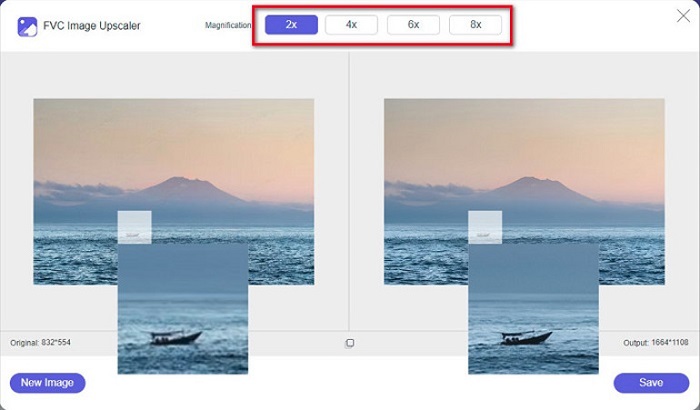
Steg 4. Du ser resultatet på höger sida av gränssnittet. Om du är nöjd med resultatet klickar du på knappen Save för att spara din bild på enheten.
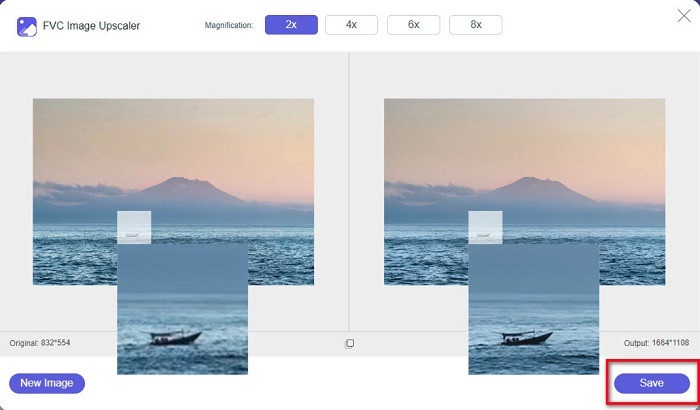
Vänta bara på att din bild ska sparas, och voila! Du kan nu dela ditt fantastiska foto med vänner eller på andra sociala medieplattformar.
Del 2. Hur man gör en bild tydligare offline
Det är också bra att använda en offlineapplikation när du vill skärpa eller redigera din bild. Många fotoredigeringsapplikationer är offline; du måste köpa dem innan du använder dem. Men oroa dig inte; i den här delen kommer vi att tillhandahålla ett gratis offlineverktyg som du kan använda på ditt skrivbord.
Paint.net är ett av de mest använda programmen för fotoredigering som är gratis och säkert att använda. Detta offlineverktyg har ett enklare användargränssnitt än Adobe Photoshop, som många proffs använder. Trots sitt enkla gränssnitt kan det ändå ge utmärkta resultat och låter dig skärpa en suddig bild. Dessutom har det andra redigeringsfunktioner som kan hjälpa dig att förbättra din bild. Med Paint.net kan du skärpa, färgkorrigera och lägga till bakgrund i din bild.
Genom att flytta reglaget kan du dessutom välja skärpan på din bild och ta bort de suddiga delarna av den. Det är dock bara tillgängligt på Windows-enheter. Men om du vill göra en bild större medan du skärper den kan du använda Paint.net.
Så här gör du en bild större och tydligare med Paint.net:
Steg 1. Ladda först ned och installera Paint.net på din dator och öppna programmet när installationen är klar. Ladda sedan upp din bild genom att klicka på File > Open.
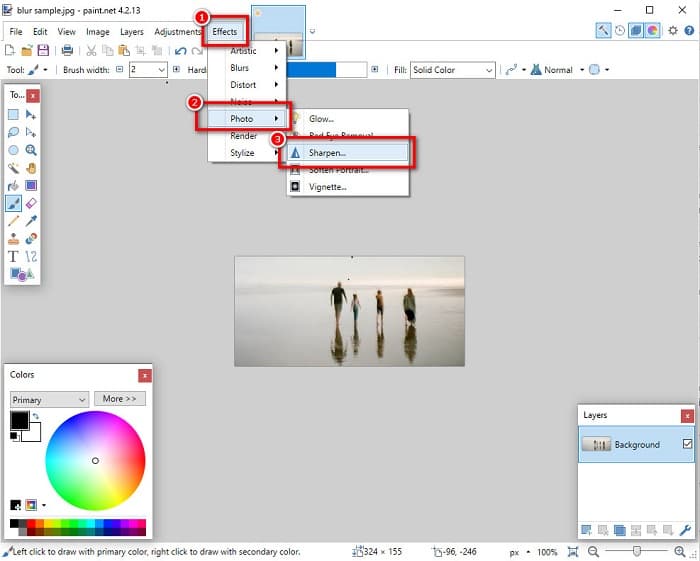
Steg 2. Gå sedan till Effects > Photo > Sharpen. En ny flik visas där du justerar skärpan i bilden för att göra den mindre suddig.
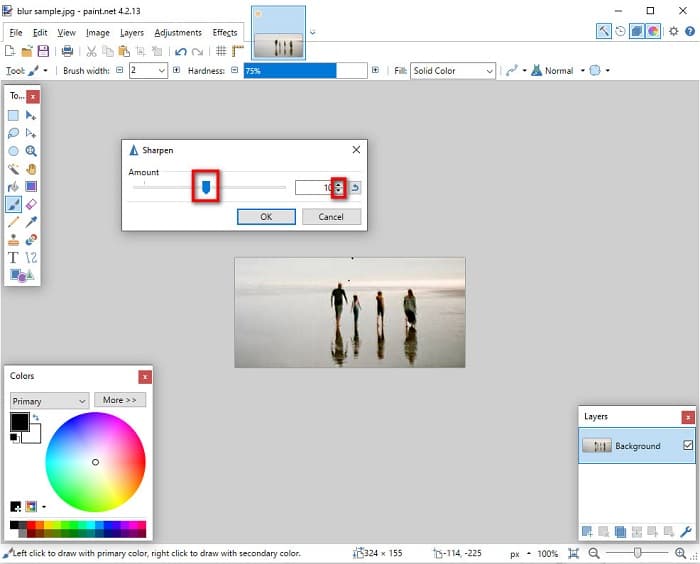
Steg 3. På fliken Sharpen flyttar du reglaget för att välja önskad skärpa i bilden. Du kan också klicka på upp/ned‑pilen för att ange skärpemängden numeriskt.
Steg 4. Klicka slutligen på knappen OK och gå till File > Save för att spara ditt resultat på datorn.
Del 3. Hur man gör en bild tydligare på din iPhone
Och om du har en suddig bild som tagits med din iPhone, kan du också använda en suddighetsapp för din iPhone-enhet. Många bildredigeringsappar som du kan ladda ner från AppStore kan hjälpa dig att göra din bild oskarp. Alla appar är dock inte gratis att använda; du måste köpa dem innan du använder dem. Lyckligtvis hittade vi en app för suddiga bilder som är gratis att använda från AppStore. Läs hela det här avsnittet för att lära dig hur du gör en bild tydligare på din iPhone-enhet.
Om du undrar vilken gratis fotoapp som kan hjälpa dig att ta bort oskärpa i en bild, är VSCO appen du letar efter. VSCO är en välkänd fotoredigeringsapp som kan laddas ned från App Store. När du gör en bild skarpare i VSCO finns det dessutom vissa inställningar du behöver fokusera på. För att minska oskärpan i din bild med VSCO måste du justera bildens klarhet, skärpa, klarhet och exponering. VSCO har också andra redigeringsverktyg som du kan använda för att redigera dina bilder. Vidare stöder appen iPhones vanligaste bildformat, som HEIC och HEIF. En liten nackdel med appen är att den endast stöder ett fåtal bildformat och att du måste köpa den för att använda vissa av de andra redigeringsfunktionerna.
Så här gör du en bild tydligare på iPhone med VSCO:
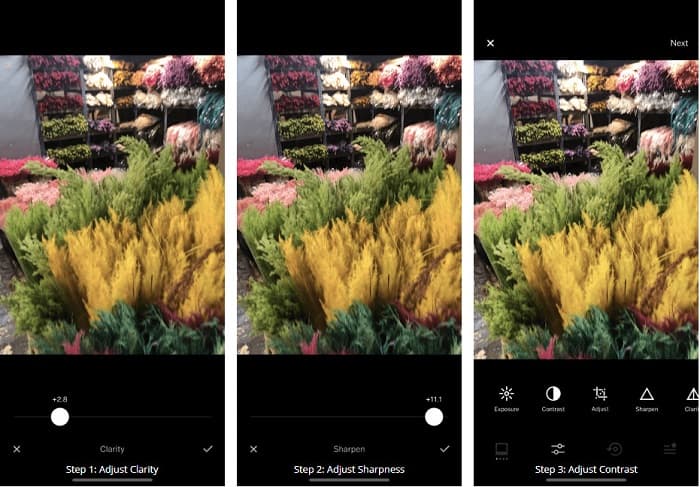
Steg 1. Installera VSCO från App Store och öppna sedan appen på din iPhone.
Steg 2. Öppna din bild och gå till Clarity. Alternativet Clarity hjälper dig att ta bort storskaligt brus i bilden. Flytta bara Clarity-reglaget en bit nedanför gränssnittet.
Steg 3. Därefter justerar vi skärpan i bilden. Funktionen Sharpen hjälper dig att få den krispighet du vill ha i din bild. Genom att flytta reglaget kan du välja hur skarp du vill att bilden ska vara.
Steg 4. När du är klar med att justera klarheten och skärpan i bilden går vi vidare till att justera kontrasten. Flytta alternativet Contrast och Contrast-reglaget för att välja den ljushet och mörkhet du vill ha i bilden.
Steg 5. Slutligen justerar vi nu bildens Exposure för att göra den lite ljusare. Genom att öka exponeringen i bilden kan du balansera mörkret mot kontrasten. Och det var allt! Genom att justera dessa funktioner kan du minska oskärpan i en suddig bild. Klicka här för att lära dig hur du ändrar storlek på en bild på en iPhone.
Del 4. Hur man gör en bild tydligare på din Android
Det finns även appar på Android som du kan använda för att göra en bild tydligare. Så om du vill ha en suddig bild sparad i ditt galleri kan den här appen hjälpa dig att förbättra din bild. Läs den här delen för att lära dig hur du suddar en bild på din Android-enhet.
Appen Remini (för Android) är förmodligen en av de bästa fotoapparna du kan använda på din Android-enhet. Med den här appen kan du redigera och till och med göra en suddig bild skarpare. Dessutom är den lätt att använda och gratis. Genom att använda alternativet Enhance kan du göra din bild tydligare. Du måste dock skapa ett konto innan du kan använda appen. Och i Pro‑versionen får du tillgång till appens avancerade funktioner för att ta bort oskärpa.
Så här tar du bort en bild med Remini för Android:
Steg 1. Installera Remini på din Android-enhet. Öppna appen direkt efter installationen. På appens huvudsakliga användargränssnitt trycker du på knappen Use it för att börja ta bort oskärpa i bilden.
Steg 2. Välj sedan bilden och tryck på den röda knappen längst ned i gränssnittet. Det skapar en uppgift och visar en annons under tiden den bearbetas.
Steg 3. Därefter visas slutresultatet, där du kan jämföra före och efter av din bild. Om du redan är nöjd med resultatet sparar du bilden.

Del 5. Vanliga frågor om hur man gör en bild tydligare
Kan jag använda GIMP för att sudda ut en bild?
Ja. GIMP är ett fantastiskt fotoredigeringsprogram som du kan använda för att sudda ut din bild. Du kan också ladda ner den här appen på din Windows-enhet.
Ökar filstorleken om en bild suddas ut?
Ja. Att göra en bild oskarpa innebär att kvaliteten och upplösningen på din bild höjs. När upplösningen ökar ökar också filstorleken på din bild.
Vilken app kan jag använda för att göra bilden oskarp?
YouCam Perfect är ett program som kan hjälpa dig att sudda ut din bild. Med dess AI-teknik kan du omedelbart göra din bild oskarp.
Slutsats
I den här artikeln har vi gått igenom det du behöver veta om hur man gör en bild tydligare. Så om du letar efter appar som låter dig ta bort oskärpa i en bild kommer metoderna ovan att hjälpa dig nå ditt mål. Men om du föredrar att använda ett onlineverktyg med ett lättanvänt gränssnitt, använd FVC Free Image Upscaler.
-
 Fakta översyn av PicResize du måste veta detta 2022
 Vill du veta om PicResize är det bästa alternativet för att redigera bild? Läs den här artikeln när vi granskar det övergripande verktyget.
-
 Allt du behöver veta om Waifu2x och alternativ
 Behöver du veta mer om Waifu2x? Den här artikeln ger informationen som behöver markeras i den här appen och dess alternativ.
-
 Hur man optimerar bilden för webben med de bästa lösningarna [Snabb]
 Hur optimerar man bilden för webben? Du behöver pålitlig programvara och en handledning; all information finns här.
