


 Video Converter Ultimate
 Skärminspelare
 Video reparation
 Säker nedladdning
Konvertera FLV till MP4 gratis – 5 verktyg för Windows eller Mac
FLV är ett av de standardvideoformat som används mest för nätvideor och är dessutom kompatibelt med många webbläsare. Det är dock för närvarande inte tillgängligt för mobila webbläsare och lämpar sig inte särskilt väl för att laddas upp i videoredigeringsprogram. Jämfört med detta ger MP4-formatet mindre filstorlekar och bättre kompatibilitet. När vi vill ladda upp videor till YouTube, TikTok och andra sajter rekommenderas det fortfarande att välja en MP4-behållare. Det är viktigt att förstå att du behöver Adobe Flash Player för att spela upp FLV‑videor, men det verktyget har avaktiverats. Så om du har FLV‑videor till hands, oavsett hur du ser på saken, föreslår vi att du konverterar FLV till MP4. I det följande avsnittet presenterar vi totalt fem verktyg, och vi tror att det måste finnas ett som passar dig.

Del 1. Hur man konverterar FLV till MP4 i batch på Windows/Mac
FVC Video Converter Ultimate
Vi rekommenderar först att du använder FVC Video Converter Ultimate för att konvertera FLV till MP4. Först och främst stöds upp till 1000+ in- och utdataformat på den här plattformen, och konverteringen kan göras i batch med 30 gånger snabbare effektivitet. Även om programvarans kärnfunktion är att konvertera format, slutar det aldrig där. Vi kan också använda den kompletta uppsättningen videoredigeringsverktyg som tillhandahålls för att beskära videolängden, komprimera filstorleken, ta bort bakgrundsbrus och så vidare. Observera att FVC Video Converter Ultimate ger dig fem gratis konverteringar, varefter du måste betala en extra månadsavgift för att låsa upp alla funktioner. Det är dock mycket kostnadseffektivt, och efter att ha ägt programmet kan vi lämna alla ljud-, bild- och videobehandlingsuppgifter till det.
Gratis nedladdningFör Windows 7 eller senareSäker nedladdning
Gratis nedladdningFör MacOS 10.7 eller senareSäker nedladdning
Så här konverterar du FLV till MP4 utan att förlora kvalitet med FVC Video Converter Ultimate.
Steg 1: Ladda ner och installera FVC Video Converter Ultimate på din dator. När du öppnar programmet kommer du till gränssnittet Converter. Klicka på Add Files och välj din FLV‑fil.

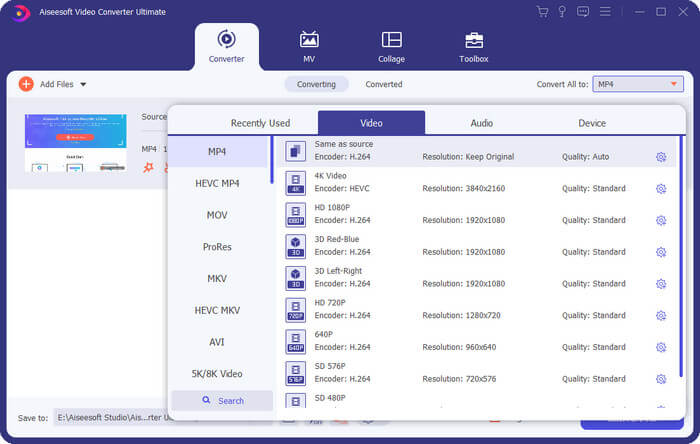
Steg 2: När videon har lästs in kan du klicka på Convert All to och sedan på Video > MP4. Det finns flera alternativ med olika upplösningar och bithastigheter. Välj det som passar dina behov.
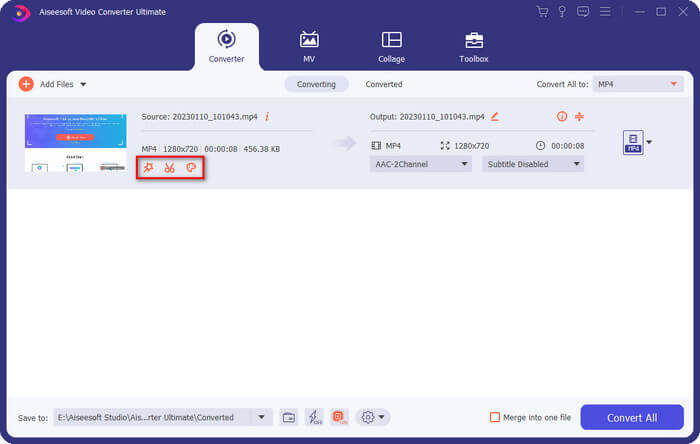
Innan du exporterar resultatet kan du redigera videon genom att klicka på Cut.
Steg 3: När du är klar med redigeringen klickar du på Convert All för att börja konvertera formatet FLV till MP4.
Del 2. Hur man konverterar FLV till MP4 gratis med VLC
Oavsett om du använder Windows, Mac eller Linux är VLC Media Player en användbar FLV till MP4-konverterare. Den är helt gratis och har funnits på marknaden länge. Den är också garanterat 100%-säker.
Så här konverterar du FLV till MP4 med VLC Media Player.
Steg 1: Ladda ner och installera den senaste versionen av VLC Media Player på din dator.
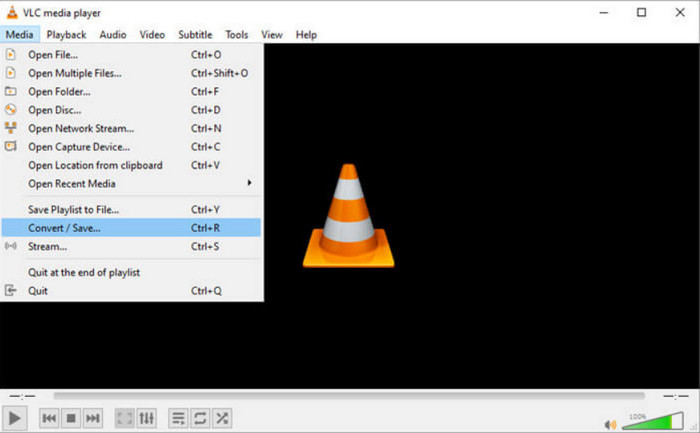
Öppna huvudgränssnittet och klicka på Media > Convert/Save.
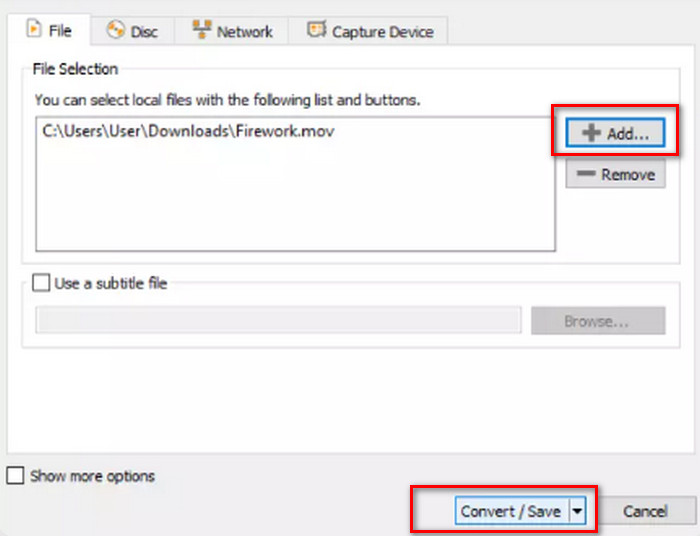
Steg 2: När du öppnar det nya fönstret väljer du File och klickar på +Add för att ladda upp din FLV‑fil. Klicka sedan på knappen Convert/Save nere i högra hörnet.
Steg 3: Nu kommer du till ett annat fönster. Gå till Profile och välj Video - H.264 + MP3 (MP4) som utmatningsversion.
Steg 4: Klicka på Start.
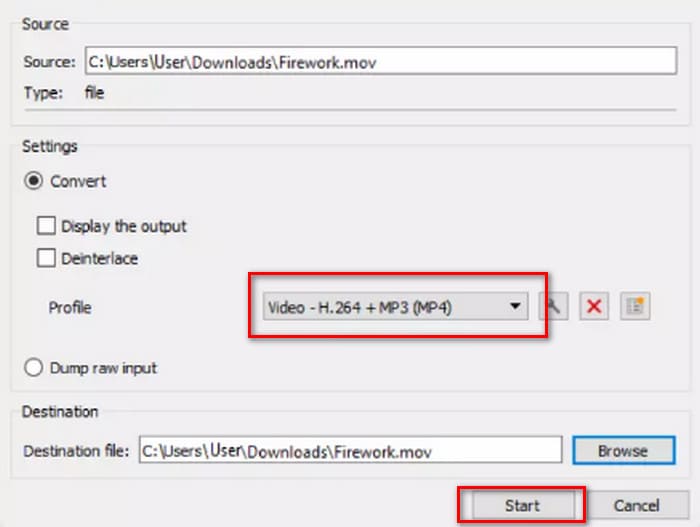
Även om VLC Media Player är gratis och har öppen källkod, är dess gränssnitt inte särskilt snyggt. Jämfört med professionella konverterare är knapparna för att ladda upp filer och konvertera inte särskilt uppenbara. Och eftersom det bara är en multimediaspelare har den färre videoredigeringsfunktioner.
Del 3. Hur man konverterar FLV till MP4 utan att förlora kvalitet via FFepeg
FFmpeg är gratis skrivbordsprogramvara för redigering och konvertering av ljud- och videofiler. Den har inte de vanliga knapparna eller alternativen för uppladdning, förhandsgranskning och inställning av utdataformat utan körs helt på kod. Vi kan hitta kodmallar för varje operation på webben. Vi måste förbereda lagringssökvägen för källfilen och lagringssökvägen för den konverterade filen och sedan fylla i dem i mallen.
Så här konverterar du FLV till MP4 med FFmpeg.
Steg 1: Ladda ner och installera FFmpeg på din dator. Starta detta verktyg via Command Prompt.
Steg 2: Skriv in cd och cd FFmpegTool. Skriv sedan cd bin och kör ffmpeg.exe.
Steg 3: Förbered kommandot du ska använda för att överföra FLV till MP4. Mallen är följande.
ffmpeg -i video.flv -c:v libx264 outputfilename.mp4
Fyll i i video.flv med sökvägen till din källfil och skriv sedan in exportfilens namn i outputfilename.mp4.
Steg 4: Skriv in kommandot i FFmpeg och tryck på Enter på tangentbordet. Konverteringsprocessen startar.
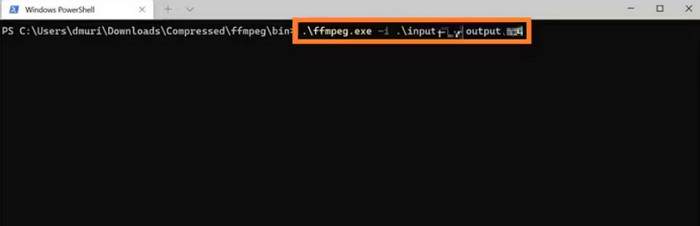
FFmpeg är anpassningsbar och tjänsten är gratis, men gränssnittet är verkligen ovanligt. Att installera det på datorn är redan ett krångel, och att förbereda koden för att passa är ännu svårare. Användare som inte är särskilt erfarna av att använda kod kommer att känna sig ovetande om hur man använder det.
Del 4. Hur man ändrar FLV till MP4 online
Alla tre av dessa verktyg måste laddas ner och installeras. Om vi har brådskande konverteringsuppgifter eller vill spara mer lagringsutrymme för oss själva är onlineplattformen det bästa valet. I den här delen kommer vi att välja ut två online-konverterare för FLV till MP4, och förutom att visa stegen för att använda dem kommer vi också ärligt att berätta om de problem de kan ha.
FVC gratis videokonverterare online
Alla tre av dessa verktyg måste laddas ner och installeras. Om vi har brådskande konverteringsuppgifter eller vill spara mer lagringsutrymme är onlineplattformen det bästa valet. I den här delen kommer vi att välja ut två online-konverterare för FLV till MP4, och förutom att visa stegen för att använda dem kommer vi också ärligt att berätta om eventuella problem de kan ha.
Videokonverterare online.
Så här konverterar du FLV till MP4 online med FVC Free Video Converter Online.
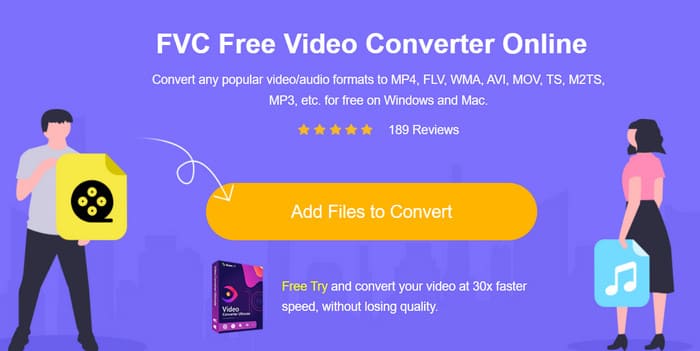
Steg 1: Öppna FVC Free Video Converter Online i din webbläsare. Klicka på Add Files to Convert och välj din FLV‑fil.
Steg 2: På den nedersta raden på sidan ställer du in MP4 som utdataformat. Om du vill justera din uppladdade video klickar du på ikonen Settings.
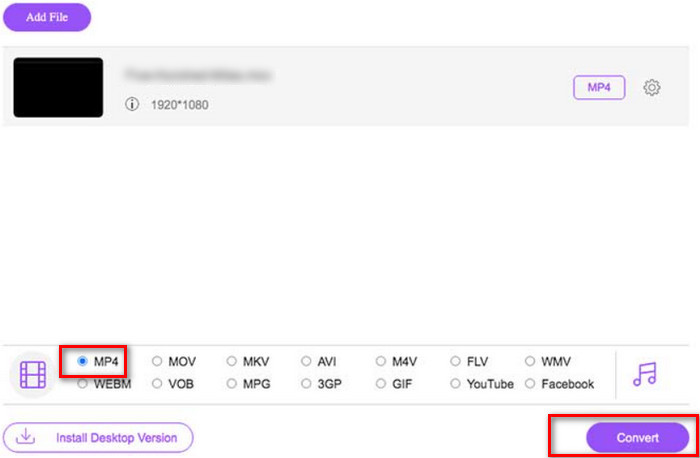
Steg 3: Klicka slutligen på Convert. När processen är klar kan du ladda ner MP4‑videon till din dator.
FVC Free Video Converter Online är redan perfekt jämfört med traditionella online-konverterare, men den stöder inte förhandsgranskning av resultat mellan utdatafiler. Jämfört med skrivbordsprogramvaran FVC Video Converter Ultimate är dess redigeringsfunktioner fortfarande lite färre, men detta är ett vanligt problem med online-konverterare, så vi kan inte vara för krävande.
Cloudconvert
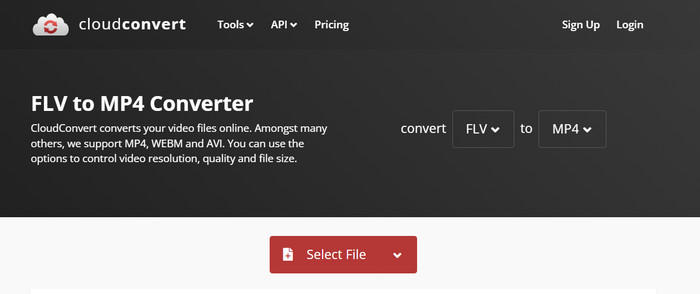
En annan onlinekonverterare vi vill rekommendera är Cloudconvert. Det enkla gränssnittet gör den mycket omtyckt. Under konverteringsknappen hittar vi många knappar för att justera videoparametrarna. Ljudet och undertexterna i de uppladdade filerna kan också redigeras fritt. Om du vill lägga en personlig logotyp på din video kan du också ladda upp en bild som referens för att lägga till en vattenstämpel i videon.
Så här gör du om FLV till MP4 med Cloudconvert.
Steg 1: Öppna Cloudconvert FLV to MP4‑konverteraren i din webbläsare.
Klicka på Select File för att ladda upp din FLV‑fil.
Steg 2: Skrolla ner på sidan för att redigera videons parametrar, ljud, undertexter eller vattenstämpel. Klicka sedan på Convert.
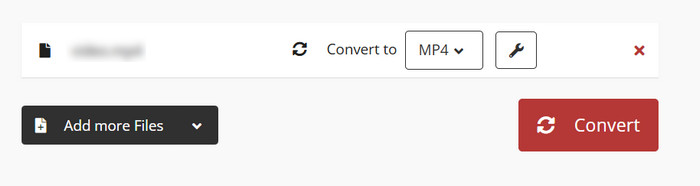
Oavsett vilket av de två formaten du vill konvertera mellan, visar Cloudconvert detaljerade beskrivningar av båda formaten på webbsidan, tillräckligt för att du ska förstå dem helt utan att behöva göra ytterligare research. Det måste dock sägas att Cloudconvert inte är lämpligt att använda för långa videor och det kan fastna i processen.
Del 5. Vanliga frågor om att konvertera FLV till MP4
Hur öppnar jag en .FLV-fil?
Vi rekommenderar VLC Media Player och Adobe Animate. Båda FLV‑videospelarna fungerar bra. Om spelaren du använder inte stöder FLV kan du också överväga att konvertera det till ett annat format.
Är FLV föråldrad?
FLV användes flitigt när Adobe Flash Player var populärt. Men i och med att Flash överges är FLVs status sämre än andra format.
Är FLV bättre än MP4?
Nej, MP4 är det bättre alternativet. Det har effektivare komprimering och bredare kompatibilitet. MP4 ger inte heller dålig bildkvalitet eftersom det alltid hittar en bra balans mellan kvalitet och storlek.
Del 6. Slutsats
I den här artikeln får du lära känna fem verktyg som kan konvertera FLV till MP4. VLC Media Player är gratis, men har väldigt få videoredigeringsfunktioner; FFmpeg är inte lätt att använda och du måste förbereda koderna; onlinetjänsten är snabb att komma igång med, men är starkt beroende av internetanslutningen och börjar lätt lagga när du arbetar med långa videor. Med allt detta i åtanke är FVC Video Converter Ultimate den perfekta assistenten.
-
 4 100% Arbetsmetoder för att konvertera FLV-videofiler till MP3-format
 Hur konverterar man en FLV till en MP3-fil? Den här artikeln är här för dig. Hitta din favoritmetod och följ guiden för att få det du vill ha.
-
 MP4 till FLV | Topp 3 gratis omvandlare (online / Mac / Windows)
 Det här inlägget är en detaljerad guide till MP4 till FLV-konvertering. Ta de tre bästa gratiskonverterarna för att enkelt ändra MP4 till FLV online, på Windows eller Mac-datorer.
-
 Topp 10 FLV-spelare för Windows, Mac, iOS och Android 2025
 FLV-spelare hjälper dig enkelt att komma åt dina FLV-filer på din Windows-, Mac-, Android-, iOS-enhet. Kolla in de bästa FLV-filspelarna du kan ladda ner just nu.

