


 Video Converter Ultimate
 Skärminspelare
 Video reparation
 Säker nedladdning
Hur man konverterar och laddar upp alla FLV-videofiler till YouTube
“Jag har precis laddat upp en videofil med filändelsen .flv, men jag fick ett varningsmeddelande om ogiltigt filformat. Hur ska jag göra för att ladda upp FLV till YouTube?” FLV är inte bara en filändelse, utan också en videobehållare. Det betyder att en FLV‑videofil kan lagra olika video- och ljudkodekar och vissa av dem stöds inte av YouTube. Den här artikeln berättar allt du behöver veta om hur du laddar upp FLV till YouTube utan problem.

Del 1: Vilka video- och ljudkodekar YouTube stöder
Enligt Google föredrar YouTube sändningsformat såväl som DVD-kompatibla MPEG-2-strömmar med .mpg-tillägg. De codecs som stöds av YouTube inkluderar:
- MPEG-2
- Ljudkodek: MPEG Layer II eller Dolby AC-3
- Ljudbithastighet: 128 kbps eller bättre
- MPEG-4
- Videokodek: H.264
- Ljudkodek: AAC
- Ljudbithastighet: 128 kbps eller bättre
Dessutom stöder YouTube endast WAV-behållare med MP3- eller PCM-ljud, MOV med AAC-ljud och FLAC-ljud. YouTube stöder WMV, AVI, MOV, MP4 och FLV med rätt codecs.
När det gäller FLV får YouTube åtkomst till videor kodade med Adobe-FLV1-videokodek tillsammans med MP3- och AAC-ljud. Om din FLV-video innehåller okomprimerat ljud eller ADPCM-ljud accepterar YouTube det inte.
Dessutom finns det fler regler för att ladda upp FLV till YouTube:
- Rekommendera bildfrekvens: 24 till 60
- Rekommendera resolution: 1080p
- Minsta varaktighet: 33 sekunder
Del 2: enklaste sätten att konvertera FLV till YouTube
Sätt 1: Konvertera FLV till YouTube på skrivbordet
Om du får ett felmeddelande när du laddar upp FLV till YouTube är det första du bör göra att leta efter en FLV‑omvandlare, till exempel FVC Free FLV Converter. Den gör att du kan justera video- och ljudkodekar samt andra parametrar, så att du kan anpassa dina FLV‑filer till YouTubes regler. Dessutom använder den hårdvaruacceleration och multitrådning för att förbättra prestandan.
Viktiga funktioner i den bästa FLV-omvandlaren för YouTube
- 1. Justera video- och ljudkoderna för FLV enkelt.
- 2. Batchprocessen obegränsad FLV-videor samtidigt.
- 3. Skydda videokvaliteten automatiskt när du konverterar.
Gratis nedladdningFör Windows 7 eller senareSäker nedladdning
Gratis nedladdningFör MacOS 10.7 eller senareSäker nedladdning
Hur konverterar man FLV för YouTube på skrivbordet
Steg 1: Lägg till FLV‑filer
Starta den bästa FLV-omvandlaren när du har installerat den på din dator. Klicka på menyn Lägg till fil (ar) längst upp till vänster och lägg till de FLV-filer som du vill ladda upp till YouTube.

Steg 2: Ändra kodekar
Klicka på rullgardinsmenyn bredvid Output format längst ned för att öppna profildialogrutan. Skriv FLV i rutan Search Profile och tryck på Enter på tangentbordet. Välj sedan FLV‑formatet med lämpliga video- och ljudkodekar.
Om din FLV‑video är för lång är det bättre att dela upp den i klipp och sedan ladda upp dem till YouTube. Du kan klicka på menyn Edit för att öppna videoredigeringsfönstret.

Steg 3: Konvertera FLV för YouTube
Gå sedan till nederkanten och klicka på knappen Open Folder. Välj en specifik mapp för att spara de konverterade videorna. Klicka till sist på knappen Convert för att börja konvertera FLV för YouTube direkt.

Sätt 2: Konvertera FLV till YouTube Online
Om du inte vill installera videokonverteringsprogram på din hårddisk är FVC Free Online Video Converter en bra alternativ lösning. Den är gratis utan några begränsningar, till exempel vattenstämpel. Dessutom har den inga begränsningar för filstorlek. Här är stegen nedan:
Steg 1: Besök https://www.free-videoconverter.net/free-online-video-converter/ i en webbläsare och klicka på knappen Add Files to Convert för att hämta startprogrammet.

Steg 2: Klicka på knappen Add File för att ladda upp flera FLV‑filer. Tryck sedan på Gear-ikonen för att öppna profildialogrutan. Här kan du justera Video Encoder och Audio Encoder. Klicka på OK för att bekräfta.

Steg 3: Välj ett YouTube‑stödd format längst ned och klicka på knappen Convert för att starta konverteringen av FLV för YouTube. När det är klart laddar du ner de konverterade filerna.
Missa inte:
Del 3: Så här laddar du upp FLV till YouTube
Efter konvertering kan du ladda upp dina FLV-filer till YouTube på din dator nu. Vi delar stegen här så att du inte går vilse.
Steg 1: Gå till YouTubes startsida och logga in på ditt konto.
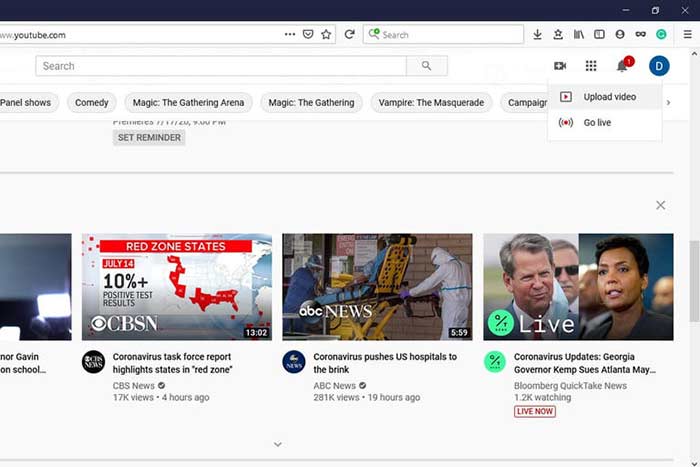
Steg 2: Klicka på Camcorder-ikonen och välj Upload video för att gå till uppladdningssidan.
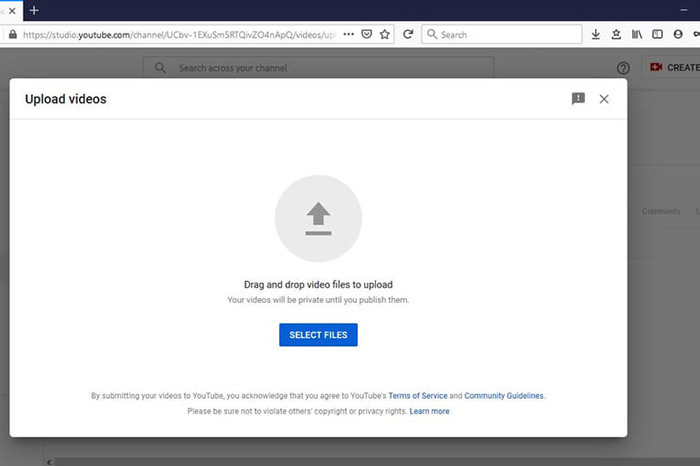
Steg 3: Klicka på den stora knappen Select Files på sidan och öppna sedan de konverterade FLV‑filerna för YouTube. Eller dra och släpp FLV‑filerna på sidan för att ladda upp dem.
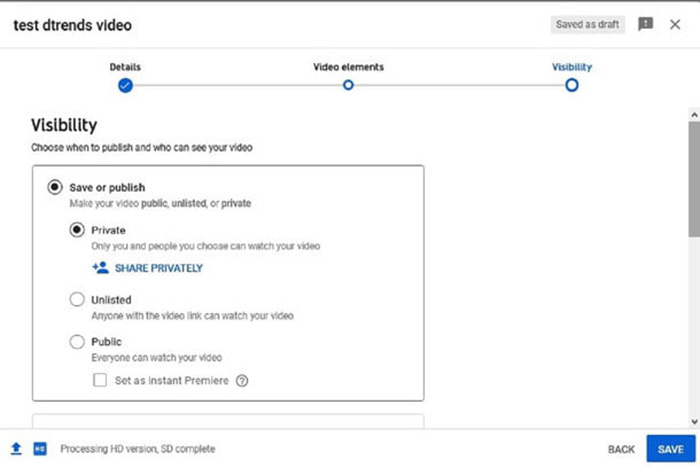
Steg 4: Bestäm sedan sekretessinställning. Som standard är den Public, men du kan ändra den till Private, Schedule eller Unlisted.
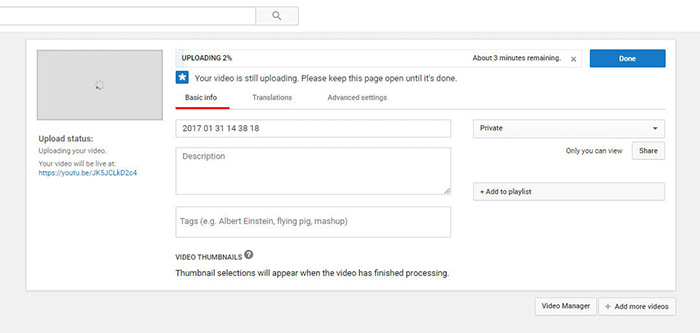
Steg 5: Klicka på knappen Save eller Publish efter att du har gjort inställningarna. Sedan förs du till sidan Dashboard. Här kan du se FLV‑filerna som har laddats upp till ditt YouTube‑konto.
Del 4: Vanliga frågor om FLV till YouTube
Kan du ladda upp FLV till YouTube?
Ja och nej. YouTube stöder FLV-videoformat, men som en videokontainer kan du bara ladda upp FLV-filer med stödda video- och ljudkodek. annars kommer det att misslyckas.
Kan jag ladda ner YouTube-videor i FLV?
Om YouTube-videon erbjuder nedladdningsknappen kan du klicka på den och välja FLV som utdataformat.
Vilket videoformat är bäst för YouTube?
MP4 är det bästa videoformatet för YouTube. Google rekommenderar att du använder MP4 med H.256-videokodek och AAC-ljudkodek. Det beror på att den ger hög kvalitet med mindre filstorlek. Dessutom stöds MOV, WMV, AVI, FLV och 3GPP också på YouTube.
Slutsats
Denna guide har berättat vilka videoformat YouTube accepterar och hur man laddar upp FLV till YouTube utan misslyckande. FVC Free FLV Converter kan hjälpa dig att konvertera FLV för YouTube och låta dig enkelt justera video- och ljudkodek. Det kräver inte ens några tekniska färdigheter, så nybörjare kan behärska snabbt. Om du stöter på andra problem när du laddar upp video till YouTube, vänligen lämna ett meddelande nedanför detta inlägg.
-
 Hur konverterar du dina FLV-videofiler till MP4 utan att betala ett öre
 Den här guiden delar fyra gratis metoder för att konvertera dina FLV-videofiler till MP4-format på Windows 10/8/7 / XP och Mac OS X, så att du kan njuta av videorna på alla enheter.
-
 Hur man konverterar dina FLV-videor till MP3-ljudfiler på skrivbordet och online
 Hur konverterar man en FLV till en MP3-fil? Allt du behöver göra är att läsa den här artikeln noggrant, hitta din favoritmetod och följa vår steg-för-steg-guide för att få vad du vill.
-
 3 gratis sätt att konvertera FLV till WAV
 Hur konverterar jag en FLV-fil? Kan VLC konvertera YouTube FLV till WAV? Det här inlägget berättar om 3 gratis sätt att konvertera FLV till WAV utan kvalitetsförlust.
