


 Video Converter Ultimate
 Skärminspelare
 Video reparation
Hur man klipper ut en bild i Photoshop
Du kan göra mycket i Photoshop; det är som ett komplett verktygspaket för att redigera bilder. Om du har använt Photoshop ett tag och fortfarande är bekant med alla dess funktioner, eller om du är någon som försöker utforska dess friläggningsfunktioner, finns vi här för att hjälpa dig! Lär dig och förstå hur du frilägger en bild i Photoshop snabbt och enkelt. Upptäck också andra metoder för att frilägga bilder online om Photoshop inte passar dina resurser och kunskaper.

Del 1. Hur man klipper ut en bild i Photoshop
Att lära sig att klippa bilder i Photoshop är viktigt eftersom det tillåter individer att separera och manipulera olika element i en bild exakt. Denna färdighet är grundläggande för uppgifter som att ta bort bakgrund, skapa collage och göra riktade förbättringar under bildredigering. Oavsett om det gäller grafisk design, produktfotografering eller digital konst, ger möjligheten att skära bilder flexibilitet och kreativ kontroll, vilket gör det möjligt för både proffs och entusiaster att uppnå önskade visuella resultat i olika projekt.
Så här klipper du en bild i Photoshop:
Steg 1. Öppna en bild i Photoshop genom att gå till fliken File.
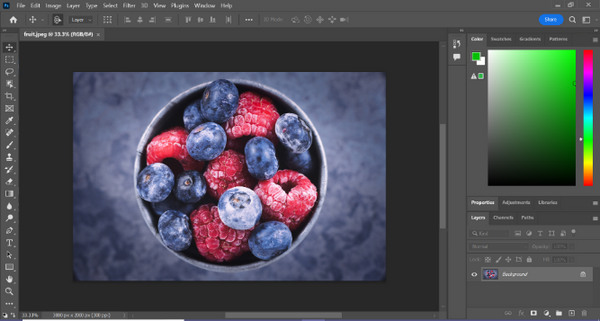
Steg 2. Välj verktyget Object Selection och dra med musen över objektet för att markera området du vill frilägga.
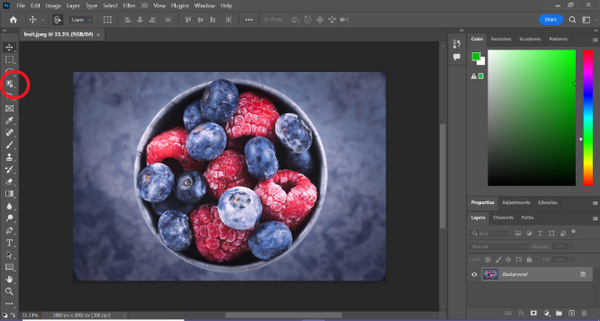
Steg 3. Klicka på Select and Mask.
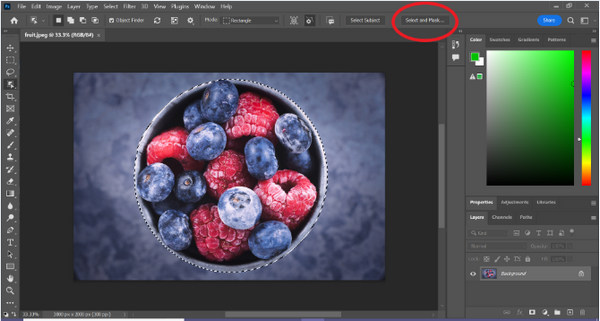
Steg 4. Justera markeringsinställningarna, till exempel feathering, vid behov.
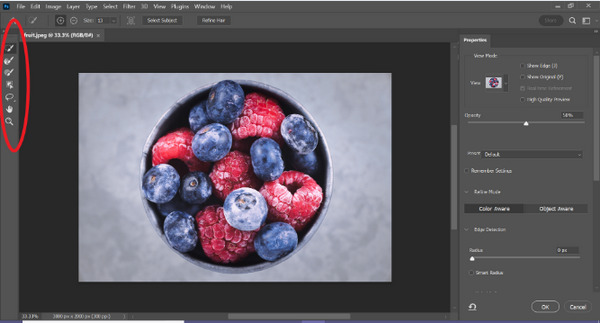
Steg 5. Klicka på ikonen Mask för att frilägga din bild och spara den ändrade bilden.
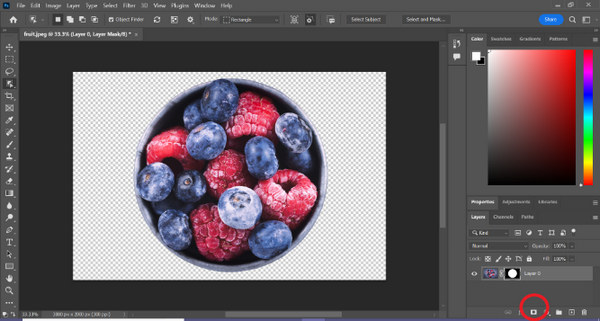
Med den här enkla guiden kan du nu frilägga en bild i Photoshop snabbt och enkelt. Följ bara guiden och njut av en smidig process för precis bildredigering. Du kan dessutom ändra bildens färg för att ersätta den frilagda delen.
Del 2. Hur man klipper ut en bild utan Photoshop Online?
Om du inte har Photoshop installerat på din dator, finns det ett sätt att klippa ut en bild online. Även om Photoshop är ett kvalitetsverktyg för att redigera bilder, särskilt för att klippa ut en bild perfekt, krävdes det färdigheter och övning för att bemästra den. Så om det här verktyget är ur dina händer kan du använda dessa metoder för att enkelt klippa ut en bild.
Metod 1: FVC Online Background Remover
FVC Online Background Remover är mångsidigt och användarvänligt och är utformat för automatiskt borttagning av bakgrunder från bilder i format som PNG, JPG och JPEG. Det här verktyget förenklar arbetet med att skapa transparenta bakgrunder och erbjuder anpassningsmöjligheter, där användare kan använda en pensel för att välja specifika områden att ta bort eller behålla.
Dessutom tillåter FVC Free Background Remover användare att ändra bildens bakgrund till en enfärgad färg efter eget val eller till och med ersätta den med ett annat foto. Verktyget går bortom bakgrundsborttagning och erbjuder enkla redigeringsfunktioner som beskärning, omplacering, vändning och rotation, vilket gör det möjligt för användare att förbättra det övergripande tilltalandet av sina bilder. Nedan följer stegen för hur du använder detta.
Steg 1. Gå först till deras officiella webbplats och klicka på Upload Image.
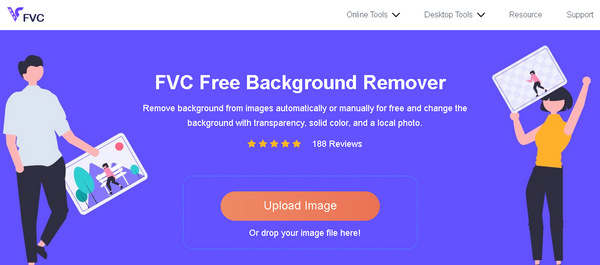
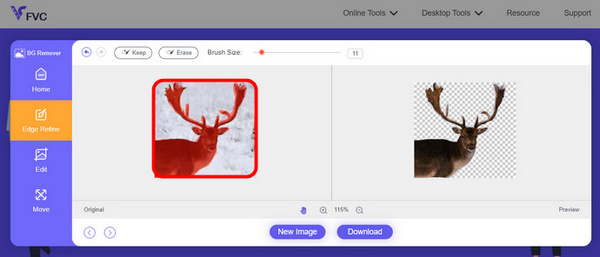
Steg 2. Vänta på att processen ska bli klar. Därefter kan du redigera din bild genom att finjustera kanterna och flytta motivet.
Steg 3. För att spara resultatet klickar du på knappen Download.
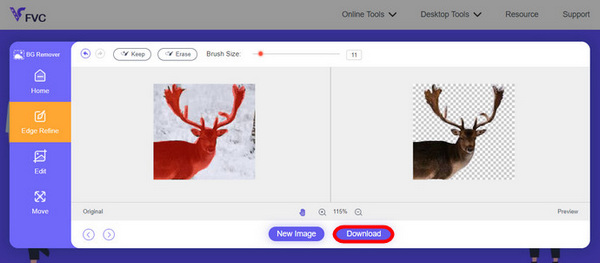
FVC Image Background Remover är verkligen ett förstahandsval för att frilägga en bild. Förutom att det är gratis är verktyget superanvändarvänligt för att lägga till bakgrund i en bild. Du ser, du behöver bara följa några enkla steg, så kan du enkelt ta bort bakgrunden på dina foton utan krångel.
Metod 2: Använda iPhone iOS 16-funktionen
iPhone iOS 16 har flera nya funktioner och uppdateringar. En av dem är bilden utskuren. Denna bildklippsfunktion låter användare isolera motivet på ett foto och skapa fotoklipp direkt på sina iPhones.

Steg 1. Öppna ett foto i appen Bilder på din iPhone.
Steg 2. Håll ned fingret på motivet i fotot, så visas en skinande vit kontur.
Steg 3. Kopiera och klistra nu in bilden i dina anteckningar, i meddelanden eller chattappar. Du kan också airdroppa den direkt till en annan iPhone-enhet.
Den här fotoklippningsfunktionen är endast tillgänglig i iOS 16 och senare på iPhone XS, iPhone XR och senare.
Del 3. Vanliga frågor om att klippa ut en bild i Photoshop
Hur klipper man ut någon ur en bild och lägger dem i en annan i Photoshop?
För att klippa ut någon ur en bild i Photoshop och placera personen i en annan bild, följ dessa steg:
1. Använd Lasso- eller Pen-verktyget för att noggrant rita runt personen.
2. Högerklicka och välj Layer via Copy för att duplicera det markerade området.
3. Öppna målbilden, skapa ett nytt lager och klistra in det kopierade lagret där.
4. Justera storlek och position vid behov och finjustera kanterna för en sömlös integrering.
Hur klipper man ut något i Photoshop och gör det genomskinligt?
För att klippa ut något i Photoshop och göra det transparent:
1. Använd Pen-verktyget eller Magic Wand för att markera objektet.
2. Tryck på Delete för att ta bort det markerade området.
3. Spara bilden i PNG-format.
4. Kontrollera att det borttagna området visas som ett rutmönster, vilket indikerar transparens.
Hur subtraherar man en form i Photoshop?
För att subtrahera en form i Photoshop:
1. Skapa två former med Shape-verktyget eller något markeringsverktyg.
2. Se till att båda formerna ligger på separata lager.
3. Markera det översta lagret, gå till Path Operations i verktygsfältet och välj Subtract Front Shape.
4. Den översta formen kommer att dras bort från den undre formen och skapa en ny form med det subtraherade området.
Kan jag klippa ut komplexa objekt med fina detaljer i Photoshop?
Ja, Photoshop erbjuder avancerade verktyg som pennverktyget för exakta urval av invecklade objekt. Zooma in för noggrannhet, skapa ankarpunkter runt objektet och förfina banan för detaljerade utskärningar.
Vad är skillnaden mellan Layer via Cut och Layer via Copy när du klipper en bild i Photoshop?
Lager via Cut tar bort det markerade området och placerar det på ett nytt lager. Medan, Layer via Copy duplicerar det markerade området till ett nytt lager och lämnar originalet intakt. Välj utifrån om du vill behålla originalet eller inte under skärprocessen.
Slutsats
Det är enkelt, eller hur? Nu när du vet hur du frilägger en bild i Photoshop kan du ta den färdigheten vidare och utforska andra funktioner i Photoshop. Dessutom kan du prova andra metoder för att frilägga en bild online genom att använda FVC Online Background Remover eller via din iPhone. Att frilägga en bild är nu enklare än någonsin, så missa inte chansen att utveckla din kreativitet genom att följa den här guiden.
-
 Hur man tar bort vattenstämpel från foto i Photoshop [Steg]
 Photoshop är ett av de populära redigeringsverktygen. Få den kostnadsfria handledningen här med Photoshop för att ta bort vattenstämpeln från foton. Upptäck också alternativa sätt.
-
 Hur man beskär i Photoshop: Nybörjarguide [2025]
 Upptäck hur du beskär bilder i Photoshop med denna lättanvända guide. Lär dig också hur du väljer områden, justerar bildförhållanden och mer för beskärning av foton.
-
 Hur man ändrar färg i Photoshop | 2025 omfattande guide
 Vill du ta din kreativitet till nästa nivå genom att lära dig hur du ändrar bakgrundsfärg i Photoshop? Den här artikeln har allt du behöver veta. Läs den nu!
