


 Video Converter Ultimate
 Skärminspelare
 Video reparation
 Säker nedladdning
3 sätt att rensa upp en suddig video med lätthet: genomförbara lösningar
I den digitala innehållsskapandets värld är det avgörande att behålla kristallklar videokvalitet. Orsaken till att en video blir suddig kan variera beroende på din enhet, filformat och att skicka video från iPhone till Android blir suddigt. Frustrationen över suddiga videor som försämrar tittarupplevelsen är en vanlig utmaning, men lösningen behöver inte vara överväldigande. Den här artikeln går igenom praktiska lösningar som gör det enkelt att få suddiga videor skarpa igen. Genom att använda dessa tekniker kan du utan ansträngning höja kvaliteten på ditt innehåll så att det utstrålar skärpa och professionalism och fångar din publik med visuellt imponerande resultat. Läs slutligen den här artikeln för att säga hej då till suddighet och hej till visuell perfektion!

Del 1. Gör en suddig video tydligare på mobil/dator
Metod 1: Använda skrivbordsprogramvara
Att fixa suddiga videor kan vara svårt. Viss programvara åtgärdar bara kvalitetsproblem, men det finns en som gör det och mer därtill: videokomprimering, borttagning av vattenstämplar, bildkonvertering och mycket mer. Då har du förmodligen inte hört talas om Video Converter Ultimate, en programvara som uppfyller massornas behov. Här presenterar vi den kraftfulla multimediaverktygslådan – en mångsidig lösning för att förbättra och fixa suddiga videor på fyra sätt med ultrahög hastighet. Oavsett om du vill ändra videoformat, höja bild- och ljudkvalitet, minska filstorlekar samtidigt som du behåller hög kvalitet, eller uppnå sömlös redigering för en professionell finish, har vår heltäckande plattform allt du behöver.
Steg för att fixa suddig video med skrivbordsprogrammet via Video Converter Ultimate:
Steg 1. Installera programvaran genom att besöka deras webbplats och starta den därefter.
Gratis nedladdningFör Windows 7 eller senareSäker nedladdning
Gratis nedladdningFör MacOS 10.7 eller senareSäker nedladdning
Steg 2. I programmets gränssnitt letar du upp fliken Toolbox och klickar sedan på Video Enhancer.
Steg 3. För att lägga till en suddig video i fliken Video Enhancer trycker du på +-knappen.
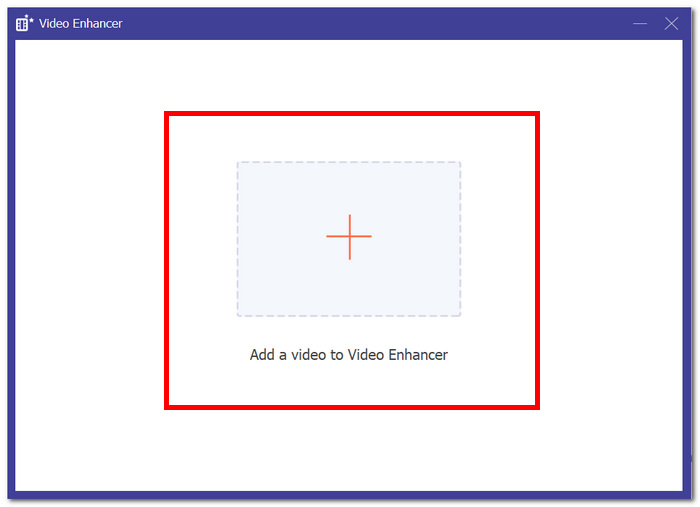
Steg 4. För att fixa din suddiga video behöver du markera rutan för förbättringsfunktioner som Upscale Resolution.
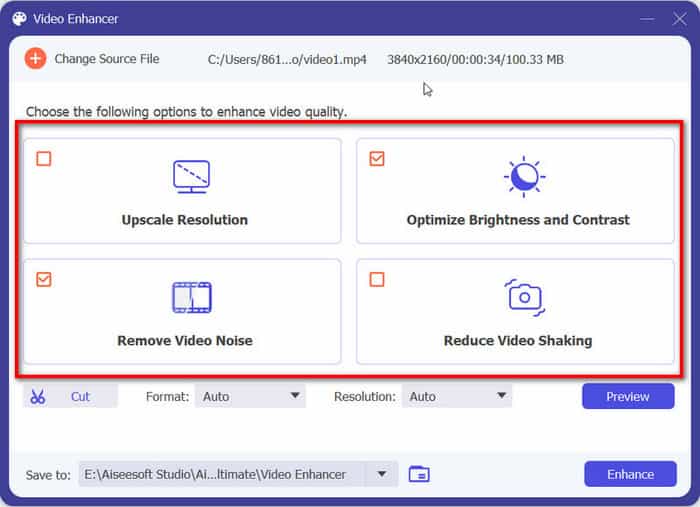
För att kontrollera om den suddiga videon är åtgärdad kan du klicka på Preview. När du är nöjd med dina ändringar klickar du på knappen Enhance för att exportera och spara din osuddiga video på datorn.
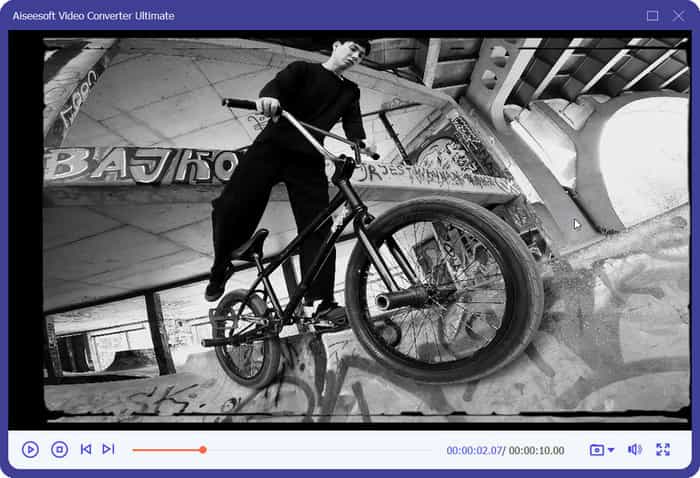
Njut av bekvämligheten med ett enda, effektivt nav som tillgodoser alla dina multimediakrav, vilket garanterar en sömlös upplevelse utan att offra hastighet eller kvalitet. De andra 3 alternativen i Video Enhancer kan också låta dig minska en skakig video, ta bort videobrus och ändra videons ljusstyrka och kontrast automatiskt.
Metod 2: Använda mobilappen
Suddiga videor kan vara ett frustrerande bakslag och minska effekten av ditt visuella innehåll. Lyckligtvis, med rätt verktyg, kan du enkelt förbättra klarheten i dina videor. I den här artikeln kommer vi att utforska att utnyttja CapCut, en kraftfull videoredigeringsapp, för att fixa och förvandla dina suddiga bilder till skarpa, professionella videor.
Steg för att fixa suddig video med mobilappen via CapCut:
Steg 1. Installera appen på din iOS- eller Android-enhet och öppna den.
Steg 2. På huvudskärmen klickar du på New Project och väljer din suddiga video.
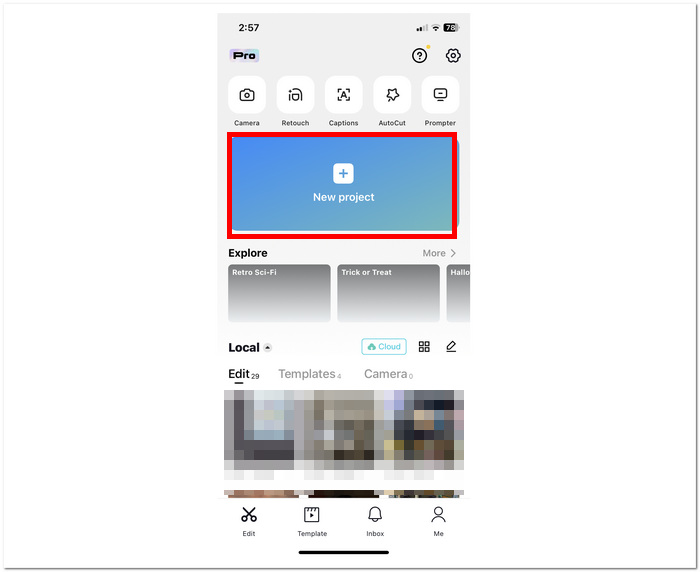
Steg 3. Klicka på 1080P arrow down högst upp på skärmen.
Steg 4. Dra reglaget för Resolution till 2K/4K eller det högsta tillgängliga formatet. Klicka på Up Arrow bredvid inställningen för upplösning för att exportera videon.
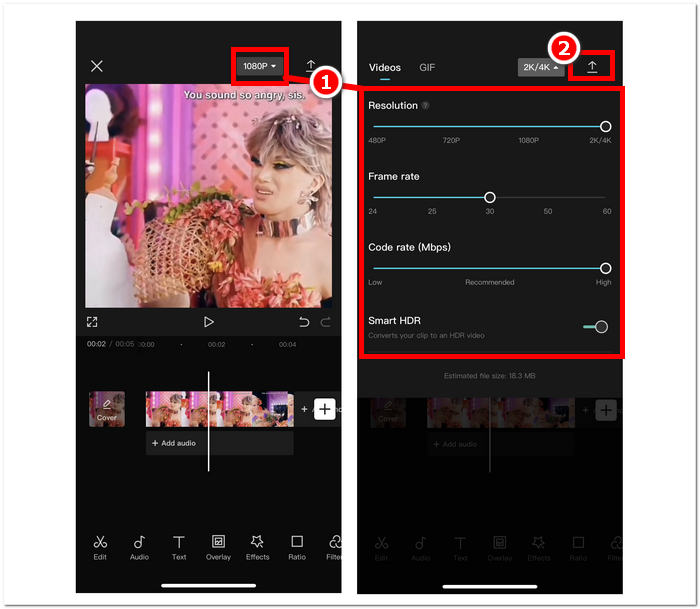
CapCut är ett mångsidigt verktyg för att ändra video-upplösning och fixa suddiga videor. Använd dess funktioner för att skärpa, stabilisera och förbättra ditt material. CapCut gör det enkelt att förbättra dina videor, oavsett om du är nybörjare eller expert.
Bonustips: Förbättra videokvaliteten innan du skickar från iPhone till Android
I takt med att smarttelefontekniken går framåt har delning av videor blivit ett vanligt sätt att ansluta och kommunicera. Men övergången från iPhone till Android kan ibland leda till att videokvaliteten försämras. I den här artikeln kommer vi att utforska praktiska steg för att säkerställa att dina videor bibehåller klarhet och livlighet när de delas från en iPhone till en Android-enhet.
◆ Spela in i hög upplösning. Första tagningen är grundstenen för en högkvalitativ video. Använd den högsta upplösningsinställningen på din iPhone när du spelar in video så att slutresultatet fångar så mycket detaljer som möjligt. Detta ger en stark grund för att bevara kvaliteten när du överför till en Android-enhet.
◆ Använd kompatibla format. Det kan finnas skillnader i vilka videoformat som föredras på olika system. För att maximera kompatibilitet och minska kvalitetsförlusten bör du använda allmänt stödda format som MP4. Kontrollera din iPhones standardformat för inspelning innan du överför och gör sedan nödvändiga justeringar för att följa Androids riktlinjer. (Om ditt utgående videoformat inte är MP4 kan du också konvertera MOV till MP4.)
◆ Välj en pålitlig överföringsmetod. Välj tillförlitliga metoder för filöverföring för att säkerställa att dina videor skickas till Android-enheten utan extra komprimering eller kvalitetsförlust. Molnlagringstjänster som Dropbox och Google Drive erbjuder lättanvända och pålitliga överföringslösningar. Alternativt kan du använda en direkt kabelanslutning för en smidig och effektiv överföring.
För att bibehålla videokvaliteten när du delar från iPhone till Android, spela in i hög upplösning, använd kompatibla format, undvik överkomprimering, redigera med precision, välj pålitliga överföringsmetoder och säkerställ en stabil internetanslutning.
Del 2. Tips för att undvika suddiga videor
◆ Prioritera korrekt fokus. Se till att ditt motiv är i fokus innan du börjar spela in, oavsett om du använder en smartphone eller kamera. Autofokus är bekvämt, men manuell fokus ger större flexibilitet och precision.
◆ Välj rätt kamerainställningar. Justera kamerainställningar (ISO, slutartid, bländare) efter inspelningsförhållandena. Ett större skärpedjup (mindre bländartal) gör att mer av bilden hålls i fokus. En snabbare slutartid minskar rörelseoskärpa.
◆ Ljussättning spelar roll. Rätt belysning är avgörande för klara videor. Använd naturligt ljus om möjligt eller komplettera med extra ljuskällor i mörka miljöer. Undvik att filma med långsam slutartid, eftersom det kan ge suddiga konturer.
◆ Satsa på kvalitetsutrustning. Även om smartphones kan ta utmärkta bilder ger kameror med optisk bildstabilisering klarare och mer följsamt videomaterial.
Att uppnå tydliga och skarpa videor kräver att man kombinerar teknisk kunskap och uppmärksamhet på detaljer. Genom att prioritera rätt fokus, bemästra kamerainställningarna, stabilisera bilder, optimera belysningen och förstå effekten av slutartiden kan du avsevärt minska risken för att få suddiga bilder. Kom ihåg att en liten investering i kvalitetsutrustning och genomtänkta filmmetoder kan räcka långt för att säkerställa att dina videor sticker ut med professionell tydlighet.
Del 3. Vanliga frågor om att fixa suddig video
Vad är videoupplösningen för iPhone-kamerainspelningar?
Beroende på modell kan iPhone-kamerainspelningar ha olika videoupplösningar. De senaste iPhone-modellerna möjliggör i allmänhet inspelning i upplösningar inklusive 720p HD, 1080p HD och 4K UHD. Du måste verifiera din iPhones kamerainställningar och modell för den mest exakta informationen.
Är det möjligt att skicka en förlustfri video över enheter?
Även om det är teoretiskt möjligt att skicka förlustfria videor mellan enheter, förlitar det sig ofta på de specifika enheterna och överföringsmekanismen. Filer som komprimeras av e-post och chattprogram kanske inte är av optimal kvalitet. Använd molnlagringstjänster eller tekniker för direkt filöverföring som USB-anslutningar eller Wi-Fi Direct för att bevara förlustfri kvalitet. Dessutom är det viktigt att välja rätt filformat eftersom vissa plattformar kan stödja förlustfria format.
Kan iMovie göra en suddig video tydlig?
Även om iMovie har olika alternativ för att förbättra videokvaliteten, behövs mer för att få fram klarheten i en disig film. Den erbjuder enkla verktyg för att ändra färg, kontrast och skärpa, vilket kan öka klarheten. För mer sofistikerade videoförbättringar, kanske du vill titta på specifika program eller programvara som erbjuder möjligheter för att minska oskärpa och höja den övergripande kvaliteten på ditt klipp.
Slutsats
Att rensa upp en suddig video är möjlig med rätt kunskap och rätt verktyg. Genom att ta itu med grundorsaken, justera kamerainställningar, optimera upplösning, hantera komprimering och använda programvara för videoförbättring, kan du höja kvaliteten på dina videor och lämna ett starkt intryck på publiken. Införliva dessa genomförbara lösningar i ditt arbetsflöde för videoproduktion och se hur ditt innehåll tar en ny nivå av skärpa och professionalism.
-
 Metoder för hur man åtgärdar en suddig bild professionellt
 Gå till det här inlägget om du vill lära dig de mest enkla handledningarna om hur du gör en bild mindre suddig med din dator, iPhone och Android-enheter.
-
 Hur man fixar en pixlad video: vad som orsakar och hur man åtgärdar det
 Låt inte pixelering förstöra dina videor. Upptäck hur du gör video mindre pixlad med våra expertstrategier. Höj din video för pixelperfekt kvalitet.
-
 https://www.free-videoconverter.net/player/videos-not-playing-on-chrome/
 För att åtgärda problemet med att videor inte spelas upp i Chrome behöver du bara läsa vår felsökning och utföra de verifierade lösningarna en efter en.
