


 Video Converter Ultimate
 Skärminspelare
 Video reparation
 Säker nedladdning
Snabbkorrigeringar av 0xc00d36e5-fel för att få dina videor att spela upp igen
Försöker du spela upp en video men får felkoden 0xc00d36e5 och meddelandet att filen inte kan spelas upp? Frustrerande, eller hur? Särskilt när du är redo att jobba och titta på dina videor. Men oroa dig inte! Vi har lösningarna åt dig. Oavsett om du använder ett automatiskt videoreparationsverktyg eller löser det manuellt, så har den här artikeln noggrant anpassat båda sätten för dig. I de följande avsnitten guidar vi dig genom både automatiska och manuella metoder, så att du har flera alternativ att välja mellan. Låt oss därför gå igenom dessa lösningar steg för steg, så att du kan återgå till att njuta av dina videor utan avbrott i uppspelningen.

Del 1. Varför får dina videor felkod 0xc00d36e5
Felkod 0xc00d36e5 är associerad med mediauppspelningsproblem på Windows. Det här felet indikerar vanligtvis att mediefilen du försöker spela inte är kompatibel med mediaspelaren eller att det finns ett problem med själva filen. Det kan tyda på att filen är skadad, inte i ett format som stöds, eller att det finns ett problem med de codecs som krävs för uppspelning.
Här är några vanliga orsaker till att dina videor får felkoden 0xc00d36e5:
Filformatkompatibilitet.
Inkompatibiliteten för videoformat påverkar spelbarheten för videon eller ljudfilen du spelar.
Skadad fil.
En skadad mediefil kan förhindra att den spelas upp.
Codec-problem.
Codecs är programvarukomponenter som kodar och avkodar multimediafiler. Om nödvändiga codecs saknas eller är inaktuella kan det leda till uppspelningsfel.
Problem med mediaspelaren.
Mediaspelaren i sig kan vara föråldrad eller inte korrekt konfigurerad.
Del 2. Snabb metod för att fixa 0xc00d36e5-fel
Att använda ett videoreparationsverktyg är en snabb och effektiv lösning för att åtgärda felkoden 0xc00d36e5. Dessa verktyg erbjuder en automatiserad reparationsprocess som snabbt identifierar och åtgärdar vanliga problem i videofiler, och kräver minimal teknisk kunskap tack vare sina användarvänliga gränssnitt. Ett av de bästa och mest mångsidiga videoreparationsverktygen vi kan använda idag är FVC Video Repair. Detta verktyg visar sig vara en effektiv lösning för att reparera videor som drabbats av felkoden 0xc00d36e5. Med fokus på att reparera ospelbara videor på grund av exempelvis utrustningsskador eller systemkrascher, stöder verktyget flera olika videoformat. Dessutom, genom att utnyttja den senaste AI-algoritmen, säkerställer FVC Video Repair en helt automatisk reparationsprocess med ett användarvänligt gränssnitt och hög lyckandefrekvens. Följ stegen nedan för att använda detta verktyg:
Steg 1. Ladda först ner programmet genom att klicka på knappen för gratis nedladdning.
Gratis nedladdningFör Windows 7 eller senareSäker nedladdning
Gratis nedladdningFör MacOS 10.7 eller senareSäker nedladdning
Steg 2. När du har installerat det, kör verktyget genom att klicka på knappen Red Plus för att lägga till videon som innehåller felkoden 0xc00d36e5, och lägg till en exempelvideo genom att klicka på knappen Blue Plus.
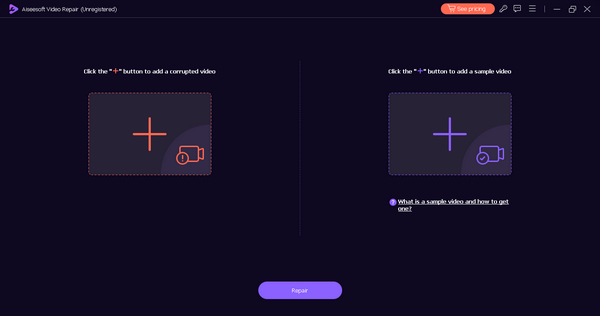
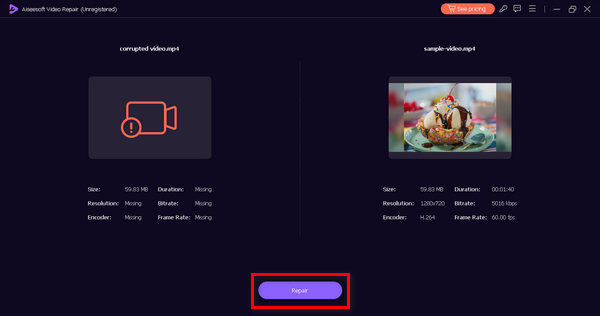
Steg 3. Klicka på knappen Repair för att starta reparationsprocessen.
Steg 4. Klicka till sist på knappen Preview för att kontrollera om felkoden 0xc00d36e5 nu är borta och din video spelas upp smidigt. Om allt ser bra ut kan du spara filen efteråt.
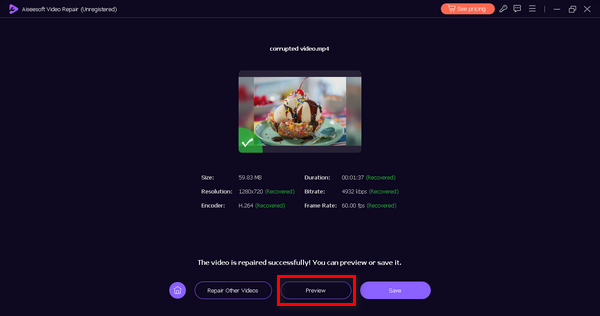
FVC Video Repair är verkligen ett pålitligt och effektivt val för att lösa problemet med videor som inte spelas upp eller videofelkoden 0xc00d36e5 och återställa en sömlös uppspelning.
Del 3. 2 manuella metoder för att fixa 0xc00d36e5-fel
Följande är de manuella metoderna du kan göra för att åtgärda videofelkod 0xc00d36e5 effektivt:
Metod 1: Uppdatera Windows
Uppdatering av Windows-operativsystemet kan också uppdatera Windows Media Player och bidra till att lösa felkoden 0xC00D36E5. Windows Media Player är nära integrerad med den övergripande systemarkitekturen, och uppdateringar av operativsystemet inkluderar ofta förbättringar, buggfixar och nya funktioner för olika komponenter, inklusive mediauppspelning. Nedan följer steg-för-steg-processen för att uppdatera dina fönster:
Steg 1. Gå först till Inställningar och klicka på Systems.
Steg 2. Du ser Windows Update i det högra hörnet av skärmen. Klicka på den.
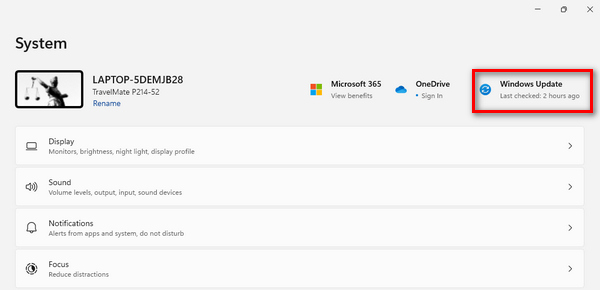
Steg 3. Därefter ser du en knapp som heter Check for Updates. Klicka på den.
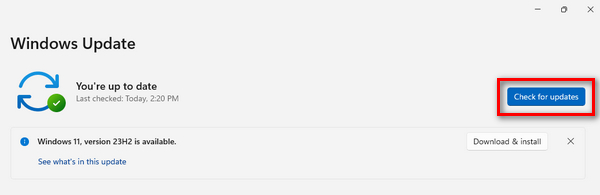
Steg 4. Ladda nu ned och installera den nya uppdateringen.
Genom att hålla ditt Windows uppdaterat genom Windows Update säkerställer du att Windows Media Player får de senaste förbättringarna, inklusive uppdaterade codecs, kompatibilitetsförbättringar och övergripande prestandaoptimeringar.
Metod 2: Uppdatera drivrutin för bildskärmsadapter
Det är viktigt att uppdatera drivrutinen för bildskärmsadaptern eftersom videouppspelning i hög grad är beroende av korrekt grafikbearbetning. En inaktuell eller inkompatibel bildskärmsdrivrutin kan resultera i fel under videouppspelning. Nedan följer steg-för-steg-processen för att uppdatera drivrutinen för bildskärmsadaptern:
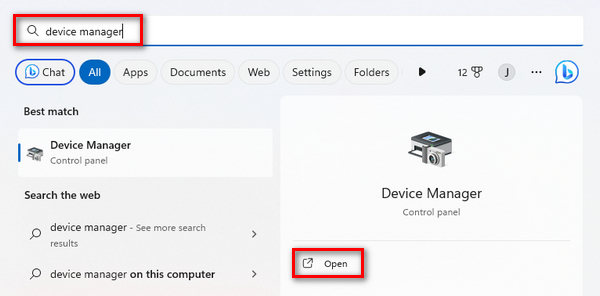
Steg 1. Gå till Start. Du ser en sökruta, skriv Device Manager och klicka på Open.
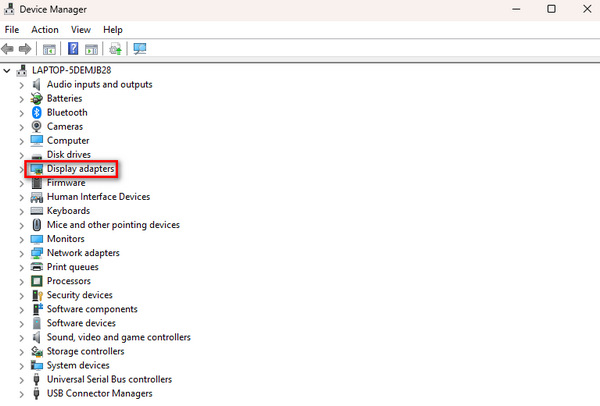
Steg 2. Klicka sedan på Display Adapter. Högerklicka sedan och välj Scan for Hardware Changes.
Om det inte görs några ändringar i din bildskärmsadapters hårdvara kan du hoppa över följande steg.
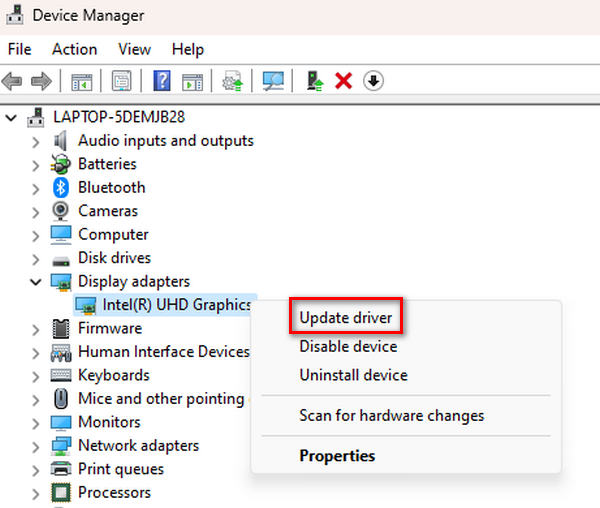
Steg 3. För att uppdatera bildskärmsadaptern, högerklicka på den och klicka på Update Driver.
Steg 4. Klicka nu på Sök automatiskt efter drivrutiner.
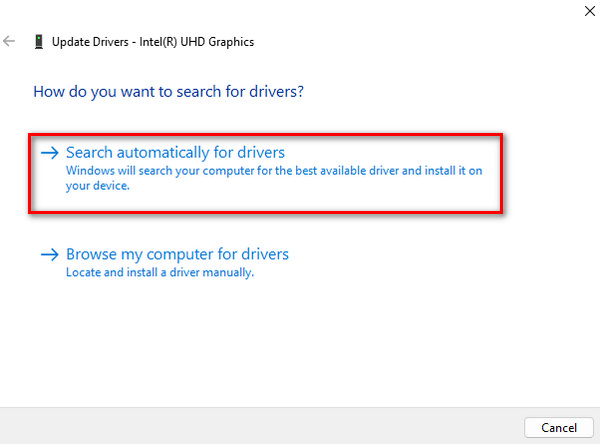
Genom att uppdatera drivrutinen kan användare lösa problem som rör rendering och visning av videoinnehåll, inklusive videobuffring och videofelkoden 0xC00D36E5, och förbättra den övergripande uppspelningsupplevelsen på systemet.
Del 4. Vanliga frågor om 0xcd00d36e5-fel
Varför blir videor otillgängliga?
Videor kan bli otillgängliga på grund av olika orsaker, som filkorruption, inkompatibla format, skadat lagringsmedium eller problem med mediaspelaren. Dessutom kan nätverksproblem, ofullständiga nedladdningar eller störningar under filöverföringar bidra till att videor blir otillgängliga.
Varför kan min video inte spelas upp?
Din video kan vara ospelbar på grund av faktorer som korruption, saknade codecs eller ett inkompatibelt format. Skador på utrustning, systemkrascher eller virusattacker kan också göra videor ospelbara. I sådana fall kan användning av videoreparationsverktyg eller uppdatering av din mediaspelare och systemkomponenter ofta lösa problemen.
Hur återställer jag en ospelbar video?
Att återställa en ospelbar video kan uppnås på olika sätt. Att använda ett videoreparationsverktyg är ett vanligt tillvägagångssätt; Dessa verktyg analyserar och fixar automatiskt problem i videofilen. Alternativt kan du prova att uppdatera din mediaspelare, kontrollera filkompatibilitet eller manuellt reparera filen med hjälp av kommandon eller specialiserad programvara. Om du har en säkerhetskopia kan återställning från en tidigare version också vara ett alternativ.
Vilken roll spelar avbrott i filöverföringen för att video inte är tillgänglig?
Filöverföringsavbrott kan avsevärt bidra till att videor blir otillgängliga. Om det uppstår avbrott under överföringsprocessen kan det leda till ofullständiga nedladdningar eller skadade videofiler. Nätverksproblem eller plötsliga stopp under kopiering eller flytt av videor till olika lagringsplatser kan resultera i förlust av dataintegritet, vilket gör videorna ospelbara. Att säkerställa stabila och oavbrutna filöverföringar kan lindra detta problem.
Slutsats
Sammanfattningsvis är det inte svårt att åtgärda felet 0xc00d36e5 när du har rätt information om hur du ska göra. Metoderna för att lösa problemet varierar dock beroende på vad som orsakar felet, så det är viktigt att först förstå orsaken.
-
 Åtgärda fel 0xc00d36c4 med dessa 3 beprövade metoder [2024]
 Upplever du videofelkoden 0xc00d36c4 när du spelar upp en video? Följ vår guide för snabba steg för att lösa det och njuta av oavbruten videouppspelning.
-
 Hur man snabbt åtgärdar videofelkod 224002 effektivt
 Har du svårt att hitta den bästa lösningen för att snabbt fixa felkod 224002? Lär dig dem i den här artikeln och fixa dem på egen hand med lätthet.
-
 Hur man snabbt och manuellt åtgärdar felkod 102630
 Låt inte felkod 102630 förstöra din tittarupplevelse! Lär dig hur du fixar det med vår hjälpsamma guide. Följ dessa omfattande guider för en snabb lösning
