


 Video Converter Ultimate
 Skärminspelare
 Video reparation
 Säker nedladdning
Hur man konverterar zoominspelning till MP4 på Windows och Mac-datorer
Zoom är en plattform som möjliggör videosamtal, till exempel möten och nätkurser. Normalt sparar den inspelningar i ett format som kan spelas upp på de flesta enheter, som MP4. Om du däremot råkar stoppa inspelningen för tidigt kan filen fastna i plattformens ursprungliga format, .zoom, som du inte kan öppna direkt. Detta händer eftersom Zoom inte har fått chansen att automatiskt konvertera filen till MP4. Om detta händer dig måste du alltså konvertera Zoom till MP4 på eller utanför plattformen. Som tur är finns det flera sätt att få Zoom att slutföra denna konverteringsprocess. Vi går igenom hur du gör det med själva Zoom-programmet och ett särskilt verktyg som följer med Zoom. Om det inte fungerar för dig har vi också listat andra verktyg som du kan använda. Låt oss därför gå direkt in på innehållet!

Del 1. Är zoominspelningar i MP4
Först och främst producerar Zoom MP4-inspelningar, vilket är dess standardinställning. Detta kommer dock inte att hända på ett ögonblick. Vad vi menar är att under inspelningen är ditt råmaterial ännu inte i det MP4-format du tror att det är. I själva verket, som nämnts ovan, är filmerna från processen fortfarande i .zoom-format, vilket är plattformens proprietära format, och kommer bara att vändas till MP4 när inspelningen är klar och konverteringen har slutförts. Detta gäller särskilt när du av misstag stoppar inspelningarna.
Del 2. 3 sätt att konvertera zoominspelning till MP4 med zoom
Låt oss nu gå vidare till de effektiva verktygen som hjälper dig att konvertera Zoom-inspelningar till MP4 om du inte har en på plattformen.
1. Zoomklient (skrivbord)
Visste du att Zoom håller reda på alla dina inspelningar i skrivbordsklienten? Inte bara kan du enkelt komma åt dina inspelningar, utan Zoom har också en inbyggd omvandlare. Detta säkerställer uppspelningskompatibilitet på de flesta enheter. Således, om du är osäker på hur du använder den, här är en detaljerad uppdelning av hur du hittar och konverterar dina Zoom-inspelningar till MP4-format.
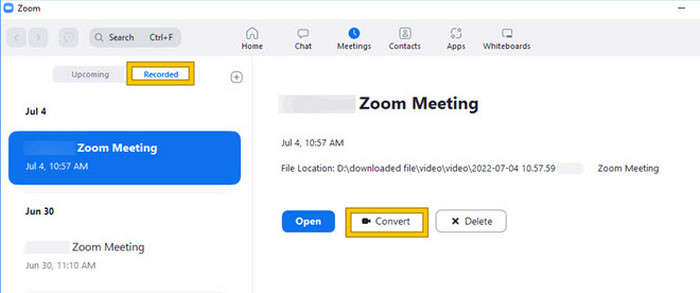
Steg 1. Starta Zoom på din dator och gå direkt till avsnittet Meetings för att öppna din möteshistorik.
Steg 2. När det är öppnat ser du en lista över dina inspelade möten. Leta upp den inspelning du vill konvertera och klicka för att markera den.
Steg 3. När den är markerad visas ett val till höger på skärmen. Klicka på knappen Convert och vänta på det färdiga, konverterade MP4-resultatet.
2. Omkoda (macOS)
Om du är en Mac-användare och Zooms automatiska inspelningskonvertering till MP4 misslyckas, så är här ett praktiskt verktyg som heter Transcode för att hjälpa dig. Med det här verktyget kan du manuellt konvertera .zoom till MP4-filer, som kanske inte spelas upp ordentligt på grund av den misslyckade autokonverteringen. I huvudsak tillhandahåller Transcode en manuell lösning för Mac-användare för att säkerställa att deras Zoom-inspelningar är tillgängliga och användbara när den automatiska processen inte fungerar som förväntat.
Steg 1. Leta reda på din .zoom-fil, dubbelklicka på den och välj Choose Application i dialogrutan. Öppna sedan filen med appen Transcode, som du också kan ställa in som standardapp för dina filer.
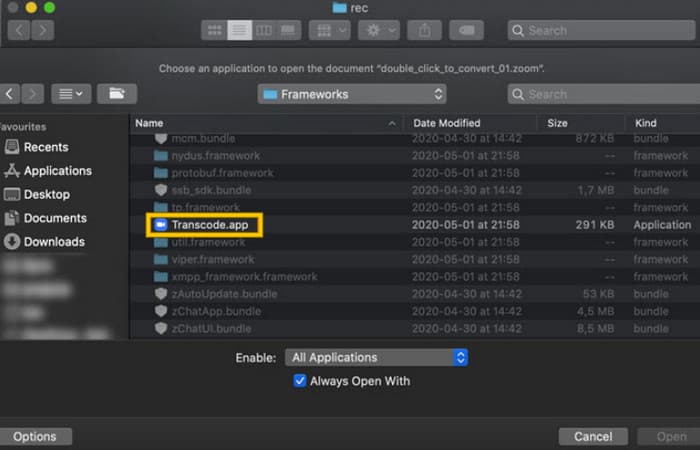
Steg 2. Direkt efter att du har valt appen startar konverteringsprocessen automatiskt.
Steg 3. När konverteringen är klar väljer du den mapp där du vill spara resultatfilen.
3. zTscoder (skrivbord)
Om du vill ha ett verktyg som liknar det föregående för ditt skrivbord rekommenderar vi zTscoder. zTscoder är Windows-versionen av Transcode, vilket är programmet Mac-användare förlitar sig på för liknande situationer. Båda verktygen låter dig konvertera dina Zoom-filer manuellt till standard MP4-format, som kanske inte spelas upp ordentligt. Följ därför stegen nedan om du nu står inför skrivbordet.
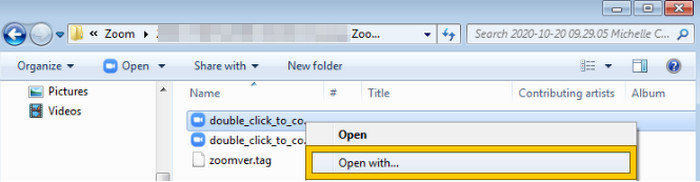
Steg 1. Leta reda på mappen där dina Zoom-inspelningar är sparade och välj den du behöver konvertera. Högerklicka på filen och öppna den med zTscoder.
Steg 2. Om verktyget inte svarar kan du gå till Kontrollpanelen, navigera till System och säkerhet > System och sedan öppna Avancerade systeminställningar. Där lägger du till C:\Users\*your username*\AppData\Roaming\Zoom\bin i variabelvärdet och klickar sedan på OK.
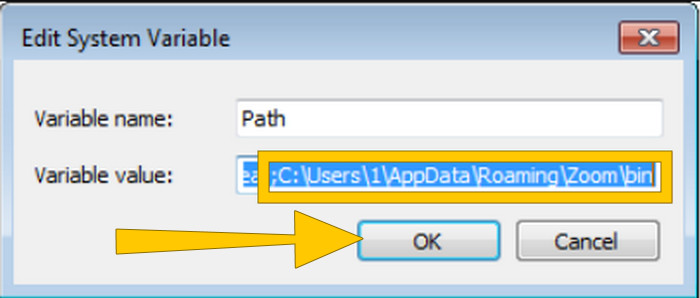
Steg 3. När filen är inställd på att öppnas med verktyget startar konverteringsprocessen automatiskt.
Del 3. Spela in zoommöten i MP4 med upp till 4K-kvalitet
Vill du ha en bra lösning för att få dina Zoom-möten i MP4-format? Spela in dem med FVC Screen Recorder! Den här inspelaren erbjuder en mångsidig lösning som går längre än bara Zoom-möten. Med det här verktyget kan du spela in dina nätkurser, konferenser, handledningar eller vad som helst på din Zoom-skärm. Dessutom har du flexibilitet att spela in hela skärmen eller bara ett specifikt fönster eftersom det finns inställningar för detta. Den kan också spela in mikrofonljud, systemljud och till och med webbkamerabild, så länge du ställer in detta i förväg. Programvaran är kompatibel med både Mac- och Windows-datorer och låter dig spara dina inspelningar i högkvalitativa format, upp till 4K-upplösning. En annan anmärkningsvärd anledning att gilla FVC är att den går ett steg längre genom att erbjuda annoteringsverktyg som låter dig markera viktiga punkter under inspelningen. Här följer hur du konverterar Zoom-inspelningar till MP4.
Steg 1. Installera inspelaren på din dator. Du kan använda nedladdningsknappen nedan. Under tiden du installerar öppnar du det Zoom-möte som du vill spela in som MP4.
Gratis nedladdningFör Windows 7 eller senareSäker nedladdning
Gratis nedladdningFör MacOS 10.7 eller senareSäker nedladdning
Steg 2. Starta konverteraren och klicka på verktyget Video Recorder. Ställ sedan in skärminspelningen så att hela Zoom-mötesfönstret täcks. Du kan också ställa in Systemljud och Mikrofon om du vill.
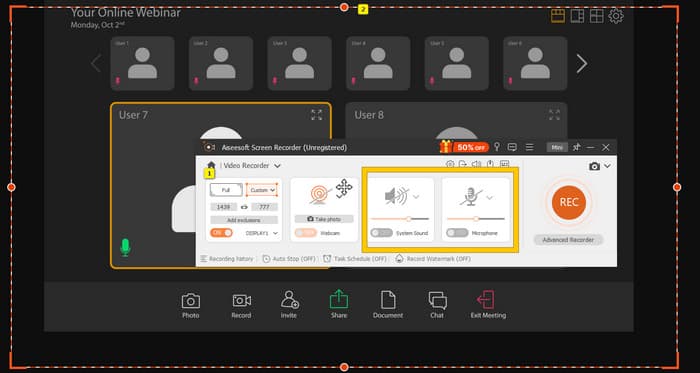
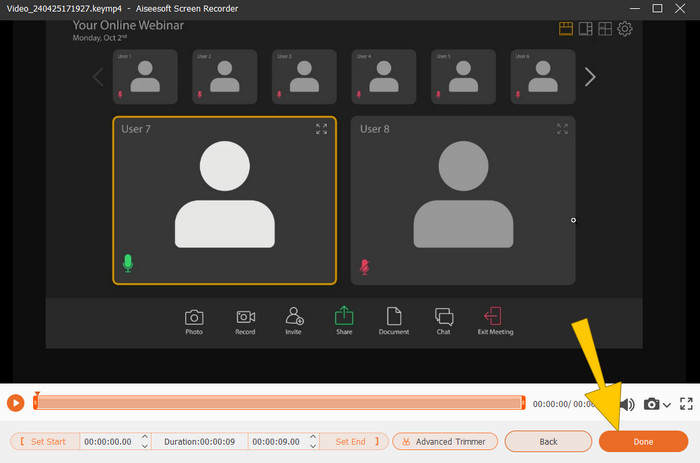
Steg 3. Klicka därefter på knappen REC för att starta inspelningen. När mötet är slut klickar du på Stop-knappen i den flytande verktygsraden. Gör sedan mindre justeringar i det nya fönstret. Annars klickar du på knappen DONE för att gå vidare till att spara inspelningen.
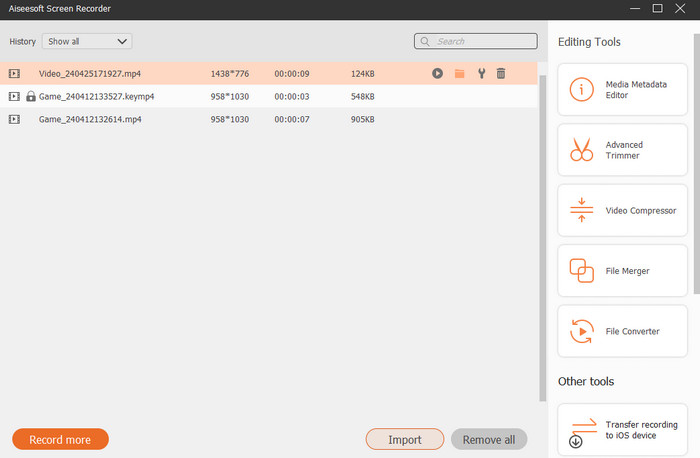
Steg 4. För fler redigeringsalternativ tar verktyget dig till dess bibliotek, där du ser din lista över inspelningar. Där finns också redigeringsverktygen som du kan använda fritt.
Fördjupad läsning:
6 fantastiska MP4-inspelningsverktyg 2024 [gratis och premium]
Topp 5 Zoom-inspelningsprogram för att spela in möten i Zoom [2024]
Del 4. Vanliga frågor om zoominspelningskonvertering
Är Zoom-inspelningar MP4?
Ja. Inspelningarna kanske inte finns i MP4 om de av misstag stoppades.
Finns det en gräns för hur länge inspelningar jag kan konvertera till MP4?
Det beror på. Gratiskonton kan ha begränsningar för lagringsutrymme och konverteringsalternativ, medan betalplaner vanligtvis erbjuder mer flexibilitet och högre gränser.
Hur kan jag konvertera en Zoom-inspelning till MP4?
Du kan konvertera en Zoom-inspelning till MP4 med Zoom-klienten eftersom den har en inbyggd konverteringsfunktion. När du öppnar inspelningen behöver du bara klicka på knappen Konvertera.
Slutsats
Som standard sparas Zoom-möten i MP4, men om filerna inte sparas korrekt måste du fortfarande konvertera Zoom-inspelningar till MP4. Som tur är presenteras effektiva sätt att göra denna konvertering i den här artikeln. Vi hoppas att du tycker att den är hjälpsam.
-
 7 av Magnificent Voice Recorder tillgänglig på alla plattformar
 Vill du lära dig hur man gör ljudinspelning? Gå sedan till den här artikeln när vi pratar om den bästa ljudinspelaren som passar dina behov.
-
 CamStudio 2025 recension: För- och nackdelar med att använda CamStudio
 CamStudio är ett fantastiskt gratis och öppen källkodsprogram för inspelning av skärmvisning. Är CamStudio skärminspelare säker? Den här recensionen hjälper dig att upptäcka alla funktioner i CamStudio.
-
 Genomförbara sätt att spela in ljud med VLC -spelare
 Lär dig de bästa sätten att spela in ljud med VLC -spelare och andra praktiska verktyg genom att läsa igenom artikeln.
