


 Video Converter Ultimate
 Skärminspelare
 Video reparation
 Säker nedladdning
Hur man spelar in på PS4 via standard och de bästa alternativen
PS4, eller PlayStation 4, har imponerat många spelare med sin grymma prestanda och kraft ända sedan den först släpptes. Än idag är den en viktig del av många spelares liv tack vare sitt stora spelutbud och sin förmåga att göra mer än bara spel. När du spelar dina favoritspel på PS4 är det helt naturligt att vilja fånga de där episka ögonblicken för att dela dem med andra, eller hur? Oavsett anledning är det alltså ganska viktigt att veta hur man spelar in på PS4. Det är därför vi är här för att hjälpa dig!
I det här inlägget kommer vi att bryta ner stegen du behöver följa för att spela in ditt spelande på din favoritkonsol med standardsättet, tillsammans med de bästa alternativen du kan använda! Så var uppmärksam och följ noga för att se till att du gör rätt.

Del 1. Hur man spelar in PS4-skärmen i full kvalitet utan begränsning förutom standardsättet
Eftersom PS4 har en tidsbegränsning går vi direkt in på det bästa alternativet först. Eftersom du vill spela in dina spelsessioner på din konsol är FVC Screen Recorder ett pålitligt val. Detta är ett datorprogram som fokuserar på att spela in gameplay, samt skärmar, videor, ljud, mobiler och mer. Med stöd för förlustfri inspelning i 60 bildrutor per sekund kan du fånga ditt gameplay jämnt och i hög kvalitet. Dessutom är det särskilt praktiskt för den som vill spela in obegränsat med gameplay. Utöver detta erbjuder FVC Screen Recorder redigerings- och delningsfunktioner för dina inspelade klipp på olika plattformar som YouTube, Twitter, Facebook, Instagram och fler.
Vad som är mer intressant är att det ger inställningar där du kan anpassa dina inspelningar för att passa dina behov. Så oavsett om det handlar om att justera utdatainställningar, städa upp din voiceover med brusreducering eller att integrera din webbkamera i ett bild-i-bild-läge, har det här verktyget dig täckt! Dessutom, med funktioner som ögonblicksbilder, snabb delning till populära webbplatser och förbättringar, är denna skärminspelare fortfarande ett mångsidigt verktyg för spelare. Så här spelar du in en PS4-skärm utan några tidsbegränsningar.
Steg 1. Börja med att ladda ner rätt version av spelinspelaren till din dator och öppna den. Innan du börjar spela in ska du se till att din PS4 är ansluten till samma dator via skärmspegling/Remote Play.
Gratis nedladdningFör Windows 7 eller senareSäker nedladdning
Gratis nedladdningFör MacOS 10.7 eller senareSäker nedladdning
Steg 2. När inspelningsprogrammet öppnas får du några valmöjligheter. Men för den här uppgiften klickar du på verktyget Game Recorder. Välj sedan det fönster där din PS4-bild visas genom att klicka på pilknappen i den första ruta du kan välja. Därefter kan du fritt ställa in de andra inställningarna efter dina egna önskemål.
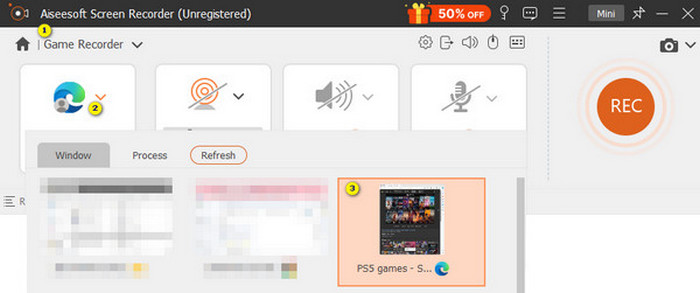
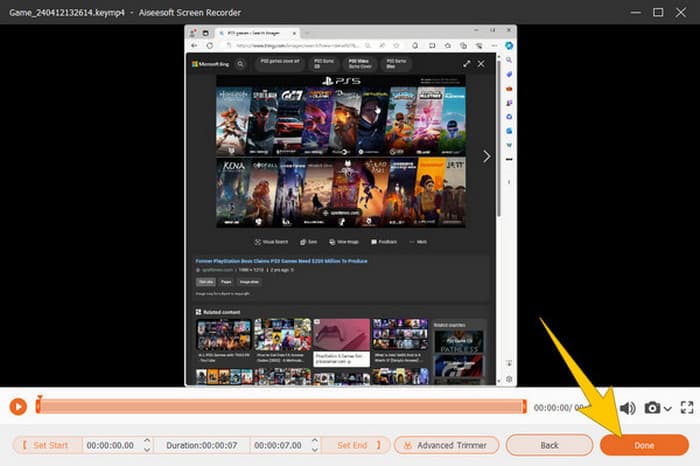
Steg 3. Efter att du gjort inställningarna klickar du på knappen REC för att starta inspelningen. När du är klar trycker du på knappen Stop. När det är gjort tar programmet dig till ett fönster där du kan göra vissa justeringar av din inspelning. Du kan klippa, ta en ögonblicksbild och justera volymen om du vill. Klicka sedan på knappen Done för att gå vidare och spara resultatet.
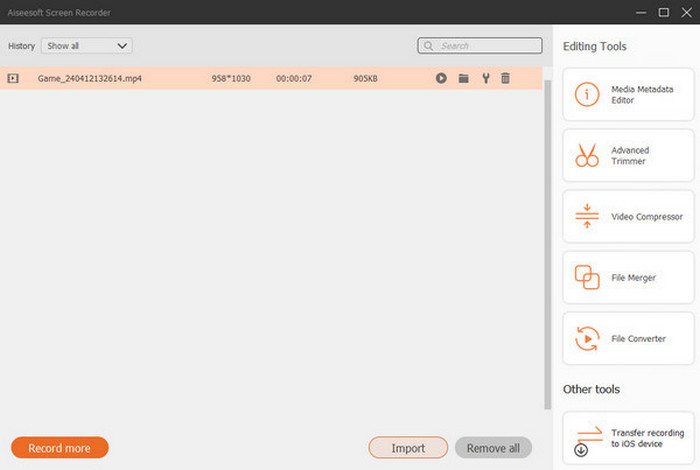
Steg 4. När videon är sparad visas ett nytt fönster. Du kan högerklicka på ditt inspelade spelklipp och välja en avancerad inställning du vill använda. Du kan också välja att dela det på den plattform du önskar om du vill. Så spelar du in PS4-skärmen utan några begränsningar.
Del 2. Hur man spelar in på PS4 standardsättet
Förutom tredjeparts-spelinspelaren har du också en inbyggd inspelare på PS4. Nu går vi vidare med stegen för hur du använder den inbyggda PS4-inspelaren.
Steg 1. Börja med att slå på din PS4 och välja spelet du vill spela in. Starta sedan spelet du vill spela och börja spela. När du är redo att börja spela in trycker du helt enkelt snabbt två gånger på Share-knappen på handkontrollen.
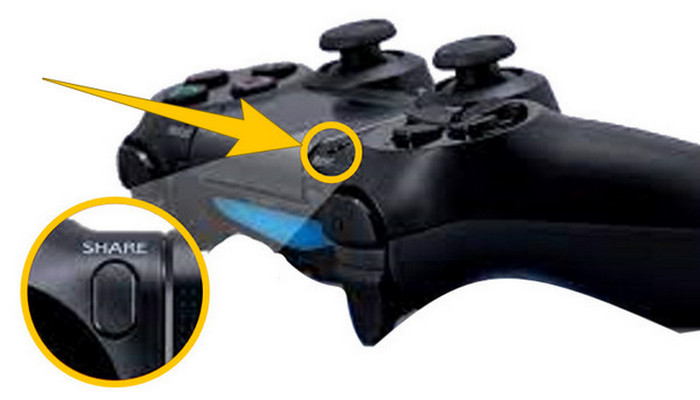
Steg 2. Du får en notis om att inspelningen har startat. Men hur stoppar du inspelningen av gameplay på PS4 när du är klar? För att göra det behöver du bara hålla nere Share-knappen en längre stund.
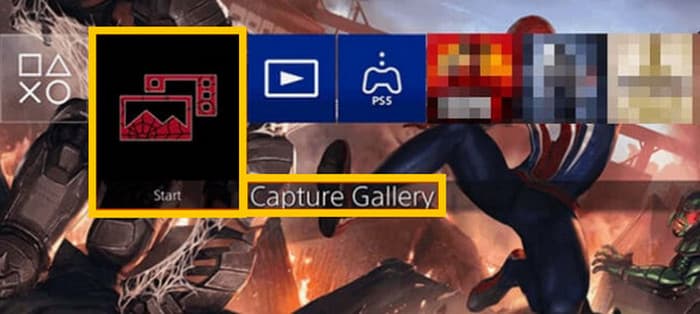
Steg 3. Därefter kan du titta på din inspelning genom att gå till Huvudmeny och sedan välja Capture Gallery i listan med alternativ.
Del 3. Hur man spelar in spel på PS4 med ett Capture Card
Ett annat populärt alternativ till standard PS4-inspelaren är användningen av ett fångstkort. Visst! Ett inspelningskort hjälper dig att ansluta din PS4 till andra enheter och låter dig spela in allt på din PS4. Om du inte visste om detta ja, fortsätt att läsa och följ instruktionerna vi ger nedan.
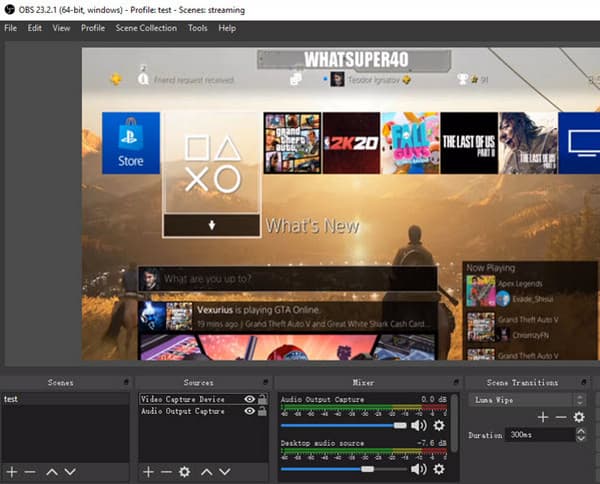
Steg 1. Anslut capture-kortet till din PS4, din dator och din TV-skärm via HDMI. Kontrollera sedan att din dator har OBS installerat för att inspelningen ska fungera.

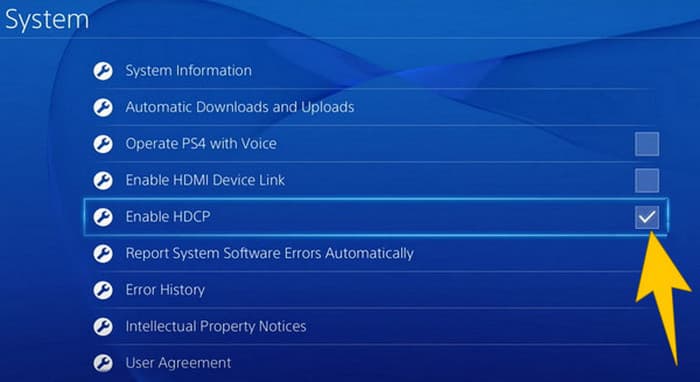
Steg 2. Ställ nu in din PS4 genom att gå till Settings och välja System, sedan System Information. Markera där alternativet Enable HDCP.
Steg 3. Starta OBS och gå sedan till Source Section>Plus>Video Capture Device, och klicka sedan på knappen OK. Nu kan du klicka på knappen Start Recording och börja spela för att spela in ditt gameplay. För att avsluta inspelningen klickar du på knappen Stop Recording när du vill.
Del 4. Vanliga frågor om inspelning på PS4
Hur stoppar man spelinspelning på PS4?
För att stoppa spelinspelningen med standardinspelaren på din PS4 behöver du bara trycka länge på Dela-knappen. När du har tryckt på den här knappen kommer du att se alternativet Stoppa inspelning på skärmen. Klicka på den för att tillämpa den.
Behöver jag speciell programvara för att använda ett inspelningskort på min PS4?
Ja. I princip behöver du särskild programvara som OBS för att få capture-kortet att fungera med din PS4. Förutom detta behöver du även skärmar och kablar, till exempel HDMI- och USB-kablar, för att kunna genomföra skärminspelningen med ett capture-kort.
Vilka är begränsningarna för att spela in på PS4 på den inbyggda inspelaren?
Det är sant att den inbyggda inspelningsfunktionen på PS4 har begränsningar för inspelning. De vanligaste begränsningarna är längden och kvaliteten på det inspelade spelet.
Slutsats
Detta är riktlinjerna för hur man spelar in på PS4. Du kan spela in med konsolens inbyggda metod, med ett capture-kort och med specialiserad programvara som är bäst för skärminspelning. Men vi vill inte att du bortser från begränsningarna hos den inbyggda inspelaren, som hindrar dig från att spela in långa och högkvalitativa klipp. På samma sätt kan capture-kort också ha begränsningar, beroende på din dators hårdvara och lagringskapacitet. Så om du inte vill att dessa begränsningar ska stå i vägen för dig, välj då FVC Screen Recorder som ditt bästa alternativ.
-
 Hur man spelar in episka stunts, kopplingar eller handledningar på Minecraft
 Vill du veta hur du spelar in dina stunts på Minecraft? Läs sedan den här artikeln som vi tillhandahåller.
-
 Hur man spelar in på PS5 på 2 ultimata sätt utan gräns
 Den här artikeln visar dig de fantastiska sätten att lära dig hur du spelar in spel på PS5. Standard och obegränsade sätt finns i den här artikelguiden! Så läs den nu!
-
 Detaljerad guide om hur man spelar MKV-filer på PS4 [Uppdaterad 2024]
 Genom att läsa den här artikeln lär du dig några sätt att spela MKV på PS4 och hur du konverterar videofilen om videon inte spelas upp.
