


 Video Converter Ultimate
 Skärminspelare
 Video reparation
 Säker nedladdning
Hur man spelar in spel på PS5 utan begränsning [Omfattande riktlinjer]
På bara tre år har PlayStation 5 sålt slut överallt. Den har nått över 50 miljoner sålda enheter sedan den släpptes, då det är en häftig konsol med kraftfull hårdvara och 4K‑spel. Om du vill visa upp dina spelkunskaper eller dela dina episka spelögonblick med dina följare är det ett perfekt alternativ att spela in på en PlayStation 5. Om du undrar hur man spelar in på PS5 har den en smart funktion som du kan använda för att fånga, justera och dela dina speläventyr på olika plattformar. Men hur gör man faktiskt allt detta? Häng kvar för att få veta hur du spelar in och tar skärmbilder på din PS5 – till och med hur du gör det med en metod för obegränsad inspelning.

Del 1. Hur man spelar in spel på PS5
Säkert kommer PS5 med en inbyggd inspelare som hjälper dig att spela in ditt hisnande spel. Det är dock värt att notera att din konsols inspelare har begränsningar och effektivitet. När det kommer till effektivitet är det säkert att säga att det är mycket effektivt för att producera inspelade videor av hög kvalitet. Å andra sidan, när det kommer till dess begränsningar måste du tänka på att den här konsolen bara kan tillåta dig att spela in maximalt 60 minuters speltid. Bortsett från det kommer det bara att tillåta dig att producera videor i MP4 och WebM som dess utdataformat som stöds.
Under tiden, för frågan om hur man skärminspelning på PS5:s inbyggda spelinspelare, tillåt stegen nedan för att ge dig svar.
Spela in ett spel
Steg 1. Ta din DualSense‑handkontroll och tryck på knappen ovanför piltangenterna. Detta är Create-funktionen och kan tryckas när du ska börja spela in ditt gameplay.
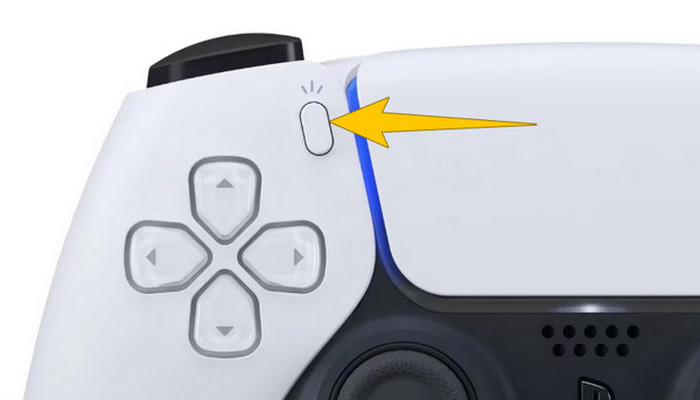
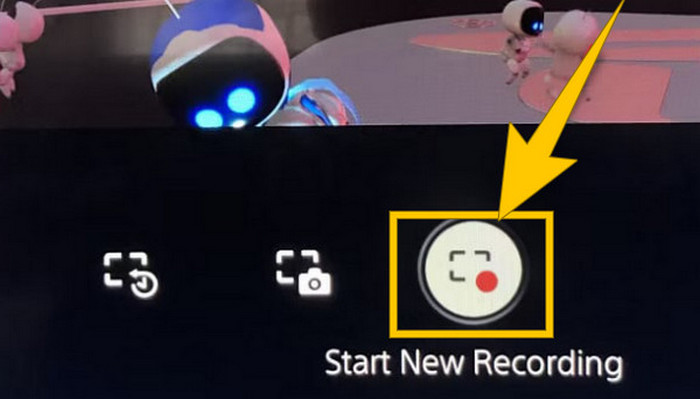
Steg 2. Efter att du tryckt på knappen tittar du på skärmen och klickar på alternativet Start New Recording. Du ser det längst ner. Inspelningen startar direkt, så du kan börja spela.
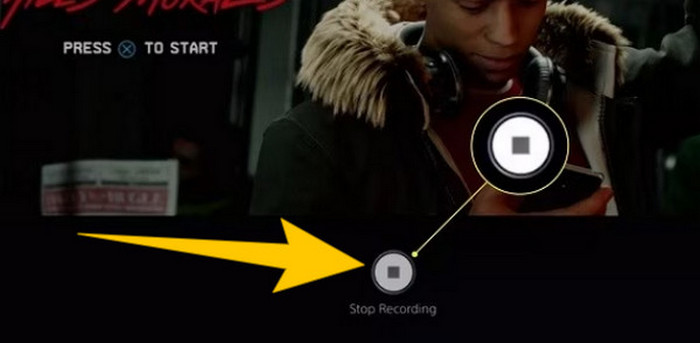
Steg 3. När du är klar med ditt spel, så här stänger du av gameplay‑inspelningen på PS5. Du behöver bara trycka på Create-knappen igen och den här gången klicka på Stop Recording, som du ser på skärmen.
Ladda ner inspelningarna
Efter inspelningen kommer PS5 automatiskt att spara utdata i ditt mediegalleri, där alla filer lagras. Nu, om du vill behålla en kopia för din separata enhet, är det olyckligt att berätta att det nämnda galleriet inte har nedladdningsalternativet. Det finns dock fortfarande ett sätt att behålla filerna.
Steg 1. Anslut ditt externa SD‑ eller USB‑minne till konsolen. Gå sedan till Media Gallery och öppna det.
Steg 2. Välj den skärminspelning du nyligen sparade. Klicka sedan på Ellypsis, eller tredjepunktsknappen längst ner på skärmen, tillsammans med de andra alternativen som visas.
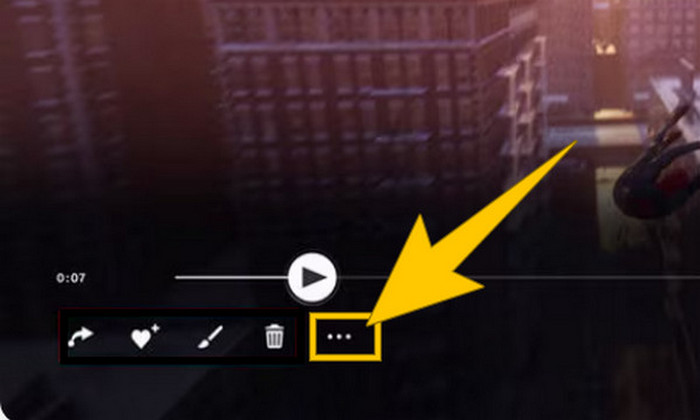
Steg 3. När du har klickat väljer du Copy to USB Drive för att börja kopiera den inspelade videon till ditt USB‑minne. När det är klart kan du överföra videon till den enhet där du vill behålla den inspelade filen.
Del 2. Hur man skärminspelning på PS5 i 4K-kvalitet utan begränsning
Oroa dig inte om PlayStation 5 bara låter dig spela in upp till en timmes gameplay i bra kvalitet. Vi vet hur frustrerande det är för många gamers, och alla spel stöder inte detta. För obegränsad inspelning med 4K‑kvalitet i alla PS5‑spel kan du därför vilja kolla in FVC Screen Recorder. Ja, den här skärminspelaren begränsar inte din inspelningstid – bara datorns lagringsutrymme. Dessutom saktar den inte ner ditt spel. Med den här fantastiska spelinspelaren kan du också finputsa dina inspelningar innan du sparar dem. Du kan faktiskt klippa, slå ihop, komprimera, konvertera, redigera metadata, förbättra inspelningen och dela den till valda plattformar utan krångel.
Det är också värt att notera att FVC Screen Recorder erbjuder olika inspelningsverktyg för att klara dina inspelningsuppgifter. Med den kan du spela in video, ljud, fönster, webbkameror, telefoner etc. Anmärkningsvärt nog kan du njuta av dina inspelningar utan vattenstämplar inbäddade i dem! Så, för att lära dig mer om FVC Screen Recorder, följ stegen nedan för att se hur du skärminspelning på PS5.
Steg 1. Skaffa FVC Screen Recorder genom att ladda ner den till din dator. För att göra detta klickar du bara på knappen Free Download och följer sedan anvisningarna för att installera och öppna programmet.
Gratis nedladdningFör Windows 7 eller senareSäker nedladdning
Gratis nedladdningFör MacOS 10.7 eller senareSäker nedladdning
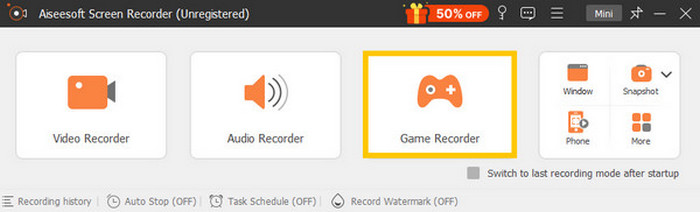
Steg 2. När du kommer till gränssnittet i FVC letar du upp och klickar på verktyget Game Recorder. Det finns på den högra, centrala delen av skärmen. Därifrån klickar du på den lilla pilen bredvid Select the Game för att välja vilket fönster där din PS5 visas.
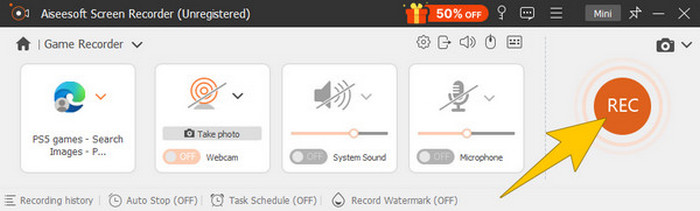
Steg 3. När du har valt fönster märker du att inspelaren fokuserar på det. Du kan dessutom välja om du vill inkludera din webbkamera för bild‑i‑bild‑inspelning, systemljud och mikrofonljud i inspelningen. När allt är inställt klickar du på REC-knappen för att starta spelet och inspelningen.
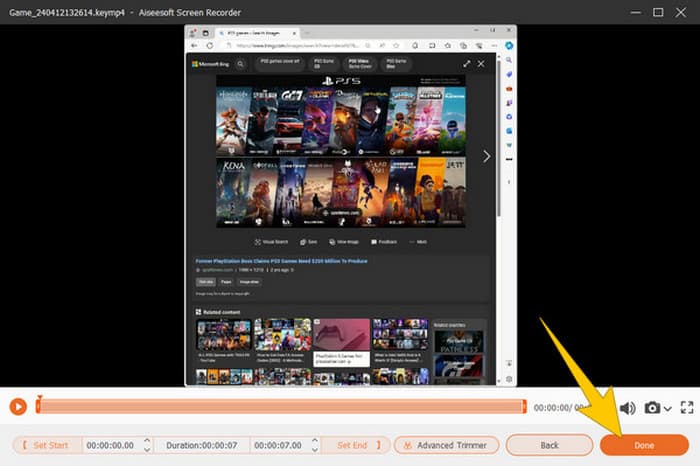
Steg 4. När du är färdig med inspelningen klickar du på knappen Stop på den flytande menyraden. Därefter kan du justera videon med hjälp av redigeringsverktygen i det nya fönstret. Klicka sedan på Done för att spara den inspelade filen i ditt galleri.
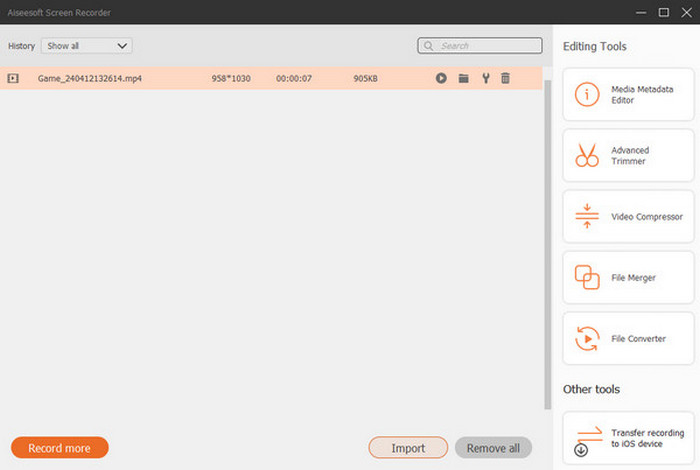
Steg 5. Det här steget är valfritt. Men om du vill dela din inspelning på dina sociala medier kan du högerklicka på din senaste gameplay‑inspelning och välja Share. Du kan också använda fler avancerade redigeringsverktyg för att förbättra dina inspelningar.
Om du vill veta mer om den här inspelaren finns här fler tips att lära dig.
Vidare läsning
5 effektiva sätt att spela in skärmen som GIF på Mac & Windows
Hur du spelar in episka stunts, clutches eller guider i Minecraft
Del 3. Vanliga frågor om inspelning av spel på PS5
Hur stänger du av spelinspelning på PS5?
För att stänga av eller stoppa spelinspelningen på din PS5 behöver du bara trycka på knappen Skapa på din spelkontroll. Klicka sedan på alternativet Stoppa inspelning på skärmen.
Var kan jag se mina inspelade spelklipp på min PS5?
De inspelade spelklippen lagras i avsnittet Capture från huvudgalleriet. Du kan komma åt det här galleriet från hemskärmen. Med den kan du visa, redigera och dela dina klipp som ditt galleri tillåter.
Hur delar jag mina inspelningar på PS5?
Du kan dela dina klipp efter inspelning på din PS5 direkt från Capture Gallery. Du behöver bara välja klippet du vill dela, klicka på knappen Alternativ på din handkontroll och välja alternativet Dela.
Slutsats
Du behöver inte längre fråga hur man spelar in på PS5, eftersom den här artikeln har visat dig de standard- och bästa metoderna. Njut alltså av långa och högkvalitativa gameplay‑inspelningar av det du vill spela in. Dela sedan lösningarna med dina medspelare så att de får samma spännande inspelningsupplevelse på sin PS5!
-
 5 av den ledande spelinspelningsprogramvaran som en spelare måste känna till [2024]
 Är du en spelare som vill göra en spelinspelning? Då kommer den här artikeln att ge dig den bästa spelinspelaren du kan använda för att uppleva nya spelhöjder.
-
 Topp 5 Android Screen Recorder-appar du måste skaffa 2024
 Har du problem eftersom du inte kan göra en skärminspelning på din Android? I så fall granskade den här artikeln Android-skärminspelaren som du kan ladda ner på.
-
 Topp 5 Zoom Meeting Recorders för att spela in möten på Zoom [2024]
 Behöver du spela in ett zoommöte för att inte missa de viktiga detaljerna i ditt möte? Om så är fallet ger den här artikeln de bästa zoominspelare du bör känna till.
