


 Video Converter Ultimate
 Skärminspelare
 Video reparation
Hur man snabbt lägger till bilder till en video på mindre än en minut
Det finns många anledningar till varför du behöver lägga till bilder till video. Till exempel fann vissa redaktörer att lägga till bilder i sina videor skapar en ny interaktion för de andra användarna. På så sätt kan du använda detta för att representera ditt varumärke eller göra en utmärkt visuell presentation och hjälpa din video att förmedla rätt budskap till användarna. Men visste du att många verktyg utför samma jobb? Vi vet att det är svårt att välja vilket verktyg som passar dig bäst. Så idag har vi redan sållat bort de tre verktyg vi hittade som fungerar bra. När du har läst den här artikeln kommer du att lära dig att lägga till bilder i dina videor.

Del 1. Steg-för-steg-guide för att lägga till bild till video med Video Converter Ultimate
Vill du lägga till en bild i videon med det ultimata verktyget? Använd då Video Converter Ultimate. Med hjälp av detta ultimata verktyg kan du enkelt lägga en bild ovanpå videon även om du inte är proffs på den här typen av redigering. Förutom sin förmåga att lägga över bilder på video kan du enkelt använda verktyget för att lägga till bakgrundsmusik, lägga till undertexter och mycket mer. Det är känt som en allt-i-ett‑lösning för de flesta problem som rör video. Vill du veta vilka fördelar det har? I så fall kan du läsa informationen nedan.

FVC Video Converter Ultimate
5 689 200+ nedladdningar- Ger enastående prestanda vid konvertering och redigering.
- Redigera och skapa en fantastisk video inom några få klick.
- Den stöder 200+ format, såsom MP4, MOV, FLV, WMV, AVI, MTV, etc.
- Finns i alla plattformar för nedladdning, som Windows och Mac.
Gratis nedladdningFör Windows 7 eller senareSäker nedladdning
Gratis nedladdningFör MacOS 10.7 eller senareSäker nedladdning
Är det inte fantastiskt vad du kan göra med verktyget? Ja, vi vet att verktyget är imponerande på många sätt. Om det här verktyget fångade din uppmärksamhet och du vill lära dig hur du lägger till en bild i en video med det här verktyget, kan du läsa handledningen nedan.
Steg 1. Klicka på nedladdningsknappen nedan för att ladda ner det direkt till din enhet, följ installationsanvisningarna och starta programmet. Innan du går vidare uppskattar vi om du först bekantar dig med verktygets gränssnitt så att du lättare kan följa de kommande stegen.
Gratis nedladdningFör Windows 7 eller senareSäker nedladdning
Gratis nedladdningFör MacOS 10.7 eller senareSäker nedladdning
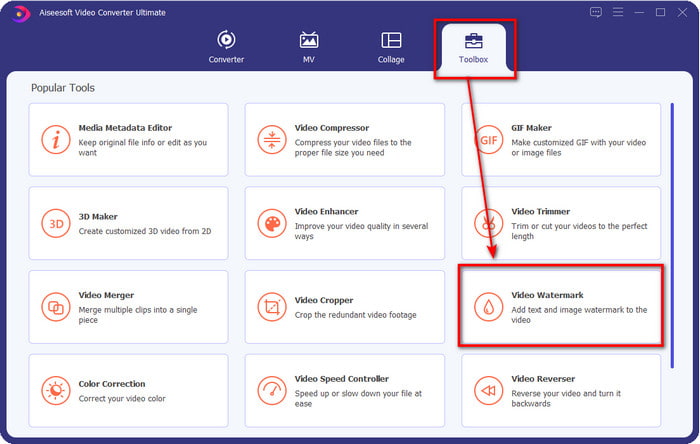
Steg 2. När verktyget körs på systemet klickar du på Toolbox; leta sedan upp Video Watermark under den och öppna det.
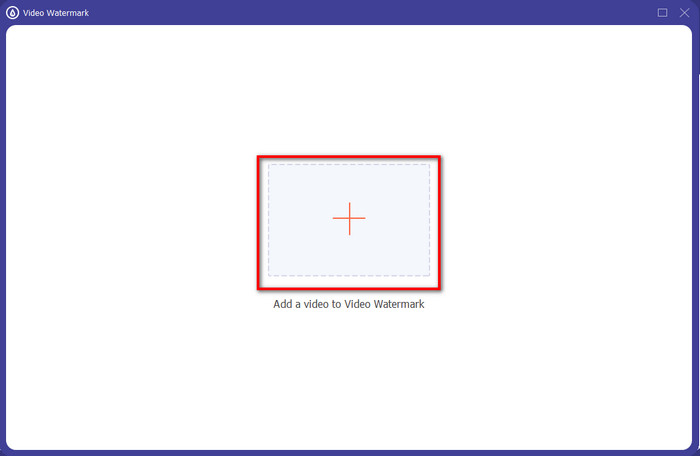
Steg 3. När du har klickat på +-knappen visas en dialogruta på skärmen; leta reda på filen och klicka på Open om det är videofilen.
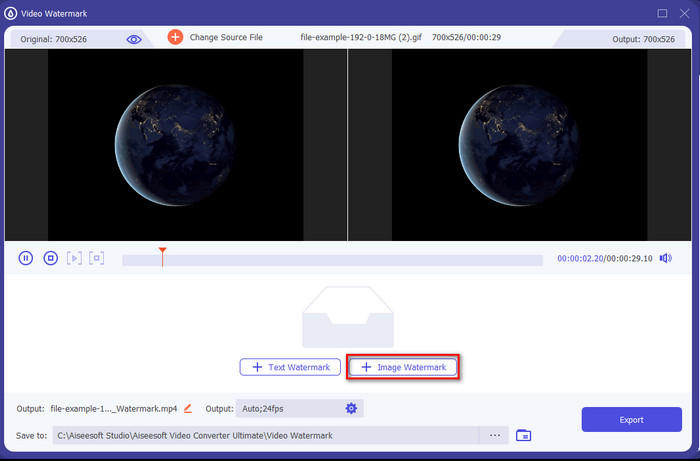
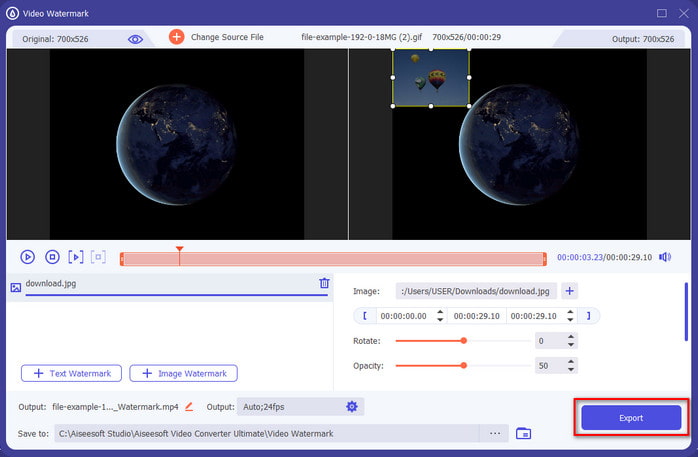
Steg 4. Ett nytt fönster visas, klicka på Image Watermark, sedan öppnas en mapp igen, men den här gången väljer du bilden du vill lägga till i din video och trycker på Open.
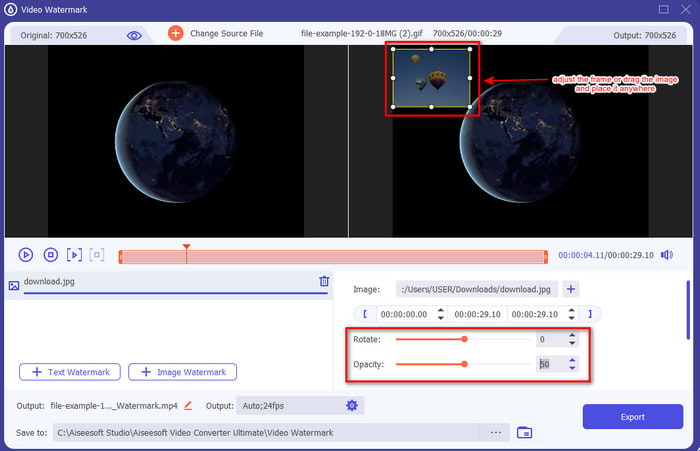
Steg 5. Justera storleken på bilden du har lagt in i videon och dess position genom att dra i ramen runt fotot. Du kan placera den var du vill genom att hålla och dra bilden. Dessutom kan du justera bildens synlighet genom att ändra Opacity. Du kan även rotera bilden genom att dra i reglaget för Rotate.
Steg 6. När du har redigerat bilden är det dags att klicka på Export.
Relaterat:
Hur man lägger till ljud i video
Hur man lägger till undertexter i video
Del 2. Hur man lägger över bilder till videor på Internet gratis
Online Video Cutter – Lägg till bild till en video
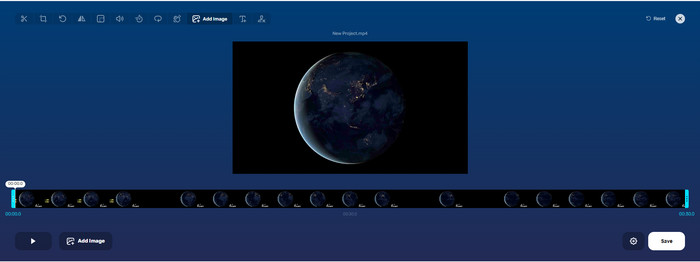
Om du vill lägga bilder över en video online kan du använda Online Video Cutter – Add Image to a Video. Detta webbaserade verktyg erbjuder ett enkelt men effektivt sätt att lägga till foton i valfri video. Även om verktyget är bra att använda är det ändå lite besvärligt att ladda upp videon eftersom det beror på din internetanslutning. Dessutom kan du inte lägga till två bilder här eftersom det inte stöds. Men om du vill använda verktyget kan du följa stegen nedan.
Steg 1. Öppna din webbläsare, sök efter webbaserade verktyget i sökfältet och öppna det.
Steg 2. Klicka på Open File för att ladda upp videon och klicka sedan på Add Image för att ladda upp bilden du vill lägga in.
Steg 3. Dra bilden för att ändra dess position, klicka på Save för att koda och spara den på din dator.
Fördelar
- Gratis att använda och du behöver inte ladda ner det.
- Den stöder grundläggande redigeringsfunktioner för användarna.
- Den har ingen vattenstämpel på slutresultatet.
Nackdelar
- Det kan inte lägga till upp till 2 eller fler bilder i videon.
- Det tar tid att ladda upp bilden och videon.
Flixier
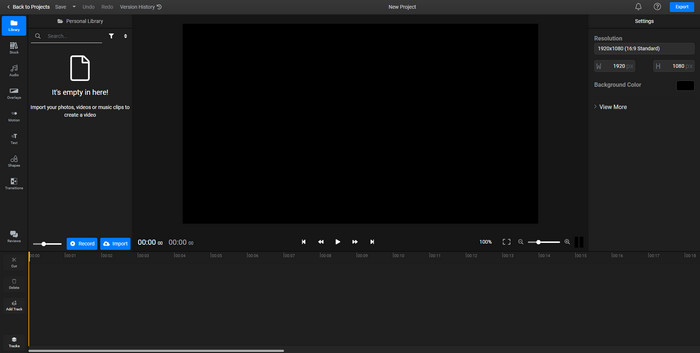
Du kan använda Flixier för att lägga till en bild i en video online gratis. Du kan också redigera din videomall med detta onlineverktyg, inklusive att lägga till bilder. Det här verktyget erbjuder utmärkta inbyggda redigeringsfunktioner som du kan använda för att få din video att se bättre ut. Även om webbaserade verktyget erbjuder denna unika funktion kommer det att finnas en vattenstämpel på slutresultatet när du exporterar eftersom det är gratis. Men du kan köpa premiumversionen för att ta bort vattenstämpeln.
Steg 1. Öppna din sökmotor, sök på verktygets namn och klicka på Choose File.
Steg 2. Klicka på Import för att ladda upp videon och bilderna, dra videon och bilden till tidslinjen och se till att bilden ligger ovanpå videon. Ändra bildens position genom att dra den inne i videon.
Steg 3. Klicka på Export och sedan Export and Download för att spara den på din dator.
Fördelar
- Kostnadsfritt och tillgängligt på webben.
- Det ger fler redigeringsfunktioner än det första onlineverktyget.
- Det stöder att lägga till flera bilder till din video.
Nackdelar
- Den slutliga utgången har en vattenstämpel i slutet eftersom den är gratis.
- Den måste köpa VIP-versionen för att ta bort vattenstämpeln på videoutgången.
Del 3. Vanliga frågor om att lägga till bilder till video
Påverkar kvaliteten att lägga till bilder i en video?
Videokvaliteten påverkar inte bilden du lägger till. För att förenkla har det inte någon betydande videokvalitet att lägga till bilder, även om du lägger till många bilder. Men om du exporterar videon till den redigerare du har använt och ställer in den på låg kvalitet, förvänta dig videoutdata nedan.
Varför blir bilderna jag lägger till i videon suddiga?
Den främsta anledningen till att det blev är att bilden redan är suddig från början. För att undvika detta problem måste du först kontrollera bilden och se till att den inte är suddig innan du använder den på din video.
Kan jag lägga till en övergång till bilden på videon?
Med vissa redigerare är det möjligt att lägga till en övergång till din bild. Även om det finns många olika animerade övergångar, är klipp, tona, torka och lösa upp de vanligaste. Även om dessa är de vanligaste, är de fortfarande idealiska för att lägga till en övergång till bilden för att göra videon mer professionell och spännande.
Slutsats
Efter att du har läst den här bloggen blir det lättare att förstå hur man lägger till foton i en video, om du tar del av hela artikeln med de olika online‑ och offlineverktygen. Även om vi presenterar olika uppsättningar verktyg rekommenderar vi ändå att alla användare använder det ultimata verktyget för att utföra den här uppgiften. Video Converter Ultimate har ett lättbegripligt gränssnitt som hjälper användarna att göra jobbet effektivt. Är du fortfarande osäker på om det passar dig? Att ladda ner verktyget är det enda sättet att ta reda på om det är rätt för dig.
-
 5 fördelaktiga OGV till WMV-omvandlare för att konvertera dina OGV-filer
 Det finns 5 olika OGV till WMV-omvandlare du kan använda för att konvertera OGV-filerna. Den här artikeln ger ett starkt fakta om de 5 tillgängliga ogv-omvandlarna.
-
 Genomgång för de 2 bästa AMV till WMV Converter Software [2022]
 Vill du konvertera AMV till WMV? Om så är fallet måste du läsa den här artikeln för att få en uppfattning om vad AMV är och hur du konverterar filen till ett WMV-format.
-
 Mest användbara verktyg för att konvertera SWF till WMV (online och offline)
 Har du svårt att hitta en spelare för dina SWF-filer? Du behöver inte oroa dig eftersom du bara kan konvertera det till WMV-format för en bättre videokonsumerande upplevelse. Läs den här artikeln för att veta mer om denna konverteringsprocess.
