


 Video Converter Ultimate
 Skärminspelare
 Video reparation
 Säker nedladdning
Hur man inverterar en video på en iPhone eller Android gör det enkelt att vända
Statiska videor är tråkiga, eller hur? Med denna situation vill du lägga till ett nytt perspektiv till ditt videoinnehåll och fängsla din publik. Om så är fallet är det dags att börja vända dina videor på din Android- eller iPhone-enhet. Att vända videor är ett enkelt men kraftfullt sätt att förvandla ditt innehåll och skapa en dynamisk tittarupplevelse. Med rätt program och tekniker kan du enkelt vända och rotera dina videor för att ge en unik touch till dina vloggar, inlägg på sociala medier eller vilket videoprojekt du har i åtanke.
Genom att lära dig hur man spegelvänder en video på en iPhone eller Android‑enhet kommer du att bli förvånad över hur mycket en enkel vändning kan förändra ditt innehåll. Låt oss därför sätta i gång och ta reda på hur du kan vända videor på mobila enheter som ett proffs!

Del 1. Guide Hur man vänder en video på en iPhone
InShot är gratis att ladda ner och använda, med många av dess funktioner tillgängliga utan några köp i appen. Dessutom låter appen dig vända och rotera videor utan krångel. Du kan vända eller spegla videor horisontellt och vertikalt. Dessutom är det möjligt att rotera klämmorna 90 eller 180 grader med detta program. För att ta reda på hur man vänder en video på en iPhone, följ de givna stegen:
Steg 1. Om du inte redan har gjort det går du till App Store och hämtar appen InShot.
Steg 2. För att vända en video öppnar du InShot‑appen och trycker på plus-ikonen på huvudsidan. Verktyget Flip, tillsammans med andra redigeringsalternativ, kommer då att visas. När du väljer Flip‑verktyget kan du välja mellan Horisontellt och Vertikalt.
Steg 3. Välj bara det alternativ du vill ha, så vänds din video direkt. Med knappen Spela kan du titta på en förhandsvisning av din spegelvända video.
Del 2. Handledning Hur man vänder en video på en Android
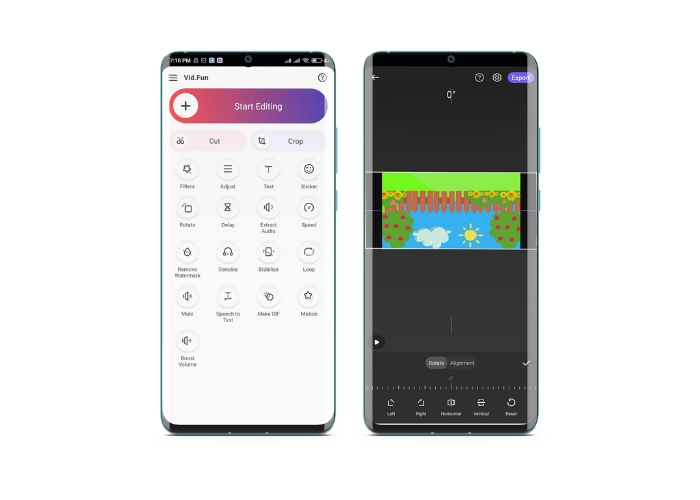
Vid.Fun är en kraftfull videoredigeringsapp utformad speciellt för Android‑enheter. Förutom att vända videor horisontellt och vertikalt får du tillgång till andra användbara redigeringsverktyg. Det inkluderar trimning, klippning, sammanfogning och uppdelning av dina videor. Samtidigt kan du visa upp din kreativitet med appens bildspelsfunktion. Här följer ändå en steg‑för‑steg‑guide om hur du vänder en video på en Android‑enhet:
Steg 1. Starta appen och tryck på knappen Start Editing för att välja videon du vill vända. Tryck på Yes längst ned på skärmen för att bekräfta den valda videon.
Steg 2. Därefter trycker du på All nere i högra hörnet, så visas olika redigeringsalternativ. Tryck nu på alternativet Motion.
Steg 3. Du kommer att se en rad redigeringsverktyg, inklusive vändningsverktyget. Tryck på rätt alternativ mellan Horizontal och Vertical. Välj det alternativ du vill ha, så vänds din video därefter. Du kan förhandsgranska din vända video genom att trycka på knappen Play.
Steg 4. Om du är nöjd med din vända video trycker du på knappen Export för att spara den på din enhet eller dela den direkt på sociala medier. Så här använder du den här appen för att vända videor.
Bonus: Hur man vänder en video på en dator
Om du letar efter ett enkelt och effektivt sätt att vända videor på din dator behöver du inte leta längre än till FVC Video Converter Ultimate. Denna populära videoredigerare erbjuder en rad redigeringsverktyg och funktioner, inklusive möjligheten att vända och rotera videor med bara några få klick. Den stöder horisontell och vertikal spegelvändning samt rotation av videor. Dessutom levereras programmet med en verktygslåda som rymmer en rad redigeringsverktyg efter dina behov.
Steg 1. Skaffa programmet
Först och främst hämtar du programmets installationsfil genom att klicka på knappen Free Download nedan. Se till att välja rätt installationsfil för ditt datorsystem. Installera sedan programmet och starta det.
Gratis nedladdningFör Windows 7 eller senareSäker nedladdning
Gratis nedladdningFör MacOS 10.7 eller senareSäker nedladdning
Steg 2. Starta videorotatorn
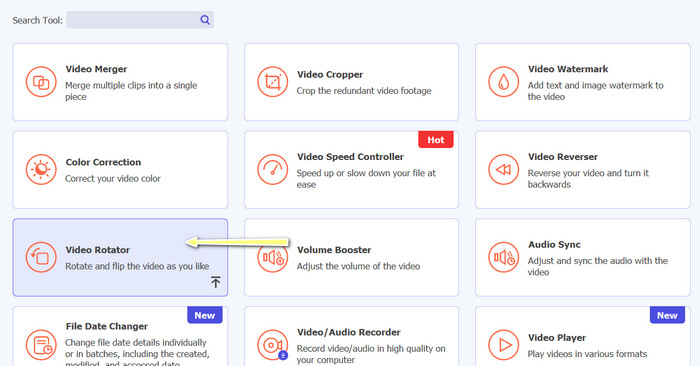
När programmet har startats ser du att huvudfönstret har fyra flikar. Välj Video Rotator från menyn Toolbox. Du kan också använda sökrutan för att leta efter verktyget och öppna det snabbt.
Steg 3. Lägg in en videofil
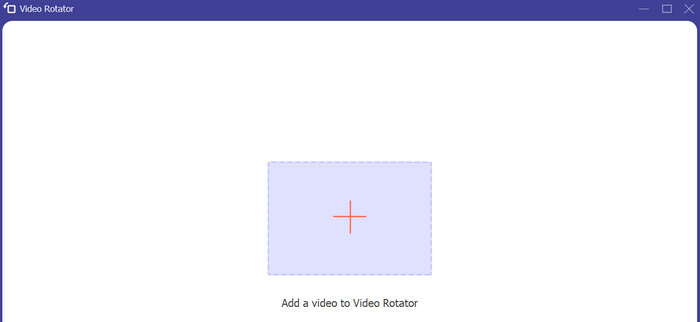
Video Rotator har en +-knapp för att ladda upp videor. Tryck på den knappen, så laddas gränssnittet för vändning.
Steg 4. Vänd videon
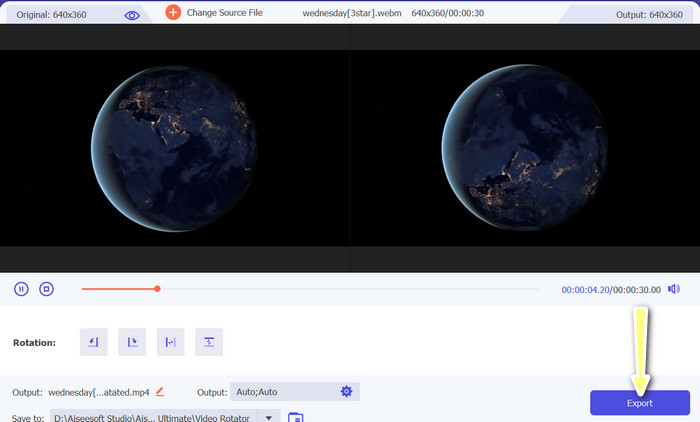
När gränssnittet har öppnats kan du använda knapparna för att vända videon. Du kan välja mellan att spela upp videon horisontellt eller vertikalt. För att slutföra processen klickar du på rätt knapp och sedan på knappen Export.
Vidare läsning:
Enklaste sätten att snabba upp en video på dina Android‑enheter [2023]
Hur du förkortar en video på iPhone [detaljerade guider]
Del 3. Vanliga frågor om att vända videor på Android och iPhone
Kan jag vända en video tillbaka till dess ursprungliga orientering?
Ja, du kan enkelt vända en video tillbaka till sin ursprungliga orientering med en app för att vända videon på Android eller iPhone. Använd helt enkelt flip-effekten igen, så kommer den att återgå till sin ursprungliga orientering.
Kan jag vända en video med den inbyggda kameraappen på min Android- eller iPhone-enhet?
Nej, den inbyggda kameraappen har ingen funktion för videoflipping. Du måste använda en videoredigeringsapp eller programvara för att vända dina videor.
Kommer vändning av en video att minska dess kvalitet?
Att vända en video ska inte minska dess kvalitet, men det kan påverka orienteringen av all text eller grafik i videon. Om du är orolig för kvaliteten är det bäst att använda en högkvalitativ videoredigeringsapp eller programvara.
Slutsats
Så varför inte ladda ned någon av dessa appar redan i dag och börja vända dina videor för att skapa spännande och unikt innehåll för din publik? Du kommer garanterat att få fler visningar och fler gilla‑markeringar när du väl har lärt dig hur man vänder en video på en iPhone eller Android‑enhet.
-
 Handledning - 4 gratis sätt att slå samman videor på iPhone till en ny
 Läs och få fyra enkla sätt att slå samman videor på iPhone. Alla iPhone-modeller och iOS-versioner stöds. Du kan snabbt kombinera 2 och fler videor på iPhone till en ny video.
-
 Tips om hur du ändrar videometadata på iPhone inom räckhåll
 Har du problem med att ändra videometadata på iPhone-enheter? Lyckligtvis talar den här artikeln om det bästa sättet att ändra videometadata på iPhone.
-
 Redigera som ett proffs: Hur du enkelt beskära dina iPhone-videor
 Om du vill ta din iPhone videoredigeringsfärdigheter till nästa nivå, är videoklippsappar en spelomvandlare. Vi'kommer att täcka några av de bästa videoklippapparna för iPhone.
