


 Video Converter Ultimate
 Skärminspelare
 Video reparation
Hur man sänker upplösningen för en video på Windows, Mac och mobiltelefoner
Videos on 1080 and 720 HD have the best resolution you would love to use, especially watching. Although these resolutions are best, sooner or later, you will need to convert the video resolution into less to save some space on your drive. But the question is how to convert the video resolution to lower it? This article will identify the leading video resolution converter to lower the video resolution on Windows, Mac, Online, Android, & iPhone.

Del 1. Varför behöver du sänka videoupplösningen
Som en förberedelse innan vi sänker videoupplösningen, låt oss först fastställa orsaken till varför vi behöver ändra för att sänka upplösningen på en video. Informationen vi tillhandahåller nedan är den vanligaste instansen du behöver för att minska upplösningen.
Orsak 1. Stöds inte på mobila enheter
Vissa mobila enheter stöder inte högre videoupplösning eftersom din mobil inte känner igen den. Ibland trodde vi att videon inte öppnades på grund av formatkompatibiliteten, men detta är ytterligare en anledning bakom det. Om du vill spela upp videon måste du tänka på upplösningen för videon du har sparat på din telefon.
Orsak 2. Ta dig tid att ladda filen på en mediaspelare
Varje mediaspelare kan spela upp din video i högsta möjliga upplösning, men inte alla kan ladda videon med hög kvalitet direkt. Även om det är roligare att titta på en video med hög upplösning än att titta på en lägre. Att lära sig hur man sänker upplösningen på en video är ett måste om du vill titta på videon direkt med liten eller mindre belastning på mediaspelaren.
Anledning 3. Video med hög kvalitet äter mycket utrymme
Detta skäl är inte nytt för oss; video med hög kvalitet är mer sannolikt att ha en enorm filstorlek. På grund av den högkvalitativa utskriften måste du förvänta dig att filstorleken är stor. Till exempel är 720 och 1080 några av de bästa kvaliteten, men filstorleken på 720 videor är mycket mindre än 1080 videor. Å andra sidan är upplösningen på 1080 mycket högre än 720.
Nu när vi har idén om varför vi behöver minska videoupplösningen, kommer den efterföljande informationen nedan att lära dig de olika uppsättningarna verktyg du kan använda för att minska upplösningen på din video. Håll bollen i rullning för att få en heltäckande uppfattning om det.
Del 2. Enklaste sättet att minska videoupplösningen på skrivbordet
If you need a user-friendly video converter that can help you quickly change the video resolution, then Video Converter Ultimate will offer this to you. This tool supports 200+ formats with different presets you can choose from. Want to know what impressed us about this converter? With this tool, you can create presets that can go up to 4k or as low as 360 resolution. Moreover, you don't need to be a professional video editor to learn how to convert video to a lower resolution; by following the steps below, you can convert resolution successfully.
Step 1. Kindly click the appropriate button to get the version you are currently using, whether Windows or Mac. Open the download file to install the software follow the installation process to install it properly. After installation, open the Video Converter Ultimate and proceed to the next step.
Gratis nedladdningFör Windows 7 eller senareSäker nedladdning
Gratis nedladdningFör MacOS 10.7 eller senareSäker nedladdning
Step 2. Upload the video with the highest resolution by dragging and dropping it on the tool's interface. But you can click the + button to open the folder, locate the file and click Open to upload the video.
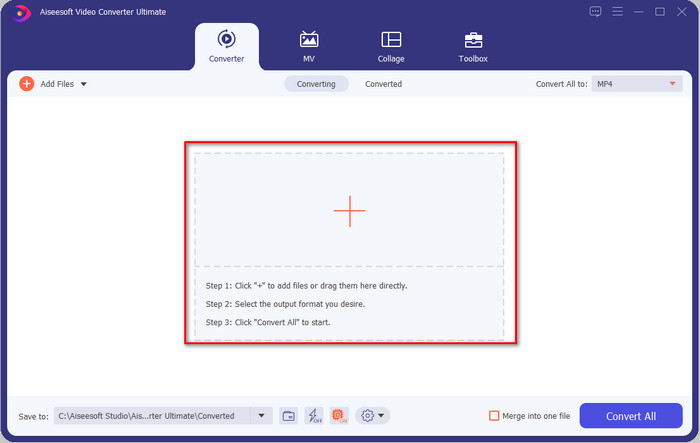
Step 3. Click Convert All to, and a setlist of the premade format will show. You can select different formats such as MP4, MOV, AVI, MKV, and 200+ more with different resolutions, click the format you want, and proceed.
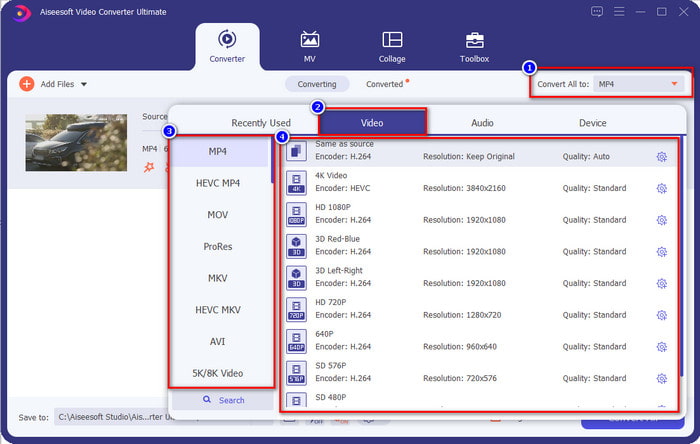
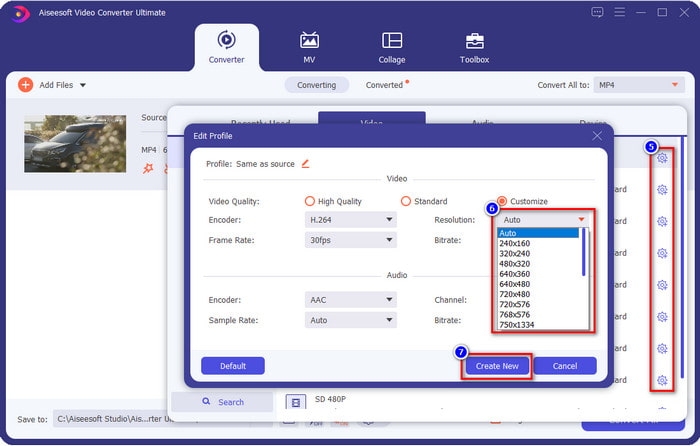
What if the resolution you want to achieve is not on the pre-made list? No need to worry; you can create your resolution. After clicking the Convert All to, choose the format you want and click the gear with a plus icon. Click the drop-down button, select the resolution you want, click Create New, and click the preset you've made.
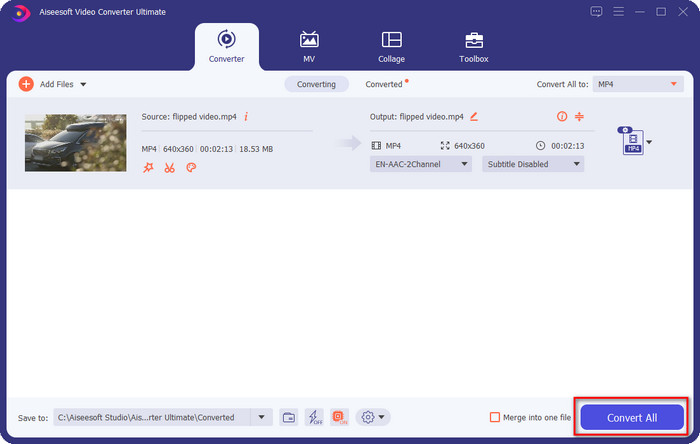
Step 4. To start lowering your video resolution, hit the Convert All button. With the ultra-fast conversion, the download will take less than a minute. And voila, the resolution of your video is now lowered, all thanks to the ultimate tool.
Del 3. Gratis sätt att konvertera videoupplösning till lägre upplösning på webben
If you are looking for a way to convert HD video to lower resolution online, then you can use the FVC Free Video Converter Online as a solution. This web tool supports numerous formats you can upload and export into. Unlike the ultimate tool, you won't need to download this tool to convert the high-resolution video into a lower one. However, the tool doesn't have an ultra-fast converting process, and the supported format is not as many as the ultimate tool. So, if you want to try and use this web tool, you can follow the steps below.
Step 1. To go to the main webpage of FVC Free Video Converter Online, click this link.
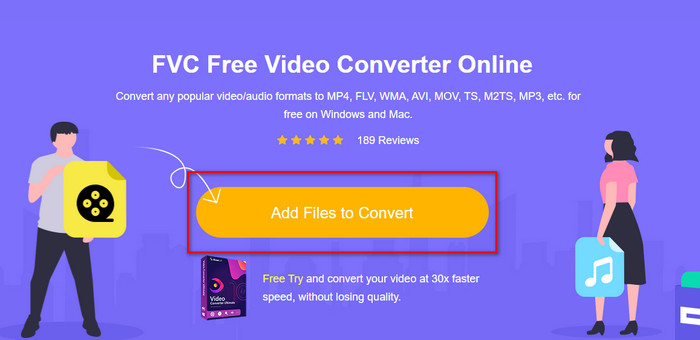
Step 2. Press Add Files to Convert to upload the video you want to lower the resolution. Additionally, if this is your first time using the tool, you must download the launcher. After that, click the Add Files to Convert again to upload the file.
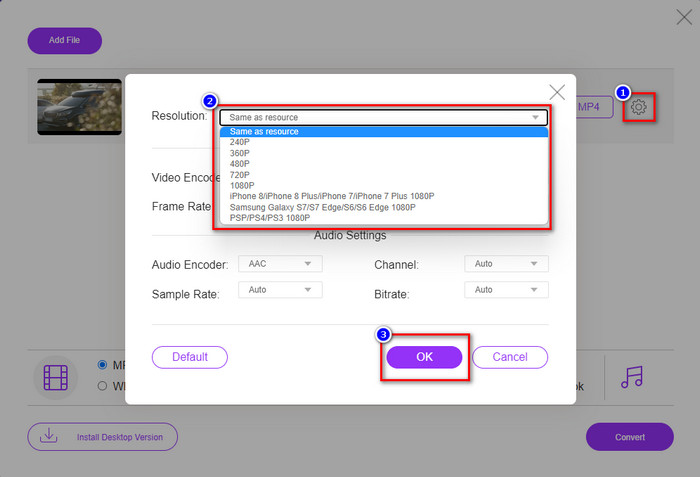
Step 3. Click the gear icon on the right side of the window that will show. Choose the resolution you want by clicking the drop-down button and pressing OK to save.
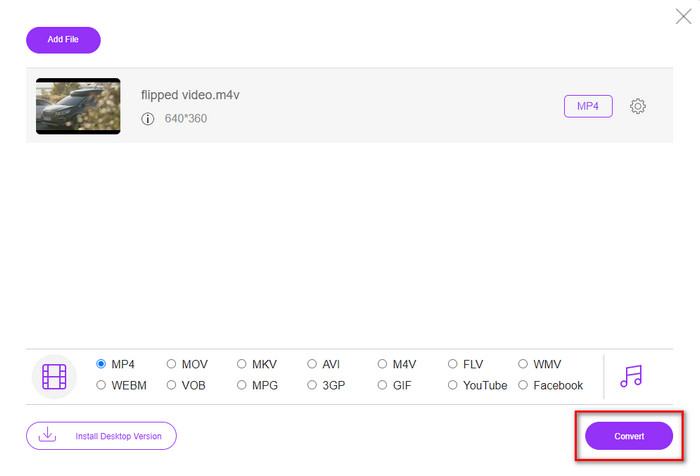
Step 4. To export the lower-quality video, click Convert and wait to download it on your drive.
Del 4. 2 bästa apparna för att minska videoupplösningen på iPhone och Android
Video Format Factory (endast för Android-användare)
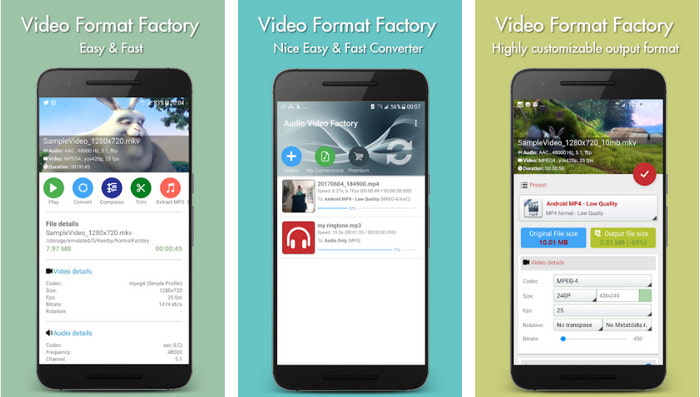
Om du behöver lära dig hur du minskar videoupplösningen på Android kan Audio Video Factory hjälpa dig. Med den här appen kan du enkelt konvertera videoupplösningen för din video gratis. Vissa annonser kommer dock att dyka upp medan du konverterar, och du kan inte använda verktygets fulla potential om du inte köper det. Så, för att lära dig hur du använder det, följ stegen.
Step 1. Download the app on Playstore, then open it.
Step 2. Click Add to upload the video, choose where your video is, and click the video. After that, click Convert; click the Size and choose the resolution you want.
Step 3. Scroll up and click Convert Now to begin the process.
Lägre kamera med mycket låg upplösning (endast för iOS-användare)
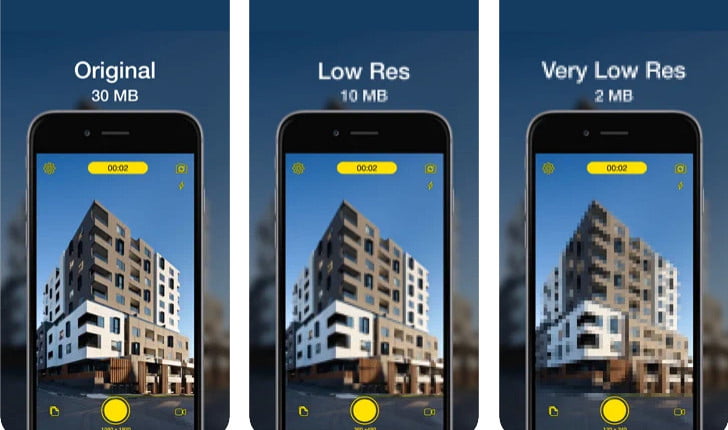
If you are an iOS user, you can still learn how to reduce the resolution of the video on the iPhone by using the Lower- Very Low Res Camera. Unlike the tools in this list, you can shoot a video with a lower resolution if you download this app on the App Store. However, the tools have some limitations, and it has pop-up ads while using the app.
Step 1. Download the app on the App Store, then click it to open.
Step 2. Click the file's icon and select the video you want to convert; after clicking the video, press Resize.
Step 3. Select the Recording Quality, and the process of converting it will begin.
Del 5. Vanliga frågor om att sänka videoupplösning
Stöder VLC 4k-upplösning?
Yes, VLC 3.0 supports playing videos that are on 4k resolution. But did you know there are many things VLC can do? If you want to explore VLC more, click this link and learn about VLC and its other perfect alternatives to use.
Vilka andra verktyg kan jag använda för att konvertera videoupplösning?
This review will learn the 8 of the best video resolution converters you can use on different platforms. By clicking this link, you will have more detailed information and different varieties of converter choices.
Vilken är den högsta videoupplösningen jag kan ha?
8k videoupplösning är den högsta videoupplösningen du kan använda på TV:n. Denna upplösning är 4x skarpare än 4k och 16 gånger bättre än 1080.
Slutsats
Finally, we now have a clearer idea on how to lower the video resolution in your platform; whether you are using a Windows, Mac, Online, Android, or iPhone, you can use the converters in this list. But if you want a tool that can change your resolution without reducing the quality, we recommend using the FVC Video Converter Ultimate. As we present above, there are many reasons you should use this tool, and if you still do not believe us, you can download the tool and try if it works, as we explain in this post.
-
 Ultimate Guide Hur man ändrar videoupplösning tillgänglig på flera plattformar
 Behöver du ändra videoupplösningen för videon? Om så är fallet, lär dig de olika sätten du enkelt kan göra för att ändra videoupplösningen för videon du tittar på.
-
 Topp 8 videoupplösningsomvandlare att använda i flera plattformar [Uppdaterad 2022]
 Har du ingen aning om den bästa videoupplösningsomvandlaren på din enhet? Om så är fallet kan du läsa den här artikeln fullt ut för att veta mer om tillgängliga videoomvandlare.
-
 Bästa 1080p HD-videospelare för Windows / Mac / iOS / Android 2021
 Om du letar efter en videospelare för att titta på 1080p HD-videor på din dator, kolla våra val av bästa 1080p HD-videospelare för Mac, Windows PC, iOS och Android.
