


 Video Converter Ultimate
 Skärminspelare
 Video reparation
Enkla sätt att lägga till bild på video i iMovie snabbt
Att lägga till bilder i en video har blivit ett av de bästa sätten att förmedla ett budskap ännu tydligare till publiken. De flesta videoredigerare kan snabbt hjälpa dig att lägga en bild ovanpå en video, och om du är Apple‑användare har du kanske redan stött på iMovie. Det är känt som en av de bästa redigerarna du kan använda på din Apple‑enhet. Samtidigt tycker många vanliga Apple‑användare att det är svårt att använda iMovie eftersom de saknar erfarenhet av programmet. Om du är en av dessa Apple‑användare som har problem med att använda det och vill lägga till en bild i en video kan du läsa den här artikeln – att lära sig hur man lägger till bilder i video i iMovie är enkelt om du läser informationen nedan.

Del 1. Hur man lägger över en bild på en video i iMovie [Mac]
Om du har en iMovie på Mac kan du använda den och lägga till bilden i videon. Så nu, om du vill lära dig hur man lägger ett foto på video iMovie, kommer stegen nedan att hjälpa dig.
Steg 1. Sök efter iMovie i Finder och klicka sedan för att öppna programmet.
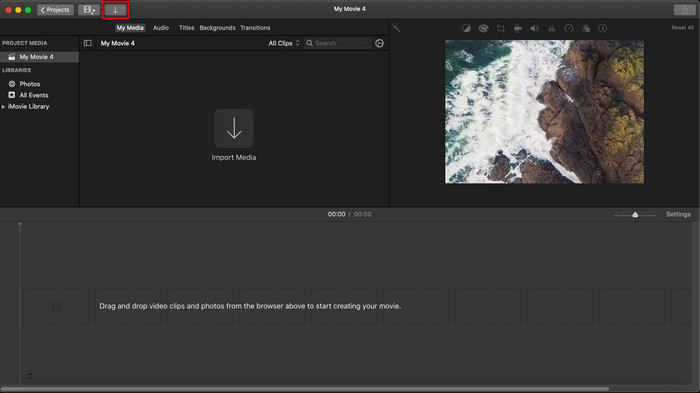
Steg 2. Klicka på Importera uppe till vänster i iMovie för att enkelt importera video och bild. Dra och placera sedan mediefilen du har lagt in på Tidslinjen.
Steg 3. Justera den bild du har importerat och dess längd. Klicka sedan på Exportera för att ladda ner filen till din dator.
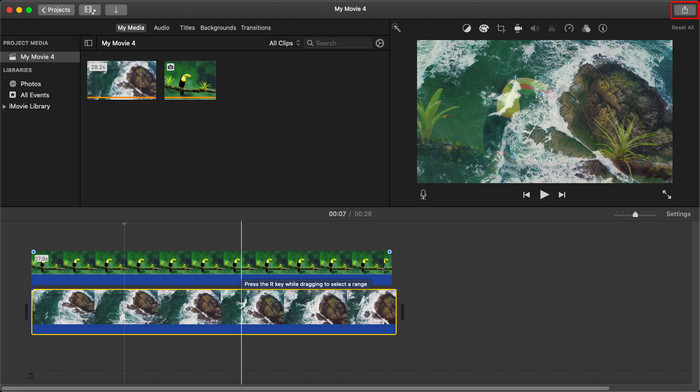
Stegen vi presenterade här är från den praktiska upplevelsen av att använda iMovie. Stegen kan variera om det finns en uppdatering av verktyget eller om vissa ändringar sker inom kort.
Del 2. Hur man infogar foton på video med iMovie [iOS]
Vad händer om du använder en iOS-enhet och vill använda iMovie som redigerare för att lägga till en bild till en video? Är det möjligt? Jo, det är det. Vi kan lära dig hur du lägger in en bild i en video iMovie på iPhone genom att läsa detaljerna nedan med stegen vi tillhandahållit.
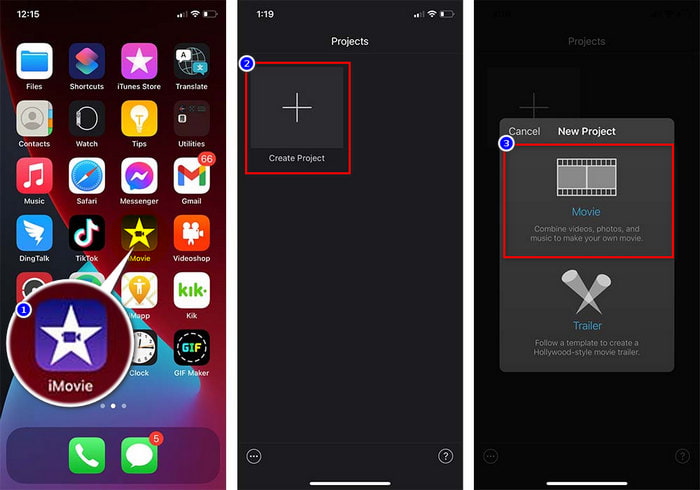
Steg 1. Starta iMovie‑appen på din iOS‑enhet, klicka på Skapa projekt och sedan Film. Lägg till videon som finns i ditt bibliotek.
Steg 2. Klicka på +-knappen för att lägga till bildvattenstämpeln i videon. Leta upp bilden i biblioteket, klicka på den, tryck på de tre prickarna och välj Grön/Blå skärm. Tryck på bilden för att automatiskt ta bort bakgrunden.
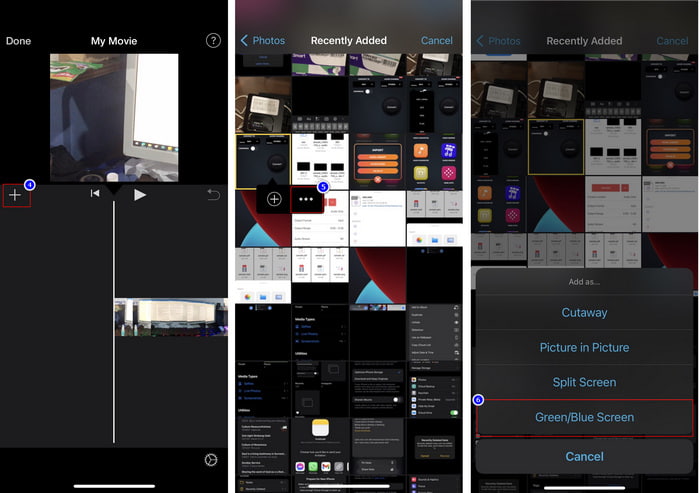
Steg 3. Tryck på Klar, klicka på Exportera och sedan Spara video.
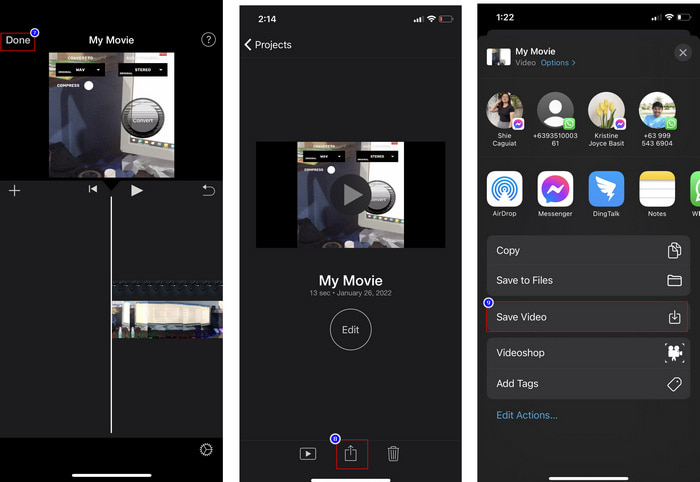
Alla steg vi presenterade här är från den praktiska upplevelsen av att använda iMovie på iOS. Men några av stegen kan ändras om en uppdatering sker på editorappen snart.
Del 3. Enklaste lösningen för att infoga foto i video med den bästa programvaran för videovattenstämpel på Mac
Har du samma svårigheter med att lägga till foton ovanpå video i iMovie? Prova att använda Video Converter Ultimate, för det här verktyget är det bästa alternativet till iMovie. Den totala prestandan har redan lovordats av miljontals användare som har provat det. Även om de har haft olika typer av videoproblem väljer de ändå det här ultimata verktyget för att lösa dem. Dessutom kan du med det här verktyget praktiskt taget göra allt som rör video, som att klippa, lägga till bilder, slå ihop, beskära osv. Oavsett vilket problem du har är detta en allt‑i‑ett‑lösning. Vill du lösa problemet? Följ då stegen vi skriver nedan så att du enkelt kan hänga med.
Funktioner:
◆ Det ultimata verktyget stöder flera format, så det blir inte svårt att ladda upp ditt format.
◆ Den stöder ett lättförståeligt gränssnitt för att snabbt lägga till bilder till vilken video som helst inom några sekunder.
◆ Den stöder olika plattformar som Mac och Windows för att låta användarna njuta på alla plattformar.
Steg 1. Du kan ladda ner verktyget genom att klicka på nedladdningsknappen nedan, installera det direkt efteråt och öppna det när installationen är klar.
Gratis nedladdningFör Windows 7 eller senareSäker nedladdning
Gratis nedladdningFör MacOS 10.7 eller senareSäker nedladdning
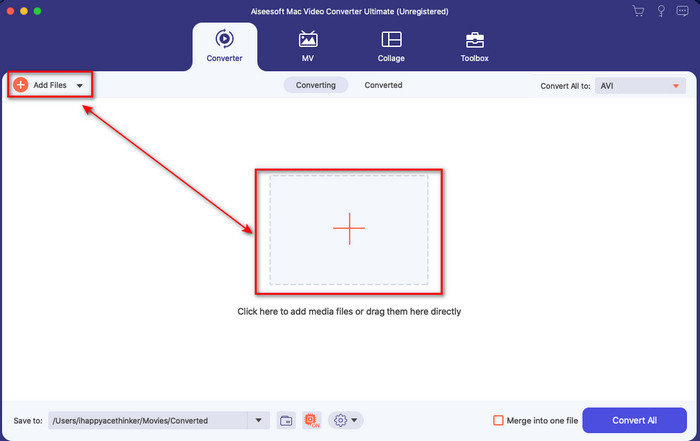
Steg 2. När du har öppnat det klickar du på +-knappen som visas för att importera videofilen. Därefter öppnas en mapp där du väljer videofilen och klickar på Öppna.
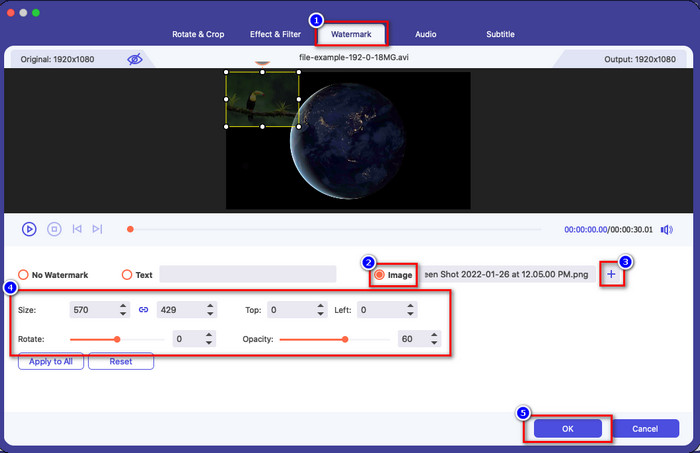
Steg 3. Tryck på trollspöet för att öppna konverterarens redigeringsfönster. Gå till Vattenstämpel, klicka på bilden och tryck sedan på Lägg till för att ladda upp bilden. Du kan också justera bildens opacitet eller rotera den efter behov, och för att tillämpa ändringarna klickar du på OK.
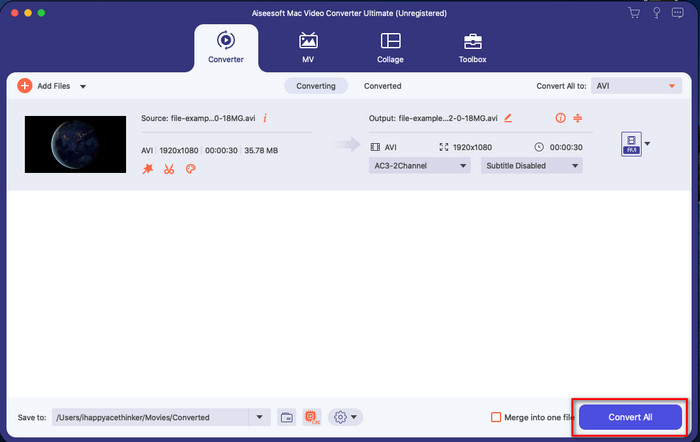
Steg 4. Klicka på knappen Konvertera alla för att exportera videofilen. Den sparas i en mapp på din dator efter exportprocessen, och lika enkelt har du nu en vattenstämpelbild på din video. Tror du nu på kapaciteten hos Video Converter Ultimate? Du har precis lagt till en bildvattenstämpel i videon så snabbt som så.
Relaterat:
Hur man lägger till ljud i video
Hur man lägger till undertexter i video
Del 4. Vanliga frågor om att lägga till foton på video i iMovie
Finns det begränsningar för antalet bilder som läggs till i iMovie-videor?
Hittills har vi inte upplevt några besvär med att lägga till flera bilder på videon när vi använde iMovie. Exportprocessen tar dock tid om du lägger till för många bilder på videon, men den kraschar inte, enligt erfarenhet.
Vilka bildformat kan jag använda på iMovie?
Det finns många stillbildsformat som iMovie stöder som BMP, PNG, JPG eller JPEG, HEIF, PSD, RAW TIFF och TGA, men om du vill ha en animerad bild kan du använda GIF. Även om dessa format är många, stöder det fortfarande inte alla bildformat som EXIF, WebP och liknande.
Varför ska jag använda iMovie?
För Apple-användare är iMovie ett av de bästa valen för att skapa en kortfilm, reklam, vloggar och mer; alla dessa är gratis. Redaktören tillhandahåller ett semi-avancerat gränssnitt för att hjälpa användarna att få en praktisk upplevelse av hur ett avancerat gränssnitt eller verktyg ser ut. Dessutom är programvaran mindre teknisk, men den är specialiserad. Det är inte vanligt att se en editor som ger ett mindre tekniskt sätt att använda, men det kan hjälpa dig att bli ett proffs och lägga till några specialiserade tekniker som avancerade verktyg har.
Slutsats
Slutligen kan vi konstatera att vi nu har tillräcklig kunskap för att enkelt lägga till foton ovanpå video i iMovie. Med Apples bästa verktyg kan du göra nästan all avancerad redigering här. Men alla funktioner du behöver finns inte i iMovie, och då kan du använda Video Converter Ultimate för att få en lättanvänd redigerare på alla plattformar. Kanske undrar du varför du ska använda det här ultimata verktyget? Någon längre förklaring behövs knappt när vi talar om det ultimata verktyget, eftersom vi redan har visat bevisen ovan. Vad bör du då göra? Du kan klicka på nedladdningsknappen för att själv få praktisk erfarenhet av det ultimata verktyget och lösa problemet.
-
 5 mest utvalda ljudinspelaresappar på Android och iOS [2022 uppdaterad]
 Vet du inte vilken ljudinspelningsapp du ska använda? Om så är fallet hjälper den här artikeln dig att välja vilken app som hjälper dig med din ljudinspelningsuppgift.
-
 Röstmemo på iOS – För-, nackdelar, funktioner och 4 bästa ersättningar
 Vad är röstmemo? Är det den bästa ljudinspelaren på iOS? Söker du svar på den frågan? I så fall, läs hela omfattningen av denna artikel för att veta mer.
-
 7 senaste gratis MOD-omvandlare för att ändra MOD-fil till ett nytt format
 Vilka är MOD-omvandlarna du kan använda? Funderar du på samma fråga? Så här är vi och tillhandahåller de sju verktygen du kan använda för att konvertera dina MOD-filer.
