


 Video Converter Ultimate
 Skärminspelare
 Video reparation
 Säker nedladdning
Hur man klipper en video på Android med de bästa videotrimmerapparna
Det är enkelt att spela in spektakulära filmer eller bara din skärm när du alltid har en smartphone med dig. Att redigera dessa filmer på din Android‑telefon brukade vara svårt, men så är det inte längre. I den här artikeln går vi igenom enkla sätt att klippa videor på Android-enheter. Vi använder flera videoredigeringsappar/program som kommer att fungera bra för dig. Dessutom kan du klippa en video på din dator om du vill. I den här guiden får du lära dig de mest lättbegripliga metoderna för att förkorta videolängden med hjälp av en dator. Om du alltså vill lära dig alla metoder för hur man klipper ut en del av en video på Android och dator, läs inlägget nu direkt.

Del 1. Hur man trimmar videor på Android
I den här delen kommer vi att ge dig två effektiva metoder för att klippa din video med Android. Den första applikationen är en förbyggd app, och den andra är en nedladdningsbar applikation. Så du kommer att ge ett alternativ om vad du ska använda när du trimmar en video. Utan vidare, låt oss börja upptäcka dessa metoder.
Använder Galleri
Om du inte vill ladda ner några appar från Play Butik, använd Galleri-appen. Denna förbyggda app kan inte bara visa bilder och videor. Den har fler funktioner att erbjuda än du föreställer dig. Om du planerar att klippa din video med den här appen kan du göra det. Gallery har ett skärverktyg som låter dig klippa/trimma video enkelt och omedelbart. Den har också ett intuitivt gränssnitt, vilket gör det mer lämpligt för alla Android-användare. Förutom att klippa videor kan appen göra mer. Du kan också justera videohastigheten genom att använda videohastighetsjusteringen. Galleri-appen är dock endast lämplig för grundläggande redigering. Det är inte applikationen du behöver om du vill förbättra din video och kombinera alla trimmade videor. Du måste leta efter mer avancerad videoredigeringsprogram för ditt önskade resultat. Om du vill veta hur man klipper ett videoklipp på Android med denna applikation, se stegen nedan.
Steg 1. Öppna din Android-enhet och starta appen Galleri. Leta sedan upp videon som du vill klippa/trimma.
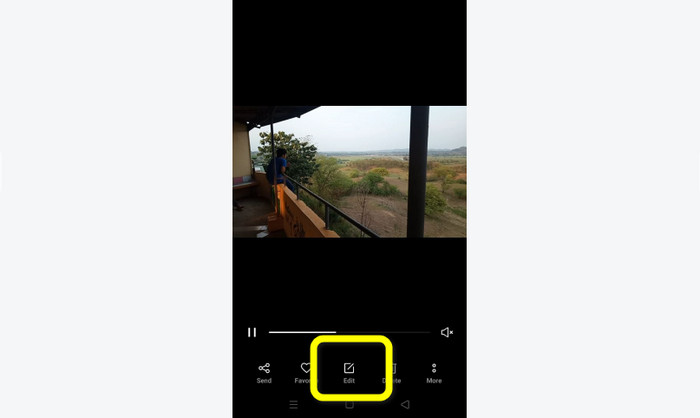
Steg 2. När du har öppnat videon du vill trimma/klippa går du till alternativen nedanför. Tryck på alternativet Redigera för att gå vidare till nästa steg.
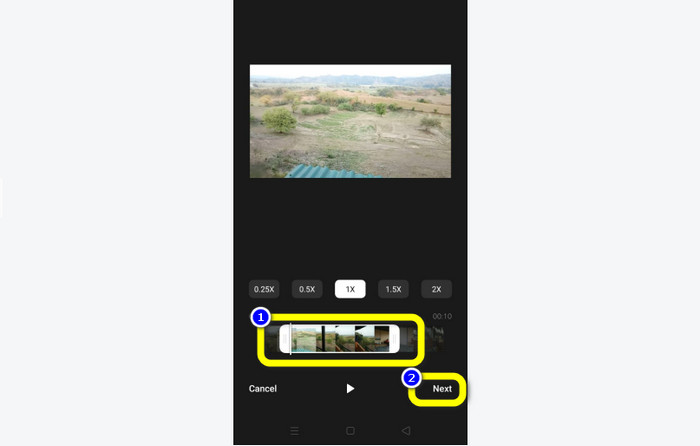
Steg 3. Därefter kan du börja trimma videon på din Android. Dra i videons kant eller i tidslinjens markör. Dra varje sida för att klippa videon. När du har trimmat klart trycker du på alternativet Nästa nere i vänstra hörnet av gränssnittet.
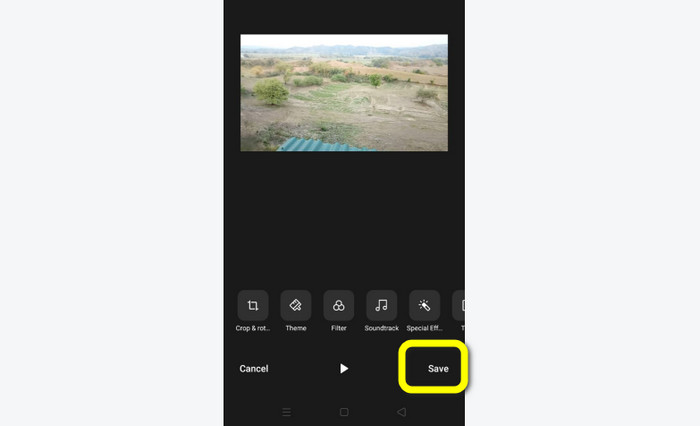
Steg 4. Sedan kan du trycka på knappen Spara för att spara den redigerade videon på din telefon. Om du vill redigera videon mer kan du även beskära, rotera, lägga till filter och mycket mer.
Använder Vid.Fun
Förutom Galleri-appen kan du också använda en nedladdningsbar app för att klippa videor på Android. Du kan ladda ned appen Vid.Fun för att klippa videor på din Android. Vid.Fun är gratis att ladda ned. Dessutom har den ett enkelt gränssnitt med en grundläggande redigeringsprocess. På så sätt kan även en ovan användare hantera appen. Vid.Fun har dessutom fler funktioner än bara att klippa videor. Du kan också använda appen om du vill lägga till text i dina videor. Dessutom kan du använda ett volymförstärkningsverktyg för att justera videons volym. Vidare kan du ta bort en vattenstämpel, justera videons hastighet, lägga till klistermärken, rotera en video och mer. Vid.Fun har dock vissa nackdelar. Vid.Fun har en långsam exportprocess, vilket är tidskrävande för användare. Det händer också ibland att appen inte fungerar som den ska. Se metoderna nedan för att klippa videor med appen Vid.Fun.
Steg 1. Gå till Google Play Butik och sök efter appen Vid.Fun. Installera sedan appen på din Android-telefon. Öppna appen efter att installationen är klar.
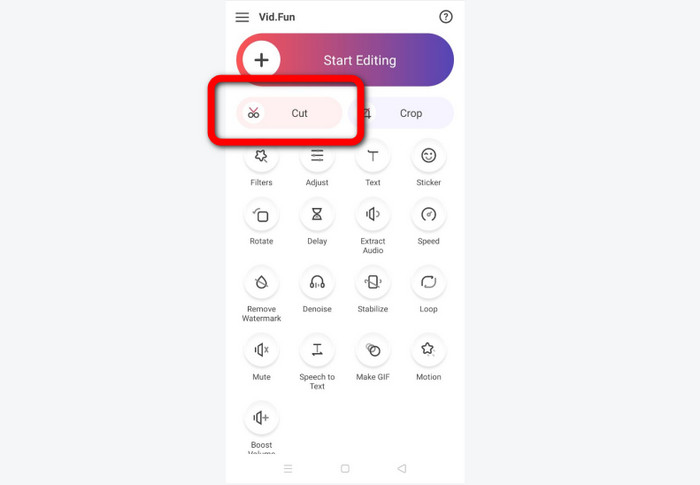
Steg 2. När appens gränssnitt visas väljer du alternativet Cut (Klipp). Därefter visas dina filer på skärmen. Tryck på den video du vill klippa och tryck sedan på knappen Yes (Ja).
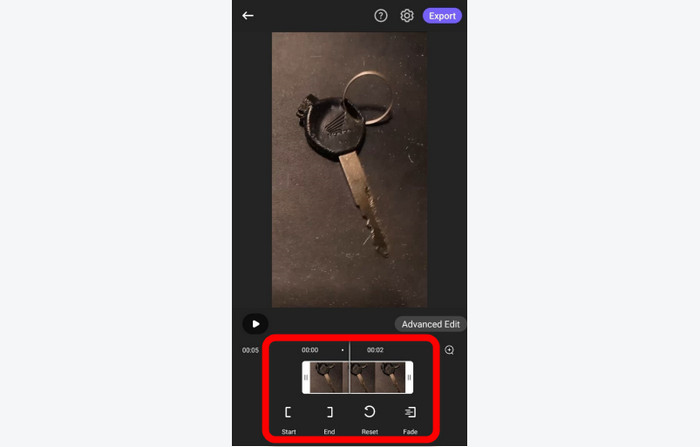
Steg 3. Därefter kan du gå vidare till själva trimmningen. Dra i videons kant. Du kan också använda alternativen Start och End för att trimma.
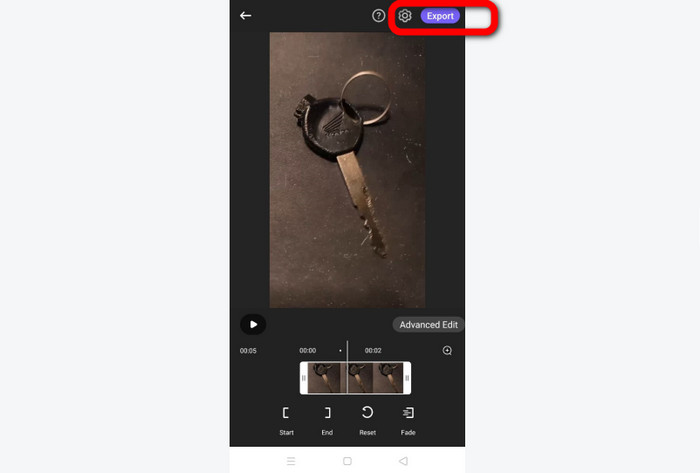
Steg 4. När du är klar med att trimma/klippa videon kan du trycka på knappen Export. Vänta på exportprocessen och spara sedan videon på din Android‑enhet.
Del 2. Hur man klipper Android-videor på PC
I föregående del har du lärt dig hur man klipper videor med en Android‑enhet. I den här delen får du lära dig hur man klipper videor med hjälp av datorer. Om du vill använda din stationära dator för att redigera en video, i synnerhet för att klippa eller trimma den, kan du använda Video Converter Ultimate. Det här offlineprogrammet har ett intuitivt gränssnitt som gör att du snabbt förstår alla alternativ. Dessutom är själva trimmningsproceduren enkel. Du kan trimma/klippa videon med bara några få klick. Programmet har dessutom en snabb exportprocess, vilket gör det bekvämt för alla användare. Eftersom det är ett lättanvänt program kan både proffs och nybörjare använda det. Dessutom kan du spara ditt slutresultat i olika format, till exempel AVI, FLV, MOV, MP4 och fler. Utöver detta är Video Converter Ultimate gratis att ladda ned och finns för både Mac- och Windows-datorer. Programmet låter dig dessutom ändra videons upplösning, kvalitet, bildfrekvens och codec. Du kan också ändra samplingsfrekvens och bithastighet för ljudet. På så sätt kan du vara säker på att du får bästa möjliga resultat med detta offlineprogram. Följ de enkla instruktionerna nedan för att lära dig hur du klipper en Android‑video på datorn.
Steg 1. Ladda ned Video Converter Ultimate på din Mac- eller Windows-dator. Klicka på knappen Ladda ned nedan för att komma åt programmet. Både Windows- och Mac-versioner finns tillgängliga. Kör sedan programmet efter installationsprocessen.
Gratis nedladdningFör Windows 7 eller senareSäker nedladdning
Gratis nedladdningFör MacOS 10.7 eller senareSäker nedladdning
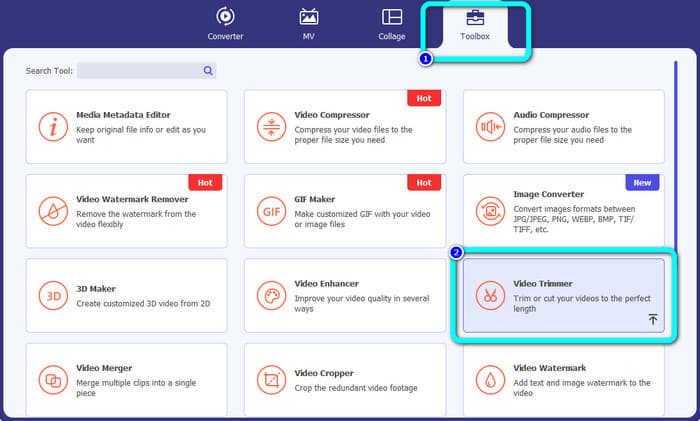
Steg 2. När programmets gränssnitt visas går du till Toolbox (Verktygslåda) i den övre delen av fönstret och väljer Video Trimmer Tool (Videotrimmer).
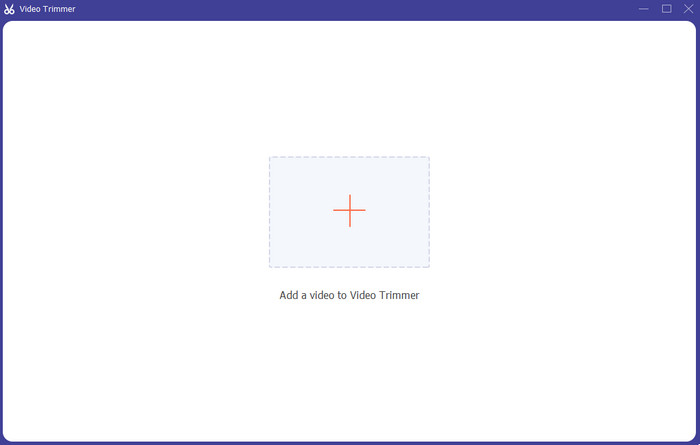
Steg 3. Ett nytt fönster visas efter att du klickat på verktyget Video Trimmer. Klicka på Plus-symbolen för att lägga in Android‑videon. Observera att Android‑videon redan måste ha överförts till datorn innan du använder programmet.
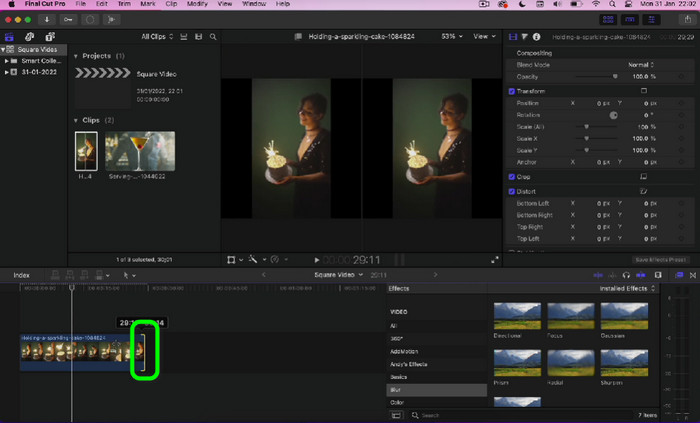
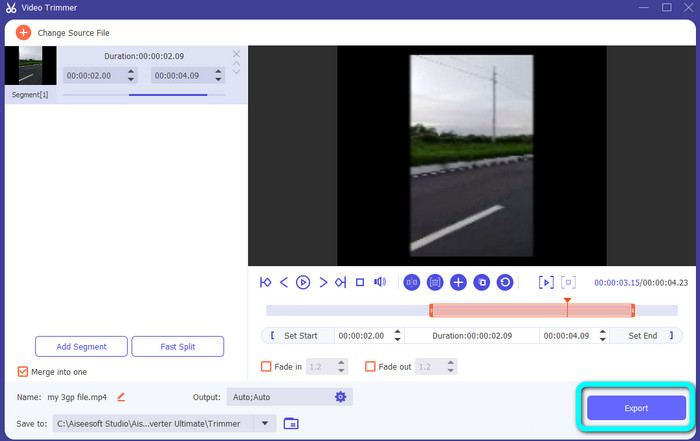
Steg 4. Nu är du i själva trimmningsprocessen. För att trimma videon behöver du justera videons kanter. Du kan justera både början och slutet.
Steg 5. Efter processen kan du spara din redigerade video genom att klicka på knappen Export. När exporten är klar kan du spela upp den redigerade videon.
Del 3. Vanliga frågor om hur man trimmar videor på Android
Hur klipper jag mitten av en video på Android?
Om du vill trimma mitten av din video med en Android-enhet kan du fortfarande använda applikationerna som introducerades ovan. Du kan följa samma procedur och klippa den mittersta delen av videon.
Hur återställer man trimmade videor på Android?
Gå till din Galleri-app. Klicka sedan på albumalternativen. Efter det klickar du på alternativet Papperskorgen. Du kommer att se de raderade videorna och klicka på knappen Återställ.
Kan jag trimma video på Android med iMovie?
Absolut inte. iMovie är endast kompatibel med Apple-enheter, som iPhone, iPad och Mac.
Slutsats
Där har du det! Nu har du lärt dig hur du klipper videor på Android och på dator. Om du är Android‑användare kan du följa stegen som nämns ovan. Och om du vill använda din dator för att klippa eller trimma en Android‑video, använd Video Converter Ultimate. Det här offlineprogrammet låter dig klippa och trimma din Android‑video enkelt och snabbt.
-
 Utmärkta sätt att klippa video online på ett bekvämt sätt
 Att klippa en video är det bästa sättet att skapa videohöjdpunkter. Så det här inlägget ger dig metoderna för att trimma videor online med lätthet. Läs för att lära dig mer.
-
 Hur man förkortar en video på iPhone [detaljerade handledningar]
 Är du en iPhone-användare och vill trimma dina videor? Oroa dig inte längre. Det här guideinlägget kommer att ge fullständig information om hur man klipper en video på iPhone och iPad.
-
 Enklaste sätten att snabba upp en video på dina Android-enheter [2023]
 Visste du att du kan snabba upp en video på din Android? Så om du vill veta hur du snabbar upp en video på din Android-telefon, läs den här texten.
