


 Video Converter Ultimate
 บันทึกหน้าจอ
 ซ่อมวิดีโอ
คำแนะนำและเคล็ดลับในการเพิ่มระดับเสียงบน Windows/Mac/iPhone/Android
คอมพิวเตอร์ PC, Mac, Android หรือ iPhone ส่วนใหญ่มักเปิดเสียงได้ดังเพียงระดับปานกลาง ซึ่งยังไม่มากพอให้เรารู้สึกขนลุกหรือรับอรรถรสได้เต็มที่ แม้ว่าเราจะเร่งเสียงให้สุดแล้วก็ตาม วิดีโอบางไฟล์ที่เราดูก็ยังเบาอยู่ดี ดังนั้นเราจึงขอแนะนำเทคนิคต่าง ๆ ให้คุณเลือกใช้ เพื่อช่วยให้คุณฟังวิดีโอได้ดังและชัดเจนด้วยอุปกรณ์ของคุณเองเท่านั้น ถ้าพร้อมแล้วไปดูวิธีเพิ่มเสียงบนแพลตฟอร์มต่าง ๆ แบบง่าย ๆ กันเลย.

ส่วนที่ 1 วิธีเพิ่มระดับเสียงบน Windows/Mac/iPhone/Android
1. Windows
การเพิ่มระดับเสียง MP3 บนพีซีที่ใช้ Windows นั้นง่ายกว่ามาก แม้ว่าคุณจะไม่จำเป็นต้องใช้ของบริษัทอื่นก็ตาม อย่างไรก็ตาม หากคุณต้องการเพิ่มเสียงที่นี่ อย่าคาดหวังอะไรเป็นพิเศษ เนื่องจากระบบปฏิบัติการนี้ไม่ได้จัดเตรียมอีควอไลเซอร์ใดๆ เพื่อช่วยให้คุณจัดการกับมัน แต่คุณสามารถปรับระดับเสียงของแอปพลิเคชันอื่นๆ ที่คุณต้องการให้เสียงสูงหรือต่ำได้ ตอนนี้ มาดำเนินการตามขั้นตอนด้านล่างเพื่อกำหนดวิธีทำให้วิดีโอของคุณมีเสียงที่ชัดเจนขึ้นบนพีซีที่ใช้ Windows
วิธีเพิ่มเสียงของวิดีโอบน Windows:
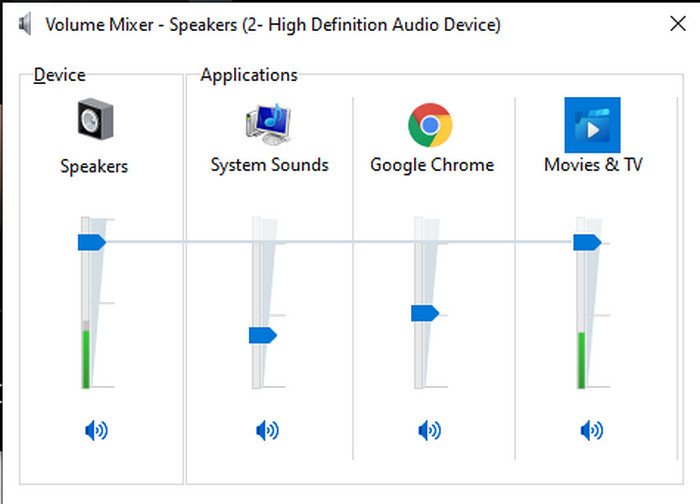
ขั้นตอนที่ 1. บนหน้าจอ Windows PC ของคุณ ให้มองไปที่มุมล่างขวาแล้วค้นหาไอคอนลำโพง.
ขั้นตอนที่ 2. คลิกเมาส์ปุ่มขวาที่ไอคอนนั้น แล้วเลือก Open Volume Mixer.
ขั้นตอนที่ 3. ปรับระดับเสียงที่ส่วนของDevice เพื่อเพิ่มหรือลดเสียงทั้งหมดของเครื่อง แต่หากต้องการปรับเฉพาะเสียงของโปรแกรมใดโปรแกรมหนึ่ง ก็สามารถเลื่อนแถบของโปรแกรมนั้นขึ้นหรือลงได้.
2. Mac
เช่นเดียวกับ Windows คุณสามารถจัดการและเพิ่มระดับเสียงของวิดีโอบน Mac ได้อย่างง่ายดาย ยิ่งไปกว่านั้น หากคุณต้องการเพิ่มเอาต์พุตเสียงบน Mac ของคุณ คุณจะต้องเลือกดำเนินการดังกล่าวอย่างง่ายดาย อย่างไรก็ตาม ดังที่กล่าวไว้ก่อนหน้านี้ว่าสิ่งนี้เหมือนกับ Windows แต่ในโปรแกรมอื่น ระบบปฏิบัติการนี้ไม่มีอีควอไลเซอร์ในตัวที่จะทำให้ระดับเสียงเปลี่ยนแปลงอย่างมาก และตอนนี้ หากคุณต้องการเรียนรู้วิธีทำให้เสียงดังขึ้น ให้ทำตามขั้นตอนด้านล่างนี้
วิธีเพิ่มเสียงของวิดีโอบน Mac:
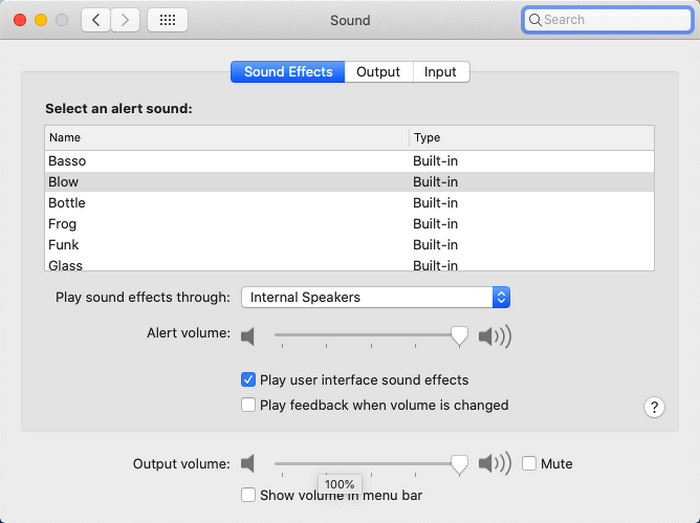
ขั้นตอนที่ 1. เปิดเครื่อง Mac ของคุณ แล้วคลิกปุ่มรูปแอปเปิ้ลที่มุมบน.
ขั้นตอนที่ 2. จากนั้นคลิก System Preference แล้วกดที่ Sound เพื่อไปยังขั้นตอนสุดท้าย.
ขั้นตอนที่ 3. ปรับระดับ Output Volume โดยเลื่อนแถบเลื่อน (slider) เพื่อเพิ่มหรือลดความดังของเสียง.
3. iPhone
หากคุณมี iPhone คุณสามารถเรียนรู้วิธีเพิ่มระดับเสียงของคุณให้ดังขึ้นและดีขึ้นได้อย่างง่ายดาย เพราะอุปกรณ์นี้มีอีควอไลเซอร์ในตัวที่จะช่วยคุณได้อย่างแน่นอน นอกจากนี้ ความสามารถในการเพิ่มเสียงในโทรศัพท์เครื่องนี้ยังคงทำให้เราประหลาดใจ เพราะเราไม่ทราบว่ามีอีควอไลเซอร์แบบพกพาที่ผู้ใช้ iOS สามารถใช้ได้ ดังนั้น หากคุณไม่มีไอเดียในการใช้งาน ขั้นตอนต่อไปนี้จะช่วยคุณได้
วิธีเพิ่มเสียงของวิดีโอบน iPhone:
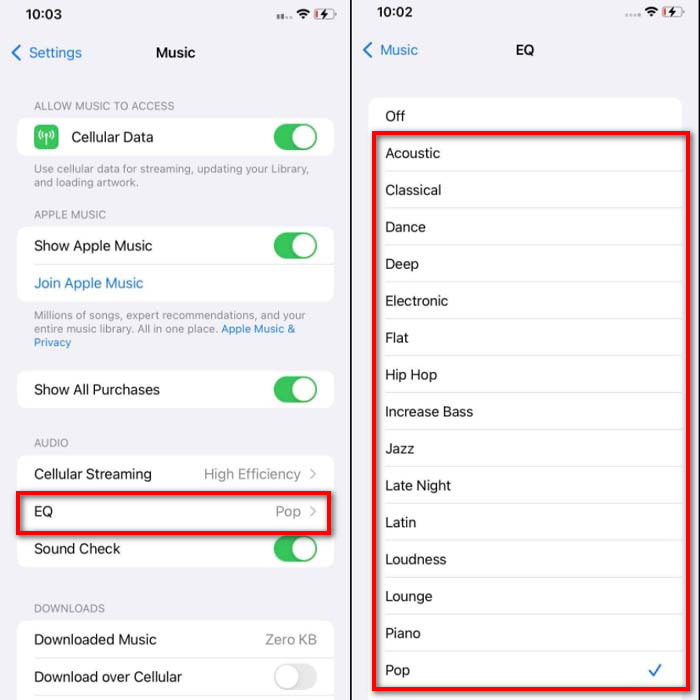
ขั้นตอนที่ 1. ไปที่ Settings แล้วค้นหาเมนู Music จากนั้นแตะเข้าไป.
ขั้นตอนที่ 2. แตะที่ EQ แล้วเลือกโหมดจากรายการที่มีให้ เมื่อเลือกเสร็จให้กดกลับไปที่หน้า Home.
ขั้นตอนที่ 3. เปิดแอป Music แล้วเล่นเพลง จากนั้นเพิ่มหรือลดเสียงด้วยการกดปุ่มเพิ่มเสียงหรือลดเสียงที่ด้านข้างตัวเครื่อง iPhone ของคุณ.
4. Android
Android จะไม่ทำให้ผู้ใช้ผิดหวังเพราะอุปกรณ์พกพานี้มีอีควอไลเซอร์ในตัวด้วย แม้ว่าคุณจะเพิ่มคุณภาพและระดับเสียงด้วยอีควอไลเซอร์ที่มีให้ในที่นี้ แต่ก็ยังไม่ได้ผลเหมือนกับบน iPhone อย่างไรก็ตาม หากคุณใช้งานและปรับระดับเสียงในขณะที่มีหูฟังหรือลำโพง คุณจะสัมผัสได้ถึงการเปลี่ยนแปลงของระดับเสียงที่รุนแรง แต่โปรดทราบว่าขั้นตอนอาจแตกต่างกันไปตามยี่ห้อและรุ่นของอุปกรณ์ของคุณ นอกจากนี้ ขั้นตอนเหล่านี้ยังใช้ได้กับ Realme 7 pro, Android เวอร์ชัน 11 ขึ้นไป ดังนั้น หากคุณสงสัยว่า ฉันจะเพิ่มระดับเสียงบนโทรศัพท์ Android ของฉันได้อย่างไร จากนั้นทำตามขั้นตอนด้านล่าง
วิธีเพิ่มเสียงของวิดีโอบน Android:
ขั้นตอนที่ 1. ไปที่ Settings แล้วค้นหาเมนู Sound & Vibration.
ขั้นตอนที่ 2. เลื่อนลงไปค้นหา Dolby Atmos แล้วแตะเพื่อเข้าไปตั้งค่า.
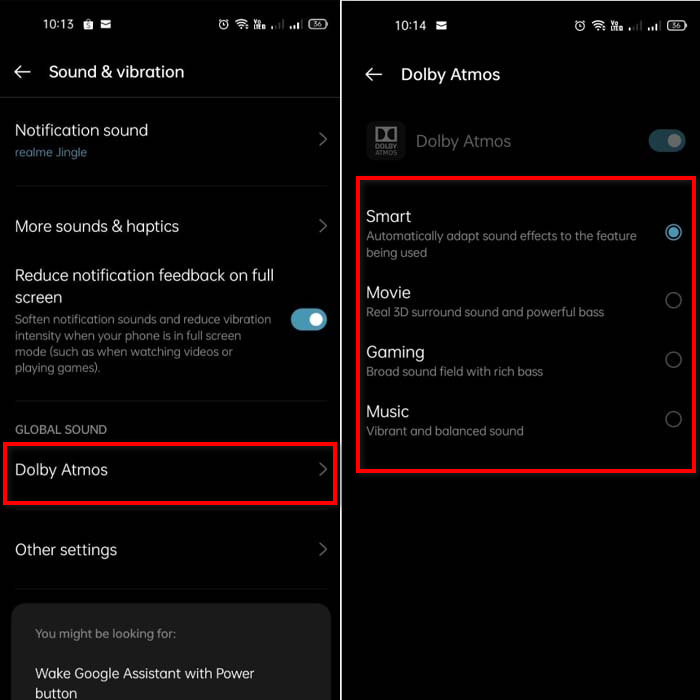
ขั้นตอนที่ 3. เปลี่ยนค่าอีควอไลเซอร์ตามโหมดที่มีให้เลือก หากต้องการให้เสียงดีขึ้นไปอีก แนะนำให้เสียบหูฟังเพื่อให้เสียงดังและมีมิติมากขึ้น แล้วจึงปรับปุ่มเพิ่มเสียงและลดเสียงที่ด้านข้างโทรศัพท์ Android ของคุณ เพื่อเพิ่มหรือลดระดับเสียงตามต้องการ.
ส่วนที่ 2 ยังคงไม่ได้ยินปริมาณของวิดีโอ? ลองเพิ่มประสิทธิภาพด้วย Video Converter Ultimate
แม้ว่าวิธีที่แนะนำด้านบนจะช่วยเพิ่มเสียงได้ดีในระดับหนึ่ง แต่ก็ยังไม่สามารถเร่งความดังได้ถึงที่สุด ดังนั้นเราขอแนะนำตัวช่วยเพิ่มเสียงที่ทรงพลังอย่าง Video Converter Ultimate ซอฟต์แวร์นี้มีผู้ใช้มากกว่า 10 ล้านคนทั่วโลก อย่างไรก็ตาม เครื่องมือนี้ยังไม่รองรับบนอุปกรณ์พกพา คุณจึงไม่สามารถใช้งานบนมือถือได้โดยตรง แต่คุณสามารถใช้บน PC หรือ Mac แล้วบันทึกไฟล์ลงในไดรฟ์ จากนั้นค่อยโอนย้ายไปยังโทรศัพท์ของคุณภายหลัง ต่อไปเรามาดูวิธีใช้ตัวเพิ่มเสียง (volume booster) ในโปรแกรมนี้ และเรียนรู้การทำให้เสียงของคุณดังขึ้นกว่าเดิม.
วิธีเพิ่มเสียงของวิดีโอด้วยโปรแกรม Video Converter Ultimate:
ขั้นตอนที่ 1. ก่อนใช้งาน Video Converter Ultimate ให้ดาวน์โหลดโปรแกรมลงบนฮาร์ดไดรฟ์ของคุณก่อน จากนั้นติดตั้งโปรแกรมและตั้งค่าต่าง ๆ ให้เรียบร้อย แล้วคลิกStart Now เพื่อเปิดใช้งาน.
ดาวน์โหลดฟรีสำหรับ Windows 7 หรือใหม่กว่าดาวน์โหลดอย่างปลอดภัย
ดาวน์โหลดฟรีสำหรับ MacOS 10.7 หรือใหม่กว่าดาวน์โหลดอย่างปลอดภัย
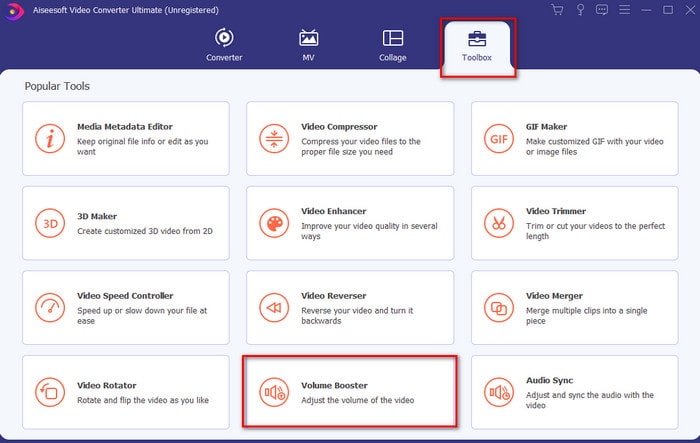
ขั้นตอนที่ 2. หลังจากเปิดโปรแกรมแล้ว ให้ไปที่เมนู Toolbox จากนั้นค้นหา Volume Booster.
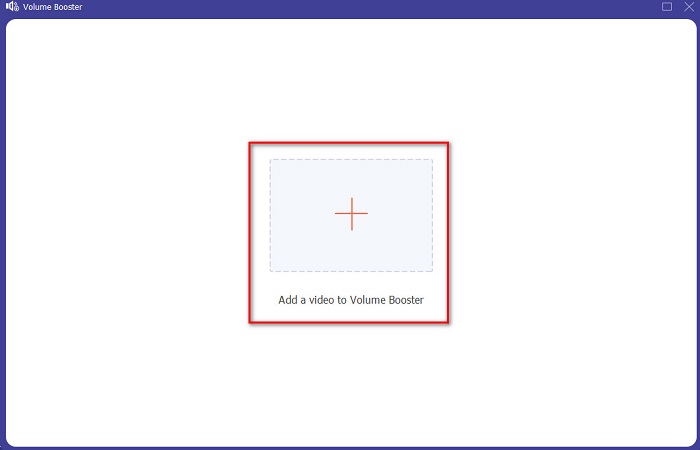
ขั้นตอนที่ 3. คลิกเครื่องหมาย + เพื่อเพิ่มวิดีโอที่คุณต้องการเร่งเสียง จากนั้นค้นหาไฟล์จากโฟลเดอร์ที่ปรากฏบนหน้าจอ แล้วคลิกopen เพื่อดำเนินการต่อ.
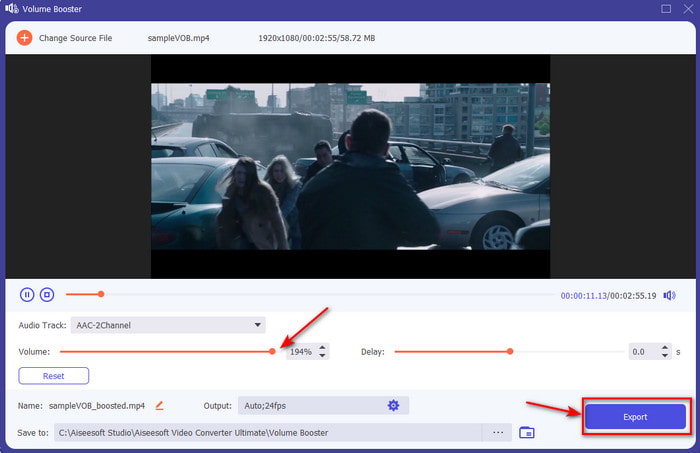
ขั้นตอนที่ 4. บนหน้าต่างเครื่องมือ ให้ปรับแถบเลื่อนระดับเสียงไปยังค่าที่สูงสุด หรือระดับที่คุณต้องการ หากคุณพอใจกับระดับเสียงที่ตั้งไว้แล้ว ให้คลิกExport เพื่อดาวน์โหลดไฟล์.
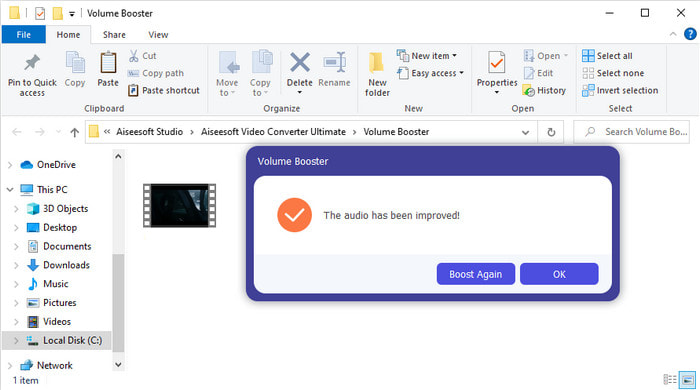
ขั้นตอนที่ 5. รอสักครู่เพื่อให้โปรแกรมประมวลผล เมื่อไฟล์เสร็จสมบูรณ์แล้ว จะมีโฟลเดอร์เปิดขึ้นมาอัตโนมัติบนหน้าจอ จากนั้นคลิกไฟล์เพื่อฟังเสียงของวิดีโอที่คุณได้ปรับระดับไว้.
ส่วนที่ 3 คำถามที่พบบ่อยเกี่ยวกับการเพิ่มปริมาณ
ฉันสามารถเพิ่มระดับเสียงบน VLC ได้หรือไม่
ใช่ แทนที่จะใช้ตัวเพิ่มระดับเสียง คุณสามารถใช้ VLC Player เพื่อเพิ่มเอาต์พุตเสียงของวิดีโอของคุณได้ นอกจากนี้ แทนที่จะจำกัดเสียงไว้ที่ 100% คุณสามารถขยายเสียงได้ถึง 125% หากต้องการ
การแปลงวิดีโอทำให้คุณภาพของวิดีโอและเสียงลดลงหรือไม่
จริง ๆ แล้วผลลัพธ์ขึ้นอยู่กับรูปแบบไฟล์ที่คุณต้องการแปลง ตัวอย่างเช่น หากคุณแปลงไฟล์ AVI เป็น MP4 คุณอาจสังเกตเห็นความแตกต่างของคุณภาพได้ เนื่องจากไฟล์ AVI มักเป็นไฟล์ที่ไม่บีบอัด อย่างไรก็ตาม เราสามารถหลีกเลี่ยงปัญหานี้ได้โดยอ่านบทความในลิงก์นี้และดำเนินการต่อโดยคลิก ลิงก์ ดังนั้นหากคุณกำลังจะแปลงไฟล์ที่ถูกบีบอัดไปเป็นแบบไม่บีบอัด หรือแปลงไปเป็นไฟล์บีบอัดอีกแบบหนึ่ง หากทำบ่อย ๆ ก็ควรคาดหวังว่าคุณภาพอาจเปลี่ยนแปลงได้เช่นกัน แต่ถ้าทำเพียงครั้งคราว คุณภาพก็แทบจะไม่เปลี่ยนไปเลย.
วิธีแก้ไขความล่าช้าของวิดีโอและเสียง
จริง ๆ แล้วมีอยู่สองวิธีในการแก้ไขปัญหานี้ วิธีแรกคือ ลบไฟล์เดิมแล้วดาวน์โหลดวิดีโอมาใหม่ หากวิดีโอนั้นยังมีให้ดาวน์โหลดบนเว็บไซต์อยู่ และในระหว่างดาวน์โหลดต้องไม่ให้การเชื่อมต่อสะดุด รวมถึงควรใช้อินเทอร์เน็ตที่เสถียรเพื่อหลีกเลี่ยงไฟล์เสียหรือขาดบางส่วน อย่างไรก็ตาม หากไฟล์นี้เป็นไฟล์ที่คุณต้องใช้งานเองเท่านั้น ก็ควรเลือกใช้โปรแกรมที่ช่วยซิงก์เสียงและวิดีโอให้ตรงกัน ดังนั้นหากต้องการดูตัวอย่างโปรแกรมที่มีให้เลือกใช้ และเรียนรู้ วิธีซิงก์เสียงและวิดีโอ แบบง่าย ๆ ให้คลิกลิงก์และอ่านบทความที่เราได้รวบรวมซอฟต์แวร์ต่าง ๆ ไว้ให้คุณเลือก.
สรุป
เมื่อเราได้เรียนรู้วิธีแก้ปัญหาเสียงเบาในวิดีโอแล้ว ตอนนี้ก็ถึงเวลาลงมือทำจริง เพียงทำตามขั้นตอนง่าย ๆ ด้านบนก็จะช่วยให้เสียงดังและชัดเจนยิ่งขึ้น แม้ว่าบางขั้นตอนจะไม่ได้เป็นแค่การกดเพิ่มระดับเสียงตรง ๆ แต่ด้วยเทคนิคอื่น ๆ ที่แนะนำ คุณก็สามารถทำตามได้ไม่ยาก อย่างไรก็ตาม หากคุณยังรู้สึกว่าเสียงบน PC, Mac, Android หรือ iPhone ยังคงเบาอยู่ ให้ลองใช้ Video Converter Ultimate เพื่อช่วยเร่งเสียงของคุณ ดังนั้นมาปรับระดับเสียงให้ดังขึ้นอีกขั้น และสัมผัสประสบการณ์เสียงที่ดังกว่าและดีกว่าเดิม.
-
 7 ขั้นตอนง่าย ๆ ในการแก้ไขปัญหา OBS Audio Delay [แก้ไขแล้ว]
 คุณมีปัญหาในการดูวิดีโอคลิปของคุณหลังจากบันทึกเนื่องจากความล่าช้าของเสียงเมื่อใช้ OBS Studio หรือไม่? อ่านบทความด้านล่างเพื่อเรียนรู้วิธีแก้ไขเสียงไม่ซิงค์อย่างมีประสิทธิภาพ
-
 วิธีที่ยอดเยี่ยมที่เป็นไปได้ | วิธีแก้ไข VLC Audio Delay [2021]
 คุณมีช่วงเวลาที่ยากลำบากในการดูภาพยนตร์เรื่องโปรดบนเครื่องเล่นสื่อ VLC เนื่องจากความไม่แน่นอนของเสียงหรือไม่? อ่านบทความนี้ต่อเพื่อทราบวิธีแก้ไข VLC audio delay ที่เป็นไปได้ทั้งหมด
-
 วิธีที่ดีที่สุดในการเพิ่มปริมาณ MP4 ออนไลน์และออฟไลน์
 คุณมีปัญหาในการได้ยินเสียงของคลิปวิดีโอของคุณหรือไม่? อ่านบทความด้านล่างเพื่อทราบวิธีเพิ่มปริมาณ mp4 ในรูปแบบต่างๆ
