


 Video Converter Ultimate
 บันทึกหน้าจอ
 ซ่อมวิดีโอ
ขั้นตอนการแปลงไฟล์ WebM เป็น MOV: วิธีการที่ไม่ยุ่งยากที่คุณควรรู้
เมื่อพูดถึงการผลิตและการสตรีม ไม่ใช่ทุกรูปแบบวิดีโอที่เข้ากันได้กับทุกแพลตฟอร์มดิจิทัล เมื่อพยายามป้อนข้อมูล ผลิต อัปโหลด หรือดาวน์โหลดไฟล์ที่เกี่ยวข้อง อาจทำให้เกิดปัญหาใหญ่ได้ ตัวอย่างเช่น Apple ไม่ได้ใช้เบราว์เซอร์แบบดั้งเดิมที่เราเติบโตขึ้นมาในสมัยก่อน แต่มีแพลตฟอร์มของตัวเองที่เรียกว่า Safari นั่นคือเหตุผลที่รูปแบบวิดีโอที่สนับสนุนโดย Google Chrome, Mozilla Firefox, Opera และ Microsoft Edge เท่านั้นไม่สามารถเข้าถึงได้โดยผู้ใช้ Mac ที่ชาญฉลาดเสมอไป
หนึ่งในนั้นคือวิดีโอรูปแบบ WebM ซึ่งเป็นฟอร์แมตที่ให้การบีบอัดวิดีโอแบบเปิดสำหรับ HTML5 หากคุณเป็นผู้ใช้ Mac คุณจำเป็นต้องใช้โปรแกรมเล่นสื่อของบุคคลที่สามเพื่อดูไฟล์ประเภทนี้ อย่างไรก็ตาม รูปแบบไฟล์ MOV คือสิ่งที่คุณต้องการหากต้องการเล่นวิดีโอได้อย่างราบรื่นไม่ยุ่งยาก เพราะเป็นฟอร์แมตที่ Apple พัฒนาขึ้นเองสำหรับ Apple QuickTime Player ดังนั้น สิ่งที่คุณต้องทำก็คือแปลงไฟล์ WebM เป็น MOV บน Mac ของคุณ ซึ่งในบทความนี้เราจะนำเสนอวิธีที่ดีที่สุดให้คุณทำได้สำเร็จ.
ส่วนที่ 1 ภาพรวม: WebM และ MOV
หากคุณประสบปัญหาการบริโภควิดีโอและการสตรีมมาระยะหนึ่งแล้ว คุณต้องดูวิดีโอรูปแบบต่างๆ มากมายโดยใช้แพลตฟอร์มที่แตกต่างกัน คุณอาจเคยสงสัยว่านามสกุลไฟล์เหล่านี้หมายถึงอะไรหรือแตกต่างกันอย่างไร แน่นอนว่าคุณได้พยายามเล่นวิดีโอบางรายการบนเบราว์เซอร์ของคุณแล้ว แต่ไม่สามารถเล่นได้ โดยบอกว่าไม่รองรับ ตัวอย่างเช่น WebM รองรับเฉพาะเบราว์เซอร์สมัยใหม่หลายตัวเช่น Chrome, Firefox และ edge เนื่องจากโดยทั่วไปแล้วจะฝังอยู่ในหน้าเว็บโดยใช้ HTML5
ส่วนที่ 2 ตัวแปลงที่ดีที่สุดที่ช่วยแปลง WebM เป็น MOV
การแปลงไฟล์วิดีโอนั้นไม่ได้ยากอย่างที่คิด แม้ว่าจะมีซอฟต์แวร์และโปรแกรมมากมายที่ช่วยคุณได้ แต่ก็มีหนึ่งในนั้นที่สามารถทำงานได้อย่างรวดเร็วและง่ายดาย นั่นคือ FVC Video Converter Ultimate ซอฟต์แวร์ดาวน์โหลดฟรีที่จะช่วยประหยัดเวลาคุณจากการค้นหาตัวแปลงไฟล์ที่ดีที่สุดบนอินเทอร์เน็ต เราตั้งใจจะนำสิ่งที่ดีที่สุดมาให้คุณ คุณไม่จำเป็นต้องกังวลเกี่ยวกับรูปแบบวิดีโอที่ต้องการแปลง เพราะซอฟต์แวร์นี้รองรับไฟล์หลากหลายรูปแบบ และยังมีตัวเลือกมากมายให้คุณปรับแต่งวิดีโอระหว่างกระบวนการแปลงได้ด้วย ต่อไปนี้คือขั้นตอนที่คุณต้องทำตามเพื่อใช้ซอฟต์แวร์นี้:
ขั้นตอนที่ 1: ก่อนเริ่มการแปลงไฟล์ คุณต้องดาวน์โหลดซอฟต์แวร์ก่อน โดยคลิกปุ่ม Free Download คุณสามารถเลือกเวอร์ชันสำหรับ Windows หรือ Mac ในที่นี้ให้เลือก For Mac OS จากนั้นรอให้ไฟล์ .exe ดาวน์โหลดเสร็จแล้วจึงเปิดไฟล์เพื่อติดตั้งโปรแกรม.
ขั้นตอนที่ 2: เมื่อโปรแกรมติดตั้งเสร็จแล้ว ให้เปิดใช้งาน โปรแกรมจะแสดงอินเทอร์เฟซขึ้นมา ทันทีที่เปิดโปรแกรม คุณจะอยู่ที่แท็บ Converter โดยอัตโนมัติ หากไม่ใช่ ให้คลิกที่แท็บดังกล่าว.
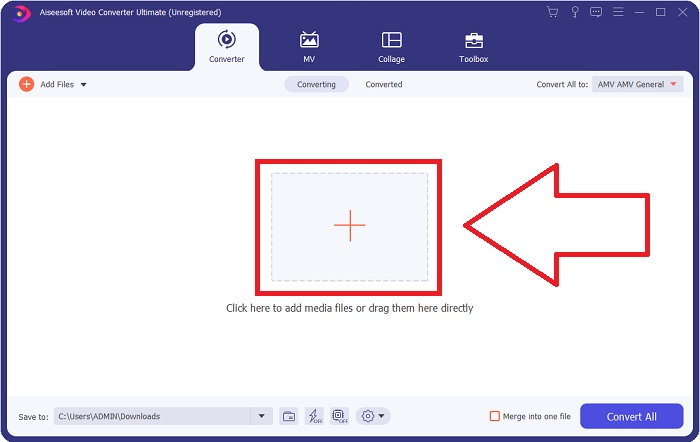
ขั้นตอนที่ 3: จะมีปุ่ม + อยู่ตรงกลางอินเทอร์เฟซให้คุณคลิกเพื่อเพิ่มไฟล์วิดีโอที่ต้องการแปลง นอกจากนี้ คุณยังสามารถลากและวางไฟล์วิดีโอเข้ามาได้อย่างง่ายดาย.
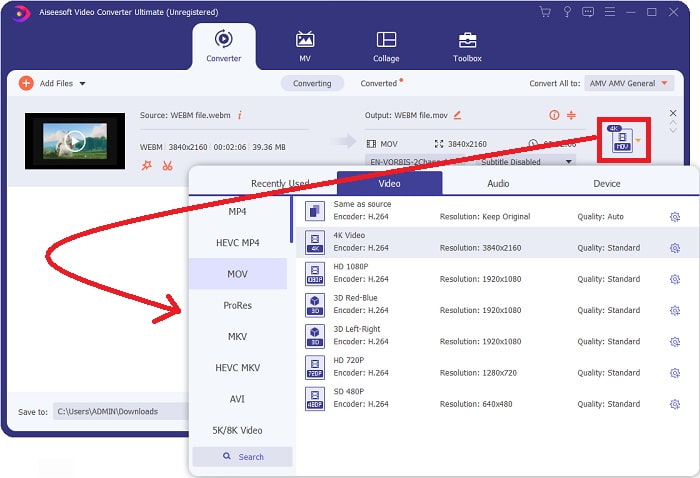
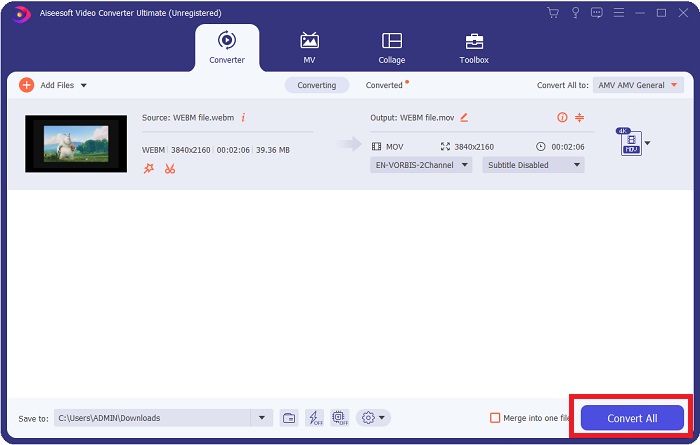
ขั้นตอนที่ 4: จะมีอินเทอร์เฟซอีกหน้าหนึ่งปรากฏขึ้นเมื่อวิดีโอของคุณถูกนำเข้าเรียบร้อยแล้ว จากตรงนั้น คุณจะเห็นรูปแบบไฟล์ปัจจุบันของวิดีโอที่ด้านขวาสุด มีลูกศรแบบดรอปดาวน์อยู่ข้าง ๆ ให้คลิกเพื่อดูตัวเลือกต่าง ๆ คุณสามารถเลือกรูปแบบใดก็ได้ที่ต้องการให้ไฟล์ถูกแปลงไป แต่ในกรณีนี้ให้เลือก MOV นอกจากนี้ยังมีตัวเลือกให้คุณเลือกความละเอียดและคุณภาพเสียง หากต้องการปรับเพิ่มเติม ให้คลิกไอคอนรูปเฟืองที่อยู่ข้างตัวเลือกคุณภาพหรือความละเอียดที่เลือกไว้ แล้วคุณจะสามารถแก้ไขรายละเอียดวิดีโอได้ตามความต้องการ เมื่อต้องการบันทึกการตั้งค่าที่แก้ไข ให้คลิก Create New.
ขั้นตอนที่ 5: เมื่อคุณทำการปรับแต่งทุกอย่างเรียบร้อยและพอใจแล้ว ให้ไปที่มุมล่างขวาของอินเทอร์เฟซ จะพบปุ่ม Convert All จากนั้นคลิกเพื่อเริ่มส่งออกวิดีโอที่ถูกแปลงแล้วของคุณ.
ส่วนที่ 3 เคล็ดลับโบนัส: ตัวแปลงออนไลน์อื่น ๆ ที่แปลง WebM เป็น MOV
วิธีที่ 1: ใช้แปลงฟรี
หากคุณไม่ต้องการดาวน์โหลดซอฟต์แวร์อีกต่อไปและเพียงแค่เริ่มขั้นตอนการแปลง เราสามารถแสดงทางเลือกอื่นสำหรับซอฟต์แวร์นี้ได้ การดำเนินการนี้ทำได้ทางออนไลน์เท่านั้นในขณะที่ยังมีคุณลักษณะที่จำเป็นสำหรับการแก้ไขของคุณ หากคุณต้องการวิธีที่ไม่ยุ่งยาก เครื่องมือเว็บนี้ก็เป็นทางเลือกหนึ่ง
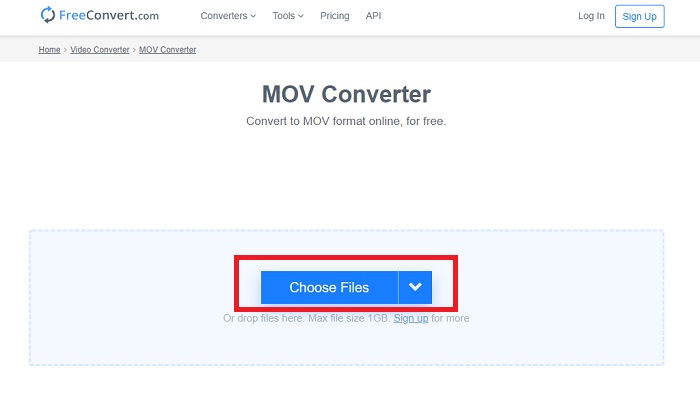
ขั้นตอนที่ 1: ไปที่หน้าเว็บไซต์หลัก คุณจะพบอินเทอร์เฟซที่มีปุ่ม Choose Files อยู่ตรงกลางหน้า คลิกปุ่มดังกล่าวเพื่อนำเข้าไฟล์วิดีโอที่คุณต้องการแปลง.
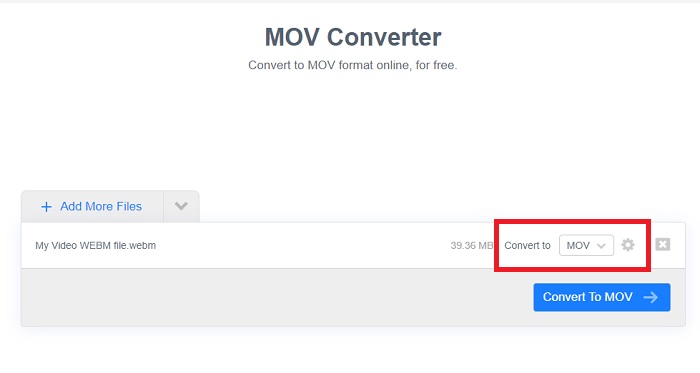
ขั้นตอนที่ 2: ลักษณะการใช้งานจะคล้ายกับในซอฟต์แวร์ คือคุณจะเห็นรูปแบบไฟล์ปัจจุบันของวิดีโออยู่ทางด้านขวา และมีลูกศรดรอปดาวน์อยู่ข้าง ๆ ให้คลิกแล้วเลือกฟอร์แมตที่คุณต้องการแปลงวิดีโอไปใช้ หากต้องการตัวเลือกเพิ่มเติม ให้คลิกไอคอนรูปเฟืองเพื่อแก้ไขวิดีโออย่างละเอียด จากนั้นคลิกปุ่ม Apply Settings เพื่อบันทึกการเปลี่ยนแปลง.
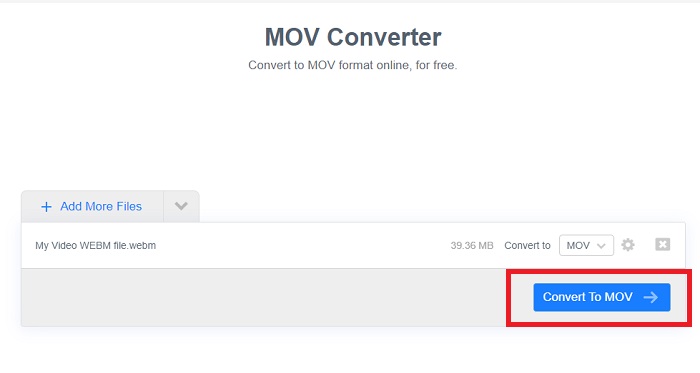
ขั้นตอนที่ 3: เมื่อจัดการปรับแต่งทุกอย่างเสร็จแล้ว คุณสามารถเริ่มแปลงไฟล์ได้โดยคลิกปุ่ม Convert to MOV ที่อยู่ด้านล่าง แล้วรอจนกระบวนการเสร็จสิ้น จากนั้นจึงคลิก Download MOV เพื่อดาวน์โหลดวิดีโอที่แปลงเรียบร้อยแล้ว.
วิธีที่ 2: ใช้ Cloud Convert
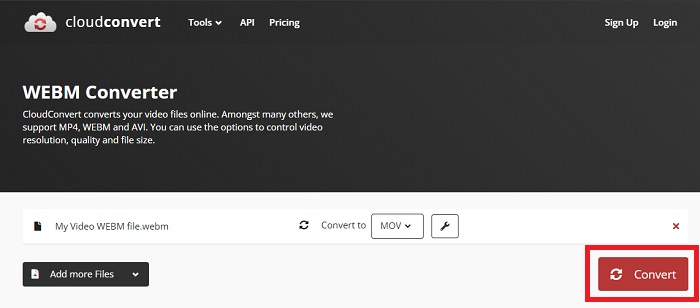
เครื่องมือเว็บนี้มีตัวเลือกเพิ่มเติมสองสามทางสำหรับคุณในขณะที่คุณแปลงไฟล์ WebM เป็น MOV ออนไลน์ คุณไม่เพียงแต่สามารถแก้ไขความละเอียดหรือคุณภาพเสียงเท่านั้น แต่ยังสามารถแก้ไข fps, คำบรรยาย และอื่นๆ อีกมากมาย ทำตามขั้นตอนง่าย ๆ เหล่านี้เพื่อใช้ตัวแปลงออนไลน์นี้:
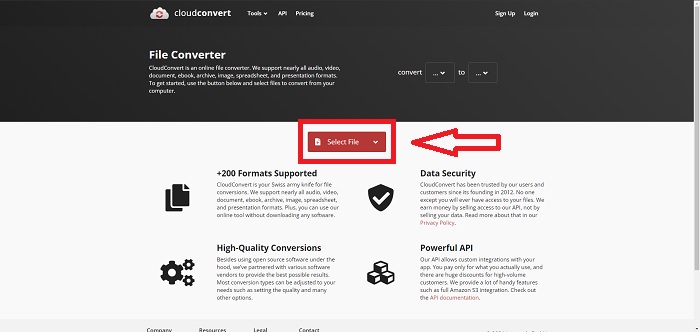
ขั้นตอนที่ 1: อันดับแรก คุณต้องนำเข้าไฟล์วิดีโอที่ต้องการแปลงก่อน โดยคลิกปุ่ม Select File ตรงกลางหน้า หากต้องการแปลงหลายไฟล์พร้อมกัน ให้คลิก Add more Files.
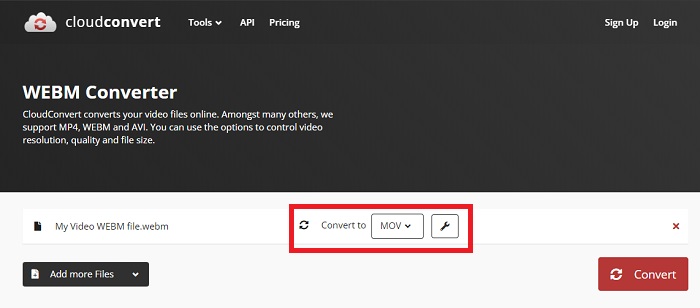
ขั้นตอนที่ 2: ถัดจากชื่อไฟล์ คุณสามารถเลือกรูปแบบวิดีโอได้โดยคลิกลูกศรดรอปดาวน์ นอกจากนี้ให้คลิกไอคอนรูปประแจเพื่อดูตัวเลือกเพิ่มเติม จากตรงนั้นคุณสามารถแก้ไขส่วนต่าง ๆ ของวิดีโอและเสียงได้ แล้วคลิกปุ่มตกลงเพื่อบันทึกการเปลี่ยนแปลง.
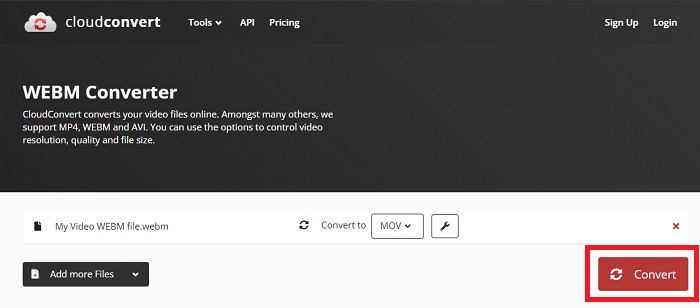
ขั้นตอนที่ 3: เมื่อแก้ไขทุกอย่างเรียบร้อยแล้ว ให้คลิกปุ่ม Convert ที่ไฮไลต์ด้วยสีแดงและรอให้การแปลงเสร็จสิ้น สุดท้ายให้คลิก Download ที่ไฮไลต์ด้วยสีเขียวเพื่อดาวน์โหลดวิดีโอที่แปลงเสร็จสมบูรณ์.
วิธีที่ 3: ใช้ ZamZar Convert
เครื่องมือเว็บนี้มีตัวเลือกน้อยลงสำหรับวิดีโอของคุณ เนื่องจากจะแปลงเฉพาะรูปแบบวิดีโอและเสียงเท่านั้น อย่างไรก็ตาม มันทำงานได้เร็วกว่าวิธีอื่นๆ ที่กล่าวถึง ในการใช้ตัวแปลงออนไลน์นี้ ให้ทำตามขั้นตอนที่ให้ไว้:
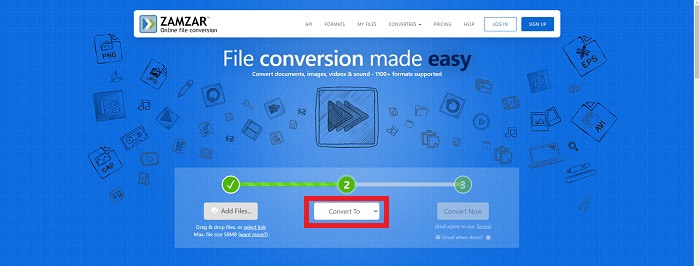
ขั้นตอนที่ 1: ตรงกลางหน้าเว็บจะมีเพียงสามปุ่มที่ต้องคลิกเพื่อแปลงวิดีโอของคุณ เริ่มจากคลิกปุ่ม Add files เพื่อนำเข้าไฟล์วิดีโอ.
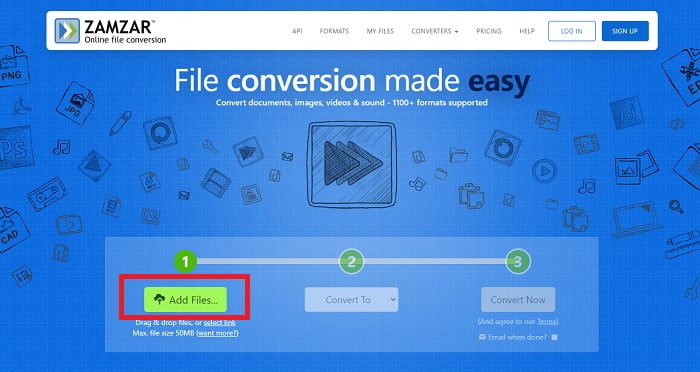
ขั้นตอนที่ 2: สำหรับปุ่มที่สอง คุณสามารถเลือกรูปแบบวิดีโอและเสียงที่ต้องการได้ ในกรณีนี้ให้เลือกเป็นฟอร์แมต MOV.
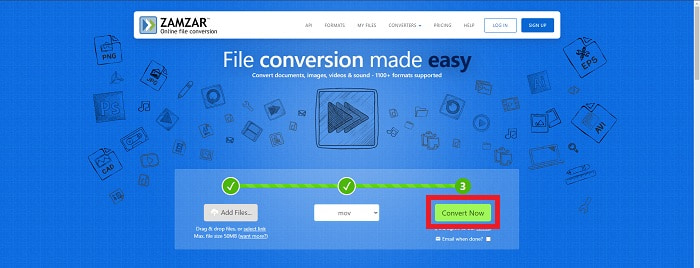
ขั้นตอนที่ 3: สุดท้ายให้คลิกปุ่มที่สามซึ่งเป็นปุ่มสุดท้ายคือ Convert Now เพื่อเริ่มกระบวนการแปลง และรอจนเสร็จ เมื่อเสร็จแล้วให้คลิก Download เพื่อดาวน์โหลดวิดีโอไปเก็บไว้บนเดสก์ท็อปของคุณ.
ส่วนที่ 4 คำถามที่พบบ่อยเกี่ยวกับการแปลง WebM เป็น MOV
รูปแบบ WebM คืออะไรกันแน่?
WebM คือรูปแบบไฟล์สื่อแบบเปิดเฉพาะสำหรับเว็บที่รวมการสตรีมวิดีโอที่บีบอัดด้วยตัวแปลงสัญญาณวิดีโอ VP8 หรือ VP9 สตรีมเสียงที่บีบอัดด้วยตัวแปลงสัญญาณเสียง Vorbis หรือ Opus และข้อความ WebVTT โครงสร้างไฟล์ WebM ขึ้นอยู่กับคอนเทนเนอร์สื่อ Matroska เว็บเบราว์เซอร์ส่วนใหญ่ยอมรับไฟล์ WebM เนื่องจากบางครั้งใช้บนเว็บไซต์ HTML5 เพื่อเล่นภาพยนตร์ออนไลน์ ตัวอย่างเช่น YouTube ใช้รูปแบบไฟล์วิดีโอ WebM สำหรับวิดีโอทั้งหมดในหน้าเว็บ ตั้งแต่ 360p ไปจนถึงคุณภาพที่สูงมาก Wikimedia และ Skype เหมือนกัน
ฉันต้องใช้เครื่องเล่นสื่ออะไรในการเล่นวิดีโอ WebM ในกรณีที่ฉันไม่ต้องการแปลงเป็น MOV
ถ้าคุณไม่ต้องการผ่านขั้นตอนการแปลงไฟล์ทั้งหมดเพื่อจะเล่นวิดีโอ WebM ก็ยังมีทางเลือกอื่นอยู่ นั่นคือการใช้แอปพลิเคชันของบุคคลที่สาม หรือที่เรียกว่าการใช้งานข้ามแพลตฟอร์ม มีโปรแกรมเล่นสื่อของบุคคลที่สามหลายตัว เช่น VLC, KM Player, Media Player Classic, Winamp, jetAudio Basic, Moovidia, Persian และ XBMC ซึ่งคุณสามารถดาวน์โหลดได้จากเว็บไซต์ของแต่ละโปรแกรมเพื่อนำมาเล่นไฟล์ WebM ของคุณ.
MOV มีคุณภาพสูงหรือต่ำ?
การเล่นวิดีโอค่อนข้างคุณภาพสูงด้วยไฟล์ MOV MOV มีประโยชน์อย่างยิ่ง เนื่องจากสามารถเก็บสื่อผสม เช่น รูปภาพ วิดีโอ และแอนิเมชั่น 360 องศา นอกจากนี้ยังมีข้อมูลวิดีโอและเสียงทั้งหมด ทำให้การแก้ไขไฟล์ทำได้ง่ายขึ้นมาก
สรุป
มีเครื่องมือมากมายที่คุณสามารถใช้เพื่อแปลงวิดีโอของคุณจากรูปแบบหนึ่งไปอีกรูปแบบหนึ่งได้ ไม่ว่าจะผ่านการใช้ซอฟต์แวร์หรือผ่านเครื่องมือบนเว็บที่คุณสามารถหาได้ทางออนไลน์ อย่างไรก็ตาม พวกเขายังคงจับมือกันในแง่ของตัวเลือกหรือความสะดวกสบายที่พวกเขาเสนอ บางคนเพิ่งได้งานเสร็จและบางส่วนมีตัวเลือกมากมายให้คุณเลือก บทความนี้เน้นที่สิ่งนี้เพื่อช่วยให้คุณมีความรู้เกี่ยวกับสิ่งที่คุณควรใช้ขึ้นอยู่กับความต้องการของคุณ นั่นคือเหตุผลที่เราแนะนำ Video Converter Ultimate มากที่สุด เนื่องจากมีตัวเลือกเพิ่มเติมทั้งหมดที่คุณอาจไม่เคยรู้เมื่อคุณต้องการ จะดีกว่าถ้ามีซอฟต์แวร์นี้อยู่เคียงข้างคุณตลอดเวลาเพื่อช่วยให้คุณไม่ต้องลำบากในการค้นหาตัวแปลงออนไลน์ทุกครั้งที่คุณต้องการ
-
 วิธีเปลี่ยน GIF เป็นรูปแบบ WebM โดยไม่สูญเสียคุณภาพไฟล์
 แปลง Gif ของคุณเป็นรูปแบบวิดีโอ WebM เพื่อให้มีแท็กวิดีโอ HTML5 ใช้เครื่องมือด้านล่างนี้เพื่อดูว่าเครื่องมือใดดีที่สุดสำหรับงาน
-
 3 วิธีในการแปลง WebM เป็น MP3 โดยไม่สูญเสียคุณภาพเสียง
 มีปัญหาเพราะไม่สามารถใช้ไฟล์ WebM เพื่อเล่นเสียงที่คุณบันทึกได้ใช่หรือไม่ จากนั้น อ่านบทความนี้ในขณะที่เราให้ความช่วยเหลืออย่างมีประสิทธิภาพโดยการแปลง WebM เป็น MP3
-
 3 ซอฟต์แวร์อันน่าทึ่งที่ใช้ในการแปลงไฟล์ WebM เป็นรูปแบบ AVI
 ไม่รู้ว่าจะแปลง WebM เป็น AVI ได้อย่างไร แล้วมาเริ่มอ่านบทความนี้กัน ในขณะที่เราระบุรายละเอียดทั้งหมดบน WebM และตัวแปลงสามตัวที่คุณสามารถใช้เพื่อแปลง
