


 Video Converter Ultimate
 บันทึกหน้าจอ
 ซ่อมวิดีโอ
เรียนรู้วิธีการแปลง F4V เป็น MOV ในขั้นตอนที่ง่ายที่สุด
ไฟล์วิดีโอ Flash MP4 หรือที่รู้จักกันว่าไฟล์วิดีโอ MPEG-4 เป็นไฟล์วิดีโอที่อิงตามรูปแบบคอนเทนเนอร์ Apple QuickTime ไฟล์ที่มีนามสกุล F4V เป็นไฟล์วิดีโอที่ใช้คอนเทนเนอร์แบบเดียวกับ Apple QuickTime ซึ่งมีรูปลักษณ์คล้ายกับรูปแบบ MP4 แม้ว่าเราจะอธิบายรูปแบบ F4V แบบสั้น ๆ ไปแล้ว แต่อาจทำให้คุณยังไม่แน่ใจว่าจะเปลี่ยนรูปแบบวิดีโอนี้เป็นแบบอื่นได้อย่างไร ด้วยบทความนี้ คุณจะได้รู้วิธีแปลง F4V เป็น MOV.

ส่วนที่ 1 การอภิปรายรายละเอียด: F4V และ MOV
ไฟล์วิดีโอ Flash ใช้นามสกุลไฟล์ .f4v นามสกุล .f4v ถูกนำมาใช้กับไฟล์ MPEG-4 ที่เดิมทีใช้นามสกุล .mp4 เมื่อพูดถึงการเผยแพร่มีเดียแบบไดนามิก F4V ถือเป็นรูปแบบมาตรฐานที่ยอมรับกันโดยทั่วไป สิ่งที่ควรทราบก็คือไฟล์ F4V แท้จริงแล้วเป็นไฟล์คอนเทนเนอร์ที่ใช้สำหรับเล่นไฟล์มีเดียบางประเภท ในโปรแกรม Adobe Flash Player ไฟล์ F4V จะบรรจุเนื้อหามีเดียที่สตรีมออนไลน์และสามารถเปิดรับชมได้ จากการประเมินพบว่า วิดีโอออนไลน์ในปัจจุบันมากถึงราว 80% สามารถรับชมได้ผ่านเทคโนโลยี Adobe Flash นอกจากนี้ แอปพลิเคชัน Adobe AIR ยังสามารถรองรับรูปแบบไฟล์ F4V ได้ด้วย.
อย่างไรก็ตาม ในฐานะที่เป็นรูปแบบ QuickTime MOV จะถูกใช้งานในกรอบการทำงาน QuickTime ของ Mac OS X ในฐานะคอนเทนเนอร์มัลติมีเดีย แพลตฟอร์ม Windows ก็สามารถรองรับการเก็บหลายแทร็กได้เช่นกัน โดยแต่ละแทร็กจะบรรจุข้อมูลคนละประเภทกัน (เสียง วิดีโอ คำบรรยาย) การแยกข้อมูลมีเดียออกจากตำแหน่งข้อมูล การทำให้การอ้างอิงข้อมูลเป็นนามธรรม และการบันทึกรายการการตัดต่อ เป็นแนวทางที่เครื่องมือตัดต่อวิดีโอสามารถใช้ในการปรับปรุงกระบวนการทำงานได้ รูปแบบคอนเทนเนอร์ MOV ถูกใช้กันอย่างแพร่หลายในการเผยแพร่ภาพยนตร์และวิดีโอบนอินเทอร์เน็ต.
ส่วนที่ 2 เคล็ดลับที่เป็นประโยชน์ที่สุดในการแปลง F4V เป็น MOV
ใช้ Video Converter Ultimate เพื่อแปลงรูปแบบต่างๆ เช่น F4V เป็น MOV และเมื่อเปรียบเทียบกับแอปพลิเคชันอื่นและตัวแปลงเว็บ ซอฟต์แวร์นี้มีตัวแปลงที่เร็วที่สุดเท่าที่คุณจะจินตนาการได้ เนื่องจากมีเทคโนโลยีการเร่งด้วยฮาร์ดแวร์ที่ทำให้การแปลง F4V เป็น MOV เร็วขึ้น 8 เท่า . นอกจากนี้ยังสามารถแปลงรูปแบบต่างๆ ได้หลากหลาย แม้กระทั่งรูปแบบวิดีโอที่คลุมเครือที่สุด เช่น RMVB, MXF, OGV, F4V เป็นต้น ทุกคนควรพิจารณาใช้ซอฟต์แวร์นี้เนื่องจากให้ผลลัพธ์คุณภาพสูงและตัวเลือกที่หลากหลาย ที่สามารถปรับปรุงวิดีโอของคุณได้ฟรี โดยไม่ต้องกังวลใจ ต่อไปนี้คือขั้นตอนที่คุณควรทำ:
ขั้นตอนที่ 1. เพื่อเริ่มการดาวน์โหลด เพียงคลิกที่สัญลักษณ์ ดาวน์โหลดฟรี ที่อยู่ทางขวาของข้อความนี้เพื่อเริ่มกระบวนการดาวน์โหลด เมื่อดาวน์โหลดเสร็จแล้ว คุณจะสามารถเลือกติดตั้งซอฟต์แวร์บนคอมพิวเตอร์ Windows หรือ Macintosh ได้ เมื่อต้องการเริ่มใช้งานซอฟต์แวร์ คุณต้องติดตั้งลงบนเดสก์ท็อปของคอมพิวเตอร์ก่อน จากนั้นเลือก Start Now จากเมนู Start.
ดาวน์โหลดฟรีสำหรับ Windows 7 หรือใหม่กว่าดาวน์โหลดอย่างปลอดภัย
ดาวน์โหลดฟรีสำหรับ MacOS 10.7 หรือใหม่กว่าดาวน์โหลดอย่างปลอดภัย
ขั้นตอนที่ 2. เริ่มจากเปิดซอฟต์แวร์ที่คุณเพิ่งดาวน์โหลดมา หลังจากเปิดโปรแกรมครั้งแรก หน้าต่างที่เป็นอินเทอร์เฟซของ Converter จะปรากฏขึ้นบนหน้าจอ.
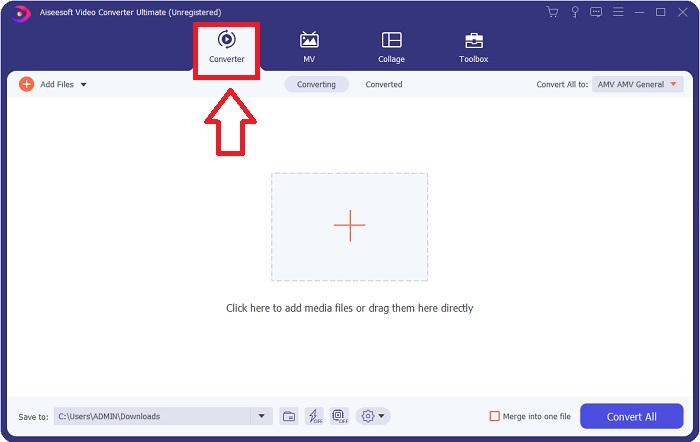
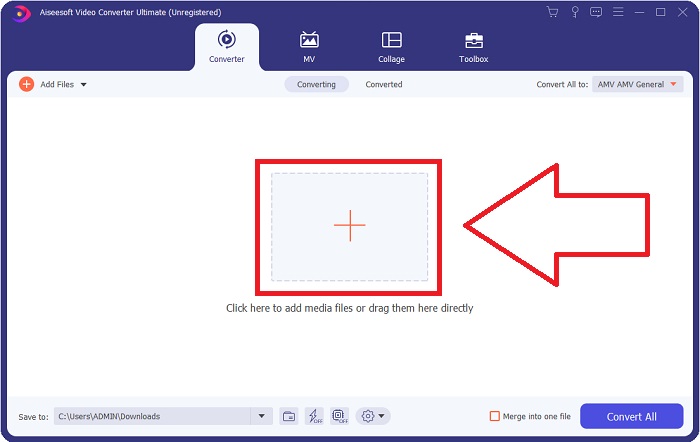
ขั้นตอนที่ 3. นำเข้าไฟล์ของคุณเข้าสู่โปรแกรมแปลงไฟล์เพื่อเริ่มกระบวนการแปลง ลากและวางไฟล์วิดีโอที่คุณต้องการแปลงไปยังไอคอนเครื่องหมายบวก (+).
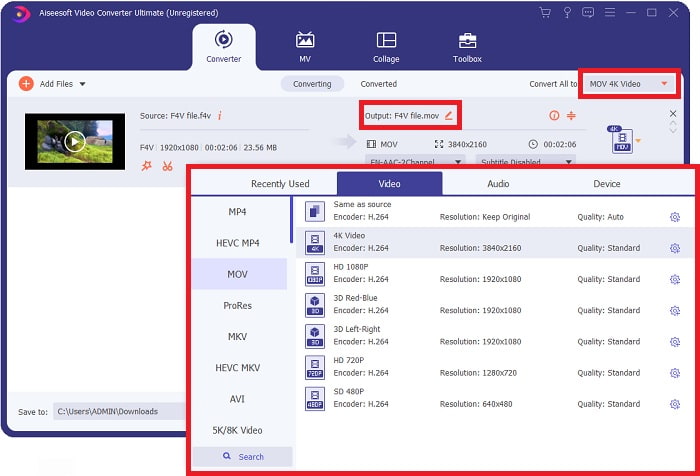
ขั้นตอนที่ 4. เพื่อเลือกฟอร์แมตวิดีโอ ให้คลิกเมนูดรอปดาวน์ที่มุมขวาบนของหน้าจอ จากนั้นใช้เมนูดรอปดาวน์เลือก MOV เป็นรูปแบบวิดีโอ หลังจากเลือกไฟล์ MOV แล้ว คุณสามารถปรับคุณภาพของวิดีโอได้ อย่างไรก็ตาม หากไม่มีการระบุรูปแบบเอาต์พุตวิดีโอตามที่คุณต้องการ คุณสามารถเปลี่ยนการตั้งค่าคุณภาพให้เหมาะกับความต้องการของคุณเองได้ สามารถปรับอัตราเฟรมของภาพและคุณภาพเสียงได้โดยคลิกที่ไอคอนรูปเฟือง จากนั้นกดปุ่ม Create New เพื่อบันทึกการเปลี่ยนแปลง.
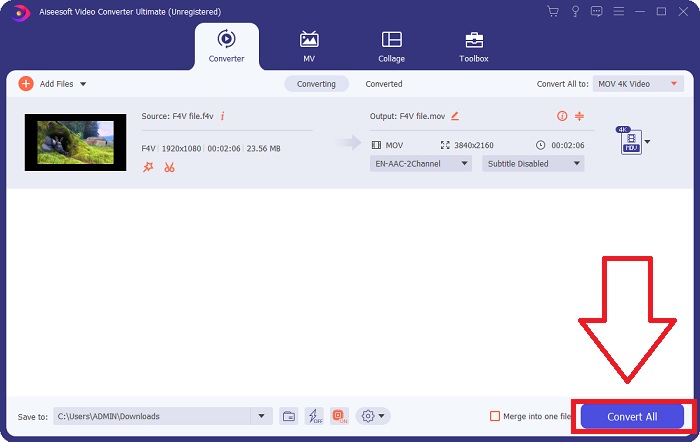
ขั้นตอนที่ 5. เมื่อคุณแก้ไขวิดีโอเสร็จแล้วและพร้อมสำหรับการแปลง ให้เลือก Convert All เพื่อเริ่มการแปลงไฟล์.
ส่วนที่ 3 เคล็ดลับโบนัส! แปลง F4V เป็น MOV ออนไลน์
หากคุณไม่มีเวลาดาวน์โหลดเวอร์ชันเต็มของ Video Converter Ultimate คุณสามารถใช้เวอร์ชันออนไลน์แทนได้ Free Video Converter Online เป็นเครื่องมือออนไลน์ที่ยอดเยี่ยมสำหรับการแปลงไฟล์วิดีโอให้หลากหลายรูปแบบได้อย่างรวดเร็วและง่ายดาย เนื่องจาก Free Video Converter Online ไม่มีข้อจำกัดเกี่ยวกับชนิดไฟล์ที่รองรับ จึงเหมาะสำหรับผู้ใช้มือใหม่มากกว่าคอนเวอร์เตอร์ออนไลน์ทั่วไป หากต้องการเรียนรู้เพิ่มเติมเกี่ยวกับแอปพลิเคชันบนเว็บนี้ ให้ทำตามคำแนะนำต่อไปนี้.
ขั้นตอนที่ 1. คุณสามารถเข้าสู่หน้าเว็บอย่างเป็นทางการของตัวแปลงได้โดยคลิกที่ลิงก์นี้.
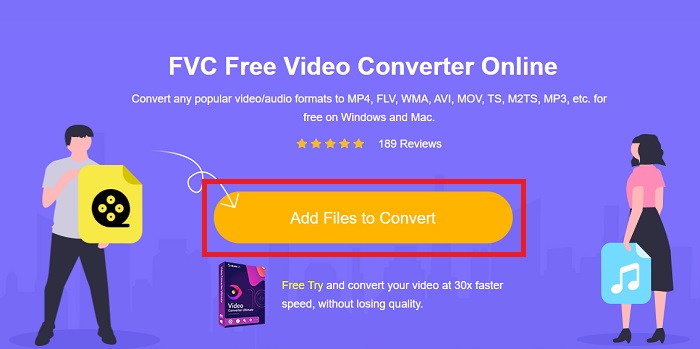
ขั้นตอนที่ 2. หากนี่เป็นครั้งแรกที่ใช้โปรแกรม ให้คลิก Add Files เพื่ออัปโหลดไฟล์จากคอมพิวเตอร์ของคุณซึ่งอยู่ตรงกลางหน้าจอ และเพื่อดาวน์โหลดตัวเรียกใช้งาน (launcher) สำหรับเครื่องของคุณด้วย เมื่อตัวเรียกใช้งานดาวน์โหลดรอบที่สองเสร็จแล้ว โปรแกรมจะเปิดขึ้นโดยอัตโนมัติ หลังจากไฟล์ถูกดาวน์โหลดเป็นครั้งที่สอง ให้ค้นหาไฟล์นั้นในโฟลเดอร์ของคุณแล้วคลิก Open เพื่อเริ่มใช้งาน.
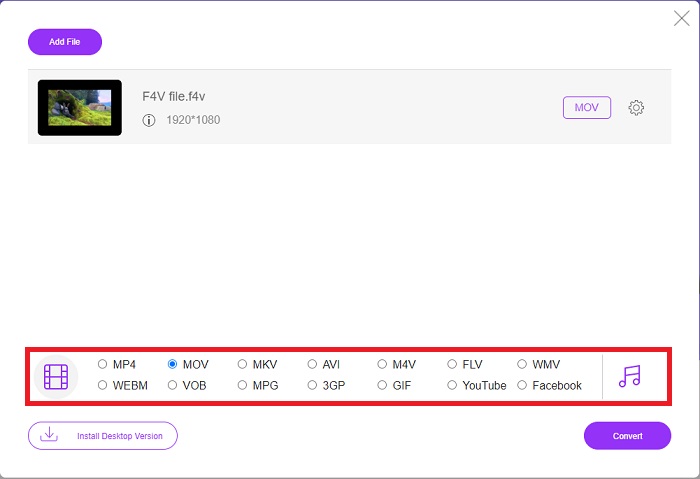
ขั้นตอนที่ 3. เพื่อเริ่มกระบวนการแปลงไฟล์ ให้เลือกฟอร์แมต MOV จากตัวเลือกฟอร์แมตที่อยู่ด้านล่างหน้าต่างแล้วคลิกที่มัน.
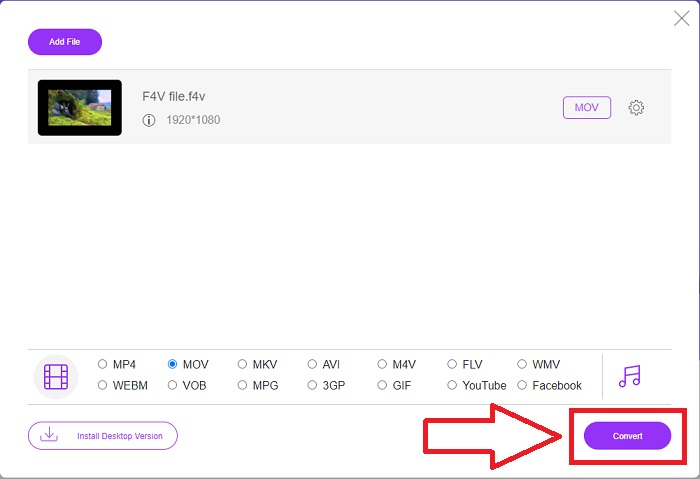
ขั้นตอนที่ 4. หลังจากที่คุณเลือกฟอร์แมตที่ต้องการแปลงแล้ว ให้คลิก Convert เพื่อเริ่มกระบวนการแปลงไปเป็นฟอร์แมตอื่น.
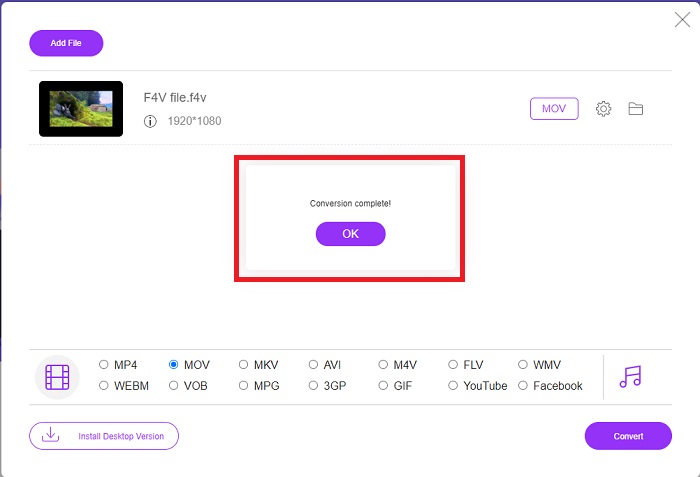
ขั้นตอนที่ 5. ใช้เวลาเพียงไม่กี่นาที ไฟล์ที่แปลงแล้วจะปรากฏในโฟลเดอร์ไฟล์ ซึ่งคุณสามารถเปิดเพื่อเริ่มรับชมได้ทันที.
ส่วนที่ 4 คำถามที่พบบ่อยเกี่ยวกับ F4V เป็น MOV Conversion
ฉันจะเล่นไฟล์ F4V บน VLC ได้อย่างไร
คุณสามารถนำเข้าและเล่นวิดีโอ F4V ใน VLC Player ได้โดยการลากและวาง เพื่อให้บรรลุสิ่งนี้ คุณต้องเปิดโฟลเดอร์ที่จัดเก็บไฟล์ F4V ของคุณก่อน VLC Player จำเป็นต้องเปิดไฟล์ F4V ควรลากเข้าไปในอินเทอร์เฟซของเครื่องเล่นแล้วทิ้ง ไฟล์วิดีโอของคุณควรเริ่มเล่นทันทีที่คุณวางลงในเครื่องเล่น
ฉันจะเล่นไฟล์ F4V บน Mac ได้อย่างไร
ต้องดาวน์โหลด Elmedia Player จากเว็บไซต์อย่างเป็นทางการก่อน ตามข้อมูลของ Eltima จากนั้น Elmedia สามารถนำเข้าไฟล์ F4V ได้ด้วยวิธีต่อไปนี้: เพียงลากและวางไฟล์ F4V ลงในหน้าต่างของเครื่องเล่นหรือไอคอน Dock เลือกตัวเลือกเมนูเปิดด้วยจากเมนูบริบท Finder ไปกับ Elmedia Player จากเมนูหลักของ Elmedia Player ให้เลือก File จากนั้นเลือก Open สุดท้ายนี้ขอให้สนุก
ไฟล์ MOV เหมือนกับ MP4 หรือไม่
MOV เป็นรูปแบบไฟล์เฉพาะของ Apple สำหรับ QuickTime ในขณะที่ MP4 เป็นมาตรฐานที่ใช้กันทั่วโลก เนื่องจากไฟล์ MOV ทำงานร่วมกับโปรโตคอลการสตรีมมิงได้ไม่ครบทุกแบบ ผู้ให้บริการสตรีมส่วนใหญ่จึงนิยมใช้ไฟล์ MP4 มากกว่า ในทางกลับกัน ไฟล์ MOV มักจะมีคุณภาพสูงกว่าและมีขนาดใหญ่กว่า MP4 สำหรับการตัดต่อวิดีโอบน Mac ไฟล์ MOV จะดีกว่าเพราะถูกออกแบบมาโดยเฉพาะสำหรับ QuickTime ทำให้ใช้งานได้ง่ายขึ้น อ่านต่อเพื่อดูรายละเอียดเพิ่มเติมเกี่ยวกับความแตกต่างระหว่าง MOV และ MP4.
สรุป
ควรทราบว่า แม้จะมีโซลูชันออนไลน์มากมายดังที่กล่าวไว้ข้างต้น ปัญหาการเชื่อมต่อก็ยังเป็นหนึ่งในสาเหตุที่พบบ่อยที่สุดของการแปลงวิดีโอที่สะดุด ดังนั้นจึงขอแนะนำให้ใช้ซอฟต์แวร์ฟรีอย่าง Video Converter Ultimate ซึ่งมีให้ดาวน์โหลด นอกจากจะสามารถแปลงคลิปวิดีโอของคุณได้อย่างรวดเร็วแล้ว โปรแกรมแปลงไฟล์นี้ยังมีฟีเจอร์ที่เป็นประโยชน์ให้เลือกใช้อีกมากมาย อีกทั้งยังรองรับรูปแบบวิดีโอหลากหลายชนิด ทำให้คุณไม่ต้องกังวลกับการแปลงไฟล์ที่ไม่คุ้นเคยเพื่อให้ได้ผลลัพธ์วิดีโอที่น่าพอใจที่สุด.
-
 4 ตัวแปลงออนไลน์และออฟไลน์ใหม่ล่าสุดเพื่อแปลงรูปแบบ F4V เป็น AVI
 Don'คุณไม่มีความคิดใด ๆ ที่คุณควรใช้ตัวแปลงใดเพื่อแปลง F4V เป็น AVI หรือรูปแบบวิดีโออื่น ๆ จากนั้นอ่านบทความนี้ในขณะที่เราเรียนรู้วิธีแปลงด้วยเครื่องมือที่มีให้
-
 วิธีแปลง M2TS เป็น MOV ฟรี [ออนไลน์และออฟไลน์]
 ต้องการแปลง M2TS เป็น MOV เพื่อเล่นไฟล์วิดีโอบนเครื่องเล่นและแพลตฟอร์มต่างๆหรือไม่? บทความนี้จะช่วยคุณค้นหาวิธีการออนไลน์ / ออฟไลน์ที่ดีที่สุดในการแปลง M2TS เป็น MOV บน Windows / Mac
-
 วิธีการแปลง MP4 เป็น MOV บน Mac / PC / ออนไลน์
 วิธีแปลง MP4 เป็น MOV บน Mac มีวิธีฟรีในการแปลง MP4 เป็น MOV โดยไม่สูญเสียคุณภาพหรือไม่? โพสต์นี้แชร์ 4 วิธีง่ายๆที่จะช่วยคุณในการแปลงวิดีโอจาก MP4 เป็น MOV บน Mac, Windows PC และออนไลน์
