


 Video Converter Ultimate
 บันทึกหน้าจอ
 ซ่อมวิดีโอ
 ดาวน์โหลดอย่างปลอดภัย
วิธีทำให้วิดีโอช้าลงใน Snapchat อย่างมืออาชีพ [แก้ไขแล้ว]
หนึ่งในแอปฟิลเตอร์ที่ดีที่สุดที่คุณสามารถดาวน์โหลดมาใช้ได้ฟรีบนอุปกรณ์ของคุณคือ Snapchat นอกจากฟิลเตอร์ที่ใช้กับวิดีโอแล้ว ผู้ใช้ยังมักจะถามว่าจะทำวิดีโอให้ช้าลงบน Snapchat ได้อย่างไรเพื่อให้เกิดเอฟเฟกต์สโลว์โมชั่นกับวิดีโอที่ถ่าย ด้วยแอปนี้ คุณสามารถถ่ายวิดีโอแบบสโลว์โมเพื่อให้ดูโดดเด่นและไม่เหมือนใครเมื่อเทียบกับผู้ใช้คนอื่น ๆ ที่ใช้แอปเดียวกัน อยากรู้เคล็ดลับวิธีทำไหม? ไม่ต้องกังวล เพราะเรามีวิธีมาบอกให้คุณเรียบร้อยแล้ว.
บทความนี้จะเน้นที่ตัวปรับความเร็วที่คุณสามารถใช้เพื่อขยายวิดีโอที่คุณต้องการให้ช้าลง ดังนั้นสิ่งที่คุณรอ? ติดตามอ่านบทความนี้เพื่อเรียนรู้เพิ่มเติมเกี่ยวกับเอฟเฟกต์การชะลอตัวของ Snapchat

ส่วนที่ 1 วิธีทำให้วิดีโอใน Snapchat ช้าลงอย่างง่ายดาย
คุณทำให้วิดีโอใน Snapchat ช้าลงได้อย่างไร หากคุณมีคำถามเดียวกันจนถึงตอนนี้ ขั้นตอนนี้เหมาะสำหรับคุณเพราะคุณสามารถหาตัวปรับความเร็วได้ใน Snapchat เพื่อให้ได้ผลลัพธ์ที่คุณต้องการ ด้านล่างนี้คือขั้นตอนง่ายๆ ที่ต้องปฏิบัติตาม
ขั้นตอนที่ 1. ดาวน์โหลด Snapchat ลงบนอุปกรณ์ของคุณและเปิดแอป.
ขั้นตอนที่ 2. แตะที่หน้าจอของคุณตรงไอคอนรูปภาพ แล้วอนุญาตให้แอปเข้าถึงคลังรูปภาพของคุณ หลังจากอนุญาตแล้ว ให้เลือกวิดีโอที่คุณต้องการทำให้ช้าลงจากรายการที่แสดงขึ้นมา แล้วแตะเลือกวิดีโอนั้น.
ขั้นตอนที่ 3. หลังจากเปิดวิดีโอแล้ว ให้แตะที่ Edit เพื่อใช้ตัวปรับความเร็วที่มีให้ใน Snapchat.
ขั้นตอนที่ 4. ปัดไปทางซ้ายหรือขวา จนกว่าคุณจะเจอไอคอนรูปหอยทาก ไอคอนนี้หมายความว่าความเร็ววิดีโอจะช้ากว่าต้นฉบับ แต่ถ้าเป็นไอคอนรูปกระต่าย วิดีโอจะเล่นเร็ว หลังจากนั้นให้บันทึกวิดีโอที่อยู่ในโหมดสโลว์โม.
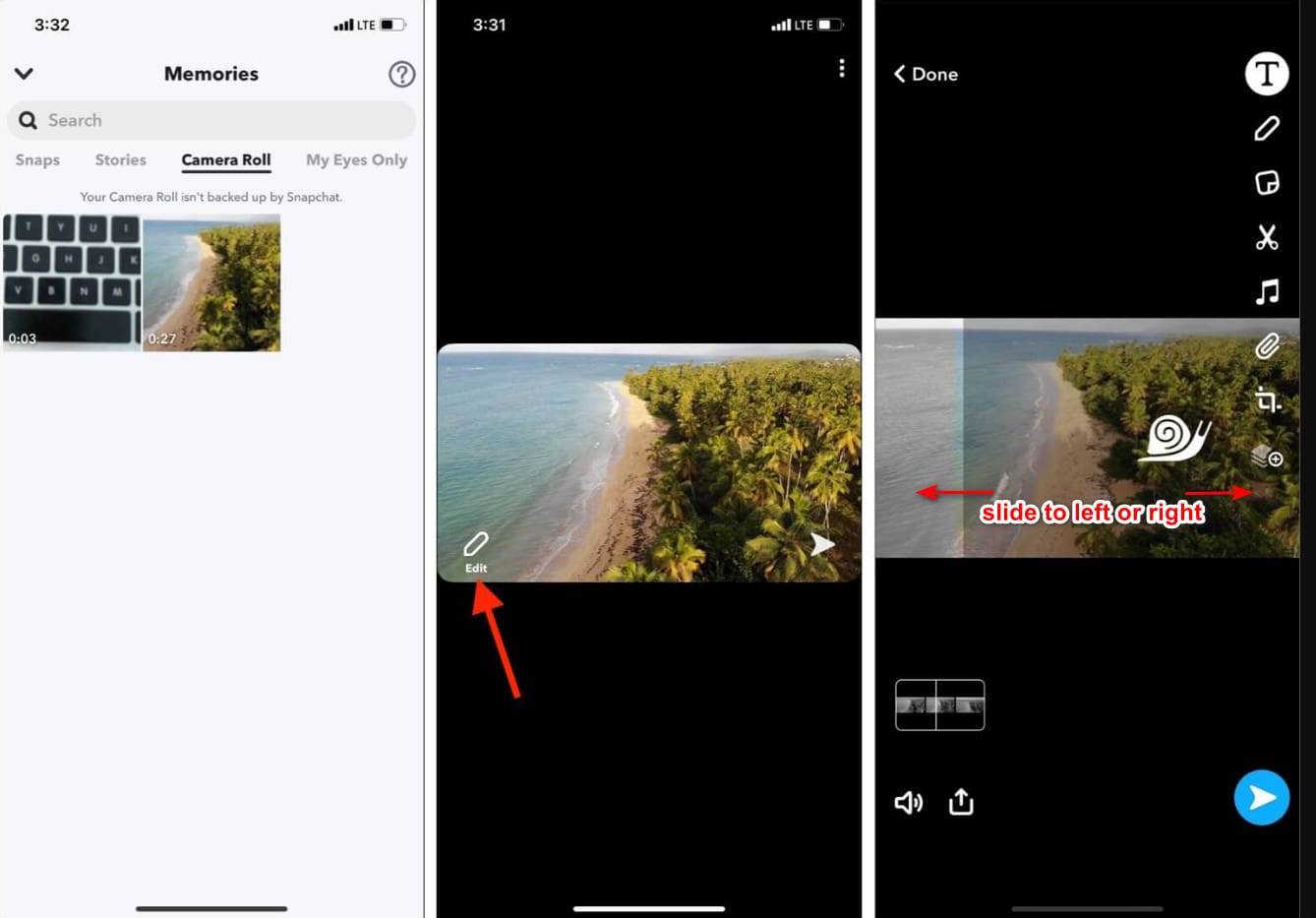
แม้ว่าแอปจะมีตัวปรับความเร็วในตัว แต่ความเร็วในการเล่นที่รองรับนั้นเป็นเพียงการเคลื่อนไหวเพียงครั้งเดียว หมายความว่าคุณไม่มีตัวเลือกในการเปลี่ยนสโลว์โมตามความชอบของคุณ ซึ่งน่าผิดหวัง โดยเฉพาะอย่างยิ่งถ้าสโลว์โมไม่ใช่สิ่งที่คุณต้องการ แต่เครื่องมือถัดไปสามารถช่วยคุณเปลี่ยนความเร็วในการเล่นภาพช้าได้ตามที่คุณต้องการ และจะไม่ให้การเคลื่อนไหวแบบความเร็วเดียวเหมือนใน Snapchat หากต้องการทราบสิ่งนี้ คุณต้องอ่านรายละเอียดต่อไปนี้ในตอนที่ 2
ส่วนที่ 2 วิธีใส่วิดีโอแบบสโลว์โมชั่นบน Snapchat อย่างมีประสิทธิภาพบน Windows & Mac
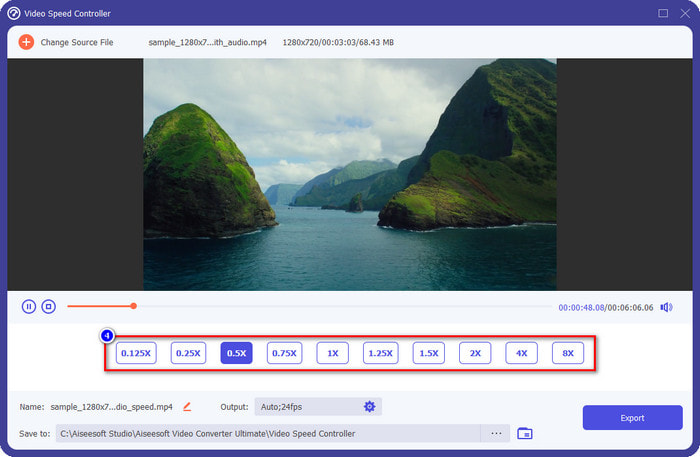
จากที่เราได้แนะนำวิธีทำให้วิดีโอเป็นสโลว์โมชั่นบน Snapchat จะเห็นได้ว่าความช้าที่ได้อาจไม่ช้าตามที่หลายคนต้องการ ดังนั้นแทนที่จะพึ่งเฉพาะตัวควบคุมความเร็วในตัวของ Snapchat เพียงอย่างเดียว ทำไมไม่ลองใช้ FVC Video Converter Ultimate ดูบ้างล่ะ? เพราะโปรแกรมนี้ให้คุณเปลี่ยนความเร็ววิดีโอที่มีอยู่ได้อย่างรวดเร็วตามต้องการ ด้วยตัวควบคุมความเร็วของมัน คุณสามารถนำวิดีโอความเร็วปกติมาใส่ แล้วปรับให้เป็นวิดีโอสโลว์โมได้ คุณสามารถทำให้วิดีโอช้าลงได้ที่ 0.75x, 0.5x, 0.25 หรือ 0.125 เพียงเลือกความเร็วที่ต้องการ แล้วดูตัวอย่างในหน้าพรีวิวเพื่อเช็กว่านั่นคือความเร็วสโลว์โมที่คุณพอใจหรือไม่.
นอกจากฟีเจอร์ควบคุมความเร็วแล้ว คุณยังสามารถใช้ซอฟต์แวร์นี้เพื่อเพิ่มฟิลเตอร์และเอฟเฟกต์ต่างๆ เช่น สิ่งที่คุณมีได้ใน Snapchat แม้ว่าจะได้รับการสนับสนุน แต่ก็ไม่กว้างเท่ากับแอปการกรองที่คุณสามารถมีได้ในอุปกรณ์ของคุณ นอกจากนี้ คุณสามารถทำการแก้ไขขั้นสูงที่นี่ ซึ่งไม่สามารถทำได้บน Snapchat เช่น ตัวเพิ่มระดับเสียง การซิงค์เสียง การลบลายน้ำ เพิ่มข้อมูลเมตา และอื่นๆ อีกมากมาย แม้จะเป็นเครื่องมือขั้นสูงสุด แต่ซอฟต์แวร์ก็ยังไม่พร้อมใช้งานบนอุปกรณ์พกพา อย่างไรก็ตาม คุณสามารถดาวน์โหลดได้บน Windows และ Mac ของคุณ ดังนั้น หากคุณตัดสินใจใช้เครื่องมือนี้ คุณสามารถอ่านและปฏิบัติตามบทช่วยสอนเพื่อเปลี่ยนความเร็วของวิดีโอได้
ขั้นตอนที่ 1. คลิกปุ่มดาวน์โหลดด้านล่างเพื่อดาวน์โหลดโปรแกรมเปลี่ยนความเร็วขั้นสูงนี้ลงบน Windows และ Mac ของคุณ ติดตั้งโปรแกรมให้เรียบร้อย แล้วเปิดใช้งานเพื่อเปลี่ยนความเร็วการเล่นของวิดีโอ.
ดาวน์โหลดฟรีสำหรับ Windows 7 หรือใหม่กว่าดาวน์โหลดอย่างปลอดภัย
ดาวน์โหลดฟรีสำหรับ MacOS 10.7 หรือใหม่กว่าดาวน์โหลดอย่างปลอดภัย
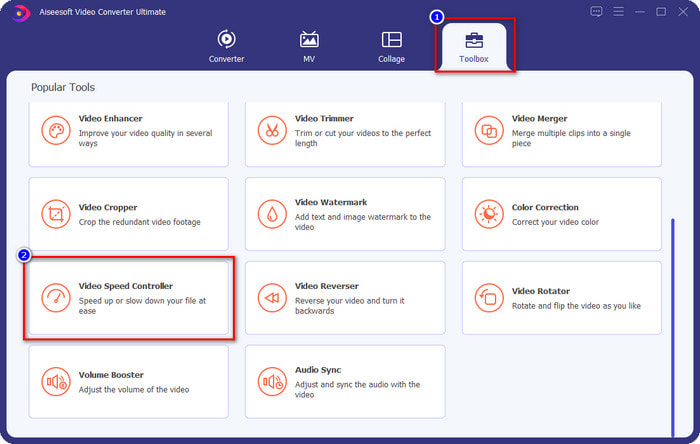
ขั้นตอนที่ 2. บนหน้าต่างหลักคุณจะเห็นเมนูหลัก 4 ส่วนให้ใช้งาน ให้คลิกที่ Toolbox แล้วมองหา Video Speed Controller จากรายการที่มี.
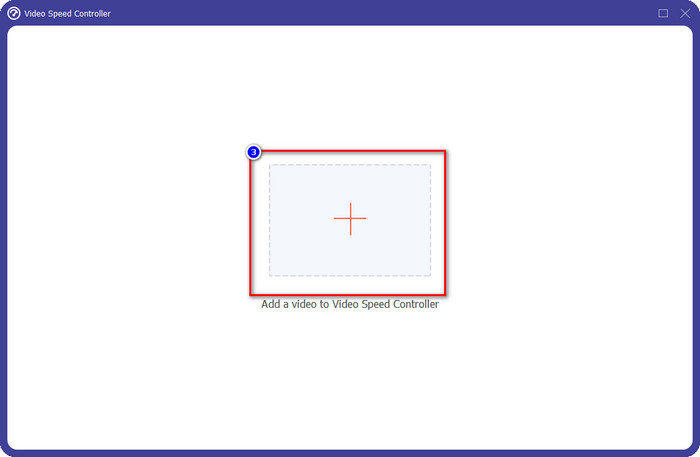
ขั้นตอนที่ 3. กดปุ่ม + เพื่อเปิดโฟลเดอร์ อัปโหลดวิดีโอจาก Snapchat หรือวิดีโอใด ๆ ที่คุณต้องการทำให้เป็นสโลว์โม แล้วคลิก Open.
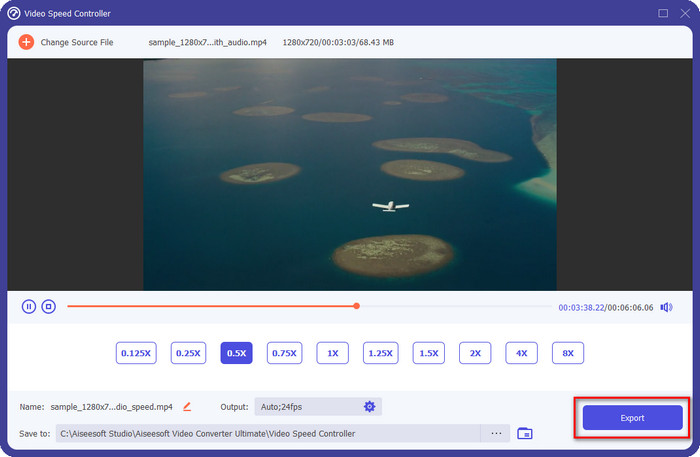
ขั้นตอนที่ 4. เมื่อเข้าสู่หน้าต่างใหม่ที่ใช้ปรับความเร็วแล้ว ให้คลิกเลือกความเร็วสโลว์โมที่คุณต้องการใช้กับวิดีโอ คุณสามารถเลือกความเร็วสโลว์โมที่ต้องการได้ และวิดีโอจะเล่นตัวอย่างให้ดูในช่องพรีวิว.
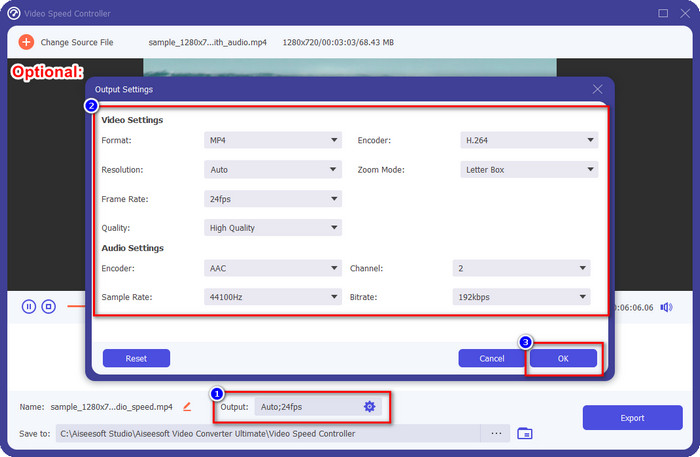
ตัวเลือกเพิ่มเติม: หากต้องการปรับเอาต์พุตแบบละเอียด ให้คลิกที่ Output ส่วนนี้จะให้คุณปรับเปลี่ยนรูปแบบไฟล์ ความละเอียด เฟรมเรต คุณภาพ โหมดซูม ฯลฯ จากนั้นคลิก OK เพื่อยืนยันการเปลี่ยนแปลง.
ขั้นตอนที่ 5. คลิกปุ่ม Export เมื่อคุณพร้อมจะแปลงความเร็วการเล่นของวิดีโอ วิดีโอแบบสโลว์โมจะถูกบันทึกไว้ คุณก็สามารถแชร์หรือใช้วิดีโอสโลว์โมที่ส่งออกจากที่นี่ได้เลย.
ที่เกี่ยวข้อง:
ส่วนที่ 3 คำถามที่พบบ่อยเกี่ยวกับวิธีทำให้วิดีโอช้าลงใน Snapchat
ส่งออกวิดีโอ slow-mo บน Snapchat จะมีลายน้ำหรือไม่
คุณสามารถส่งออกวิดีโอที่คุณถ่ายสโลว์โมชั่นบน Snapchat ได้อย่างอิสระโดยไม่มีลายน้ำของเอาต์พุตสุดท้าย แม้ว่าคุณจะต้องการเพิ่ม แต่ก็ไม่ได้รับอนุญาตให้เพิ่มลายน้ำ Snapchat บนวิดีโอ
ฉันสามารถเปลี่ยนความเร็วของวิดีโอแม้ว่าจะไม่ได้ถ่ายบน Snapchat ได้หรือไม่
คุณทำได้ แต่ถ้าคุณอนุญาตเท่านั้น เพราะหากคุณไม่อนุญาตให้แอปเข้าถึงแกลเลอรีหรือรูปภาพของคุณ คุณจะไม่สามารถเปลี่ยนความเร็วของวิดีโอที่คุณต้องการได้ หากต้องการดูวิดีโอที่คุณไม่ได้ถ่ายใน Snapchat คุณสามารถไปที่ Camera Roll แทน Snaps and Stories
มีข้อ จำกัด ในการทำให้วิดีโอช้าลงใน Snapchat หรือไม่?
จนถึงตอนนี้ ยังไม่มีข้อจำกัดใดๆ หากคุณต้องการทำให้วิดีโอช้าลงโดยใช้ Snapchat นอกจากตัวเลือกความเร็วแบบ slow-mo แล้ว ก็ไม่มีอีกแล้ว สมมติว่าคุณมีวิดีโอที่ต้องการลดความเร็วลง ในกรณีนี้ แอปนี้สามารถช่วยให้คุณทำงานให้เสร็จได้อย่างง่ายดายโดยไม่ต้องดาวน์โหลดส่วนขยายเพิ่มเติมเพื่อเปลี่ยนความเร็ว
สรุป
ต้องการคนช่วยสอนวิธีทำให้วิดีโอช้าลงบน Snapchat ใช่ไหม? คุณก็ได้รับความช่วยเหลือที่ต้องการจากบทความนี้แล้ว หากคุณยังรู้สึกว่าตัวควบคุมความเร็วในตัวของ Snapchat ยังไม่ตอบโจทย์ความต้องการ งั้นคุณควรใช้ตัวควบคุมความเร็ววิดีโออย่าง FVC Video Converter Ultimate เพื่อให้คุณควบคุมความเร็ววิดีโอได้เต็มที่ หากมีคำถามเพิ่มเติม คุณสามารถส่งข้อความมาหาเราได้ เพื่อที่เราจะได้ช่วยคุณและมาร่วมกันแก้ปัญหา.
-
 วิธีทำให้วิดีโอช้าลง: เคล็ดลับที่สมบูรณ์แบบ [เดสก์ท็อป/โทรศัพท์มือถือ]
 คุณเบื่อกับการค้นหาเครื่องมือที่ดีที่สุดที่ช่วยทำให้วิดีโอออนไลน์ช้าลงหรือไม่? อ่านบทความนี้โดยเฉพาะเพื่อให้คุณได้รับความรู้ความเข้าใจตามรายการด้านล่าง
-
 วิธีเปลี่ยนวิดีโอสโลว์โมชั่นเป็นความเร็วปกติ [ขั้นตอนง่าย ๆ ]
 ต้องการทราบวิธีการย้อนกลับวิดีโอสโลว์โมชั่นที่คุณดาวน์โหลดจากอินเทอร์เน็ตหรือบันทึกแบบสโลว์โมชั่นโดยไม่ได้ตั้งใจหรือไม่? เรียนรู้วิธีแปลงวิดีโอสโลว์โมชั่นเป็นความเร็วปกติบน Mac, Windows, iOS และ Android
-
 ทั้งหมดที่คุณต้องรู้เกี่ยวกับวิธีการสร้างวิดีโอสโลว์โมชั่น
 คุณต้องการทำวิดีโอสโลว์โมชั่นเหมือนโปรแกรมตัดต่อมืออาชีพ แต่คุณไม่รู้ว่าต้องการใช้ซอฟต์แวร์หรือแอปพลิเคชันใด อ่านบทความนี้เพื่อเรียนรู้รายละเอียดทั้งหมดที่คุณต้องการ
