


 Video Converter Ultimate
 บันทึกหน้าจอ
 ซ่อมวิดีโอ
 ดาวน์โหลดอย่างปลอดภัย
2 ขั้นตอนในการสตรีมดีวีดีจากแล็ปท็อปไปยังทีวีโดยใช้ Chromecast
มันเป็นวิธีที่ยอดเยี่ยมในการใช้ Chromecast เพื่อสตรีมมีเดียโปรดของคุณไปยังอุปกรณ์เอาต์พุตวิดีโอความคมชัดสูงอย่างเช่นทีวีหรือจอมอนิเตอร์ หากคุณต้องการรับชมดีวีดีผ่าน Chromecast คุณอาจจะรู้สึกหงุดหงิดเพราะมันไม่สามารถส่งสัญญาณ (cast) หนังจากแผ่นดีวีดีผ่านไดรฟ์ดีวีดีหรือฮาร์ดไดรฟ์ของคอมพิวเตอร์ได้โดยตรง ในการสตรีมดีวีดีไปยัง Chromecast คุณจำเป็นต้องแปลงรูปแบบไฟล์ดีวีดีให้เป็นไฟล์ที่ Chromecast อ่านได้ เช่น วิดีโอมาตรฐาน H.264 ในคอนเทนเนอร์ MP4 หลังจากแปลงไฟล์เสร็จแล้ว คุณก็สามารถใช้ Chromecast เพื่อสตรีมเนื้อหาจากดีวีดีบนพีซีหรือแม็กของคุณไปยังทีวีได้.
โชคดีที่มีเครื่องมือริปดีวีดีประเภทต่างๆ ที่มีตัวเลือกต่างๆ มากมาย ซึ่งสามารถทำสำเนาดิจิทัลจากดีวีดีและแปลงเป็นรูปแบบที่ Chromecast รู้จักได้ หากต้องการทราบรายละเอียดเพิ่มเติม คุณสามารถทำตามคำแนะนำทีละขั้นตอนเพื่อสตรีมและแคสต์ภาพยนตร์ดีวีดีจากคอมพิวเตอร์ของคุณไปยังทีวีผ่าน Google Chromecast

ส่วนที่ 1 แปลงภาพยนตร์ดีวีดีเป็นรูปแบบไฟล์ที่เข้ากันได้กับ Chromecast
ขั้นตอนแรกในการสตรีมดีวีดีของคุณคือการใช้ DVD ripper ระดับมืออาชีพเพื่อแปลงภาพยนตร์ DVD ของคุณเป็นรูปแบบไฟล์ที่รองรับ Chromecast Aiseesoft Video Converter เป็นตัวแปลงวิดีโอมัลติฟังก์ชั่นที่ยอดเยี่ยมและตัวแปลง DVD ด้วยเทคนิคการถอดรหัสขั้นสูงล่าสุด มันสามารถแปลงดีวีดีเกือบทุกประเภทที่คุณเห็นในตลาดเป็นรูปแบบไฟล์ที่รองรับ Chromecast ได้อย่างรวดเร็ว
ยิ่งไปกว่านั้น Aiseesoft Video Converter ยังมีรูปแบบไฟล์ให้คุณเลือกมากกว่า 500 รูปแบบ รวมถึง MP4, AVI, MKV, MPEG, VOB, MP3, AAC ตลอดจนรูปแบบอุปกรณ์เช่น iPhone, iPad, PS4, Xbox One และอีกมากมาย . เพียงดาวน์โหลดซอฟต์แวร์ฟรี จากนั้นทำตามคำแนะนำด้านล่างเพื่อเริ่มกระบวนการแปลง DVD เป็น Chromecast
ดาวน์โหลดฟรีสำหรับ Windows 7 หรือใหม่กว่าดาวน์โหลดอย่างปลอดภัย
ดาวน์โหลดฟรีสำหรับ MacOS 10.7 หรือใหม่กว่าดาวน์โหลดอย่างปลอดภัย
ขั้นตอนที่ 1 ใส่แผ่นดีวีดีลงในไดรฟ์และเปิดโปรแกรม Aiseesoft Video Converter บน Mac หรือ PC ของคุณ ที่หน้าหลักให้ไปที่ฟีเจอร์ Ripper จากนั้นคลิก Load DVD แล้วเลือกหนังที่คุณต้องการริปและแปลง กด Open เพื่อเริ่มวิเคราะห์แผ่น.
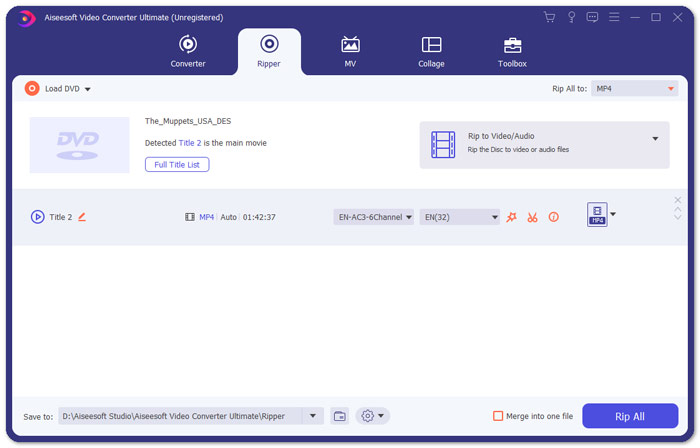
ขั้นตอนที่ 2 หลังจากเพิ่มไฟล์แล้ว ให้แปลงไฟล์เหล่านั้นเป็นรูปแบบที่ใช้งานร่วมกับ Chromecast ได้ เช่น MP4 คลิกรายการดรอปดาวน์ของตัวเลือก Rip All to แล้วเลือก MP4 จากแท็บหมวดหมู่ Video เป็นรูปแบบไฟล์เอาต์พุต.
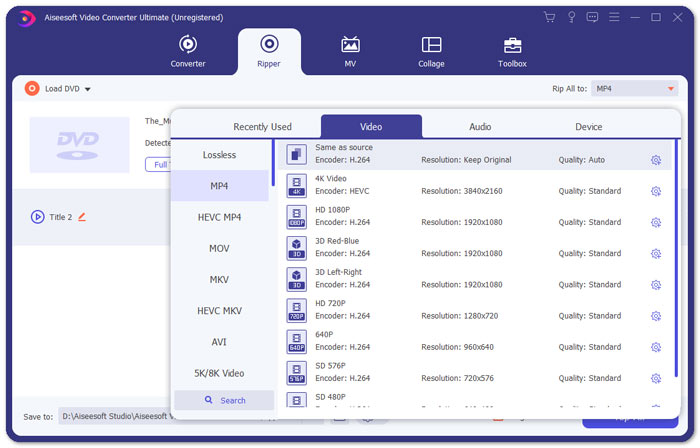
ขั้นตอนที่ 3 จากนั้นไปที่ช่อง Save to เพื่อกำหนดโฟลเดอร์ปลายทางสำหรับบันทึกไฟล์หนังดีวีดีที่แปลงแล้ว แล้วกดปุ่ม Rip All เพื่อเริ่มกระบวนการแปลงดีวีดีสำหรับ Chromecast.
ส่วนที่ 2 สตรีมเนื้อหาดีวีดีที่แปลงเป็นทีวีผ่าน Chromecast
ตอนนี้คุณได้รับไฟล์วิดีโอที่รองรับ Chromecast แล้ว สิ่งต่อไปที่คุณต้องทำคือส่งวิดีโอดีวีดีไปยังทีวีโดยใช้ Chromecast นี่คือสิ่งที่คุณต้องทำ:
ขั้นตอนที่ 1 เปิดเบราว์เซอร์ Chrome และตรวจสอบว่าได้ติดตั้งส่วนขยาย Chromecast บนคอมพิวเตอร์แล้วหรือยัง หากยังไม่ได้ติดตั้ง คุณสามารถดาวน์โหลดได้จาก Chrome Web Store.
หมายเหตุ: ตรวจสอบให้แน่ใจว่าคุณใช้ Chrome เวอร์ชันล่าสุด โดยเข้าไปที่ การตั้งค่า (Settings) แล้วเลือก เกี่ยวกับ Chrome (About Chrome).
ขั้นตอนที่ 2 ตอนนี้ให้เชื่อมต่อ Chromecast เข้ากับทีวี แล้วเชื่อมต่อทั้งสองอุปกรณ์เข้ากับเครือข่าย Wi‑Fi เดียวกัน.
ขั้นตอนที่ 3 จากนั้นติดตั้งส่วนขยาย Google Cast บนเบราว์เซอร์ Chrome คุณจะเห็นไอคอน Cast ปรากฏบนเบราว์เซอร์ Chrome คุณสามารถปรับคุณภาพของการ Cast ได้โดยคลิกที่ไอคอน Cast สำหรับทีวีของคุณ.
ขั้นตอนที่ 4 หลังจากนั้นให้ลากไฟล์หนังดีวีดีที่แปลงแล้วมาวางในเบราว์เซอร์ Chrome หรือกด Ctrl+O เพื่อเรียกดูไฟล์มีเดีย ตอนนี้คุณก็สามารถเริ่ม Cast หนังดีวีดีขึ้นทีวีด้วยความช่วยเหลือของ Chromecast ได้แล้ว.
ส่วนที่ 3 คำถามที่พบบ่อยของการสตรีม DVD ไปยัง Chromecast
ฉันสามารถส่ง DVD ไปยังทีวีโดยใช้ VLC ได้หรือไม่
ใช่. Google ได้เพิ่มการรองรับ VLC ใน Chromecast 3 เพื่อการสตรีมที่ง่ายดาย
มีทางเลือกอื่นนอกเหนือจาก Chromecast หรือไม่
หากคุณไม่ต้องการใช้ Chromecast เพื่อสตรีมดีวีดี คุณสามารถใช้ทางเลือก Chromecast เช่น Roku, Amazon Fire Stick, Apple TV และอื่นๆ
Chromecast รองรับรูปแบบใดบ้าง
Chromecast รองรับรูปแบบสื่อเสียง วิดีโอ และกราฟิก เช่น JPEG, GIF, PNG, BMP, WEBP, HE-AAC, LC-ACC, MP3, WAV และอื่นๆ อีกมากมาย
สรุป
เราหวังว่าคุณจะสามารถ Cast ดีวีดีไปยัง Chromecast ได้สำเร็จตามขั้นตอนด้านบน นอกจากการสตรีมดีวีดีไปยัง Chromecast แล้ว ยังมีตัวเลือกการสตรีมอื่น ๆ อีก เช่น สตรีมดีวีดีไปยัง Apple TV หรือสตรีมดีวีดีไปยัง Roku เลือกบริการที่เหมาะกับความต้องการของคุณที่สุดเพื่อให้งานสตรีมดีวีดีเป็นเรื่องง่าย หากคุณอยากดูหนังดีวีดีในรูปแบบออนไลน์ ลองใช้ FVC Free Video Player
-
 6 โซลูชันที่ได้รับการยืนยันเพื่อแก้ไขวิดีโอที่ไม่เล่นบน Chrome
 ในการแก้ไขปัญหาที่วิดีโอไม่เล่นบน Chrome สิ่งที่คุณต้องทำคืออ่านการแก้ไขปัญหาของเราและดำเนินการแก้ไขที่ตรวจสอบแล้วทีละรายการ
-
 100% โซลูชันการทำงานเพื่อแก้ไข QuickTime Player ไม่ทำงาน
 เป็นไปได้ที่จะแก้ไข QuickTime Player ไม่ทำงานหากคุณทำตามขั้นตอนการแก้ปัญหาทีละขั้นตอนของเรา จากนั้นคุณสามารถเล่นวิดีโอบน Mac ของคุณได้อย่างราบรื่น
-
 เครื่องเล่น Android DVD – วิธีเล่นวิดีโอ DVD บนมือถือ Android
 จะเล่นไฟล์ DVD บนมือถือ Android ได้อย่างไร? มีเครื่องเล่นดีวีดี Android หรือไม่? ในบทความนี้ คุณจะได้เรียนรู้เกี่ยวกับ 3 วิธีในการเล่นวิดีโอดีวีดีบนโทรศัพท์มือถือ Android ที่มีหรือไม่มีไดรเวอร์ภายนอก
