


 Video Converter Ultimate
 บันทึกหน้าจอ
 ซ่อมวิดีโอ
 ดาวน์โหลดอย่างปลอดภัย
วิธีทำให้วิดีโอช้าลงบน iPhone อย่างง่ายดาย & รวดเร็วด้วยโซลูชั่นที่ดีที่สุด
คุณเคยดูงานประกาศรางวัลแกรมมี่ที่มีศิลปินคนโปรดของคุณแล้วเห็นพวกเขาไปถ่ายกับ GlamBot บ้างไหม? หลายคนคงเคยเห็นแล้วว่ากล้องเครื่องนี้สามารถถ่ายออกมาได้สวยแค่ไหนในเวลาไม่ถึงวินาที เพียงถ่ายไม่กี่ท่าแล้วเอาไปเล่นแบบสโลว์โมชั่น น่าเสียดายที่ไม่ใช่ทุกคนจะมีโอกาสได้ไปงานแกรมมี่และถ่ายวิดีโอสโลว์โมชั่นกับ GlamBot แต่ถ้าคุณเป็นคนดัง นั่นก็เป็นหนึ่งในวิธีที่จะได้ลองใช้มัน อย่าเสียใจถ้าคุณไม่ได้ใช้ GlamBot เพราะคุณเองก็สามารถถ่ายและทำวิดีโอสโลว์โมชั่นบน iPhone ได้ด้วยคุณภาพสูงเช่นกัน งั้นคุณพร้อมจะถ่ายและเรียนรู้วิธีทำวิดีโอให้ช้าลงบน iPhoneให้ดูเท่ไม่แพ้เครื่องที่เราพูดถึงไหม? ถ้าใช่ บทความนี้คือสำหรับคุณเลย.

ส่วนที่ 1 วิธีทำให้วิดีโอช้าลงบน iPhone ด้วย 3 แอพควบคุมความเร็วที่ดีที่สุด
iMovie
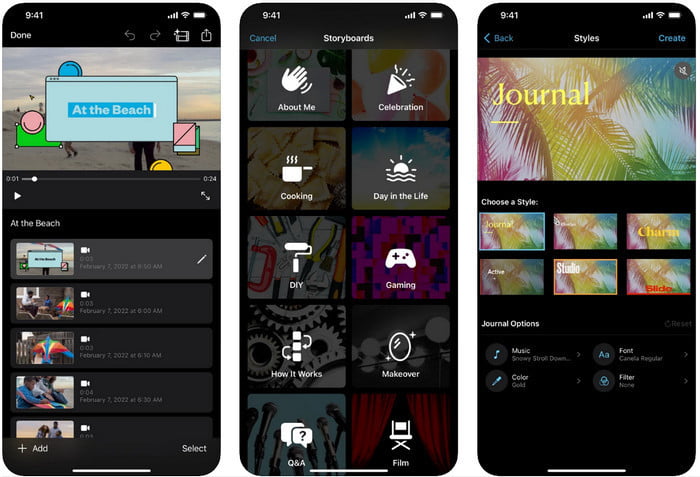
ขั้นตอนที่ 1. แตะไอคอน iMovie บนหน้าจอเพื่อเปิดแอป จากนั้นแตะไอคอนเครื่องหมายบวกบนหน้าจอ จะมีหน้าต่างใหม่เด้งขึ้นมาพร้อมตัวเลือก 2 แบบ ให้แตะเลือก Movie.
ขั้นตอนที่ 2. เลือกวิดีโอจากรายการที่แสดงบนหน้าจอ แล้วแตะ Create Movie เพื่อดำเนินการต่อ หลังจากอัปโหลดเสร็จแล้ว ให้แตะไอคอนคล้ายรูปนาฬิกาเพื่อเปลี่ยนความเร็วของวิดีโอ จากนั้นลากแถบเลื่อนมาทางซ้ายเพื่อทำให้วิดีโอช้าลง.
ขั้นตอนที่ 3. หลังจากคุณปรับความเร็ววิดีโอเสร็จแล้ว ให้แตะ Done จากนั้นแตะ Export เพื่อบันทึกลงบนอุปกรณ์ของคุณ.
โปรแกรมตัดต่อวิดีโอช้าเร็ว
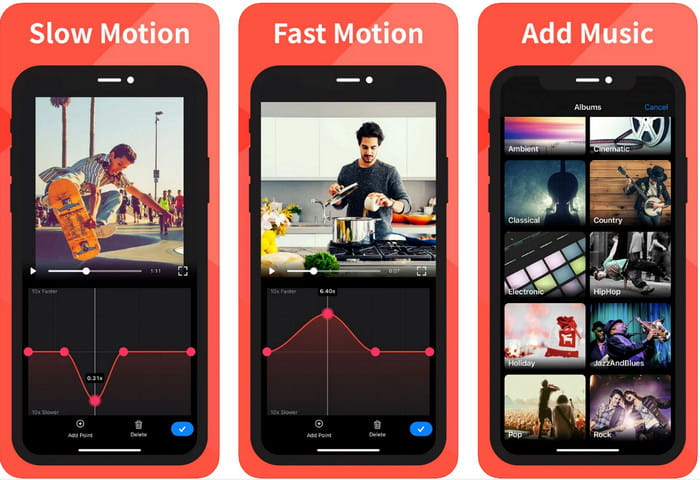
Slow Fast Motion Video Editor อาจจะทำให้วิดีโอดูสวยไม่เท่า iMovie แต่แอปนี้สามารถทำให้วิดีโอบน iPhone ช้าลงได้อย่างง่ายดาย ด้วยตัวปรับความเร็วอเนกประสงค์ ทำให้แทบไม่มีอะไรที่แอปนี้ทำไม่ได้ โดยเฉพาะการเร่งความเร็ววิดีโอ ไม่ว่าวิดีโอจะเป็นแนวตั้งหรือแนวนอน แอปก็รองรับได้ทั้งสองแบบ ดังนั้นการเรียนรู้วิธีใช้งานแอปนี้จึงไม่ยากเกินไปเมื่อเทียบกับแอปควบคุมความเร็วตัวอื่นที่คุณดาวน์โหลดได้บนอุปกรณ์ของคุณ อย่างไรก็ตาม หากต้องการใช้แอปนี้บน iOS คุณต้องจ่ายค่าสมาชิกรายเดือน แต่จะมีให้ลองใช้ฟรี 3 วัน ซึ่งระหว่างทดลองใช้จะมีโฆษณาขึ้นอยู่ตลอด หากต้องการใช้แอปสามารถทำตามขั้นตอนด้านล่างได้เลย.
ขั้นตอนที่ 1. ดาวน์โหลดแอป จากนั้นเปิดบน iOS ของคุณ แล้วแตะ Allow Access เพื่อให้แอปเข้าถึงรูปภาพของคุณได้.
ขั้นตอนที่ 2. เลือกวิดีโอบนอุปกรณ์ของคุณแล้วแตะ Show Selected; จากนั้นแตะ All Videos เพื่อดูวิดีโอที่คุณอัปโหลดแล้วแตะ Select.
ตัวเลือกเพิ่มเติม: คุณสามารถตัดแต่งวิดีโอตามที่ต้องการได้โดยลากตัวบอกตำแหน่งเล่น (play-heads)ไปยังความยาวที่ต้องการ แต่ถ้าคุณไม่อยากตัดแต่ง ให้แตะ Skip และถ้าคุณแก้ไขแล้วให้แตะ Next.
ขั้นตอนที่ 4. แตะปุ่ม Speed ปรับความเร็วแต่ละจุดตามที่คุณต้องการ และลากลงเพื่อทำให้วิดีโอช้าลง โปรดจำไว้ว่าทุกจุดที่คุณลากจะทำให้เฉพาะช่วงนั้นช้าลง ไม่ใช่วิดีโอทั้งคลิป จากนั้นแตะ Check and Save เพื่อส่งออกวิดีโอที่คุณเปลี่ยนความเร็วแล้ว.
สโลว์โมชั่น: สร้างวิดีโอสโลว์โมชั่น
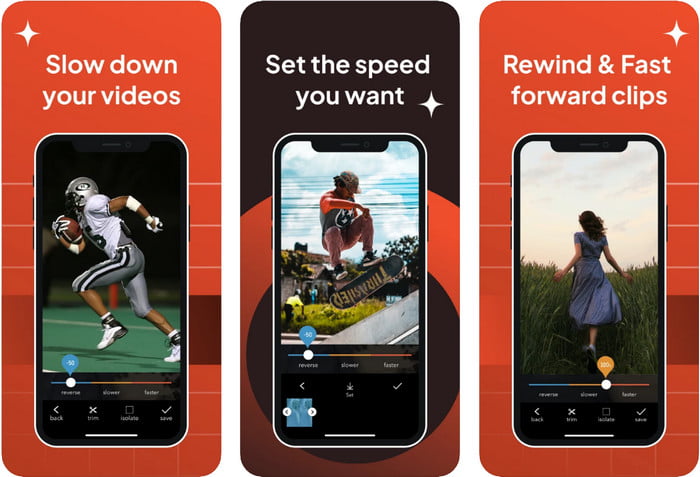
Slo-Mo: Make Slow Motion เป็นอีกหนึ่งแอปเฉพาะทางที่คุณสามารถดาวน์โหลดมาใช้บน iOS ได้ฟรี แต่มาพร้อมกับการซื้อภายในแอป เช่นเดียวกับ Slow Fast Motion Video Editor คุณจะต้องสมัครสมาชิกก่อนจึงจะใช้งานความสามารถทั้งหมดของแอปได้ ถึงแม้ต้องสมัครสมาชิก แต่ถือว่าคุ้มค่าและไม่แพงเกินไป ในการเปลี่ยนความเร็วการเล่นของวิดีโอ เราจะเห็นได้ว่าเครื่องมือนี้ทำงานได้ยอดเยี่ยมมากในงานลักษณะนี้ หากอยากรู้เพิ่มเติมเกี่ยวกับวิธีทำวิดีโอสโลว์โมชั่นบน iPhone คุณสามารถอ่านคู่มือด้านล่างได้.
ขั้นตอนที่ 1. หากต้องการดาวน์โหลดแอป คุณสามารถเข้าไปที่ App Store แล้วดาวน์โหลด จากนั้นเปิดแอปเพื่อเริ่มทำให้วิดีโอของคุณช้าลง.
ขั้นตอนที่ 2. แตะ Library เลือกวิดีโอที่คุณต้องการเปลี่ยนความเร็วการเล่น แล้วแตะ Choose เพื่อเริ่ม.
ขั้นตอนที่ 3. ลากแถบเลื่อนไปทางซ้ายเพื่อทำให้ช้าลง แตะ Save เมื่อคุณพอใจกับความเร็วแล้ว.
ส่วนที่ 2 ด้านบนของตัวควบคุมความเร็ววิดีโอบรรทัดที่พร้อมใช้งานบน Windows และ Mac
FVC Video Converter Ultimate มีตัวควบคุมความเร็วที่ยอดเยี่ยมที่สุดที่คุณควรใช้กับวิดีโอที่เก็บไว้บน Windows และ Mac ด้วยฟีเจอร์เฉพาะในการเร่งความเร็ววิดีโอ หากเราเปรียบเทียบกับแอปตัวอื่นที่กล่าวถึงไปแล้ว จะเห็นช่องว่างที่ชัดเจนระหว่างแค่ “ดี” กับ “ตัวควบคุมความเร็วระดับสุดยอด” เนื่องจากรองรับเฉพาะบางระบบปฏิบัติการ คุณจึงไม่สามารถดาวน์โหลดซอฟต์แวร์นี้บน iOS ได้เพราะยังไม่รองรับ ถึงอย่างนั้นมันก็ยังถือเป็นซอฟต์แวร์แบบ all-in-one ที่สามารถแก้ปัญหาวิดีโอและเสียงของคุณได้ ดังนั้น หากต้องการเรียนรู้วิธีทำวิดีโอให้เป็นสโลว์โมชั่นบน iPhone หลังจากถ่ายเสร็จ คุณต้องอ่านและทำตามคู่มือที่เราเพิ่มไว้ในส่วนถัดไป.
ขั้นตอนที่ 1. หากต้องการรับซอฟต์แวร์ตัวควบคุมความเร็วขั้นสูงนี้บนเดสก์ท็อป คุณต้องคลิกปุ่มดาวน์โหลด แล้วเลือกว่าคุณใช้ Windows หรือ Mac หลังจากนั้นให้คลิกไฟล์ที่คุณดาวน์โหลดมาเพื่อติดตั้งและเปิดใช้งาน.
ดาวน์โหลดฟรีสำหรับ Windows 7 หรือใหม่กว่าดาวน์โหลดอย่างปลอดภัย
ดาวน์โหลดฟรีสำหรับ MacOS 10.7 หรือใหม่กว่าดาวน์โหลดอย่างปลอดภัย
ขั้นตอนที่ 2. ไปที่เมนู Toolbox ของเครื่องมือนี้เพื่อเข้าใช้ฟังก์ชัน Video Speed Controller.
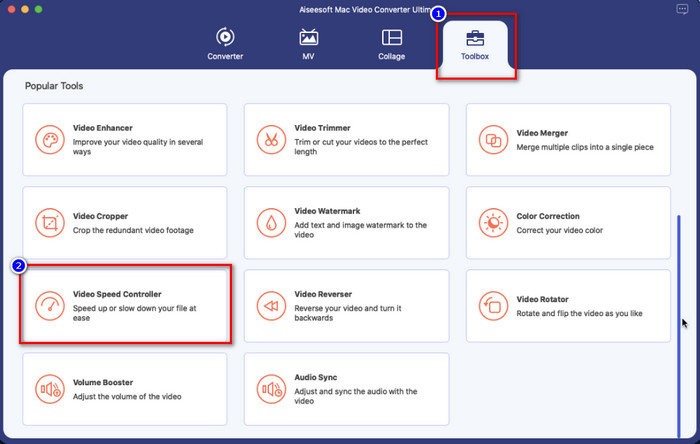
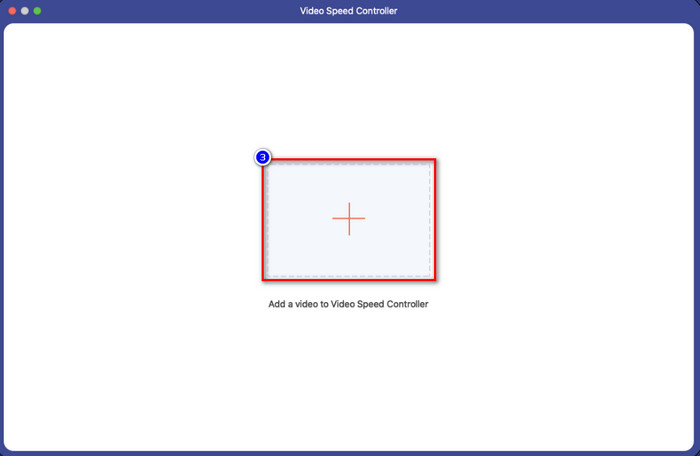
ขั้นตอนที่ 3. คลิกไอคอนเครื่องหมายบวก แล้วจะมีหน้าต่างโฟลเดอร์ไฟล์แสดงขึ้นบนหน้าจอ มองหาไฟล์วิดีโอที่คุณต้องการอัปโหลด จากนั้นคลิกไฟล์นั้นและกด Open.
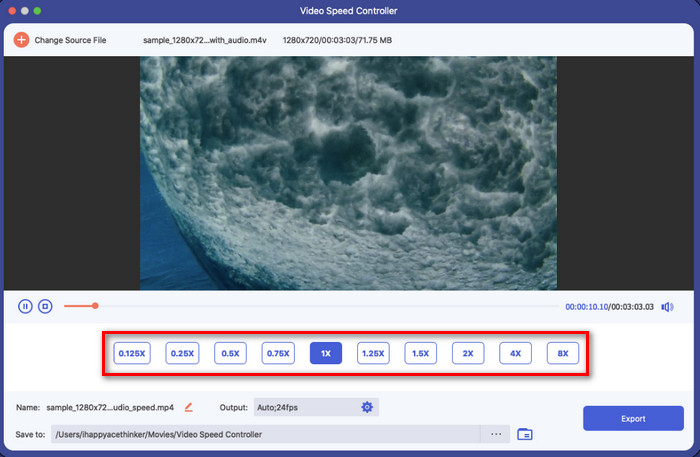
ขั้นตอนที่ 4. ตอนนี้คุณสามารถเลือกความช้าหรือระดับสโลว์โมชั่นที่ต้องการใช้กับวิดีโอของคุณได้ในส่วนนี้ ลองปรับทุกแบบเพื่อดูว่าความเร็วการเล่นแบบไหนที่คุณต้องการสำหรับวิดีโอที่เลือกไว้ก่อนหน้า.
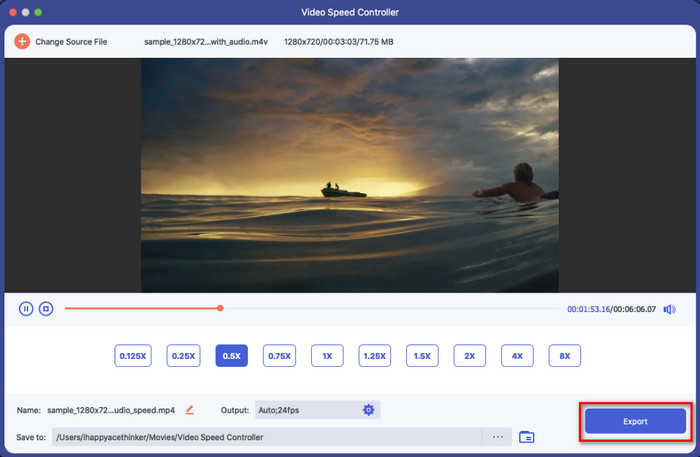
ขั้นตอนที่ 5. สุดท้ายคุณสามารถบันทึกการเปลี่ยนแปลงที่ใช้กับวิดีโอได้โดยคลิกปุ่ม Export หลังจากส่งออกแล้ว จะมีโฟลเดอร์เด้งขึ้นมาบนหน้าจอพร้อมวิดีโอที่ถูกทำให้ช้าลงแล้ว.
ส่วนที่ 3 คำถามที่พบบ่อยเกี่ยวกับวิธีทำให้วิดีโอช้าลงบน iPhone
การทำให้วิดีโอช้าลงจะส่งผลต่อคุณภาพหรือไม่
เนื่องจากการเปลี่ยนการเล่นวิดีโอ การเปลี่ยนแปลงบางอย่างอาจเกิดขึ้นในวิดีโอเมื่อคุณเปลี่ยนความเร็วจริงเป็นเอฟเฟกต์สโลว์โมชั่น แต่ถ้าคุณใช้เอฟเฟกต์แบบสโลว์โมชั่นกับวิดีโอ เราสามารถรับรองได้ว่าวิดีโอจะไม่ลดคุณภาพ ดังนั้นอย่าใช้มากเกินไป
เหตุใดวิดีโอของฉันจึงพร่ามัวหลังจากใช้สโลว์โมชั่น
กรณีเช่นนี้มักจะเกิดขึ้นหากเครื่องมือที่คุณเลือกไม่รองรับการส่งออกวิดีโอคุณภาพสูง แต่เครื่องมือฟรีบางตัวช่วยให้ใส่เอฟเฟกต์สโลว์โมชั่นได้โดยไม่มีข้อจำกัดด้านคุณภาพ เช่นเดียวกับที่คุณจะได้รับจาก FVC Video Converter Ultimate เมื่อคุณลดความเร็วของวิดีโอที่นี่ วิดีโอที่คุณอัปโหลดจะมีคุณภาพสูงเหมือนเดิม
เหตุใดจึงมีลายน้ำหลังจากที่ฉันส่งออกวิดีโอใน slow-mo
หากคุณใช้แอปเวอร์ชันฟรีเพื่อสโลว์โมชั่นวิดีโอ มีโอกาสที่เมื่อคุณส่งออกวิดีโอ วิดีโอนั้นจะทิ้งลายน้ำไว้ ดังนั้น จึงต้องอ่านข้อมูลเกี่ยวกับซอฟต์แวร์ที่คุณเลือก และดูว่าจะมีลายน้ำบนวิดีโอหรือไม่ หากคุณต้องการจะส่งออก
สรุป
หากคุณอยากถ่ายวิดีโอให้ดูเหมือนคนดังบนเวทีแกรมมี่ การใช้เครื่องมือบน iOS ของคุณก็ช่วยได้ และด้วยคู่มือที่เราทำนี้ ทำให้การเรียนรู้วิธีทำวิดีโอให้ช้าลงบน iPhone เป็นเรื่องง่ายสำหรับทุกคน ด้วยแอปที่เราคัดมาให้ ทำให้การทำงานระดับมืออาชีพอยู่ใกล้แค่เอื้อมสำหรับคนที่ชอบใส่เอฟเฟกต์สโลว์โมชั่น แม้ว่าแอปเหล่านี้จะยอดเยี่ยม แต่เราก็ปฏิเสธไม่ได้ว่า FVC Video Converter Ultimate ยังทำได้ดีกว่าตามมาตรฐานในการทำให้ความเร็ววิดีโอช้าลง หากคุณอยากมีและใช้เครื่องมือนี้ คุณสามารถอ่านคำแนะนำที่เราให้ไว้ในส่วนที่ 2 แล้วดาวน์โหลดมาใช้งานได้เลย.
-
 อันที่จริง: แนวทางปฏิบัติที่ดีที่สุดในการทำให้วิดีโอ MP4 ช้าลง
 นอกจากการเพิ่มความเร็วของวิดีโอแล้ว การชะลอตัวเป็นหนึ่งในแนวทางปฏิบัติมากมายที่จำเป็นเพื่อให้ได้ผลลัพธ์ที่ดีที่สุดจากวิดีโอของคุณ ปรารถนาที่จะเป็นบรรณาธิการที่ดีที่สุดโดยการอ่านบทความที่เหลือ
-
 วิธีเปลี่ยนวิดีโอสโลว์โมชั่นเป็นความเร็วปกติ [ขั้นตอนง่าย ๆ ]
 ต้องการทราบวิธีการย้อนกลับวิดีโอสโลว์โมชั่นที่คุณดาวน์โหลดจากอินเทอร์เน็ตหรือบันทึกแบบสโลว์โมชั่นโดยไม่ได้ตั้งใจหรือไม่? เรียนรู้วิธีแปลงวิดีโอสโลว์โมชั่นเป็นความเร็วปกติบน Mac, Windows, iOS และ Android
-
 ทั้งหมดที่คุณต้องรู้เกี่ยวกับวิธีการสร้างวิดีโอสโลว์โมชั่น
 คุณต้องการทำวิดีโอสโลว์โมชั่นเหมือนโปรแกรมตัดต่อมืออาชีพ แต่คุณไม่รู้ว่าต้องการใช้ซอฟต์แวร์หรือแอปพลิเคชันใด อ่านบทความนี้เพื่อเรียนรู้รายละเอียดทั้งหมดที่คุณต้องการ
