


 Video Converter Ultimate
 บันทึกหน้าจอ
 ซ่อมวิดีโอ
 ดาวน์โหลดอย่างปลอดภัย
MP4 เป็น M4V – 4 ตัวแปลง MP4 เป็น M4V ที่มีประสิทธิภาพที่คุณไม่ควรพลาด
คุณสามารถเปลี่ยนนามสกุลไฟล์จาก MP4 เป็น M4V ได้โดยตรงหรือไม่? อะไรคือความแตกต่างระหว่าง MP4 และ M4V? เมื่อคุณเปลี่ยนชื่อ MP4 เป็น M4V คุณอาจเล่นไฟล์ M4V กับโปรแกรมเล่นสื่อส่วนใหญ่ได้โดยไม่มีปัญหาใดๆ แต่การเปลี่ยนนามสกุลไฟล์ไม่ได้แปลงไฟล์เป็น M4V แทน เพียงเรียนรู้เพิ่มเติมเกี่ยวกับตัวแปลง MP4 เป็น M4V ที่มีประสิทธิภาพ 4 รายการจากบทความและเลือกตัวแปลงที่ต้องการตามลำดับ

ขั้นตอนที่ 1: 4 วิธีการแปลง MP4 เป็น M4V บน Windows/Mac
วิธีที่ 1: วิธีการแปลง MP4 เป็น M4V ออนไลน์ฟรี
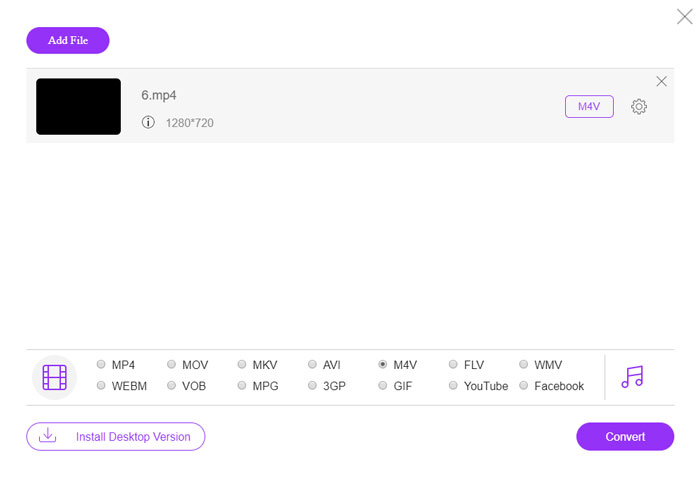
When you want to convert MP4 to M4V online for free without any limitation, FVC Free Online Video converter is a versatile video converter to convert most of the video formats, tweak the video/audio settings, and even remain the original video quality with ease.
- 1. แปลง MP4 เป็น M4V AVI, MKV และอื่น ๆ อีกมากมายด้วยคุณภาพดั้งเดิม
- 2. ปรับแต่งอัตราเฟรม ตัวแปลงสัญญาณวิดีโอ คุณภาพวิดีโอ ตัวแปลงสัญญาณเสียง และอื่นๆ
- 3. จัดเตรียมอินเทอร์เฟซที่เรียบง่ายและใช้งานง่ายเพื่อแปลงไฟล์วิดีโอภายในคลิกเดียว
- 4. ช่วยให้คุณสามารถแปลงวิดีโอโดยไม่มีลายน้ำ จำกัดขนาด ฯลฯ
Step 1. Go to the online MP4 to M4V converter, you can click the Add Files to Convert button to load the MP4 files you want to convert. You have to download the video converter installer for the first time.
ดาวน์โหลดเวอร์ชันเดสก์ท็อปเพื่อแปลงไฟล์แบบเป็นชุดได้.

Step 2. Choose the M4V file format from the user interface. When you need to tweak the video settings, you can video encorder, resolution, video bitrate, frame rate, sample rate and more other settings as desired.

Step 3. After that, you can click the Convert button to convert MP4 to M4V. It might take a few seconds to get the desired file, which you can save the video to your computer or share to social media websites.
วิธีที่ 2: วิธีแปลง MP4 เป็น M4V ด้วย VLC Media Player
VLC Media Player เป็นโอเพ่นซอร์ส MP4 เป็นตัวแปลง M4V ที่ให้คุณแปลงวิดีโอบน Windows และ Mac ใช้งานได้กับรูปแบบและตัวแปลงสัญญาณส่วนใหญ่ ซึ่งคุณสามารถแปลงวิดีโอระหว่างรูปแบบต่างๆ ได้ นี่คือขั้นตอนโดยละเอียดที่คุณควรรู้
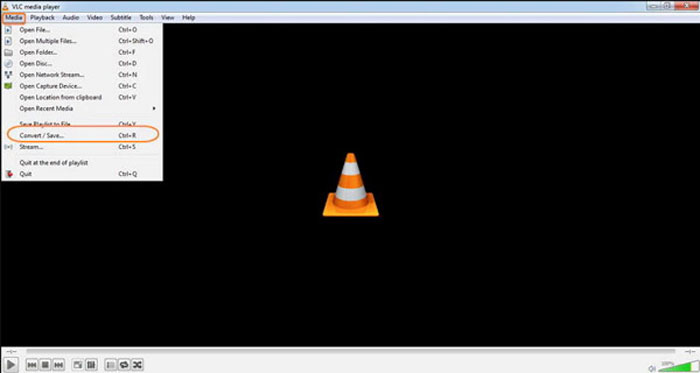
Step 1. Open VLC Media Player on your computer, choose the Media menu and select the Convert/Save option to enter the Media dialog box. After that, you can click on the Add button to browse for the files.
Step 2. Once you have imported the videos, you can click the Convert/Save button or just hit enter on your keyboard. After that, you can choose the M4V as the output format and adjust the other parameters.
Step 3. Select a destination filename, the one that is converted and saved. Hit the Browse option to select a location. Just provide a name like final and click on Save before clicking the Start button to convert MP4 to M4V.
วิธีที่ 3: วิธีแปลง MP4 เป็น M4V ผ่าน FFmpeg
FFmpeg เป็นตัวแปลง MP4 เป็น M4V ที่ให้คุณแปลงรหัสวิดีโอด้วยตัวแปลงสัญญาณ หากคุณคุ้นเคยกับตัวแปลงสัญญาณ คุณสามารถเปลี่ยนไฟล์วิดีโอด้วยคุณภาพดั้งเดิมได้ เพียงเรียนรู้รายละเอียดเพิ่มเติมเกี่ยวกับวิธีการแปลง MP4 เป็น M4V ดังต่อไปนี้
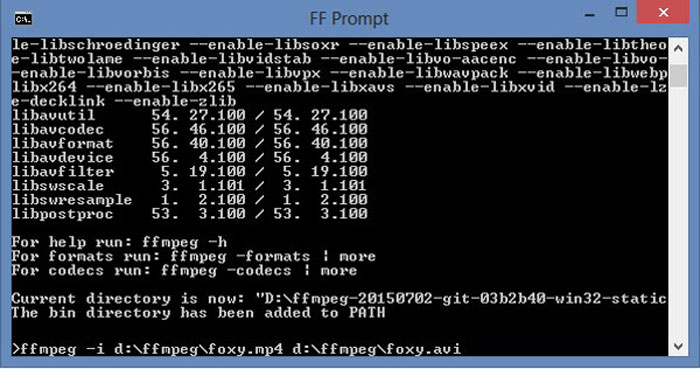
Step 1. Open the command prompt window on your Windows PC and install FFmpeg with command line to install the free video converter. It has a whole series of command line to transcode the video.
Step 2. Enter the following command to convert MP4 to M4V. Moreover, you can also tweak the video codec, frame rate and more other settings to get the desired video.
ffmpeg \-i input.mp4 \
-vcodec คัดลอก \
-acodec คัดลอก \
output.m4v
วิธีที่ 4: วิธีการแปลง MP4 เป็น M4V ด้วย HandBrake
HandBrake เป็นอีกหนึ่งโอเพ่นซอร์ส MP4 เป็นตัวแปลง M4V ไม่เพียงแต่ช่วยให้คุณสามารถแปลงไฟล์วิดีโอเท่านั้น แต่ยังลบการป้องกัน DRM บน Windows และ Mac ของคุณอีกด้วย แน่นอน คุณยังสามารถแยกไฟล์วิดีโอจากแผ่น DVD ได้ตามความต้องการของคุณ
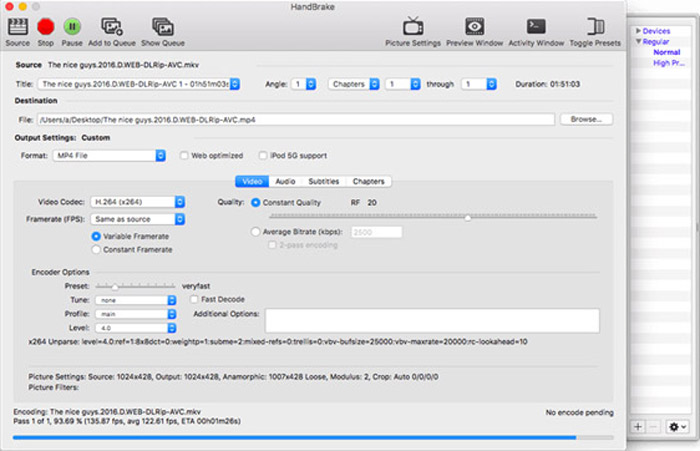
Step 1. Download and install the HandBrake, you can launch the program on your computer. Choose the Source option at the top to select the MP4 videos into the program.
Step 2. Navigate to Output Settings option, set the format as MP4 files. Of course, you can also adjust the video codec, quality, FPS, bitrate, preset and more other encoder options.
Step 3. After that, you can click the Start button to convert MP4 to M4V with ease. When you get the desired M4V files, you can simply save the videos to iTunes or transfer to iOS devices.
MP4 เทียบกับ M4V
เผยแพร่โดยกลุ่มผู้เชี่ยวชาญด้านภาพเคลื่อนไหว (MPEG) ในปี 2544 รูปแบบ MP4 สามารถช่วยคุณบันทึกวิดีโอ เสียง คำบรรยาย และข้อมูลภาพในแทร็กแยกกัน ย่อมาจาก MPEG-4 Part 14 นอกจากนี้ยังเป็นหนึ่งในรูปแบบที่นิยมใช้มากที่สุดสำหรับการสตรีมและแชร์วิดีโอ
M4V ได้รับการพัฒนาโดย Apple ซึ่งใช้ MPEG 4 เช่นกัน ไฟล์ M4V มักใช้เพื่อจัดเก็บวิดีโอที่ดาวน์โหลดจากร้าน iTunes ของ Apple เช่น มิวสิควิดีโอ รายการทีวี ฯลฯ คุณอาจพบว่าไฟล์ M4V บางไฟล์ได้รับการป้องกันการคัดลอกเนื่องจากใช้ การคุ้มครองลิขสิทธิ์ FairPlay DRM ของ Apple
ขั้นตอนที่ 2: คำถามที่พบบ่อยเกี่ยวกับการแปลง MP4 เป็น M4V
1. อะไรคือความแตกต่างระหว่าง MP4 และ M4V?
ดังที่กล่าวไว้ข้างต้น ข้อแตกต่างที่สำคัญระหว่าง MP4 และ M4V คือข้อจำกัด DRM Fairplay รูปแบบไฟล์ M4V เป็นรูปแบบคอนเทนเนอร์วิดีโอที่พัฒนาโดย Apple เพื่อเข้ารหัสไฟล์วิดีโอใน iTunes Store เมื่อคุณต้องการเล่นวิดีโอสำหรับอุปกรณ์ iOS หรือ MacBook ของคุณ คุณสามารถแปลง MP4 เป็น M4V แทนได้
2. คุณสามารถใช้วิธีการเดียวกันนี้เพื่อแปลง M4V เป็น MP4 ได้หรือไม่
No. Because the DRM protection of the iTunes store, you cannot convert M4V to MP4 directly. You can simply change MP4 to M4V file extension, which is workable for most of the media players. But the DRM protection of M4V only enables you to play the videos with the authorized device only. You need to use the professional video converter to remove the protection instead.
3. ฉันสามารถแปลง MP4 เป็น M4V ด้วย QuickTime Player บน Mac ได้หรือไม่
ใช่. เนื่องจาก QuickTime Player ไม่รองรับ M4V เป็นรูปแบบเอาต์พุต เมื่อคุณต้องการแปลง MP4 เป็น M4V ด้วย QuickTime Player คุณต้องติดตั้งปลั๊กอินบางตัวเพื่อรับวิดีโอที่ต้องการบน MacBook ของคุณได้ฟรีอย่างง่ายดาย
สรุป
เมื่อคุณต้องการนำเข้าวิดีโอไปยังคลัง iTunes สำหรับอุปกรณ์ iOS อื่น คุณควรแปลง MP4 เป็น M4V แทน เพียงเรียนรู้รายละเอียดเพิ่มเติมเกี่ยวกับ 4 วิธีที่ใช้บ่อยที่สุดในการแปลงไฟล์ M4V อย่างง่ายดาย หากคุณเพียงแค่ต้องแปลงวิดีโอ MP4 ออนไลน์ด้วยคุณภาพวิดีโอต้นฉบับ FVC Free Online Video Converter เป็นตัวเลือกที่ดีที่สุดที่คุณควรคำนึงถึง
-
 วิธีการแปลง M4V เป็น MP4 พร้อม / ไม่มี DRM
 โพสต์นี้เป็นคำแนะนำโดยละเอียดในการแปลง M4V เป็น MP4 สำหรับผู้เล่นทุกคน คุณสามารถเปลี่ยน M4V เป็น MP4 แม้กระทั่งไฟล์ M4V ที่มีการป้องกันเพื่อให้คุณสามารถเล่นวิดีโอ M4V ได้อย่างไร้ขีด จำกัด
-
 อะไรคือความแตกต่างระหว่าง MP3 และ MP4
 MP3 หรือ MP4 อันไหนดีกว่ากัน? MP3 และ MP4 แตกต่างกันอย่างไร บทความนี้จะเปรียบเทียบ MP3 กับ MP4 จากทุกแง่มุมที่คุณสามารถวาดภาพได้
-
 วิธีการแปลง MP4 เป็น WMV สำหรับ Mac / Windows
 โพสต์นี้แชร์วิธีการแปลงวิดีโอ MP4 เป็นรูปแบบ WMV บน Mac หรือ Windows นอกจากนี้เรายังมีตัวเลือกมากมายให้คุณรวมทั้งซอฟต์แวร์เดสก์ท็อปและตัวแปลงออนไลน์บนเว็บ พร้อมที่จะรู้จักเครื่องมือแปลง MP4 เป็น WMV ที่ดีที่สุดแล้วหรือยัง?

