


 Video Converter Ultimate
 บันทึกหน้าจอ
 ซ่อมวิดีโอ
 ดาวน์โหลดอย่างปลอดภัย
วิธีการที่ใช้กันทั่วไปในการแปลง Xvid เป็น MP4 ออนไลน์และออฟไลน์
คุณกำลังประสบปัญหาในการเล่นวิดีโอ Xvid อยู่หรือไม่? ถ้าใช่ เรามีวิธีแก้ไขที่ดีที่สุดให้คุณ วิธีที่ดีที่สุดคือแปลงไฟล์ Xvid ของคุณไปเป็นรูปแบบอื่นที่ยอดเยี่ยม เช่น MP4 วิธีนี้จะช่วยให้คุณรับชมวิดีโอแบบสตรีมได้โดยไม่สะดุด บทความนี้จะนำเสนอโปรแกรมแปลงไฟล์ Xvid เป็น MP4 แบบฟรีที่คุณสามารถใช้งานได้ เครื่องมือนี้จะช่วยให้คุณแปลงไฟล์วิดีโอได้อย่างง่ายดายและรวดเร็ว หากเนื้อหาประเภทนี้ตรงกับความสนใจของคุณ ลองอ่านส่วนต่อไปนี้แล้วเพลิดเพลินไปกับการเรียนรู้สิ่งใหม่ ๆ!

ตอนที่ 1: วิธีที่ง่ายที่สุดในการแปลง Xvid เป็น MP4 บน Mac และ Windows
ใช้ Video Converter Ultimate เพื่อแปลง Xvid เป็น MP4 คุณสามารถใช้โปรแกรมนี้ได้ทั้งบน Mac และ Windows โปรแกรมนี้แปลงข้อมูลได้เร็วกว่าโปรแกรมแปลงไฟล์ตัวอื่นถึง 30 เท่า นอกจากนี้ ยังรองรับการแปลงแบบเป็นชุด ทำให้คุณสามารถรวมไฟล์ Xvid หลายไฟล์ให้เป็นไฟล์ MP4 เดียวได้อย่างสะดวก คุณจึงแปลงไฟล์ได้ง่ายและรวดเร็วด้วยฟีเจอร์นี้ โปรแกรมยังรองรับไฟล์วิดีโอประเภทอื่น ๆ เช่น AVI, FLV, MKV, MOV, VOB, WMV, M4V และอื่น ๆ อีกกว่าหนึ่งร้อยรูปแบบ เหมาะสำหรับผู้ใช้ไฟล์ Xvid และ MP4 อีกทั้งด้วยอินเทอร์เฟซที่ใช้งานง่ายและขั้นตอนการแปลงที่ไม่ซับซ้อน โปรแกรมนี้จึงเหมาะทั้งสำหรับผู้เริ่มต้นและผู้ใช้ระดับมืออาชีพ หากต้องการรู้ว่าจะคาดหวังอะไรได้บ้างเมื่อใช้ Video Converter Ultimate ดูฟีเจอร์เพิ่มเติมได้ในรายการด้านล่างนี้.
คุณสมบัติเด่น
◆ แปลงไฟล์วิดีโอรูปแบบต่างๆ เช่น Xvid, MP4, DIVX, M4V, FLV, AVI, MKV, WMV, SWF และอื่นๆ
◆ แปลงไฟล์วิดีโอหลายไฟล์พร้อมกัน
◆ มีกระบวนการแปลงความเร็วสูงพิเศษ ซึ่งเร็วกว่าเครื่องแปลงอื่นๆ ถึง 30 เท่า
◆ มีเครื่องมือตัดต่อวิดีโอ รวมถึงตัวเพิ่มคุณภาพวิดีโอ คอมเพรสเซอร์ ทริมเมอร์ ครอปเปอร์ รีเวิร์สเซอร์ ฯลฯ
ทำตามขั้นตอนโดยละเอียดด้านล่างเพื่อแปลง Xvid เป็น MP4 บน Mac หรือ Windows ของคุณโดยใช้ FVC Video Converter Ultimate
ขั้นตอนที่ 1: ดาวน์โหลด Video Converter Ultimate บน Mac หรือ Windows ของคุณโดยคลิกปุ่ม ดาวน์โหลด ด้านล่าง จากนั้นเมื่อติดตั้งเสร็จแล้ว ให้เปิดโปรแกรมขึ้นมา.
ดาวน์โหลดฟรีสำหรับ Windows 7 หรือใหม่กว่าดาวน์โหลดอย่างปลอดภัย
ดาวน์โหลดฟรีสำหรับ MacOS 10.7 หรือใหม่กว่าดาวน์โหลดอย่างปลอดภัย
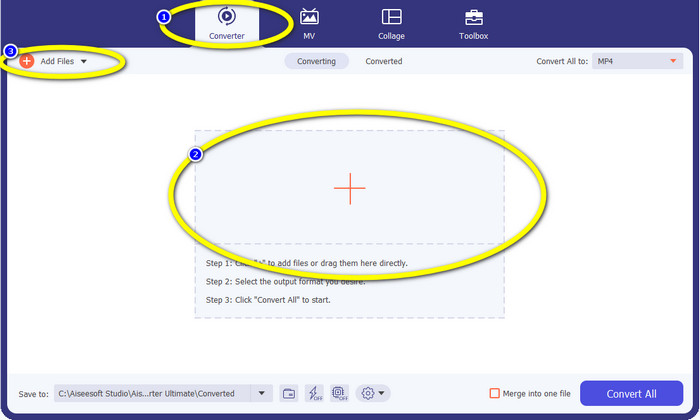
ขั้นตอนที่ 2: เมื่อหน้าอินเทอร์เฟซแสดงบนหน้าจอ ให้เลือกเมนู Converter แล้วคลิกไอคอน + เพื่อเพิ่มไฟล์ Xvid อีกวิธีหนึ่งในการเพิ่มไฟล์วิดีโอคือคลิกปุ่ม Add Files.
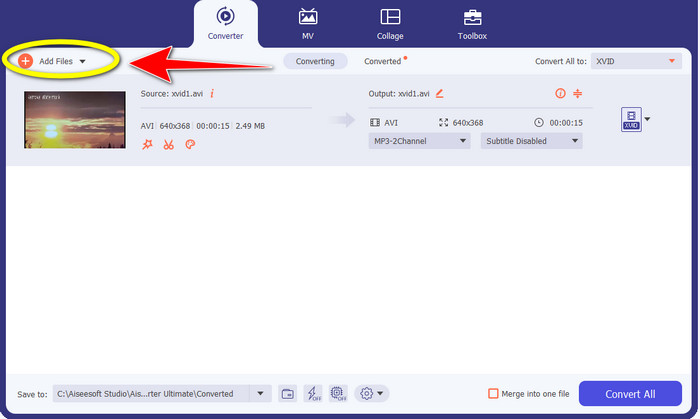
ขั้นตอนที่ 3: โปรแกรมนี้ให้คุณแปลงไฟล์หลายไฟล์พร้อมกันได้ ดังนั้นหากต้องการเพิ่มวิดีโอ Xvid อื่นเพื่อแปลง ให้คลิกปุ่ม Add Files ที่มุมซ้ายบนของอินเทอร์เฟซ.
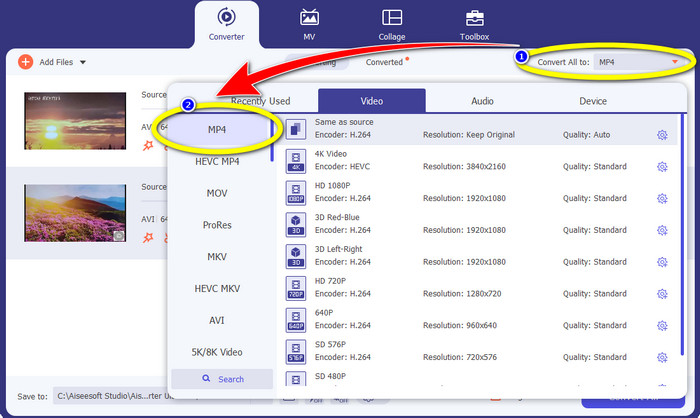
ขั้นตอนที่ 4: จากนั้น หากต้องการแปลงให้เป็นไฟล์ MP4 ไฟล์เดียว ให้คลิกปุ่ม Convert All to เลือกไฟล์ MP4 จากตัวเลือกฟอร์แมต แล้วเลือกระดับคุณภาพวิดีโอที่ต้องการ.
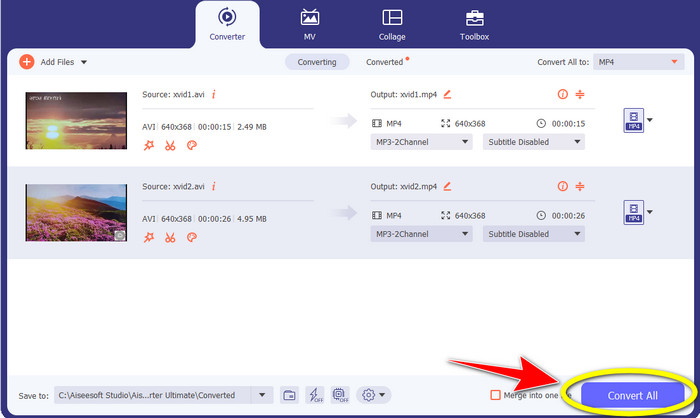
ขั้นตอนที่ 5: หลังจากเลือกฟอร์แมตผลลัพธ์ที่ต้องการแล้ว คุณสามารถเริ่มการแปลงได้โดยคลิกปุ่ม Convert All จากนั้นบันทึกไฟล์วิดีโอ MP4 ลงในอุปกรณ์ของคุณ.
ส่วนที่ 2: วิธีแปลง Xvid เป็น MP4 บน VLC
ในส่วนนี้ คุณจะได้เรียนรู้วิธีแปลง Xvid เป็น MP4 ด้วย VLC สำหรับข้อมูลเพิ่มเติม VLC Media Player สามารถแปลงไฟล์วิดีโอหลายไฟล์ได้ นอกจากใช้สำหรับเล่นวิดีโอแล้ว โปรแกรมนี้ยังรองรับรูปแบบวิดีโอ เช่น MP4, TS, WEM, OGG และอื่น ๆ อีกมากมาย นอกจากนี้ ยังสามารถแปลงไฟล์เสียง เช่น MP3, FLAC เป็นต้น ด้วยเหตุนี้ VLC จึงเป็นโปรแกรมที่เชื่อถือได้สำหรับการแปลงไฟล์หลากหลายประเภท อย่างไรก็ตาม ซอฟต์แวร์นี้อาจไม่เหมาะสำหรับผู้เริ่มต้น เนื่องจากมีอินเทอร์เฟซที่เข้าใจยาก ทำให้ใช้งานซับซ้อน และยังใช้เวลานานในการดาวน์โหลดและติดตั้งลงบนคอมพิวเตอร์ของคุณ.
ขั้นตอนที่ 1: ดาวน์โหลดและติดตั้ง VLC Media Player บนคอมพิวเตอร์ของคุณ จากนั้นเปิดโปรแกรม.
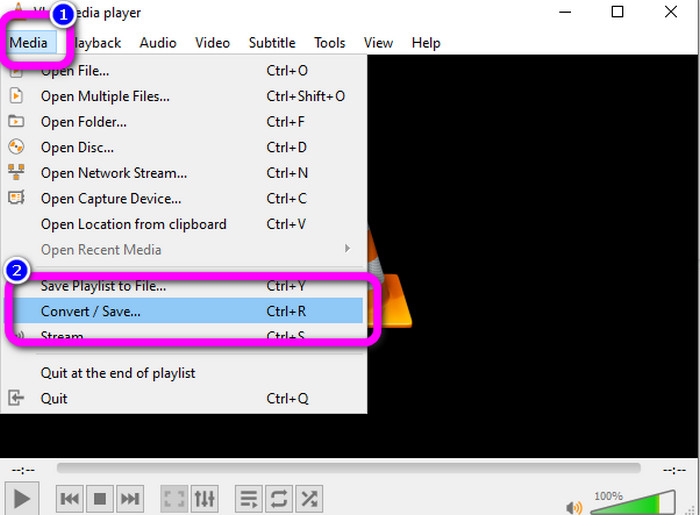
ขั้นตอนที่ 2: ไปที่แถบด้านบนของอินเทอร์เฟซและเลือกเมนู Media จากนั้นคลิกปุ่ม Convert/Save.
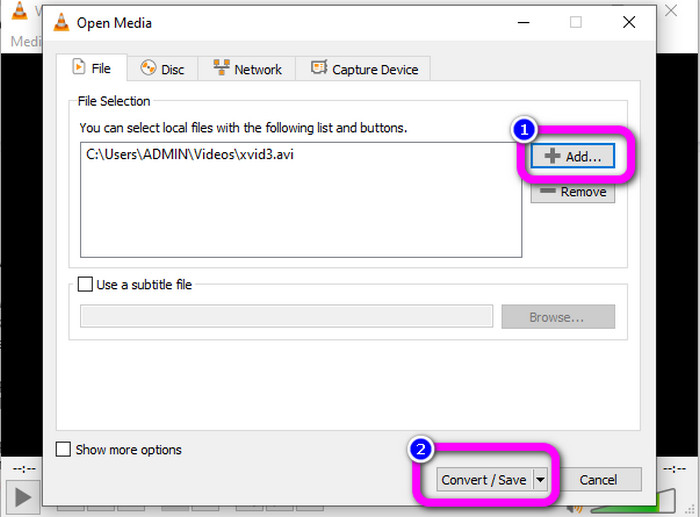
ขั้นตอนที่ 3: กดปุ่ม Add เพื่อใส่ไฟล์วิดีโอ Xvid เมื่อเพิ่มไฟล์เรียบร้อยแล้ว ให้คลิกปุ่ม Convert / Save.
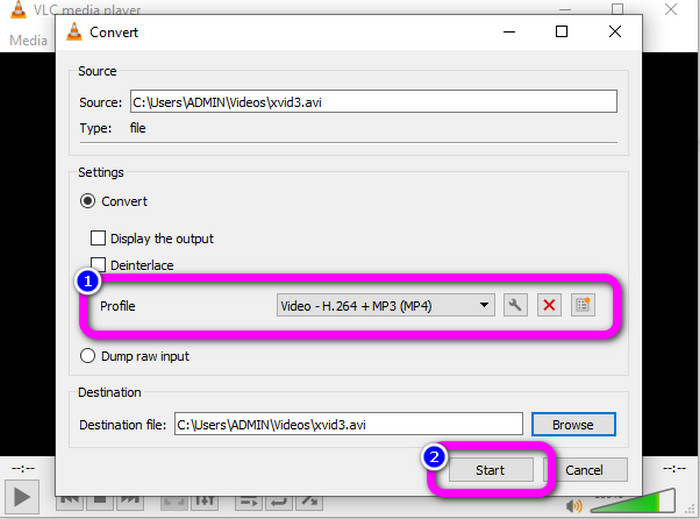
ขั้นตอนที่ 4: ขั้นตอนสุดท้าย คลิกเมนู Profile เพื่อดูตัวเลือกฟอร์แมต แล้วเลือกฟอร์แมตไฟล์ MP4 จากนั้นกำหนดโฟลเดอร์ปลายทาง และเริ่มกระบวนการแปลงด้วยการคลิกปุ่ม Start.
ตอนที่ 3: ขั้นตอนง่ายๆ ในการแปลง Xvid เป็น MP4 บนเบรกมือ
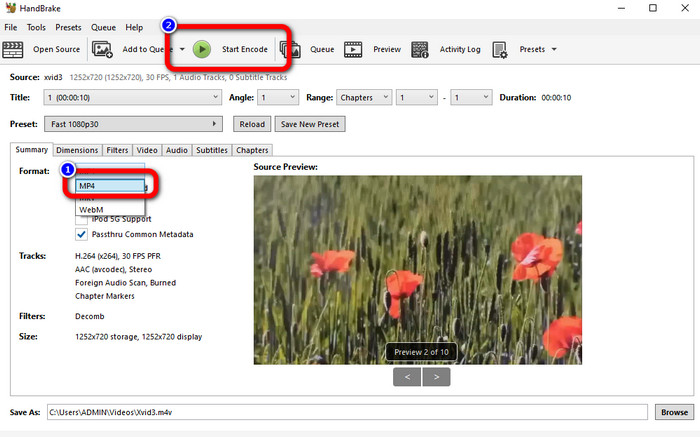
Handbrake เป็นอีกหนึ่งเครื่องมือออฟไลน์ที่คุณสามารถเชื่อถือได้ในการแปลงไฟล์ Xvid เป็นรูปแบบ MP4 นอกจากนี้ เครื่องมือนี้ยังเสนอกระบวนการแปลงเป็นชุด ซึ่งคุณจะต้องแทรกโฟลเดอร์ที่ประกอบด้วยวิดีโอหลาย ๆ ไฟล์และแปลงพร้อมกัน อย่างไรก็ตาม มันไม่ง่ายเลยที่จะใช้ ตัวเลือกมากมายสร้างความสับสนให้กับผู้เริ่มต้น ทำตามคำแนะนำง่ายๆ ด้านล่างเพื่อแปลง Xvid เป็น MP4 โดยใช้เบรกมือ
ขั้นตอนที่ 1: ดาวน์โหลด Handbrake ลงในคอมพิวเตอร์ของคุณ แล้วเปิดโปรแกรมหลังจากติดตั้งเสร็จ.
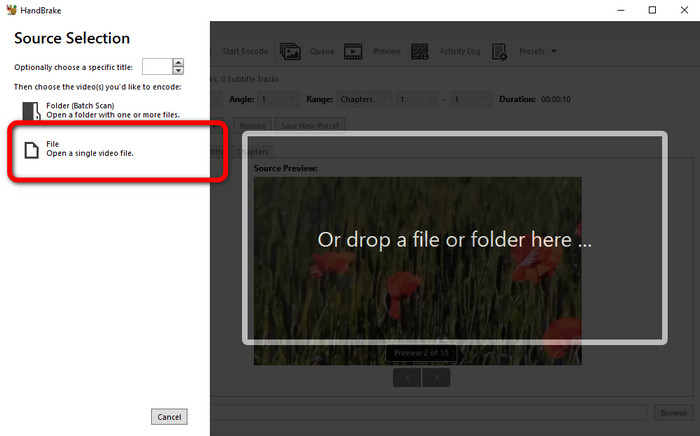
ขั้นตอนที่ 2: เปิดเมนู File เพื่อเพิ่มไฟล์วิดีโอ Xvid.
ขั้นตอนที่ 3: ไปที่ตัวเลือก Format แล้วเลือกฟอร์แมตไฟล์ MP4 จากนั้นกดปุ่ม Start Encode เพื่อแปลงไฟล์ Xvid ของคุณเป็นรูปแบบ MP4.
ส่วนที่ 4: กระบวนการแปลง Xvid เป็น MP4 ออนไลน์
FVC Free Video Converter Online เป็นเครื่องมือออนไลน์ที่ยอดเยี่ยมสำหรับการแปลง Xvid เป็น MP4 มีอินเทอร์เฟซที่ใช้งานง่าย เหมาะอย่างยิ่งสำหรับผู้เริ่มต้น คุณสามารถแปลงไฟล์ได้เพียงสามขั้นตอนเท่านั้น นอกจากนี้ ยังรองรับการแปลงแบบเป็นชุด ทำให้คุณแปลงไฟล์หลายไฟล์พร้อมกันได้ เครื่องมือนี้รองรับรูปแบบไฟล์วิดีโอต่าง ๆ เช่น FLV, AVI, MKV, WMA, MOV, VOB และอื่น ๆ หากคุณต้องการใช้ FVC Free Video Converter Online ให้ทำตามคำแนะนำง่าย ๆ ด้านล่างนี้.
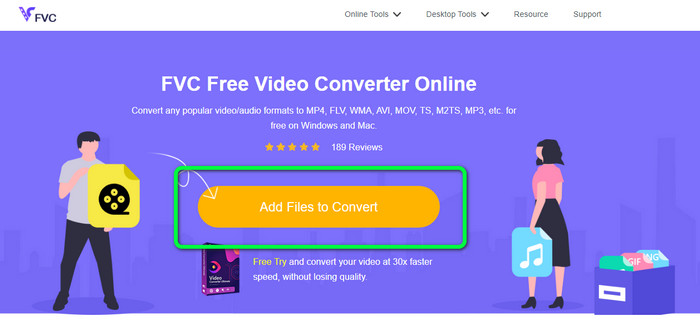
ขั้นตอนที่ 1: ไปที่เว็บไซต์ FVC Free Video Converter Online บนหน้าแรก ให้เลือกปุ่ม Add Files to Convert เพื่ออัปโหลดไฟล์วิดีโอ Xvid ที่คุณต้องการแปลง.
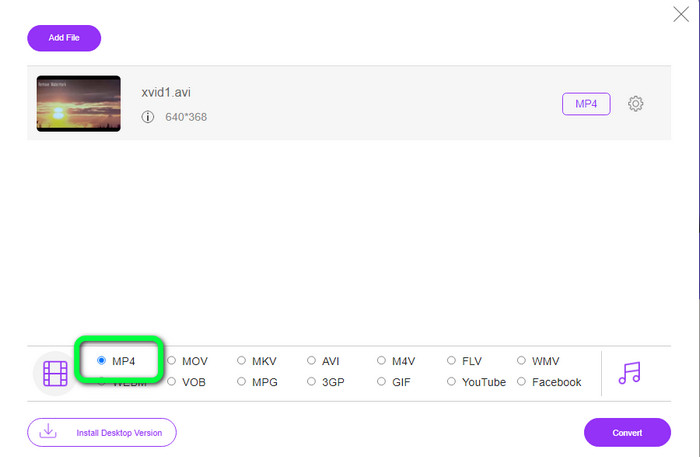
ขั้นตอนที่ 2: ที่ด้านล่างของอินเทอร์เฟซ คุณจะเห็นตัวเลือกฟอร์แมตต่าง ๆ ให้เลือก MP4 เป็นฟอร์แมตไฟล์ผลลัพธ์.
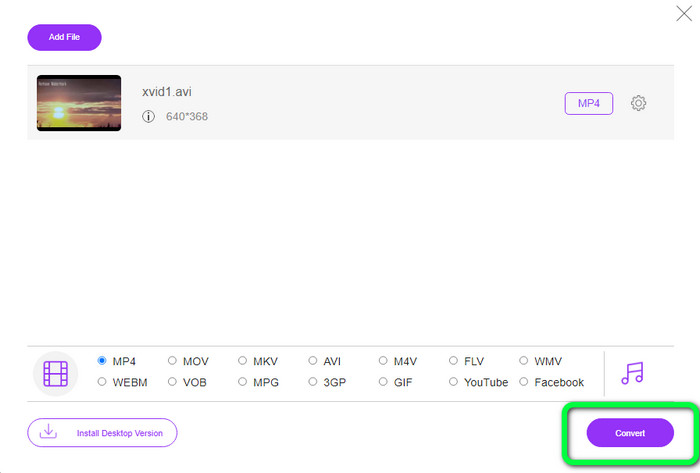
ขั้นตอนที่ 3: กดปุ่ม Convert เพื่อแปลงไฟล์ Xvid ของคุณเป็นรูปแบบ MP4 รอให้กระบวนการแปลงเสร็จสิ้น แล้วบันทึกวิดีโอสุดท้ายของคุณ.
ตอนที่ 5: วิธีที่ยอดเยี่ยมในการแปลง Xvid เป็น MP4 โดยใช้ Android
หากคุณต้องการโปรแกรมแปลง Xvid เป็น MP4 สำหรับ Android คุณสามารถใช้ Video Format Factory ได้ ด้วยแอปพลิเคชันนี้ คุณสามารถเปลี่ยนไฟล์วิดีโอเป็นรูปแบบอื่นได้อย่างง่ายดาย อย่างไรก็ตาม การแปลงวิดีโออาจใช้เวลานาน เนื่องจากกระบวนการแปลงค่อนข้างช้า ดูขั้นตอนด้านล่างเพื่อแปลง Xvid เป็น MP4.
ขั้นตอนที่ 1: ดาวน์โหลดและติดตั้ง Video Format Factory บนเครื่อง Android ของคุณ.
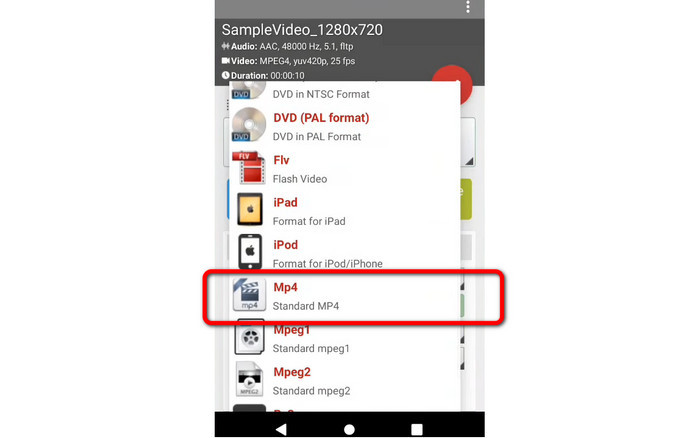
ขั้นตอนที่ 2: หลังจากเปิดแอปแล้ว ให้เลือกปุ่ม Video เพื่อเพิ่มไฟล์ Xvid.
ขั้นตอนที่ 3: เลือกตัวเลือก Convert และเลือกฟอร์แมต MP4 จากตัวเลือกฟอร์แมต จากนั้นเริ่มกระบวนการแปลงโดยการกดปุ่ม เครื่องหมายถูก.
อ่านเพิ่มเติม:
วิธีง่าย ๆ สำหรับการแปลง Xvid เป็น DivX
เทคนิคเยี่ยม ๆ ในการแปลง XviD เป็น 3GP อย่างรวดเร็ว
ตอนที่ 6: คำถามที่พบบ่อยเกี่ยวกับการแปลง Xvid เป็น MP4
1. รูปแบบไฟล์ Xvid คืออะไร?
รูปแบบไฟล์ Xvid เป็นตัวแปลงสัญญาณวิดีโอตามมาตรฐานการเข้ารหัส MPEG-4 ตัวแปลงสัญญาณนี้บีบอัดไฟล์วิดีโอโดยใช้รูปแบบ MPEG-4 Part 2 A SP
2. Xvid มีคุณภาพดีหรือไม่?
ใช่. ไฟล์นี้เป็นความต่อเนื่องของ Project Mayo เป้าหมายคือการพัฒนาตัวแปลงสัญญาณ MPEG-4 แบบโอเพ่นซอร์สคุณภาพสูง
3. MP4 ถูกบีบอัดหรือไม่
ใช่แล้ว. มีไฟล์ MP4 ที่ถูกบีบอัดอยู่ สามารถรวมโคเดกของวิดีโอต่างๆ ไว้ในไฟล์ MP4 ได้ ตัวแปลงสัญญาณวิดีโอยอดนิยมสำหรับ MP4 ได้แก่ H.264, H.265 และ MPEG-4 ด้วยการบีบอัด H.264 วิดีโอความยาวหนึ่งชั่วโมงสามารถบีบอัดได้ประมาณ 1 GB โดยใช้ตัวแปลงสัญญาณวิดีโอ MP4
สรุป
จากข้อมูลทั้งหมดข้างต้น ตอนนี้คุณทราบแล้วว่าจะแปลง Xvid เป็น MP4 แบบออนไลน์ ออฟไลน์ และด้วยอุปกรณ์ Android ได้อย่างไร แต่โปรแกรมแปลงไฟล์ที่ดีที่สุดที่คุณควรใช้คือ Video Converter Ultimate และ FVC Free Video Converter Online เครื่องมือทั้งสองนี้มีอินเทอร์เฟซที่ใช้งานง่าย เหมาะสำหรับผู้ใช้ทุกระดับ.
-
 วิธีแปลง MPG เป็น M4V บน Mac และใช้เครื่องมือออนไลน์
 คุณเป็นผู้ใช้ Mac รายใหม่และไม่ทราบวิธีแปลง MPG เป็น M4V หรือไม่ จากนั้น คุณสามารถอ่านบทความนี้เพื่อทราบข้อมูลเพิ่มเติมและค้นพบวิธีแปลงไฟล์โดยใช้ Mac ของคุณ
-
 วิธีที่ประสบความสำเร็จในการแปลง DIVX เป็น MP4 ทันที
 ฉันจะแปลง DIVX เป็น MP4 ได้อย่างไร หากคุณกำลังมองหาวิธีแก้ปัญหาที่ดีที่สุด แสดงว่าคุณมาถูกทางแล้ว เราจะแสดงวิธีแปลง DIVX เป็น MP4 อย่างง่ายดาย
-
 วิธีแปลง F4V เป็น MP4 ด้วยวิธีการที่มีประสิทธิภาพสูงสุด
 วิดีโอ F4V ของคุณมีคุณภาพไม่ดีใช่หรือไม่ จากนั้นแปลงเป็นไฟล์ MP4 โพสต์นี้จะนำเสนอวิธีที่ดีที่สุดในการแปลง F4V เป็น MP4 ทั้งแบบออนไลน์และออฟไลน์
