


 Video Converter Ultimate
 บันทึกหน้าจอ
 ซ่อมวิดีโอ
 ดาวน์โหลดอย่างปลอดภัย
วิธีทำให้วิดีโอเข้มขึ้นสำหรับวิดีโอโปรเจ็กต์ของคุณ
เมื่อพูดถึงงานตัดต่อวิดีโอ เทคนิคหนึ่งที่ถูกใช้บ่อยคือการทำให้บางส่วนของภาพมืดลง ขั้นตอนนี้สามารถทำได้ด้วยเหตุผลหลายอย่าง เช่น เพื่อสร้างอารมณ์หรือบรรยากาศ ดึงสายตาไปยังตำแหน่งใดตำแหน่งหนึ่งบนหน้าจอ หรือช่วยกลบข้อบกพร่องต่าง ๆ เหตุผลหลักอย่างหนึ่งของการทำวิดีโอให้มืดลงคือเพื่อเพิ่มดราม่าและความตึงเครียดให้กับฉาก ด้วยการลดค่าแสงและเพิ่มคอนทราสต์ เงาจะเข้มขึ้นและไฮไลต์จะลดลง ทำให้ฟุตเทจมีความรู้สึกน่ากลัวและชวนระทึกมากขึ้น ขั้นตอนนี้เหมาะอย่างยิ่งกับภาพยนตร์สยองขวัญหรือหนังระทึกขวัญ ที่ต้องการให้ผู้ชมรู้สึกไม่สบายใจ สำหรับวิดีโอโครงการของคุณ คุณจำเป็นต้องเรียนรู้เทคนิคนี้จากคู่มือแบบละเอียดด้านล่าง.

ส่วนที่ 1 วิธีทำให้วิดีโอออฟไลน์มืดลง
1. Video Converter Ultimate
Video Converter Ultimate เป็นแอปพลิเคชันและเครื่องมือตัดต่อวิดีโอที่ทรงพลัง ซึ่งสามารถมอบทุกอย่างที่คุณต้องการ ต้องการความช่วยเหลือในการลดความสว่างของวิดีโอโครงการของคุณหรือไม่? เครื่องมือนี้มีวิธีที่ใช้งานได้จริงในการลดความสว่างของภาพวิดีโอ มันมาพร้อมกับยูทิลิตีวิดีโอขั้นสูงอย่าง Video Enhancer ซึ่งจะปรับความสว่างและคอนทราสต์ของวิดีโอโครงการให้โดยอัตโนมัติ เครื่องมือนี้จะวิเคราะห์ไฟล์จากภายในและปรับคอนทราสต์เพื่อให้แสงของไฟล์ดีขึ้น ราวกับว่าถูกบันทึกในสภาพแวดล้อมหรือฉากที่มีแสงน้อย คุณสามารถดูคำแนะนำด้านล่างเพื่อเรียนรู้คู่มือการใช้งานแอปนี้อย่างละเอียด.
ขั้นตอนที่ 1 ดาวน์โหลดแอป
เริ่มการเพิ่มคุณภาพและปรับแต่งไฟล์วิดีโอของคุณด้วยการดาวน์โหลดซอฟต์แวร์ลงในพีซี คลิกที่ปุ่ม ดาวน์โหลดฟรี ที่แสดงด้านล่างขั้นตอนนี้ รับไฟล์ติดตั้งและรันไฟล์บนคอมพิวเตอร์ของคุณ.
ดาวน์โหลดฟรีสำหรับ Windows 7 ขึ้นไปดาวน์โหลดอย่างปลอดภัย
ดาวน์โหลดฟรีสำหรับ MacOS 10.7 หรือใหม่กว่าดาวน์โหลดอย่างปลอดภัย
ขั้นตอนที่ 2 นำเข้าวิดีโอ
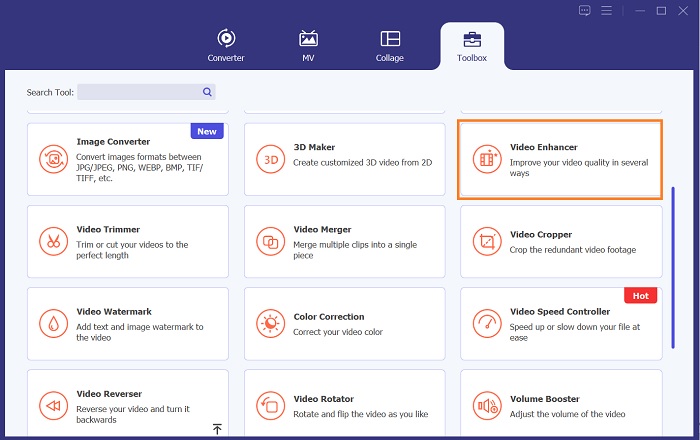
ขั้นตอนต่อไปคือเปิดแอปและเพิ่มวิดีโอที่คุณต้องการปรับปรุง ไปที่ตัวเลือก กล่องเครื่องมือ (Toolbox) ซึ่งเป็นที่รวบรวมฟีเจอร์ขั้นสูงทั้งหมด เลือกฟีเจอร์ Video Enhancer เพื่อเข้าสู่หน้าต่างการตั้งค่า จากนั้นนำเข้าไฟล์ด้วยการกดไอคอน +.
ขั้นตอนที่ 3 ดำเนินการให้เสร็จสิ้น
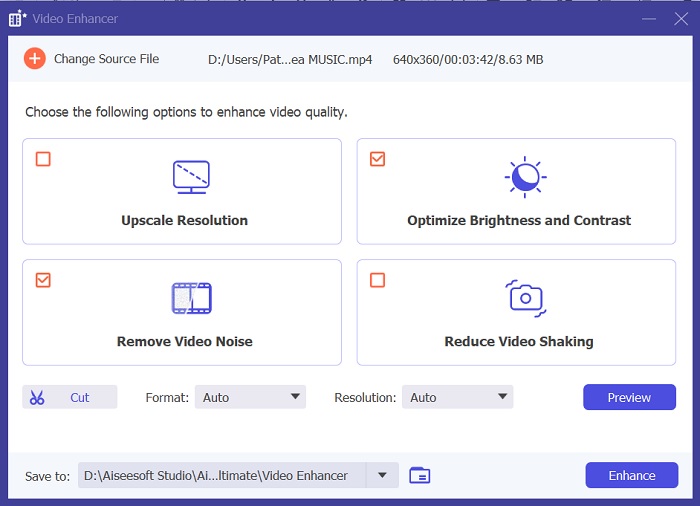
หลังจากนั้น เมื่อวิดีโอที่เลือกถูกนำเข้าแล้ว จะมีตัวเลือกสี่รายการปรากฏบนหน้าจอของคุณ ให้เลือกเมนู Optimized Brightness and Contrast เพื่อประมวลผลวิดีโอโดยอัตโนมัติ จากนั้นวิดีโอจะถูกส่งออกไปยังโฟลเดอร์ปลายทางที่กำหนดไว้ ให้ค้นหาไฟล์และเปิดเล่นเพื่อเช็คคอนทราสต์ของวิดีโอโครงการ.
2. Adobe Premiere Pro
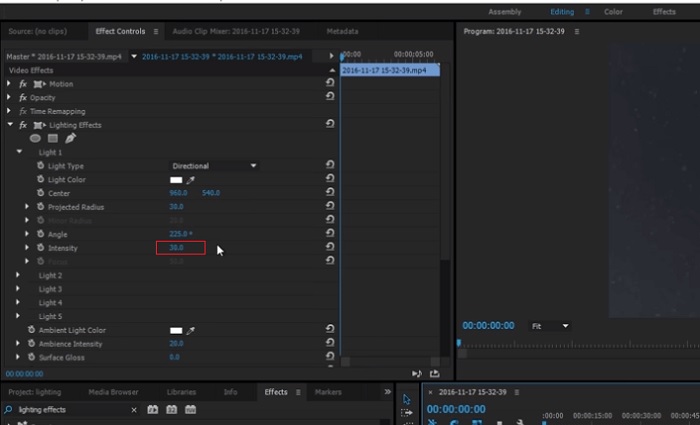
Premiere Pro เป็นซอฟต์แวร์ยูทิลิตี้วิดีโอที่เป็นนวัตกรรมซึ่งกลายเป็นตัวเลือกยอดนิยมสำหรับนักตัดต่อวิดีโอมืออาชีพจำนวนมาก ด้วยอินเทอร์เฟซที่ใช้งานง่าย การผสานรวมกับผลิตภัณฑ์ Adobe อื่น ๆ ได้อย่างราบรื่น และคุณสมบัติที่แข็งแกร่ง ข้อดีที่สำคัญประการหนึ่งของ Premiere Pro คือความสามารถในการประมวลผลรูปแบบวิดีโอที่หลากหลาย ตั้งแต่ SD ไปจนถึง HD ไปจนถึง 4K และมากกว่านั้น คุณสมบัตินี้ทำให้ง่ายต่อการทำงานกับฟุตเทจจากแหล่งต่างๆ รวมถึงกล้อง อุปกรณ์เคลื่อนที่ และโดรน หากจำเป็นต้องปรับแสงในวิดีโอ Adobe Premiere Pro เป็นตัวช่วยที่ดีเยี่ยมด้วยฟีเจอร์ Lumetri Color Panel ซึ่งสามารถปรับคอนทราสต์และความสว่างของไฟล์ได้ นอกจากนี้ Premiere Pro ยังมีเครื่องมือแก้ไขสีขั้นสูง ความสามารถในการแก้ไขเสียง เอฟเฟ็กต์ภาพ และอื่นๆ อีกมากมาย
ขั้นตอนที่ 1. หากต้องการแก้ไขความสว่างใน Premiere Pro คุณต้องดาวน์โหลดแอปลงในพีซี คุณสามารถค้นหาไฟล์ติดตั้งได้จากหน้าเว็บหลักของโปรแกรมและดาวน์โหลดเฟิร์มแวร์เพื่อติดตั้งแอป เปิดใช้งานเครื่องมือและนำเข้าไฟล์วิดีโอด้วยการกดปุ่ม Import.
ขั้นตอนที่ 2. เปิดพาเนล Lumetri Color โดยคลิกที่แท็บ Color ที่มุมบนซ้ายของหน้าจอ ในพาเนล Lumetri Color คุณจะเห็นตัวเลือกการปรับสีต่าง ๆ หากต้องการปรับความสว่าง ให้ไปที่ส่วน Basic Correction คุณสามารถใช้ตัวเลื่อน Exposure เพื่อปรับความสว่างของคลิปได้ที่นี่ ลากตัวเลื่อนไปทางขวาเพื่อเพิ่มความสว่าง หรือไปทางซ้ายเพื่อลดความสว่าง.
ขั้นตอนที่ 3. ขั้นตอนสุดท้ายให้กดหรือคลิกปุ่ม Export เพื่อบันทึกไฟล์ รอให้วิดีโอเรนเดอร์เสร็จและไปที่โฟลเดอร์เอาต์พุตของเครื่องมือเพื่อค้นหาไฟล์ เปิดเล่นและพรีวิวการเปลี่ยนแปลงของวิดีโอโครงการเพื่อดูว่าเป็นที่พอใจของคุณหรือไม่.
3. อะโดบี อาฟเตอร์ เอฟเฟ็กต์
เมื่อปรับความสว่างใน After Effects คุณสมบัติหลายอย่างจะมีประโยชน์ ประการแรก สามารถใช้เอฟเฟกต์ระดับเพื่อปรับความสว่างและคอนทราสต์ได้ เอฟเฟ็กต์นี้ช่วยให้คุณกำหนดจุดขาวดำได้ ซึ่งช่วยให้มั่นใจว่าภาพจะไม่ซีดจางหรือมืดเกินไป คุณยังสามารถใช้เอฟเฟ็กต์ Curves เพื่อปรับความสว่างและคอนทราสต์ของส่วนวิดีโอที่ต้องการได้ คุณสมบัตินี้สามารถดึงรายละเอียดในส่วนเงาหรือไฮไลท์ออกมาได้ คุณสมบัติที่มีประโยชน์อีกประการหนึ่งคือเอฟเฟกต์การรับแสง ซึ่งช่วยให้คุณเปลี่ยนความสว่างและคอนทราสต์ของทั้งภาพได้ เอฟเฟ็กต์นี้ยังมีตัวเลือกสำหรับการปรับแกมมาและออฟเซ็ต ซึ่งสามารถช่วยคุณปรับแต่งรูปลักษณ์ของภาพได้
ขั้นตอนที่ 1. ขั้นตอนแรกในการแก้ไขรูปลักษณ์ของวิดีโอบน After Effects คือการดาวน์โหลดเฟิร์มแวร์ของเครื่องมือและติดตั้งลงในพีซี คุณสามารถดาวน์โหลดหรือรับโปรแกรมได้จากเว็บไซต์ทางการของ Adobe แล้วรันไฟล์ติดตั้ง จากนั้นเปิดแอปและสำรวจฟีเจอร์ต่าง ๆ.
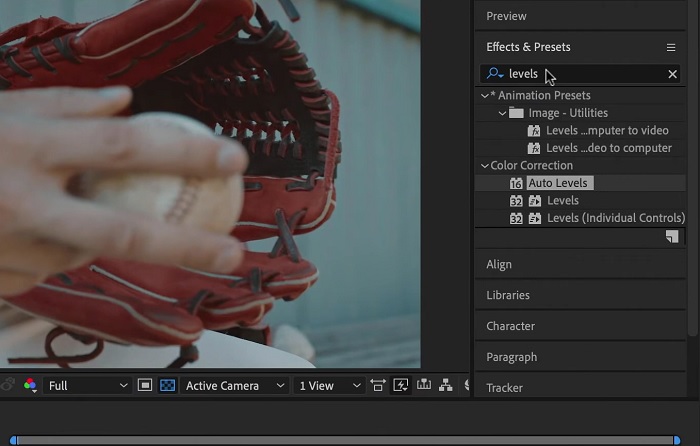
ขั้นตอนที่ 2. ต่อไปให้นำเข้าวิดีโอโดยไปที่เมนู File แล้วกดตัวเลือก Import ค้นหาวิดีโอของคุณและแตะเพื่อเพิ่มเข้าไปในโปรเจกต์ตัดต่อวิดีโอ หลังจากนั้นไปที่แท็บ Windows แล้วกด Effects and Presets จะมีช่องค้นหาปรากฏขึ้นซึ่งคุณสามารถค้นหาตัวเลือก Levels ได้.
ขั้นตอนที่ 3. สุดท้ายให้กดตัวเลือก Auto Level แล้วลากไปวางบนวิดีโอที่คุณต้องการลดความสว่างของคลิปโครงการ จากนั้นกดตัวเลือก Export เพื่อบันทึกการปรับแก้ คุณยังสามารถใช้พรีเซ็ตอื่น ๆ เพื่อปรับความสว่างของไฟล์ได้ด้วย ไปที่โฟลเดอร์เอาต์พุตเพื่อพรีวิวและตรวจสอบวิดีโอโครงการที่แก้ไขแล้ว.
4. ดาวินชี่แก้ไข
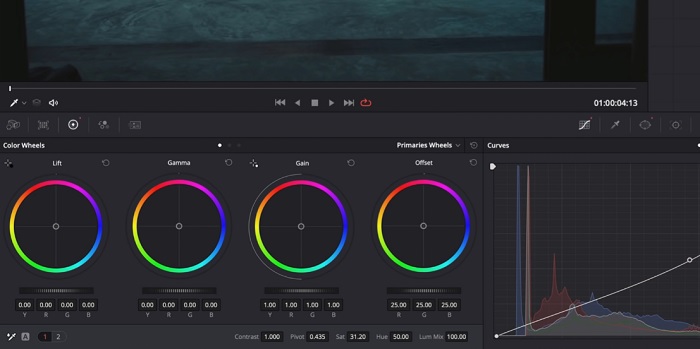
เมื่อพูดถึงการดัดแปลงวิดีโอ Davinci Resolve เป็นซอฟต์แวร์และยูทิลิตี้วิดีโอที่ทรงพลังซึ่งนำเสนอคุณสมบัติการแก้ไขที่หลากหลายเพื่อปรับปรุงคุณภาพของวิดีโอของคุณ เทคนิคการแก้ไขที่พบบ่อยที่สุดประการหนึ่งคือการทำให้วิดีโอมืดลง ซึ่งอาจส่งผลต่อภาพของคุณได้อย่างมาก หนึ่งในคุณสมบัติที่ผู้ใช้ชื่นชอบของซอฟต์แวร์ตัดต่อวิดีโอนี้คือความสามารถในการถ่ายวิดีโอที่มีระดับสีได้อย่างง่ายดาย ซอฟต์แวร์นี้มีเครื่องมือการจัดระดับสีมากมายที่อนุญาตให้ผู้ใช้แก้ไขรูปลักษณ์ของวิดีโอให้ตรงกับวิสัยทัศน์ทางศิลปะ นอกจากนี้ยังมาพร้อมกับแผงไทม์ไลน์ที่ผู้ใช้สามารถจัดเตรียมกระบวนการแก้ไขที่ดีขึ้นได้ Davinci Resolve ทำให้กระบวนการนี้ง่ายและมีประสิทธิภาพด้วยเครื่องมือขั้นสูง
ขั้นตอนที่ 1. คู่มือเบื้องต้นในการปรับค่าเอ็กซ์โพเชอร์ของวิดีโอด้วย DaVinci Resolve คือการดาวน์โหลดเครื่องมือลงในพีซีของคุณ ดาวน์โหลดแอปจากเว็บไซต์ทางการและรันไฟล์ติดตั้งเพื่อติดตั้ง จากนั้นเปิดแอปตัดต่อวิดีโอและสำรวจฟีเจอร์เพื่อให้คุ้นเคยกับเครื่องมือต่าง ๆ.
ขั้นตอนที่ 2. หากต้องการทำวิดีโอให้มืดลงด้วย Davinci Resolve ให้นำเข้าวิดีโอเข้ามาในโปรเจกต์โดยคลิกเมนู File แล้วเลือกปุ่ม Import file จากนั้นคุณสามารถใช้เครื่องมือปรับสีของซอฟต์แวร์ได้ เลือกคลิปที่คุณต้องการทำให้มืดลงในไทม์ไลน์ แล้วเปิดหน้า Color.
ขั้นตอนที่ 3. จากนั้นคุณสามารถใช้ตัวควบคุม Lift, Gamma และ Gain เพื่อปรับความสว่างและคอนทราสต์ของคลิป หลังจากนั้นให้กดและเลือกปุ่ม Export เพื่อบันทึกการเปลี่ยนแปลงที่ทำไว้กับโปรเจกต์วิดีโอ ไปที่โฟลเดอร์เอาต์พุตเพื่อพรีวิวไฟล์.
ส่วนที่ 2 วิธีทำให้วิดีโอออนไลน์มืดลง
คุณเบื่อกับการใช้ซอฟต์แวร์ตัดต่อวิดีโอที่เทอะทะเพื่อปรับแต่งวิดีโอคลิปง่ายๆ บนพีซีของคุณหรือไม่? Clideo สามารถช่วยได้อย่างดีเป็นทางเลือกแทนการตัดต่อวิดีโอ เนื่องจากมันใช้พื้นที่คอมพิวเตอร์จำนวนมาก เครื่องมือออนไลน์นี้ช่วยให้ผู้ใช้เข้าถึงแผงไทม์ไลน์ได้อย่างง่ายดายและนำเข้าวิดีโอไปยัง API โดยไม่จำเป็นต้องติดตั้งหรือลงชื่อเข้าใช้บัญชี ผู้ใช้สามารถอัปโหลดไฟล์วิดีโอที่ต้องการแก้ไขได้โดยตรง และเครื่องมือออนไลน์จะวิเคราะห์และให้คุณสมบัติการแก้ไขเพื่อปรับแต่งและปรับปรุงลักษณะที่ปรากฏของคลิปโปรเจ็กต์ คุณสามารถตรวจสอบคำแนะนำโดยละเอียดด้านล่างเกี่ยวกับการใช้แอปออนไลน์นี้อย่างละเอียด
ขั้นตอนที่ 1. หากต้องการปรับความสว่างบน Clideo ให้เข้าใช้แอปผ่านเว็บเบราว์เซอร์ เปิดหน้าอินเทอร์เฟซหลักและเริ่มอัปโหลดคลิปวิดีโอของคุณขึ้นแพลตฟอร์มโดยกดปุ่ม Choose File เลือกวิดีโอที่คุณต้องการแก้ไขและนำเข้าไปยังเครื่องมือออนไลน์.
ขั้นตอนที่ 2. จากนั้นเลือกตัวเลือก Adjust จากเมนูด้านล่างตัวเล่นวิดีโอ วิธีนี้จะใช้เครื่องมือตัดต่อหลายแบบ รวมถึงตัวเลือกสำหรับปรับความสว่าง ให้ลาก ตัวเลื่อนความสว่าง (brightness slider) ไปทางซ้ายหรือตรงข้ามไปทางขวาเพื่อลดหรือเพิ่มความสว่างตามลำดับ.
ขั้นตอนที่ 3. คุณยังสามารถใช้ปุ่มปรับอัตโนมัติเพื่อให้ระบบช่วยปรับความสว่างให้เอง เมื่อคุณพอใจกับระดับความสว่างแล้ว ให้คลิกไอคอนหรือปุ่ม Apply เพื่อบันทึกการเปลี่ยนแปลง สุดท้ายให้ดาวน์โหลดวิดีโอที่แก้ไขแล้วด้วยการคลิกตัวเลือก Export.

อ่านเพิ่มเติม:
ฟิลเตอร์วิดีโอ: เพิ่มความโดดเด่นให้วิดีโอด้วยฟิลเตอร์และเอฟเฟกต์บนเดสก์ท็อป
5 โปรแกรมทำหนังสำหรับ YouTube ที่ยอดเยี่ยม | สร้างคอนเทนต์วิดีโอระดับภาพยนตร์
ส่วนที่ 3 คำถามที่พบบ่อยเกี่ยวกับ Darken Video
จะทำให้วิดีโอบน iPhone มืดลงได้อย่างไร?
มีซอฟต์แวร์ต่างๆ ที่คุณสามารถใช้และติดตั้งบนอุปกรณ์เคลื่อนที่ของคุณซึ่งสามารถปรับระดับแสงของคลิปโปรเจ็กต์ของคุณได้ คุณยังสามารถใช้เครื่องมือออนไลน์ที่สามารถช่วยคุณปรับแต่งวิดีโอได้โดยตรงบนสมาร์ทโฟนของคุณ แนะนำให้ใช้ Clideo เนื่องจากสามารถเข้าถึงได้จากเว็บเบราว์เซอร์ รวมถึง Safari และอื่นๆ ที่เข้ากันได้กับอุปกรณ์ Apple
คุณจะทำให้วิดีโอใน iMovie มืดลงได้อย่างไร
ปรับการตั้งค่าความสว่างและคอนทราสต์เพื่อทำให้วิดีโอบน iMovie มืดลง คุณยังสามารถเพิ่มโอเวอร์เลย์หรือฟิลเตอร์สีเข้มให้กับวิดีโอเพื่อทำให้วิดีโอดูเข้มขึ้นได้ อีกทางเลือกหนึ่งคือการปรับระดับการรับแสงเพื่อทำให้วิดีโอมืดลง ทดลองใช้การตั้งค่าเหล่านี้จนกว่าคุณจะได้รูปลักษณ์ที่ต้องการสำหรับวิดีโอของคุณ
ทำไมคุณถึงต้องการทำให้วิดีโอมืดลงบน iPhone?
การทำให้วิดีโอมืดลงอาจมีประโยชน์ในหลายสถานการณ์ เช่น การปรับปรุงคุณภาพวิดีโอโดยรวม การเพิ่มคอนทราสต์ หรือการสร้างอารมณ์หรือบรรยากาศบางอย่าง
สรุป
หลังจากลองใช้หลายวิธี บทความนี้พบว่าการทำวิดีโอให้มืดลงบนพีซีนั้นทำได้ค่อนข้างง่าย คุณเพียงแค่ต้องใช้ซอฟต์แวร์ตัดต่อวิดีโอ เช่น Video Converter Ultimate, Adobe Premiere Pro, Da Vinci Resolve และ After Effects เพื่อทำให้สำเร็จ เมื่อคุณติดตั้งซอฟต์แวร์แล้ว คุณสามารถปรับค่าเอ็กซ์โพเชอร์ของวิดีโอได้อย่างง่ายดายเพื่อให้ได้เอฟเฟกต์ความมืดตามต้องการ อย่างไรก็ตาม สิ่งสำคัญคืออย่าให้วิดีโอมืดจนมองเห็นรายละเอียดได้ยาก ด้วยเคล็ดลับเหล่านี้เกี่ยวกับวิธีแก้ไขวิดีโอที่สว่างเกินไป คุณจะสามารถทำวิดีโอให้มืดลงและสร้างผลงานวิดีโอที่สวยงามน่าดูได้สำเร็จ.
-
 สุดยอดคู่มือการเปลี่ยนความละเอียดของวิดีโอที่มีให้ใช้งานข้ามแพลตฟอร์ม
 ต้องการเปลี่ยนความละเอียดของวิดีโอของวิดีโอหรือไม่ หากเป็นเช่นนั้น ให้เรียนรู้วิธีต่างๆ ที่คุณสามารถทำได้เพื่อเปลี่ยนความละเอียดวิดีโอของวิดีโอที่คุณกำลังรับชม
-
 ลายน้ำบนวิดีโอคืออะไร & วิธีเพิ่มหรือลบออก
 คุณต้องการลายน้ำคืออะไร แตกต่างกันอย่างไร และทำไมช่างภาพจึงใส่ลายน้ำเข้าไป? สิ่งที่คุณต้องทำคืออ่านบทความนี้
-
 วิธีครอบตัดไฟล์ MP4 โดยไม่สูญเสียคุณภาพของวิดีโอ [2023]
 เรียนรู้วิธีครอบตัด MP4 ด้วยขั้นตอนง่ายๆ ที่จัดไว้ให้สำหรับคุณโดยเฉพาะ ดังนั้นก้าวให้ทันเพราะเราขอนำเสนอเครื่องมือครอบตัดที่ดีที่สุดที่คุณอาจใช้
