


 Video Converter Ultimate
 บันทึกหน้าจอ
 ซ่อมวิดีโอ
 ดาวน์โหลดอย่างปลอดภัย
บทช่วยสอนเกี่ยวกับวิธีการจับภาพหน้าจอ GIF บนคอมพิวเตอร์ของคุณ
พื้นที่ออนไลน์ได้เปลี่ยนให้กิจกรรมส่วนใหญ่ของเราถูกดำเนินการในรูปแบบเสมือนจริงอย่างปฏิเสธไม่ได้ ไม่ว่าคุณจะกำลังเตรียมตัวสำหรับการประชุม สร้างงานนำเสนอ หรือแม้กระทั่งต้องการเข้าถึงผู้คนหลายพันคนด้วยการสอนทำอาหาร การบันทึกหน้าจอถือเป็นวิธีที่มีประสิทธิภาพในการจับภาพสิ่งที่จำเป็นทั้งหมด อย่างไรก็ตาม การอัดหน้าจอด้วยเครื่องมือพื้นฐานที่มีมาในอุปกรณ์ของคุณอย่าง Xbox Game Bar หรือ QuickTime screen recorder ยังมีข้อจำกัดต่อการใช้งานเมื่อต้องการทำสกรีนแคสต์อย่างเต็มศักยภาพ ในบทความนี้ เราได้คัดสรรซอฟต์แวร์ระดับท็อปที่ช่วยให้การจับภาพหน้าจอเป็น GIF ก้าวไปอีกระดับ.

ส่วนที่ 1: วิธีบันทึกหน้าจอเป็น GIF บน Windows/Mac ฟรี
1. FVC บันทึกหน้าจอฟรี
เพียงไม่กี่คลิก การบันทึกหน้าจอของคุณก็เป็นเรื่องง่ายด้วย FVC Free Screen Recorder โซลูชันออนไลน์นี้ครอบคลุมความต้องการพื้นฐานด้านการบันทึกหน้าจอได้อย่างหลากหลาย จนได้รับคำชมมากมายจากผู้ใช้ FVC Free Screen Recorder สามารถบันทึกกิจกรรมบนหน้าจอของคุณ ไม่ว่าจะเป็นเกม วิดีโอ หรือการประชุมออนไลน์ โดยไม่ใส่วอเตอร์มาร์กลงในไฟล์ผลลัพธ์ นอกจากนี้ ยังสามารถบันทึกภาพหน้าจอพร้อมเสียงระบบและเสียงไมโครโฟนได้อีกด้วย ด้วยวิธีนี้ คุณสามารถปล่อยให้อุปกรณ์บันทึกไว้ แล้วนำมาเล่นเมื่อจำเป็น ด้านล่างนี้ เราได้จัดทำคู่มือสอนวิธีบันทึก GIF บน Mac และ Windows ด้วย FVC Free Screen Recorder.
ขั้นตอนที่ 1 เข้าสู่ตัวบันทึกหน้าจอออนไลน์ที่ดีที่สุด
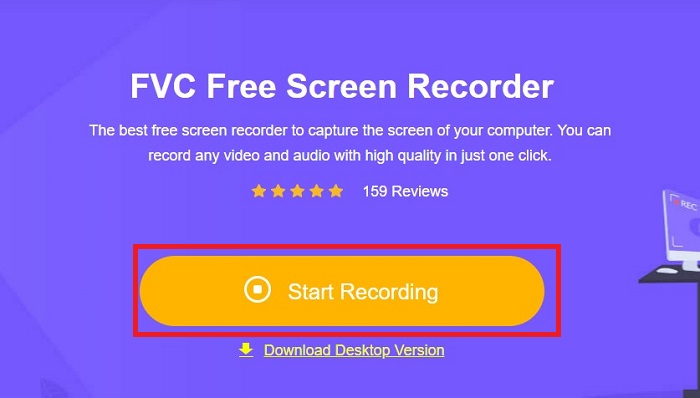
เปิดเบราว์เซอร์บนอุปกรณ์ของคุณ และพิมพ์ FVC Free Screen Recorder ลงในแถบค้นหา เมื่อเครื่องมือทำงานแล้ว ให้คลิกปุ่ม Start Recording ที่อยู่ตรงกลางเพื่อเข้าสู่ชุดเครื่องมือบันทึกหน้าจอ.
ขั้นตอนที่ 2 ตั้งค่าการบันทึก
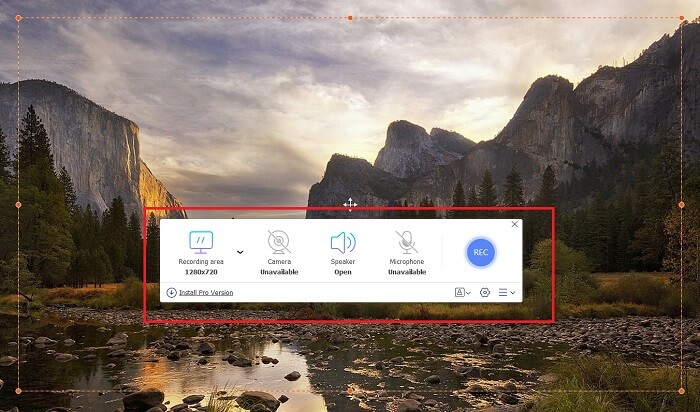
กำหนดค่าความต้องการในการบันทึกของคุณในส่วน Recording Area, System Sound และ Camera เมื่อทุกอย่างตั้งค่าเรียบร้อยแล้ว ให้กดปุ่ม REC เพื่อเริ่มบันทึกหน้าจอ.
ขั้นตอนที่ 3 ใส่คำอธิบายระหว่างบันทึก
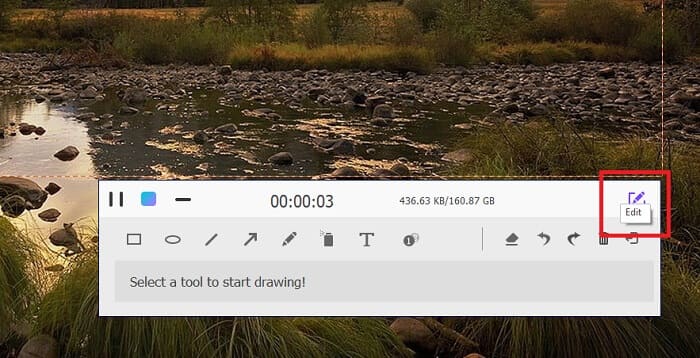
หลังจากการนับถอยหลัง 3 วินาที คุณกำลังบันทึกหน้าจอของคุณ หากคุณต้องการเพิ่มคำอธิบายประกอบ เช่น ข้อความ รูปร่าง ไฮไลท์ และปากกา ให้คลิกปุ่มแก้ไขที่มุมซ้ายล่างของกล่องบันทึก
ขั้นตอนที่ 4 บันทึกไฟล์ผลลัพธ์
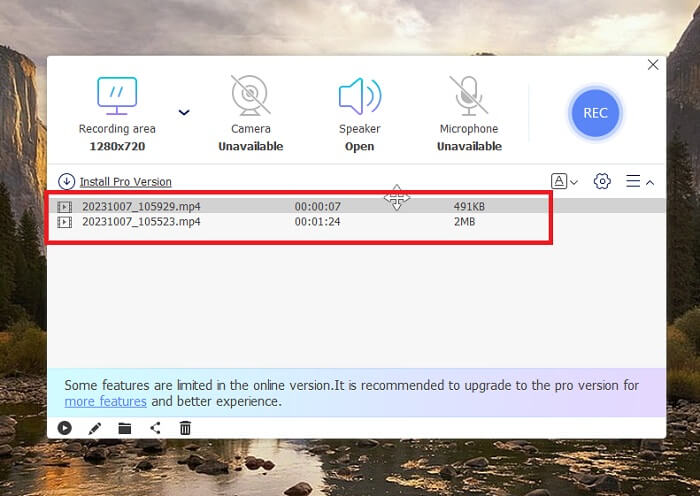
หากต้องการบันทึกวิดีโอที่จับภาพไว้ ให้กดปุ่ม Stop บน FVC Free Screen Recorder หลังจากขั้นตอนการบันทึกเสร็จสิ้น ระบบจะพาคุณไปยังแถบ Recorded ของเครื่องมือ คุณยังสามารถกดปุ่ม Folder เพื่อเปิดโฟลเดอร์ในเครื่องที่เก็บไฟล์ของคุณได้.
คุณสมบัติ:
◆ โปรแกรมนี้เป็นเครื่องมือชั้นยอดสำหรับการเพิ่มคำอธิบายประกอบแบบเรียลไทม์ขณะฉายภาพหน้าจอ
◆ FVC Free Screen Recorder นำเสนอรูปแบบเอาต์พุตที่เข้ากันได้สูง รวมถึง MP4 และ WMV
◆ เครื่องมือนี้ให้เอฟเฟ็กต์ภาพซ้อนภาพเพื่อซ้อนทับกล้องเว็บบนหน้าจอของคุณ
◆ เครื่องมือนี้เป็นซอฟต์แวร์ screencasting แบบไม่จำกัดเวลา
2. Chrome Capture - เครื่องมือจับภาพหน้าจอและ GIF
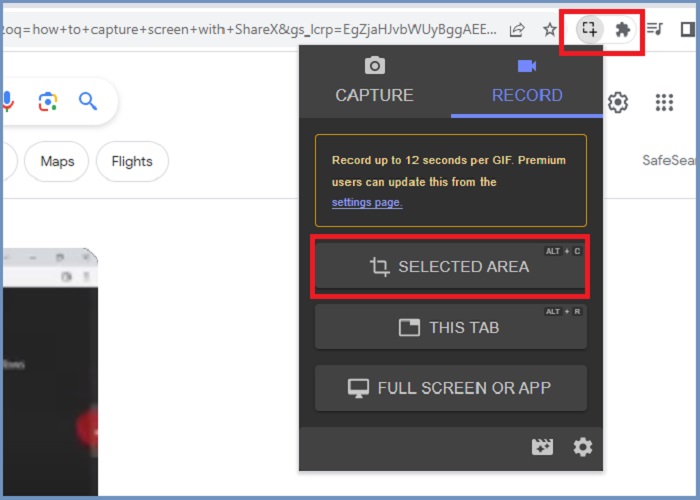
Chrome Capture เป็นเครื่องมือเสริมของ Google ที่เปลี่ยนการบันทึกหน้าจอเป็น GIF แอปพลิเคชันเว็บเบราว์เซอร์นี้ให้คุณจับภาพหน้าจอในพื้นที่ที่เลือก แท็บ หรือกิจกรรมแบบเต็มหน้าจอ นอกจากนั้น Chrome Capture ยังเป็นตัวเลือกที่ดีที่สุดสำหรับการจับภาพหน้าจอเว็บแบบเต็มหน้า ดังนั้นคุณจะได้รับข้อมูลทั้งหมดที่จำเป็น ผู้ใช้หลายคนติดใจเครื่องมือนี้เนื่องจากอินเทอร์เฟซที่ใช้งานง่ายและคุณสมบัติที่ใช้งานง่ายเช่นเครื่องมือครอบตัดและคำอธิบายประกอบ ChromeCapture ทำให้การบันทึกหน้าจอยุ่งยากน้อยลงโดยนำเสนอปุ่มลัดสำหรับการถ่ายภาพหน้าจอหรือหยุดการบันทึกเอง สร้าง GIF จากการบันทึกหน้าจอโดยใช้ Chrome Capture โดยทำตามคำแนะนำด้านล่าง
ขั้นตอนที่ 1 ก่อนอื่น ให้เปิดหน้าเว็บที่คุณต้องการบันทึกบน Google Chrome จากนั้นคลิกไอคอน Chrome Capture ที่บริเวณส่วนขยายมุมขวาบนของเบราว์เซอร์.
ขั้นตอนที่ 2 ต่อไป ไปที่แท็บบันทึกของ Chrome Capture และเลือกประเภทการบันทึกที่คุณต้องการ เช่น พื้นที่ที่เลือก แท็บเดียว หรือทั้งหน้าต่าง เมื่อคลิกตัวเลือกที่ต้องการแล้ว การบันทึกจะเริ่มขึ้น หากเสร็จสิ้น ให้กดปุ่ม Stop เพื่อไปยังขั้นตอนการบันทึกไฟล์.
ขั้นตอนที่ 3 เมื่อต้องการสร้าง GIF จากวิดีโอบันทึกหน้าจอ ให้คลิกปุ่ม Save และเลือก GIF เป็นรูปแบบไฟล์ผลลัพธ์ คุณยังสามารถเปลี่ยนชื่อไฟล์เพื่อให้ง่ายต่อการค้นหาในภายหลัง.
คุณสมบัติ:
◆ Chrome Capture นำเสนอรูปแบบเอาต์พุต เช่น WebM และ GIF
◆ เครื่องมือนี้ทำให้การแบ่งปันวิดีโอที่บันทึกไว้ของคุณทางออนไลน์ง่ายขึ้น
◆ เครื่องมือแก้ไขของโปรแกรมช่วยให้คุณสามารถเพิ่มข้อความ วาดลูกศร เปลี่ยนความเร็วของการบันทึก และอื่นๆ อีกมากมาย
ส่วนที่ 2: วิธีบันทึกและแก้ไขการบันทึก GIF บน Mac และ Windows
1. แชร์เอ็กซ์
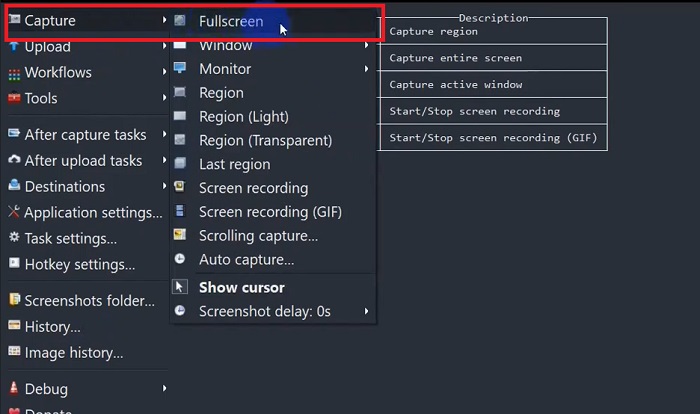
ในแง่ของการมีระบบจับหน้าจอที่มีประสิทธิภาพและในขณะเดียวกันก็ไม่มีค่าใช้จ่าย ShareX ยังคงอยู่ในรายการ เครื่องมือนี้เป็นเครื่องมือบันทึกหน้าจอโอเพ่นซอร์สสำหรับระบบปฏิบัติการ Windows ยิ่งไปกว่านั้น มันยังมีการบันทึกภูมิภาคแบบกำหนดเอง ซึ่งคุณสามารถเลือกพื้นที่เฉพาะของหน้าจอที่จะจับภาพได้ นอกจากนี้ ShareX ยังมีเครื่องมือจับภาพแบบเลื่อน ซึ่งช่วยให้ผู้ใช้สามารถจับภาพหน้าจอของเนื้อหาได้ในคราวเดียว แทนที่จะจับภาพหน้าจอหลายภาพ หากคุณต้องการเรียนรู้ว่า ShareX ทำงานอย่างไรในการบันทึกหน้าต่าง GIF ต่อไปนี้เป็นบทช่วยสอนทีละขั้นตอน
ขั้นตอนที่ 1 ก่อนอื่น เปิดโปรแกรม ShareX บนอุปกรณ์ Windows ของคุณ จากนั้นไปที่เมนู Capture แล้วเลือกประเภทการบันทึกที่ต้องการ.
ขั้นตอนที่ 2 เมื่อกล่องเลือกพื้นที่ปรากฏขึ้น ให้เลื่อนเคอร์เซอร์เพื่อไฮไลต์บริเวณหน้าจอที่คุณต้องการจับภาพ จากนั้นคลิก Start.
ขั้นตอนที่ 3 เมื่อบันทึกเสร็จแล้ว ให้กดปุ่ม Stop หลังจากนั้น ตัวเลือกการบันทึกหน้าจอจะปรากฏขึ้นอีกครั้ง เพื่อให้คุณเลือกประเภทไฟล์ Video และ Audio ที่ต้องการ สุดท้าย ให้คลิกปุ่ม Download เพื่อค้นหาไฟล์ที่บันทึกไว้ในคอมพิวเตอร์ของคุณ.
คุณสมบัติ:
◆ มีปุ่มลัดพิเศษเพื่อควบคุมกิจกรรมการบันทึกหน้าจอของคุณได้อย่างง่ายดาย
◆ ShareX อนุญาตให้ผู้ใช้แปลงการบันทึกหน้าจอเป็น GIF
◆ เครื่องมือนี้มีการจับภาพหน้าจอของคุณในภูมิภาคใดก็ได้สามประเภท: สี่เหลี่ยมผืนผ้า วงรี หรือด้วยมือเปล่า
2. บันทึก
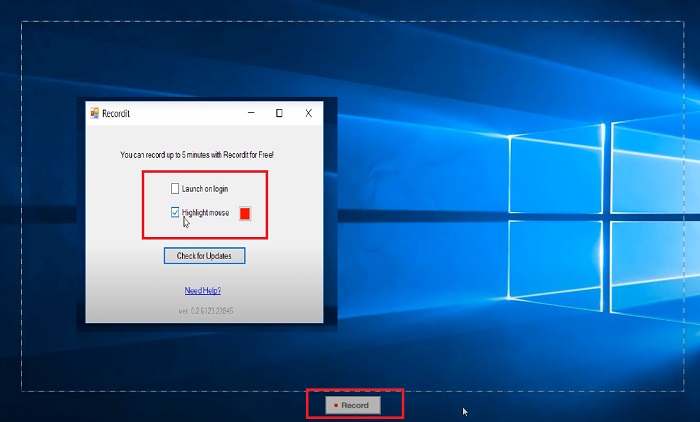
Recordit เป็นซอฟต์แวร์ตัวอย่างอีกตัวหนึ่งที่ให้คุณจับกิจกรรมบนหน้าจอของคุณ เครื่องมือนี้เป็นเครื่องมือบันทึกแบบ GIF และเข้ากันได้กับอุปกรณ์ Windows และ Mac อย่างไรก็ตาม โปรแกรมทดลองใช้ฟรีสามารถบันทึกได้สูงสุดห้านาทีเท่านั้น และคุณจะต้องอัปเกรดเป็นเวอร์ชันพรีเมียมของซอฟต์แวร์เพื่อให้เกินขีดจำกัดนี้ ตอนนี้เรามาเรียนรู้วิธีการจับภาพหน้าจอ GIF ด้วยโปรแกรมกัน
ขั้นตอนที่ 1 หลังจากติดตั้ง Recordit บนอุปกรณ์ของคุณแล้ว คุณจะเห็นไอคอนของโปรแกรมบน System Tray.
ขั้นตอนที่ 2 จากนั้น รอให้เครื่องมือปรากฏบนหน้าจอของคุณ ลากเพื่อกำหนดบริเวณหน้าจอที่ต้องการบันทึก และเมื่อกำหนดเสร็จแล้ว ให้คลิก Start เพื่อเริ่มบันทึก.
ขั้นตอนที่ 3 เมื่อบันทึกเสร็จสิ้น ให้กดปุ่ม Stop จากนั้นคลิก GIF เพื่อค้นหาไฟล์ผลลัพธ์ที่บันทึกเป็นนามสกุล GIF ในการตั้งค่า.
คุณสมบัติ:
◆ Recordit ให้บันทึกประวัติของการบันทึกหน้าจอล่าสุดและที่ผ่านมาของคุณ
◆ เครื่องมือนี้ช่วยให้ผู้ใช้ปรับแต่งกิจกรรมการบันทึกหน้าจอในภูมิภาคต่างๆ
3. ScreenToGIF
screengrabber อีกอย่างที่คุณไม่ควรละเลยคือเครื่องมือ ScreentoGIF ตามชื่อที่แนะนำ ซอฟต์แวร์นี้ช่วยให้ผู้ใช้สร้าง GIF ได้โดยตรงจากการบันทึกหน้าจอ นอกจากนี้ยังถือเป็นเครื่องมือโอเพ่นซอร์ส ซึ่งหมายความว่าคุณไม่จำเป็นต้องเสียเงินใดๆ เพื่อซื้อมัน ScreenToGIF สามารถจับภาพหน้าจอและส่งออกผลลัพธ์ของคุณเป็น PNG, PSD และวิดีโอ แน่นอน หากคุณต้องการแชร์ไฟล์ GIF ของคุณทางออนไลน์ ScreenToGIF ก็สามารถอัปโหลดไฟล์เหล่านั้นบน Imgur และ Gfycat ได้อย่างง่ายดาย
ขั้นตอนที่ 1 เปิดโปรแกรม ScreenToGIF บนอุปกรณ์ของคุณเพื่อใช้บันทึก GIF บน Mac หรือ Windows.
ขั้นตอนที่ 2 หากต้องการเริ่มจับภาพหน้าจอ ให้ไปที่ Toolbox ของโปรแกรม แล้วเลือก Recorder จากนั้นย้ายไอคอนรูปเป้าเล็งไปยังบริเวณที่ต้องการจับภาพ.
ขั้นตอนที่ 3 จากนั้นกดปุ่ม F8 บนแป้นพิมพ์เพื่อหยุดการบันทึก.
คุณสมบัติ:
◆ ช่วยให้เว็บแคมซ้อนทับเพื่อบันทึกตัวคุณเองและหน้าจอของคุณพร้อมกัน
◆ เมื่อใช้ Sketchboard คุณสามารถบันทึกภาพวาดของคุณแบบเรียลไทม์
อ่านเพิ่มเติม:
คู่มือทีละขั้นตอนสำหรับการแปลง MP4 เป็น GIF บนเดสก์ท็อปหรือออนไลน์
5 วิธีที่ดีที่สุดในการเปลี่ยนรูปภาพให้เป็น GIF เคลื่อนไหว [อัปเดต 2023]
ส่วนที่ 3: คำถามที่พบบ่อยเกี่ยวกับการบันทึกหน้าจอเป็น GIF
Mac มีเครื่องมือในตัวสำหรับเปลี่ยนการบันทึกหน้าจอเป็น GIF หรือไม่
ในแง่ของเครื่องบันทึกหน้าจอในตัว อุปกรณ์ Mac มีข้อเสนอหนึ่งในแอปพลิเคชัน QuickTime อย่างไรก็ตาม ผลลัพธ์ที่บันทึกไว้จะถูกตั้งค่าเป็น MOV ตามค่าเริ่มต้น และคุณอาจต้องใช้ซอฟต์แวร์บุคคลที่สามเพื่อแปลงเป็น GIF
มีเครื่องมือใดบ้างในการบันทึก GIF บน iPhone และ Android
แน่นอน ใช่แล้ว! อุปกรณ์เคลื่อนที่ iPhone และ Android มาพร้อมกับเครื่องบันทึกหน้าจอแบบเนทีฟ นอกจากนี้ยังสามารถบันทึกเสียงของระบบและเสียงของคุณผ่านไมโครโฟนได้อีกด้วย
ScreentoGIF ปลอดภัยหรือไม่?
แน่นอนว่า ScreenToGIF เป็นซอฟต์แวร์ฟรีบนอุปกรณ์ Windows และไม่มีซอฟต์แวร์ที่เป็นอันตราย
คุณสามารถตั้งค่า GIF สำหรับหน้าจอหลักบน Mac ได้หรือไม่?
การตั้งค่าไฟล์ GIF ให้เป็นหน้าจอหลักบน Mac ของคุณสามารถทำได้โดยไม่ต้องใช้แอปอื่นเพิ่มเติม เพียงเปิด Settings > System Preferences > Desktop and Screen Saver แล้วเลือก GIF ที่มีอยู่.
หน้าจอล็อคของ Windows สามารถเป็น GIF ได้หรือไม่?
วอลเปเปอร์ Windows ส่วนใหญ่จะเป็นแบบคงที่ ไม่เหมือนอุปกรณ์ Mac คุณอาจต้องใช้แอปพลิเคชันบุคคลที่สาม เช่น Lively Wallpaper เพื่อเปิดวอลเปเปอร์ GIF บนอุปกรณ์ Windows ของคุณ
สรุป
ไม่ว่าคุณต้องการจะบันทึกหน้าจอเป็น GIF หรือบันทึกแบบภาพนิ่ง พร้อมเพิ่มคำอธิบายและภาพจากเว็บแคม ภารกิจสกรีนแคสต์ของคุณก็สามารถทำได้อย่างสมบูรณ์แบบด้วยเครื่องมือที่กล่าวมาข้างต้น โซลูชันออนไลน์เหมาะอย่างยิ่งสำหรับการบันทึกแบบใช้งานทันที แต่หากคุณต้องการหลีกเลี่ยงการขัดจังหวะหรืออาการหน่วงจากการเชื่อมต่ออินเทอร์เน็ต ซอฟต์แวร์แบบออฟไลน์จะเป็นตัวเลือกที่แนะนำมากกว่า.
-
 Trim GIF: เครื่องมือออนไลน์ เดสก์ท็อป และมือถือที่ดีที่สุดในการตัด GIF
 คุณต้องการบันทึกส่วนหนึ่งของ GIF เพื่อถ่ายทอดอารมณ์และปฏิกิริยาของคุณอย่างแม่นยำหรือไม่? ที่นี่ เรามาค้นพบและเพิ่มประสิทธิภาพเครื่องมือต่างๆ เพื่อตัดแต่ง GIF แบบเคลื่อนไหวกัน
-
 แอพ GIF ที่น่าทึ่ง 6 อันดับแรกสำหรับ iPhone ในปี 2023 (รีวิว)
 โพสต์นี้จะแนะนำคุณเกี่ยวกับแอปผู้สร้าง GIF ที่ดีที่สุดสำหรับ iPhone และคอมพิวเตอร์ ลองดูและเรียนรู้สิ่งที่พวกเขานำเสนอ
-
 โปรแกรม 3D GIF Maker ยอดนิยมที่คุณไม่ควรพลาด
 การค้นหาและประเมินแอปพลิเคชัน 3D GIF Maker ทุกตัวที่คุณเห็นอาจใช้เวลานาน โชคดีที่เราได้รวบรวมรายการที่คุณสามารถอ่านได้
