


 Video Converter Ultimate
 บันทึกหน้าจอ
 ซ่อมวิดีโอ
 ดาวน์โหลดอย่างปลอดภัย
วิธีเปลี่ยนคอนทราสต์ของวิดีโอ - คู่มือที่ใช้งานง่าย
คุณเคยสนใจที่จะปรับปรุงความดึงดูดสายตาของวิดีโอโดยการปรับคอนทราสต์หรือไม่? ถ้าใช่ แสดงว่าคุณมาถูกที่แล้ว คอนทราสต์ของวิดีโอหมายถึงความแตกต่างของความสว่างระหว่างส่วนที่มืดที่สุดและส่วนที่สว่างที่สุดของภาพวิดีโอ ตัวอย่างเช่น ฉากพระอาทิตย์ตกแสดงให้เห็นความแตกต่างกับเฉดสีที่สดใสของท้องฟ้าตัดกับเงาของต้นไม้ การปรับคอนทราสต์ของวิดีโอสามารถเพิ่มหรือลดความแตกต่างเหล่านี้ได้ ซึ่งส่งผลต่อรูปลักษณ์โดยรวม การเพิ่มคอนทราสต์สามารถทำให้รายละเอียดดูโดดเด่น ซึ่งเหมาะอย่างยิ่งสำหรับการนำเสนอคุณลักษณะของผลิตภัณฑ์ในวิดีโอโปรโมต
ในทางกลับกัน การลดคอนทราสต์อาจมีประโยชน์เมื่อคุณต้องการเอฟเฟกต์ที่สงบ ดูเป็นศิลปะ เหมาะอย่างยิ่งสำหรับการเล่าเรื่องในภาพยนตร์ ในบทความนี้ เราจะพาคุณไปรู้จักวิธีง่าย ๆ แต่ได้ผลในการปรับคอนทราสต์ในงานตัดต่อวิดีโอ เพื่อช่วยยกระดับคุณภาพและอิมแพกต์ของวิดีโอของคุณให้ดียิ่งขึ้น.

ส่วนที่ 1 คอนทราสต์หมายถึงอะไรในวิดีโอ
ก่อนที่จะเรียนรู้วิธีต่างๆ ในการปรับเปลี่ยนคอนทราสต์ของวิดีโอ ให้เราเจาะลึกลงไปเพื่อทำความเข้าใจว่าคอนทราสต์ในวิดีโอคืออะไร คอนทราสต์ในวิดีโอหมายถึงความแตกต่างของความสว่าง สี และความคมชัดระหว่างองค์ประกอบต่างๆ ภายในเฟรม ความแตกต่างที่ชัดเจนระหว่างสีและระดับความสว่างทำให้เกิดคอนทราสต์สูง ส่งผลให้เนื้อหามีสีสันสดใสและมีชีวิตชีวา ในทางกลับกัน ค่าคอนทราสต์ต่ำจะให้ลุคที่ละเอียดอ่อนและนุ่มนวลยิ่งขึ้น การใช้คอนทราสต์ในเนื้อหาวิดีโอมีประโยชน์อย่างมาก เนื่องจากช่วยเพิ่มการมองเห็น ช่วยเล่าเรื่อง และชี้นำจุดสนใจของผู้ชม การใช้คอนทราสต์อย่างเหมาะสม ผู้ชมของคุณยังคงมีส่วนร่วมและสามารถเข้าใจข้อความที่ต้องการได้อย่างรวดเร็ว เพื่อให้บรรลุเป้าหมายนี้ เรามาดูวิธีต่างๆ ที่จะช่วยให้คุณได้คอนทราสต์ที่ต้องการสำหรับวิดีโอของคุณ
ส่วนที่ 2 สามวิธีในการเปลี่ยนความคมชัดของวิดีโอ
ในส่วนนี้ เราจะให้เครื่องมือสามอย่างที่คุณสามารถใช้เพื่อเรียนรู้วิธีเพิ่มคอนทราสต์ในวิดีโอหรือลดได้ขึ้นอยู่กับความต้องการของคุณ ใช้เวลาพิจารณาเครื่องมือแต่ละอย่างอย่างละเอียดเพื่อดูว่าอะไรเหมาะกับคุณที่สุด
1. Video Converter Ultimate
Video Converter Ultimate เป็นชุดเครื่องมือวิดีโอแบบครบวงจรที่ออกแบบมาเพื่อแปลงวิดีโอและเสียงของคุณได้อย่างง่ายดาย สามารถแปลง ปรับปรุง บีบอัด และตัดต่อวิดีโอและไฟล์เสียงได้อย่างรวดเร็ว ทำให้งานตัดต่อวิดีโอง่ายขึ้นด้วยเครื่องมือที่ใช้งานง่าย เหมาะทั้งสำหรับผู้เริ่มต้นและมืออาชีพ ไม่ว่าคุณจะมีวิดีโอระดับ 8K, 4K หรือ HD แอปเดสก์ท็อปประสิทธิภาพสูงนี้ก็สามารถตอบโจทย์คุณได้อย่างลงตัว ด้วยเทคโนโลยีเร่งความเร็วฮาร์ดแวร์ขั้นสูง ทำให้สามารถแปลงวิดีโอได้เกือบ 1000 รูปแบบด้วยความเร็วสูงถึง 30 เท่า.
คุณไม่ต้องกังวลกับการสูญเสียคุณภาพระหว่างการแปลง เนื่องจากสามารถรักษาคุณภาพฟุตเทจและเสียงต้นฉบับของคุณได้ ฟีเจอร์ที่โดดเด่นอย่างหนึ่งคือความสามารถในการปรับคอนทราสต์ของวิดีโอ ท่ามกลางตัวเลือกการแก้ไขอื่น ๆ เพื่อให้คุณปรับแต่งวิดีโอของคุณได้อย่างสมบูรณ์แบบ ปลดล็อกศักยภาพในการปรับปรุงวิดีโอของคุณอย่างง่ายดายด้วยโปรแกรมแก้ไขคอนทราสต์วิดีโอนี้โดยทำตามขั้นตอนด้านล่าง
ขั้นตอนที่ 1: ดาวน์โหลดและติดตั้ง Video Converter Ultimate
เริ่มต้นให้แน่ใจก่อนว่าคุณได้ดาวน์โหลดเครื่องมือตัวนี้ลงคอมพิวเตอร์แล้ว คุณสามารถดาวน์โหลด Video Converter Ultimate ได้โดยกดที่ปุ่ม ดาวน์โหลดฟรี ด้านล่าง ให้คลิกเลือกเวอร์ชันตามระบบปฏิบัติการคอมพิวเตอร์ของคุณ เมื่อติดตั้งไฟล์ดาวน์โหลดเสร็จแล้ว ให้ทำตามคำแนะนำบนหน้าจอเพื่อติดตั้งโปรแกรม.
ดาวน์โหลดฟรีสำหรับ Windows 7 ขึ้นไปดาวน์โหลดอย่างปลอดภัย
ดาวน์โหลดฟรีสำหรับ MacOS 10.7 หรือใหม่กว่าดาวน์โหลดอย่างปลอดภัย
ขั้นตอนที่ 2: เปิดตัวโปรแกรมแก้ไขคอนทราสต์วิดีโอ
เมื่อเปิดแอปพลิเคชันแล้ว คุณจะถูกนำไปยังหน้าหลัก ในเมนูส่วนบน ให้ไปที่ กล่องเครื่องมือ (Toolbox) ภายในกล่องเครื่องมือ คุณจะพบรายการฟีเจอร์และเครื่องมือต่าง ๆ เลื่อนดูหรือค้นหาฟีเจอร์ Color Correction.
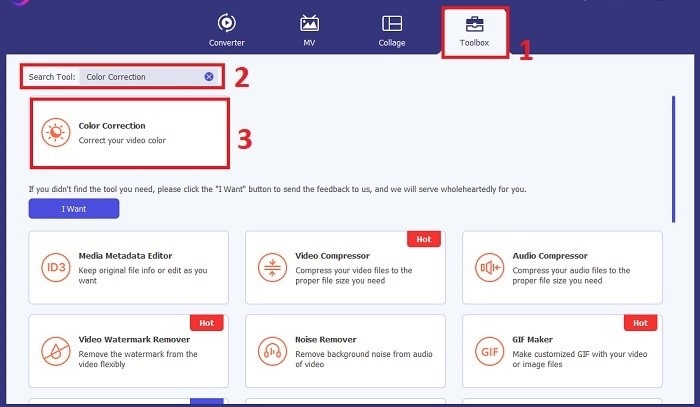
ขั้นตอนที่ 3: นำเข้าวิดีโอที่ต้องการปรับคอนทราสต์
นำเข้าวิดีโอที่คุณต้องการปรับคอนทราสต์สีโดยคลิกปุ่ม เครื่องหมายบวก (Plus) จะมีหน้าต่างหรือไดอะล็อกใหม่ปรากฏขึ้น เพื่อให้คุณค้นหาและเลือกไฟล์วิดีโอที่ต้องการทำงานด้วย เมื่อหาไฟล์เจอแล้ว ให้คลิก Open เพื่อนำเข้าวิดีโอเข้าสู่เครื่องมือ.
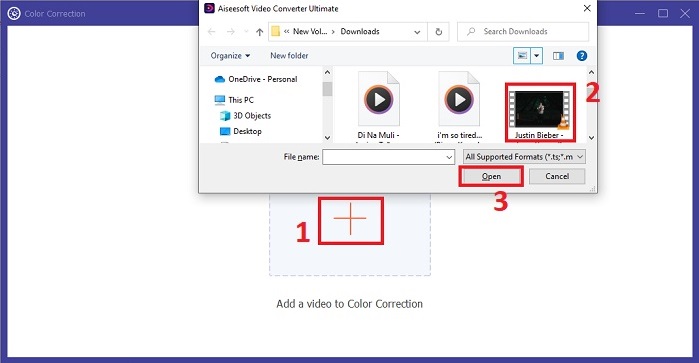
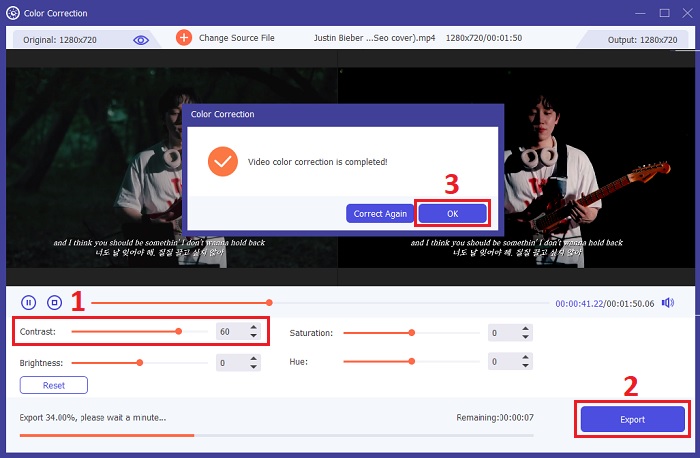
ขั้นตอนที่ 4: เพิ่มคอนทราสต์ให้กับฟุตเทจวิดีโอ
ตอนนี้คุณสามารถปรับคอนทราสต์ของวิดีโอได้แล้วด้วยการตั้งค่าค่า Contrast ตามที่ต้องการ ระหว่างที่ปรับวิดีโอ เครื่องมือจะให้คุณพรีวิวการเปลี่ยนแปลงแบบเรียลไทม์ในหน้าต่างด้านขวา เมื่อพอใจกับการปรับแล้ว ให้คลิก Export จากนั้นรอให้เครื่องมือประมวลผลวิดีโอและบันทึกไฟล์ผลลัพธ์ไปยังโฟลเดอร์ปลายทางที่คุณเลือก.
2. คลิดิโอ
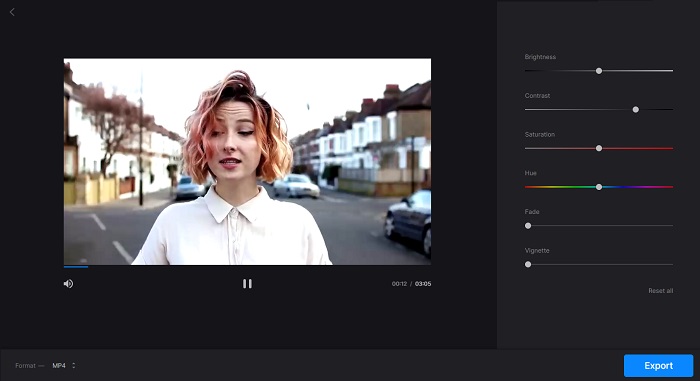
เครื่องมืออื่นที่คุณสามารถใช้ได้คือ Clideo เป็นเครื่องมือตัดต่อวิดีโอออนไลน์ที่สมบูรณ์แบบสำหรับการเพิ่มความสว่างและปรับปรุงวิดีโอของคุณได้อย่างง่ายดาย เครื่องมือออนไลน์นี้มีอินเทอร์เฟซที่เรียบง่ายซึ่งออกแบบมาเพื่อการใช้งานที่เป็นธรรมชาติ แม้ว่าคุณจะเพิ่งเริ่มตัดต่อวิดีโอก็ตาม Clideo ช่วยให้คุณปรับความสว่าง คอนทราสต์ ความอิ่มตัว และอื่นๆ อีกมากมายโดยใช้แถบเลื่อนที่สะดวกสบาย ช่วยให้ปรับแต่งได้อย่างแม่นยำภายในไม่กี่วินาที นอกจากนี้ เครื่องมือนี้ยังมีตัวเลือกบทความสั้นและเฟดเพื่อเพิ่มความรู้สึกเชิงศิลปะให้กับวิดีโอของคุณ Clideo รับประกันความปลอดภัยระดับพรีเมียม โดยจะลบไฟล์ของคุณอย่างถาวรหลังจากผ่านไป 24 ชั่วโมง และรองรับรูปแบบวิดีโอยอดนิยมต่างๆ ช่วยให้คุณสัมผัสประสบการณ์ความยืดหยุ่นของโปรแกรมแก้ไขออนไลน์ โดยไม่จำเป็นต้องดาวน์โหลดและติดตั้ง นอกจากนี้ เครื่องมือนี้ยังช่วยให้คุณเพิ่มความสว่างให้กับวิดีโอสีเข้มของคุณ ปรับแต่งสี ใส่เอฟเฟกต์ และแปลงเป็นรูปแบบที่คุณต้องการก่อนที่จะดาวน์โหลด
ขั้นตอนที่ 1. ก่อนอื่น คลิกปุ่ม Choose File หรือใช้วิธีลากและวางไฟล์วิดีโอของคุณลงบนหน้าเว็บโดยตรง ขั้นตอนนี้จะเริ่มกระบวนการอัปโหลดวิดีโอขึ้นสู่แพลตฟอร์ม Clideo.
ขั้นตอนที่ 2. เมื่ออัปโหลดวิดีโอเรียบร้อยแล้ว คุณสามารถใช้แถบเลื่อนเพื่อปรับค่าคอนทราสต์ (Contrast) ของวิดีโอได้ เครื่องมือนี้จะให้คุณพรีวิวการเปลี่ยนแปลงแบบเรียลไทม์ขณะปรับ.
ขั้นตอนที่ 3. หลังจากที่คุณปรับวิดีโอจนเป็นที่พอใจแล้ว ให้คลิก Export แค่นั้นเอง! วิดีโอที่ปรับแล้วจะถูกประมวลผล และคุณจะสามารถดาวน์โหลดวิดีโอเวอร์ชันที่แก้ไขแล้วลงสู่อุปกรณ์ของคุณได้.
3. อินช็อต
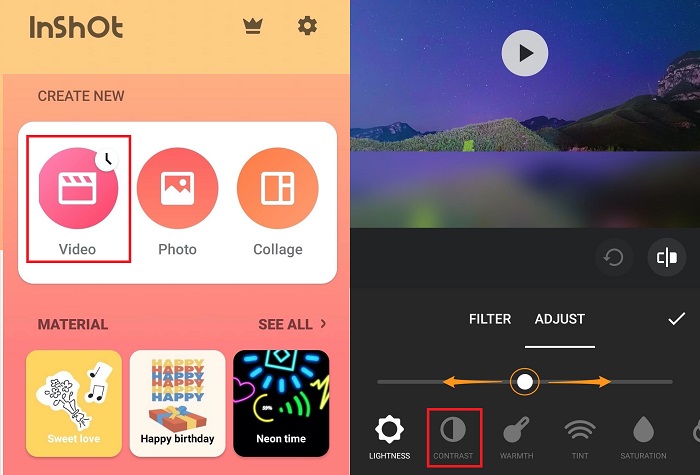
คุณเป็นผู้ใช้โทรศัพท์มือถือหรือไม่? ไม่ต้องกังวลอีกต่อไป เพราะ InShot คอยช่วยเหลือคุณ InShot เป็นเครื่องมือเพิ่มความคมชัดของวิดีโอที่คุณนำไปใช้ได้จริง มันให้อินเทอร์เฟซที่ใช้งานง่ายพร้อมคุณสมบัติที่ทำให้การตัดต่อวิดีโอเป็นเรื่องง่าย ตัดวิดีโอของคุณได้อย่างง่ายดาย ลบส่วนที่ไม่ต้องการหรือตัดส่วนตรงกลางออก InShot เป็นแอปที่เยี่ยมมากที่ให้คุณรวมและแก้ไขคลิปวิดีโอได้อย่างไร้ที่ติ ในขณะที่ปรับความเร็วให้ตรงกับความต้องการของคุณ คุณสามารถปรับปรุงลักษณะที่ปรากฏของวิดีโอของคุณได้โดยใช้ฟิลเตอร์และเอฟเฟกต์ต่างๆ รวมถึงฟิลเตอร์ภาพยนตร์ที่สว่างและมีบรรยากาศ
คุณยังสามารถสำรวจเพลง vlog ยอดนิยม หรือใช้เพลงของคุณเองเพื่อเพิ่มมิติพิเศษให้กับวิดีโอของคุณ นอกจากนี้ คุณยังสามารถปลดปล่อยความคิดสร้างสรรค์ของคุณได้ด้วยการเพิ่มสติกเกอร์เคลื่อนไหว ข้อความ และเอฟเฟกต์เสียง เพื่อทำให้ผลงานชิ้นเอกของคุณน่าประทับใจยิ่งขึ้น InShot ช่วยให้คุณปรับแต่งวิดีโอของคุณโดยการปรับคอนทราสต์ เพื่อให้มั่นใจว่าภาพของคุณโดดเด่นและดึงดูดผู้ชมของคุณ
ขั้นตอนที่ 1. เริ่มต้นด้วยการเปิดแอป InShot แล้วแตะที่ Video เพื่อนำเข้าวิดีโอที่คุณต้องการตัดต่อ เมื่อนำเข้าวิดีโอแล้ว ให้แตะแท็บ Filter ที่ด้านล่าง.
ขั้นตอนที่ 2. จากนั้น แตะปุ่ม Adjust เพื่อเข้าสู่ตัวเลือกการแก้ไข สำหรับปรับความสว่าง คอนทราสต์ และการตั้งค่าอื่น ๆ ของวิดีโอ.
ขั้นตอนที่ 3. ในส่วน Adjust ให้มองหาแท็บ Lightness ที่นี่คุณสามารถปรับคอนทราสต์ของวิดีโอได้ง่าย ๆ โดยเลื่อนแถบไปทางซ้ายหรือขวา เมื่อเสร็จแล้วให้คลิก Save.
อ่านเพิ่มเติม:
5 โปรแกรมปรับสีวิดีโอที่คุณต้องมีในปี 2025
Add Saturation to Video: Incredible Tips and Tricks Here
ส่วนที่ 3 คำถามที่พบบ่อยเกี่ยวกับการเพิ่มความคมชัดของวิดีโอ
คุณสามารถปรับความคมชัดของหน้าจอได้หรือไม่?
ได้ สามารถปรับคอนทราสต์หน้าจอบนอุปกรณ์ส่วนใหญ่ได้ หากคุณใช้คอมพิวเตอร์ ให้เข้าไปที่การตั้งค่าจอแสดงผล (display settings) แล้วมองหาตัวเลือกที่ชื่อว่า contrast หรือ brightness/contrast ส่วนบนโทรศัพท์หรือแท็บเล็ต มักจะพบตัวเลือกเหล่านี้ได้ในเมนูการตั้งค่าหน้าจอ ภายใต้หัวข้อ Brightness & Display หรือชื่อคล้ายกัน คุณสามารถปรับระดับคอนทราสต์ได้โดยเลื่อนแถบให้ไปยังระดับที่คุณต้องการ.
ฉันจะเปลี่ยนคอนทราสต์ของวิดีโอบน iPhone ได้อย่างไร
ขั้นแรก ให้เปิดแอป Photos เพื่อปรับคอนทราสต์ของวิดีโอบน iPhone จากนั้นเลือกวิดีโอที่คุณต้องการแก้ไขแล้วแตะปุ่ม Edit ต่อไป เลือกไอคอน adjustments ซึ่งแสดงเป็นรูปวงกลมสามวงเชื่อมต่อกัน คุณจะเห็นแถบ Contrast ที่สามารถเลื่อนไปทางซ้ายหรือขวาเพื่อเพิ่มหรือลดคอนทราสต์ได้ตามต้องการ สุดท้าย เมื่อพอใจกับการเปลี่ยนแปลงแล้ว ให้แตะ Done เพื่อบันทึก.
ฉันจะเปลี่ยนการตั้งค่าคอนทราสต์ได้อย่างไร
การเปลี่ยนค่าคอนทราสต์จะแตกต่างกันไปตามอุปกรณ์ที่คุณใช้ บนคอมพิวเตอร์ ให้เข้าไปที่การตั้งค่าหน้าจอผ่าน Control Panel หรือ System Preferences แล้วมองหาตัวเลือกปรับคอนทราสต์ ส่วนบนอุปกรณ์พกพา ให้ไปที่การตั้งค่าหน้าจอแล้วมองหาหัวข้อ Brightness & Display หรือที่คล้ายกัน ซึ่งคุณจะพบแถบปรับคอนทราสต์ ปรับให้เหมาะกับสายตาของคุณเพื่อประสบการณ์การรับชมที่สบาย.
สรุป
การทำความเข้าใจและการปรับคอนทราสต์ของวิดีโอสามารถช่วยยกระดับความสวยงามของคอนเทนต์ของคุณได้อย่างมาก ไม่ว่าคุณจะใช้ Video Converter Ultimate สำหรับการตัดต่อแบบครบเครื่องบนเดสก์ท็อป ใช้ Clideo เพื่อปรับแบบออนไลน์อย่างสะดวก หรือใช้ InShot ในการตัดต่อบนมือถือ คุณก็มีเครื่องมือที่เข้าถึงได้เพื่อเปลี่ยนวิดีโอของคุณ เลือกวิธีที่ตรงกับความต้องการและสไตล์ของคุณ แล้วปรับคอนทราสต์ได้อย่างง่ายดายเพื่อให้วิดีโอของคุณโดดเด่น ไม่ว่าคุณจะใช้เครื่องมือใด ยกระดับคุณภาพวิดีโอและดึงดูดผู้ชมของคุณด้วยการเรียนรู้ศิลปะการใช้การเพิ่มคอนทราสต์วิดีโอ.
-
 จะเปลี่ยนสีของวิดีโอได้อย่างไร? สำรวจความเป็นไปได้ที่สร้างสรรค์
 ในโพสต์ที่เป็นลายลักษณ์อักษรนี้ เรารวบรวมโซลูชันที่เป็นไปได้ที่สามารถช่วยและแนะนำผู้ที่ชื่นชอบวิดีโอในการเปลี่ยนสีในโครงการวิดีโอ
-
 วิธีแก้ไขวิดีโอที่สว่างเกินไป 5 วิธียอดนิยมที่นี่
 คุณสามารถตรวจสอบบทความนี้เพื่อเรียนรู้วิธีทำให้วิดีโอมืดลงบนอุปกรณ์ของคุณ อ่านวิธีแก้ปัญหาที่กล่าวถึงที่นี่และลองแต่ละวิธี
-
 วิธีปรับความสว่างของวิดีโอ: 4 เทคนิคที่ง่ายและรวดเร็ว
 จะปรับความสว่างของวิดีโออย่างง่ายดายได้อย่างไร? ลองอ่านโพสต์นี้ เนื่องจากเราได้กล่าวถึงโปรแกรมแก้ไขความสว่างวิดีโอที่ดีที่สุดสำหรับเดสก์ท็อป iPhone และออนไลน์แล้ว
