


 Video Converter Ultimate
 บันทึกหน้าจอ
 ซ่อมวิดีโอ
6 เครื่องมือฟรีในการลบพื้นหลังออกจากภาพ: รวดเร็วและแม่นยำ
การลบพื้นหลังออกจากรูปภาพได้อย่างง่ายดายได้กลายเป็นตัวเปลี่ยนเกมในอุตสาหกรรมการตกแต่งภาพถ่าย นอกจากนี้ การมองหาเครื่องมือที่เหมาะสมและตอบโจทย์ความต้องการของคุณก็ควรเป็นสิ่งที่ผู้ใช้เช่นคุณให้ความสำคัญ ลองนึกถึงเครื่องมือสุดล้ำที่ช่วยให้ผู้ใช้สามารถลบพื้นหลังรูปภาพได้อย่างง่ายดาย เพื่อนำไปแปลงต่อเป็นผลงานภาพที่โดดเด่นสะดุดตา ในบทความนี้ เราจะเจาะลึกศิลปะของการลบพื้นหลัง โดยสำรวจ 6 เครื่องมือลบพื้นหลังที่ดีที่สุด ตั้งแต่เครื่องมือยอดนิยมไปจนถึงตัวที่ถูกมองข้าม นอกจากนี้ เรายังจะพาคุณทำความรู้จักกับคุณสมบัติและขั้นตอนแบบย่อเพื่อเรียนรู้การใช้งาน และเลือกเครื่องมือที่เหมาะกับคุณอย่างมีประสิทธิภาพ รออะไรอยู่ล่ะ อ่านบทความนี้ได้เลยวันนี้ แล้วค้นพบพลังการเปลี่ยนแปลงของการลบพื้นหลังจากรูปภาพ เพื่อให้กระบวนการทำงานลื่นไหลและประหยัดเวลา.

ส่วนที่ 1. วิธีลบพื้นหลังออกจากรูปภาพ
น้ำยาล้างพื้นหลัง FVC ฟรี
FVC Free Background Remover เป็นเครื่องมือบนเว็บที่ออกแบบมาสำหรับผู้ใช้ที่มองหาวิธีลบพื้นหลังที่คุ้มค่า เครื่องมือนี้ใช้งานง่าย เหมาะสำหรับผู้ที่มีงบจำกัด แต่ยังต้องการฟีเจอร์ที่เทียบเท่าหรือเหนือกว่าเครื่องมือเสียเงินหลายตัว FVC ขึ้นชื่อเรื่องอินเทอร์เฟซที่ตรงไปตรงมา ใช้งานสบายสำหรับทุกคน เครื่องมือนี้ให้ความสำคัญกับการเข้าถึง จึงสามารถใช้งานได้บนอุปกรณ์และแพลตฟอร์มหลากหลาย นอกจากนี้ FVC Free Background Remover ยังให้ความสำคัญกับความปลอดภัยอย่างมาก มอบสภาพแวดล้อมที่เชื่อถือได้และปลอดภัยสำหรับผู้ใช้ในการปรับแต่งรูปภาพอย่างมั่นใจ ด้านล่างนี้คือคุณสมบัติและขั้นตอนการใช้งาน FVC Free Background Remover.
◆ ตัวลบพื้นหลังอัตโนมัติด้วย AI ใช้ AI ในการลบพื้นหลังออกจากรูปภาพ ทำให้เป็นเครื่องมือที่ประมวลผลโดยอัตโนมัติและระบุได้อย่างชาญฉลาดว่าส่วนใดของรูปภาพควรถูกลบออก AI ผ่านการทดสอบอย่างเข้มข้นเพื่อให้ได้ผลลัพธ์ที่แม่นยำและสมบูรณ์แบบที่สุด.
◆ ลบและเปลี่ยนพื้นหลัง นอกจากจะลบพื้นหลังจากรูปภาพแล้ว ยังสามารถเปลี่ยนพื้นหลังให้กลายเป็นสีพื้นได้ ทำให้เป็นเครื่องมือที่มีความหลากหลายในการใช้งาน.
◆ รองรับการแก้ไข เครื่องมือที่ใช้งานง่ายนี้ช่วยให้ผู้ใช้สามารถแก้ไขรูปภาพได้อย่างง่ายดาย เช่น ครอป หมุน หรือกลับด้าน รายละเอียดเล็กๆ น้อยๆ เหล่านี้ช่วยเสริมผลลัพธ์โดยรวมของรูปภาพที่ประมวลผล ทำให้ผู้ใช้สามารถดูตัวอย่างและแก้ไขรูปภาพได้.
◆ ดาวน์โหลดคุณภาพสูง สัมผัสคุณภาพเอาต์พุตระดับสูงเมื่อใช้ฟีเจอร์ลบพื้นหลัง เมื่อพื้นหลังถูกลบออกแล้ว คุณยังสามารถคงคุณภาพดั้งเดิมของรูปภาพไว้ได้เมื่อต้องบันทึกผลลัพธ์ที่แก้ไขแล้ว.
◆ รองรับหลายรูปแบบไฟล์ รองรับไฟล์รูปภาพขาเข้าแบบ JPG, JPEG และ PNG และส่งออกเป็น PNG เพื่อให้ได้คุณภาพแบบไม่สูญเสียข้อมูลเมื่อต้องบันทึกรูปภาพลงในคอมพิวเตอร์ของคุณ.
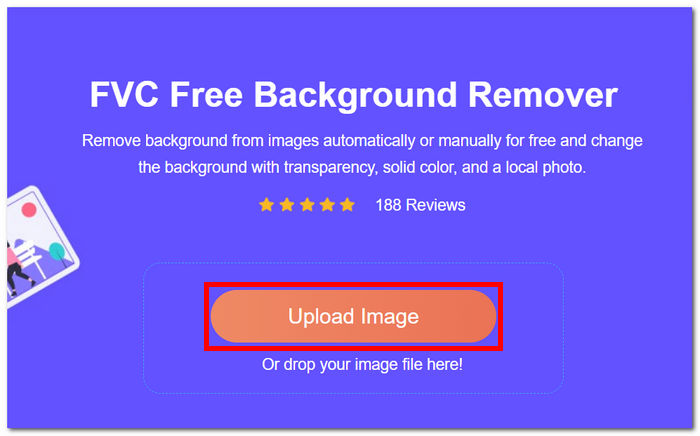
ขั้นตอนที่ 1. เริ่มจากเข้าเว็บไซต์ FVC Free Background Remover แล้วอัปโหลดรูปภาพที่ต้องการลงในช่องที่ระบุว่า Upload Image.
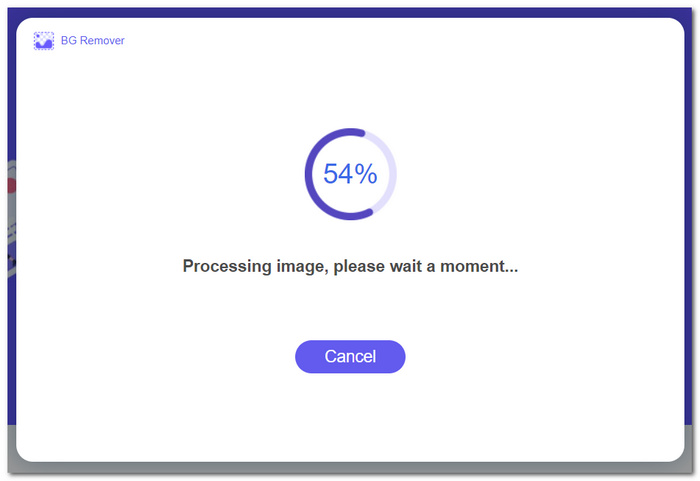
ขั้นตอนที่ 2. ใช้พลังของ AI จากนั้นรอให้เครื่องมือระบุและลบพื้นหลังออกจากรูปภาพที่คุณอัปโหลดโดยอัตโนมัติ.
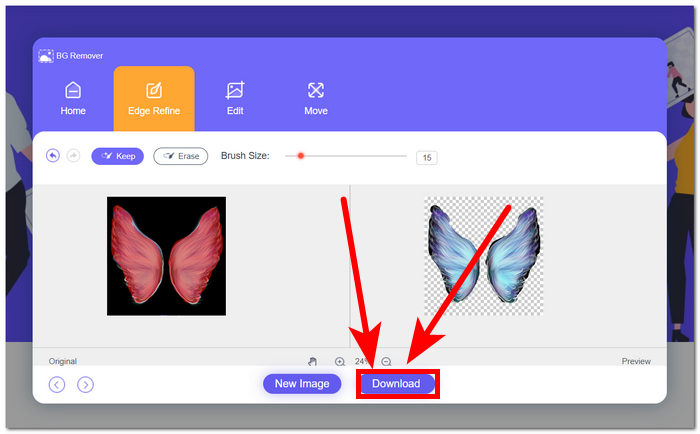
ขั้นตอนที่ 3. เมื่อกระบวนการลบพื้นหลังเสร็จสิ้น ให้บันทึกรูปภาพที่ลบพื้นหลังแล้วโดยคลิกปุ่ม Download.
FVC Free Background Remover โดดเด่นในฐานะเครื่องมือที่ถูกประเมินต่ำเกินไป ซึ่งมักถูกมองข้ามโดยผู้ใช้จำนวนมาก แม้ว่าสถานะจะไม่ค่อยเป็นที่รู้จัก แต่อัญมณีที่ซ่อนอยู่นี้ก็ยังให้บริการที่มีคุณค่าและฟรี ซึ่งมีส่วนช่วยในความพยายามสร้างสรรค์ของผู้ใช้ที่ค้นพบความสามารถของมัน ด้วยความเรียบง่ายและมีประสิทธิภาพ จึงยังคงเป็นพันธมิตรที่ทุ่มเทในกระบวนการแก้ไขภาพ
แคนวา
Canva ที่ซึ่งความคิดสร้างสรรค์ไม่มีขอบเขต! แพลตฟอร์มที่ใช้งานง่ายช่วยให้ผู้ใช้ลบพื้นหลังออกจากรูปภาพได้อย่างง่ายดาย ปลดล็อกโลกแห่งความเป็นไปได้ในการออกแบบ การลบพื้นหลังออกจากรูปภาพใน Canva อาจเป็นเรื่องที่ท้าทายสำหรับผู้ใช้ที่ไม่คุ้นเคยกับอินเทอร์เฟซ นี่เป็นเพราะ Canva เป็นซอฟต์แวร์แก้ไข ซึ่งหมายความว่ามีเครื่องมือมากมายในซอฟต์แวร์ลบพื้นหลังรูปภาพที่อาจล้นผู้ใช้ ดังนั้น เครื่องมือลบพื้นหลังจึงถือเป็นระดับสูงสุดในประเภทซอฟต์แวร์ เนื่องจาก AI รันและขับเคลื่อนเครื่องมือ ด้านล่างนี้คือคุณสมบัติบางส่วนในการลบพื้นหลังและขั้นตอนการใช้ Canva
◆ ตัวลบพื้นหลัง การลบพื้นหลังทำได้ในทันที พร้อมด้วยเครื่องมือเพิ่มเติมอย่างยางลบวิเศษและการแทนที่แบบวิเศษ เพื่อขัดเกลารูปภาพของคุณภายในเครื่องมือได้อย่างมีประสิทธิภาพ.
◆ เทคโนโลยี AI แบบบูรณาการ AI ทรงพลังพอที่จะตรวจจับสิ่งรบกวนในรูปภาพของคุณและลบออกได้ทันที.
◆ ซอฟต์แวร์สำหรับแก้ไขหลายประเภท เป็นเครื่องมือที่คุณสามารถทำได้แทบทุกอย่าง ไม่ว่าจะทำพรีเซนเทชัน แก้ไขรูปภาพและวิดีโอ สร้างเอกสาร หรือสร้างงานลบพื้นหลัง.
ขั้นตอนที่ 1. ดาวน์โหลดและติดตั้ง Canva บนคอมพิวเตอร์ของคุณ หรือคุณสามารถเข้าใช้งานผ่านเวอร์ชันเว็บของซอฟต์แวร์ได้.
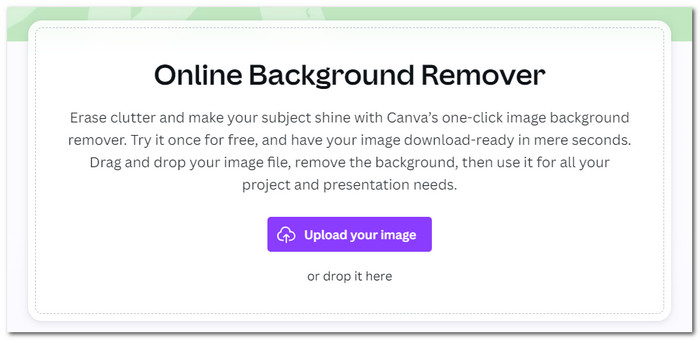
ขั้นตอนที่ 2. บนหน้าอินเทอร์เฟซหลัก ให้อัปโหลดรูปภาพของคุณในช่องที่ปรากฏบนหน้าจอ.
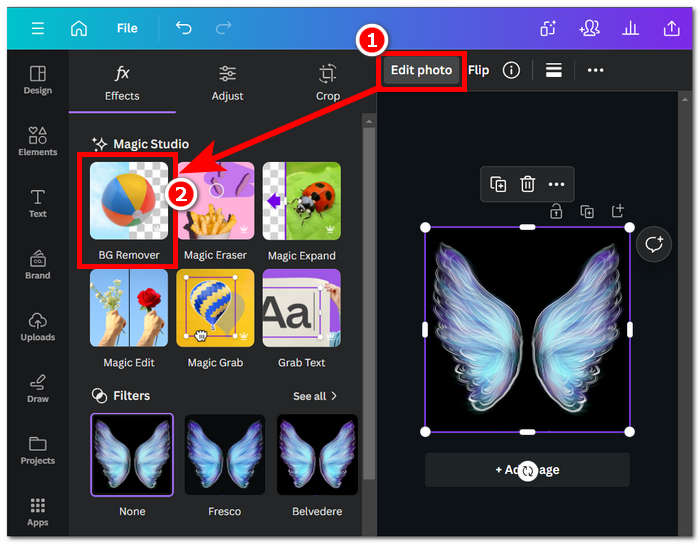
ขั้นตอนที่ 3. เมื่อรูปภาพของคุณโหลดใน Canva แล้ว ให้คลิกที่ BG Remover เพื่อทำการลบพื้นหลังออกจากรูปภาพทันที.
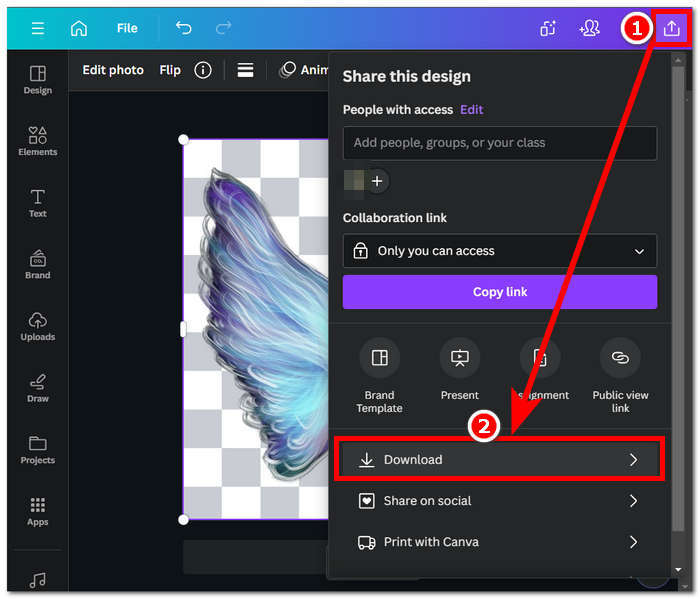
ขั้นตอนที่ 4. เมื่อกระบวนการเสร็จสมบูรณ์ ให้คลิกที่ไอคอนแชร์ที่มุมขวาบนของหน้าจอ จากนั้นคลิก Download เพื่อบันทึกไฟล์ลงในคอมพิวเตอร์ของคุณ.
การสำรวจอินเทอร์เฟซของ Canva อาจต้องใช้เวลาในการลบพื้นหลัง แต่ก็คุ้มค่าที่จะลองสัมผัสกับความสามารถของซอฟต์แวร์ที่น่าประทับใจ อย่างไรก็ตาม ผู้ใช้แบบฟรีอาจไม่เพิ่มศักยภาพของ Canva ในการลบพื้นหลังได้ เนื่องจากซอฟต์แวร์เสนอการสมัครสมาชิกแบบชำระเงินและมีลายน้ำจำกัดในการใช้งานซอฟต์แวร์ฟรี
Adobe Express
Adobe Express ซึ่งเป็นฟีเจอร์ไดนามิกภายในชุด Adobe Creative Cloud กำหนดนิยามใหม่ของการแก้ไขภาพด้วยความสามารถในการลบพื้นหลังอันทรงพลัง ออกแบบมาเพื่อการเข้าถึงที่เป็นมิตรต่อผู้ใช้ เครื่องมือนี้มอบประสบการณ์ที่ราบรื่นสำหรับการลบพื้นหลังออกจากรูปภาพของคุณอย่างง่ายดาย
◆ ตัวลบพื้นหลังระดับมืออาชีพ เครื่องมือนี้ช่วยลบพื้นหลังจากรูปภาพของคุณได้อย่างมืออาชีพ รวดเร็ว และลื่นไหล.
◆ อินเทอร์เฟซที่ตรงไปตรงมา อินเทอร์เฟซที่เรียบง่ายทำให้เครื่องมือนี้ใช้งานได้ง่ายมาก ไม่จำเป็นต้องมีพื้นฐานจากซอฟต์แวร์ Adobe ใดๆ.
◆ การตัดพื้นหลัง (Cutout) เน้นให้ตัวแบบในรูปโดดเด่น ส่งผลให้ได้ภาพตัดพื้นหลังที่คมชัดและแม่นยำ.
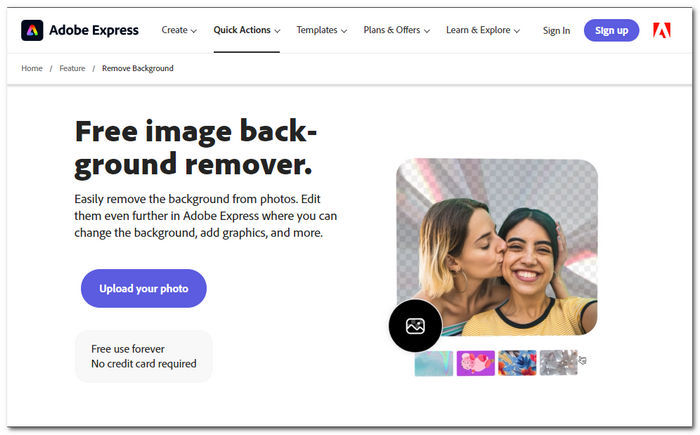
ขั้นตอนที่ 1. เข้าเว็บไซต์ Adobe Express Background Remover ผ่านเบราว์เซอร์ในเครื่องของคุณ แล้วคลิกที่ Upload your photo บนหน้าอินเทอร์เฟซของเว็บไซต์.
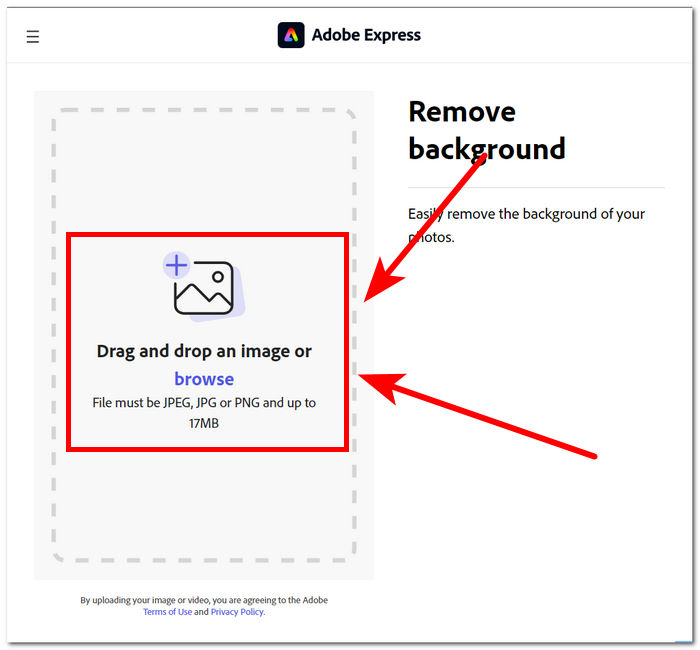
ขั้นตอนที่ 2. หลังจากคลิก Upload your photo แล้ว ให้คลิกที่ช่อง browse image เพื่ออัปโหลดรูปภาพของคุณเข้าเครื่องมือ.
ขั้นตอนที่ 3. ขณะที่รูปภาพกำลังอัปโหลด ระบบจะลบพื้นหลังของรูปภาพคุณโดยอัตโนมัติ.
ขั้นตอนที่ 4. คลิก Download ที่อยู่ถัดจากรูปภาพของคุณเพื่อบันทึกลงในคอมพิวเตอร์.
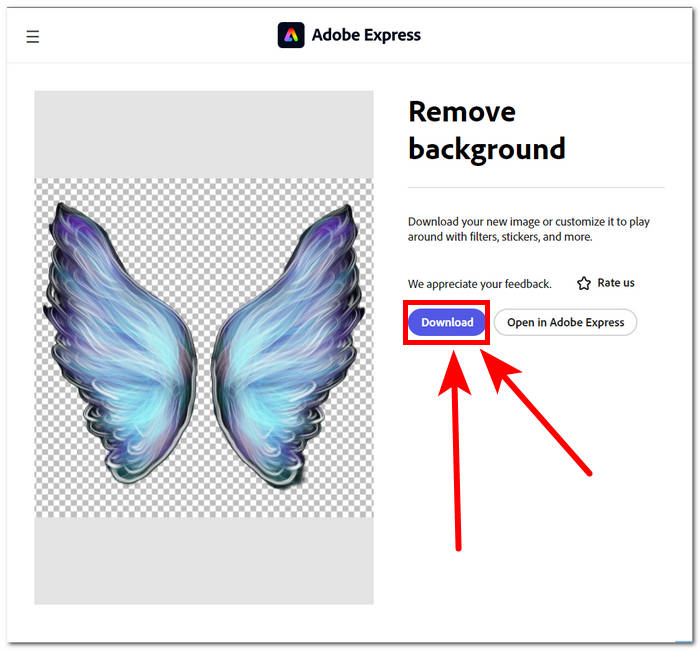
โดยสรุป Adobe Express กลายเป็นเครื่องมือระดับมืออาชีพที่ทรงพลังพอที่จะลบรายละเอียดเล็กๆ น้อยๆ ที่ดีที่สุดในพื้นหลังของภาพของคุณ เครื่องมือนี้อาจมีแนวทางที่ตรงไปตรงมาในอินเทอร์เฟซสำหรับกระบวนการลบพื้นหลัง แต่คุณยังคงต้องสมัครจึงจะสามารถบันทึกรูปภาพของคุณลงเดสก์ท็อปได้
ส่วนที่ 2. วิธีลบพื้นหลังออกจากเดสก์ท็อปรูปภาพ
Adobe Photoshop
Adobe Photoshop ถือเป็นหนึ่งในซอฟต์แวร์ที่มีประสิทธิภาพสูงสุดในด้านการปรับแต่งรูปภาพ รวมถึงงานลบพื้นหลังจากรูปภาพ มอบเครื่องมือและฟีเจอร์ทรงพลังหลากหลาย ช่วยให้ผู้ใช้ทำงานได้แทบทุกอย่างในซอฟต์แวร์เดียว การลบพื้นหลังอย่างไร้ที่ติเริ่มจากการเลือกขอบเขตของตัวแบบและพื้นหลังอย่างแม่นยำ นอกจากนี้ควรทำความคุ้นเคยกับวิธีการตัดภาพ (cutout) ใน Photoshop เพื่อใช้ความสามารถของ Photoshop ในการลบพื้นหลังได้อย่างเต็มประสิทธิภาพ.
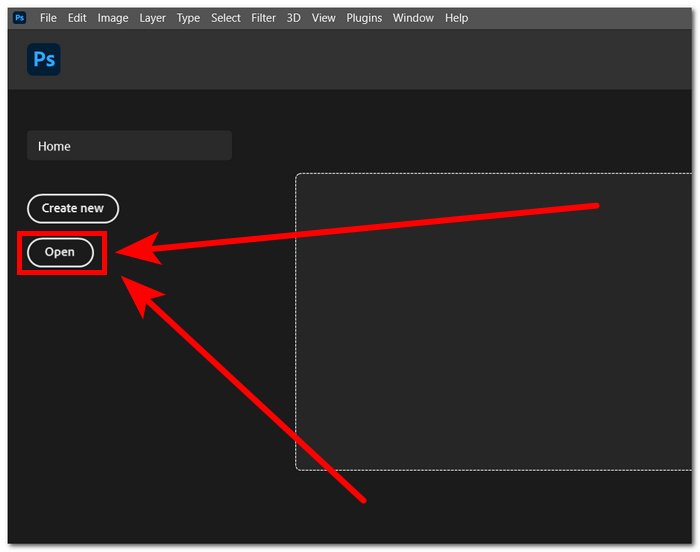
ขั้นตอนที่ 1. เปิด Adobe Photoshop บนคอมพิวเตอร์ของคุณ แล้วอัปโหลดรูปภาพโดยคลิกปุ่ม Open ที่อยู่ในอินเทอร์เฟซของซอฟต์แวร์.
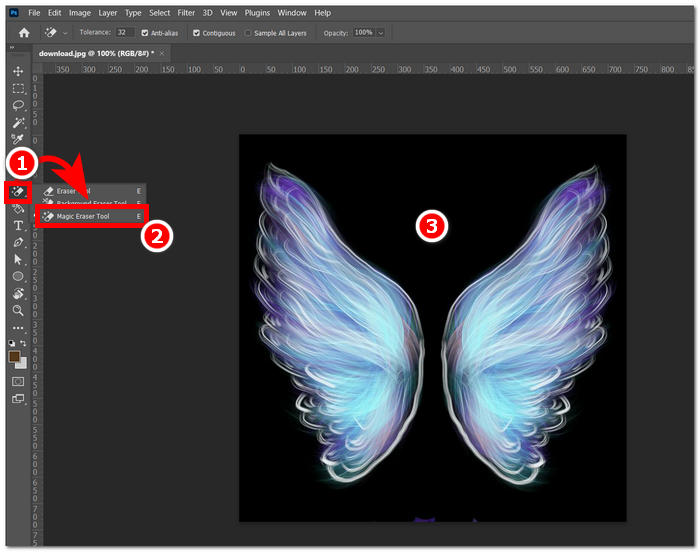
ขั้นตอนที่ 2. เมื่อรูปภาพโหลดในซอฟต์แวร์แล้ว ให้ค้นหา Eraser Tool จากแถบเครื่องมือด้านซ้าย และเลือก Magic Eraser Tool.
ขั้นตอนที่ 3. เมื่อเลือก Magic Eraser Tool แล้ว ให้คลิกที่พื้นหลังของรูปภาพเพื่อทำการลบพื้นหลังโดยอัตโนมัติ.
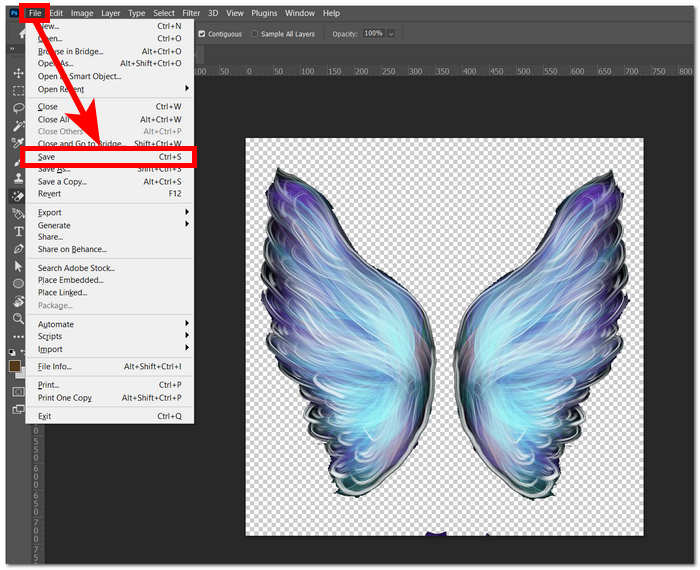
ขั้นตอนที่ 4. เมื่อพื้นหลังถูกลบออกจากรูปภาพเรียบร้อยแล้ว ให้คลิกที่เมนู File ที่มุมซ้ายบน แล้วเลือก Save หรือ Export เพื่อดาวน์โหลดรูปภาพลงในคอมพิวเตอร์ของคุณ.
ด้วยการผสมผสานระหว่างเทคโนโลยีและฟีเจอร์ขั้นสูง Photoshops เสริมพลังและปลดปล่อยผู้สร้างภายในในตัวผู้ใช้ทุกคน Adobe ลบพื้นหลังออกจากรูปภาพด้วยอินเทอร์เฟซที่ใช้งานง่าย ทำให้แน่ใจได้ว่าไม่มีงานหนักใดๆ ในซอฟต์แวร์ Adobe
GIMP
GIMP เป็นแอปพลิเคชั่นโอเพ่นซอร์สที่ให้ผู้ใช้สามารถลบพื้นหลังสีขาวออกจากรูปภาพหรือพื้นหลังที่ไม่ต้องการได้ ทำให้เป็นตัวเลือกที่เหมาะสำหรับผู้ชื่นชอบกราฟิกและมือใหม่ในการแก้ไขภาพ นอกเหนือจากคุณสมบัติการลบพื้นหลังแล้ว GIMP ยังมีชุดเครื่องมือและฟังก์ชันการทำงานที่หลากหลาย และการเจาะลึกความสามารถของ GIMP ของ GIMP สามารถช่วยเพิ่มขีดความสามารถและความเป็นเลิศในการลบพื้นหลัง และยังอำนวยความสะดวกในการปรับปรุงและจัดการภาพในวงกว้างอีกด้วย
ขั้นตอนที่ 1. เปิดโปรแกรม GIMP แล้วนำเข้ารูปภาพของคุณผ่านเมนู File ที่มุมซ้ายบน จากนั้นคลิก Open เพื่อเปิดรูปภาพ.
ขั้นตอนที่ 2. หลังจากรูปภาพปรากฏในซอฟต์แวร์แล้ว ให้ไปที่มุมขวาล่าง เลือกเลเยอร์ คลิกขวาที่เลเยอร์นั้น แล้วเลือก Add Alpha Channel ในการตั้งค่า.
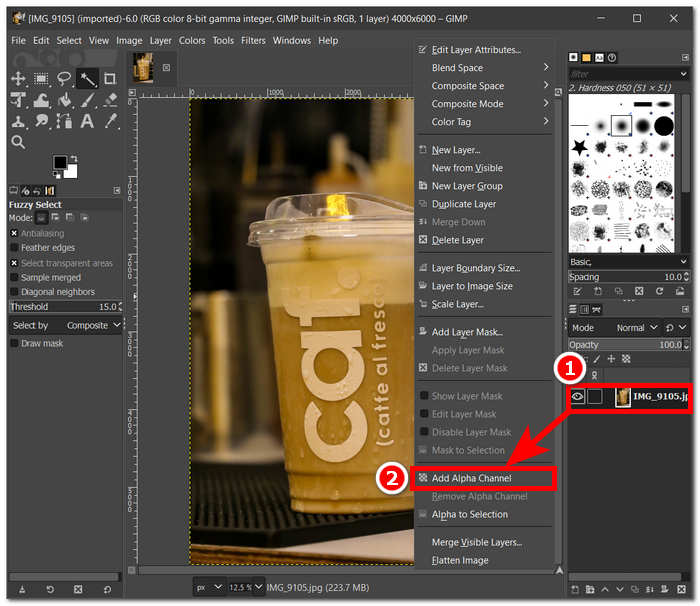
ขั้นตอนที่ 3. คลิกที่เครื่องมือ Fuzzy Select ที่มุมซ้ายบน เมื่อเลือกแล้ว ให้ลากเครื่องมือนี้เหนือบริเวณที่คุณต้องการลบออกจากรูปภาพ.
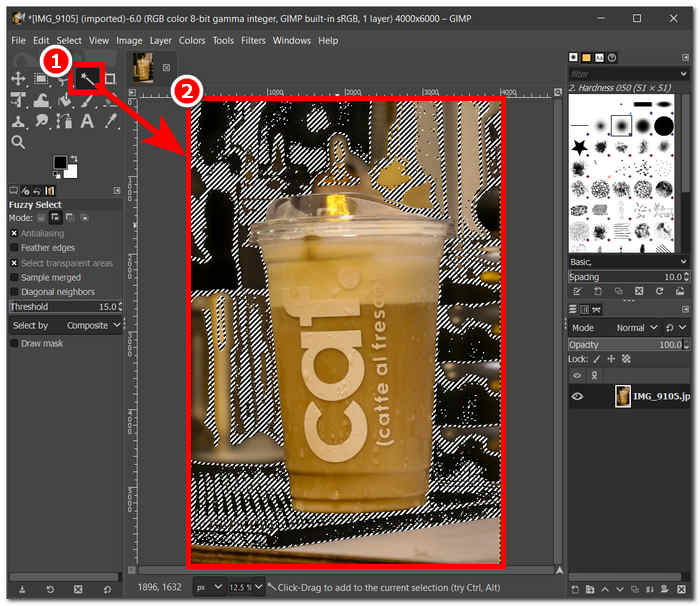
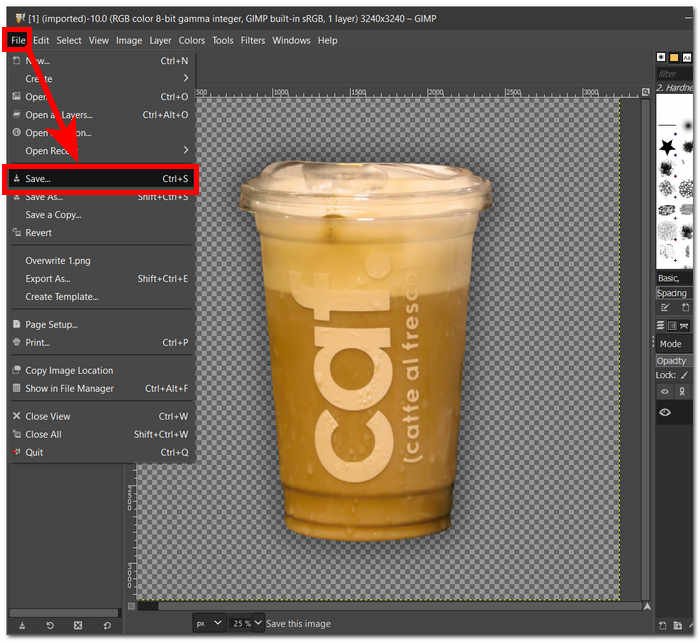
ขั้นตอนที่ 4. จะมีเส้นประล้อมรอบบริเวณที่เลือกไว้ และหากต้องการลบพื้นหลัง ให้กดปุ่ม Del บนคีย์บอร์ดของคุณ เมื่อพอใจกับผลลัพธ์แล้ว ให้ไปที่เมนู File ที่มุมซ้ายบนของหน้าจอแล้วเลือก Save เพื่อดาวน์โหลดรูปภาพลงในคอมพิวเตอร์.
GIMP กลายเป็นเครื่องมือที่เหมาะสำหรับทั้งมืออาชีพมากประสบการณ์และผู้เริ่มต้นใช้งาน ด้วยอินเทอร์เฟซที่เป็นมิตรต่อผู้ใช้ ซอฟต์แวร์นี้มีตัวเลือกการลบพื้นหลังให้เลือกหลากหลายตามความชอบของคุณ ตอบโจทย์ความสะดวกด้วยเครื่องมือต่างๆ เช่น เครื่องมือสี เครื่องมือเส้นทาง (paths) การมาสก์เลเยอร์ และเครื่องมือฟัซซี ทำให้เป็นซอฟต์แวร์ที่หลากหลายในการใช้งาน.
พิคซาร์ต
Picsart เป็นเครื่องมือมือใหม่ที่ได้รับความนิยมสำหรับเวอร์ชันแอปพลิเคชันบนอุปกรณ์มือถือ เครื่องมือกำจัดของมันให้ผลลัพธ์ที่ตรงไปตรงมาและทันที ความแม่นยำในการลบพื้นหลังและวิธีการลบพื้นหลังที่รวดเร็วและมีประสิทธิภาพนั้นมาจาก AI ที่ใช้ หนึ่งในคุณสมบัติที่นอกเหนือจากการลบพื้นหลังคือสามารถแทนที่หรือเพิ่มพื้นหลังจากรูปภาพของคุณได้ ซึ่งทำให้เครื่องมือนี้เป็นที่ชื่นชอบ จะลบพื้นหลังของรูปภาพได้อย่างไร? ไม่ต้องกังวลอีกต่อไปและเพียงทำตามขั้นตอนง่าย ๆ ที่แสดงด้านล่าง
ขั้นตอนที่ 1. ไปที่เครื่องมือ Picsart Background Remover ผ่านเบราว์เซอร์ของคุณ จากนั้นคลิก Browse Files เพื่ออัปโหลดรูปภาพเข้าเครื่องมือ.
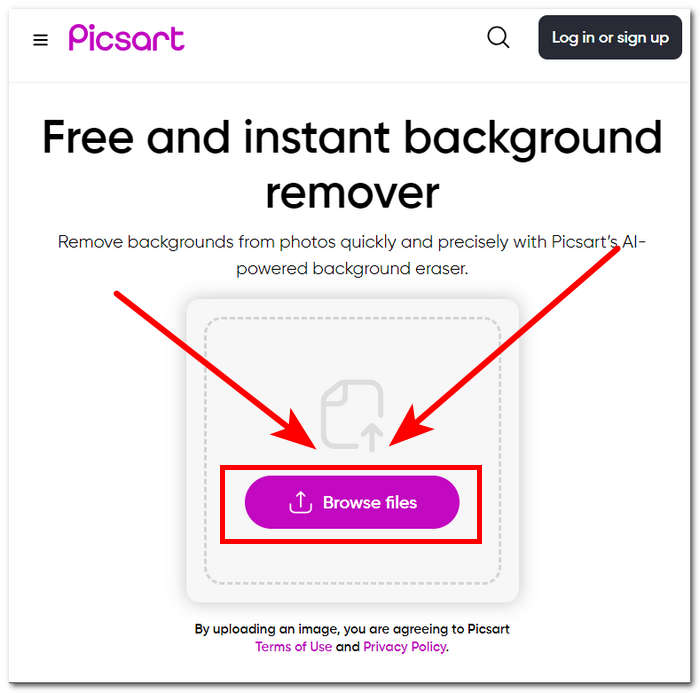
ขั้นตอนที่ 2. เมื่อเริ่มอัปโหลด ระบบจะตรวจจับและวิเคราะห์รูปภาพของคุณโดยอัตโนมัติ ซึ่งจะลบพื้นหลังออกในกระบวนการนั้น.
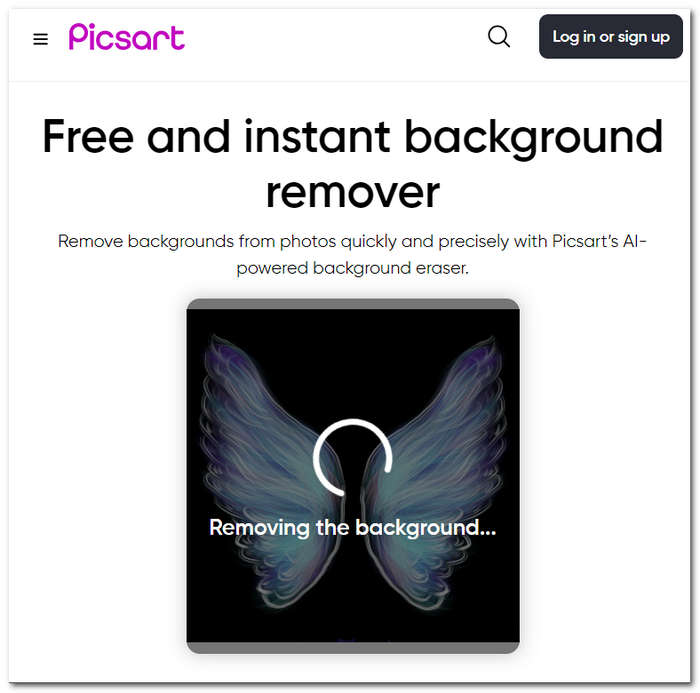
ขั้นตอนที่ 3. เมื่อกระบวนการเสร็จสิ้น คุณจะสามารถพรีวิวและแก้ไขรูปภาพได้ เมื่อพอใจกับผลลัพธ์แล้ว ให้บันทึกรูปภาพโดยคลิกปุ่ม Download.
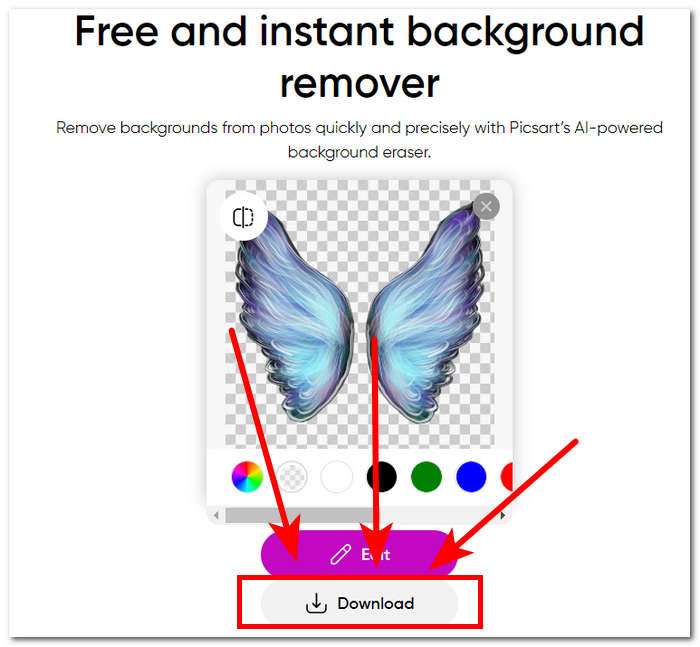
โดยสรุป ความนิยมของ Picsart ในฐานะแอพพลิเคชั่นสำหรับการแก้ไขภาพได้ถูกดัดแปลงและลงทุนในการทำให้เครื่องมือนี้ตอบสนองความต้องการในการแก้ไขภาพทุกประเภท เครื่องมือลบพื้นหลังจะทำงานได้อย่างแม่นยำในทันที ดังนั้น คุณยังคงต้องลงทะเบียนจึงจะสามารถดาวน์โหลดภาพของคุณในความละเอียดสูงได้อย่างเต็มที่ มิฉะนั้น คุณจะติดอยู่กับผลลัพธ์ที่มีความละเอียดต่ำ
ส่วนที่ 3 คำถามที่พบบ่อยเกี่ยวกับวิธีลบพื้นหลังออกจากรูปภาพ
คุณสามารถลบพื้นหลังรูปภาพโดยอัตโนมัติได้หรือไม่?
ใช่ เครื่องมือแก้ไขรูปภาพขั้นสูงจำนวนมาก รวมถึง FVC Free Background Remover, Adobe Express และ Canva ใช้อัลกอริธึมปัญญาประดิษฐ์เพื่อตรวจจับและลบพื้นหลังออกจากรูปภาพโดยอัตโนมัติ คุณสมบัตินี้ทำให้กระบวนการแก้ไขมีความคล่องตัว ทำให้ผู้ใช้รวดเร็วและมีประสิทธิภาพมากขึ้น
คุณสามารถลบ คุณสามารถลบพื้นหลังรูปภาพโดยอัตโนมัติได้หรือไม่?
ใช่ เครื่องมือแก้ไขรูปภาพขั้นสูงจำนวนมาก รวมถึง FVC Free Background Remover, Adobe Express และ Canva ใช้อัลกอริธึมปัญญาประดิษฐ์เพื่อตรวจจับและลบพื้นหลังออกจากรูปภาพโดยอัตโนมัติ คุณสมบัตินี้ทำให้กระบวนการแก้ไขมีความคล่องตัว ทำให้ผู้ใช้รวดเร็วและมีประสิทธิภาพมากขึ้น
คุณสามารถลบพื้นหลังของภาพ JPG ได้หรือไม่?
เครื่องมือลบพื้นหลังรองรับรูปแบบภาพ JPG อย่างแน่นอน ความอเนกประสงค์ของเครื่องมือครอบคลุมถึงรูปแบบรูปภาพต่างๆ ทำให้มั่นใจได้ว่าผู้ใช้สามารถแก้ไขและปรับปรุงไฟล์ JPEG ของตนได้อย่างง่ายดาย ดังนั้นจึงยังคงขึ้นอยู่กับเครื่องมือหรือซอฟต์แวร์ที่คุณใช้อยู่ เนื่องจากบางส่วนจำเป็นต้องสมัครสมาชิกจึงจะสามารถลบพื้นหลังในรูปแบบ JPG เป็นต้น
PNG เป็นรูปแบบภาพเดียวที่รองรับพื้นหลังโปร่งใสหรือไม่
แม้ว่า PNG เป็นรูปแบบที่ใช้กันทั่วไปสำหรับรูปภาพที่มีพื้นหลังโปร่งใส แต่รูปแบบอื่นๆ เช่น GIF และ TIFF ก็รองรับความโปร่งใสเช่นกัน อย่างไรก็ตาม เครื่องมือที่คล้ายกันที่กล่าวถึงข้างต้นมักจะให้ผลลัพธ์ที่ดีที่สุดกับ PNG เนื่องจากความเข้ากันได้ที่เป็นที่ยอมรับอย่างกว้างขวางกับการตั้งค่าความโปร่งใส
ฉันสามารถใช้อะไรเพื่อลบพื้นหลังของรูปภาพได้
คุณสามารถใช้ซอฟต์แวร์แก้ไขรูปภาพโดยเฉพาะ เช่น Adobe Express และ Photoshop หรือเครื่องมือออนไลน์เฉพาะทาง เช่น FVC Free Background Remover โดยทั่วไปเครื่องมือเหล่านี้จะมีอินเทอร์เฟซที่เป็นมิตรต่อผู้ใช้และคุณสมบัติขั้นสูง ช่วยให้คุณได้ผลลัพธ์ที่แม่นยำและดูเป็นมืออาชีพ
สรุป
โดยสรุป กระบวนการลบพื้นหลังออกจากรูปภาพไม่ได้ขึ้นอยู่กับแอปพลิเคชัน ซอฟต์แวร์ หรือเครื่องมือใดเครื่องมือหนึ่งโดยเฉพาะ แต่ประสิทธิภาพของมันมาจากความสามารถของผู้ใช้ในการใช้งานและดึงศักยภาพของฟีเจอร์ต่างๆ ในเครื่องมือที่มีอยู่มาใช้ให้เต็มที่ ท้ายที่สุด ความสำเร็จของการลบพื้นหลังอยู่ที่การทำงานให้เสร็จสิ้น โดยเน้นว่าการเลือกใช้เครื่องมือนั้นควรสอดคล้องกับความชอบของผู้ใช้ ไม่ว่าคุณจะเลือกใช้เครื่องมือใดก็ตาม.
-
 รีวิว PicWish Photo Enhancer และเครื่องมือทางเลือกที่ต้องลอง
 ค้นพบความมหัศจรรย์ที่โปรแกรมเพิ่มประสิทธิภาพรูปภาพ PicWish นำมาสู่โลกแห่งการแก้ไขภาพ การตรวจสอบเชิงลึกและการสำรวจทางเลือกที่เป็นไปได้เพื่อให้คุณลอง
-
 วิธีลบข้อความออกจากรูปภาพบน Windows/Mac/Online
 บอกลาข้อความที่กวนใจในภาพของคุณได้เลย! สำรวจวิธีการลบข้อความออกจากรูปภาพด้วยโซลูชันที่ราบรื่นเหล่านี้ซึ่งออกแบบมาเพื่อการลบข้อความได้อย่างราบรื่น
-
 รีวิว Fotor สำหรับการลบพื้นหลังและเครื่องมือเพิ่มประสิทธิภาพภาพถ่าย
 ทุกสิ่งที่คุณต้องรู้เกี่ยวกับ Fotor Background Remover และ Photo Enhancer ดูคุณสมบัติบางอย่างและดูทางเลือกที่แนะนำที่เหมาะกับความต้องการของคุณ
