


 Video Converter Ultimate
 บันทึกหน้าจอ
 ซ่อมวิดีโอ
 ดาวน์โหลดอย่างปลอดภัย
ตัวแปลงฟรี 10 อันดับแรกออนไลน์/Windows/Mac
คุณกำลังเบื่อกับการตามหาโปรแกรมแปลงวิดีโอ AVI ฟรีที่ดีที่สุดสำหรับวิดีโอของคุณอยู่หรือเปล่า? ไม่ต้องมองหาที่อื่นอีกต่อไป! ไม่ว่าคุณจะเป็นมือโปรด้านการตัดต่อวิดีโอหรือเพิ่งเริ่มลองใช้ก็ตาม การมีเครื่องมือที่เหมาะสมสามารถสร้างความแตกต่างได้อย่างมาก ในบทความนี้ เราได้รีวิวรายชื่อโปรแกรมแปลงไฟล์ AVI ชั้นนำ เพื่อช่วยให้การค้นหาของคุณง่ายขึ้น ตั้งแต่ตัวแปลงไฟล์ออนไลน์ที่ใช้งานง่ายไปจนถึงซอฟต์แวร์บนเดสก์ท็อปทรงพลัง เราได้รวบรวมมาให้ครบ เตรียมพร้อมเปิดโลกแห่งความเป็นไปได้ และค้นหาวิธีแก้ปัญหาที่เหมาะสมที่สุดสำหรับความต้องการในการแปลงวิดีโอของคุณ!

ส่วนที่ 1 สุดยอดโปรแกรมแปลงวิดีโอ AVI ออนไลน์ฟรี
FVC Free Video Converter Online
FVC Free Video Converter Online เป็นเครื่องมือที่เชี่ยวชาญด้านการแปลงวิดีโอ AVI ไปเป็นฟอร์แมตอื่นหลากหลายรูปแบบ ช่วยให้การแปลงไฟล์เป็นไปอย่างรวดเร็วโดยยังคงคุณภาพวิดีโอ HD ดั้งเดิมไว้ นอกจากนี้ เครื่องมือนี้ยังรองรับการแปลงแบบเป็นชุด ช่วยให้ผู้ใช้สามารถแปลงไฟล์ AVI หลายไฟล์พร้อมกันได้โดยไม่สูญเสียคุณภาพ.
| แพลตฟอร์ม | บนเว็บ |
| ดีที่สุดสำหรับ | ดีที่สุดสำหรับผู้ที่ต้องการเครื่องมือที่ใช้งานง่ายในการแปลงไฟล์วิดีโอและไฟล์เสียง |
| รูปแบบที่รองรับ | รองรับการแปลงวิดีโอและเสียงกระแสหลักเกือบทั้งหมดเป็น MP4, FLV, MKV, MOV, M4V, MTS, TS, M2TS, WMV, ASF, VOB, MP3, AAC, AVI, MOV, WMV, MKV |
หากต้องการใช้สิ่งนี้ ให้ทำตามขั้นตอนด้านล่าง:
ขั้นตอนที่ 1. ไปที่เว็บไซต์ FVC Free Video Converter Online.
ขั้นตอนที่ 2. จากนั้นกดปุ่ม Add Files to Convert เพื่อเพิ่มวิดีโอที่คุณต้องการแปลง.
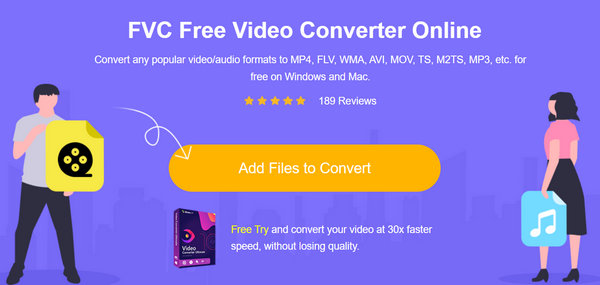
ขั้นตอนที่ 3. จากนั้นเลือกฟอร์แมตที่คุณต้องการ.
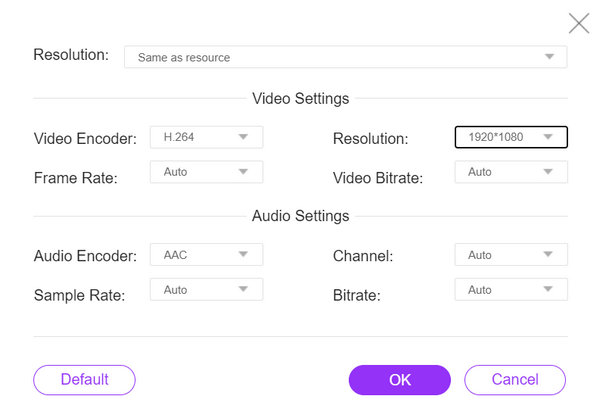
นอกจากนี้ยังสามารถตั้งค่าสิ่งที่เหมาะกับวิดีโอของคุณโดยอัตโนมัติ
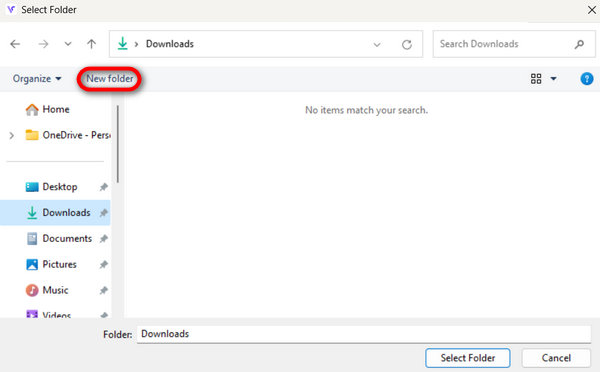
ขั้นตอนที่ 4. เมื่อต้องการเริ่มการแปลง ให้คลิกปุ่ม Convert จากนั้นเลือกหรือสร้าง New Folder ที่จะบันทึกวิดีโอโดยอัตโนมัติ.
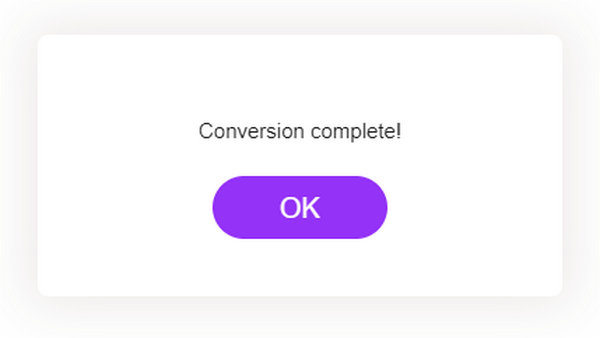
เมื่อเสร็จแล้ว คุณจะเห็นข้อความแจ้งว่าการแปลงของคุณเสร็จสมบูรณ์
FVC Free Video Converter Online มอบโซลูชันที่เชื่อถือได้และมีประสิทธิภาพ ทำให้กระบวนการแปลงไม่ยุ่งยากและสะดวกสบาย
ส่วนที่ 2 ตัวแปลงวิดีโอ AVI ฟรี 4 อันดับแรกบนเดสก์ท็อป
Aiseesoft แปลงวิดีโอฟรี
Aiseesoft มีโปรแกรมแปลงวิดีโอฟรีที่ช่วยให้ผู้ใช้สามารถแปลงวิดีโอระหว่างฟอร์แมตต่าง ๆ ได้ Aiseesoft Free Video Converter รองรับฟอร์แมตวิดาทั่วไปอย่างเช่น AVI, MP4, MOV และอื่น ๆ คุณยังสามารถใช้สำหรับงานตัดต่อพื้นฐาน เช่น ตัดต่อ (trim) และครอบตัด (crop) ได้ด้วย.
แพลตฟอร์ม: Windows และ Mac.
เหมาะสำหรับ: ผู้ใช้ทุกคนที่ต้องการเครื่องมือแปลงวิดีโอแบบใช้งานง่าย พร้อมฟังก์ชันตัดต่อพื้นฐาน.
ข้อดี
- ส่วนต่อประสานที่ใช้งานง่าย
- คุณสมบัติการแก้ไขขั้นพื้นฐาน
- รองรับหลายรูปแบบ
จุดด้อย
- อาจขาดคุณสมบัติขั้นสูง
ขั้นตอนที่ 1. ดาวน์โหลดและติดตั้ง Aiseesoft Free Video Converter Online ลงในอุปกรณ์ของคุณ.
ดาวน์โหลดฟรีสำหรับ Windows 7 ขึ้นไปดาวน์โหลดอย่างปลอดภัย
ดาวน์โหลดฟรีสำหรับ MacOS 10.7 ขึ้นไปดาวน์โหลดอย่างปลอดภัย
ขั้นตอนที่ 2. จากนั้นกดปุ่ม Add Files เพื่อเพิ่มวิดีโอ AVI ที่คุณต้องการแปลง.
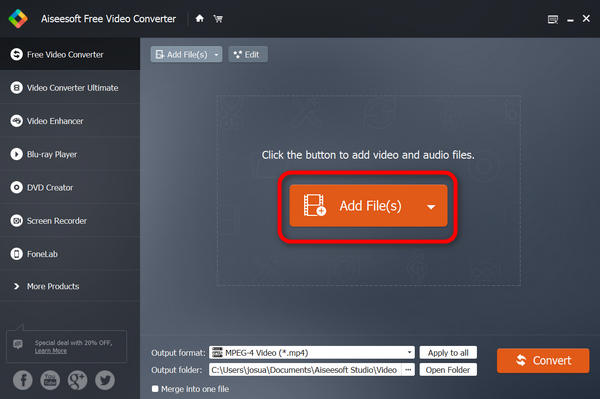
ขั้นตอนที่ 3. จากนั้นไปที่ Output Format แล้วเลือกฟอร์แมตที่คุณต้องการ.
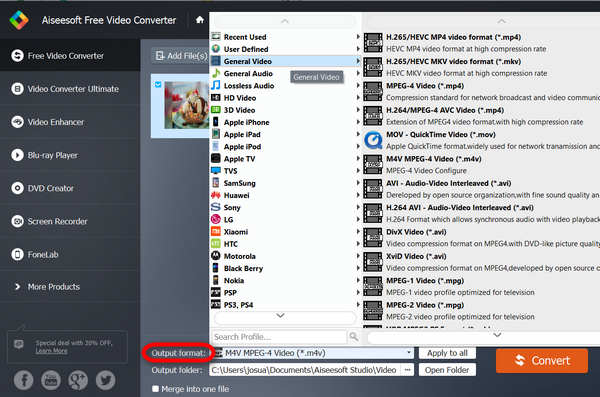
ขั้นตอนที่ 4. สุดท้ายคลิก Convert เพื่อเริ่มกระบวนการ.
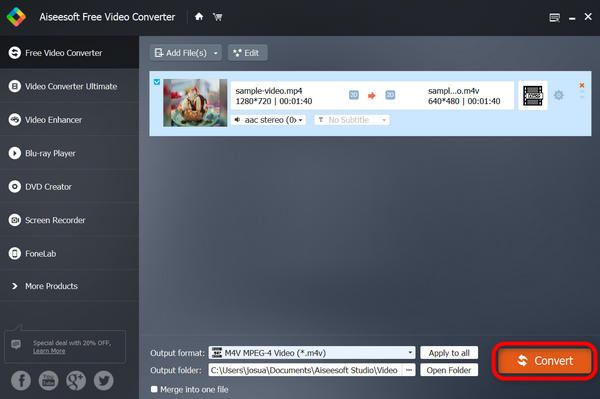
วิดีโอของคุณจะถูกบันทึกไว้ในอุปกรณ์ของคุณโดยอัตโนมัติ และด้านล่างจะมีข้อความระบุว่าเสร็จสิ้นเมื่อการแปลงสำเร็จ
Aiseesoft Free Video Converter เป็นหนึ่งในโปรแกรมแปลงวิดีโอ AVI ฟรีที่ดีที่สุดทางออนไลน์ ซึ่งช่วยให้การแปลงไฟล์ทุกรูปแบบราบรื่น ง่ายดาย และฟรี ดังนั้น หากคุณกำลังมองหาโปรแกรมแปลงวิดีโอฟรีแต่มีประสิทธิภาพ เราขอแนะนำสิ่งนี้เป็นอย่างยิ่ง
VLC Media Player
VLC media player เป็นซอฟต์แวร์มัลติมีเดียที่ไม่เพียงแต่เล่นรูปแบบเสียงและวิดีโอที่หลากหลาย แต่ยังทำหน้าที่เป็นตัวแปลงวิดีโอ AVI ฟรีอีกด้วย ด้วยเครื่องมือนี้ ผู้ใช้สามารถแปลงไฟล์วิดีโอเป็นรูปแบบใดก็ได้ที่ต้องการ อีกประการหนึ่งคือให้ความคล่องตัวและความสะดวกสบายในการจัดการเนื้อหามัลติมีเดีย
แพลตฟอร์ม: Windows, Mac และ Linux.
เหมาะสำหรับ: เหมาะสำหรับผู้ใช้ที่ต้องการโซลูชันแบบครบวงจรสำหรับการเล่นไฟล์มัลติมีเดียและแปลงวิดีโอเป็นครั้งคราว.
ข้อดี
- ความเก่งกาจ
- คุณสมบัติขั้นสูง.
จุดด้อย
- อินเทอร์เฟซอาจใช้งานง่ายน้อยลงสำหรับผู้เริ่มต้น
ขั้นตอนที่ 1. อันดับแรก ดาวน์โหลด VLC ลงบนอุปกรณ์ของคุณและติดตั้ง.
ขั้นตอนที่ 2. เปิดโปรแกรมแล้วไปที่แท็บ Media จากนั้นเลือก Convert/Save.
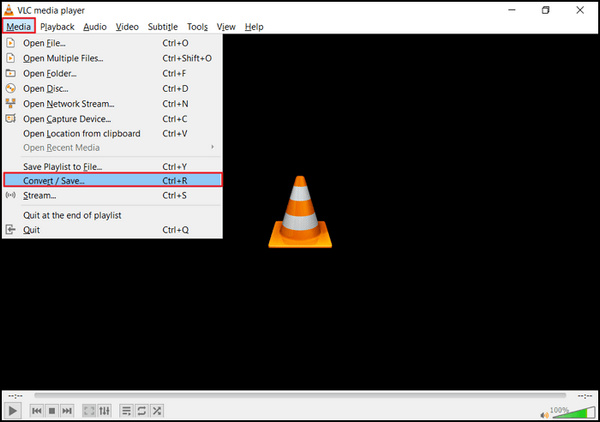
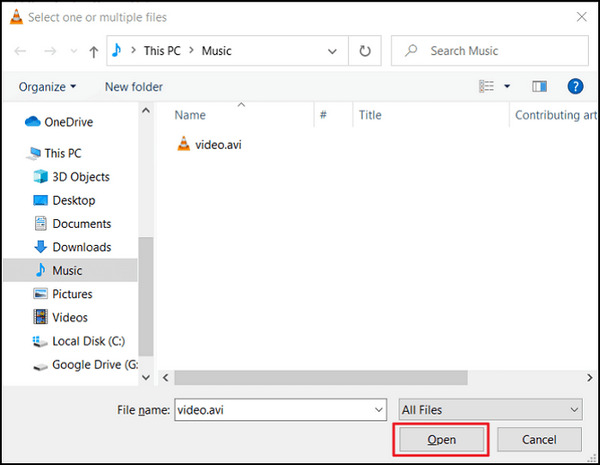
ขั้นตอนที่ 3. จากนั้นคลิกปุ่ม Add เพื่อเพิ่มวิดีโอ AVI ที่คุณต้องการแปลง.
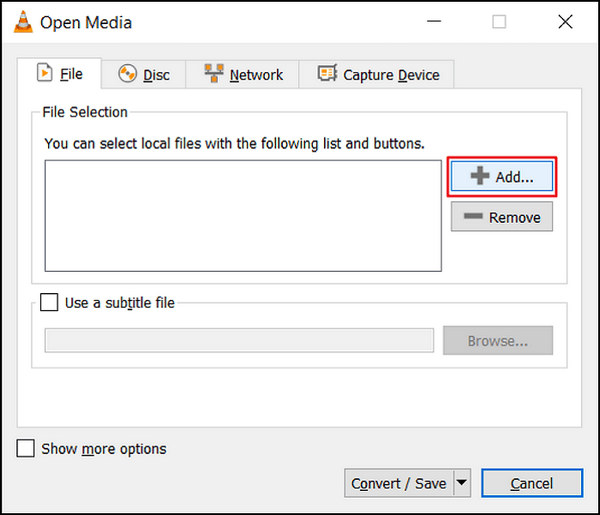
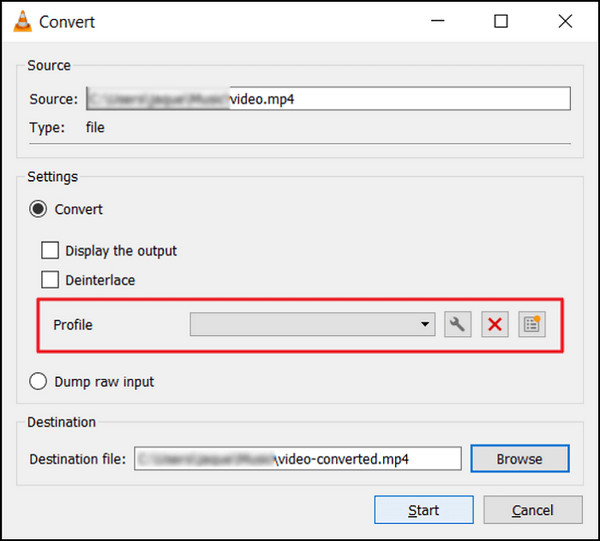
ขั้นตอนที่ 4. ระบุชื่อไฟล์และปลายทางในกล่อง Convert.
ขั้นตอนที่ 5. เลือก Convert/Save และเลือกฟอร์แมตที่คุณต้องการก่อนคลิกเริ่ม.
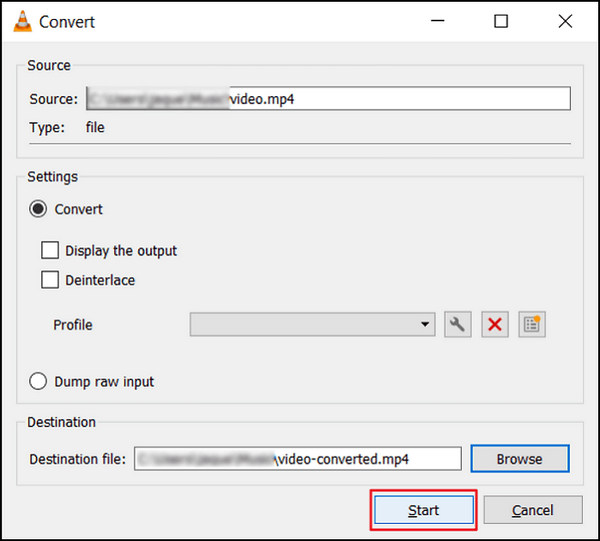
ขั้นตอนที่ 6. สุดท้ายคลิก Start เพื่อเริ่มกระบวนการแปลง จากนั้น VLC Media Player จะจัดการส่วนที่เหลือให้เอง.
VLC ไม่ได้เป็นเพียงแค่โปรแกรมเล่นมีเดียเท่านั้น แต่ยังช่วยแปลงวิดีโอ AVI ได้อีกด้วย อย่างไรก็ตาม ควรทราบว่าซอฟต์แวร์อเนกประสงค์ตัวนี้ขาดฟีเจอร์ตัดต่อขั้นสูงซึ่งมักมีในโปรแกรมแปลงวิดีโอโดยเฉพาะ หากคุณต้องการเครื่องมือที่คล้ายกับ VLC สามารถดูได้ที่นี่.
Freemake Video Converter
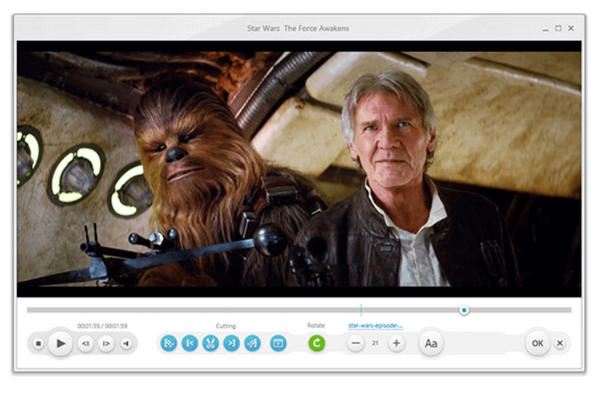
Freemake Video Converter เป็นซอฟต์แวร์มัลติมีเดียที่ให้ผู้ใช้สามารถแปลงวิดีโอ AVI ระหว่างรูปแบบต่างๆ ได้อย่างอิสระ พร้อมทั้งรองรับไฟล์เสียงและรูปภาพ
แพลตฟอร์ม: เฉพาะ Windows.
เหมาะสำหรับ: ผู้ที่ต้องแปลงวิดีโอให้เหมาะสมกับอุปกรณ์หรือแพลตฟอร์มเฉพาะ.
ข้อดี
- มีโปรไฟล์ที่ตั้งไว้ล่วงหน้ามากมาย
- ส่วนต่อประสานที่ใช้งานง่าย
จุดด้อย
- ระวังซอฟต์แวร์ที่ให้มาระหว่างการติดตั้ง
- ลายน้ำ
ขั้นตอนที่ 1. ดาวน์โหลดและติดตั้ง Freemake Video Converter บนอุปกรณ์ของคุณ.
ขั้นตอนที่ 2. คลิก Add Files เพื่อเพิ่มไฟล์วิดีโอ AVI ที่คุณต้องการแปลงลงในโปรแกรม.
ขั้นตอนที่ 3. ขยายรายการ Output Format แล้วเลือกฟอร์แมตที่คุณต้องการ เช่น MP4, MOV เป็นต้น.
ขั้นตอนที่ 4. คลิกปุ่ม Downward Arrow เพื่อกำหนดเส้นทางจัดเก็บไฟล์ปลายทางที่จะแปลงเสร็จแล้ว.
ขั้นตอนที่ 5. สุดท้ายคลิกปุ่ม Run.
Freemake Video Converter เป็นตัวเลือกที่ดีกว่าสำหรับตัวแปลงวิดีโอ AVI ฟรีบนเดสก์ท็อป อย่างไรก็ตาม เวอร์ชันฟรียังขาดคุณสมบัติบางอย่างที่มีในโปรแกรมแปลงวิดีโอฟรีอื่นๆ
เบรกมือ
HandBrake เป็นเครื่องมือโอเพ่นซอร์สที่ใช้สำหรับแปลงวิดีโอ AVI จากเกือบทุกรูปแบบ รวมถึง AVI และตัวแปลงสัญญาณอื่นๆ ที่รองรับอย่างกว้างขวาง ด้วยเครื่องมือนี้ คุณสามารถแปลงได้อย่างง่ายดาย
แพลตฟอร์ม: Windows, Mac และ Linux
ข้อดี
- น้ำหนักเบา
- การตั้งค่าที่ปรับแต่งได้
จุดด้อย
- คุณสมบัติขั้นสูงที่จำกัด
ขั้นตอนที่ 1. ดาวน์โหลดและติดตั้ง HandBrake บนอุปกรณ์ของคุณ.
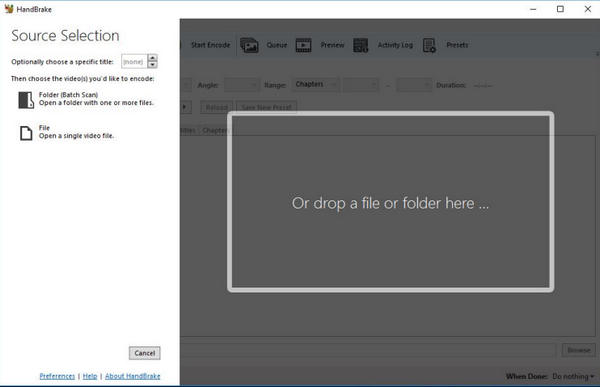
ขั้นตอนที่ 2. คลิก File หรือ Open Source เพื่อเพิ่มวิดีโอ AVI ที่คุณต้องการแปลง.
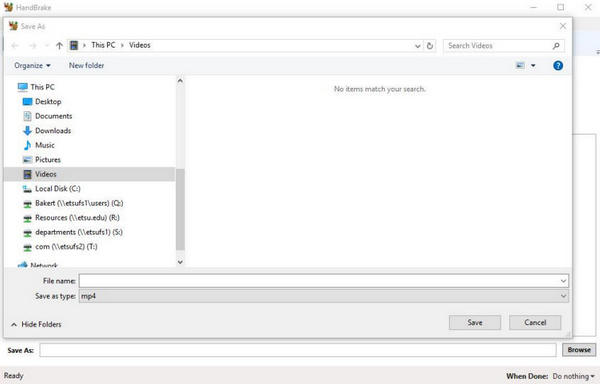
ขั้นตอนที่ 3. ในส่วน Destination ให้ระบุตำแหน่งที่คุณต้องการบันทึกไฟล์ที่แปลงแล้วและตั้งชื่อไฟล์.
ขั้นตอนที่ 4. สำรวจ Output Settings เพื่อดูตัวเลือกขั้นสูงเพิ่มเติม และเลือกฟอร์แมตที่คุณต้องการ.
ขั้นตอนที่ 5. สุดท้ายคลิกปุ่ม Start เพื่อเริ่มแปลงไฟล์ AVI เป็น MP4 และฟอร์แมตอื่น ๆ
HandBrake จะแสดงความคืบหน้าและแจ้งให้คุณทราบเมื่อดำเนินการเสร็จสิ้น เมื่อการแปลงเสร็จสมบูรณ์ คุณจะมีไฟล์วิดีโอใหม่ในตำแหน่งที่ระบุ
ส่วนที่ 3 คำถามที่พบบ่อยเกี่ยวกับ AVI Video Converter
ฉันสามารถแปลงวิดีโอ AVI เป็นรูปแบบอื่นโดยใช้โปรแกรมแปลงวิดีโอ AVI ฟรีได้หรือไม่
ใช่. โปรแกรมแปลงวิดีโอ AVI ฟรีส่วนใหญ่รองรับการแปลงวิดีโอ AVI เป็นรูปแบบยอดนิยมต่างๆ ตรวจสอบบทความด้านบนแล้วคุณจะเห็นรูปแบบที่รองรับของแต่ละโปรแกรมแปลงวิดีโอ
การแปลงวิดีโอ AVI โดยใช้ตัวแปลงวิดีโอจะส่งผลต่อคุณภาพของวิดีโอหรือไม่
ผลกระทบต่อคุณภาพวิดีโอส่วนใหญ่ขึ้นอยู่กับการตั้งค่าและตัวเลือกที่เลือกระหว่างกระบวนการแปลง โดยทั่วไป หากคุณใช้ตัวแปลงวิดีโอ AVI ที่มีชื่อเสียงและรักษาการตั้งค่าที่คล้ายคลึงกัน การสูญเสียคุณภาพควรจะน้อยที่สุด
โปรแกรมแปลงวิดีโอ AVI ฟรีปลอดภัยหรือไม่
โปรแกรมแปลงวิดีโอ AVI ฟรีที่มีชื่อเสียงหลายตัวมีความปลอดภัยในการใช้งาน และไม่มีมัลแวร์หรือไวรัสที่เป็นอันตราย อย่างไรก็ตาม จำเป็นต้องดาวน์โหลดจากเว็บไซต์อย่างเป็นทางการหรือแหล่งที่เชื่อถือได้อื่นๆ
ฉันสามารถแปลงวิดีโอ AVI หลายรายการพร้อมกันด้วยโปรแกรมแปลงวิดีโอ AVI ฟรีได้หรือไม่
ใช่. โปรแกรมแปลงวิดีโอ AVI ฟรีส่วนใหญ่มีฟังก์ชันการแปลงเป็นชุด ช่วยให้คุณสามารถแปลงวิดีโอ AVI หลายรายการพร้อมกัน ประหยัดเวลาและความพยายาม
มีข้อจำกัดในการใช้โปรแกรมแปลงวิดีโอ AVI ฟรีหรือไม่
แม้ว่าตัวแปลงวิดีโอ AVI ฟรีจะมีฟังก์ชันการแปลงขั้นพื้นฐาน แต่อาจมีข้อจำกัดเมื่อเปรียบเทียบกับซอฟต์แวร์แบบชำระเงิน เช่น รูปแบบที่รองรับน้อยกว่า ความเร็วการแปลงที่ช้าลง หรือคุณสมบัติการแก้ไขขั้นสูงน้อยกว่า
สรุป
โดยสรุปแล้ว เมื่อต้องเลือกโปรแกรมแปลงวิดีโอ AVI ฟรี ควรพิจารณาปัจจัยต่าง ๆ เช่น การรองรับฟอร์แมต ความง่ายในการใช้งาน และฟีเจอร์เสริมอื่น ๆ โปรแกรมแปลงแต่ละตัวมีข้อดีเฉพาะตัวเพื่อตอบโจทย์ความต้องการของผู้ใช้ที่แตกต่างกัน ไม่ว่าจะเป็นโซลูชันบนเว็บอย่าง FVC Free Video Converter Online หรือโปรแกรมเดสก์ท็อปอย่าง Aiseesoft Free Video Converter คุณก็มีตัวเลือกหลากหลายให้เลือกใช้ตามความชอบ.
-
 วิธีบีบอัดไฟล์ AVI ขนาดใหญ่บน Windows / Mac / ออนไลน์ฟรี
 อ่านและรับ 3 วิธีฟรีในการบีบอัดไฟล์ AVI บนคอมพิวเตอร์ของคุณ คุณสามารถลดขนาดไฟล์ของวิดีโอ AVI ของคุณได้โดยไม่สูญเสียคุณภาพ ขนาดวิดีโอ AVI ของคุณอาจเล็กอย่างที่คุณคิด
-
 เครื่องบันทึกหน้าจอ AVI ฟรี 4 อันดับแรกเพื่อจับภาพวิดีโอหน้าจอเป็นไฟล์ AVI
 หากต้องการบันทึกหน้าจอในไฟล์ AVI คุณภาพสูง บทความนี้จะระบุและแบ่งปันเครื่องบันทึกหน้าจอ AVI ฟรี 4 อันดับแรกในโพสต์นี้ อ่านและรับสิ่งที่คุณต้องการ
-
 วิธีแปลง AVI เป็น MOV ด้วยขั้นตอนและเครื่องมือง่ายๆ
 คุณต้องการทราบวิธีการแปลง AVI เป็น MOV ที่เล่นได้? คุณต้องทำตามบทความนี้เพื่อทราบวิธีการและเคล็ดลับในการแปลงที่ประสบความสำเร็จ
