


 Video Converter Ultimate
 บันทึกหน้าจอ
 ซ่อมวิดีโอ
 ดาวน์โหลดอย่างปลอดภัย
ตัวแปลง DVD เป็น H.264: 3 วิธีสำหรับการแปลง DVD อย่างรวดเร็ว
ปัจจุบัน แพลตฟอร์มสตรีมมิ่งออนไลน์กำลังค่อยๆ ลดความต้องการและการใช้งานดีวีดีลง แม้ว่าจะมีผู้คนจำนวนมากยังคงนิยมใช้ แต่ปฏิเสธไม่ได้ว่าคนส่วนใหญ่ชอบความยืดหยุ่นและความสะดวกสบายในการรับชมวิดีโอหรือภาพยนตร์
หากคุณไม่อยากรู้สึกว่าตัวเองล้าหลังและต้องการเก็บรักษาคอลเลกชันดีวีดีไว้ ทางเลือกที่ดีที่สุดคือแปลงดีวีดีเหล่านั้นเป็นไฟล์ดิจิทัล ปัจจุบันอุปกรณ์และโปรแกรมเล่นสื่อส่วนใหญ่ไม่รองรับแผ่นดีวีดีอย่างเต็มรูปแบบ แต่เมื่อริปเป็นไฟล์ดิจิทัลยอดนิยมแล้ว คุณจะได้สัมผัสกับความยืดหยุ่นและความสะดวกในการใช้งาน ในบทความนี้ คุณจะได้เรียนรู้ 3 วิธีง่าย ๆ ในการแปลงดีวีดีเป็นไฟล์ H.264 นอกจากนี้ อย่าพลาดโอกาสที่จะทำความเข้าใจว่าทำไมจึงควรแปลงดีวีดีของคุณเป็นฟอร์แมตนี้ พร้อมจะเริ่มแปลงดีวีดีของคุณแล้วหรือยัง เลื่อนลงไปอ่านกันต่อได้เลย.

ส่วนที่ 1 เหตุใดจึงต้องแปลง DVD เป็น H.264
มีหลายเหตุผลที่คุณจำเป็นต้องแปลง DVD ของคุณเป็น H.264 และเหตุผลที่ชัดเจนที่สุดคือการเก็บรักษาเนื้อหาของแผ่นและบันทึกในรูปแบบดิจิทัล อย่างไรก็ตาม ยังมีอีกหลายสิ่งที่ผู้คนมักมองข้ามหรือยังไม่ตระหนักถึง ต่อไปนี้คือเหตุผลที่คุณจำเป็นต้องแปลง DVD ของคุณเป็น H.264:
ความเข้ากันได้ระหว่างอุปกรณ์
H.264 เป็นหนึ่งในตัวแปลงสัญญาณวิดีโอที่ได้รับการสนับสนุนอย่างแพร่หลายที่สุดในปัจจุบัน ดังนั้น เมื่อคุณแปลง DVD เป็นรูปแบบนี้แล้ว คุณจะไม่ต้องประสบหรือรู้สึกว่าถูกจำกัดอยู่กับอุปกรณ์และเครื่องเล่นสื่อต่างๆ เมื่อรับชมเนื้อหาสื่อบน DVD อีกต่อไป
ขนาดไฟล์เล็กลงแต่คุณภาพสูง
เมื่อเทียบกับรูปแบบ DVD ดั้งเดิม H.264 มีอัตราการบีบอัดที่ดีกว่า ช่วยลดขนาดไฟล์ DVD โดยไม่กระทบต่อคุณภาพวิดีโออย่างมีนัยสำคัญ ช่วยให้คุณจัดเก็บภาพยนตร์หรือวิดีโอได้มากขึ้นโดยไม่ต้องใช้พื้นที่จัดเก็บมากเกินไป
การสตรีมและการจัดเก็บข้อมูลบนคลาวด์
วิดีโอที่เข้ารหัส H.264 เหมาะอย่างยิ่งสำหรับการจัดเก็บข้อมูลบนคลาวด์และการสตรีม ช่วยให้คุณเข้าถึงคอลเลกชันสื่อของคุณได้ทุกที่ทุกเวลา
การแก้ไขและการปรับแต่ง
เมื่ออยู่ในรูปแบบ H.264 แล้ว คุณสามารถตัดต่อวิดีโอได้อย่างง่ายดายด้วยซอฟต์แวร์ตัดต่อวิดีโอ ทำให้สามารถตัดส่วนที่ไม่ต้องการ เพิ่มคำบรรยาย หรือปรับปรุงคุณภาพวิดีโอได้ ความยืดหยุ่นนี้ไม่สามารถเกิดขึ้นได้กับรูปแบบ DVD ต้นฉบับ
ไม่จำเป็นต้องใช้ไดรฟ์ดีวีดี
แล็ปท็อปและเดสก์ท็อปบางรุ่นในปัจจุบันไม่มีไดรฟ์ดีวีดีในตัวอีกต่อไป การแปลงดีวีดีเป็น H.264 ช่วยลดความจำเป็นในการใช้เครื่องเล่นดีวีดีภายนอก ทำให้การรับชมภาพยนตร์หรือรายการโปรดบนอุปกรณ์ใดๆ ก็ตามเป็นเรื่องง่ายยิ่งขึ้น
ส่วนที่ 2 วิธีที่ดีที่สุดในการแปลง DVD เป็น H.264
วิธีที่ดีที่สุดในการแปลง DVD เป็น H.264 คือการใช้ AnyMP4 DVD Ripper ที่ FVC คัดสรรมา เครื่องมือนี้โดดเด่นด้วยชุดฟีเจอร์ที่ครอบคลุม ช่วยให้ผู้ใช้สามารถริปภาพยนตร์ DVD ทั้งหมดได้อย่างมีประสิทธิภาพและง่ายดาย รวมถึงแผ่น DVD ไฟล์ ISO และโฟลเดอร์ และแปลงเป็นรูปแบบไฟล์ที่ต้องการ โปรแกรมริป DVD นี้รองรับไฟล์เกือบทุกรูปแบบ รวมถึง H.264, MP4, MKV, MOV, AVI, FLV, WMV, WEBM, M4V, TS, MXF, MPG, 3GP, VOB และอื่นๆ นอกจากนี้ เครื่องมือนี้ยังมีอินเทอร์เฟซผู้ใช้ที่เรียบง่ายแต่ใช้งานง่าย ทำให้ใช้งานง่ายขึ้น ผู้ใช้ทุกคน แม้แต่ผู้เริ่มต้น ก็สามารถใช้เครื่องมือนี้เพื่อจัดการความต้องการในการแปลง DVD ได้อย่างง่ายดาย
วิธีแปลงดีวีดีเป็น H.264 ด้วย AnyMP4 DVD Ripper ที่ทาง FVC คัดสรรมาให้มีดังนี้:
ขั้นตอนที่ 1 อันดับแรกให้ดาวน์โหลดและติดตั้งโปรแกรมลงในอุปกรณ์ของคุณ ไม่ว่าจะใช้คอมพิวเตอร์ระบบ Windows หรือ macOS ก็ตาม.
ดาวน์โหลดฟรีสำหรับ Windows 7 ขึ้นไปดาวน์โหลดอย่างปลอดภัย
ดาวน์โหลดฟรีสำหรับ MacOS 10.7 ขึ้นไปดาวน์โหลดอย่างปลอดภัย
หมายเหตุ: ก่อนจะไปขั้นตอนถัดไป คุณต้องใส่แผ่น DVD ลงในไดรฟ์ DVD บนคอมพิวเตอร์ แล้วรอสักครู่จนกว่าระบบจะตรวจพบแผ่น.
ขั้นตอนที่ 2 จากนั้นเปิดโปรแกรม แล้วคลิกไอคอน Getting Started ซึ่งมีรูปเป็นเครื่องหมาย + ตรงกลาง เพื่อโหลดแผ่นดิสก์.
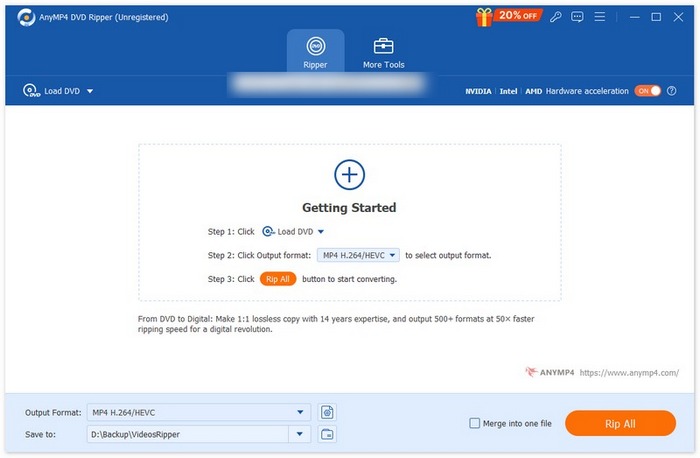
ขั้นตอนที่ 3 หลังจากนั้นให้คลิกที่ Output Format ด้านล่าง แล้วเลือกฟอร์แมต H.264 จากแท็บ Video เมื่อเรียบร้อยแล้ว เพียงคลิกปุ่ม Rip All เพื่อเริ่มริปดีวีดีของคุณ.
ข้อดีที่สุดของ AnyMP4 DVD Ripper ที่ FVC เลือกใช้ คือการแปลง DVD เป็น H.264 ได้โดยตรง ไม่ต้องใช้ขั้นตอนเพิ่มเติม นอกจากนี้ เทคโนโลยีการเข้ารหัสที่ใช้ยังยอดเยี่ยม ช่วยให้มั่นใจได้ว่า DVD ทั้งหมดจะถูกริปด้วยคุณภาพที่เท่ากันหรือดีกว่า
ส่วนที่ 3. แปลง DVD เป็น H.264 [ฟรี]
ตอนนี้ หากคุณสงสัยว่ามีดีวีดีฟรีสำหรับแปลงไฟล์ H.264 หรือไม่ คุณคิดถูกแล้ว! เครื่องมือแปลงไฟล์ฟรีเหล่านี้อาจไม่ใช่เครื่องมือแปลงวิดีโอโดยเฉพาะ ต่างจาก Video Converter Ultimate ที่ FVC เลือก อย่างไรก็ตาม เครื่องมือเหล่านี้ยังสามารถแปลงไฟล์ DVD เป็น H.264 ได้อีกด้วย
VLC Media Player
VLC เป็นที่รู้จักกันดีในฐานะโปรแกรมเล่นสื่อ และมักถูกใช้เพื่อจุดประสงค์นั้น อย่างไรก็ตาม ผู้ใช้ส่วนใหญ่ไม่ทราบว่าโปรแกรมเล่นสื่อนี้สามารถใช้แปลงดีวีดีเป็น H.264 ได้ด้วย ที่จริงแล้ว VLC รองรับฟอร์แมตวิดีโอเอาต์พุตอย่าง MP4, MKV, AVI และอื่น ๆ ทำให้เป็นเครื่องมือที่ใช้งานได้หลากหลายสำหรับการริปดีวีดี.
วิธีแปลงดีวีดีเป็น H.264 ด้วยโปรแกรม VLC Media Player มีดังนี้:
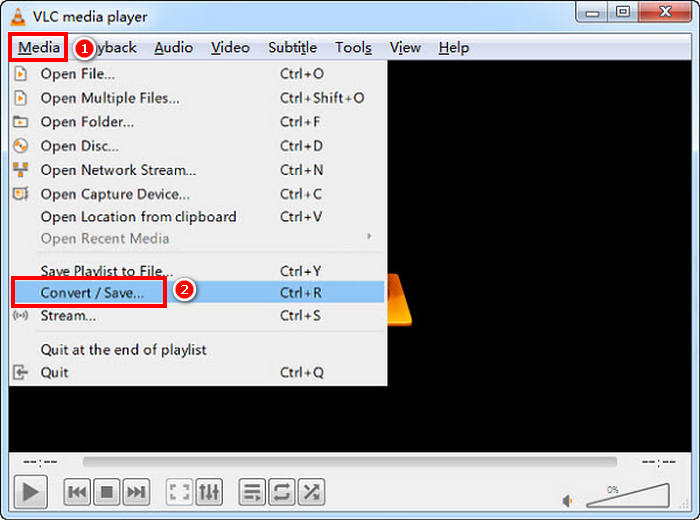
ขั้นตอนที่ 1 บนคอมพิวเตอร์ของคุณ ให้ใส่แผ่นดีวีดีลงในไดรฟ์ดิสก์ จากนั้นเปิดโปรแกรม VLC แล้วไปที่เมนู Media เลือก Convert/Save.
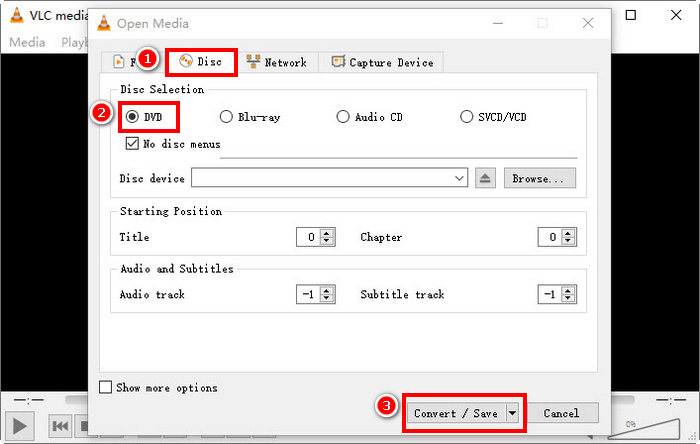
ขั้นตอนที่ 2 ในหน้าต่าง Open Media ให้เลือกแท็บ Disc คลิก DVD เพื่อโหลดแผ่น แล้วคลิกปุ่ม Convert/Save.
ขั้นตอนที่ 3 ในหน้าต่าง Convert ให้ไปที่ส่วน Profile แล้วเลือก H.264 + MP4 เป็นฟอร์แมตเอาต์พุต.
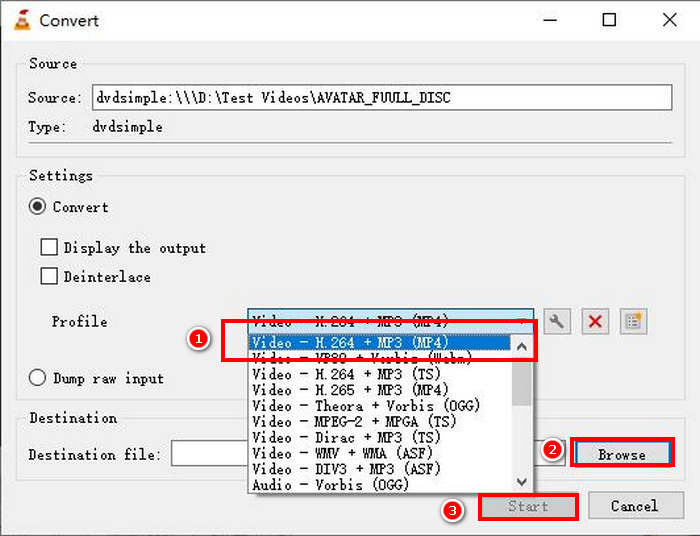
ขั้นตอนที่ 4 คลิก Browse เพื่อเลือกโฟลเดอร์ปลายทางและตั้งชื่อไฟล์ของคุณ.
ขั้นตอนที่ 5 สุดท้ายให้คลิกปุ่ม Start เพื่อเริ่มกระบวนการริป.
หมายเหตุ: โดยค่าเริ่มต้น VLC ไม่สามารถริปดีวีดีที่มีการป้องกันลิขสิทธิ์ได้ หากคุณพบปัญหากับดีวีดีที่เข้ารหัส อาจต้องติดตั้ง libdvdcss เพิ่มเติม.
เบรกมือ
อีกหนึ่งโปรแกรมแปลงวิดีโอที่คุณสามารถใช้แปลงดีวีดีเป็น H.264 ได้คือ HandBrake โปรแกรมนี้มีจุดเด่นที่เป็นซอฟต์แวร์ฟรีและโอเพ่นซอร์ส นอกจาก H.264 แล้ว ผู้ใช้ยังสามารถริปดีวีดีออกมาเป็นฟอร์แมตอย่าง MP4 และ MKV ได้ด้วย.
วิธีแปลงดีวีดีเป็น H.264 ด้วย HandBrake มีดังนี้:
ขั้นตอนที่ 1 ก่อนอื่นให้ดาวน์โหลดและติดตั้ง HandBrake ลงบนคอมพิวเตอร์ของคุณ.
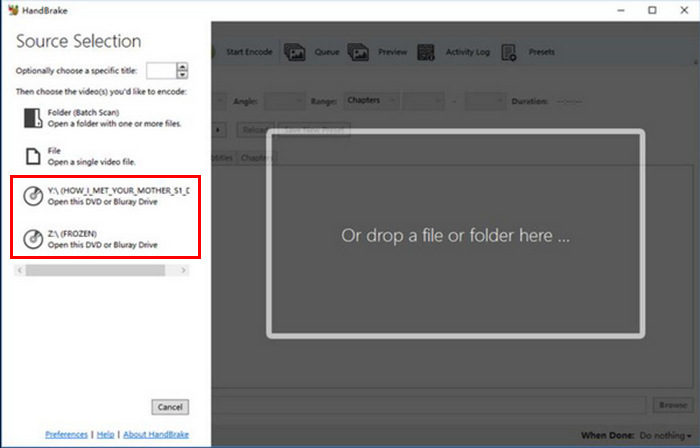
ขั้นตอนที่ 2 จากนั้นใส่แผ่นดีวีดีลงในไดรฟ์ DVD-ROM แล้วเลือกดีวีดีของคุณภายใต้ Source Selection โปรแกรมจะเริ่มสแกนชื่อเรื่อง (titles) ของภาพยนตร์ในแผ่นดีวีดี.
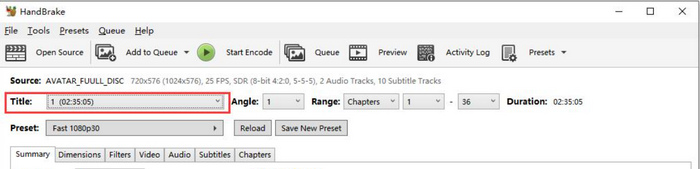
ขั้นตอนที่ 3 เมื่อเปิดแผ่น DVD แล้ว ให้เลือกชื่อเรื่องที่คุณต้องการริปได้จากเมนูดรอปดาวน์ของ Title.
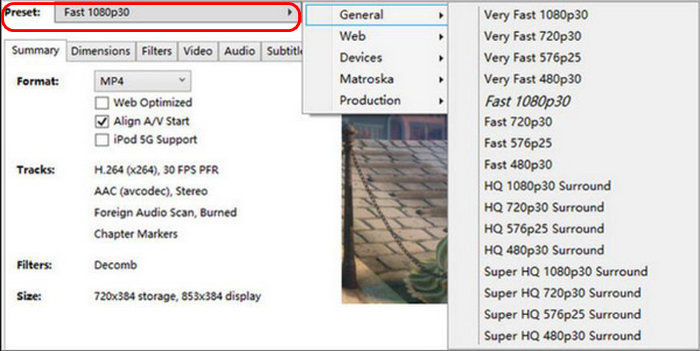
ขั้นตอนที่ 4 ต่อมา คุณต้องตัดสินใจเลือกคุณภาพไฟล์เอาต์พุตของคุณ เพียงคลิกปุ่ม Preset แล้วปรับแต่งการตั้งค่า ด้านล่างนั้นคุณจะเห็น Format ให้คลิกแล้วเลือก MP4 เป็นฟอร์แมตเอาต์พุต.
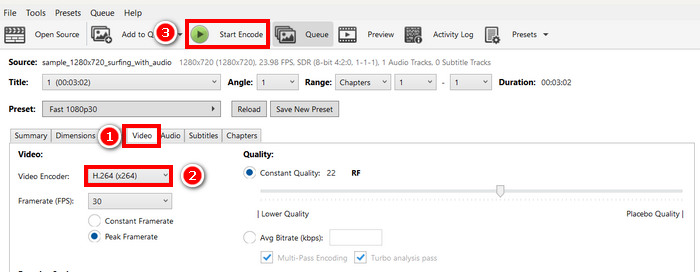
ขั้นตอนที่ 5 จากนั้นไปที่ Video แท็บ และในส่วน Video Encoder ให้คลิกเลือก H.264 สุดท้ายให้คลิกปุ่ม Start Encode ที่ด้านบนของหน้าต่างเพื่อเริ่มริปดีวีดีของคุณเป็น H.264.
ส่วนที่ 4 คำถามที่พบบ่อยเกี่ยวกับการแปลง DVD เป็น H.264
DVD รองรับรูปแบบ H.264 หรือไม่?
ไม่ครับ DVD ไม่รองรับรูปแบบ H.264 อย่างไรก็ตาม หากคุณต้องการจัดเก็บวิดีโอในรูปแบบ H.264 คุณจำเป็นต้องริปและแปลง DVD เป็น H.264 โดยใช้เครื่องมือแปลงวิดีโอ เช่น Video Converter Ultimate, HandBrake และ VLC ที่ FVC เลือก
เหตุใดฉันจึงควรแปลง DVD เป็น H.264?
H.264 ให้การบีบอัดและคุณภาพที่ดีกว่า MPEG-2 ช่วยลดขนาดไฟล์แต่ยังคงความคมชัดของวิดีโอ จึงเหมาะอย่างยิ่งสำหรับการจัดเก็บข้อมูลดิจิทัลและการสตรีม
ความแตกต่างระหว่าง H.264 กับ H.265 คืออะไร?
H.265 หรือ HEVC เป็นเทคโนโลยีใหม่กว่าและมีประสิทธิภาพมากกว่า โดยให้การบีบอัดข้อมูลที่ดีกว่า H.264 อย่างไรก็ตาม H.265 ต้องใช้พลังประมวลผลมากกว่าและอาจไม่รองรับบนอุปกรณ์บางรุ่น
สรุป
การแปลงดีวีดีเป็น H.264 ไม่ได้ยุ่งยากเลยหากใช้โปรแกรมแปลงวิดีโอที่เหมาะสม ดังนั้นเพียงเลือกวิธีที่ตรงกับความต้องการและทรัพยากรของคุณมากที่สุด แล้วทำตามขั้นตอนอย่างระมัดระวัง หากคุณอยากรีบเก็บรักษาและแปลงดีวีดีของคุณ ก็เริ่มกระบวนการแปลงได้เลยตอนนี้
-
 4 วิธีในการคัดลอก DVD ลง MacBook [คู่มือสำหรับผู้เริ่มต้น]
 หากคุณกำลังสงสัยว่าจะคัดลอก DVD ไปยัง MacBook ได้อย่างไร โปรดอ่านบทความนี้ต่อไปและรับคำแนะนำจากวิธีง่ายๆ 4 วิธีที่คุณสามารถลองทำเองได้อย่างง่ายดาย
-
 การจัดเก็บดีวีดีแบบ DIY: 6 ไอเดียในการสร้างพื้นที่จัดเก็บดีวีดี
 กำลังมองหาไอเดียเกี่ยวกับวิธีจัดเก็บดีวีดีแบบ DIY อยู่ใช่ไหม? อ่านบทความนี้เพื่อให้แน่ใจว่าดีวีดีของคุณอยู่ในพื้นที่ปลอดภัยและสามารถเข้าถึงได้ง่ายเมื่อต้องการ
-
 5 อันดับตัวแปลง VHS เป็น DVD ที่ดีที่สุดสำหรับ Windows และ macOS
 คุณมีเทป VHS กองโตอยู่ที่บ้านและกำลังมองหาวิธีเก็บรักษาเทปเหล่านี้อยู่ใช่ไหม? บทความนี้จะแนะนำ 5 เครื่องมือที่จะช่วยคุณแปลง VHS เป็น DVD ได้อย่างง่ายดาย
