


 Video Converter Ultimate
 บันทึกหน้าจอ
 ซ่อมวิดีโอ
 ดาวน์โหลดอย่างปลอดภัย
Zoom เฉพาะเสียง: วิธีบันทึกเฉพาะเสียงบน Zoom? [2025]
ในโลกปัจจุบัน Zoom ได้กลายเป็นแพลตฟอร์มยอดนิยมสำหรับการประชุม เรียนออนไลน์ สัมภาษณ์ และพอดแคสต์ แต่ถ้าคุณไม่ได้ต้องการวิดีโอและอยากบันทึกแค่เสียงล่ะ? บางทีคุณอาจเข้าฟังบรรยายยาว ๆ ประชุมธุรกิจ หรือสัมมนาออนไลน์ ซึ่งการบันทึกเป็นวิดีโออาจกินพื้นที่เกินจำเป็น หรือรบกวนสมาธิจากการโฟกัสที่เนื้อหา การบันทึกเฉพาะเสียงช่วยให้คุณเก็บข้อมูลสำคัญ ทบทวนบทสนทนาย้อนหลัง หรือสร้างพอดแคสต์และบันทึกเสียงได้อย่างมีประสิทธิภาพมากขึ้น.
ในคู่มือนี้ เราจะสอนคุณว่าจะบันทึกเฉพาะเสียงบน Zoom ได้อย่างไร สำรวจข้อจำกัดต่าง ๆ และแนะนำเครื่องมือฟรีทางเลือกที่ดีที่สุด เพื่อให้การบันทึกเสียงง่ายขึ้นกว่าเดิม.

ส่วนที่ 1 วิธีบันทึกเฉพาะเสียงบน Zoom
Zoom กลายเป็นส่วนหนึ่งของชีวิตประจำวันเรา ไม่ว่าจะใช้สำหรับการประชุมงาน เรียนออนไลน์ สัมภาษณ์ทางวิดีโอ หรือพูดคุยสบาย ๆ กับเพื่อนและครอบครัว ความสามารถด้านวิดีโอและเสียงของมันช่วยให้การสื่อสารทางไกลทำได้ง่ายและมีประสิทธิภาพ ทำให้ผู้คนเชื่อมต่อกันได้แม้อยู่ต่างเมือง ต่างประเทศ หรือคนละทวีป.
แต่อย่างไรก็ตาม บางครั้งคุณไม่ต้องใช้วิดีโอ แต่อยากได้แค่เสียงเท่านั้น.
เหตุผลที่ควรบันทึกเฉพาะเสียงบน Zoom มีดังนี้:
- • คุณกำลังเข้าฟังบรรยายยาว ๆ และอยากโฟกัสที่การฟังมากกว่าการดู.
- • คุณกำลังร่วมอัดพอดแคสต์หรือสัมภาษณ์และต้องการแค่เสียงบทสนทนา.
- • คุณต้องการประหยัดพื้นที่จัดเก็บโดยบันทึกเฉพาะเสียงแทนวิดีโอ.
- • การบันทึกเฉพาะเสียงบน Zoom ช่วยให้คุณเก็บการสนทนาสำคัญได้ โดยไม่ต้องสร้างไฟล์วิดีโอขนาดใหญ่.
ตอนนี้ มาเรียนรู้กันว่าบันทึกเฉพาะเสียงบน Zoom ได้อย่างไร:
ขั้นตอนที่ 1 ลงชื่อเข้าใช้บัญชี Zoom ของคุณผ่านเว็บเบราว์เซอร์.
ขั้นตอนที่ 2 จากเมนูด้านซ้าย เลือก การบันทึก (Recording) แล้วเลื่อนลงไปที่ส่วน การบันทึกบนคลาวด์ (Cloud Recording).
ขั้นตอนที่ 3 เปิดการใช้งาน Cloud Recording และทำเครื่องหมายที่ตัวเลือก Record an audio-only file (บันทึกเป็นไฟล์เสียงเท่านั้น).
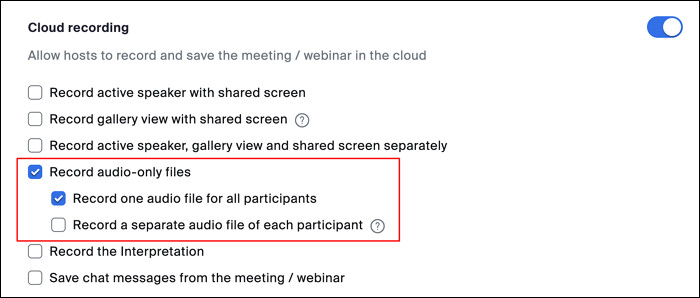
Zoom มีตัวเลือกการบันทึกเสียงอยู่สองแบบ:
- • บันทึกเป็นไฟล์เสียงเดียวสำหรับผู้เข้าร่วมทั้งหมด: รูปแบบนี้จะบันทึกเสียงของทุกคนรวมไว้ในไฟล์เดียว เหมาะสำหรับการฟังซ้ำหรือจดโน้ตอย่างง่าย.
- • บันทึกเป็นไฟล์เสียงแยกสำหรับผู้เข้าร่วมแต่ละคน: รูปแบบนี้จะสร้างไฟล์เสียงแยกต่อหนึ่งผู้เข้าร่วม (ได้สูงสุด 200 คน) ทำให้ง่ายต่อการตัดต่อ ถอดความ หรือโฟกัสที่ผู้พูดคนใดคนหนึ่งเป็นพิเศษ.
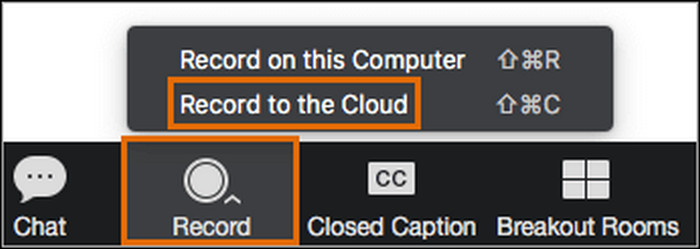
ขั้นตอนที่ 4 เปิดการประชุม Zoom ของคุณตามปกติ ระหว่างการประชุมให้คลิกไอคอน More หรือ จุดสามจุด บนแถบเครื่องมือ.
ขั้นตอนที่ 5 เลือก Record to the Cloud จากเมนู และเมื่อการประชุมสิ้นสุดลง ให้เข้าไปที่ส่วน Recordings ในพอร์ทัลเว็บ Zoom ของคุณเพื่อค้นหาและดาวน์โหลดไฟล์เสียงที่บันทึกไว้.
ส่วนที่ 2 ข้อจำกัดของการบันทึกเสียงด้วย Zoom แบบในตัวโปรแกรม
แม้ Zoom จะสามารถบันทึกเฉพาะเสียงจากการประชุมได้ แต่ฟีเจอร์บันทึกเสียงในตัวโปรแกรมก็มีข้อจำกัดหลายอย่างที่ผู้ใช้ควรทราบ หากเป้าหมายของคุณคือการเก็บเสียงที่คมชัด ยืดหยุ่น และมีคุณภาพสูง โดยเฉพาะสำหรับพอดแคสต์ สัมภาษณ์ หรือเก็บรักษาในระยะยาว เครื่องมือในตัวของ Zoom อาจไม่ใช่ตัวเลือกที่ดีที่สุดเสมอไป การเข้าใจข้อจำกัดเหล่านี้จะช่วยให้คุณตัดสินใจได้ว่ามันเพียงพอสำหรับคุณหรือควรใช้เครื่องมือจากภายนอกมาช่วยจะดีกว่า.
ข้อกำหนดการใช้ Cloud Recording
ตัวเลือกบันทึกเฉพาะเสียงของ Zoom พึ่งพาฟีเจอร์ Cloud Recording เป็นหลัก ซึ่งมีให้ใช้เฉพาะผู้ใช้ที่สมัครแพ็กเกจแบบเสียเงินเท่านั้น ผู้ใช้แบบฟรีจะจำกัดอยู่แค่การบันทึกแบบ Local ทำให้ไม่สามารถบันทึกไฟล์เสียงอย่างเดียวได้โดยตรงหากไม่ทำขั้นตอนเพิ่มเติม.
การควบคุมคุณภาพเสียงที่จำกัด
Zoom จะบีบอัดไฟล์เสียงโดยอัตโนมัติเพื่อให้เหมาะสมกับการใช้พื้นที่จัดเก็บและแบนด์วิดท์ แม้จะเหมาะกับการประชุมทั่วไป แต่ก็อาจทำให้ความคมชัดของเสียงลดลง โดยเฉพาะในกรณีที่เป็นดนตรี การสนทนาที่ต้องการรายละเอียด หรือการบันทึกเชิงมืออาชีพที่คุณภาพเสียงมีความสำคัญมาก.
การพึ่งพาอินเทอร์เน็ต
เนื่องจากการบันทึกบนคลาวด์เกิดขึ้นแบบออนไลน์ จึงจำเป็นต้องมีการเชื่อมต่ออินเทอร์เน็ตที่เสถียรตลอดการประชุม การขัดข้องของเครือข่ายอาจส่งผลต่อคุณภาพการบันทึกหรือทำให้บางช่วงเสียงหายไป.
ข้อจำกัดด้านพื้นที่จัดเก็บและการเข้าถึง
การบันทึกบนคลาวด์จะถูกจัดเก็บในบัญชี Zoom ของคุณ และถูกจำกัดด้วยพื้นที่จัดเก็บตามแพ็กเกจที่คุณสมัคร เมื่อใช้พื้นที่เกินกำหนด คุณอาจต้องอัปเกรดแพ็กเกจหรือดาวน์โหลดแล้วลบไฟล์เก่าออกด้วยตนเองเพื่อเพิ่มพื้นที่ว่าง.
ข้อจำกัดในการแก้ไขและความยืดหยุ่น
Zoom ไม่มีเครื่องมือแก้ไขเสียงในตัว หากคุณต้องการตัดต่อ ปรับปรุง หรือรวมไฟล์เสียงหลายไฟล์เข้าด้วยกัน คุณจำเป็นต้องส่งออกไฟล์แล้วไปใช้ซอฟต์แวร์ภายนอกช่วย.
ข้อกังวลด้านความเป็นส่วนตัวและการขออนุญาต
ในบางกรณี ผู้เข้าร่วมประชุมอาจต้องได้รับการแจ้งเตือนหรือให้สิทธิ์ก่อนถูกบันทึกเสียง ทั้งนี้ขึ้นอยู่กับกฎหมายท้องถิ่นและนโยบายขององค์กร ซึ่งอาจจำกัดรูปแบบและโอกาสในการใช้งานการบันทึกเสียง.
เนื่องจากข้อจำกัดเหล่านี้ ผู้ใช้จำนวนมากจึงหันไปใช้เครื่องมือบันทึกเสียงโดยเฉพาะที่ให้การควบคุมได้มากกว่า คุณภาพเสียงดีกว่า และมีข้อจำกัดน้อยกว่า ในหัวข้อถัดไป เราจะแนะนำตัวบันทึก Zoom ที่ดีที่สุด ซึ่งช่วยให้คุณบันทึกเฉพาะเสียงจาก Zoom ได้อย่างมีประสิทธิภาพและไร้ข้อจำกัดที่ไม่จำเป็น.
ส่วนที่ 3 ทางเลือกออนไลน์ที่ดีที่สุดในการบันทึกเฉพาะเสียงบน Zoom [ฟรี]
หากคุณรู้สึกว่าฟีเจอร์บันทึกเสียงในตัว Zoom มีข้อจำกัด โดยเฉพาะเรื่องการต้องใช้คลาวด์ พื้นที่จัดเก็บ หรือความกังวลเกี่ยวกับคุณภาพเสียง การใช้โปรแกรมบันทึกโดยเฉพาะอาจเป็นทางเลือกที่ดีกว่า ตรงนี้เองที่ FVC Free Screen Recorder โดดเด่นขึ้นมา มันนำเสนอวิธีที่เรียบง่ายและมีประสิทธิภาพในการบันทึกเฉพาะเสียงจากการประชุม Zoom โดยไม่ต้องมีแพ็กเกจ Zoom แบบเสียเงินหรือเปิดใช้การบันทึกบนคลาวด์.
ยิ่งไปกว่านั้น ต่างจากฟีเจอร์อัดหน้าจอในตัวของ Zoom เครื่องมือนี้ช่วยให้คุณบันทึกได้ทั้งเสียงระบบของเครื่อง เสียงไมโครโฟน หรือทั้งสองอย่างพร้อมกัน จึงเหมาะอย่างยิ่งสำหรับการประชุม บรรยาย สัมภาษณ์ และการสนทนาด้วยเสียงทุกรูปแบบ.
คุณสมบัติหลัก:
- • บันทึกเฉพาะเสียงโดยไม่จับภาพวิดีโอ.
- • บันทึกได้ทั้งเสียงระบบจาก Zoom เสียงไมโครโฟน หรือทั้งสองอย่าง.
- • ให้คุณภาพเสียงสูงแบบไม่สูญเสียรายละเอียด (lossless).
- • ไม่มีลายน้ำถูกใส่ลงในไฟล์เสียง.
- • ไม่จำกัดเวลาในการบันทึกการประชุมหรือคลาส Zoom ที่ยาวนาน.
- • ตั้งค่าง่าย ใช้ขั้นตอนน้อยก็เริ่มอัดได้ทันที.
- • บันทึกไฟล์เสียงโดยตรงลงในคอมพิวเตอร์ของคุณ.
- • ไม่จำเป็นต้องใช้การบันทึกบนคลาวด์ของ Zoom หรือสมัครแพ็กเกจแบบเสียเงิน.
- • ใช้งานได้แม้ไม่มีฟังก์ชันบันทึกเสียงภายในตัวของ Zoom.
- • ใช้งานได้กับ Windows และ macOS
วิธีบันทึกเฉพาะเสียงบน Zoom ด้วย FVC Free Screen Recorder มีดังนี้:
ขั้นตอนที่ 1 ก่อนอื่นคุณต้องเข้าใช้งานเครื่องมือนี้บนคอมพิวเตอร์ของคุณ เปิดเว็บเบราว์เซอร์ เช่น Chrome แล้วค้นหา FVC Free Screen Recorder.
ขั้นตอนที่ 2 เมื่อคุณสามารถเข้าใช้เครื่องมือได้แล้ว ให้เปิดขึ้นมาและคลิกปุ่ม Start Recording.
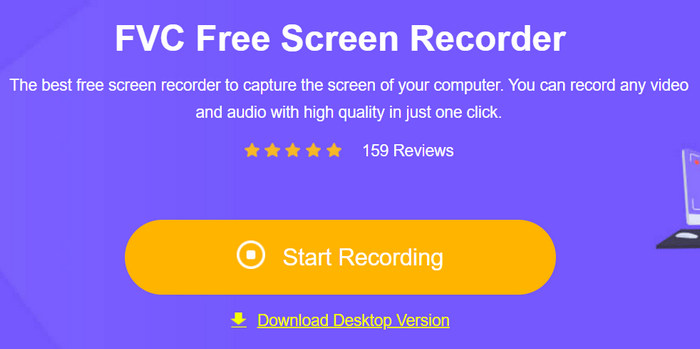
ขั้นตอนที่ 3 จากนั้นจะมีหน้าต่างใหม่เด้งขึ้นมาบนหน้าจอของคุณ เพียงคลิกปุ่ม REC ที่อยู่ด้านขวา.
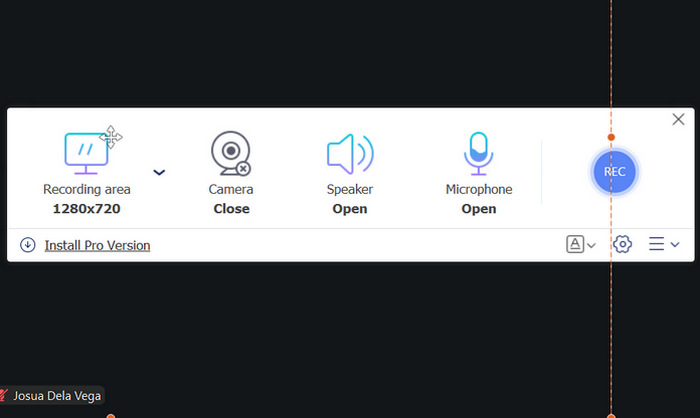
ด้วย FVC Free Screen Recorder คุณสามารถบันทึกเฉพาะเสียงจากการประชุม Zoom ได้อย่างง่ายดาย มันสามารถจับเสียงระบบและเสียงไมโครโฟนโดยไม่ต้องบันทึกวิดีโอ จัดเก็บไฟล์ลงบนคอมพิวเตอร์โดยตรง และทำงานได้โดยไม่ต้องพึ่งการบันทึกบนคลาวด์หรือแพ็กเกจ Zoom แบบเสียเงิน.
ส่วนที่ 4 คำถามที่พบบ่อยเกี่ยวกับการบันทึกเฉพาะเสียงบน Zoom
ฉันสามารถบันทึกเฉพาะเสียงใน Zoom ได้ฟรีหรือไม่?
Zoom อนุญาตให้บันทึกเสียงได้ แต่ตัวเลือกเฉพาะเสียง (audio-only) ต้องใช้ฟีเจอร์การบันทึกแบบคลาวด์ (Cloud Recording) ซึ่งมีให้เฉพาะผู้ใช้แพ็กเกจแบบเสียเงินเท่านั้น ผู้ใช้แบบฟรีสามารถบันทึกการประชุมลงในเครื่องได้ แต่ไฟล์ที่บันทึกจะยังคงมีภาพวิดีโอรวมอยู่ด้วย หากไม่ใช้โปรแกรมบันทึกเสียงจากผู้ให้บริการภายนอก.
Zoom บันทึกไฟล์เสียงอย่างเดียวไว้ที่ไหน?
เมื่อคุณบันทึกเฉพาะเสียงด้วยฟังก์ชันบันทึกบนคลาวด์ของ Zoom ไฟล์เสียงจะถูกบันทึกไว้ในพอร์ทัลเว็บของ Zoom ภายใต้ส่วนการบันทึก (Recordings) คุณสามารถดาวน์โหลดเป็นไฟล์เสียงไฟล์เดียวหรือเป็นไฟล์แยกตามผู้เข้าร่วมแต่ละคนได้ ขึ้นอยู่กับการตั้งค่าของคุณ.
วิธีฟรีที่ดีที่สุดในการบันทึกเสียงจาก Zoom โดยไม่ต้องมีวิดีโอคือวิธีไหน?
การใช้เครื่องมือของบุคคลที่สามอย่าง FVC Free Screen Recorder เป็นหนึ่งในตัวเลือกฟรีที่ดีที่สุด คุณสามารถบันทึกเฉพาะเสียงจากการประชุม Zoom ได้ บันทึกทั้งเสียงระบบและไมโครโฟนอย่างคมชัด และบันทึกไฟล์ลงในคอมพิวเตอร์ของคุณได้โดยตรง โดยไม่มีข้อจำกัดด้านคลาวด์หรือแพ็กเกจแบบเสียเงิน.
สรุป
การบันทึกเฉพาะเสียงบน Zoom เป็นวิธีที่ใช้งานได้จริงในการประหยัดพื้นที่โฟกัสกับบทสนทนา และเก็บบันทึกการพูดคุยสำคัญโดยไม่ต้องใช้วิดีโอที่ไม่จำเป็น แม้ฟีเจอร์บันทึกเสียงของ Zoom จะมีประโยชน์ แต่ก็มีข้อจำกัดอย่างการพึ่งพาคลาวด์ การจำกัดพื้นที่จัดเก็บ และการควบคุมเสียงที่ทำได้น้อย การใช้เครื่องมือฟรีอย่าง FVC Free Screen Recorder จึงเป็นทางออกที่เรียบง่าย คุณภาพสูง และยืดหยุ่นสำหรับการบันทึกเสียงจาก Zoom ลงบนคอมพิวเตอร์โดยตรง แล้วคุณจะรออะไรอยู่? อย่าพลาดโอกาสที่จะเรียนรู้วิธีบันทึกเฉพาะเสียงบน Zoom ด้วยตัวคุณเอง.
-
 วิธีบันทึกเสียงด้วย VLC Media Player: คู่มือฉบับสมบูรณ์
 ในบทความนี้ คุณจะได้เรียนรู้วิธีบันทึกเสียงด้วย VLC Media Player บทความนี้มีขั้นตอนโดยละเอียดและจะแนะนำทางเลือกที่ดีที่สุดอย่างหนึ่งสำหรับ VLC
-
 3 เทคนิคที่ดีที่สุดในการบันทึกเสียงบน iPhone
 ประสบปัญหาเนื่องจากคุณไม่สามารถบันทึกเสียงบน iPhone ได้อย่างถูกต้อง? จากนั้นอ่านบทความนี้เพื่อเรียนรู้ขั้นตอนและเครื่องมือที่มี
-
 สามารถบันทึกวิดีโอคุย FaceTime ได้ไหม? [iPhone/iPad/Mac]
 ค้นหาในบทความนี้ว่าคุณสามารถบันทึกวิดีโอการสนทนาทาง FaceTime บนอุปกรณ์ต่างๆ ได้จริงหรือไม่ และเรียนรู้เครื่องมือใหม่ที่สามารถบันทึกหน้าจอการสนทนาทางวิดีโอ FaceTime ได้
