


 Video Converter Ultimate
 บันทึกหน้าจอ
 ซ่อมวิดีโอ
 ดาวน์โหลดอย่างปลอดภัย
3 วิธีในการเล่นวิดีโอ MKV ใน Windows Media Player ด้วยตัวแปลงสัญญาณที่ถูกต้อง
MKV ย่อมาจาก Matroska Multimedia Container เป็นรูปแบบไฟล์คอนเทนเนอร์แบบเปิดฟรีที่มีแทร็กวิดีโอ เสียง รูปภาพ และคำบรรยายในไฟล์เดียว ไฟล์ MKV มักใช้สำหรับจัดเก็บคลิปวิดีโอ ภาพยนตร์ และรายการทีวี ผู้ใช้ Windows 8/7 บางรายบ่นว่าไม่สามารถเล่นวิดีโอ MKV ในโปรแกรมเล่นวิดีโอเริ่มต้นได้ - Windows Media Player
ความจริงก็คือ Windows Media Player ไม่รองรับการแยก (เปิด) คอนเทนเนอร์ MKV ถ้าคุณยังต้องการเล่นวิดีโอ MKV ใน Windows Media Player คุณควรติดตั้งตัวแปลงสัญญาณ MKV ที่ถูกต้องสำหรับ Windows Media Player ในบทความนี้ เราจะบอกคุณว่าจะหา MKV codec สำหรับ Windows Media Player ได้ที่ไหน และวิธีอื่นๆ ในการเล่นวิดีโอ MKV ใน Windows Media Player

ส่วนที่ 1 จะดาวน์โหลด MKV Codec สำหรับ Windows Media Player ได้ที่ไหน
หากคุณต้องการเล่นวิดีโอ MKV ในWindows Media Player คุณจำเป็นต้องติดตั้งโคเดกที่รองรับ ต่อไปนี้คือชุดโคเดกยอดนิยม 3 ชุดสำหรับ Windows Media Player คุณสามารถดาวน์โหลดและติดตั้งโคเดก MKV สำหรับ Windows Media Player ได้.
1. Media Player Codec Pack
Media Player Codec Pack เป็นชุดตัวแปลงสัญญาณอเนกประสงค์สำหรับ Windows Media Player ใช้เพื่อบรรจุไฟล์วิดีโอและไฟล์เสียงที่ทันสมัย มันเข้ากันได้กับ Microsoft Windows 10, 8.1, 8, 7, Vista, XP, 2000, 2008, 2003 คุณสามารถดาวน์โหลด Media Player Codec Pack และรับตัวแปลงสัญญาณเช่น MKV, XviD, VOB, EVO, HEVC, M2TS, IVF, BDMV, MP4, MOV, WEBM, FLV ฯลฯ สำหรับ Windows Media Player 12, 11 หรือ 10
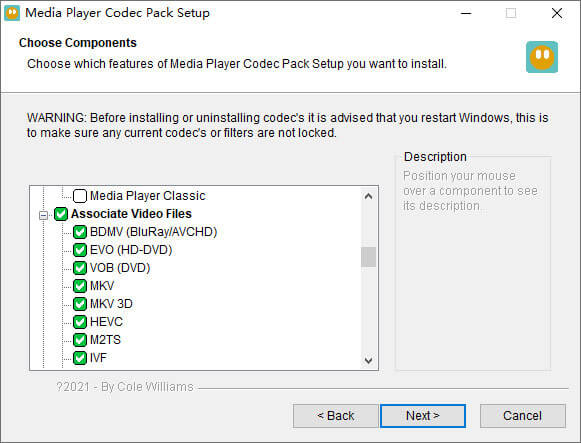
2. CCCP (Combined Community Codec Pack)
Combined Community Codec Pack เป็นแพ็กเล่นสำหรับ Windows มีชุดตัวแปลงสัญญาณที่ครอบคลุมซึ่งสามารถเล่นไฟล์วิดีโอประเภทใดก็ได้ เช่น MKV, MP4, MOV, VOB ฯลฯ ใน Windows Media Player มันเข้ากันได้กับ Windows 10/8/7, WindowsVista, Windows XP, Windows 2000 คุณสามารถดาวน์โหลดแอพนี้ได้ฟรีจากเว็บไซต์ทางการฟรี
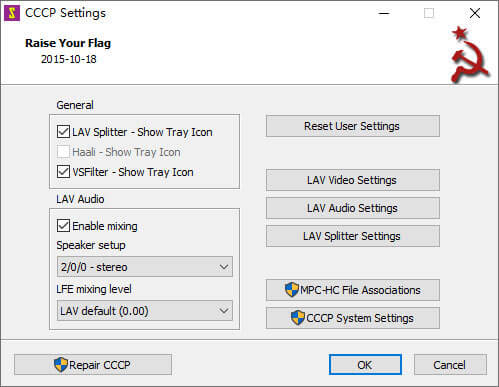
3. ffdshow
Ffdshow เป็นแพ็กการเล่นขั้นสูงสำหรับตัวแปลงสัญญาณ Windows ที่รองรับรูปแบบเสียงและวิดีโอส่วนใหญ่ คุณสามารถติดตั้งตัวแปลงสัญญาณที่เหมาะสมสำหรับ h.264, MPEG-4, H.263, VP3, Theora, SVQ3, MP3, AC3, DTS, AAC และอื่นๆ นอกจากนี้ยังมีตัวกรองเพื่อปรับขนาด ดีอินเทอร์เลซ และแสดงคำบรรยาย ฯลฯ คุณสามารถดาวน์โหลด ffdshow และติดตั้งตัวแปลงสัญญาณ MKV ที่เหมาะสมสำหรับ Windows Media Player
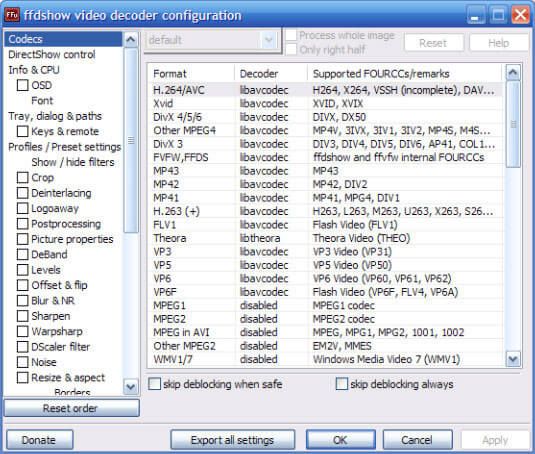
ส่วนที่ 2 แปลง MKV สำหรับการเล่นใน Windows Media Player
แม้ว่าวิดีโอ MKV จะไม่ถูกสนับสนุนโดย Windows Media Player แต่คุณสามารถแปลงวิดีโอ MKV ให้เป็นรูปแบบที่ Windows Media Player รองรับได้ ตามที่เราทราบ Windows Media Player 12 มีการรองรับในตัวสำหรับรูปแบบวิดีโอและเสียงส่วนใหญ่ เช่น MPEG, WMV, AVCHD, WMA, AAC, 3GP เป็นต้น ด้วย Video Converter Ultimate คุณสามารถแปลงวิดีโอ MKV ให้เป็นรูปแบบวิดีโอ/เสียงใดก็ได้ รวมถึง MP4, AVI, MOV, WMV, MKV, MPEG, MP3, FLAC เป็นต้น.
ดาวน์โหลดฟรีสำหรับ Windows 7 หรือใหม่กว่าดาวน์โหลดอย่างปลอดภัย
ดาวน์โหลดฟรีสำหรับ MacOS 10.7 หรือใหม่กว่าดาวน์โหลดอย่างปลอดภัย
ขั้นตอนที่ 1. คลิกปุ่มดาวน์โหลดเพื่อดาวน์โหลด Video Converter Ultimate ลงในคอมพิวเตอร์ของคุณ เปิดโปรแกรมแปลงไฟล์ MKV นี้ แล้วคลิกปุ่ม Add Files เพื่อเพิ่มวิดีโอ MKV เข้ามาในโปรแกรม.
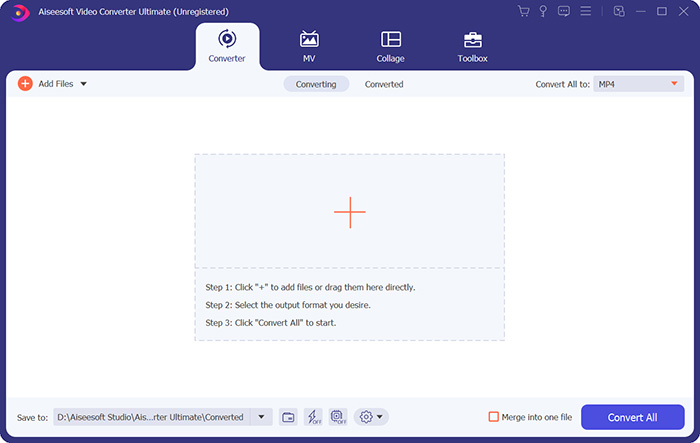
ขั้นตอนที่ 2. คลิกลูกศรดรอปดาวน์ข้าง Convert All to แล้วเลือก MP4 หรือรูปแบบอื่นจากแท็บ Video.

ขั้นตอนที่ 3. จากนั้นคุณสามารถไปที่ส่วน Save to ด้านล่างเพื่อเลือกเส้นทางจัดเก็บสำหรับวิดีโอ MKV ที่แปลงแล้ว สุดท้ายคลิกปุ่ม Convert All เพื่อเริ่มแปลงไฟล์ MKV เป็น MP4 บนคอมพิวเตอร์ของคุณ.
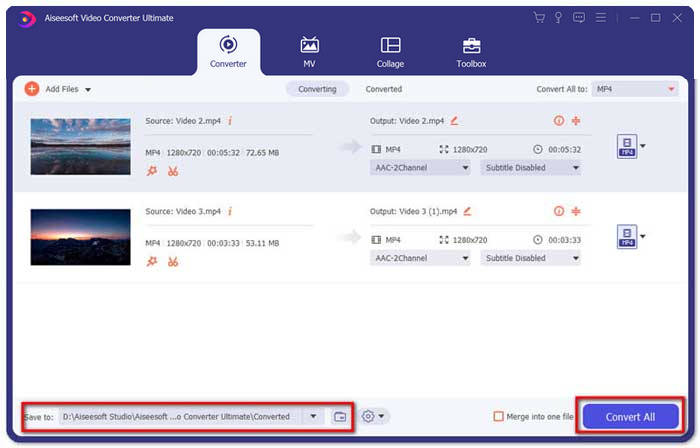
เมื่อการแปลงเสร็จสมบูรณ์ คุณสามารถเล่นวิดีโอ MKV ที่แปลงแล้วใน Windows Media Player หากคุณต้องการขัดเกลาวิดีโอ MKV ของคุณเพิ่มเติมก่อนการแปลง คุณสามารถคลิกไอคอนแก้ไขในอินเทอร์เฟซหลักเพื่อหมุน ครอบตัด ลายน้ำวิดีโอ MKV เพิ่มคำบรรยาย และใช้ตัวกรองอื่น ๆ
ส่วนที่ 3 เล่น MKV ด้วย Windows Media Player Alternative
ถ้าWindows Media Player ใช้งานไม่ได้ในขณะที่คุณมีไฟล์ MKV ที่แปลงแล้วอยู่ล่ะ? ปัจจัยต่าง ๆ สามารถทำให้การเล่นไฟล์ MKV บน Windows Media Player มีปัญหาได้ หากคุณไม่ต้องการติดตั้งโคเดกเฉพาะสำหรับ Windows Media Player คุณสามารถลองใช้โปรแกรมเล่นวิดีโอ MKV ตัวอื่นแทนได้ FVC Free Video Player เป็นโปรแกรมเล่นวิดีโอ MKV ออนไลน์ที่ช่วยให้คุณเล่นไฟล์มัลติมีเดียทุกชนิดในทุกฟอร์แมต เช่น MKV, MP4, FLV, MOV, AVI, 3GP, MP3, AAC เป็นต้น โดยอิงเทคโนโลยี HTML 5 โปรแกรมเล่น MKV นี้รองรับการเล่นไฟล์ MKV ได้อย่างลื่นไหลในเบราว์เซอร์ของคุณ โดยไม่ต้องดาวน์โหลดแพ็กเกจเพิ่มเติม ไม่มีค่าใช้จ่ายหรือการลงทะเบียนใด ๆ เพิ่มเติม.
ขั้นตอนที่ 1. ไปยังหน้าเว็บทางการของ FVC Free Video Player คลิกปุ่ม Play Now เพื่อดาวน์โหลดและติดตั้งตัวเรียกใช้งาน (launcher) ลงในคอมพิวเตอร์ของคุณ.

ขั้นตอนที่ 2. คุณสามารถคลิกปุ่ม Open File ในหน้าหลักเพื่อเพิ่มวิดีโอ MKV เข้าไปยังโปรแกรมทางเลือกแทน Windows Media Player.

ขั้นตอนที่ 3. เมื่อคุณนำเข้าวิดีโอ MKV แล้ว วิดีโอนั้นจะเล่นโดยอัตโนมัติบนคอมพิวเตอร์ของคุณ ระหว่างการเล่น คุณสามารถไปที่แท็บ Control เพื่อเล่น หยุด เดินหน้า หรือถอยหลังการเล่นวิดีโอ MKV ได้.

ห้ามพลาด: วิธีเล่น DVD บน Windows Media Player?
ส่วนที่ 4 คำถามที่พบบ่อยของ MKV Codec สำหรับ Windows Media Player
เครื่องเล่นสื่อใดที่สามารถเล่นตัวแปลงสัญญาณ MKV ได้
มีผู้เล่นหลายคนที่รองรับตัวแปลงสัญญาณ MKV รวมถึง VLC Media Player, Media Player Classic, KMPlayer, MX Player, MKPlayer, Zoom Player, 5K Player, GOM Player เป็นต้น
ไฟล์ MKV มีขนาดเล็กกว่า MP4 หรือไม่
ไฟล์ MKV มักจะมีขนาดไฟล์ที่ใหญ่กว่า MP4 เนื่องจากมีหลายแทร็ก แทร็กคำบรรยาย และคุณสมบัติอื่นๆ แม้ว่าไฟล์ MP4 จะถูกเก็บไว้ในขนาดที่เล็ก แต่ก็รักษาคุณภาพสูงไว้ได้เหมือนกับ MKV นั่นเป็นเพราะว่าคอนเทนเนอร์ทั้งสองรูปแบบ MKV และ MP4 สามารถห่อหุ้มวิดีโอและเสียงเดียวกันได้
VLC Media Player เล่นไฟล์ MKV หรือไม่
ใช่. VLC Media Player สามารถจดจำและเล่นรูปแบบวิดีโอและเสียงเกือบทั้งหมด รวมถึง MKV หากไฟล์ MKV ไม่สามารถเล่นใน VLC Media Player คุณสามารถติดตั้งตัวแปลงสัญญาณ MKV หรือลองใช้เครื่องเล่น MKV อื่น ๆ เช่น FVC Free Video Player แทน
สรุป
ไฟล์ MKV รองรับคุณภาพแบบไม่สูญเสียและมีรูปภาพ วิดีโอ และเสียงไม่จำกัด เป็นเรื่องน่ารำคาญที่ MKV ไม่สามารถเล่นได้ใน Windows Media Player 12 ซึ่งเป็นโปรแกรมเล่นสื่อเริ่มต้นสำหรับ Windows คุณสามารถลองติดตั้งตัวแปลงสัญญาณ MKV เพื่อการเล่นที่ราบรื่น หรือแปลง MKV เป็นรูปแบบวิดีโออื่น หากคุณเบื่อกับ Windows Media Player คุณสามารถลองใช้เครื่องเล่นวิดีโอ MKV อื่น ๆ เช่น FVC Free Video Player หวังว่าปัญหาของคุณจะได้รับการแก้ไขอย่างสมบูรณ์
-
 VLC Player เล่น MKV ไม่ได้ วิธีแก้ไข
 เครื่องเล่น VLC รองรับไฟล์ MKV หรือไม่? ทำไม VLC ไม่เล่น MKV โพสต์นี้แบ่งปันเคล็ดลับที่เป็นประโยชน์ 4 ข้อสำหรับคุณในการแก้ไข VLC player จะไม่เล่นไฟล์ MKV
-
 วิธีเล่นไฟล์ MKV บน iPad 2021
 จะเล่นไฟล์ MKV บน iPad 2 ได้อย่างไร? ฉันสามารถแปลง MKV เป็น MP4 เพื่อเล่นบน iPad Pro / Air / 2 ได้หรือไม่? โพสต์นี้แชร์ 2 วิธีง่ายๆในการเล่น MKV บน iPad
-
 Windows Media Player ไม่เล่น MP4? 5 วิธีที่มีประสิทธิภาพในการแก้ไข
 ไม่สามารถเล่น MP4 ใน Windows Media Player? เรียนรู้เพิ่มเติมเกี่ยวกับเหตุผลและวิธีแก้ปัญหาขั้นสูงสุดในการเล่น MP4 ใน Windows Media Player บนคอมพิวเตอร์ Windows 10
