


 Video Converter Ultimate
 บันทึกหน้าจอ
 ซ่อมวิดีโอ
 ดาวน์โหลดอย่างปลอดภัย
วิธีการแปลงไฟล์ FLV ของคุณเป็นรูปแบบวิดีโอ iPod บน PC/Mac
คู่มือนี้จะพูดถึงวิธีการแปลงไฟล์ FLV เป็นวิดีโอสำหรับ iPod ในฐานะเครื่องเล่นเพลงยอดนิยม iPod ถูกวางจำหน่ายครั้งแรกในปี 2001 โดย Apple จากนั้นผู้ผลิตก็เพิ่มความสามารถใหม่ ๆ ให้กับอุปกรณ์อย่างต่อเนื่อง ปัจจุบัน iPod ยังคงเป็นหนึ่งในกลุ่มผลิตภัณฑ์ของ Apple แม้ว่าบริษัทเทคโนโลยียักษ์ใหญ่จะหยุดเปิดตัวรุ่นใหม่มาหลายปีแล้วก็ตาม อย่างไรก็ตาม ยังคงมีผู้ใช้งาน iPod จำนวนมากทั่วโลก พวกเขายังชอบดูคลิปวิดีโอบนอุปกรณ์ของตน นั่นคือเหตุผลที่เราแบ่งปันคู่มือนี้ให้คุณ.

ส่วนที่ 1: วิธีการแปลง FLV เป็นวิดีโอ iPod บน PC/Mac
iPod รุ่นล่าสุดคือ iPod touch ที่มีหน้าจอขนาด 4 นิ้ว ในการเล่นวิดีโอบน iPod ไฟล์ของคุณต้องมีรูปแบบที่ถูกต้อง:
ตัวแปลงสัญญาณวิดีโอ: MP4V
ตัวแปลงสัญญาณเสียง: MP4A, AAC
คอนเทนเนอร์: MP4, MOV
กล่าวอีกนัยหนึ่งก็คือ iPod ไม่สามารถเปิดไฟล์ FLV ได้โดยตรง คุณจึงต้องแปลงไฟล์ FLV ให้เป็นรูปแบบวิดีโอที่ iPod รองรับ FVC Free FLV Converter เป็นเครื่องมือที่คุณต้องการพอดี มันช่วยให้คุณเปิดไฟล์ FLV ได้ทีละหลายร้อยไฟล์แล้วแปลงเป็นวิดีโอสำหรับ iPod ได้ในครั้งเดียว ใช้งานง่ายมากด้วยพรีเซ็ตที่มีมาให้ภายใน ที่สำคัญคือฟรีทั้งหมด ไม่มีค่าใช้จ่าย.
คุณสมบัติเด่นของโปรแกรมแปลง FLV เป็น iPod ฟรีที่ดีที่สุด
- 1. แปลงไฟล์ FLV เป็นวิดีโอ iPod อย่างรวดเร็วและง่ายดาย
- 2. ปรับปรุงคุณภาพวิดีโอและเสียงโดยใช้เทคโนโลยีขั้นสูง
- 3. เสนอสถานีที่ตั้งไว้ล่วงหน้ามากมายสำหรับ iPod, iPhone และ iPad
ดาวน์โหลดฟรีสำหรับ Windows 7 ขึ้นไปดาวน์โหลดอย่างปลอดภัย
ดาวน์โหลดฟรีสำหรับ MacOS 10.7 ขึ้นไปดาวน์โหลดอย่างปลอดภัย
วิธีแปลง FLV เป็นวิดีโอ iPod ฟรี
ขั้นตอนที่ 1: โหลดไฟล์ FLV
หลังจากติดตั้งโปรแกรมแปลง FLV เป็นวิดีโอ iPod ที่ดีที่สุดแล้ว ให้เปิดโปรแกรมขึ้นมา โปรแกรมนี้ดาวน์โหลดและใช้งานได้ฟรี คลิกปุ่ม Add File(s) ขนาดใหญ่เพื่อเปิดหน้าต่างเลือกไฟล์ ค้นหาไฟล์ FLV ที่คุณต้องการดูบน iPod เลือกไฟล์เหล่านั้นแล้วคลิก Open จากนั้นคุณจะเห็นไฟล์ที่เลือกอยู่ในพาเนลไลบรารี.

ขั้นตอนที่ 2: เลือกรูปแบบผลลัพธ์
หลังจากโหลดไฟล์ FLV แล้ว ให้ไปที่ส่วนด้านล่าง คลิกและขยายเมนูดรอปดาวน์ Output format ไปที่รายการ Apple iPod และเลือกโมเดล iPod ของคุณ จากนั้นโปรแกรมแปลงวิดีโอจะปรับค่าพารามิเตอร์ต่าง ๆ ให้เหมาะสมโดยอัตโนมัติ เช่น วิดีโอโค้เดก ออดิโอโค้เดก ความละเอียด และอื่น ๆ.

ขั้นตอนที่ 3: แปลง FLV เป็น iPod
โปรแกรมจะแสดงตำแหน่งจัดเก็บไฟล์ที่แปลงแล้วไว้ในช่อง Output folder หากต้องการเปลี่ยน ให้คลิกปุ่ม Open Folder แล้วกำหนดโฟลเดอร์ใหม่ สุดท้ายให้คลิกปุ่ม Convert เพื่อเริ่มแปลงไฟล์ FLV เป็นรูปแบบวิดีโอที่ iPod รองรับทันที ใช้เวลาเพียงไม่กี่นาทีในการประมวลผลไฟล์ FLV ได้มากกว่าหลายร้อยไฟล์.

คุณอาจสนใจ:
ส่วนที่ 2: วิธีการแปลง FLV เป็น iPod Video Online
หากคุณต้องแปลง FLV เป็นวิดีโอสำหรับ iPod แค่เป็นครั้งคราว การใช้เว็บแปลงวิดีโอออนไลน์จะสะดวกกว่าการติดตั้งโปรแกรมบนเดสก์ท็อป FVC Free Online Video Converter เป็นตัวอย่างของเว็บแปลงวิดีโอที่ดีที่สุด ไม่มีข้อจำกัดใด ๆ เช่น การจ่ายเงิน การลงทะเบียน ลายน้ำ หรือขนาดไฟล์ นอกจากนี้คุณภาพวิดีโอที่ได้ยังดีมาก หากคุณพร้อมแล้ว ให้ทำตามขั้นตอนด้านล่างนี้:
ขั้นตอนที่ 1: เข้าไปที่ https://www.free-videoconverter.net/free-online-video-converter/ ผ่านเบราว์เซอร์ใดก็ได้ รองรับเบราว์เซอร์เกือบทุกชนิด เช่น Chrome, Firefox เป็นต้น คลิกปุ่ม Add Files to Convert เพื่อดาวน์โหลดตัวเรียกใช้งาน (launcher).

ขั้นตอนที่ 2: คลิกปุ่ม Add File ที่มุมซ้ายบนของตัวเรียกใช้งาน แล้วอัปโหลดไฟล์ FLV ที่คุณต้องการดูบน iPod ไปที่ส่วนฟอร์แมตด้านล่างแล้วเลือก MOV หรือ MP4.
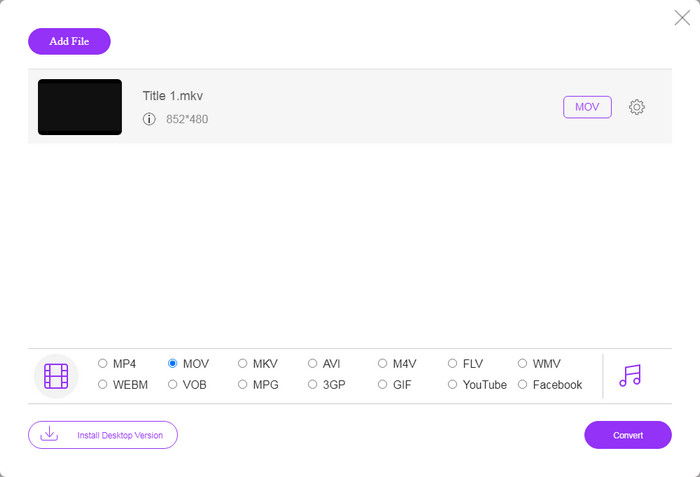
ขั้นตอนที่ 3: กดปุ่ม Convert เพื่อเริ่มแปลง FLV เป็นวิดีโอสำหรับ iPod ออนไลน์ฟรี รอจนกระบวนการเสร็จสิ้น แล้วดาวน์โหลดวิดีโอลงคอมพิวเตอร์ จากนั้นโอนถ่ายวิดีโอไปยัง iPod ของคุณแล้วเริ่มรับชมได้เลย.
ส่วนที่ 3: คำถามที่พบบ่อยเกี่ยวกับ FLV เพื่อ iPod Video
iPod เล่นหนังได้ไหม
คุณสามารถเล่นภาพยนตร์ รายการทีวี วิดีโอบน iPod ของคุณได้ หากไฟล์ถูกบันทึกในรูปแบบที่ถูกต้อง เลือกตัวเลือกภาพยนตร์จากเมนูหลักของ iPod touch แล้วเลือกหมวดหมู่แล้วเล่นทันที
iPod touch เล่น MP4 ได้หรือไม่
iPod touch สามารถเล่นวิดีโอ MP4 ได้สูงถึง 720p, 30 เฟรมต่อวินาที นอกจากนี้ ตัวแปลงสัญญาณเสียงในไฟล์ MP4 จะต้องเข้ารหัสด้วย MP4A หรือ AAC
วิธีถ่ายโอนวิดีโอไปยัง iPod ของฉัน
เปิด iTunes ของคุณ เชื่อมต่อ iPod กับคอมพิวเตอร์ผ่านสาย USB หรือตัวเชื่อมต่อแบบไร้สาย คลิกเมนู File ที่มุมบนซ้าย แล้วเลือก Add File to Library เพื่อเพิ่มวิดีโอ จากนั้นไปที่แท็บ TV Shows หรือ Movies เลือกวิดีโอที่ต้องการแล้วคลิก Sync.
สรุป
ตอนนี้ คุณควรเข้าใจวิธีการเล่นไฟล์ FLV บน iPod หากคุณเปิดวิดีโอ FLV บน iPod โดยตรง คุณจะได้รับการแจ้งเตือนข้อผิดพลาด นั่นเป็นเพราะ iOS เข้ากันไม่ได้กับ FLV อีกทางหนึ่ง FVC Free FLV Converter สามารถช่วยให้คุณเปลี่ยน FLV เป็น iPod ที่รองรับรูปแบบวิดีโอได้อย่างง่ายดาย หากคุณมีคำถามอื่น ๆ โปรดฝากข้อความไว้ใต้โพสต์นี้
-
 FLV เป็น MOV - วิธีการแปลง FLV เป็น MOV บน Mac / PC / ออนไลน์ฟรี
 วิธีแปลง FLV เป็น MOV? ฉันจะแปลง FLV เป็น MOV บน Mac ได้อย่างไร มีวิธีฟรีในการแปลง FLV เป็น MOV ออนไลน์หรือไม่ โพสต์นี้แชร์ตัวแปลง FLV เป็น MOV 3 รายการเพื่อเปลี่ยนไฟล์ FLV เป็น MOV
-
 FLV เป็น WAV - แปลง FLV เป็น WAV ออนไลน์ฟรีและบน Mac / PC
 ฉันจะแปลงไฟล์ FLV ได้อย่างไร VLC สามารถแปลง FLV เป็น WAV ได้หรือไม่ โพสต์นี้บอก 3 วิธีฟรีในการแปลง FLV เป็น WAV โดยไม่สูญเสียคุณภาพ
-
 2 วิธีง่ายๆ ในการบีบอัดวิดีโอ FLV เพื่อการอัปโหลดที่รวดเร็ว
 หากคุณล้มเหลวในการอัปโหลดวิดีโอ FLV หรือใช้เวลาในการแชร์ไฟล์ คุณสามารถเรียนรู้รายละเอียดเพิ่มเติมเกี่ยวกับ 2 วิธีง่ายๆ ในการบีบอัดวิดีโอ FLV จากบทความ
