


 Video Converter Ultimate
 บันทึกหน้าจอ
 ซ่อมวิดีโอ
 ดาวน์โหลดอย่างปลอดภัย
วิธีตั้งเสียงเรียกเข้าเพลง Spotify ของคุณ - คำแนะนำแบบครบขั้นตอน
Spotify นำเสนอคลังเพลง พอดแคสต์ และคอนเทนต์เสียงอื่น ๆ จำนวนมหาศาลให้กับผู้ใช้ทั่วโลก มีเพลงนับล้านให้ทุกคนฟังแบบออนดีมานด์ หากคุณอยากตั้งเพลงเพราะ ๆ จาก Spotify เป็นเสียงเรียกเข้าบนสมาร์ตโฟนของคุณด้วย ก่อนอื่นคุณต้องดาวน์โหลดไฟล์เสียงที่เลือกลงในอุปกรณ์เสียก่อน โชคดีที่ขั้นตอนนี้ไม่ซับซ้อน บทความนี้จะแบ่งขั้นตอนทั้งหมดของวิธีตั้งเพลง Spotify เป็นเสียงเรียกเข้าออกเป็นสามส่วน และอธิบายรายละเอียดในแต่ละส่วนให้คุณทราบ เมื่อเตรียมเสียงเรียกเข้า คุณอาจต้องตัดเฉพาะบางช่วงของเสียงออกไป ด้วยเหตุนี้ เราจึงจะแนะนำหนึ่งในเครื่องมือแก้ไขเสียงและวิดีโอระดับมืออาชีพให้ด้วย อีกทั้งยังตอบคำถามที่พบบ่อยเกี่ยวกับการตั้งค่าเสียงเรียกเข้าให้คุณด้วยเช่นกัน.

ส่วนที่ 1. ดาวน์โหลดเพลง Spotify สำหรับริงโทน
คุณสามารถใช้ Spotify เป็นริงโทนได้หรือไม่ คำตอบคือได้แน่นอน สิ่งที่คุณต้องรู้ก่อนดำเนินการอย่างเป็นทางการคือขณะนี้คุณไม่สามารถดาวน์โหลดเพลงโดยตรงไปยังอุปกรณ์ของคุณผ่าน Spotify และตั้งเป็นริงโทนได้ ดังนั้นเราจึงต้องการความช่วยเหลือจากเครื่องมือบางอย่าง ตามการสำรวจของเรา Spotify Downloader เป็นตัวเลือกที่ดีทีเดียว สิ่งที่คุณต้องทำคือเปิดเว็บไซต์อย่างเป็นทางการในเบราว์เซอร์ของคุณ คัดลอกลิงก์ไปยังเพลงโปรดของคุณ แล้ววางลงในส่วนที่เกี่ยวข้อง ด้วยวิธีนี้ คุณจะสามารถดาวน์โหลดไฟล์โดยตรงไปยังคอมพิวเตอร์ของคุณได้ หากคุณมีปัญหาใดๆ กับไฟล์ดังกล่าว เราจะอธิบายขั้นตอนต่างๆ ในส่วนต่อไปนี้
นี่คือสิ่งที่คุณต้องทำเพื่อดาวน์โหลดเพลง Spotify เป็นริงโทนด้วย Spotify Downloader
ขั้นตอนที่ 1 เข้าสู่เว็บไซต์ทางการของ Spotify Downloader ผ่านเบราว์เซอร์ของคุณ.
ขั้นตอนที่ 2 เปิดแอป Spotify บนโทรศัพท์ จากนั้นค้นหาเสียงที่คุณต้องการดาวน์โหลด.
ขั้นตอนที่ 3 แตะไอคอนจุดสามจุด แล้วเลือก แชร์ > คัดลอกลิงก์.
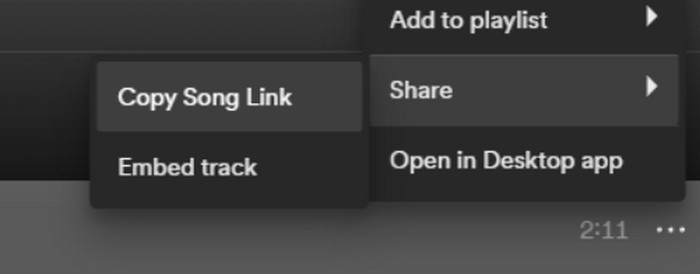
ขั้นตอนที่ 4 ตอนนี้ให้กลับมาที่หน้า Spotify Downloader วางลิงก์ที่คัดลอกมา แล้วคลิก ส่ง.
ขั้นตอนที่ 5 เมื่อกระบวนการเสร็จสิ้น ให้คลิก ดาวน์โหลด.

ส่วนที่ 2. สร้างเพลง Spotify ให้เป็นริงโทนของคุณ
หลังจากดาวน์โหลดเพลงโปรดของคุณลงในอุปกรณ์แล้ว คุณสามารถเริ่มแก้ไขเพลงได้ เราสามารถแก้ไขไคลแม็กซ์ของเพลงหรือส่วนที่คุณชื่นชอบของเพลง และทำให้เพลง Spotify เป็นริงโทนของคุณได้ โปรดทราบว่าโทรศัพท์ iPhone และ Android รองรับรูปแบบเสียงริงโทนที่แตกต่างกัน ในปัจจุบัน iPhone รองรับเฉพาะริงโทนในรูปแบบ M4R เท่านั้น ในขณะที่โทรศัพท์ Android รองรับ MP3, M4A, WAV และ OGG หากคุณพบว่ารูปแบบไฟล์เสียงของคุณไม่ตรงตามข้อกำหนดข้างต้น คุณสามารถใช้ตัวแปลงรูปแบบมืออาชีพเพื่อช่วยคุณได้
ในกรณีนี้ เราขอแนะนำให้คุณลองใช้เครื่องมือแก้ไขเสียงแบบครบวงจร FVC ที่คัดสรรมาอย่างดีอย่าง Video Converter Ultimate เพื่อทำการตัดต่อเพลงแบบวันสต็อป นอกจากการแปลงรูปแบบไฟล์ซึ่งเป็นฟังก์ชันหลักแล้ว ยังรองรับการตัดความยาวไฟล์เสียง ปรับระดับเสียงและแทร็กเสียง รวมถึงเพิ่มเอฟเฟกต์เฟดเข้า (fade-in) หรือเฟดออก (fade-out) ให้กับเสียงเรียกเข้าของคุณได้อีกด้วย คุณแทบไม่ต้องรอนานขณะใช้มันประมวลผลไฟล์ เครื่องมือนี้จะช่วยให้คุณปรับแต่งพารามิเตอร์ของไฟล์เสียงได้อย่างมีประสิทธิภาพสูง.
ดาวน์โหลดฟรีสำหรับ Windows 7 หรือใหม่กว่าดาวน์โหลดอย่างปลอดภัย
ดาวน์โหลดฟรีสำหรับ MacOS 10.7 หรือใหม่กว่าดาวน์โหลดอย่างปลอดภัย
ที่นี่เราจะสอนวิธีสร้างริงโทนจาก Spotify ด้วย FVC Video Converter Ultimate
ขั้นตอนที่ 1 ดาวน์โหลดและติดตั้ง FVC Video Converter Ultimate บนคอมพิวเตอร์ของคุณ ตรวจสอบให้แน่ใจว่าคุณได้เก็บเพลงโปรดไว้ในอุปกรณ์แล้ว.
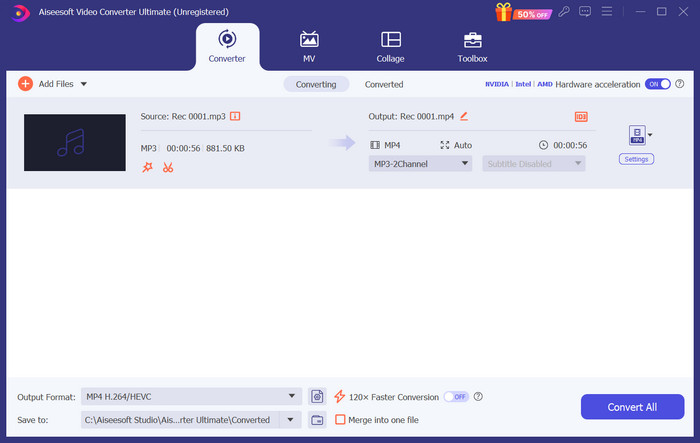
ขั้นตอนที่ 2 เปิดซอฟต์แวร์นี้บนเดสก์ท็อป แล้วคลิก เพิ่มไฟล์ เพื่ออัปโหลดเพลง Spotify มายังแพลตฟอร์มนี้.
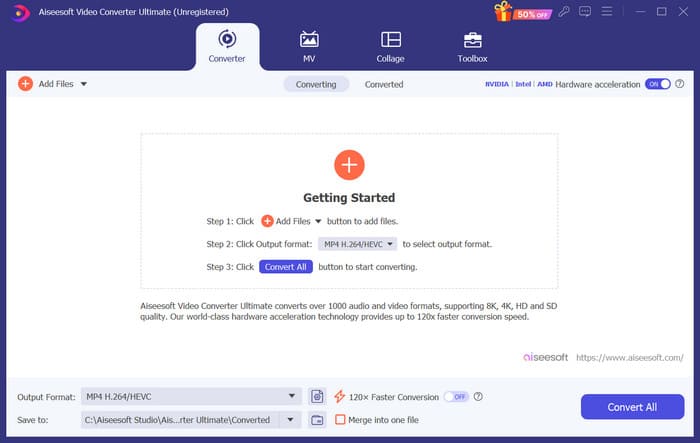
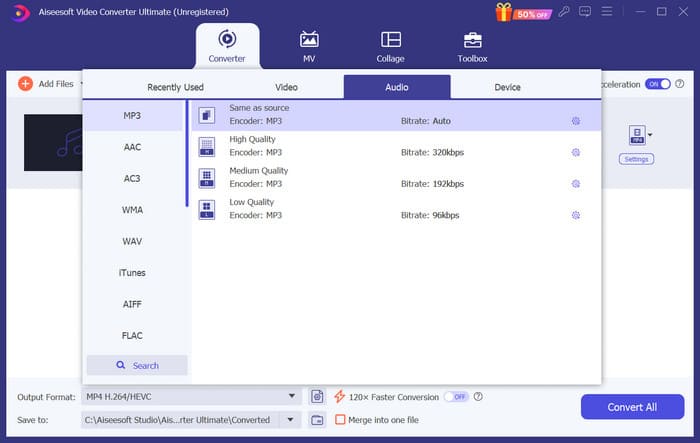
ขั้นตอนที่ 3 หากต้องการแปลงรูปแบบไฟล์เสียงเรียกเข้าของคุณ ให้คลิกลิสต์แบบเลื่อนลงถัดจาก รูปแบบเอาต์พุต จากนั้นเลือกฟอร์แมตที่คุณต้องการจากตัวเลือกทั้งหมดในหมวด Audio.
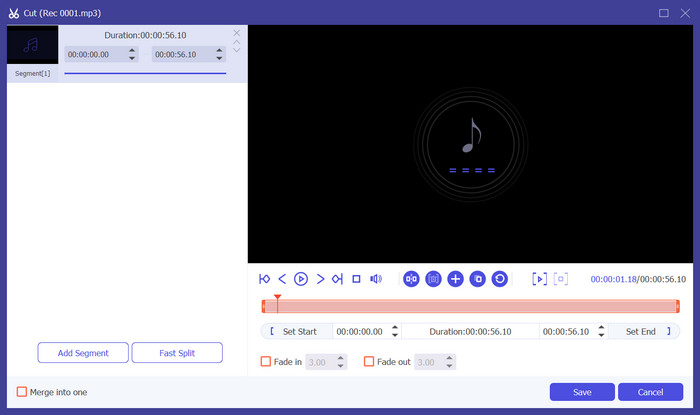
ขั้นตอนที่ 4 หากต้องการเลือกเฉพาะบางส่วนของเพลงให้เป็นเสียงเรียกเข้าบนโทรศัพท์ ให้คลิก ตัด แล้วคุณจะเข้าสู่หน้าตัดต่อเสียง ลากตัวเลื่อนเพื่อเลือกส่วนที่คุณต้องการเก็บไว้ ในหน้าต่างนี้คุณยังสามารถเพิ่มเอฟเฟกต์เฟดเข้าและเฟดออกให้กับเสียงเรียกเข้าของคุณได้ด้วย.
ขั้นตอนที่ 5 หากต้องการเปลี่ยนระดับเสียงหรือแทร็กเสียงของไฟล์ ให้คลิก แก้ไข บนหน้าใหม่ คุณยังสามารถพรีวิวผลการแก้ไขได้โดยตรง เมื่อต้องการบันทึกการเปลี่ยนแปลง ให้คลิก ตกลง.
ขั้นตอนที่ 6 เมื่อคุณตั้งค่าเสียงเรียกเข้าเรียบร้อยแล้ว ให้คลิก แปลงทั้งหมด เพื่อส่งออกไฟล์.
ส่วนที่ 3. ตั้งค่าเพลง Spotify เป็นริงโทน
ตอนนี้เรามีริงโทนใหม่พร้อมแล้วและได้แก้ไขให้มีความยาวที่เหมาะสมแล้ว เราต้องดำเนินการขั้นตอนสุดท้าย: ตั้งเพลง Spotify เป็นริงโทนสำหรับสายเรียกเข้าในโทรศัพท์ของคุณ เนื่องจากอุปกรณ์แต่ละเครื่องทำงานแตกต่างกัน เราจะแนะนำคุณในการตั้งค่าบนอุปกรณ์ของคุณจากโทรศัพท์ iPhone และ Android
Android
ในส่วนนี้ เราจะแนะนำคุณเกี่ยวกับการตั้งค่าเพลง Spotify เป็นเสียงเรียกเข้าบนโทรศัพท์ Android ของคุณ เราจะใช้โทรศัพท์ Samsung เป็นตัวอย่าง ก่อนที่เราจะเริ่มต้น คุณควรโอนเพลง Spotify ของคุณไปยังโทรศัพท์ของคุณ การแปลงผ่านสาย USB หรือ Bluetooth เป็นเส้นทางที่สามารถใช้ได้ทั้งคู่
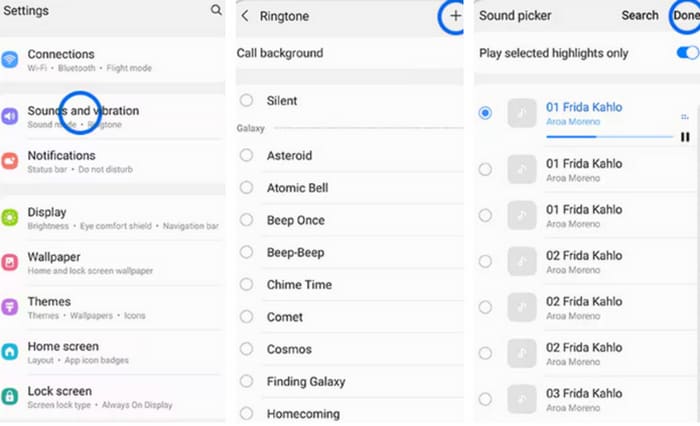
ขั้นตอนที่ 1 ไปที่ การตั้งค่า บนโทรศัพท์ของคุณ แล้วแตะ เสียงและการสั่น > เสียงเรียกเข้าโทรศัพท์ > เสียงของฉัน.
ขั้นตอนที่ 2 แตะ เพิ่ม แล้วเลือกเพลง Spotify ที่คุณแก้ไขแล้วจากไฟล์ทั้งหมดในโทรศัพท์มือถือของคุณ.
ขั้นตอนที่ 3 เพื่อบันทึกการปรับแต่ง ให้แตะ เสร็จสิ้น ตอนนี้คุณได้เพิ่มเพลง Spotify เป็นเสียงเรียกเข้าบน Samsung ของคุณเรียบร้อยแล้ว.
ไอโฟน
หากคุณต้องการทำเสียงเรียกเข้าสำหรับ iPhone อาจจำเป็นต้องใช้เครื่องมือของบุคคลที่สาม เครื่องมือยอดนิยมคือ GarageBand และเราจะแนะนำวิธีตั้งเพลง Spotify ให้เป็นเสียงเรียกเข้า iPhone ให้คุณทราบ.
ขั้นตอนที่ 1 ดาวน์โหลดและเปิด GarageBand บน iPhone ของคุณ เลือก โปรเจ็กต์.
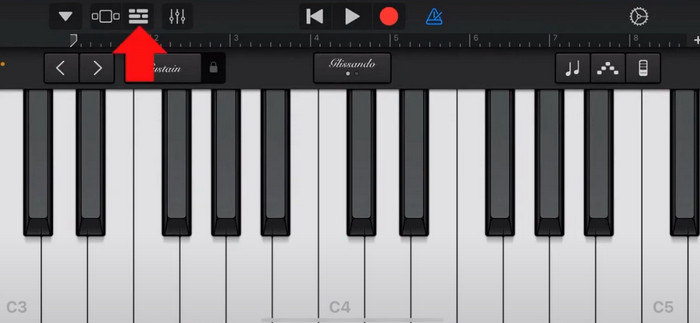
ขั้นตอนที่ 2 จากนั้นเลือก ลูป > ไฟล์ หากต้องการเลือกเพลง Spotify ของคุณ ให้เลือกเรียกดูรายการจากแอปไฟล์.
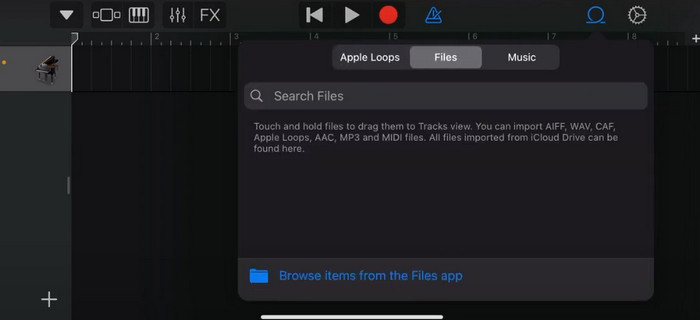
ขั้นตอนที่ 3 นำไฟล์ Spotify ที่ตัดต่อแล้วไปวางบนไทม์ไลน์.
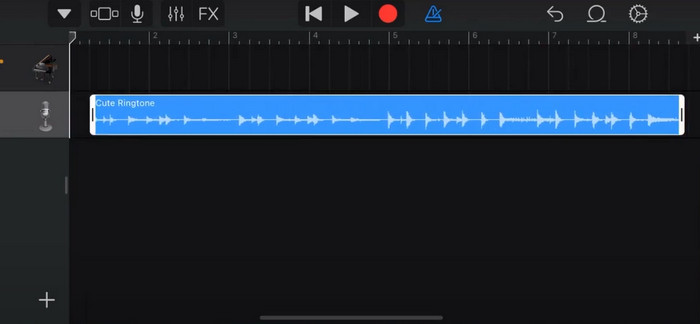
ขั้นตอนที่ 4 ปิดการใช้งาน Metronome จากนั้นแตะไอคอนลูกศรลงแล้วเลือก เพลงของฉัน.
ขั้นตอนที่ 5 กดค้างที่คลิปเพลง แล้วแตะ แชร์.
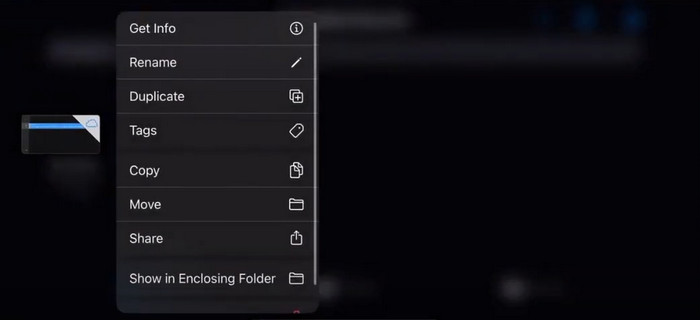
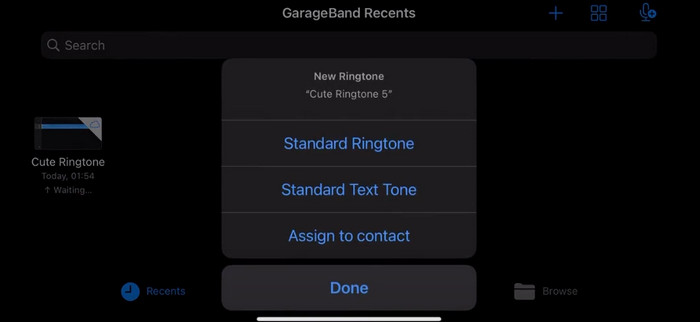
ขั้นตอนที่ 6 เลือก เสียงเรียกเข้า > ส่งออก จากนั้นแตะ ใช้เสียงเป็น > เสียงเรียกเข้ามาตรฐาน.
ส่วนที่ 4 คำถามที่พบบ่อยเกี่ยวกับการสร้างเพลง Spotify ให้เป็นริงโทนของคุณ
ฉันสามารถใช้เพลง Spotify เป็นเสียงเรียกเข้าโดยตรงได้หรือไม่?
Spotify ไม่อนุญาตให้ผู้ใช้ใช้เพลงจากแอปเป็นเสียงเรียกเข้าบนอุปกรณ์พกพาโดยตรง อย่างไรก็ตาม มีวิธีอื่นๆ ที่คุณสามารถใช้ตั้งค่าเพลง Spotify เป็นเสียงเรียกเข้าได้ คุณสามารถซื้อเพลงที่คุณชอบจากร้านค้าเพลงดิจิทัล เช่น iTunes หรือ Google Play Music มีเครื่องมือของบุคคลที่สามที่ให้คุณแปลงเพลง Spotify เป็นไฟล์ MP3 ได้
ฉันจะสร้างเสียงเรียกเข้าแบบกำหนดเองสำหรับ iPhone ของฉันโดยไม่ต้องใช้ iTunes ได้อย่างไร
หากคุณต้องการสร้างริงโทนแบบกำหนดเองสำหรับ iPhone ของคุณโดยไม่ต้องใช้ iTunes คุณสามารถใช้ GarageBand ซึ่งเป็นแอพเพลงที่มีให้ใช้งานบนอุปกรณ์ iOS วิธีนี้ช่วยให้คุณปรับแต่งริงโทนของคุณเองด้วยคลิปเสียงที่คุณชื่นชอบบนอุปกรณ์ของคุณ
จะแปลง Spotify เป็นริงโทน iPhone โดยไม่ต้องใช้คอมพิวเตอร์ได้อย่างไร?
การแปลงเพลง Spotify เป็นริงโทน iPhone โดยตรงโดยไม่ต้องใช้คอมพิวเตอร์เป็นเรื่องยาก อย่างไรก็ตาม คุณยังสามารถใช้วิธีอื่นๆ เพื่อให้ได้ผลลัพธ์ที่คล้ายกันได้ ตัวอย่างเช่น คุณสามารถใช้แอปสร้างริงโทนหรือเลือก GarageBand
สรุป
ในส่วนก่อนหน้า เราได้สรุปภาพรวมทั้งหมดเกี่ยวกับวิธีตั้งเพลง Spotify เป็นเสียงเรียกเข้าสำหรับสายเรียกเข้าให้คุณแล้ว เราครอบคลุมทุกขั้นตอนและได้แนะนำเครื่องมือแก้ไขเสียงล้ำสมัยอย่าง Video Converter Ultimate ที่ FVC แนะนำ เพื่อช่วยให้คุณปรับแต่งเพลงได้ตามต้องการ หากคุณต้องการ เครื่องมือนี้ยังช่วยให้คุณทำวิดีโอให้เป็นเสียงเรียกเข้าได้อย่างง่ายดายเช่นกัน เราเชื่อว่าคุณจะได้รับคู่มือที่ต้องการครบถ้วน.
-
 Best Walkthrough วิธีแปลง WAV เป็นริงโทนในเวลาไม่นาน
 ต้องการแปลงไฟล์ WAV เป็นเสียงเรียกเข้าอย่างง่ายดายหรือไม่? เครื่องมือที่ใช้งานง่ายของเราทำงานให้สำเร็จ! เพลิดเพลินกับการแปลงไฟล์เสียงคุณภาพสูงได้ในพริบตา ไม่ต้องปวดหัวเรื่องเทคโนโลยี ลองวันนี้!
-
 วิธีสร้างบันทึกเสียงเป็นริงโทนบน iPhone และ Android
 หากคุณต้องการเปลี่ยนบันทึกเสียงเป็นเสียงเรียกเข้า โปรดอ่านบทความนี้ ไม่ว่าคุณจะใช้ iPhone หรือ Android คุณสามารถค้นหาวิธีแก้ปัญหาได้ในเนื้อหาของเรา
-
 เครื่องตัด MP3 5 ตัวเพื่อตัดเสียงใด ๆ ได้อย่างง่ายดาย [อัปเดตปี 2024]
 คุณต้องการเครื่องตัด MP3 เพื่อตัดเสียงหรือไม่? ในกรณีนั้น โปรดอ่านบทความนี้เนื่องจากเรามีเครื่องมือสำหรับการตัดเสียงอย่างง่ายดาย
