


 Video Converter Ultimate
 บันทึกหน้าจอ
 ซ่อมวิดีโอ
 ดาวน์โหลดอย่างปลอดภัย
วิธีแปลงไฟล์ FLV เป็นวิดีโอ iPhone โดยไม่สูญเสียคุณภาพ
เป็นที่ทราบกันดีว่า iPhone และ iPad มาพร้อมกับหน้าจอรุ่นใหม่ล่าสุด จึงไม่น่าแปลกใจที่การดูหนังบนอุปกรณ์ iDevice จะได้รับความนิยม อย่างไรก็ตาม ผู้ใช้ iOS มักจะต้องเจอกับปัญหาเรื่องรูปแบบไฟล์เมื่อเล่นภาพยนตร์ ตัวอย่างเช่น ไฟล์ FLV ซึ่งพบได้บ่อยมาก กลับไม่รองรับในซอฟต์แวร์พื้นฐานของ Apple นั่นจึงเป็นเหตุผลที่เราแบ่งปันคู่มือนี้เพื่อช่วยคุณแปลงไฟล์ FLV เป็นวิดีโอสำหรับ iPhone ได้อย่างง่ายดายทั้งบนเดสก์ท็อปและแบบออนไลน์.

ส่วนที่ 1: ฟรีแวร์ที่ดีที่สุดในการแปลง FLV เป็น iPhone Video
โดยปกติแล้ว iPhone รองรับไฟล์ M4V ซึ่งเป็นส่วนหนึ่งของ MP4, MOV และไฟล์ AVI บางประเภท ทำให้การแปลง FLV ให้เป็นรูปแบบที่ใช้กับ iPhone ได้เป็นเรื่องค่อนข้างยุ่งยาก FVC Free FLV Converter เป็นเครื่องมือที่ทรงพลัง ซึ่งมีค่าตั้งล่วงหน้า (Preset) สำหรับแปลงไฟล์มัลติมีเดียให้เป็นรูปแบบสำหรับ iPhone ได้โดยตรง ที่สำคัญคือสามารถใช้งานได้ฟรีทั้งหมด.
ฟีเจอร์หลักของโปรแกรมฟรีที่ดีที่สุดสำหรับแปลง FLV เป็นวิดีโอ iPhone
- 1. แปลงไฟล์ FLV เป็นรูปแบบวิดีโอ iPhone ได้อย่างง่ายดาย
- 2. รวมพรีเซ็ตจำนวนมากสำหรับ iPhone, iPad และอีกมากมาย
- 3. เสนอคุณสมบัติโบนัสมากมาย เช่น การเพิ่มประสิทธิภาพวิดีโอ
ดาวน์โหลดฟรีสำหรับ Windows 7 ขึ้นไปดาวน์โหลดอย่างปลอดภัย
ดาวน์โหลดฟรีสำหรับ MacOS 10.7 ขึ้นไปดาวน์โหลดอย่างปลอดภัย
วิธีแปลง FLV เป็นวิดีโอ iPhone ใน Batch
ขั้นตอนที่ 1: เพิ่มไฟล์ FLV
เปิดโปรแกรมแปลง FLV เป็นวิดีโอ iPhone แบบฟรีที่ดีที่สุดหลังจากคุณติดตั้งบนคอมพิวเตอร์แล้ว จากนั้นคลิกปุ่ม Add File(s) เพื่อเปิดหน้าต่างเลือกไฟล์ ค้นหาและเลือกไฟล์ FLV ทั้งหมดที่คุณต้องการเล่นบน iPhone แล้วคลิก Open โปรแกรมนี้รองรับการแปลงไฟล์แบบเป็นชุด (Batch converting).

ขั้นตอนที่ 2: ตั้งค่ารูปแบบผลลัพธ์
เมื่อโหลดไฟล์ FLV เสร็จแล้ว คุณจะเห็นไฟล์ทั้งหมดในส่วนไลบรารี ไปที่ด้านล่างของหน้าต่าง คลิกและขยายตัวเลือก Output format เลือก Apple iPhone จากรายการแล้วเลือกโมเดลอุปกรณ์ของคุณ จากนั้นซอฟต์แวร์จะปรับค่าพารามิเตอร์ให้เหมาะสมโดยอัตโนมัติ และตั้งค่ารูปแบบเอาต์พุตสำหรับไฟล์ FLV ทั้งหมด หากคุณต้องการเปลี่ยนค่าพารามิเตอร์เฉพาะไฟล์ ให้คลิกไอคอนรูป Gear เพื่อเปิดหน้าต่างโปรไฟล์.

ขั้นตอนที่ 3: แปลง FLV เป็นวิดีโอ iPhone
ต่อไปให้คลิกปุ่ม Open Folder เลือกโฟลเดอร์ปลายทางแล้วกดยืนยัน ตามค่าเริ่มต้น ซอฟต์แวร์จะบันทึกวิดีโอสำหรับ iPhone ไว้ในไลบรารีวิดีโอของคุณ แต่คุณสามารถเปลี่ยนตำแหน่งได้ตามต้องการ ขั้นตอนสุดท้ายให้คลิกปุ่ม Convert เพื่อเริ่มแปลงไฟล์ FLV เป็นวิดีโอสำหรับ iPhone.

นอกจากนี้ โปรแกรมยังรองรับการแปลงไฟล์ FLV เป็นวิดีโอสำหรับ Xbox, PS4, Samsung, Apple TV หรืออุปกรณ์ยอดนิยมอื่น ๆ ได้อีกด้วย.
ส่วนที่ 2: วิธีการแปลง FLV เป็นรูปแบบ iPhone ออนไลน์
บางคนไม่ต้องการติดตั้งซอฟต์แวร์ลงในฮาร์ดดิสก์ และในบางครั้งคุณอาจต้องการแปลง FLV เป็นวิดีโอสำหรับ iPhone เพียงเป็นครั้งคราว ในกรณีเช่นนี้ แอปตัวแปลงวิดีโอแบบออนไลน์อย่างเช่น FVC Free Online Video Converter ถือเป็นตัวเลือกที่พกพาและสะดวก มันสามารถตอบโจทย์คุณได้โดยไม่ต้องติดตั้งซอฟต์แวร์ใด ๆ เพิ่มเติม อีกทั้งไม่เรียกเก็บค่าบริการหรือให้ลงทะเบียน และที่ต่างจากเว็บแอปอื่น ๆ คือไม่มีข้อจำกัดขนาดไฟล์ คุณจึงอัปโหลดไฟล์ FLV ได้ไม่จำกัดเพื่อแปลง.
ขั้นตอนที่ 1: เปิดหน้า https://www.free-videoconverter.net/free-online-video-converter/ ในเว็บเบราว์เซอร์เพื่อเข้าสู่โฮมเพจ กดปุ่ม Add Files to Convert และดาวน์โหลดตัวเรียกใช้งาน (launcher).

ขั้นตอนที่ 2: เมื่อตัวเรียกใช้งานดาวน์โหลดเสร็จ จะปรากฏขึ้นโดยอัตโนมัติ จากนั้นคลิกปุ่ม Add File ที่มุมซ้ายบนแล้วอัปโหลดไฟล์ FLV ที่คุณต้องการเล่นบน iPhone.
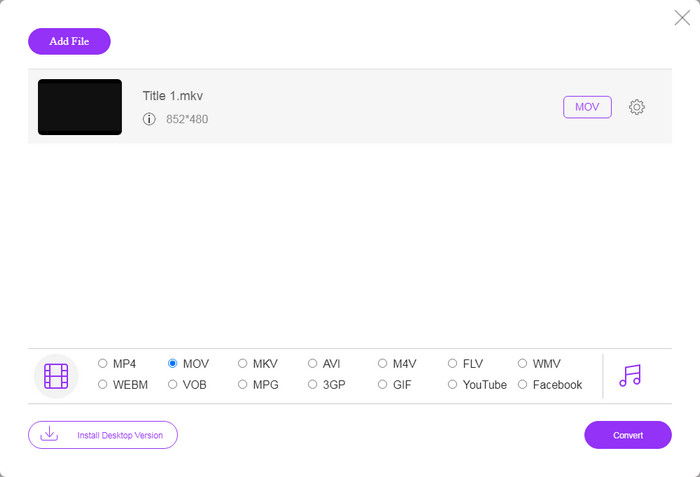
ขั้นตอนที่ 3: ไปที่ส่วนรูปแบบไฟล์ด้านล่างแล้วเลือก MOV ซึ่งเป็นรูปแบบวิดีโอที่อุปกรณ์ iOS รองรับมากที่สุด คลิกปุ่ม Convert แล้วเว็บแอปจะเริ่มแปลงไฟล์ FLV เป็นรูปแบบวิดีโอสำหรับ iPhone แบบออนไลน์ รอจนกระบวนการเสร็จสิ้น จากนั้นดาวน์โหลดไฟล์ผลลัพธ์ลงในฮาร์ดไดรฟ์ของคุณ.
หากคุณต้องการรีเซ็ตตัวเลือก ให้คลิกไอคอนการตั้งค่า แล้วคุณจะพบตัวเลือกเหล่านั้นในกล่องโต้ตอบการตั้งค่า เช่น ความละเอียด ตัวแปลงสัญญาณ ฯลฯ
ส่วนที่ 3: คำถามที่พบบ่อยเกี่ยวกับการแปลง FLV เป็น iPhone Video
คุณสามารถเล่นไฟล์ FLV บน iPhone โดยไม่ต้องแปลงได้หรือไม่?
วิธีเดียวที่จะเล่นไฟล์ FLV บน iPhone โดยไม่ต้องแปลงไฟล์คือการติดตั้งโปรแกรมเล่นไฟล์ FLV ของผู้พัฒนารายอื่น เช่น VLC for iOS จากนั้นคุณก็สามารถรับชมภาพยนตร์เรื่องโปรดได้อย่างง่ายดาย.
วิดีโอจะถูกบันทึกบน iPhone ที่ไหน
วิดีโอที่คุณบันทึกและถ่ายโอนบน iPhone จะถูกบันทึกไว้ในแอพรูปภาพ หากคุณดาวน์โหลดวิดีโอโดยใช้แอพ วิดีโอนั้นจะถูกบันทึกลงในแอพ อย่างไรก็ตาม คุณไม่สามารถเข้าถึงระบบไฟล์บน iPhone หรือ iPad
ไฟล์ประเภทใดที่ iPhone ใช้สำหรับวิดีโอ?
บน iPhone H.264 เป็นตัวแปลงสัญญาณวิดีโอเพียงตัวเดียวที่รองรับ เมื่อพูดถึงรูปแบบวิดีโอ MOV และ MP4 มีความเกี่ยวข้องกันอย่างใกล้ชิด สำหรับการบันทึกวิดีโอบน iOS นั้น Apple จะใช้ตัวแปลงสัญญาณวิดีโอ H.265 หรือ HEVC ที่ใหม่กว่า
สรุป
ตอนนี้ คุณควรเข้าใจวิธีการเปิดและเล่นไฟล์ FLV บน iPhone เห็นได้ชัดว่าคุณไม่สามารถเปิดวิดีโอ FLV บน iPhone ได้โดยตรง วิธีที่ดีที่สุดคือการแปลงไฟล์ของคุณเป็นรูปแบบที่รองรับ iPhone เช่น MOV จากนั้นคุณสามารถเล่นวิดีโอได้อย่างราบรื่น FVC Free FLV Converter เป็นหนึ่งในตัวแปลงวิดีโอ FLV เป็น iPhone ฟรีที่ดีที่สุด ไม่เพียงแต่ใช้งานง่าย แต่ยังสามารถผลิตผลงานที่มีคุณภาพดีเยี่ยมอีกด้วย คำถามเพิ่มเติม? กรุณาเขียนด้านล่าง
-
 3 วิธีง่ายๆในการแปลง FLV เป็น AVI บนเดสก์ท็อปและออนไลน์
 1. แปลงวิดีโอ FLV เป็นรูปแบบมัลติมีเดียอื่น ๆ ได้อย่างง่ายดาย 2. รองรับรูปแบบวิดีโอเกือบทั้งหมด เช่น AVI, MP4, MKV ฯลฯ 3. แบทช์ประมวลผลไฟล์ FLV หลายร้อยไฟล์ต่อการแปลง
-
 3 วิธียอดนิยมในการแปลง FLV เป็น WMV บน Windows และ Mac
 กำลังมองหาวิธีที่ดีที่สุดในการแปลง FLV เป็น WMV โดยไม่สูญเสียคุณภาพบนพีซีหรือ Mac ใช่ไหม คุณโชคดีเพราะที่นี่เราแบ่งปันสามวิธีในการทำงานอย่างง่าย
-
 คำแนะนำที่เป็นรูปธรรมในการอัปโหลดวิดีโอ FLV ของคุณไปยัง YouTube
 อัปโหลด FLV ไปยัง YouTube แต่ล้มเหลว? คุณสามารถแก้ไขปัญหานี้ด้วยตัวเองและแปลงตัวแปลงสัญญาณ FLV เป็น YouTube ที่รองรับโดยทำตามคำแนะนำทีละขั้นตอนของเรา
