


 Video Converter Ultimate
 บันทึกหน้าจอ
 ซ่อมวิดีโอ
 ดาวน์โหลดอย่างปลอดภัย
3 วิธีฟรีในการแปลง FLV สำหรับเล่นบน Xbox
FLV ถูกใช้งานอย่างแพร่หลายในเว็บไซต์ข่าวและเว็บไซต์แบ่งปันวิดีโอ เวลาโหลดวิดีโอออนไลน์จาก YouTube, Hulu หรือ Facebook คุณมักจะได้ไฟล์แบบ FLV รูปแบบ FLV สามารถเล่นได้บนโปรแกรมเล่นวิดีโอ อุปกรณ์ แพลตฟอร์ม และเบราว์เซอร์จำนวนมาก แต่ไม่สามารถเล่นบน Xbox ได้โดยตรง.
Xbox ไม่ได้เป็นแค่เครื่องเล่นเกมเท่านั้น แต่ยังให้คุณเล่นวิดีโอและเพลงผ่านแฟลชไดรฟ์ USB หรือฮาร์ดไดรฟ์ภายนอกได้ด้วย Xbox รองรับไฟล์มีเดียยอดนิยมหลายรูปแบบ แต่ตามที่กล่าวไปข้างต้น คุณไม่สามารถเล่นไฟล์ FLV บน Xbox ได้โดยตรง เมื่อต้องการดูไฟล์ FLV บน Xbox คุณจำเป็นต้องแปลง FLV เป็นรูปแบบที่ Xbox รองรับก่อน.

บทความนี้จะแชร์ 3 วิธีฟรีในการแปลงFLV เป็น Xbox เมื่อคุณต้องการดูไฟล์ FLV บน Xbox One, Xbox 360, Xbox Series X รุ่นใหม่ หรือ Xbox Series S คุณสามารถใช้วิธีเหล่านี้เพื่อแปลง FLV ให้เป็นไฟล์รูปแบบที่ Xbox รองรับได้.
ส่วนที่ 1 วิธีการแปลง FLV เป็น Xbox Online ฟรี
ตัวแปลงวิดีโอจำนวนมากสามารถช่วยคุณแปลง FLV เป็นรูปแบบที่รองรับ Xbox เช่น AVI หรือ MP4 หากคุณกำลังจัดการกับคลิปวิดีโอ FLV ขนาดเล็ก คุณควรลองใช้ตัวแปลง FLV เป็น Xbox ออนไลน์ฟรีก่อน
Free Online Video Converter เป็นโปรแกรมแปลงวิดีโอออนไลน์ที่ใช้งานง่าย ซึ่งช่วยให้คุณแปลง FLV เป็น MP4, AVI, WMV, MOV หรือรูปแบบอื่นที่เครื่อง Xbox รองรับ เมื่อเทียบกับตัวแปลงออนไลน์ตัวอื่นแล้ว เครื่องมือนี้ไม่ต้องสมัครหรือลงชื่อเข้าใช้บัญชี และยังไม่มีการจำกัดขนาดไฟล์สำหรับการแปลงไฟล์ FLV ของคุณอีกด้วย คู่มือต่อไปนี้จะแสดงวิธีใช้งานให้คุณ.
ขั้นตอนที่ 1. โปรแกรมแปลง FLV เป็น Xbox ออนไลน์นี้ใช้ได้กับทุกเว็บเบราว์เซอร์ เช่น Chrome, Safari, IE และ Firefox ให้คุณเปิดเบราว์เซอร์แล้วไปที่หน้า Online FLV to Xbox converter.
ขั้นตอนที่ 2. เมื่อเข้าสู่หน้าเว็บแล้ว ให้คลิกที่ Add Files to Convert จากนั้นคลิกปุ่ม Download เพื่อติดตั้งตัวเรียกใช้งาน (launcher) สำหรับการแปลงไฟล์ FLV เมื่อตัวเรียกใช้งานพร้อมแล้ว จะมีหน้าต่างป๊อปอัปให้คุณเพิ่มไฟล์ FLV ของคุณ.

ขั้นตอนที่ 3. คุณจะเห็นว่ามีรูปแบบวิดีโอยอดนิยมหลายแบบ เช่น MP4, AVI, MOV, FLV, WMV, MKV และอื่น ๆ แสดงอยู่ใต้ไฟล์ FLV ที่โหลดเข้าไป คุณสามารถเลือกรูปแบบที่ Xbox รองรับอย่าง MP4 หรือ AVI ได้.
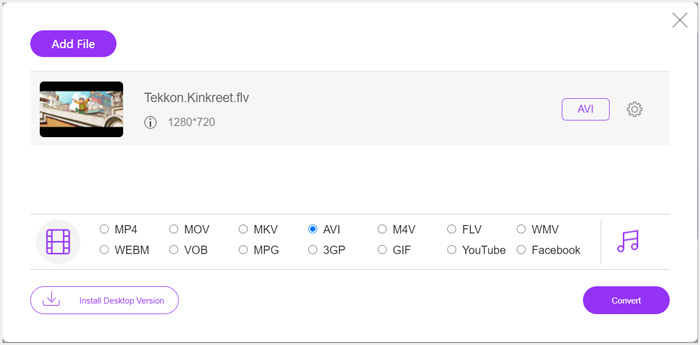
ขั้นตอนที่ 4. หากต้องการปรับแต่งการตั้งค่าวิดีโอและเสียงขาออกเพิ่มเติม คุณสามารถคลิกไอคอน Settings ถัดจากรูปแบบเอาต์พุต จากนั้นคลิกปุ่ม Convert เพื่อเริ่มแปลง FLV เป็น Xbox วิดีโอที่ได้จะถูกบันทึกลงคอมพิวเตอร์ของคุณโดยอัตโนมัติทันทีที่การแปลงเสร็จสิ้น.
ส่วนที่ 2 วิธีแปลง FLV เป็น Xbox ออนไลน์ด้วย FreeConvert
FreeConvert เป็นอีกหนึ่งโปรแกรมแปลงไฟล์วิดีโอและเสียงยอดนิยมที่ช่วยให้คุณแปลง FLV เป็นไฟล์ MP4, AVI หรือ WMV ที่ Xbox รองรับได้ โดยมีFLV to Xbox Video Converter ให้คุณใช้แปลงไฟล์ FLV เป็นไฟล์สำหรับ Xbox ได้โดยตรง.
ขั้นตอนที่ 1. เปิดเบราว์เซอร์แล้วไปที่หน้าของ FLV to Xbox Video Converter นี้.
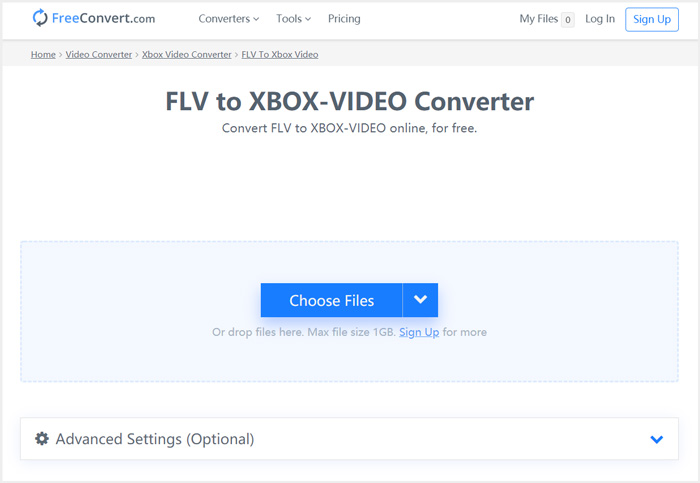
ขั้นตอนที่ 2. คลิกปุ่ม Choose Files เพื่อเลือกและอัปโหลดไฟล์ FLV ของคุณ คุณยังสามารถเพิ่มไฟล์ผ่าน URL, Google Drive และ Dropbox ได้ด้วย.
ขั้นตอนที่ 3. คุณสามารถคลิก Add More Files เพื่ออัปโหลดไฟล์ FLV อื่น ๆ ที่ต้องการแปลงได้ รูปแบบเป้าหมายจะถูกตั้งค่าเป็น XBOX โดยอัตโนมัติ คุณเพียงคลิกปุ่ม Convert to Xbox Video เพื่อเริ่มแปลงไฟล์ FLV เป็นไฟล์สำหรับ Xbox.
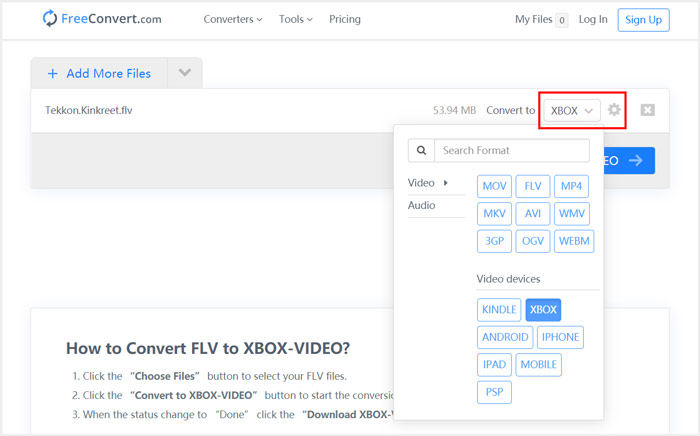
ทำตามขั้นตอนในลักษณะเดียวกันนี้ คุณก็สามารถเล่นเพลงใด ๆ บน Xbox ได้ หลังจากแปลงไฟล์เหล่านั้นให้เป็นรูปแบบที่ Xbox รองรับแล้ว.
โปรแกรม FLV to Xbox Video Converter นี้จะเริ่มอัปโหลดและแปลงวิดีโอของคุณ หลังการแปลง คุณสามารถคลิกปุ่ม Download เพื่อบันทึกไฟล์ลงใน Mac หรือพีซี Windows หรือจะเลือกบันทึกลงใน Google Drive และ Dropbox ก็ได้ ขณะใช้งานโปรแกรมแปลง FLV เป็น Xbox ฟรีนี้ คุณจะเห็นโฆษณาปรากฏอยู่บ้าง.
ส่วนที่ 3 วิธีที่ดีกว่าในการแปลง FLV เป็น Xbox บน Mac และ Windows PC ฟรี
นอกจากโปรแกรมแปลง FLV ออนไลน์แล้ว คุณยังสามารถใช้โปรแกรมแปลงวิดีโอฟรีอื่น ๆ เพื่อแปลงและเล่นไฟล์ FLV บนเครื่องเล่นเกม Xbox ได้ด้วย ที่นี่เราขอแนะนำ Free FLV Converter ที่ทรงพลังให้คุณ เครื่องมือนี้ถูกออกแบบมาเป็นพิเศษสำหรับการแปลงไฟล์ FLV หลายรูปแบบ.

- แปลง FLV เป็น Xbox รูปแบบที่รองรับ เช่น MP4, AVI, WMV, MOV และอื่นๆ
- เสนอชุดรูปแบบต่างๆ เพื่อแก้ไขและปรับแต่งไฟล์ FLV
- CPU แบบมัลติคอร์ขั้นสูงและการเร่ง GPU เพื่อแปลง FLV เป็น Xbox ด้วยความเร็วที่รวดเร็ว
- แปลงไฟล์ FLV หนึ่งไฟล์ขึ้นไปเป็น Xbox โดยไม่สูญเสียภาพหรือคุณภาพเสียง
ดาวน์โหลดฟรีสำหรับ Windows 7 ขึ้นไปดาวน์โหลดอย่างปลอดภัย
ดาวน์โหลดฟรีสำหรับ MacOS 10.7 ขึ้นไปดาวน์โหลดอย่างปลอดภัย
ขั้นตอนที่ 1. ก่อนอื่น ให้ดับเบิลคลิกที่ปุ่มดาวน์โหลดเพื่อติดตั้งโปรแกรมลงในคอมพิวเตอร์ของคุณฟรี เปิดโปรแกรมขึ้นมาแล้วคลิก Add Files เพื่อเพิ่มไฟล์ FLV ของคุณ.
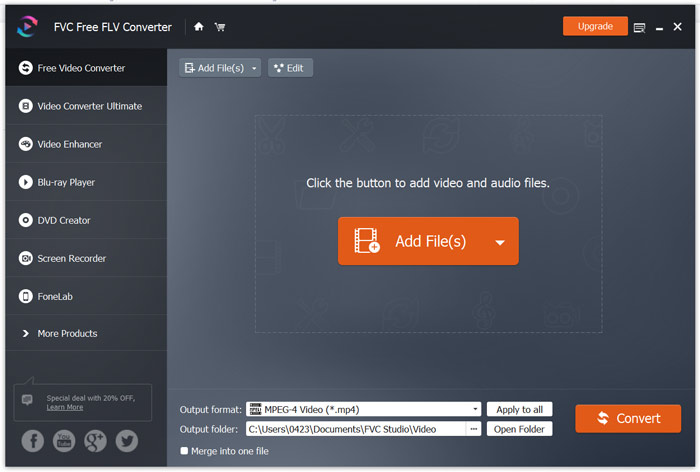
ขั้นตอนที่ 2. เลือก MP4 หรือ AVI เป็นรูปแบบเป้าหมายจากรายการแบบดรอปดาวน์ของ Output format หากต้องการตั้งค่าเพิ่มเติม สามารถคลิกไอคอน Settings ถัดจากรูปแบบเอาต์พุตเพื่อเข้าสู่หน้าต่าง Profile Settings.
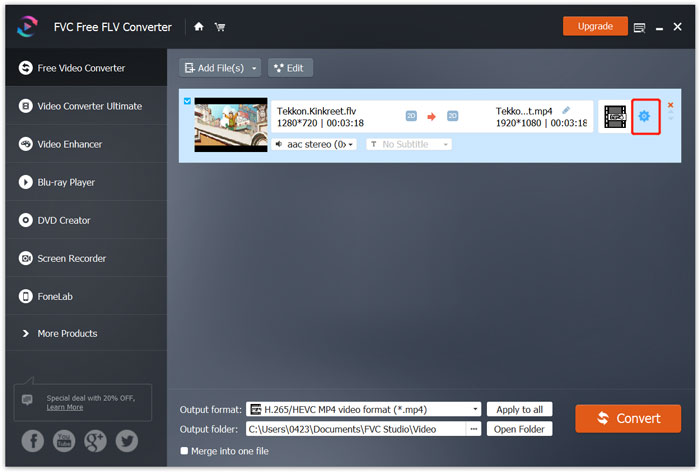
ยังมีหมวดหมู่ Xbox เฉพาะในรายการ Output format ให้คุณแปลง FLV เป็นไฟล์ที่ Xbox One หรือ Xbox 360 รองรับได้โดยตรง แต่คุณต้องอัปเกรดเป็นเวอร์ชันเสียเงินก่อน.
ขั้นตอนที่ 3. คลิกปุ่ม Convert เพื่อเริ่มแปลงวิดีโอจาก FLV เป็น MP4 หรือรูปแบบวิดีโออื่นที่ Xbox รองรับ.
ส่วนที่ 4 คำถามที่พบบ่อยเกี่ยวกับการเล่น FLV บน Xbox
คำถามที่ 1. Xbox One รองรับรูปแบบใดบ้าง
ในฐานะที่เป็นหนึ่งในเกมคอนโซลที่ได้รับความนิยมมากที่สุด XBox เข้ากันได้กับรูปแบบวิดีโอและเสียงที่ใช้บ่อย รวมถึง MP4, AVI, M4V, MOV, WMV, MKV, H.264 AVCHD, WAV, WMA, วิดีโอ 3GP, เสียง 3GP, AAC , MP3 และอื่นๆ
คำถามที่ 2. วิธีการเล่นวิดีโอบน Xbox?
หากคุณมีแอปภาพยนตร์และทีวีใน Xbox One หรือ Xbox 360 เมื่อคุณส่งวิดีโอไปยัง Xbox หรือเชื่อมต่อไดรฟ์ภายนอกกับ Xbox คุณสามารถใช้แอปดังกล่าวเพื่อดูวิดีโอได้อย่างง่ายดาย
คำถามที่ 3. ผู้เล่นคนใดสามารถเล่นไฟล์ FLV ได้?
เมื่อคุณต้องการเล่นไฟล์ FLV บน Mac, Windows PC หรืออุปกรณ์ iOS/Android แบบพกพา VLC Media Player เป็นตัวเลือกที่ดีเสมอ มันมีแอพเดสก์ท็อปและมือถือให้คุณเล่นไฟล์ FLV บนคอมพิวเตอร์หรือโทรศัพท์ของคุณ
สรุป
ไม่สามารถเล่นไฟล์ FLV บนคอนโซลเกม Xbox ของคุณได้หรือ ในการทำเช่นนั้น คุณควรแปลง FLV เป็นไฟล์ที่รองรับ Xbox ก่อน คุณสามารถค้นหา 3 วิธีฟรีในการแปลงและเล่น FLV บน Xbox ได้จากโพสต์นี้
-
 ผู้เล่น FLV 10 อันดับแรกสำหรับ Windows, Mac, iOS และ Android ในปี 2021
 เครื่องเล่น FLV ช่วยให้คุณเข้าถึงไฟล์ FLV บนอุปกรณ์ Windows, Mac, Android, iOS ได้อย่างง่ายดาย ตรวจสอบเครื่องเล่นไฟล์ FLV ที่ดีที่สุดที่คุณสามารถดาวน์โหลดได้ตอนนี้
-
 บทแนะนำการบีบอัด GIF และลดขนาดไฟล์ด้วยคุณภาพสูง
 ต่อไปนี้คือ 2 วิธีง่ายๆ ในการบีบอัด GIF บนคอมพิวเตอร์หรือโทรศัพท์มือถือของคุณ คุณสามารถใช้ FVC Free Online Video Compressor และ Photoshop ลดขนาดไฟล์ GIF ในด้านต่างๆ ได้
-
 4 วิธีฟรียอดนิยมในการแปลงวิดีโอ FLV เป็น MP4 บนเดสก์ท็อปและออนไลน์
 คู่มือนี้แบ่งปันวิธีการฟรีสี่วิธีในการแปลงไฟล์วิดีโอ FLV ของคุณเป็นรูปแบบ MP4 บน Windows 10/8/7 / XP และ Mac OS X เพื่อให้คุณสามารถเพลิดเพลินกับวิดีโอบนอุปกรณ์ใดก็ได้
