


 บันทึกหน้าจอ
 ซ่อมวิดีโอ
 ดาวน์โหลดอย่างปลอดภัย
วิธีปรับขนาด GIF สำหรับ Discord โดยใช้แอปพลิเคชัน GIF Maker
GIF ย่อมาจาก Graphic Interchange Format คือภาพเคลื่อนไหวที่ถูกใช้บ่อยบนเครือข่ายโซเชียลมีเดีย ยกตัวอย่างเช่น Discord อนุญาตให้ผู้ใช้เพิ่มความสนุกให้กับเว็บไซต์ผ่าน GIF อย่างไรก็ตาม มีบางกรณีที่คุณไม่สามารถปรับขนาด GIF บน Discord ได้ ผู้ใช้บางคนพบข้อจำกัดด้านขนาดไฟล์ขณะอัปโหลด โชคดีที่คุณสามารถแก้ไขปัญหานี้ได้ด้วยแอปพลิเคชันสร้าง GIF!

ส่วนที่ 1 5 แนวทางแก้ไข Discord ไม่สามารถปรับขนาด GIF ได้
ในที่สุดคุณก็สร้าง GIF ของคุณเองสำหรับโปรไฟล์ Discord ของคุณเพียงเพื่อพบข้อผิดพลาดนี้ - ไม่สามารถปรับขนาด GIF ได้ โดยปกติจะเกิดขึ้นเมื่อคุณพยายามอัปโหลด GIF เกินขนาดไฟล์ที่รองรับและข้อกำหนดด้านมิติข้อมูล เพื่อช่วยคุณ นี่คือแอปพลิเคชัน GIF Maker ห้าอันดับแรกในปี 2023
1. FVC วิดีโอฟรีไปยัง GIF Maker
FVC Free Video to GIF Maker เป็นซอฟต์แวร์แอปพลิเคชันที่แปลงวิดีโอใด ๆ ให้เป็นภาพเคลื่อนไหว GIF โดยรองรับมากกว่า 100 รูปแบบไฟล์ คุณสามารถใช้การตั้งค่า GIF เพื่อปรับแต่งและย่อหรือขยาย GIF ให้ตรงตามความต้องการของคุณได้ โปรแกรมนี้ใช้ได้ทั้งบน Windows และ Mac นอกจากนี้ยังเป็นแอปพลิเคชันที่ใช้งานได้จริง สะดวก และใช้ฟรีอีกด้วย.
ขั้นตอนที่ 1. ติดตั้งโปรแกรม
สิ่งแรกที่คุณต้องทำคือดาวน์โหลดแอปพลิเคชัน คุณสามารถทำได้โดยคลิกลิงก์ด้านล่าง เมื่อคุณดาวน์โหลดไฟล์ตัวติดตั้งแล้ว ให้ดับเบิลคลิกเพื่อติดตั้งลงในอุปกรณ์ของคุณ หลังจากนั้นให้เรียกใช้ ตอนนี้คุณสามารถสำรวจและทำความคุ้นเคยกับคุณสมบัติและเครื่องมือของมันได้แล้ว
ดาวน์โหลดฟรีสำหรับ Windows 7 หรือใหม่กว่าดาวน์โหลดอย่างปลอดภัย
ดาวน์โหลดฟรีสำหรับ MacOS 10.7 หรือใหม่กว่าดาวน์โหลดอย่างปลอดภัย
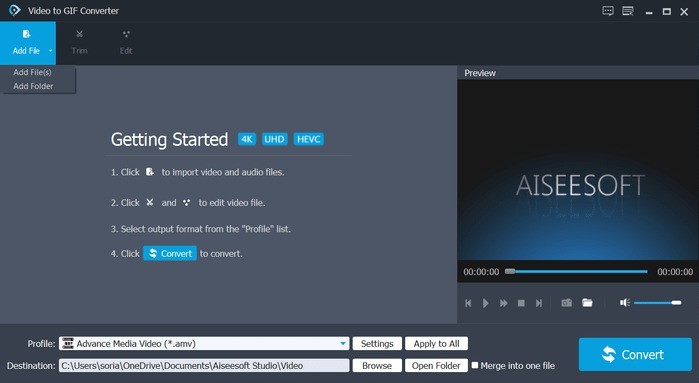
ขั้นตอนที่ 2. นำเข้าไฟล์ GIF ของคุณ
ตอนนี้คุณควรเพิ่มไฟล์ GIF ที่ต้องการปรับขนาดแล้ว นำเข้า GIF ของคุณโดยแตะที่แท็บ Add File ที่มุมซ้ายบน จากนั้นจะมีหน้าต่าง Explorer ปรากฏขึ้นเพื่อให้คุณเลือกไฟล์ GIF ได้.
ขั้นตอนที่ 3. ปรับแต่งไฟล์เป็น GIF
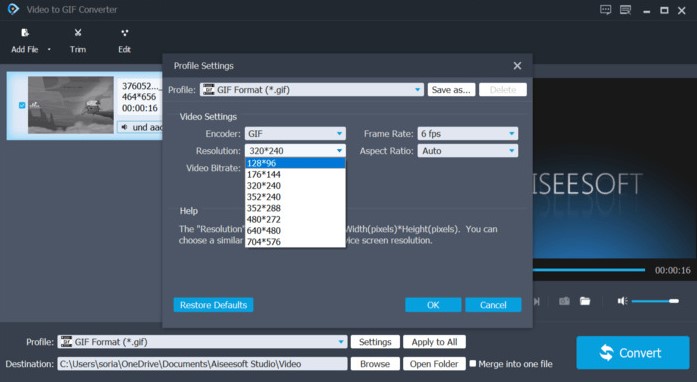
คุณจะเห็นส่วนโปรไฟล์ด้านล่างไฟล์ที่นำเข้า ให้คลิก Settings จากนั้นคุณสามารถปรับขนาด GIF ได้ในส่วน Video settings เลือกความละเอียด 128×96 พิกเซลโดยคลิกที่ตัวเลือกความละเอียด โดยตามข้อกำหนดของ Discord ขนาดต้องไม่เกิน 128×128.
ขั้นตอนที่ 4. แปลงไฟล์
เมื่อเสร็จแล้ว ให้กดปุ่ม Convert ที่มุมขวาล่างของโปรแกรม.

Video Converter Ultimate
ดาวน์โหลดมากกว่า 335 ครั้ง- สร้าง GIF ได้ง่ายๆ โดยไม่จำกัดขนาด
- มีความยืดหยุ่นและสามารถใช้งานแบบออฟไลน์ได้
- การแปลง GIF ที่รวดเร็วและหลายรายการฟรี
- รองรับมากกว่า 100 รูปแบบ
- ขอแนะนำโดยผู้ใช้ที่ผ่านมา
ดาวน์โหลดฟรีสำหรับ Windows 7 ขึ้นไปดาวน์โหลดอย่างปลอดภัย
ดาวน์โหลดฟรีสำหรับ MacOS 10.7 ขึ้นไปดาวน์โหลดอย่างปลอดภัย
2. EZGIF
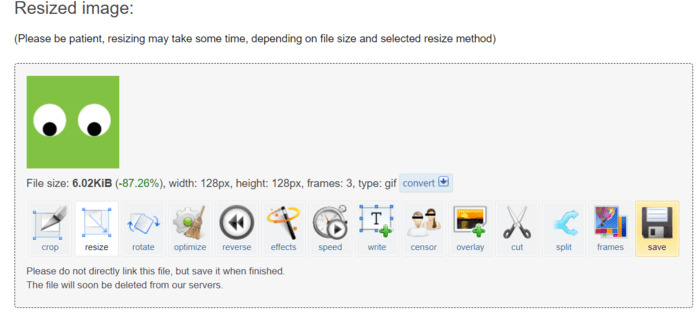
EZGIF คือโปรแกรมแก้ไข GIF ออนไลน์บนเว็บแอปพลิเคชันโดยตรง คุณสามารถปรับขนาด GIF ของคุณได้อย่างง่ายดายโดยใช้เครื่องมือที่มีให้ เป็นบริการฟรีและสามารถใช้งานได้ทุกเมื่อ
ขั้นตอนที่ 1. หากต้องการใช้เว็บแอปนี้ ให้เปิดเบราว์เซอร์แล้วไปที่ EZGIF.com จากนั้นเปิดแท็บ Resizer เพื่อเริ่มต้น.
ขั้นตอนที่ 2. นำเข้าไฟล์ของคุณโดยคลิกปุ่ม Choose file หรือวาง URL ของไฟล์ จากนั้นคลิกปุ่มอัปโหลดเพื่อดำเนินการต่อ.
ขั้นตอนที่ 3. ในการปรับขนาด GIF ให้ใส่ขนาด 128×128 ในช่องความกว้างและความสูง จากนั้นคลิกปุ่ม Resize ทันที.
ขั้นตอนที่ 4. สุดท้าย คุณเพียงแค่คลิกไอคอนบันทึกที่มุมล่างซ้ายของ GIF ของคุณ.
3. RedKetchup.io
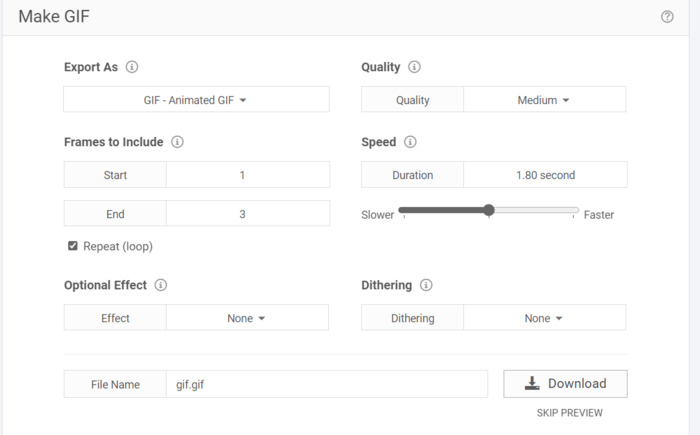
RedKetchup.io เป็นตัวปรับขนาด GIF ออนไลน์ เป็นแอปพลิเคชันเว็บฟรีสำหรับการครอบตัด ปรับขนาด และสร้าง GIF ออนไลน์เพื่อการดาวน์โหลดทันที มีตัวเลือกและพารามิเตอร์การปรับขนาดที่ชัดเจนยิ่งขึ้น
ขั้นตอนที่ 1. เริ่มต้นโดยเปิดเบราว์เซอร์ของคุณแล้วไปที่ redketchup.io เปิดแท็บปรับขนาด (resizer) โดยคลิกที่ปุ่มเมนูสามขีด (hamburger menu) ที่มุมซ้ายบนของเว็บไซต์.
ขั้นตอนที่ 2. ในช่อง select GIF ให้คลิกปุ่ม Browse แล้วเลือกไฟล์ที่คุณต้องการ.
ขั้นตอนที่ 3. เลื่อนลงไปแล้วค้นหากล่อง Resize GIF เพื่อให้เป็นไปตามมาตรฐานของ Discord คุณต้องย่อขนาดลงเป็น 20.48% หรือให้ได้ขนาด 128×128 พิกเซล.
ขั้นตอนที่ 4. คลิกปุ่มดาวน์โหลดด้านล่างเพื่อดาวน์โหลดไฟล์ของคุณ.
4. แคปวิง
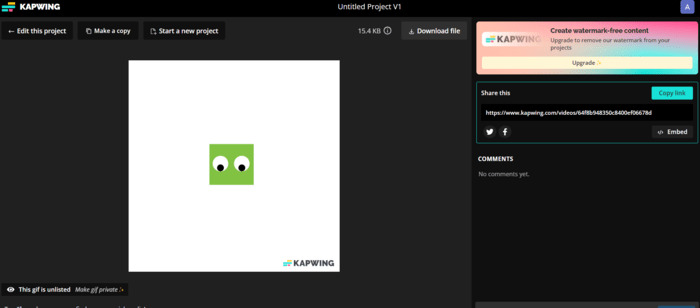
Kapwing มีเครื่องมือปรับขนาด GIF ออนไลน์ฟรี แอปพลิเคชั่นนี้คล้ายกับซอฟต์แวร์ระดับมืออาชีพและใช้เทคโนโลยี AI ด้วยแอปนี้ การปรับขนาด GIF ทำได้ง่ายมาก อย่างไรก็ตาม เมื่อคุณใช้รุ่นฟรี เครื่องมือนี้จะใส่ลายน้ำ GIF ของคุณ
ขั้นตอนที่ 1. ไปที่ Kapwing.com เพื่อเริ่มต้นให้คลิกปุ่มที่เขียนว่า Choose GIF.
ขั้นตอนที่ 2. นำเข้าไฟล์ของคุณโดยคลิกปุ่ม Upload.
ขั้นตอนที่ 3. คลิกฟังก์ชันครอบตัด (crop) ที่ส่วนขวาของหน้า คุณสามารถปรับขนาดไฟล์โดยลากให้เล็กลง โดยควรมีขนาดไม่เกิน 128×128 พิกเซล.
ขั้นตอนที่ 4. คลิกปุ่ม Export Project เพื่อดาวน์โหลดไฟล์ คุณต้องลงชื่อเข้าใช้ก่อนจึงจะบันทึกโปรเจ็กต์ออนไลน์ได้ สุดท้ายคลิกที่ไฟล์เพื่อดูปุ่ม Download File ด้านบน.
5. GIFGIF
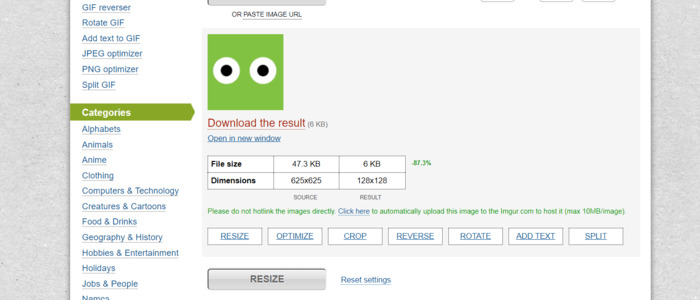
มันทำหน้าที่เป็นชุดเครื่องมือ GIF ที่ให้บริการฟรีทางออนไลน์ พวกเขามี GIF ที่สร้างไว้ล่วงหน้าพร้อมหมวดหมู่ต่าง ๆ ที่คุณสามารถดาวน์โหลดได้ คล้ายกับ EZGIF ในแง่ของความเรียบง่ายเนื่องจากไม่มีเครื่องมือแบบชำระเงินและพิเศษ
ขั้นตอนที่ 1. เข้าเว็บไซต์ gifgifs.com ผ่านเบราว์เซอร์ของคุณ เริ่มต้นโดยคลิกที่แท็บ Resizer.
ขั้นตอนที่ 2. คุณสามารถนำเข้าไฟล์ได้โดยการคลิกปุ่ม Upload button หรือวาง URL ของ GIF.
ขั้นตอนที่ 3. หากต้องการปรับขนาด GIF คุณสามารถใช้แถบเลื่อน (range input) หรือพิมพ์ขนาดของ GIF ลงไปโดยตรง โดยต้องมีขนาด 128×128 พิกเซล.
ขั้นตอนที่ 4. ผลลัพธ์จะปรากฏที่ด้านล่าง ให้คลิก Download the Result ใต้ไฟล์ GIF.
ส่วนที่ 2 เคล็ดลับเกี่ยวกับข้อกำหนดในการอัปโหลด GIF ของ Discord
Discord มีฟีเจอร์ปรับขนาด แต่ในบางกรณีก็ใช้ไม่ได้กับทุก GIF ต้องขอบคุณแอปพลิเคชันตัวสร้าง GIF ทำให้การเพิ่มประสิทธิภาพและปรับขนาด GIF ของคุณเป็นเรื่องง่าย เมื่ออัปโหลด GIF ของคุณควรมีขนาดสูงสุด 128×128 พิกเซลเพื่อส่งอย่างถูกต้อง คุณสามารถเปลี่ยนคุณภาพความละเอียดได้หากมีขนาดสูงสุด 25 MB คุณรู้ไหมว่ามีเคล็ดลับในการอัปโหลด GIF มากกว่าข้อจำกัดที่จำกัด ใช่! หากคุณต้องการแบ่งปันสิ่งที่ยิ่งใหญ่กว่าถึง 100MB คุณเพียงแค่ต้องบีบอัดเป็น ZIP เท่านั้น ท้ายที่สุด หาก Discord ยังคงอัปโหลด GIF ของคุณไม่สำเร็จ ให้ลองทำตามขั้นตอนต่อไปนี้:
◆ ออกจากระบบและเข้าสู่บัญชี Discord ของคุณ
◆ ลองอัปเดต Discord ของคุณ
◆ ติดตั้งแอปพลิเคชั่น Discord ของคุณอีกครั้ง
◆ ติดต่อทีมสนับสนุนของ Discord บนเพจหรือส่งอีเมลไปที่ support@discord.com
อ่านเพิ่มเติม:
5 ซอฟต์แวร์ล่าสุดที่คุณสามารถใช้สร้าง Reverse GIF สุดน่าทึ่ง
Trim GIF: เครื่องมือออนไลน์ เดสก์ท็อป และมือถือที่ดีที่สุดสำหรับตัด GIF
ส่วนที่ 3 คำถามที่พบบ่อยเกี่ยวกับการปรับขนาด GIF
จะปรับขนาด GIF สำหรับรูปโปรไฟล์ Discord ได้อย่างไร?
โดยการใช้เครื่องมือแอปพลิเคชันที่ออกแบบมาเพื่อสร้างและแก้ไข GIF ฉันขอแนะนำให้ใช้ FVC Free Video to GIF Maker เพราะรองรับไฟล์มากกว่า 100 รูปแบบ อีกทั้งยังมีเครื่องมือหลายอย่างให้คุณปรับแต่ง GIF ได้ตามต้องการ.
เหตุใด Discord GIF จึงไม่ทำงาน
สาเหตุปกติของปัญหานี้คือการมี GIF ขนาดใหญ่ คุณอาจไม่ได้เปิดใช้งานการเล่น GIF อัตโนมัติเมื่อมีฟังก์ชันการทำงานในการตั้งค่าของคุณ บางครั้งอาจเกี่ยวข้องกับการเชื่อมต่ออินเทอร์เน็ตของคุณ
ฉันจะติดต่อฝ่ายสนับสนุน Discord ได้อย่างไร?
คุณสามารถติดต่อฝ่ายสนับสนุน Discord ผ่านทางเพจหรือส่งอีเมลไปที่ support@discord.com
Emotes Discord Servers ล่มหรือเปล่า?
GameWisp ไม่มีการใช้งานอีกต่อไป และการผสานรวมถูกปิดตัวลงตั้งแต่วันที่ 31 ตุลาคม 2020 ด้วยเหตุนี้ อิโมติคอนส่วนกลางที่สร้างขึ้นโดยการผสานรวมจึงยังคงมีอยู่ในการตั้งค่าเซิร์ฟเวอร์ของคุณเป็นอิโมติคอนปกติ แต่ไม่สามารถเป็นอิโมติคอนส่วนกลางได้อีกต่อไป
Discord มี GIF ที่ไม่เหมาะสมหรือไม่?
อาจมี GIF ที่ไม่เหมาะสม ฉันขอแนะนำให้กรองเนื้อหาของคุณเพื่อให้แน่ใจว่าคุณสามารถหลีกเลี่ยงการเห็น GIF ที่ไม่เหมาะสมได้
สรุป
GIF ช่วยให้เซิร์ฟเวอร์ Discord ดูมีชีวิตชีวาและสนุกสนานมากขึ้น อย่างไรก็ตาม มีเพียงคนกลุ่มเล็ก ๆ เท่านั้นที่มีประสบการณ์ในการจัดการไฟล์ ด้วยเหตุนี้ แอปพลิเคชันที่ทันสมัยอย่าง FVC GIF Maker จึงช่วยให้ผู้ใช้ใหม่แก้ปัญหาได้ ตัวอย่างเช่น เมื่อDiscord ไม่สามารถปรับขนาด GIF ได้ การมีแอปพลิเคชันเหล่านี้ถือเป็นข้อได้เปรียบ เพราะช่วยประหยัดเวลาและแรงงาน เมื่อพิจารณาทุกอย่างแล้ว จะเห็นได้ว่าแอปสร้าง GIF ช่วยเพิ่มความคิดสร้างสรรค์และทำให้การใช้งาน Discord ลื่นไหลยิ่งขึ้น.
-
 5 ไซต์ที่ดีที่สุดเกี่ยวกับวิธีบันทึก GIF บน iPhone เป็นวิดีโอ
 'ไม่สามารถบันทึก GIF ไปยัง iPhone ของฉันได้หรือไม่ อยู่ในโพสต์นี้ แล้วเราจะให้วิธีแก้ปัญหาที่เป็นไปได้สำหรับการบันทึก GIF ลงใน iPhone
-
 วิธีสร้าง GIF แบบเคลื่อนไหวโดยใช้ GIF Maker ที่ดีที่สุด
 การสร้าง GIF เป็นงานที่ใช้เวลานานโดยไม่ต้องใช้เครื่องมือที่เหมาะสม ลองอ่านบทความนี้เพื่อเรียนรู้เพิ่มเติมเกี่ยวกับการสร้าง GIF
-
 เครื่องมือโปรแกรมปรับขนาด GIF สร้างสรรค์พร้อมความสะดวกสบาย
 การปรับขนาด GIF อาจเป็นงานที่เจ็บปวด ใช้โปรแกรมที่เหมาะสมเพื่อปรับขนาด GIF ของคุณและทำงานให้สำเร็จได้อย่างไร้ที่ติ ตรวจสอบบทความนี้สำหรับข้อมูลเพิ่มเติม
