


 Video Converter Ultimate
 บันทึกหน้าจอ
 ซ่อมวิดีโอ
 ดาวน์โหลดอย่างปลอดภัย
Ezgif Review: สุดยอดเครื่องมือออนไลน์สำหรับการแก้ไขและสร้าง GIF
ในโลกของคอนเทนต์ออนไลน์ GIF ได้กลายเป็นส่วนสำคัญของการสื่อสาร ความบันเทิง และการมีส่วนร่วมบนโซเชียลมีเดีย ตั้งแต่การแชร์คลิปตลกสั้น ๆ ไปจนถึงการแสดงอารมณ์ที่ซับซ้อน GIF มอบวิธีการสื่อสารที่โดดเด่นและดึงดูดความสนใจ แพลตฟอร์มหนึ่งที่ได้รับความสนใจอย่างมากในด้านการตัดต่อและสร้าง GIF คือ Ezgif ในรีวิวนี้ เราจะมาสำรวจฟีเจอร์ การใช้งาน และประสิทธิภาพโดยรวมของ Ezgif maker.

ส่วนที่ 1 ภาพรวมของ Ezgif และยูทิลิตี้ในการแก้ไข GIF
Ezgif เป็นแพลตฟอร์มออนไลน์ที่นำเสนอเครื่องมือมากมายสำหรับการทำงานกับ GIF ไม่ว่าคุณจะต้องการสร้าง GIF จากวิดีโอ แก้ไข GIF ที่มีอยู่ ปรับขนาด เพิ่มเอฟเฟ็กต์ หรือทำงานอื่น ๆ ที่เกี่ยวข้องกับ GIF Ezgif ก็มีทุกอย่างให้คุณ แพลตฟอร์มนี้ทำงานบนเว็บทั้งหมด ซึ่งหมายความว่าคุณไม่จำเป็นต้องดาวน์โหลดหรือติดตั้งซอฟต์แวร์ใดๆ เพื่อใช้ฟีเจอร์ต่างๆ ทำให้เป็นตัวเลือกที่สะดวกสำหรับทั้งผู้ใช้ทั่วไปและมืออาชีพที่กำลังมองหาโซลูชันการแก้ไข GIF ที่รวดเร็ว ดังนั้น หากคุณต้องการใช้สิ่งนี้เป็นวิดีโอ Ezgif ไปยังเครื่องสร้าง GIF ก็สามารถช่วยคุณได้
ส่วนที่ 2 คุณสมบัติของ Ezgif
การสร้าง GIF: หนึ่งในฟีเจอร์เด่นของ Ezgif คือเครื่องมือสร้าง GIF คุณสามารถแปลงวิดีโอจากหลายนามสกุลไฟล์ เช่น MP4, AVI และอื่น ๆ ให้เป็น GIF ได้อย่างง่ายดาย การแปลงจาก MP4 เป็น GIF ด้วย Ezgif ทำได้อย่างราบรื่น แพลตฟอร์มยังให้คุณปรับขนาด อัตราเฟรม และคุณภาพของ GIF ที่ได้ ช่วยให้คุณควบคุมผลงานขั้นสุดท้ายได้อย่างเต็มที่.
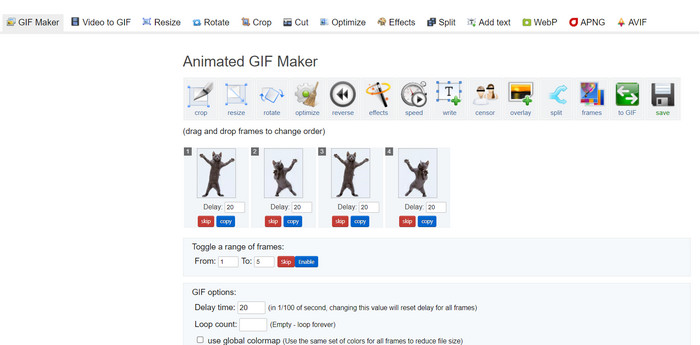
ความสามารถในการตัดต่อ: Ezgif มีตัวเลือกในการตัดต่อ GIF ให้ใช้อย่างหลากหลาย คุณสามารถครอป ปรับขนาด และปรับแต่ง GIF ให้เหมาะสมเพื่อลดขนาดไฟล์โดยไม่ลดทอนคุณภาพมากเกินไป นอกจากนี้ แพลตฟอร์มยังให้คุณเพิ่มข้อความ รูปภาพ เลเยอร์ทับ และเอฟเฟ็กต์ต่าง ๆ เพื่อเสริมความสวยงามให้ GIF ของคุณ.
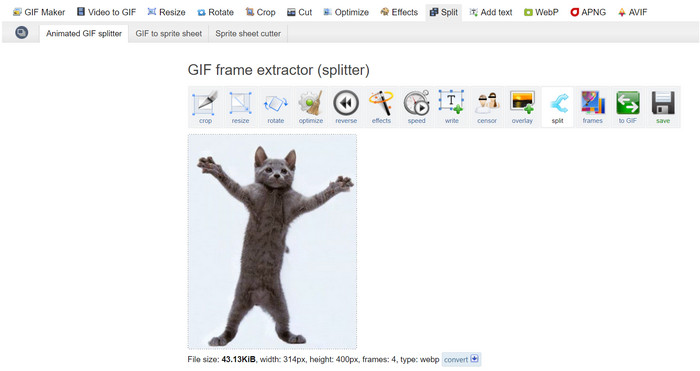
การแยก รวม และผสาน GIF: หากคุณต้องการแยก GIF ออกเป็นเฟรมย่อย ๆ หรือรวม GIF หลายไฟล์ให้เป็นไฟล์เดียว Ezgif Maker ทำให้ขั้นตอนนี้เป็นเรื่องง่าย ซึ่งมีประโยชน์อย่างยิ่งเมื่อต้องการสร้าง GIF ที่ยาวขึ้นจากคลิปสั้น ๆ หลายช่วง หรือผสาน GIF หลายภาพเพื่อเล่าเรื่องราวเชิงภาพที่ต่อเนื่อง นับว่าเป็นความสะดวกอย่างมากที่ Ezgif สามารถรวม GIF ได้.
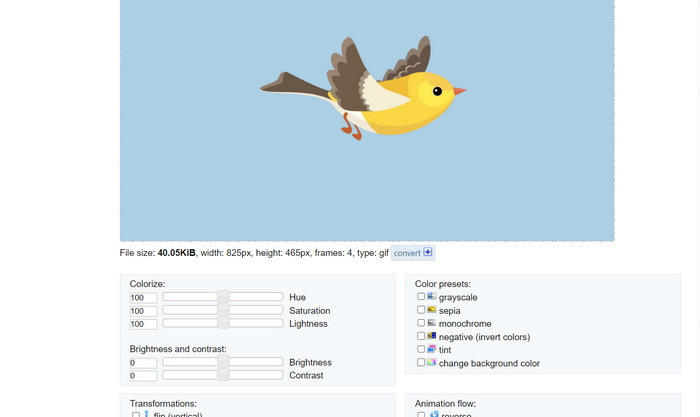
เอฟเฟ็กต์และฟิลเตอร์: Ezgif มีเอฟเฟ็กต์และฟิลเตอร์หลากหลายให้ใช้กับ GIF ตั้งแต่การปรับสี เบลอ เลเยอร์ทับ และอื่น ๆ เอฟเฟ็กต์เหล่านี้สามารถเปลี่ยน GIF ของคุณและเพิ่มมิติด้านศิลป์ให้โดดเด่นยิ่งขึ้น.
ความเร็วของ GIF และการเล่นย้อนกลับ: แพลตฟอร์มช่วยให้คุณปรับความเร็วของ GIF ได้ ทำให้เล่นเร็วขึ้นหรือช้าลง นอกจากนี้คุณยังสามารถตั้งให้ GIF เล่นย้อนกลับได้ เพื่อสร้างลูกเล่นภาพที่ชวนขบขันและน่าดึงดูด.
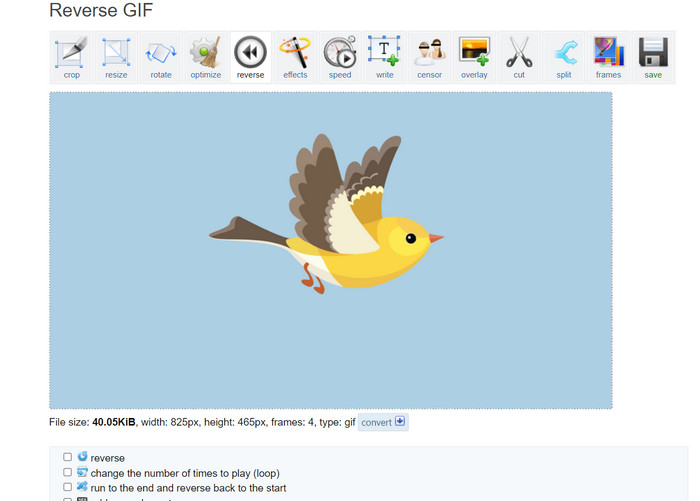
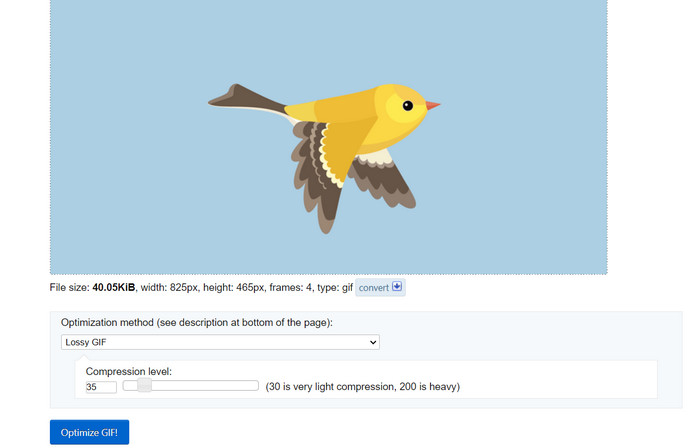
การปรับให้เหมาะสม: การอัปโหลด GIF ขนาดใหญ่ไปยังเว็บไซต์หรือโซเชียลมีเดียบางครั้งอาจทำให้โหลดช้า เครื่องมือปรับแต่ง GIF ของ Ezgif ช่วยลดขนาดไฟล์ของ GIF โดยยังคงคุณภาพของภาพให้อยู่ในระดับที่ยอมรับได้ ช่วยให้ผู้ชมของคุณได้รับประสบการณ์การใช้งานที่ลื่นไหลขึ้น.
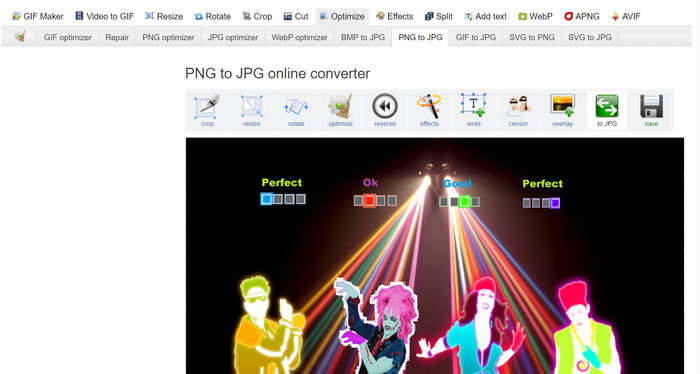
การแปลงรูปภาพ: Ezgif ยังทำหน้าที่เป็นตัวแปลงไฟล์รูปภาพ ช่วยให้ผู้ใช้แปลง PNG เป็น GIF และกลับกันได้ กล่าวคือ คุณยังสามารถแปลง GIF เป็น PNG ด้วย Ezgif ได้อีกด้วย เครื่องมือนี้ไม่ได้จำกัดแค่รูปแบบไฟล์เดียว เพราะยังรองรับ JPG ด้วย การแปลง Ezgif GIF เป็น JPG ก็ทำได้เช่นกัน.
ข้อดี
- ปรับขนาดไฟล์ GIF ให้เหมาะกับความต้องการของคุณ
- ครอบตัดส่วนที่ไม่ต้องการของไฟล์ GIF
- ใช้เอฟเฟ็กต์หลายรายการกับ GIF ที่มีความละเอียดสูง
จุดด้อย
- มีความล่าช้าที่เห็นได้ชัดเจนเมื่อใช้เครื่องมือ
ส่วนที่ 3 วิธีใช้ EZGIF
การใช้งาน Ezgif ค่อนข้างตรงไปตรงมา ต้องขอบคุณอินเทอร์เฟซที่ใช้งานง่ายและเครื่องมือที่ใช้งานง่าย คำแนะนำทีละขั้นตอนเกี่ยวกับวิธีใช้ฟีเจอร์หลักบางประการของ Ezgif:
การสร้าง GIF:
ขั้นตอนที่ 1. ไปที่เว็บไซต์ Ezgif (https://ezgif.com/) คลิกที่แท็บ Video to GIF ในเมนูนำทาง.
ขั้นตอนที่ 2. อัปโหลดไฟล์วิดีโอที่คุณต้องการแปลงเป็น GIF.
ขั้นตอนที่ 3. เลือกเวลาเริ่มต้นและสิ้นสุดของ GIF จากนั้นปรับขนาดเฟรมและอัตราเฟรมหากจำเป็น แล้วคลิกปุ่ม Convert to GIF.
เมื่อการแปลงเสร็จสมบูรณ์ คุณสามารถดูตัวอย่างและดาวน์โหลด GIF ที่สร้างขึ้นใหม่ได้
การแก้ไข GIF:
ขั้นตอนที่ 1. จากหน้าแรกของ Ezgif เลือกเครื่องมือตัดต่อที่คุณต้องการใช้จากเมนูนำทาง (เช่น Crop GIF) แล้วอัปโหลด GIF ที่คุณต้องการตัดต่อ.
ขั้นตอนที่ 2. ใช้อินเทอร์เฟซของเครื่องมือเพื่อปรับการตั้งค่า สำหรับการครอป คุณสามารถเลือกพื้นที่ที่ต้องการเก็บไว้และปรับขนาดมิติภาพได้.
ขั้นตอนที่ 3. หลังจากแก้ไขเสร็จแล้ว คลิกปุ่ม Crop It! (หรือปุ่มที่เหมาะสมกับเครื่องมือที่คุณใช้) จากนั้นพรีวิว GIF ที่แก้ไขแล้วและดาวน์โหลดหากคุณพอใจ.
ส่วนที่ 4 ทางเลือก EZGIF
มีทางเลือกที่ยอดเยี่ยมมากมายสำหรับ Ezgif สำหรับผู้ใช้ออนไลน์และเดสก์ท็อป โดยแต่ละทางเลือกมีฟีเจอร์และความสามารถเฉพาะตัวสำหรับการแก้ไขและสร้าง GIF นี่คือตัวเลือกยอดนิยมบางส่วน:
1. Video Converter Ultimate
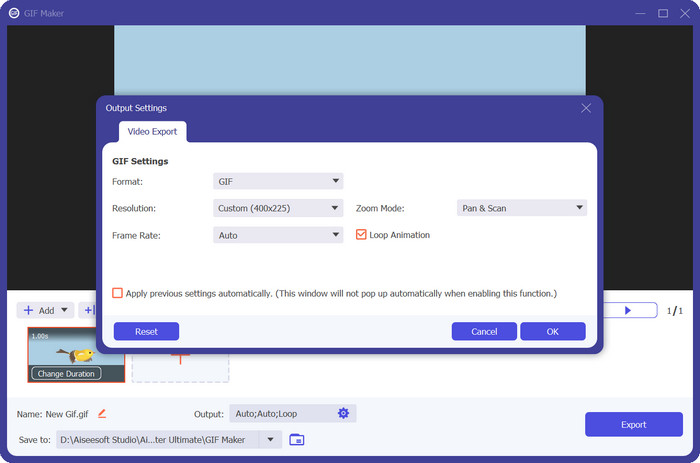
Video Converter Ultimate ไม่ได้ถูกออกแบบมาเพียงเพื่อแปลงไฟล์มีเดียเท่านั้น แต่ยังใช้สร้างและตัดต่อ GIF ได้อีกด้วย เครื่องมือนี้มาพร้อมความสามารถสำคัญ เช่น การแปลงรูปภาพเป็น GIF และวิดีโอเป็น GIF การเพิ่มฟิลเตอร์และเอฟเฟ็กต์ทำได้เพียงไม่กี่คลิก หากคุณกำลังมองหาทางเลือกแทน ez gif.com แล้ว Video Converter Ultimate คือเครื่องมือที่ตอบโจทย์.
ดาวน์โหลดฟรีสำหรับ Windows 7 ขึ้นไปดาวน์โหลดอย่างปลอดภัย
ดาวน์โหลดฟรีสำหรับ MacOS 10.7 หรือใหม่กว่าดาวน์โหลดอย่างปลอดภัย
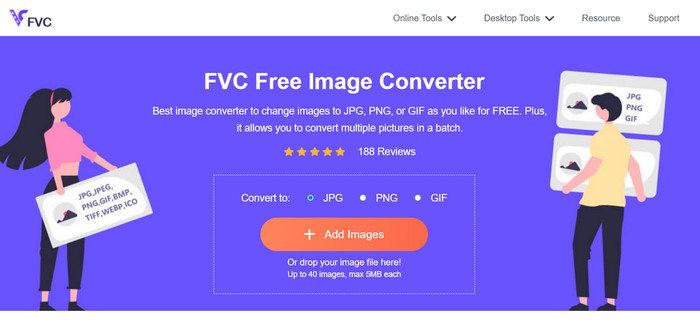
2. โปรแกรมแปลงรูปภาพฟรี FVC
FVC Free Image Converter เป็นโปรแกรมแปลงรูปภาพขนาดเล็กที่รองรับการแปลงไฟล์รูปภาพตามความต้องการของคุณ ตั้งแต่ JPG เป็น GIF, PNG เป็น GIF, GIF เป็น PNG และอื่น ๆ นอกจากนี้ เครื่องมือนี้ยังให้ผู้ใช้วางรูปภาพได้สูงสุดถึง 40 รูปเพื่อทำการแปลงในครั้งเดียว.
อ่านเพิ่มเติม:
เรียนรู้ 4 วิธีในการสร้าง GIF จากรูปภาพ [ออนไลน์และออฟไลน์]
ทำ GIF ให้วนซ้ำด้วยโปรแกรมทำ GIF แบบลูปที่ดีที่สุดบน Windows & Mac
ส่วนที่ 5. คำถามที่พบบ่อยเกี่ยวกับ EZGIF
ฉันจะบันทึก GIF ที่แก้ไขแล้วบน EZGIF ได้อย่างไร
หากต้องการบันทึก GIF ที่แก้ไขแล้วบน Ezgif ขั้นแรกให้ใช้เครื่องมือแก้ไขเพื่อทำการเปลี่ยนแปลง GIF ตามที่คุณต้องการ ดูตัวอย่างการแก้ไขของคุณ จากนั้นมองหาปุ่มบันทึกหรือดาวน์โหลดบนอินเทอร์เฟซของเครื่องมือ คลิกปุ่ม เลือกตำแหน่งบันทึกบนคอมพิวเตอร์ของคุณ จากนั้นดาวน์โหลด GIF ที่แก้ไขแล้วไปยังตำแหน่งนั้น
EZGIF สามารถจัดการ GIF ที่มีความละเอียดสูงได้หรือไม่
ใช่ Ezgif สามารถจัดการ GIF ที่มีความละเอียดสูงสำหรับงานต่างๆ เช่น การแก้ไข การปรับขนาด และการเพิ่มประสิทธิภาพ อย่างไรก็ตาม ประสิทธิภาพอาจได้รับผลกระทบขึ้นอยู่กับความซับซ้อนของการแก้ไขและขนาดของ GIF เวลาในการประมวลผลอาจแตกต่างกัน และสำหรับการดำเนินการบางอย่างที่ใช้ทรัพยากรมาก อาจมีความล่าช้าได้ ขอแนะนำให้ดูตัวอย่างการเปลี่ยนแปลงก่อนสรุปผลเพื่อให้ได้ผลลัพธ์ที่ต้องการ
EZGIF รองรับการประมวลผล GIF เป็นชุดหรือไม่
ไม่ Ezgif ไม่รองรับการประมวลผล GIF เป็นชุด GIF แต่ละรายการจะต้องอัปโหลดและแก้ไขทีละรายการ
EZGIF รองรับการแก้ไข GIF เท่านั้นหรือไม่
ไม่ Ezgif มีเครื่องมือมากมายนอกเหนือจากการแก้ไข GIF รวมถึงการสร้าง GIF จากวิดีโอ การเพิ่มประสิทธิภาพ GIF สำหรับขนาดไฟล์ที่ลดลง การเพิ่มเอฟเฟกต์ การแยกและการรวม GIF และอื่นๆ อีกมากมาย เป็นแพลตฟอร์มออนไลน์อเนกประสงค์สำหรับงานต่างๆ ที่เกี่ยวข้องกับ GIF
EZGIF ปลอดภัยที่จะใช้หรือไม่?
ใช่ โดยทั่วไปแล้ว Ezgif ถือว่าปลอดภัยในการใช้งาน เป็นแพลตฟอร์มออนไลน์ที่มีชื่อเสียงซึ่งมีมาระยะหนึ่งแล้ว และมีการใช้กันอย่างแพร่หลายสำหรับการแก้ไข GIF และงานที่เกี่ยวข้อง
สรุป
Ezgif ได้กลายเป็นเครื่องมือออนไลน์ที่ทรงพลังและหลากหลายสำหรับการตัดต่อและสร้าง GIF ฟีเจอร์มากมายตั้งแต่การแปลง GIF การตัดต่อ เอฟเฟ็กต์ ไปจนถึงการปรับแต่งให้เหมาะสม ทำให้มันเป็นตัวเลือกอันดับต้น ๆ สำหรับผู้ที่ต้องการยกระดับคอนเทนต์ GIF ของตน แม้ว่าประสิทธิภาพอาจแตกต่างกันไปตามความซับซ้อนของงาน แต่ด้วยอินเทอร์เฟซที่ใช้งานง่ายและชุดเครื่องมือที่ครบครัน Ezgif จึงเป็นทรัพยากรที่มีคุณค่าสำหรับทั้งผู้ใช้ทั่วไปที่ชื่นชอบ GIF และมืออาชีพในการเรียนรู้ วิธีสร้าง GIF บน Ezgif หากคุณต้องการโซลูชันออนไลน์ที่สะดวกสำหรับทุกเรื่องเกี่ยวกับ GIF Ezgif ถือเป็นอีกตัวเลือกที่ควรค่าแก่การพิจารณา.
-
 ตัวขยาย GIF ออฟไลน์และออนไลน์ 4 อันดับแรกที่คุณไม่ควรพลาด
 โพสต์นี้เหมาะสำหรับคุณหากคุณกำลังค้นหาตัวขยาย GIF ที่ดีที่สุด เราแสดงรายการเครื่องขยาย GIF แบบออนไลน์และออฟไลน์ที่มีประสิทธิภาพสูงสุดสำหรับคอมพิวเตอร์ของคุณ
-
 คำแนะนำที่ดีที่สุดเกี่ยวกับวิธีตัด GIF เพื่อเพิ่มสีสันให้เนื้อหาของคุณ
 อย่าพลาดคำแนะนำที่ต้องอ่านนี้ เรียนรู้วิธีตัดแต่งและตัด GIF เพื่อดึงดูดความสนใจของผู้ชมด้วยเครื่องมือตัด GIF ที่ยอดเยี่ยมทางออนไลน์และออฟไลน์
-
 วิธีแปลงวิดีโอเป็น GIF เพื่อสร้าง GIF ที่สะดุดตา
 ค้นพบวิธีแปลงวิดีโอของคุณเป็น GIF ที่น่าสนใจอย่างง่ายดายด้วยเครื่องมือแปลงวิดีโอเป็น GIF ที่คัดสรรมาอย่างดีและกระบวนการแปลงวิดีโอเป็น GIF ที่ทำตามได้ง่าย
