


 Video Converter Ultimate
 บันทึกหน้าจอ
 ซ่อมวิดีโอ
 ดาวน์โหลดอย่างปลอดภัย
รวม GIF ออฟไลน์และออนไลน์ยอดนิยม | วิธีผสาน GIF อย่างลงตัว
คุณเคยอยากสร้างภาพที่ขำขันและน่าจดจำด้วยการนำไฟล์ GIF หลาย ๆ ไฟล์มาตัดต่อรวมกันไหม? ข่าวดี! การผสานไฟล์ GIF เข้าด้วยกันไม่เคยง่ายและสะดวกเท่านี้มาก่อน ด้วยการใช้เครื่องมือ ตัวผสาน GIF ออนไลน์และออฟไลน์ที่ได้คะแนนรีวิวสูงเหล่านี้ ด้วยแอปทรงพลังเหล่านี้ คุณสามารถรวม GIF ที่คุณชื่นชอบเข้าด้วยกันได้อย่างง่ายดาย เพื่อสร้างผลงานใหม่ที่ไม่เหมือนใคร ดึงดูดสายตาผู้คนได้แน่นอน ในคู่มือสอนใช้งานนี้ เราจะสาธิตทั้งวิธีออนไลน์และออฟไลน์ในการรวม GIF พร้อมทั้งให้คำแนะนำเกี่ยวกับการใช้แต่ละวิธีให้มีประสิทธิภาพสูงสุด ตอนนี้ถึงเวลาเริ่มสำรวจโลกที่น่าตื่นตาตื่นใจของการผสมผสาน GIF แล้ว.

ส่วนที่ 1 สุดยอด GIF Combiner ออฟไลน์
การใช้โปรแกรมออฟไลน์สำหรับรวมไฟล์ GIF มีข้อดีหลายอย่างสำหรับผู้ใช้ เช่น ไม่จำเป็นต้องเชื่อมต่ออินเทอร์เน็ต ควบคุมขั้นตอนการทำงานได้ดีกว่า มีความเป็นส่วนตัวและความปลอดภัยมากขึ้น และประมวลผลได้รวดเร็วกว่า ด้วยโปรแกรมออฟไลน์ คุณสามารถสร้างและรวม GIF ได้ตามจังหวะของตัวเอง และปรับแต่งผลลัพธ์ได้ตามต้องการ ทั้งนี้ เราขอแนะนำ FVC Video Converter Ultimate.
เครื่องมือนี้ช่วยให้ผู้ใช้สามารถรวม GIF หลายรายการเข้าด้วยกัน และปรับขนาด ความเร็ว และการตั้งค่าการเล่นของ GIF ที่ได้ สิ่งที่ทำให้แตกต่างจากคู่แข่งคือซอฟต์แวร์ตัดต่อวิดีโออเนกประสงค์ที่มีฟีเจอร์ GIF Maker ช่วยให้ผู้ใช้สามารถทำงานตัดต่อวิดีโออื่นๆ นอกเหนือจากการรวม GIF นอกจากนี้ยังมีอินเทอร์เฟซที่ใช้งานง่ายซึ่งให้คำแนะนำทีละขั้นตอน ทำให้ผู้ใช้ขั้นสูงและมือใหม่สามารถเข้าถึงได้ เรียนรู้วิธีรวม GIF หลายรายการเป็น MP4 บนพีซีหรือรูปแบบอื่นๆ โดยทำตามคำแนะนำแบบง่าย
ความเข้ากันได้: Windows 11/10/8/7 และ Mac OS X 10.12 ขึ้นไป
คะแนนรีวิว: 9.8 / 10
ราคา: $49.96 แบบใช้ได้ตลอดชีพ
คุณสมบัติเด่น:
◆ การแปลงวิดีโอ: FVC Video Converter Ultimate สามารถแปลงวิดีโอเป็นรูปแบบต่างๆ มากมาย รวมถึง MP4, AVI, WMV, MKV และอื่นๆ
◆ การแยกเสียง: ผู้ใช้สามารถแยกแทร็กเสียงจากไฟล์วิดีโอ
◆ รวม GIF: FVC Video Converter Ultimate มีเครื่องมือสร้าง GIF ในตัวที่ช่วยให้ผู้ใช้สามารถรวม GIF หลายรายการ ปรับความเร็วในการเล่น และปรับแต่งการตั้งค่าอื่นๆ
◆ เอาต์พุตคุณภาพสูง: FVC Video Converter Ultimate อ้างว่าสามารถรักษาคุณภาพดั้งเดิมของไฟล์ต้นฉบับในระหว่างกระบวนการแปลง เพื่อให้มั่นใจว่าเอาต์พุตมีคุณภาพสูง
◆ การประมวลผลเป็นชุด: ผู้ใช้สามารถแปลงและรวมไฟล์จำนวนมากได้ในคราวเดียว ช่วยประหยัดเวลาและเพิ่มประสิทธิภาพ
ขั้นตอนการรวม GIF ด้วยตัวรวม GIF นี้:
ขั้นตอนที่ 1. ก่อนอื่นให้ดาวน์โหลดโปรแกรมโดยคลิกปุ่ม Free Download ด้านล่างที่ตรงกับระบบปฏิบัติการคอมพิวเตอร์ของคุณ จากนั้นเปิดไฟล์ติดตั้งและทำตามตัวช่วยการตั้งค่าเพื่อ ติดตั้งตัวรวม GIF บนคอมพิวเตอร์ให้สมบูรณ์ แล้วเปิดโปรแกรมขึ้นมา.
ดาวน์โหลดฟรีสำหรับ Windows 7 ขึ้นไปดาวน์โหลดอย่างปลอดภัย
ดาวน์โหลดฟรีสำหรับ MacOS 10.7 ขึ้นไปดาวน์โหลดอย่างปลอดภัย
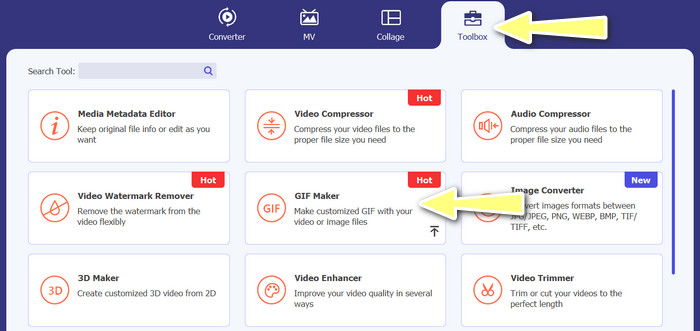
ขั้นตอนที่ 2. ต่อมาไปที่แท็บ Toolbox ที่อยู่ด้านบนของหน้าตาโปรแกรม จากนั้นคุณจะถูกพาไปยังหน้ารวมตัวเลือกต่าง ๆ ที่โปรแกรมมีให้ จากตรงนี้ให้เลือก GIF Maker แล้วเพิ่มไฟล์ GIF โดยคลิกปุ่ม Photos to GIF จากนั้นเลือกไฟล์ GIF ทั้งหมดที่คุณต้องการรวมให้เป็นไฟล์เดียว.
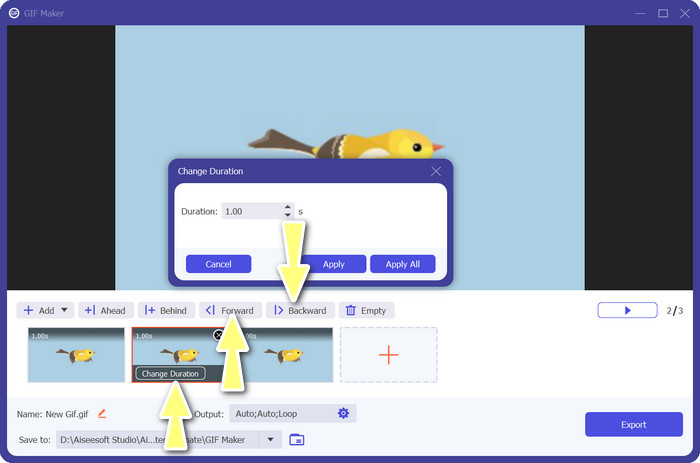
ขั้นตอนที่ 3. จากแผงแก้ไข ให้วางเมาส์ไปบนแต่ละ GIF เพื่อดูตัวเลือก Change Duration และปรับความยาวของแต่ละ GIF นอกจากนี้ คุณยังสามารถเปลี่ยนลำดับได้ด้วยการเลือกปุ่ม Backward และ Forward จากเมนูหลัก.
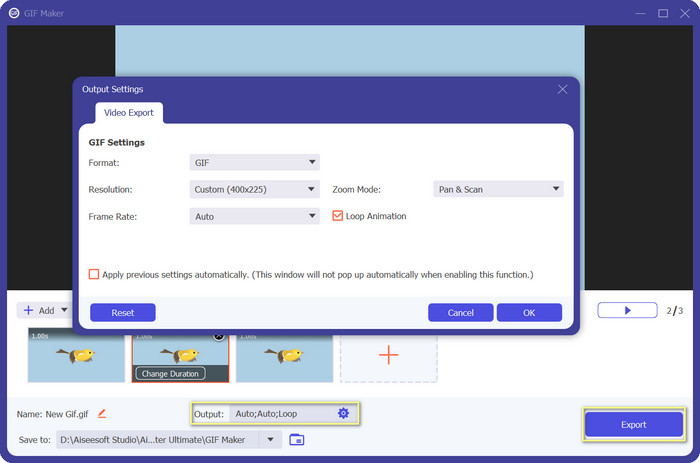
ขั้นตอนที่ 4. ต่อมา คุณสามารถปรับการตั้งค่าอื่น ๆ ได้ เช่น รูปแบบ ความละเอียด อัตราเฟรม และโหมดซูม จากเมนู Output สุดท้ายให้กดปุ่ม Export เพื่อสร้างไฟล์ผลลัพธ์ขั้นสุดท้าย.
ส่วนที่ 2 GIF Combiner อันดับ 4 ออนไลน์
นอกจากนี้ยังมีทางเลือกออนไลน์บางอย่างในการรวม GIF เข้าเป็นหนึ่งเดียว ดังนั้น คุณสามารถเข้าร่วม GIFs ของคุณได้อย่างง่ายดายโดยไม่ต้องดาวน์โหลดโปรแกรมใดๆ บนคอมพิวเตอร์ของคุณ ตรวจสอบได้โดยการตรวจสอบโปรแกรมที่แนะนำด้านล่าง
1. EZGIF
EZGIF เป็นบริการบนเว็บที่ใช้กันอย่างแพร่หลายในการสร้างและแก้ไข GIF ฟังก์ชัน GIF Joiner ช่วยให้คุณรวม GIF จำนวนมากเป็นหนึ่งเดียว พร้อมตัวเลือกในการเปลี่ยนความเร็วในการเล่นและพารามิเตอร์อื่นๆ ด้านล่างนี้เป็นคำแนะนำง่ายๆ เกี่ยวกับวิธีใช้ EZGIF เพื่อรวม GIF ให้เป็นหนึ่งเดียว
ขั้นตอนที่ 1. เปิดเว็บเบราว์เซอร์ที่คุณใช้งานประจำแล้วไปยังเว็บไซต์ทางการของโปรแกรม จากนั้นไปที่ตัวเลือก GIF Maker.
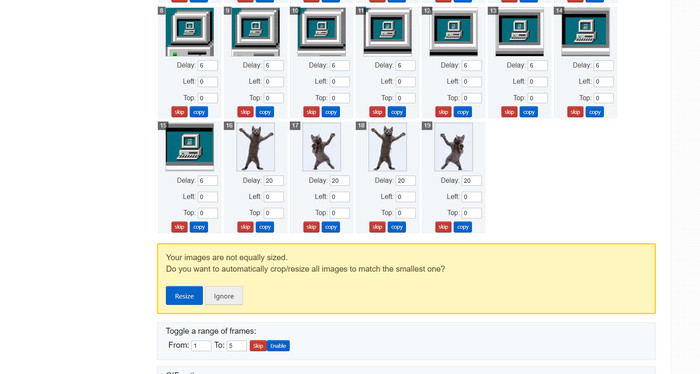
ขั้นตอนที่ 2. ต่อมาให้อัปโหลดไฟล์ GIF ที่คุณต้องการรวม เครื่องมือจะโหลดทุก ๆ เฟรมของไฟล์ GIF ของคุณในหน้าถัดไป.
ขั้นตอนที่ 3. ตอนนี้คุณสามารถเลือกได้ว่าจะใช้หรือตัดเฟรมใดของ GIF ออก.
ขั้นตอนที่ 4. จะมีตัวเลือกอื่น ๆ ให้ใช้งานที่ด้านล่างหน้า หากคุณพอใจกับการตั้งค่าแล้ว ให้คลิกปุ่ม Make a GIF.
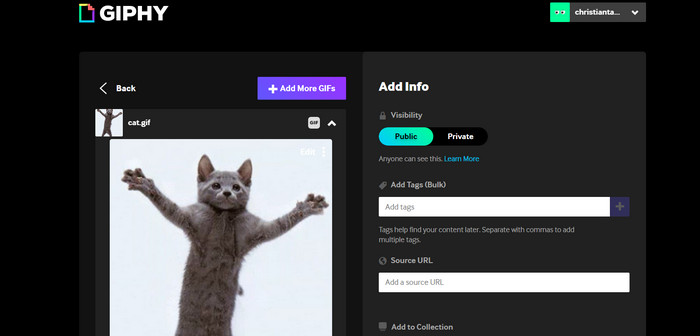
2. GIPHY
ในขณะที่คนส่วนใหญ่รู้จัก GIPHY ว่าเป็นที่สำหรับค้นหาและแชร์ GIF แต่พวกเขาอาจไม่ทราบว่าไซต์นี้มีเครื่องมือสร้าง GIF ที่ช่วยให้ผู้ใช้สามารถรวม GIF และเพิ่มข้อความหรือสติกเกอร์ได้ ในทางกลับกัน นี่คือกระบวนการทีละขั้นตอนในการเข้าร่วม GIF กับ GIPHY
ขั้นตอนที่ 1. เพื่อเริ่มสร้าง GIF ให้ไปที่เว็บไซต์ GIPHY แล้วใช้แท็บ Create จากเมนูที่ปรากฏให้เลือก GIF Creator.
ขั้นตอนที่ 2. เลือก GIF ที่คุณต้องการรวมจากคอมพิวเตอร์ของคุณโดยคลิกปุ่ม Choose Files.
ขั้นตอนที่ 3. คุณสามารถลาก GIF ที่เลือกไว้ไปวางบนไทม์ไลน์ที่ด้านล่างของหน้าจอได้ เพียงแค่ลาก GIF เพื่อสลับตำแหน่ง ก็จะเปลี่ยนลำดับการแสดงผลได้.
ขั้นตอนที่ 4. ใช้แถบเลื่อนที่มีให้เพื่อปรับความยาวของแต่ละ GIF จากนั้นใช้เครื่องมือแก้ไขของ GIPHY เพิ่มข้อความ สติกเกอร์ และอื่น ๆ เพื่อปรับแต่ง GIF ตามต้องการ เมื่อตรวจสอบแล้วว่าพอใจกับผลลัพธ์ ให้เลือก Create GIF เพื่อบันทึก GIF ที่รวมแล้วลงในคอมพิวเตอร์ของคุณ.
3. Kapwing
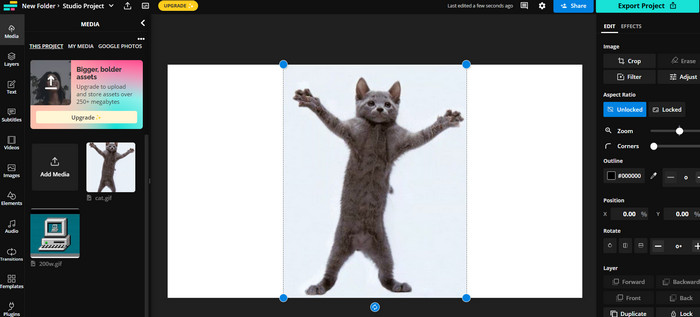
Kapwing เป็นบริการออนไลน์ฟรีที่ให้ผู้ใช้ตัดต่อวิดีโอและสร้าง GIF จากรูปภาพ ผู้ใช้สามารถอัปโหลด GIF หลายไฟล์ นำมารวมเป็นไฟล์เดียว กำหนดความเร็วในการเล่น และปรับค่าพารามิเตอร์อื่น ๆ ได้ หากต้องการเรียนรู้วิธีนำ GIF สองไฟล์มารวมกันด้วย Kapwing ให้ดูคำแนะนำด้านล่างนี้.
ขั้นตอนที่ 1. ไปที่เว็บไซต์ Kapwing แล้วคลิก Get Started เพื่อเริ่มต้น จากนั้นคลิก Click to Upload แล้วเลือก GIF ที่ต้องการรวมจากคอมพิวเตอร์ของคุณ.
ขั้นตอนที่ 2. ลาก GIF ที่เลือกไว้มาวางบนไทม์ไลน์ที่ด้านล่างของหน้าจอ คุณสามารถจัดลำดับ GIF ใหม่ได้ด้วยการลากไปยังตำแหน่งที่ต้องการ.
ขั้นตอนที่ 3. ปรับความเร็วในการเล่นและระยะเวลาของแต่ละ GIF ด้วยเครื่องมือแก้ไขที่ Kapwing มีให้ คุณยังสามารถเพิ่มข้อความ สติกเกอร์ และองค์ประกอบอื่น ๆ ลงใน GIF ได้โดยใช้เครื่องมือเหล่านี้.
ขั้นตอนที่ 4. เมื่อพอใจกับผลงานแล้ว ให้คลิก Publish เพื่อบันทึก GIF ที่รวมแล้วลงในคอมพิวเตอร์ของคุณ.
4. อิมเมจฟลิป
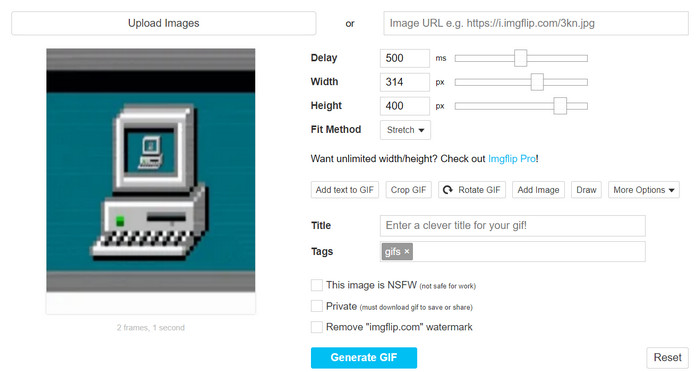
มีมออนไลน์ยอดนิยมและผู้สร้าง GIF Imgflip ยังมีเครื่องสร้าง GIF ผู้ใช้สามารถเพิ่มข้อความซ้อนทับ เปลี่ยนความเร็วในการเล่น และโพสต์ GIF จำนวนมากได้ในคราวเดียว ดูขั้นตอนและรับข้อมูลเกี่ยวกับวิธีรวม GIF ให้เป็นหนึ่งเดียว
ขั้นตอนที่ 1. ไปที่เว็บไซต์ Imgflip แล้วคลิก Create ที่ด้านบนของหน้า จากเมนูดรอปดาวน์ให้คลิก Video to GIF.
ขั้นตอนที่ 2. คลิก Upload Video แล้วเลือก GIF ที่คุณต้องการรวมจากคอมพิวเตอร์ เมื่ออัปโหลด GIF เสร็จแล้ว ให้คลิก Join GIFs ที่ด้านบนของหน้า.
ขั้นตอนที่ 3. จัดเรียงลำดับ GIF ด้วยการลากและวางไปยังตำแหน่งที่ต้องการ จากนั้นปรับความเร็วในการเล่นและการตั้งค่าอื่น ๆ ตามต้องการ.
ขั้นตอนที่ 4. เมื่อคุณพอใจกับผลลัพธ์สุดท้ายแล้ว ให้คลิก Create GIF เพื่อบันทึก GIF ที่รวมแล้วลงในคอมพิวเตอร์ของคุณ.
ส่วนที่ 3 คำถามที่พบบ่อยเกี่ยวกับ GIF Combiners
ฉันสามารถรวม GIF ขนาดต่างๆ เข้าด้วยกันได้หรือไม่
ได้ การรวม GIF ส่วนใหญ่ทำให้คุณสามารถรวม GIF ที่มีขนาดและอัตราส่วนต่างๆ ได้ อย่างไรก็ตาม สิ่งสำคัญคือต้องสังเกตว่าผลลัพธ์สุดท้ายอาจถูกครอบตัดหรือปรับขนาด ทั้งนี้ขึ้นอยู่กับขนาดของ GIF แต่ละรายการ
การรวม GIF ที่ไม่ใช่ของฉันถูกกฎหมายหรือไม่
สิ่งสำคัญคือต้องเคารพกฎหมายลิขสิทธิ์และรวม GIF ที่คุณมีสิทธิ์ใช้เท่านั้น ซึ่งอาจรวมถึง GIF ที่เป็นสาธารณสมบัติหรือที่คุณสร้างขึ้นเอง
ฉันสามารถเพิ่มข้อความหรือสติกเกอร์ลงใน GIF ที่ผสานของฉันได้หรือไม่
ได้ ส่วนใหญ่โปรแกรมรวม GIF จะมีฟีเจอร์แก้ไขที่ช่วยให้คุณเพิ่มข้อความ สติกเกอร์ และลายน้ำลงใน GIF ได้ ซึ่งจะช่วยเพิ่มความน่าสนใจด้านภาพและช่วยสื่อสารข้อความของ GIF ได้ดียิ่งขึ้น.
สรุป
ในโลกที่คอนเทนต์ภาพมีความสำคัญมากขึ้นเรื่อย ๆ การรวม GIF ถือเป็นทักษะที่มีค่า เมื่อคุณสามารถรวม GIF หลายไฟล์ให้เป็นไฟล์เดียวได้ คุณก็จะสร้างสรรค์ผลงานที่โดดเด่นไม่เหมือนใคร ดึงดูดความสนใจของผู้ชม และกระตุ้นให้พวกเขามีส่วนร่วมกับคอนเทนต์ของคุณได้.
-
 5 ตัวปรับขนาด GIF ที่ดีที่สุดที่มีในทุกแพลตฟอร์ม [2023]
 ต้องการทราบตัวปรับขนาด GIF ที่คุณสามารถใช้ได้หรือไม่ ในกรณีดังกล่าว ข้อมูลที่ให้ไว้ด้านล่างจะพูดถึงตัวปรับขนาดที่คุณสามารถใช้ได้บน GIF ของคุณบนทุกแพลตฟอร์ม
-
 วนลูป GIF กับ Animated GIF Looper ที่ดีที่สุดบน Windows & Mac
 ต้องการทราบเคล็ดลับสำหรับ GIF ลูปที่ดีที่สุดหรือไม่? ต้องการทำหรือไม่? ถ้าใช่ คุณมาถูกที่แล้ว ดังนั้น เรียนรู้วิธีสร้างลูปด้วย looper ที่ดีที่สุด
-
 6 วิธียอดนิยมในการรวมไฟล์ MP4 บน Windows / Mac / ออนไลน์
 ต้องการรวมไฟล์ MP4 ดิบสำหรับโครงการของคุณหรือไม่? โพสต์นี้รวบรวม 6 วิธียอดนิยมที่จะช่วยให้คุณรวมวิดีโอ MP4 บน Windows, Mac และออนไลน์ได้อย่างง่ายดาย
