


 Video Converter Ultimate
 บันทึกหน้าจอ
 ซ่อมวิดีโอ
 ดาวน์โหลดอย่างปลอดภัย
2 วิธีที่มีประสิทธิภาพในการแปลงไฟล์ M4V เป็น GIF ได้อย่างคล่องแคล่ว
หลังจากดาวน์โหลดวิดีโอ M4V ที่น่าสนใจบน Mac ของคุณแล้ว คุณอาจต้องการตัดส่วนที่ยอดเยี่ยมเหล่านั้นและแปลงชิ้นส่วน M4V เหล่านั้นเป็น GIF แบบเคลื่อนไหวเพื่อเผยแพร่บนอินเทอร์เน็ตเป็นอีโมจิ
GIF แบบเคลื่อนไหวเป็นที่นิยมมากและใช้กันทั่วไปบนเว็บ แพลตฟอร์มโซเชียล หรือแชท เนื่องจากมีความเข้ากันได้สูง มันถูกรวมเข้ากับรูปภาพคงที่หลายภาพ ดังนั้น GIF แบบเคลื่อนไหวส่วนใหญ่จึงมีอัตราเฟรมและความละเอียดต่ำ แต่ไม่ต้องกังวล โปรดอ่านบทความนี้ต่อไปและเรียนรู้เพิ่มเติมเกี่ยวกับวิธีการแปลง M4V เป็น GIF ที่มีคุณภาพสูง

ส่วนที่ 1: วิธีที่ดีที่สุดและเป็นมืออาชีพในการแปลง M4V เป็น GIF แบบเคลื่อนไหว
FVC Free Video to GIF Maker เป็นซอฟต์แวร์ระดับมืออาชีพและทรงพลังที่สามารถตัดต่อคลิปจากวิดีโอต้นฉบับและแปลง M4V เป็น GIF ได้อย่างมีคุณภาพสูง นอกจากนี้ คุณยังสามารถแก้ไขภาพ GIF แบบเคลื่อนไหวได้ด้วยการเพิ่มธีมสำเร็จรูปและลายน้ำลงไปด้วย.
- 1. แปลงวิดีโอ M4V เป็น GIF แบบเคลื่อนไหวได้อย่างง่ายดายด้วยความเร็วที่เร็วขึ้น 30 เท่า
- 2. ให้ตัวเลือกความละเอียดสูงและอัตราเฟรมเมื่อสร้าง GIF
- 3. สามารถเพิ่มเอฟเฟกต์ ธีม และคำบรรยายเพื่อทำให้ GIF น่าสนใจยิ่งขึ้น
- 4. รองรับการนำเข้ามากกว่า 100 รูปแบบและสร้าง GIF จากรูปแบบเหล่านั้น
ดาวน์โหลดฟรีสำหรับ Windows 7 หรือใหม่กว่าดาวน์โหลดอย่างปลอดภัย
ดาวน์โหลดฟรีสำหรับ MacOS 10.7 หรือใหม่กว่าดาวน์โหลดอย่างปลอดภัย
ขั้นตอนที่ 1: ดาวน์โหลด FVC Free Video to GIF Maker บน Windows/Mac แล้วเปิดใช้งาน จากนั้นคลิกปุ่ม Add Files เพื่อเลือกวิดีโอ M4V ที่คุณต้องการแปลงเป็น GIF หรือคุณสามารถลากและปล่อยไฟล์ที่ต้องการลงในซอฟต์แวร์ได้โดยตรง.
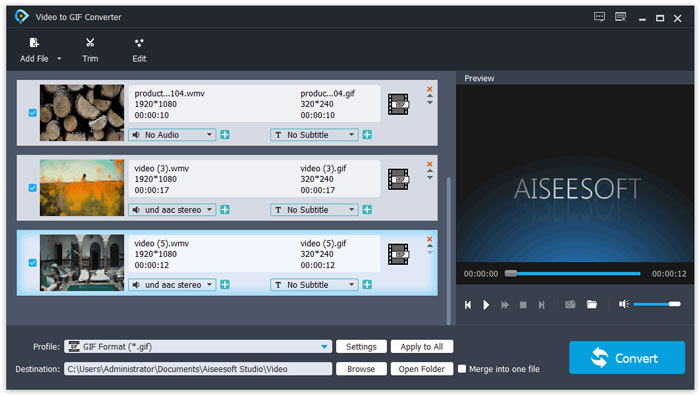
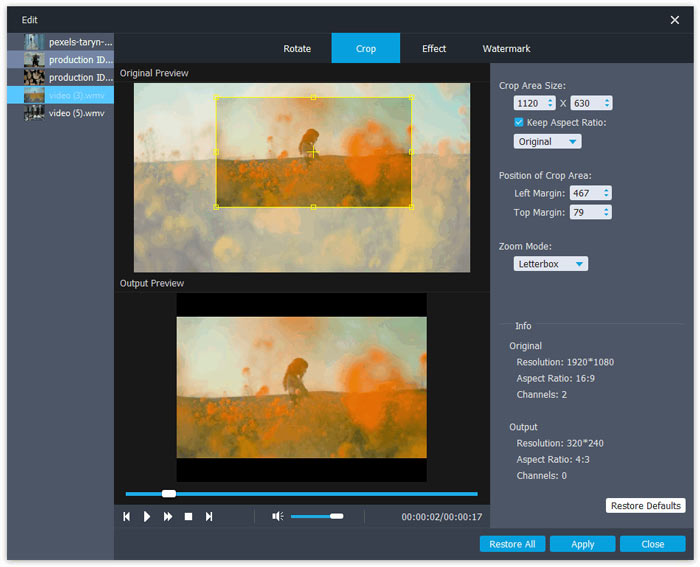
ขั้นตอนที่ 2: ก่อนจะแปลงไฟล์ M4V เป็น GIF คุณสามารถคลิกปุ่ม Clip เพื่อตัดวิดีโอต้นฉบับและเลือกเฉพาะช่วงที่ต้องการได้ เพื่อทำให้ภาพ GIF เคลื่อนไหวดูน่าสนใจยิ่งขึ้น คุณควรคลิกปุ่ม Edit แล้วเพิ่มธีมสำเร็จรูปและลายน้ำตามความต้องการของคุณ.
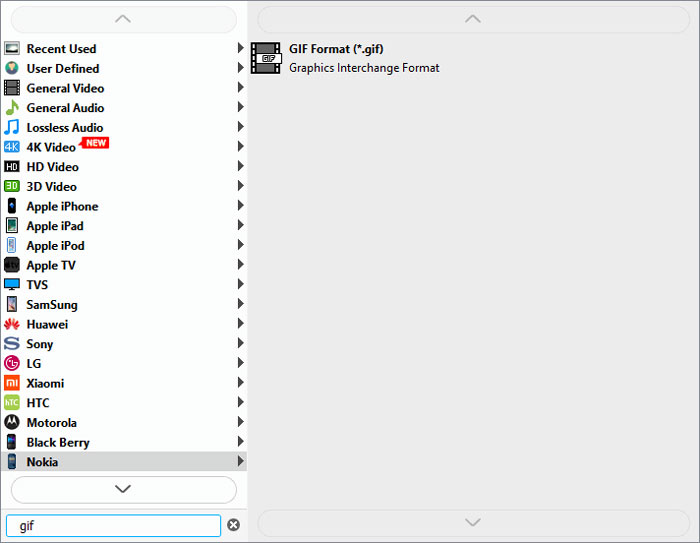
ขั้นตอนที่ 3: จากนั้นคลิกเมนู Output Format เพื่อเลือกเป็นรูปแบบ GIF คุณยังสามารถค้นหารูปแบบที่ต้องการได้ในช่องค้นหาด้านล่าง คลิกไอคอน Settings เพื่อเปลี่ยนค่าพารามิเตอร์อย่างละเอียด รวมถึงความละเอียด อัตราเฟรม และบิตเรต เพื่อคงคุณภาพและความลื่นไหลของภาพไว้ คุณสามารถเลือกความละเอียดสูงและอัตราเฟรม 25fps จากนั้นคลิกปุ่ม Convert เพื่อเริ่มแปลงไฟล์ M4V เป็นไฟล์ GIF.
ส่วนที่ 2: วิธีการแปลง M4V เป็น GIF ออนไลน์ฟรี
คุณยังสามารถแปลงวิดีโอ M4V เป็นภาพ GIF แบบเคลื่อนไหวออนไลน์ได้ฟรีผ่าน FVC Free Online Video Converter โดยไม่ต้องดาวน์โหลดซอฟต์แวร์ใด ๆ คุณก็สามารถแปลงได้ทุกฟอร์แมต รวมถึงการแปลง M4V เป็น GIF ได้อย่างง่ายดาย แม้ว่าจะไม่รองรับการตัดต่อคลิปวิดีโอและให้ได้เพียงความละเอียดและอัตราเฟรมที่ค่อนข้างต่ำ แต่ก็ถือเป็นตัวเลือกที่ดีที่สุดสำหรับการแปลงไฟล์แบบง่ายและรวดเร็ว.
- 1. แปลงวิดีโอ M4V เป็น GIF ด้วยการคลิกง่ายๆ สามครั้ง
- 2. รองรับรูปแบบวิดีโอและเสียงหลายรูปแบบ
- 3. ปรับแต่งความละเอียดของวิดีโอ อัตราเฟรม และบิตเรต
- 4. ไม่มีลายน้ำใช้กับวิดีโอที่ส่งออกของคุณ
ขั้นตอนที่ 1: ไปที่เว็บไซต์อย่างเป็นทางการของ FVC Free Online Video Converter ผ่านเบราว์เซอร์ใดก็ได้ คลิกปุ่ม Add Files to Convert เพื่อติดตั้งตัวเรียกใช้งาน (launcher) ภายในไม่กี่วินาที จากนั้นคลิกปุ่มเดิมอีกครั้งเพื่อเพิ่มไฟล์ที่ต้องการไปยังตัวแปลง M4V ออนไลน์.
ดาวน์โหลดเวอร์ชันเดสก์ท็อปเพื่อแปลงไฟล์แบบเป็นชุดได้.
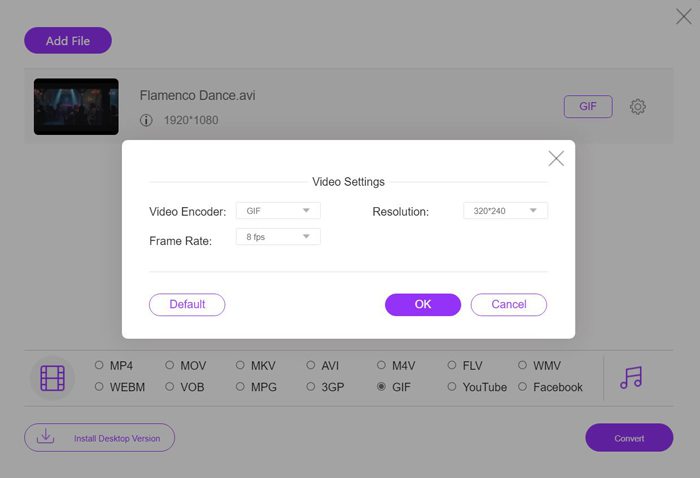
ขั้นตอนที่ 2: ทำเครื่องหมายเลือกตัวเลือก GIF เป็นรูปแบบเอาต์พุตในรายการวิดีโอด้านล่าง จากนั้นคลิกไอคอน Settings เพื่อเปลี่ยนค่าพารามิเตอร์ เลือกความละเอียดสูงสุด 320x240 และอัตราเฟรม 8fps แล้วคลิกปุ่ม OK เพื่อบันทึกการตั้งค่า.
ขั้นตอนที่ 3: หลังจากกลับมาหน้าหลักแล้ว ให้คลิกปุ่ม Convert เพื่อเลือกโฟลเดอร์ปลายทางและบันทึกไฟล์ GIF แบบเคลื่อนไหวลงบนคอมพิวเตอร์ของคุณ.
อ่านเพิ่มเติม:
• โปรแกรมเล่นไฟล์ M4V ที่ดีที่สุด
M4V เทียบกับ GIF
M4V ได้รับการพัฒนาโดย Apple ซึ่งใช้ MPEG 4 เช่นกัน ไฟล์ M4V มักใช้เพื่อจัดเก็บวิดีโอที่ดาวน์โหลดจากร้าน iTunes ของ Apple เช่น มิวสิควิดีโอ รายการทีวี ฯลฯ คุณอาจพบว่าไฟล์ M4V บางไฟล์ได้รับการป้องกันการคัดลอกเนื่องจากใช้ การคุ้มครองลิขสิทธิ์ FairPlay DRM ของ Apple
GIF เป็นรูปแบบภาพทั่วไปสำหรับกราฟิกบนเว็บ นอกจากการบันทึกรูปภาพขนาดเล็กและรูปภาพที่มีข้อความแล้ว GIF ยังสามารถมีและแสดงแอนิเมชั่นพื้นฐานบนเว็บไซต์ได้อีกด้วย เป็นรูปแบบที่ไม่มีการสูญเสีย และการบีบอัด GIF จะไม่ทำให้ความคมชัดของภาพลดลง
ส่วนที่ 3: คำถามที่พบบ่อยเกี่ยวกับการโอน M4V ไปยัง Animated GIF ด้วย Small Size
1. การแปลงวิดีโอ M4V เป็น GIF จะสูญเสียคุณภาพหรือไม่
แน่นอนว่ามันจะ GIF มีขนาดเล็กและมีคุณภาพค่อนข้างต่ำ แม้ว่าคุณจะรักษาความละเอียดดั้งเดิมไว้ คุณภาพก็จะลดลงเช่นกัน เพื่อรักษาคุณภาพให้มากที่สุด คุณสามารถพึ่งพา FVC Free Video to GIF Maker เพื่อปรับพารามิเตอร์โดยละเอียด
2. ฉันสามารถเปลี่ยนบางส่วนของภาพยนตร์ M4V เป็น GIF แบบเคลื่อนไหวได้หรือไม่
ใช่คุณสามารถ. คุณสามารถเลือกตัดส่วนที่ต้องการล่วงหน้าก่อนแปลง M4V เป็น GIF หรือคุณสามารถใช้ FVC Free Video to GIF Maker เพื่อตัดวิดีโอและสร้าง GIF แบบเคลื่อนไหวได้
3. จะรักษาความคล่องแคล่วหลังจากแปลงวิดีโอ M4V เป็น GIF ได้อย่างไร
อัตราเฟรมจะส่งผลต่อความคล่องแคล่ว โดยปกติอัตราเฟรมที่สูงกว่า 24 fps ก็เพียงพอสำหรับสายตาของผู้คน ดังนั้นคุณควรเปลี่ยนอัตราเฟรมการส่งออกเป็นประมาณ 25 fps เพื่อรักษาความคล่องแคล่ว
สรุป
ตอนนี้ GIF แบบเคลื่อนไหวมักใช้ในชีวิตประจำวัน และคุณได้เรียนรู้วิธีการสร้าง GIF จากวิดีโอและภาพยนตร์ M4V ในบทความนี้ คุณสามารถไว้วางใจ FVC Free Video เป็น GIF Maker แบบมืออาชีพได้ และคุณยังสามารถแปลงวิดีโอ M4V เป็น GIF แบบออนไลน์ได้ฟรีอีกด้วย หากคุณมีคำถามอื่น ๆ โปรดแสดงความคิดเห็นของคุณด้านล่าง
-
 6 วิธีในการแปลง M4V เป็น MP4 ฟรี (รวมการกำจัด DRM)
 โพสต์นี้เป็นคำแนะนำโดยละเอียดในการแปลง M4V เป็น MP4 สำหรับผู้เล่นทุกคน คุณสามารถเปลี่ยน M4V เป็น MP4 แม้กระทั่งไฟล์ M4V ที่มีการป้องกันเพื่อให้คุณสามารถเล่นวิดีโอ M4V ได้อย่างไร้ขีด จำกัด
-
 4 สุดยอดตัวแปลง MP4 เป็น M4V เพื่อเปลี่ยนวิดีโอ MP4 เป็น M4V ได้อย่างง่ายดาย
 เมื่อคุณต้องการเปลี่ยนไฟล์ MP4 เป็น M4V คุณควรเรียนรู้รายละเอียดเพิ่มเติมเกี่ยวกับความแตกต่างระหว่างสองรูปแบบรวมถึงตัวแปลง MP4 เป็น M4V ที่ดีที่สุดจากบทความ
-
 M4V เป็น MP3 Converter - 4 วิธีที่ดีที่สุดในการแยก MP3 จากไฟล์ M4V
 เมื่อคุณต้องการแยกเสียง MP3 จากวิดีโอ M4V อย่างง่ายดายคุณสามารถเรียนรู้เพิ่มเติมเกี่ยวกับตัวแปลง M4V เป็น MP3 ที่ดีที่สุด 4 ตัวเพื่อรับไฟล์เสียงที่ต้องการจากบทความ

