


 Video Converter Ultimate
 บันทึกหน้าจอ
 ซ่อมวิดีโอ
คำแนะนำฉบับเต็มในการแนบรูปภาพไปกับอีเมลบน iPhone เพื่อการแชร์ที่ราบรื่น
การเล่าเรื่องด้วยภาพในยุคการสื่อสารแบบฉับไว ความสามารถในการแบ่งปันความทรงจำแสนมีค่าได้อย่างราบรื่นผ่านอีเมล กลายเป็นส่วนสำคัญของประสบการณ์ดิจิทัลของเรา การแนบรูปภาพกับอีเมลจึงเป็นหนึ่งในการใช้งานที่โดดเด่น บทความนี้จะพาคุณไปดูขั้นตอนที่เรียบง่ายและวิธีแก้ปัญหาต่าง ๆ ที่ควรรู้เมื่อแนบรูปภาพในอีเมลด้วย iPhone ของคุณ เตรียมยกระดับทักษะการใช้อีเมลบน iPhone ของคุณด้วยการอ่านบทความนี้วันนี้ เพื่อปลดล็อกศักยภาพสูงสุดของอุปกรณ์สำหรับการแชร์ภาพถ่ายที่ลื่นไหลและเพลิดเพลินยิ่งขึ้น.

ส่วนที่ 1 วิธีแนบรูปภาพกับอีเมลบน iPhone
ต้องการความช่วยเหลือเกี่ยวกับวิธีการส่งอีเมลรูปภาพจาก iPhone หรือไม่? ค้นพบว่าการแนบรูปภาพไปกับอีเมลบน iPhone ของคุณง่ายดายเพียงใดในส่วนนี้ ด้วยขั้นตอนตรงไปตรงมาด้านล่างนี้ คุณจะรู้ได้อย่างรวดเร็วว่างานที่ดูเหมือนซับซ้อนนี้เป็นเรื่องง่ายมาก ปรับปรุงประสบการณ์การแบ่งปันภาพถ่ายของคุณและเชี่ยวชาญในการควบคุมพลังของ iPhone ของคุณเพื่อการสื่อสารที่ราบรื่น
ขั้นตอนที่ 1. หาแอป Mail บน iPhone ของคุณ เปิดแอป แล้วแตะไอคอนเขียนอีเมลใหม่ที่มุมล่างขวาของหน้าจอ.
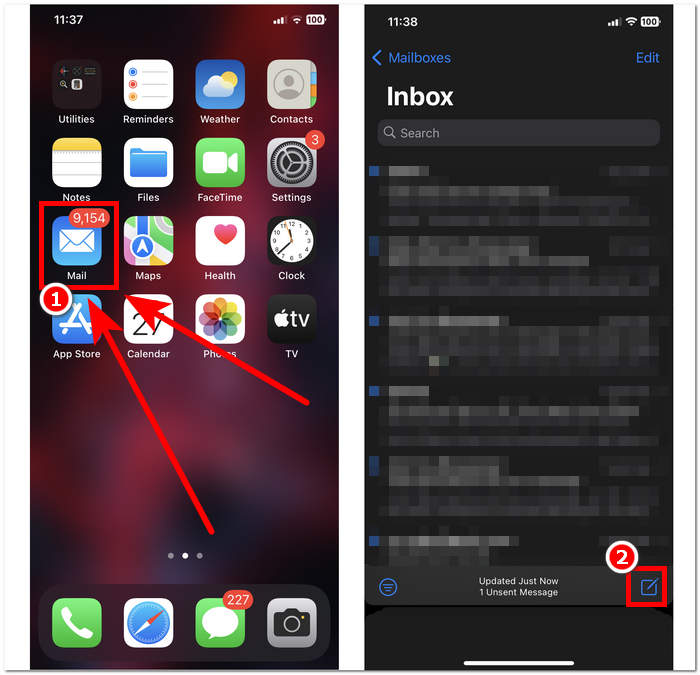
ขั้นตอนที่ 2. หลังจากสร้างอีเมลฉบับใหม่แล้ว ให้แตะลูกศร > เพื่อขยายตัวเลือก จากนั้นหาและแตะไอคอนสื่อ เพื่อเลือกและแนบรูปภาพเข้ากับอีเมลของคุณ.
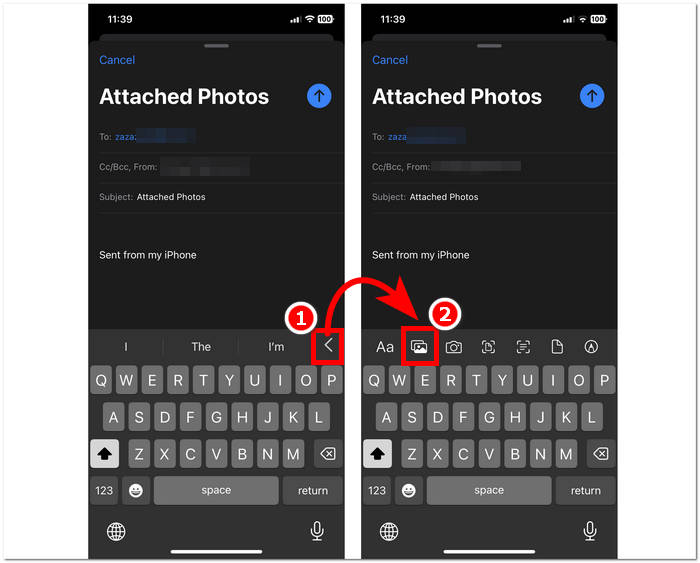
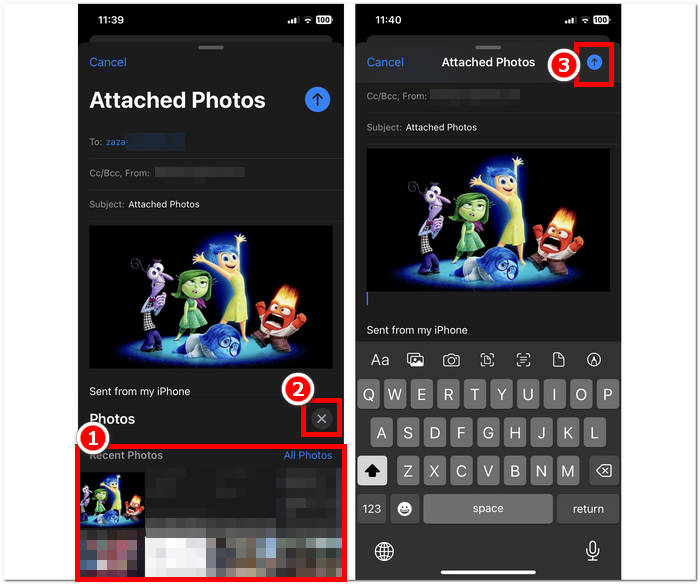
ขั้นตอนที่ 3. หลังจากแตะไอคอนสื่อแล้ว แกลเลอรีรูปภาพของคุณจะแสดงขึ้นบริเวณคีย์บอร์ด จากนั้นคุณจึงเลือกภาพที่ต้องการแนบกับอีเมลได้ เมื่อเลือกภาพทั้งหมดที่ต้องการแล้ว ให้แตะสัญลักษณ์ X ด้านบนแกลเลอรีเพื่อยืนยันการเลือก.
ขั้นตอนที่ 4. สุดท้าย หากต้องการส่งรูปภาพที่แนบไปยังผู้รับ ให้แตะปุ่มส่ง ที่มุมขวาบนของหน้าจอ.
การทำตามขั้นตอนที่ง่ายที่สุดในการแนบรูปถ่ายในอีเมลบน iPhone เป็นเรื่องง่าย และคุณไม่ควรใช้เวลาคิดหาคำตอบ อย่างไรก็ตาม บางครั้งปัญหาอาจเกิดขึ้นได้จากสาเหตุบางประการ ผู้ใช้ประสบปัญหารูปภาพไม่ส่งหรือไม่สามารถส่งอีเมลรูปภาพในแอปอีเมลได้เลย เพื่อแก้ไขปัญหานี้ ด้านล่างนี้คือแนวทางแก้ไขที่อาจช่วยคุณในเรื่องข้อกังวลของคุณได้
ส่วนที่ 2 โซลูชั่นสำหรับ 'ไม่สามารถส่งอีเมลรูปภาพจาก iPhone ของฉัน'
วิธีที่ 1: บีบอัดรูปภาพ iPhone สำหรับอีเมล
เหตุใดฉันจึงไม่สามารถส่งอีเมลรูปภาพจาก iPhone ของฉันได้ บางครั้งผู้ใช้มักจะลืมเมื่อพิจารณาถึงขนาดไฟล์รูปภาพเมื่อถ่ายโอนจากอุปกรณ์เครื่องหนึ่งไปยังอีกเครื่องหนึ่ง บางครั้งรูปภาพของคุณอาจมีปัญหาเมื่อส่งทางอีเมลเนื่องจากขนาดไฟล์ใหญ่
| บริการอีเมล | ขนาดไฟล์แนบสูงสุด |
| Gmail | 25 ลบ |
| แนวโน้ม | 33 เมกะไบต์ |
| ยาฮูเมล์ | 25 ลบ |
| แอปเปิลเมล | 20 เมกะไบต์ |
รายการด้านบนคือขนาดไฟล์แนบสูงสุดที่คุณสามารถส่งผ่านบริการอีเมลที่กำหนด เพื่อช่วยคุณระบุว่าขนาดไฟล์ใดดีที่สุดที่จะใช้เมื่อส่งไฟล์ที่มีขนาดเกิน 20 MB และต่ำกว่า 33 MB ก่อนที่จะส่งไฟล์ขนาดใหญ่หรือรูปถ่ายของคุณผ่านทางอีเมล สิ่งสำคัญคือต้องดูขีดจำกัดสูงสุดของไฟล์ที่คุณสามารถส่งผ่านบริการอีเมลต่างๆ ก่อน เพื่อหลีกเลี่ยงปัญหาในการส่ง โปรดทราบว่าขนาดไฟล์สูงสุดเหล่านี้อาจมีการเปลี่ยนแปลงเมื่อเวลาผ่านไป ดังนั้นอย่าลืมติดตามการเปลี่ยนแปลงเหล่านี้ผ่านทางเว็บไซต์อย่างเป็นทางการ หากคุณมีไฟล์ที่มีขนาดเกิน 33 MB คุณอาจใช้วิธีอื่นในการส่งไฟล์ ซึ่งก็คือผ่านการบีบอัดไฟล์
ด้วยความช่วยเหลือของ FVC Free Image Compressor คุณจะได้กระบวนการที่ตรงไปตรงมาโดยไม่ต้องเสียค่าใช้จ่าย FVC เป็นเครื่องมือแบบเว็บที่มีอินเทอร์เฟซเรียบง่าย ระบบบีบอัดรูปภาพขั้นสูงที่ช่วยลดขนาดไฟล์โดยไม่ทำให้คุณภาพลดลง รองรับการบีบอัดแบบกลุ่ม และรองรับไฟล์หลายรูปแบบ เครื่องมือนี้เหมาะไม่เพียงแค่สำหรับ iPhone แต่ยังใช้กับอุปกรณ์อื่น ๆ ได้ด้วย เพราะให้บริการแบบกระทัดรัด ไม่มีค่าบริการแอบแฝงเหมือนซอฟต์แวร์และเครื่องมืออื่น ๆ บนเว็บ.
ขั้นตอนที่ 1. เปิดเว็บไซต์ FVC Free Image Compressor บนเบราว์เซอร์ที่คุณใช้ ในที่นี้คือ Safari บน iPhone ของคุณ.
ขั้นตอนที่ 2. อัปโหลดรูปภาพของคุณในช่อง Upload Image บนหน้าจอโดยแตะหรือคลิกที่ช่องดังกล่าว อย่าลืมว่าคุณสามารถบีบอัดรูปภาพได้สูงสุด 40 ภาพพร้อมกัน โดยแต่ละไฟล์มีขนาดไม่เกิน 5MB.
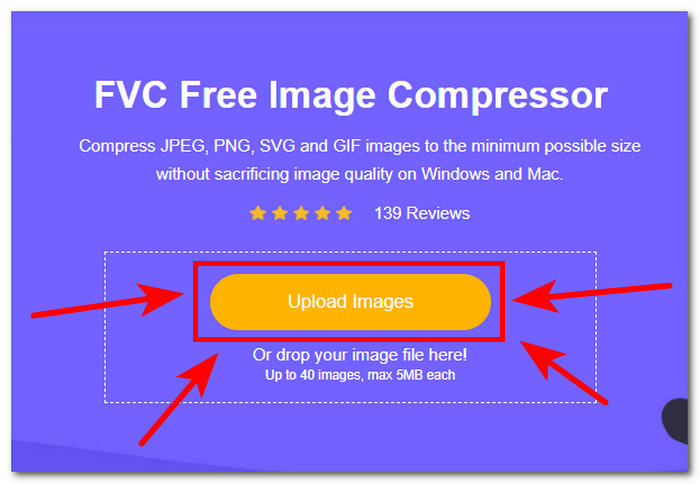
ขั้นตอนที่ 3. เมื่อรูปภาพของคุณเริ่มอัปโหลด ระบบจะเริ่มบีบอัดไฟล์โดยอัตโนมัติด้วย.
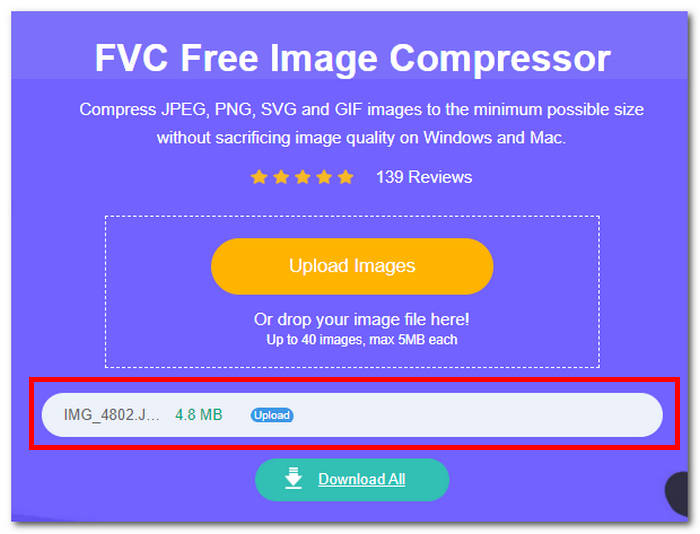
ขั้นตอนที่ 4. เมื่อการบีบอัดเสร็จสิ้น ให้บันทึกรูปภาพ iPhone ที่ถูกบีบอัดแล้วของคุณ โดยการแตะหรือคลิกปุ่ม Download All เพื่อเริ่มดาวน์โหลด.
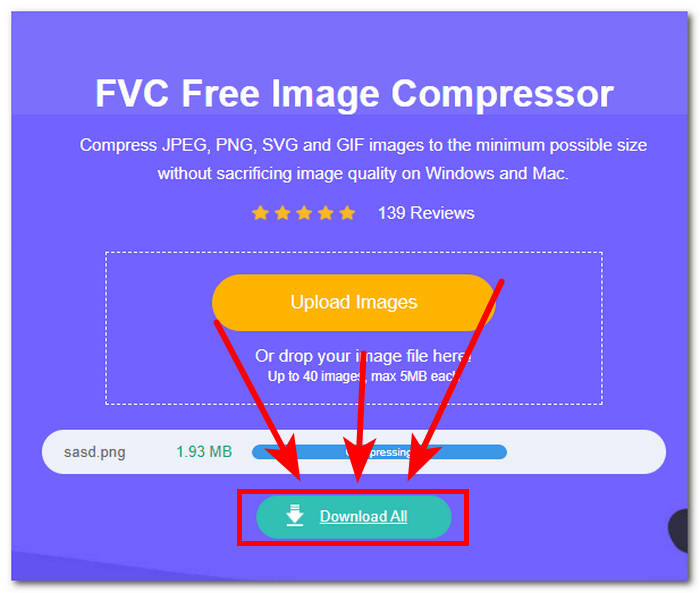
การบีบอัดไม่ได้หมายความว่าจะบีบอัดคุณภาพของภาพถ่ายของคุณด้วย แนวคิดนี้อาจเป็นสาเหตุหนึ่งที่ทำให้ผู้ใช้จำนวนมากขี้เกียจเกินไปที่จะบีบอัดรูปภาพเนื่องจากกลัวว่าจะลดคุณภาพของรูปภาพใน iPhone เมื่อคุณบีบอัดด้วยวิธีที่ถูกต้องด้วยเครื่องมือที่เหมาะสม คุณภาพไม่ใช่ปัญหา FVC Free Image Compressor เป็นหนึ่งในเครื่องมือบนเว็บที่เชื่อถือได้ ซึ่งให้บริการฟรีพร้อมผลลัพธ์ทันที
วิธีที่ 2: แปลงรูปภาพ HEIC สำหรับอีเมล
อีกสาเหตุหนึ่งที่การส่งรูปภาพทางอีเมลจาก iPhone ใช้งานไม่ได้ คือ iPhone ใช้รูปแบบไฟล์ HEIC บนอุปกรณ์ของ Apple ทั้งหมด HEIC ย่อมาจาก High-Efficiency Image Container ซึ่งบางครั้งอุปกรณ์อื่น โดยเฉพาะอุปกรณ์ Android ไม่สามารถเปิดดูไฟล์นี้ได้ นั่นจึงเป็นเหตุผลที่มีเครื่องมือบนเว็บอย่าง FVC Free HEIC to JPG Converter มาช่วยประหยัดเวลาและลดภาระงานของคุณ เครื่องมือนี้ขึ้นชื่อในเรื่องความเร็วในการแปลงไฟล์ คุณภาพผลลัพธ์ที่ดี และใช้งานได้กับทุกเบราว์เซอร์และอุปกรณ์ โดยไม่มีค่าบริการแอบแฝง เครื่องมือนี้รองรับการแปลงหลากหลายรูปแบบไฟล์ แตกต่างจากเครื่องมืออื่นที่มีฟีเจอร์คล้ายกันแต่บังคับให้สมัครสมาชิก ทำให้ FVC เป็นตัวเลือกที่เหมาะอย่างยิ่งสำหรับแปลงไฟล์ HEIC เพื่อใช้ส่งอีเมลบน iPhone ของคุณ.
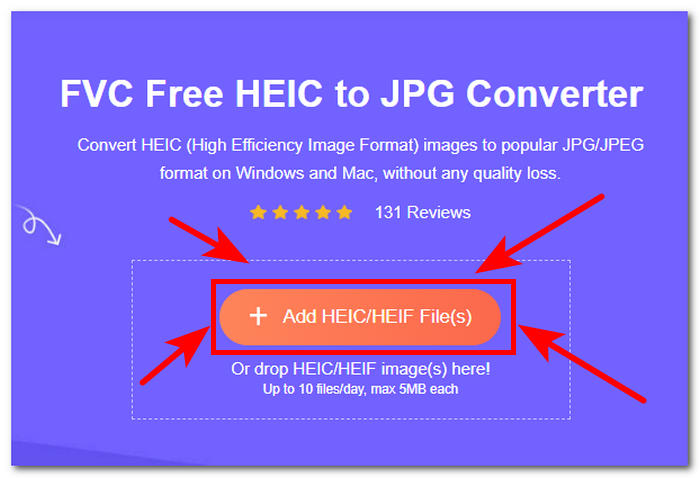
ขั้นตอนที่ 1. เปิดเว็บไซต์ FVC Free HEIC to JPG Converter บนเบราว์เซอร์ Safari จาก iPhone ของคุณ.
ขั้นตอนที่ 2. อัปโหลดรูปภาพ HEIC ที่คุณต้องการแปลงเป็น JPG โดยการแตะหรือคลิกที่ช่อง Add HEIC/HEIF File บนหน้าจอของคุณ.
ขั้นตอนที่ 3. เมื่อคุณเลือกรูปภาพ HEIC แล้ว ระบบจะเริ่มแปลงรูปภาพโดยอัตโนมัติ รอจนกว่ากระบวนการจะแปลงเสร็จ.
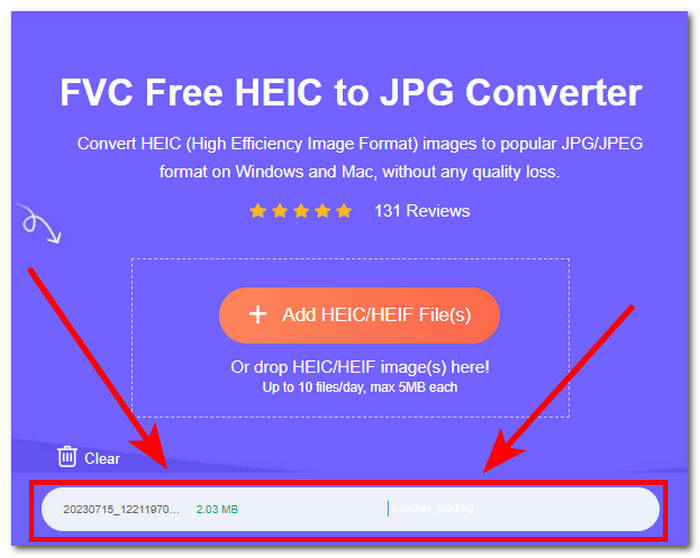
ขั้นตอนที่ 4. เมื่อการแปลงเสร็จแล้ว ให้แตะหรือคลิกปุ่มสีเขียวDownload ที่อยู่ถัดจากรูปภาพของคุณ เพื่อบันทึกลงในอุปกรณ์.
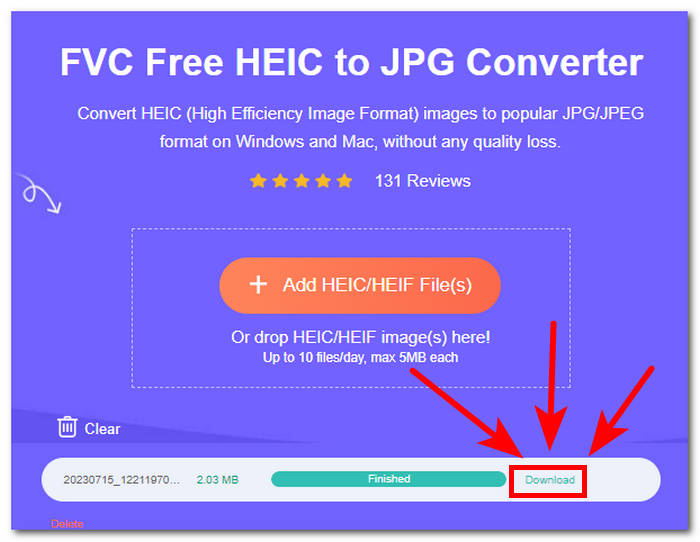
FVC Free HEIC to JPEG Converter ในฐานะเครื่องมือที่ใช้งานง่าย ช่วยให้คุณใช้ฟีเจอร์และเครื่องมือต่าง ๆ ได้ฟรี พร้อมอินเทอร์เฟซที่ไม่ซับซ้อน ทำให้คุณไม่ต้องเสียเวลาและออกแรงมากในการแปลงไฟล์ HEIC เป็น JPG เพื่อใช้งานกับอีเมล เครื่องมือนี้รับรองความปลอดภัยของคุณด้วยระบบรักษาความเป็นส่วนตัวที่เข้มงวด จึงเป็นเครื่องมือที่ปลอดภัยและเชื่อถือได้ให้คุณลองใช้.
ส่วนที่ 3 คำถามที่พบบ่อยเกี่ยวกับวิธีการแนบรูปภาพกับอีเมลบน iPhone
คุณสามารถแนบรูปถ่ายสดไปกับอีเมลของ iPhone ได้หรือไม่?
ได้ คุณสามารถแนบ Live Photos ไปกับอีเมลของ iPhone ได้ เมื่อเขียนอีเมล เพียงแตะไอคอนไฟล์แนบ เลือก Live Photo ที่คุณต้องการส่งจาก Camera Roll จากนั้นกดปุ่มส่ง Live Photo จะถูกแชร์กับผู้รับ เพื่อให้พวกเขาได้สัมผัสประสบการณ์ภาพแบบไดนามิก
คุณสามารถส่งรูปถ่ายทางอีเมลของ iPhone ได้กี่รูป?
จำนวนรูปภาพที่คุณสามารถส่งในอีเมล iPhone ขึ้นอยู่กับผู้ให้บริการอีเมลและขนาดของรูปภาพ โดยทั่วไป บริการอีเมลส่วนใหญ่จะจำกัดขนาดไฟล์สำหรับไฟล์แนบ คุณสามารถส่งภาพถ่ายได้หลายภาพโดยแนบไปกับอีเมล อย่างไรก็ตาม หากขนาดไฟล์รวมเกินขีดจำกัดของผู้ให้บริการ คุณอาจต้องพิจารณาปรับขนาดหรือบีบอัดรูปภาพก่อนที่จะส่ง
ฉันสามารถส่งอีเมลอัลบั้มรูปภาพจาก iPhone ของฉันได้หรือไม่
แม้ว่าจะไม่มีตัวเลือกโดยตรงในการส่งอีเมลอัลบั้มรูปทั้งหมดจาก iPhone ของคุณ แต่คุณก็สามารถแชร์รูปภาพหลายรูปได้โดยสร้างอีเมลใหม่และแนบทีละรูป หรือคุณสามารถใช้แอพของบริษัทอื่นหรือบริการคลาวด์เพื่อสร้างลิงก์ที่แชร์ไปยังอัลบั้มรูปภาพ จากนั้นรวมลิงก์นั้นในอีเมลของคุณเพื่อให้ผู้รับเข้าถึงได้
เหตุใดไฟล์แนบรูปภาพของฉันจึงไม่ถูกส่งไป
ไฟล์แนบรูปภาพอาจไม่ถูกส่งเนื่องจากสาเหตุหลายประการ เช่น การเชื่อมต่ออินเทอร์เน็ตไม่ดี ขนาดไฟล์เกินขีดจำกัด หรือปัญหาเกี่ยวกับแอปส่งข้อความ ตรวจสอบให้แน่ใจว่าคุณมีการเชื่อมต่ออินเทอร์เน็ตที่เสถียร ตรวจสอบขนาดไฟล์ และลองใช้แอปส่งข้อความอื่นหากยังเกิดปัญหาอยู่
ฉันสามารถส่งรูปภาพเป็น JPEG จาก iPhone 11 ได้หรือไม่
ได้ คุณสามารถส่งรูปภาพในรูปแบบ JPEG จาก iPhone 11 ได้ ตามค่าเริ่มต้น กล้องของ iPhone จะจับภาพในรูปแบบ JPEG เมื่อคุณส่งรูปภาพผ่านแอพส่งข้อความหรืออีเมล โดยปกติแล้วรูปภาพนั้นจะถูกส่งเป็นไฟล์ JPEG เว้นแต่คุณจะเลือกรูปแบบหรือตัวเลือกการบีบอัดอื่น
สรุป
โดยสรุป การส่งรูปถ่ายของคุณทางอีเมลโดยใช้ iPhone ของคุณอาจเป็นวิธีที่ดีเยี่ยมในการทำสิ่งนี้ได้อย่างรวดเร็ว แต่บางครั้งปัญหาเกิดขึ้นเนื่องจากรูปแบบและขนาดไฟล์สามารถขัดขวางวิธีการดำเนินการที่ราบรื่นของคุณ ทำให้ภาระงานอื่นในส่วนของคุณต้องแก้ไข ข้อกังวลเหล่านั้น เมื่อคุณอ่านบทความนี้แล้ว คุณได้เรียนรู้ว่าการส่งรูปภาพทางไปรษณีย์โดยใช้ iPhone ของคุณเป็นเรื่องง่าย และการแก้ปัญหา เช่น ขนาดและรูปแบบไฟล์ด้วยความช่วยเหลือของเครื่องมือบนเว็บ เช่น FVC เป็นวิธีหนึ่งในการแก้ปัญหาใน ได้ทันทีอย่างง่ายดาย อย่าลืมเรียนรู้พื้นฐานเสมอเมื่อต้องรับมือกับงานง่ายๆ เช่น การส่งรูปภาพจากแอปอีเมลบน iPhone ของคุณ เพื่อหลีกเลี่ยงการทำงานและพยายามหาวิธีใช้เวลาของคุณ
-
 วิธีลบพื้นหลังออกจากรูปภาพโดยใช้ GIMP
 เริ่มต้นใช้งาน GIMP และกระบวนการลบพื้นหลังออกจากรูปภาพทีละขั้นตอน ค้นพบวิธีที่มีประสิทธิภาพในการสร้างภาพที่โปร่งใสโดยใช้ GIMP วันนี้!
-
 วิธีปรับขนาดรูปภาพใน Photoshop: คำแนะนำที่ต้องรู้
 เรียนรู้กระบวนการปรับขนาดรูปภาพใน Photoshop ทีละขั้นตอน ปฏิบัติตามคำแนะนำนี้เพื่อเปลี่ยนขนาดรูปภาพของคุณอย่างง่ายดายและมีคุณภาพอย่างมีประสิทธิภาพ!
-
 PPT ลบภาพพื้นหลังอย่างไร คู่มือที่ครอบคลุม
 พร้อมที่จะยกระดับการนำเสนอของคุณไปอีกระดับแล้วหรือยัง? ในบทความนี้ ค้นพบวิธีที่ PPT ลบภาพพื้นหลังและสร้างงานนำเสนอ PowerPoint ที่โดดเด่นได้อย่างง่ายดาย
