


 Video Converter Ultimate
 บันทึกหน้าจอ
 ซ่อมวิดีโอ
 ดาวน์โหลดอย่างปลอดภัย
วิธีที่ยอดเยี่ยมในการแปลงไฟล์ MOV เป็น M4V บนอุปกรณ์ของคุณ
หากคุณต้องการเรียนรู้วิธีแปลงไฟล์ MOV เป็น M4V แสดงว่าคุณเข้ามาถูกบทความแล้ว เราจะแนะนำตัวแปลงไฟล์ที่ยอดเยี่ยมและมีประโยชน์สำหรับการแปลงไฟล์หลากหลายประเภท โดยเฉพาะการแปลง MOV เป็น M4V นอกจากนี้ คุณยังจะได้รู้ความแตกต่างระหว่างไฟล์ทั้งสองรูปแบบ หากต้องการรู้รายละเอียดเพิ่มเติม ลองสละเวลาอ่านบทความนี้ให้จบ.

ตอนที่ 1: ความแตกต่างระหว่าง MOV ถึง M4V
| MOV | M4V | |
| ชื่อไฟล์ | ภาพยนตร์ Apple QuickTime | ไฟล์วิดีโอ iTunes |
| นามสกุลไฟล์ | .mov | .m4v |
| คำอธิบาย | คอนเทนเนอร์วิดีโอ MPEG-4 ที่รู้จักกันในชื่อรูปแบบมัลติมีเดีย the.mov มักเชื่อมต่อกับเฟรมเวิร์ก QuickTime ของ Apple ด้วยการเปิดตัว QuickTime ครั้งแรกในปี 1991 รูปแบบไฟล์ภาพยนตร์มักได้รับเครดิตจากการแนะนำภาพยนตร์สีทั้งเรื่องใน Macintosh ก่อนหน้านี้คอมพิวเตอร์ส่วนบุคคลและระบบปฏิบัติการ Microsoft Windows จะมีอะไรเทียบเคียงได้ รูปแบบภาพยนตร์นี้รองรับลำดับข้อมูลหรือแทร็กหลายรายการที่แบ่งเป็นเสียง วิดีโอ เอฟเฟ็กต์ และคำบรรยายคล้ายข้อความ ไฟล์ทรัพยากรลงท้ายด้วย .mov | นามสกุลไฟล์ M4V นั้นคล้ายกับนามสกุลไฟล์ MP4 อย่างมาก และถูกสร้างขึ้นโดย Apple โดยเฉพาะสำหรับเนื้อหาที่เห็นใน iTunes Store ผลิตภัณฑ์ Apple เป็นผลิตภัณฑ์เดียวที่รองรับ M4V ตัวแปลงสัญญาณวิดีโอ MP4 และ MOV สามารถแปลงเป็น M4V เพื่อเล่นบนอุปกรณ์ Apple ความแตกต่างหลักระหว่าง M4V และ MP4 คือ M4V ให้การป้องกันลิขสิทธิ์ DRM ซึ่งห้ามลิขสิทธิ์ของเนื้อหาภาพและเสียง คอมพิวเตอร์ต้องได้รับอนุญาตในการเล่นไฟล์ M4V ที่ป้องกันด้วย DRM และทำได้โดยการลงชื่อเข้าใช้บัญชี iTunes ที่ใช้ซื้อไฟล์วิดีโอ ในการทำให้ไฟล์เข้ากันได้กับอุปกรณ์ที่ไม่ใช่ของ Apple ผู้ใช้เพียงแค่เปลี่ยนชื่อนามสกุลไฟล์ M4V เป็น MP4 หากไฟล์ไม่ได้รับการป้องกัน DRM |
| พัฒนาโดย | บริษัท แอปเปิ้ล. | บริษัท แอปเปิ้ล. |
| หมวดไฟล์ | วิดีโอ | วิดีโอ |
| โปรแกรมที่เกี่ยวข้อง | เพาเวอร์ดีวีดี โปรแกรมเล่น Apple QuickTime ผู้สร้าง Roxio VLC Media Player | เครื่องเล่นซูม มีเดียเพลเยอร์คลาสสิก KMPlayer VLC Media Player |
| ประเภทไมม์ | วิดีโอ/ควิกไทม์ | วิดีโอ/x-m4v |
ส่วนที่ 2: วิธีที่ดีที่สุดในการแปลง MOV เป็น M4V โดยใช้ Mac
วิธีแปลง MOV เป็น M4V บน Mac? คำตอบที่ดีที่สุดคือโปรแกรม Video Converter Ultimate แอปพลิเคชันนี้เป็นหนึ่งในตัวแปลงไฟล์ที่ยอดเยี่ยมที่สุดที่คุณสามารถใช้ได้ คุณสามารถเพิ่มไฟล์วิดีโอแทบทุกนามสกุลได้ เพราะรองรับรูปแบบวิดีโอกว่า 100 ชนิด เช่น MP4, FLV, AVI, M4V, MOV, VOB, MTS, SWF และอื่น ๆ อีกมากมาย นอกจากนี้ ยังมีขั้นตอนการแปลงไฟล์ MOV ที่เข้าใจง่าย เหมาะสำหรับผู้ใช้มือใหม่ อีกทั้งโปรแกรมนี้ยังใช้งานได้ทั้งบน Mac และ Windows จึงบอกได้ว่าตัวแปลงไฟล์นี้มีความน่าเชื่อถือสูง ยิ่งไปกว่านั้น คุณยังสามารถทำอย่างอื่นกับไฟล์ MOV ของคุณได้มากกว่าการแปลงไฟล์ หากวิดีโอ MOV ของคุณมีลายน้ำที่น่ารำคาญ คุณสามารถใช้โปรแกรมนี้เพื่อลบลายน้ำออกจากวิดีโอ MOV ได้อย่างรวดเร็วด้วยเครื่องมือลบลายน้ำ และหากคุณต้องการใส่ฟิลเตอร์ให้วิดีโอเพื่อให้ดูสวยงามโดดเด่นสำหรับผู้ชม คุณก็ยังสามารถพึ่งพาโปรแกรมนี้ได้เช่นกัน ซึ่งหมายความว่าคุณสามารถทำอะไรได้หลายอย่างด้วย FVC Video Converter Ultimate.
คุณสมบัติเด่น
◆ แปลงรูปแบบวิดีโอต่างๆ เช่น MP4, AVI, FLV, WMV, MKV, VOB, M4V, MOV เป็นต้น
◆ สร้างภาพตัดปะด้วยตัวกรองและเทมเพลตที่มีอยู่
◆ สร้างมิวสิกวิดีโอ
◆ เสนอเครื่องมือแก้ไขเพื่อปรับปรุงวิดีโอ เช่น ตัวควบคุมความเร็ววิดีโอ ตัวเพิ่มคุณภาพ ตัวตัดส่วน ตัวตัดทริมเมอร์ ตัวหมุน ฯลฯ
◆ แปลงรูปแบบรูปภาพมากมาย เช่น BMP, JPG, PNG เป็นต้น
◆ เสนอการแปลงเป็นชุด
ทำตามขั้นตอนพื้นฐานด้านล่างเพื่อแปลง MOV เป็น M4V ฟรีโดยใช้เวอร์ชัน Video Converter Ultimate Mac
ขั้นตอนที่ 1: คลิกปุ่ม ดาวน์โหลด ด้านล่างเพื่อดาวน์โหลด Video Converter Ultimate จากนั้นเปิดโปรแกรมเมื่อกระบวนการติดตั้งเสร็จสิ้น.
ดาวน์โหลดฟรีสำหรับ Windows 7 หรือใหม่กว่าดาวน์โหลดอย่างปลอดภัย
ดาวน์โหลดฟรีสำหรับ MacOS 10.7 หรือใหม่กว่าดาวน์โหลดอย่างปลอดภัย
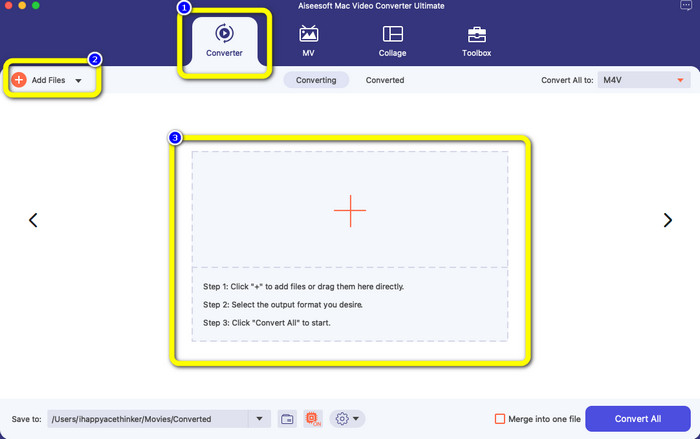
ขั้นตอนที่ 2: ที่ส่วนบนของหน้าต่างโปรแกรม ให้เลือกตัวเลือก Converter หลังจากนั้นคลิกปุ่ม Add File หรือสัญลักษณ์ + เพื่อเพิ่มไฟล์ MOV ของคุณ คุณยังสามารถลากและวางไฟล์วิดีโอ MOV ลงในช่องได้อีกด้วย.
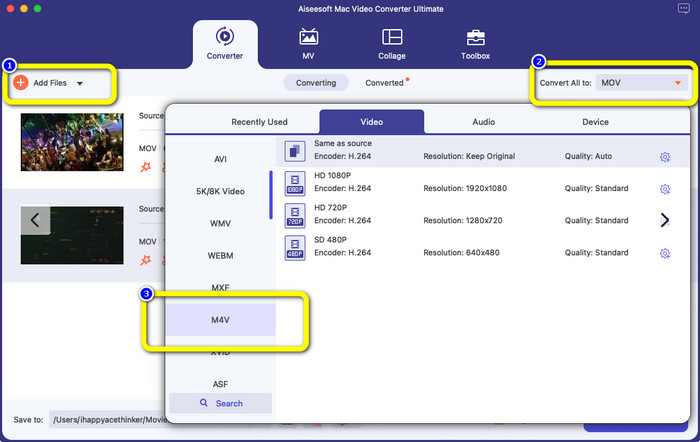
ขั้นตอนที่ 3: คุณยังสามารถเพิ่มไฟล์อื่น ๆ ได้มากขึ้น โดยเฉพาะหากต้องการแปลงทีละหลายไฟล์ (batch conversion) ให้คลิกปุ่ม Add File จากนั้นหากต้องการแปลงเป็นรูปแบบไฟล์ M4V ให้ไปที่ปุ่ม Convert All to แล้วเลือกนามสกุลไฟล์ M4V คุณยังสามารถเลือกระดับความละเอียดที่ต้องการได้ด้วย.
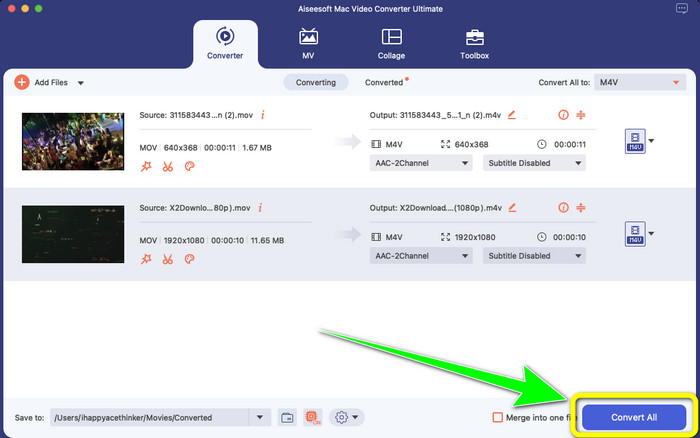
ขั้นตอนที่ 4: หลังจากนั้น เมื่อต้องการบันทึกวิดีโอ ให้คลิกปุ่ม Convert All แล้วรอให้กระบวนการแปลงไฟล์เสร็จสิ้น เพียงเท่านี้! วิดีโอ MOV ของคุณก็แปลงเป็นไฟล์ M4V เสร็จเรียบร้อยแล้ว.
ส่วนที่ 3: 2 วิธีการแปลง MOV เป็น M4V บน Mac
การใช้ควิกไทม์
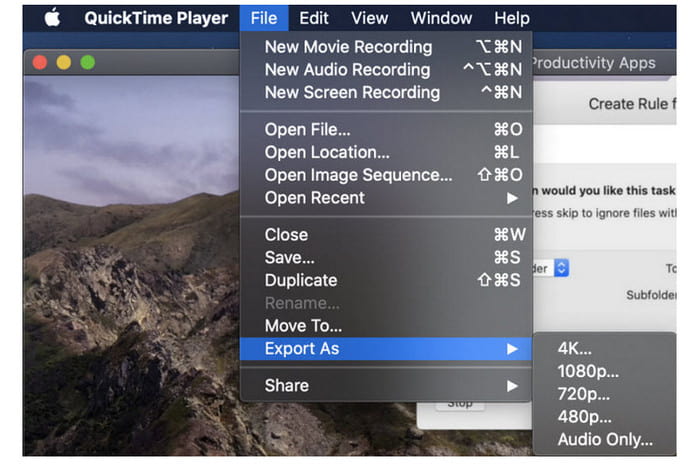
ในเครื่อง Mac รุ่นก่อนหน้า แอปพลิเคชันในตัวคือ QuickTime ตัวเลือกส่งออกใน QuickTime นั้นดีสำหรับการแปลงไฟล์วิดีโอ MOV เป็นไฟล์ M4V บน Mac ซึ่งเป็นเครื่องมือที่มีประโยชน์เมื่อคุณต้องการทำเช่นนั้นเพื่อเล่นบน iPhone, iPad หรือ Apple TV วิดีโอ .mov สามารถบีบอัดและแปลงเป็น 480p, 720p หรือ 1080p โดยใช้ตัวเลือกส่งออก ใน macOS เวอร์ชันล่าสุด ไม่รองรับ QuickTime สำหรับรหัสการลงทะเบียนเพื่อเปิดใช้งานความสามารถในการแปลง คุณต้องชำระเงินให้ Apple ทำตามขั้นตอนเพื่อแปลง MOV เป็น M4V โดยใช้ QuickTime
ขั้นตอนที่ 1: เปิดไฟล์ MOV ด้วยโปรแกรม QuickTime จากนั้นเลือกเมนู File ด้านบนแล้วเลือก Export.
ขั้นตอนที่ 2: ภายใต้เมนู Export จะมีตัวเลือกมากมาย เช่น 480p, 720p, 1080p, iPad, iPhone, iPod touch, Apple TV, iTunes และ Audio Only ให้เลือก iPad, iPhone, iPod touch & Apple TV เมื่อคุณต้องการแปลง MOV เป็น M4V สำหรับ iPhone, Apple TV หรืออุปกรณ์ Apple อื่น ๆ จากนั้นจะมีหน้าต่างใหม่ให้คุณเลือกขนาดตามอุปกรณ์หรือจุดที่คุณต้องการใช้ดูวิดีโอ.
ขั้นตอนที่ 3: ตั้งชื่อไฟล์วิดีโอที่แปลงแล้ว นามสกุลไฟล์วิดีโอควรเป็น .m4v เมื่อทุกอย่างเรียบร้อยแล้ว ให้กดปุ่ม Save ที่ด้านล่าง แล้วกำหนดตำแหน่งที่คุณต้องการบันทึกไฟล์.
ขั้นตอนที่ 4: ขั้นตอนสุดท้าย ให้คลิกปุ่ม Save อีกครั้งเพื่อส่งออกไฟล์ .m4v หากต้องการหยุดกระบวนการแปลงไฟล์ในระหว่างดำเนินการ ให้คลิกปุ่ม X ในแถบแสดงความคืบหน้า นอกจากนี้ยังช่วยให้คุณแปลงไฟล์ AVI เป็น M4V ได้ด้วย.
ใช้ iTunes
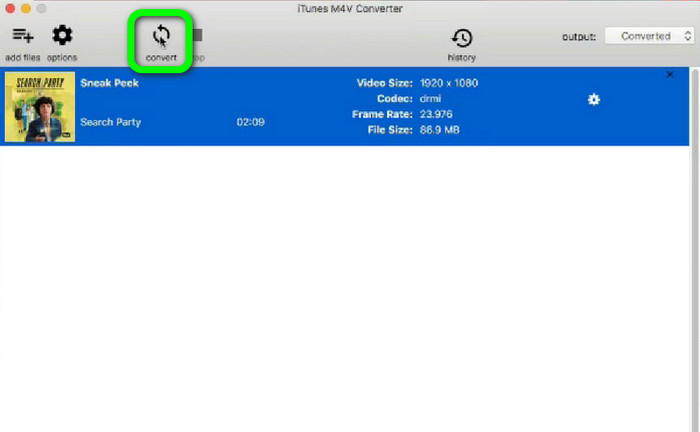
คุณต้องการแปลง MOV เป็น M4V โดยใช้ iTunes หรือไม่ จากนั้น คุณสามารถทำตามคำแนะนำโดยละเอียดด้านล่าง iTunes เป็นตัวแปลงอื่นที่คุณวางใจได้ อย่างไรก็ตาม มันมีขั้นตอนที่ซับซ้อน และตัวเลือกก็สับสนเกินไป
ขั้นตอนที่ 1: เปิด iTunes เลือกหมวด Movies ในไลบรารี แล้วเพิ่มไฟล์ MOV เข้าไป.
ขั้นตอนที่ 2: ไปที่เมนู Advanced แล้วเลือก Convert Selection for Mac.
ขั้นตอนที่ 3: จากนั้นเปลี่ยนนามสกุลวิดีโอเป็น M4V.
ขั้นตอนที่ 4: แล้วไปที่ File > Convert รอให้กระบวนการแปลงเสร็จสิ้น และบันทึกวิดีโอในไลบรารีของคุณ.
ตอนที่ 4: วิธีที่ยอดเยี่ยมในการแปลง MOV เป็น M4V ออนไลน์
หากต้องการแปลง MOV เป็น M4V ออนไลน์ คุณสามารถใช้ FVC Free Video Converter Online ตัวแปลงนี้สามารถแปลงไฟล์ได้ทันที นอกจากนี้ซอฟต์แวร์นี้ยังให้คุณแปลงหลายไฟล์พร้อมกันได้อีกด้วย อีกทั้งยังรองรับรูปแบบไฟล์วิดีโอและเสียงมากมาย เช่น AVI, VOB, MP4, 3GP, AAC, AC3, MP3, FLAC และอื่น ๆ คุณสามารถทำตามขั้นตอนง่าย ๆ ด้านล่างเพื่อแปลง MOV เป็น M4V ได้อย่างสะดวก.
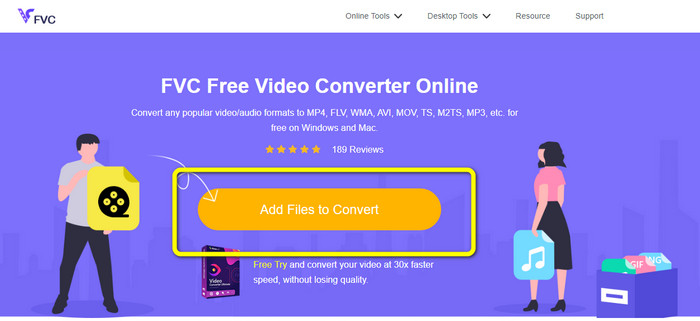
ขั้นตอนที่ 1: ไปที่เว็บไซต์ FVC Free Video Converter Online จากนั้นคลิก Add Files to Convert เพื่อเพิ่มไฟล์ MOV ของคุณ.
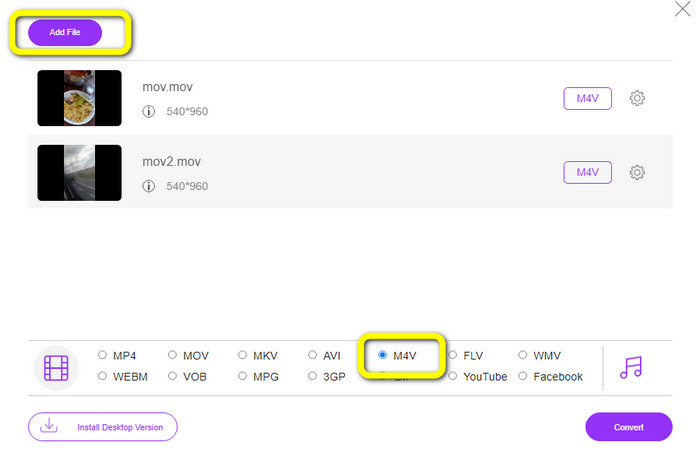
ขั้นตอนที่ 2: หากต้องการเพิ่มหลายไฟล์ ให้คลิกปุ่ม Add File จากนั้นไปที่ตัวเลือกนามสกุลไฟล์แล้วเลือกนามสกุล M4V.
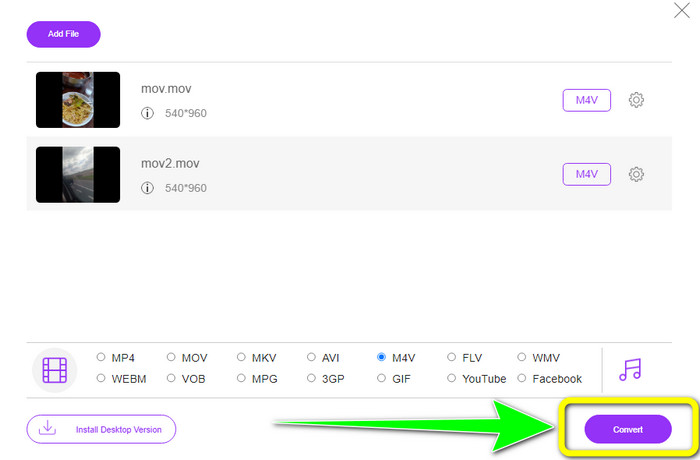
ขั้นตอนที่ 3: กดปุ่ม Convert เพื่อแปลง MOV เป็น M4V จากนั้นบันทึกไฟล์ของคุณในตำแหน่งที่ต้องการ คุณยังสามารถใช้เครื่องมือนี้เพื่อแปลง MOV เป็น MKV ได้เช่นกัน.
ส่วนที่ 5: คำถามที่พบบ่อยเกี่ยวกับการแปลง MOV เป็น M4V
MOV หรือ M4V คุณภาพไหนดีกว่ากัน
M4V มีคุณภาพดีกว่า ควรใช้รูปแบบ M4V หากคุณชมภาพยนตร์บนอุปกรณ์เคลื่อนที่ เช่น iPhone, iPad หรือ iPod เนื่องจากอุปกรณ์เคลื่อนที่เกือบทั้งหมดสามารถเล่นรูปแบบนี้ได้ ไฟล์ M4V ไม่น่าจะมีปัญหาความเข้ากันได้เมื่อเทียบกับไฟล์ MOV
ข้อดีของไฟล์ MOV คืออะไร?
MOV เป็นรูปแบบไฟล์ที่ใช้งานได้จริงเนื่องจากสามารถจัดเก็บส่วนประกอบสื่อต่างๆ ในพื้นที่ขนาดเล็ก รวมทั้งเสียงและวิดีโอ โดยจะเก็บข้อมูลไว้ ดังนั้นคุณจึงสามารถแก้ไขไฟล์ได้อย่างรวดเร็วหากจำเป็นโดยไม่ต้องกังวลกับการเขียนใหม่
ทำไม MOV ถึงใหญ่จัง?
วิดีโอที่คุณถ่ายด้วย iPhone, iPad หรือ Mac จะถูกบันทึกในรูปแบบ .mov ไฟล์ MOV ทำขึ้นเพื่อรักษารายละเอียดที่กล้องบันทึก มีขนาดใหญ่กว่าและเหมาะสำหรับการตัดต่อ
สรุป
จากข้อมูลข้างต้น วิธีเหล่านี้คือวิธีที่ดีที่สุดในการเปลี่ยนไฟล์ MOV เป็น M4V บางวิธีอาจใช้ยากและจำเป็นต้องเปิดใช้งานโค้ด หากคุณต้องการวิธีแปลงไฟล์ที่ง่ายที่สุด ให้ใช้ FVC Free Video Converter Online.
-
 วิธีง่ายๆ ในการแปลง MTS เป็น M4V อย่างง่ายดาย
 คุณต้องการแปลงไฟล์ MTS ของคุณเป็น M4V โดยไม่พบปัญหาใดๆ หรือไม่? ไปที่บทความนี้ เราได้จัดเตรียมขั้นตอนโดยละเอียดที่คุณสามารถปฏิบัติตามได้
-
 เรียนรู้วิธีแปลง VOB เป็น M4V [ออฟไลน์และฟรี]
 เป็นไปได้ไหมที่จะแปลง VOB เป็น M4V? รู้คำตอบโดยอ่านคำแนะนำนี้ เนื่องจากคุณจะได้เรียนรู้วิธีที่ดีที่สุดที่คุณสามารถลองแปลง VOB เป็น M4V ได้ทันที
-
 เรียนรู้วิธีแปลง WMV เป็น M4V บน Windows และ Mac
 เรารู้ว่าคุณต้องการแปลง WMV เป็น M4V ด้วยตัวแปลงที่ดีที่สุด ในกรณีนั้น เราจะแสดงวิธีที่ดีที่สุดในการแปลงไฟล์ของคุณ
