


 Video Converter Ultimate
 บันทึกหน้าจอ
 ซ่อมวิดีโอ
เครื่องมือที่โดดเด่นที่ช่วยไขข้อสงสัยเกี่ยวกับวิธีการแปลง MPEG เป็น MOV
ในฐานะมาตรฐานการบีบอัดไฟล์วิดีโอและไฟล์เสียง มันยังสามารถจัดการการส่งไฟล์เหล่านี้ได้อย่างมีประสิทธิภาพมากขึ้น กลุ่มผู้เชี่ยวชาญด้านภาพเคลื่อนไหว (MPEG – Moving Picture Experts Group) คือคณะผู้เชี่ยวชาญที่กำหนดมาตรฐาน MPEG มาตรฐานย่อยต่าง ๆ เหล่านี้ล้วนมีสเปกและกรณีการใช้งานในอุตสาหกรรมแตกต่างกันไป ทำให้ยากที่จะรู้ว่าจะเลือกแบบใด เนื้อหาต่อไปนี้จะเป็นการเกริ่นนำถึงสิ่งที่บทความนี้จะกล่าวถึง โดยหัวข้อส่วนใหญ่จะพูดถึงวิธีการแปลงไฟล์ MPEG เป็น MOV พร้อมทั้งรายละเอียดและข้อมูลที่เกี่ยวข้อง อ่านต่อเพื่อดูการอธิบายความแตกต่างและการเปรียบเทียบระหว่างรูปแบบวิดีโอทั้งสองแบบนี้.

ส่วนที่ 1 MPEG VS. MOV – บทนำ
MPEG เป็นประเภทไฟล์วิดีโอแบบเก่าที่บีบอัดข้อมูลวิดีโอด้วยการบีบอัดแบบ MPEG-1 หรือ MPEG-2 การใช้งานที่พบได้บ่อยคือวิดีโอบนอินเทอร์เน็ตและการเผยแพร่ผ่านแผ่น DVD เนื่องจากไม่รองรับการบีบอัดแบบไม่สูญเสียข้อมูล (lossless) และไม่มีความยืดหยุ่นเท่ารูปแบบอื่น ๆ จึงไม่เหมาะนักสำหรับการตัดต่อวิดีโอ อย่างไรก็ตาม เพราะ MPEG เป็นมาตรฐานที่ใช้กันมานานแล้ว จึงได้รับการรองรับอย่างดีจากเบราว์เซอร์หลัก ๆ และโปรแกรมเล่นวิดีโอต่าง ๆ พร้อมทั้งสามารถสตรีมมิงได้ จึงเป็นตัวเลือกที่ดีมากสำหรับการเผยแพร่วิดีโอสำเร็จรูปผ่านอินเทอร์เน็ตและแผ่น DVD.
อย่างไรก็ตาม วิดีโอในรูปแบบ MOV มักจะเชื่อมโยงกับโปรแกรมเล่นมัลติมีเดีย QuickTime โดย Apple เป็นบริษัทที่สร้างนามสกุลวิดีโอนี้ขึ้นมา รูปแบบนี้บีบอัดวิดีโอและเสียงด้วยอัลกอริทึมเฉพาะ แม้จะเป็นผลิตภัณฑ์ของ Apple แต่ก็สามารถใช้งานได้ทั้งบนระบบปฏิบัติการ Mac และ Windows ตอนนี้คุณได้รู้ข้อมูลเบื้องต้นเกี่ยวกับรูปแบบวิดีโอทั้งสองแบบแล้ว ส่วนถัดไปจะพูดถึงซอฟต์แวร์และเครื่องมือออนไลน์ที่ดีที่สุดที่คุณสามารถใช้แปลงไฟล์ MPEG เป็น MOV และสลับกลับกันได้.
ส่วนที่ 2 วิธีการแปลง MPEG เป็น MOV บน Mac
หากคุณกำลังมองหาซอฟต์แวร์ที่ใช้บน Mac เพื่อแปลงไฟล์ MPEG เป็น MOV บทความนี้ขอแนะนำ Video Converter Ultimate ซอฟต์แวร์นี้ดาวน์โหลดได้ฟรี และมีให้ใช้ทั้งบน Windows และ Mac ผู้ใช้หลากหลายกลุ่มสามารถใช้งานได้ เพราะมีเครื่องมือที่เข้าถึงง่ายและส่วนติดต่อผู้ใช้ที่เป็นมิตร.
นอกเหนือจากซอฟต์แวร์และเครื่องมือออนไลน์อื่นๆ ที่สามารถแปลงได้ ซอฟต์แวร์นี้มีตัวแปลงที่รองรับรูปแบบวิดีโอมากมาย และสามารถแปลงไฟล์ได้ในเวลาน้อยกว่าหนึ่งนาที ซอฟต์แวร์นี้มีเครื่องมือเด่นต่าง ๆ เพื่อปรับปรุงวิดีโอของคุณ ยกเว้นคุณสมบัติตัวแปลงที่ยอดเยี่ยม รายละเอียดโดยละเอียดเกี่ยวกับซอฟต์แวร์เพียงพอแล้ว มาดำดิ่งกับขั้นตอนที่คุณต้องปฏิบัติตาม:
ขั้นตอนที่ 1: คลิกขวาที่ไอคอน Free Download ด้านล่างเพื่อเริ่มกระบวนการดาวน์โหลด ซอฟต์แวร์นี้รองรับทั้งคอมพิวเตอร์ระบบปฏิบัติการ Windows และ Mac หลังจากดาวน์โหลดเสร็จแล้ว ให้ติดตั้งโปรแกรม จากนั้นคลิกปุ่ม Start Now เพื่อเริ่มใช้งานซอฟต์แวร์.
ดาวน์โหลดฟรีสำหรับ Windows 7 หรือใหม่กว่าดาวน์โหลดอย่างปลอดภัย
ดาวน์โหลดฟรีสำหรับ MacOS 10.7 หรือใหม่กว่าดาวน์โหลดอย่างปลอดภัย
ขั้นตอนที่ 2: เมื่อคุณดาวน์โหลดซอฟต์แวร์เรียบร้อยแล้ว ให้เปิดโปรแกรม หน้าต่างโปรแกรมจะปรากฏขึ้นเมื่อเปิดใช้งานครั้งแรก เริ่มกระบวนการแปลงไฟล์โดยนำเข้าไฟล์วิดีโอของคุณเข้ามาที่นี่.
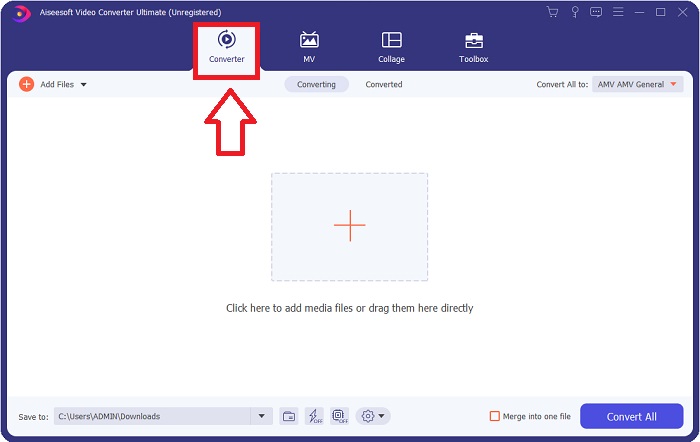
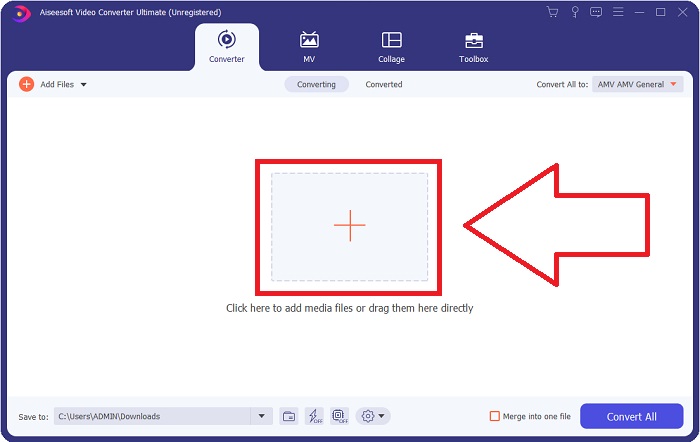
ขั้นตอนที่ 3: เริ่มกระบวนการแปลงไฟล์ด้วยการอัปโหลดไฟล์ที่คุณต้องการแปลงลงในโปรแกรมแปลงไฟล์ คุณสามารถลากวิดีโอเข้ามาได้โดยตรง หรือคลิกสัญลักษณ์เครื่องหมายบวก (+) ก็ได้.
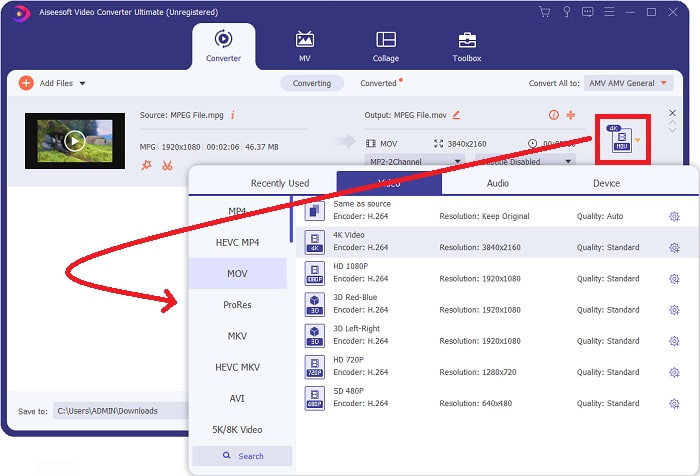
ขั้นตอนที่ 4: ที่มุมขวาบนของหน้าจอจะมีเมนูตัวเลือกให้คุณเลือกกำหนดรูปแบบวิดีโอ ในเมนูดรอปดาวน์ของ Convert All คุณสามารถเลือก MOV เป็นรูปแบบวิดีโอได้ จากนั้นเลือกคุณภาพวิดีโอได้หลายระดับตามรูปแบบไฟล์ MOV ที่คุณเลือกไว้ หากไม่มีคุณภาพวิดีโอที่คุณต้องการ คุณยังสามารถปรับตั้งค่าคุณภาพเองได้ โดยคลิกไอคอนรูปเฟืองเพื่อปรับอัตราเฟรมของภาพและคุณภาพเสียง เมื่อปรับค่าเสร็จแล้ว ให้คลิกปุ่ม Create New เพื่อบันทึกการตั้งค่าใหม่.
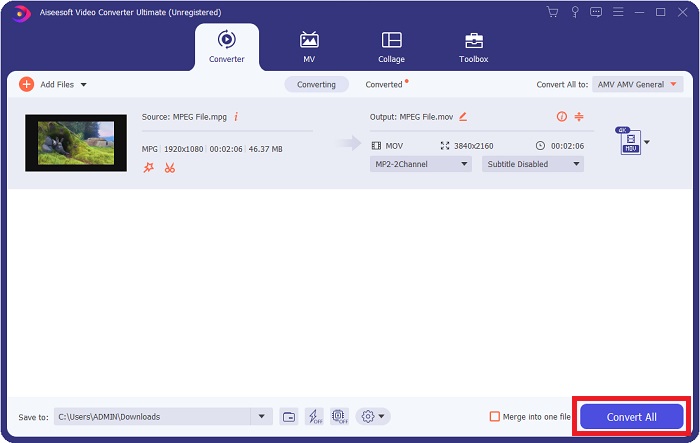
ขั้นตอนที่ 5: เมื่อคุณแก้ไขวิดีโอเรียบร้อยและพร้อมจะแปลงแล้ว ให้คลิก Convert All เพื่อเริ่มกระบวนการแปลงไฟล์.
ส่วนที่ 3 ตัวแปลงออนไลน์ที่ยอดเยี่ยมที่ช่วยแปลง MPEG เป็น MOV
วิธีที่ 1 ใช้โปรแกรมแปลงวิดีโอออนไลน์ฟรี
FVC Free Video Converter Online เป็นตัวแปลงไฟล์มัลติมีเดียแบบออนไลน์ที่ใช้งานได้ฟรีและรองรับไฟล์ได้หลากหลาย หากคุณมีวิดีโอความละเอียดสูง ก็สามารถแปลงไปเป็นรูปแบบต่าง ๆ เช่น MP4, FLV และ WMV ได้อย่างง่ายดายโดยไม่สูญเสียคุณภาพ หากคุณมีไฟล์วิดีโอหรือไฟล์เสียงจำนวนมากที่ต้องการแปลง ก็สามารถทำได้โดยยังคงคุณภาพเอาไว้ แอปพลิเคชันแปลงวิดีโอฟรีนี้ได้รับความนิยมทั้งในการแปลงและแก้ไขวิดีโอ โดยให้ตัวเลือกหลากหลายในการปรับแต่งวิดีโอของผู้ใช้ มาเริ่มเรียนรู้ขั้นตอนทั้งหมดไปพร้อมกัน:
ขั้นตอนที่ 1: คลิกที่ลิงก์นี้เพื่อไปยังหน้าหลักของเว็บไซต์โปรแกรมแปลงไฟล์ FVC.
ขั้นตอนที่ 2: หากใช้งานครั้งแรก ให้คลิก Add Files to convert ที่ด้านขวาเพื่อดาวน์โหลดตัวเรียกใช้งาน (launcher) มายังเครื่องของคุณ เมื่อต้องดาวน์โหลดครั้งที่สอง ระบบจะเริ่มโดยอัตโนมัติ จากนั้นให้ไปที่โฟลเดอร์ของคุณ หาไฟล์แล้วคลิก Open เพื่อเริ่มกระบวนการดาวน์โหลดอีกครั้ง.
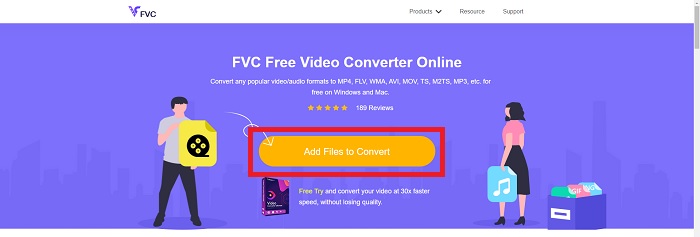
ขั้นตอนที่ 3: ก่อนเริ่มกระบวนการแปลงไฟล์ ให้เลือกประเภทไฟล์ที่ต้องการจากเมนูดรอปดาวน์ด้านล่างแล้วคลิกที่รูปแบบนั้น.
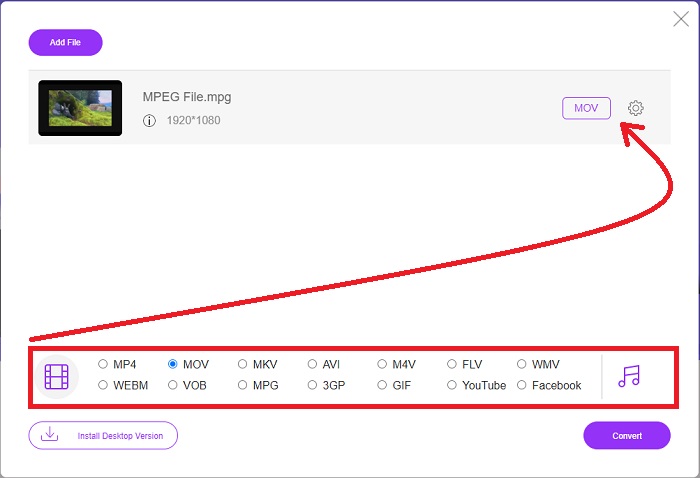
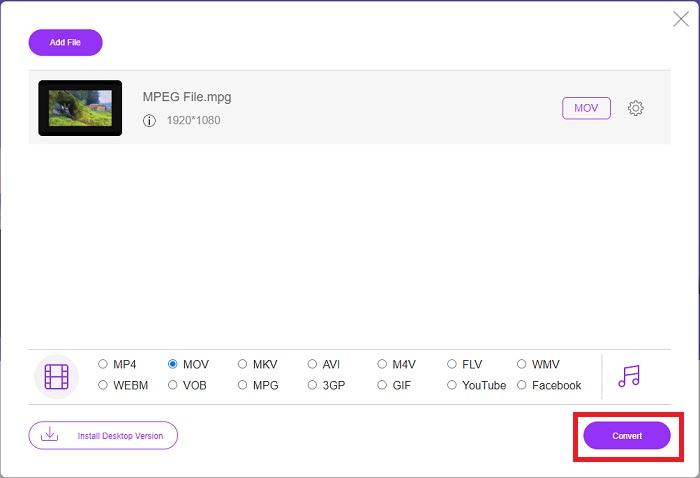
ขั้นตอนที่ 4: หลังจากเลือกใช้รูปแบบ MOV เพื่อแปลงไฟล์แล้ว ให้คลิก Convert เพื่อเริ่มกระบวนการแปลง.
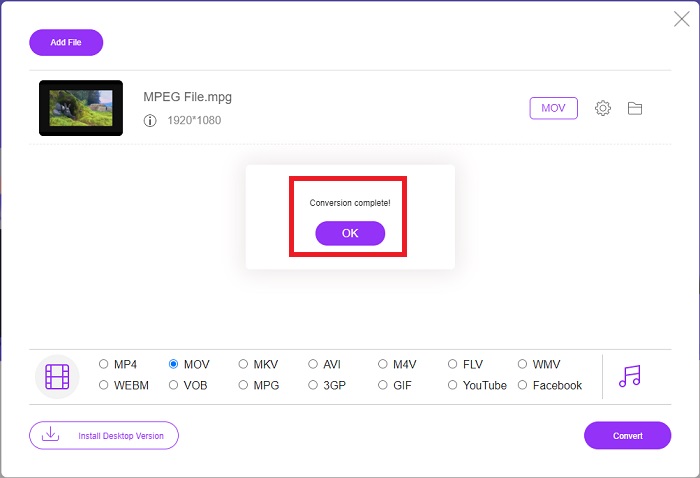
ขั้นตอนที่ 5: ผ่านไปไม่กี่นาที คุณจะเห็นโฟลเดอร์ที่มีไฟล์ที่แปลงเสร็จแล้ว จากนั้นสามารถเปิดไฟล์และเริ่มรับชมได้ทันที.
วิธีที่ 2. ใช้ CloudConvert
CloudConvert เป็นบริการแปลงไฟล์ออนไลน์ที่สามารถใช้งานผ่านเว็บเบราว์เซอร์ คุณสามารถเปิดเล่นไฟล์เพลงหรือไฟล์วิดีโอได้แทบทุกประเภทบนระบบของเรา การแปลงไฟล์ด้วย CloudConvert จึงเป็นเรื่องง่ายมาก และยังใช้งานได้ผ่านเว็บโดยไม่ต้องติดตั้งซอฟต์แวร์ใด ๆ ลงบนคอมพิวเตอร์ของคุณ เมื่อทราบข้อมูลเบื้องต้นแล้ว ต่อไปคือขั้นตอนที่คุณต้องรู้:
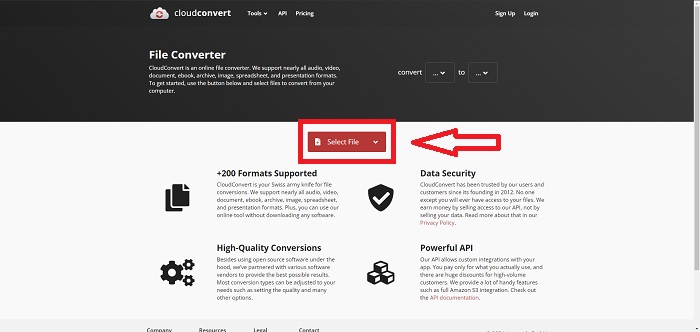
ขั้นตอนที่ 1: ในหน้าอินเทอร์เฟซหลัก คุณสามารถกำหนดได้เลยว่ารูปแบบวิดีโอปัจจุบันของไฟล์คืออะไร และต้องการแปลงไปเป็นรูปแบบใด จากนั้นคลิก Select File เพื่ออัปโหลดไฟล์จากคอมพิวเตอร์ของคุณ.
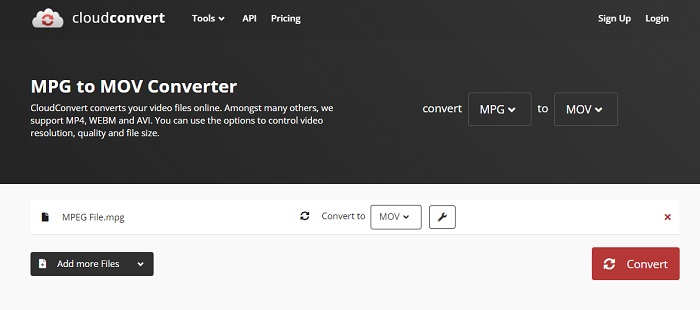
ขั้นตอนที่ 2: คุณสามารถเลือกรูปแบบวิดีโอที่ต้องการแปลงได้โดยคลิกที่ไอคอนจุดไข่ปลา (ellipsis) ข้างปุ่ม Convert.
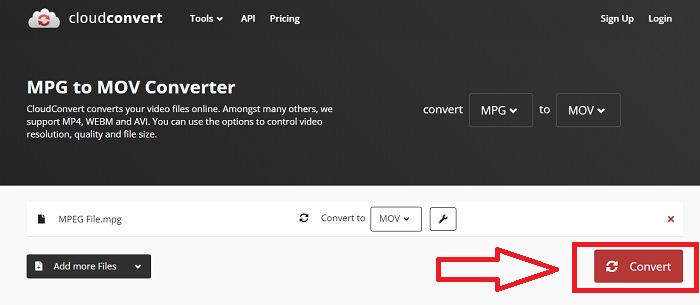
ขั้นตอนที่ 3: หลังจากตั้งค่าทุกอย่างเรียบร้อยแล้ว ให้คลิกปุ่ม Convert เพื่อเริ่มกระบวนการแปลงไฟล์.
ส่วนที่ 4 แผนภูมิเปรียบเทียบ: MPEG และ MOV
| นามสกุลไฟล์ | MOV | MPEG |
| ประเภทไฟล์ | ภาพยนตร์ Apple QuickTime | ภาพยนตร์ MPEG |
| พัฒนาโดย | แอปเปิ้ล | ไม่มี |
| ข้อดี | ภาพยนตร์คุณภาพสูงและ | หนึ่งในไม่กี่รูปแบบ |
| มัลติมีเดียสามารถบีบอัดได้อย่างมีประสิทธิภาพมากขึ้นโดยใช้ตัวแปลงสัญญาณหลายตัว | ได้รับการยอมรับจากเครื่องเล่นดีวีดีแทบทุกเครื่อง ช่วยให้บีบอัดได้ดีขึ้น | |
| จุดด้อย | แม้ว่าโปรแกรมเล่นวิดีโอฟรีจำนวนมากสามารถเล่นได้ แต่ก็ยังมีปัญหาอยู่ เนื่องจากเป็นรูปแบบคอนเทนเนอร์ที่มีตัวแปลงสัญญาณต่างๆ | โดยทั่วไป รูปแบบ MPEG มีจำนวนแอปพลิเคชันและนักพัฒนาน้อยกว่าเนื่องจากเป็นมาตรฐานที่เข้มงวดกว่า |
ส่วนที่ 5. คำถามที่พบบ่อยเกี่ยวกับการแปลง MPEG เป็น MOV
ฉันจะลดขนาดไฟล์ MOV ได้อย่างไร
เมื่อใช้ VideoConverter คุณเพียงแค่ต้องค้นหาไฟล์ MOV ที่คุณต้องการแก้ไข แล้วคลิกขวาเพื่อเลือก Properties จากเมนูบริบท จากนั้นเลือกทั่วไปจากนั้นดำเนินการขั้นสูงจากเมนูแบบเลื่อนลง เพื่อประหยัดพื้นที่จัดเก็บ ให้เลือกช่องทำเครื่องหมายข้างบีบอัดเนื้อหาจากเมนูแบบเลื่อนลง การคลิกตกลงจะทำให้ไฟล์ถูกบันทึกในขนาดที่เล็กกว่าเดิม
วิธีบีบอัดไฟล์ MOV?
ไฟล์ MOV สามารถบีบอัดและจัดเก็บในรูปแบบไฟล์บีบอัดบน Windows ได้โดยเลือกไฟล์นั้นแล้วกดปุ่มเมาส์ขวาค้างไว้จนกว่าจะมีหน้าต่างป๊อปอัปปรากฏขึ้น จากนั้นเลือกเมนู Send to ในเมนูที่แสดง แล้วเลือกโฟลเดอร์แบบบีบอัด (zipped) เป็นตำแหน่งปลายทางจากเมนูดรอปดาวน์ หรือคุณจะใช้โปรแกรมบีบอัดวิดีโอเพื่อบีบอัดไฟล์ MOV ของคุณก็ได้.
MPG และ MPEG เหมือนกันหรือไม่
นามสกุลไฟล์ MPEG-1 และ MPEG-2 ยังใช้เพื่ออ้างถึงไฟล์ MPG เพื่อให้ข้อมูลเสียงและวิดีโอซิงค์กัน ไฟล์ MPG ของทั้งสองประเภทจะทำหน้าที่เป็นไฟล์คอนเทนเนอร์สำหรับข้อมูลนี้ เนื่องจากเข้ากันได้กับแอพพลิเคชั่นต่าง ๆ MPEG-2 จึงกลายเป็นตัวเลือกยอดนิยมสำหรับการบีบอัดไฟล์
สรุป
สรุปทุกสิ่งที่เราได้พูดคุยกัน เป็นการยากที่จะใช้รูปแบบวิดีโอที่ไม่คุ้นเคยในการเล่นกับเครื่องเล่นสื่อบางตัว นั่นคือเหตุผลที่ซอฟต์แวร์ที่โดดเด่นที่คุณวางใจได้คือสิ่งที่คุณต้องการ Video Converter Ultimate คือสิ่งที่บทความนี้แนะนำมากที่สุด โดยเฉพาะอย่างยิ่งในกระบวนการแปลงและอื่น ๆ ด้วยเครื่องมือที่แตกต่างและเป็นประโยชน์ซึ่งสามารถทำให้คุณเป็นบรรณาธิการมืออาชีพได้
-
 วิธีการแปลงไฟล์ MPEG เป็น MP4 ฟรีบน Windows, Mac, Online
 อ่านและรับ 3 วิธีฟรีในการแปลงไฟล์ MPEG เป็น MP4 บนคอมพิวเตอร์ของคุณ คุณสามารถใช้ตัวแปลงวิดีโอออนไลน์และเดสก์ท็อปเพื่อเปลี่ยนรูปแบบ MPEG เป็น MP4 ได้อย่างง่ายดาย
-
 [2021] เครื่องมือที่ดีที่สุดและวิธีง่ายๆ ในการแปลง MPEG เป็น MP3
 บทความนี้กล่าวถึงวิธีการแปลงวิดีโอ MPEG ของคุณเป็น MP3 เป็นหลักโดยใช้เครื่องมือที่น่าเชื่อถือที่สุดในรายการ
-
 วิธีแปลง AVI เป็น MOV ด้วยขั้นตอนและเครื่องมือง่ายๆ
 คุณต้องการทราบวิธีการแปลง AVI เป็น MOV ที่เล่นได้? คุณต้องทำตามบทความนี้เพื่อทราบวิธีการและเคล็ดลับในการแปลงที่ประสบความสำเร็จ
