


 Video Converter Ultimate
 บันทึกหน้าจอ
 ซ่อมวิดีโอ
คู่มือที่เข้าใจง่ายและรวดเร็วเกี่ยวกับวิธีการแปลง TRP เป็น MOV
TRP format is not very common to play it on a media player or even edit it with the editors. And some users tried to change the .trp into .ts, .mpg, .mp4 and re-play them on the media player. But many already failed in this attempt; although you can change the extension, the structure is still the same. So to avoid this mistake, why don't you try to convert TRP to MOV format? To successfully solve this problem. Below, you will learn what TRP format is and turn it into a playable MOV format.

ส่วนที่ 1 TRP และ MOV . คืออะไร
TRP ขึ้นชื่อเรื่องการสตรีมดิจิทัลแบบมัลติเพล็กซ์สำหรับวิดีโอและเสียง จากนั้นเล่นแบบซิงโครนัส นอกจากนี้ รูปแบบนี้มักใช้ในการแก้ไขข้อผิดพลาดในการออกอากาศวิดีโอดิจิทัลหรือ DVB ทุกครั้ง นอกจากนี้ .trp ยังใช้ตัวแปลงสัญญาณแยกกันสองตัวในการเข้ารหัสวิดีโอเป็น H.263 หรือ H.264 และ AC3 สำหรับเสียง หลังจากเข้ารหัสแล้ว ไฟล์ภาพและเสียงที่จัดเก็บไว้ที่นี่ก็พร้อมที่จะแพร่ภาพไปยังเว็บทั้งหมดโดยไม่จำกัดระยะทาง แม้ว่ารูปแบบจะดูดี แต่จัดเก็บไฟล์โดยยังคงคุณภาพระดับไฮเอนด์ไว้ อย่างไรก็ตาม ซอฟต์แวร์บางตัวไม่เหมาะกับรูปแบบนี้
ในทางกลับกัน รูปแบบ MOV ต้องการให้เล่นวิดีโอและเสียงคุณภาพสูงในโปรแกรมเล่น Quicktime ทุกเครื่อง แม้ว่ารูปแบบจะเป็นสำหรับ Apple แต่คุณยังคงสามารถเล่นวิดีโอได้แม้ว่าคุณจะไม่มี Mac หรือ iOS เนื่องจากรูปแบบนี้รองรับโปรแกรมเล่นสื่อและโปรแกรมแก้ไขจำนวนมาก
ดังนั้นตอนนี้ ทางออกที่ดีสำหรับปัญหา TRP นี้คือการแปลงไฟล์ โดยเฉพาะอย่างยิ่งหากคุณต้องการโอนไฟล์ไปยัง Mac หรือ iPhone ให้เล่นหรือแก้ไขในภายหลัง ไปที่ตัวแปลงที่คุณสามารถใช้แปลงไฟล์ TRP เป็น MOV ได้โดยไม่ล่าช้าอีกต่อไป
ส่วนที่ 2 วิธีการแปลง TRP เป็น MOV ด้วยซอฟต์แวร์มหัศจรรย์บน Windows/Mac
This TRP to MOV converter is placed at the top because it is the best tool to convert your TRP files, FVC Video Converter Ultimate. It is the perfect tool to experience the quickest and easiest way to decode and encode your TRP files. Other than its encoding and decoding, with the help of this software, you can also edit video, merge, cut, crop, etc. It is all thanks to the customers who trusted this tool to convert their file and buy it.
ข้อดี
- ตัวแปลง TRP ที่เร็วที่สุดที่คุณสามารถใช้เพื่อแปลง TRP เป็น MOV, AVI, MP4, MKV และอื่นๆ อีกมากมาย
- ไม่มีข้อจำกัดในการแปลง และการแปลงแบบกลุ่มทำงานได้ดี
- พร้อมให้ดาวน์โหลดบนเดสก์ท็อปพีซีหรือ Mac ทั้งหมด
- คุณลักษณะขั้นสูงอยู่ในกล่องเครื่องมือในตัว
จุดด้อย
- คุณต้องซื้อซอฟต์แวร์ก่อนใช้งาน
- จำเป็นต้องดาวน์โหลดไฟล์บนไดรฟ์ของคุณ
หากไม่มีคำอธิบายเพิ่มเติม มาเริ่มใช้ตัวแปลงที่แนะนำนี้โดยทำตามขั้นตอนด้านล่าง
Step 1. Before running the program, you must download it first on your drive, install it afterward, and click Start Now to open the program.
ดาวน์โหลดฟรีสำหรับ Windows 7 หรือใหม่กว่าดาวน์โหลดอย่างปลอดภัย
ดาวน์โหลดฟรีสำหรับ MacOS 10.7 หรือใหม่กว่าดาวน์โหลดอย่างปลอดภัย
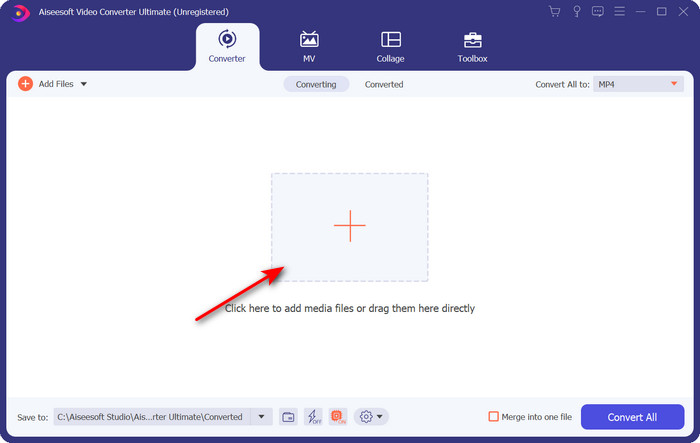
Step 2. Click the + button in the middle of the software interface; a folder will show on the screen, find the .trp file and click Open to upload it.
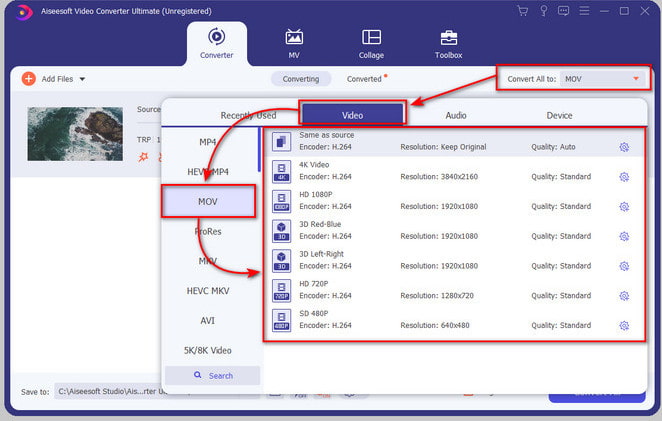
Step 3. Click Convert All to and find the MOV format and choose the resolution you would prefer.
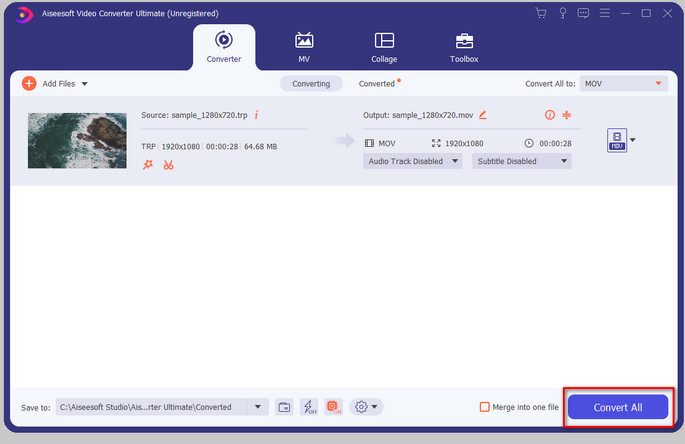
Step 4. If you are ready to start converting the format to .mov, click Convert All.
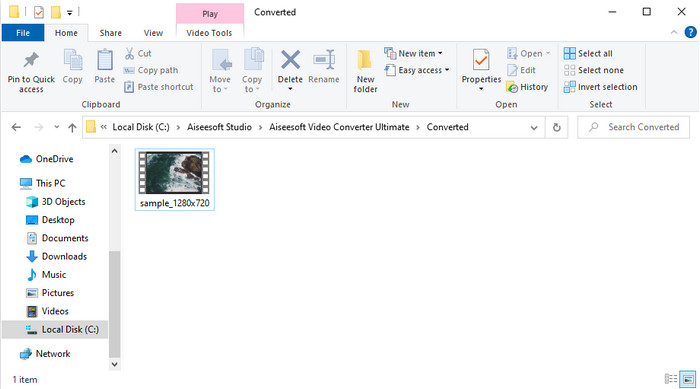
Step 5. Just wait until the process then a new folder will show with the converted format you've done earlier. To watch the file on your Mac or any iOS device, click it.
ส่วนที่ 3 วิธีการแปลง TRP เป็น MOV ฟรีในทุกเบราว์เซอร์ออนไลน์
Do you have no desire to download software to change the TRP to MOV? Then we advise using FVC Free Video Converter Online to convert your file on the web. Unlike the first tool presented above, this online converter is available on the web. And for sure, this is malware-safe, and it has no ads at all on the net interface. But the drawback of this webtool is that you can't use it if you don't have internet connectivity. Another one is that this tool supports an average format compared to the FVC Video Converter Ultimate. Apart from that, you can use this for free and without any limitations. So now, if you want to try this online converter, proceed to the steps on how to use it.
ข้อดี
- เข้ากันได้กับเครื่องมือค้นหาทั้งหมด
- ไม่มีข้อจำกัดในการแปลง TRP เป็น MOV, MP4, AVI ฯลฯ
- ไม่มีโฆษณาที่น่ารำคาญบนอินเทอร์เฟซ
จุดด้อย
- คุณไม่สามารถทำการแปลงแบบกลุ่มเหมือนเครื่องมือขั้นสูงสุดได้
- การเข้าถึงเครื่องมือเว็บต้องใช้อินเทอร์เน็ตเพราะเป็นเครื่องมือทางอินเทอร์เน็ต
Step 1. To run the webtool, click this link.
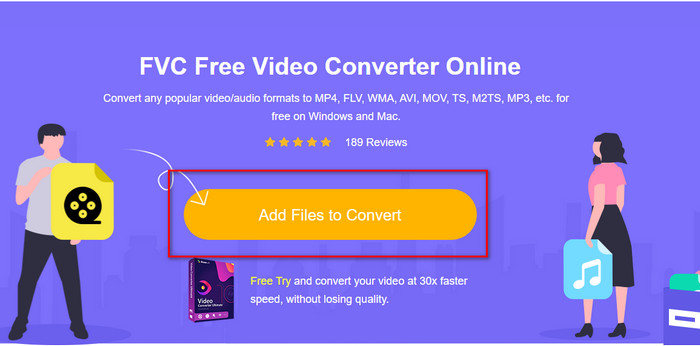
Step 2. Tick the Add Files to Convert, and the folder will open, look for the file on the folder and hit Open.
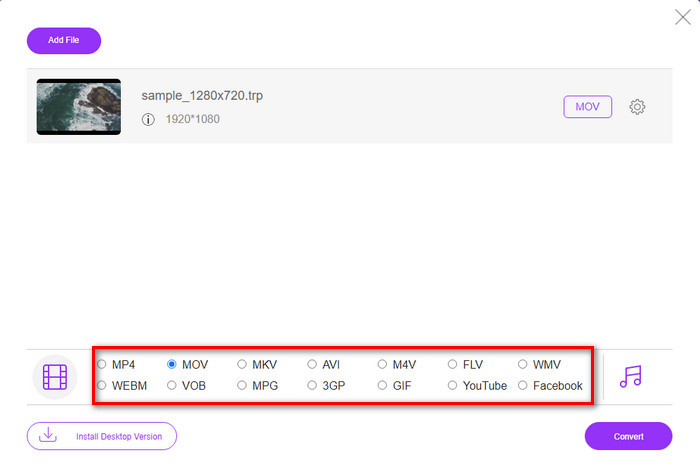
Step 3. Pick out the MOV on the list below, or choose whatever format you want it to be.
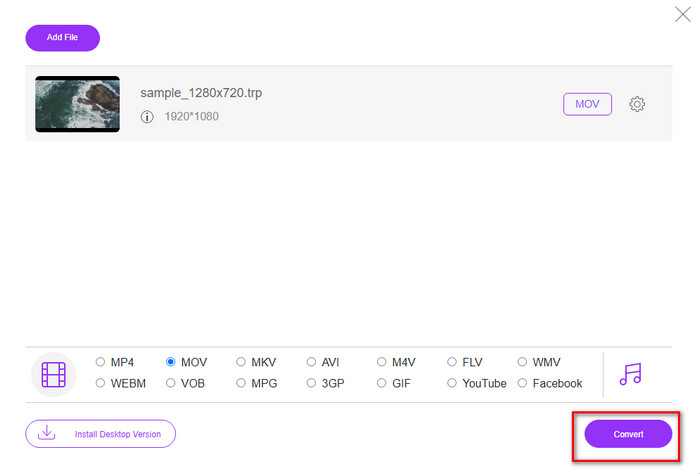
Step 4. Finally, to start converting the file, click Convert.
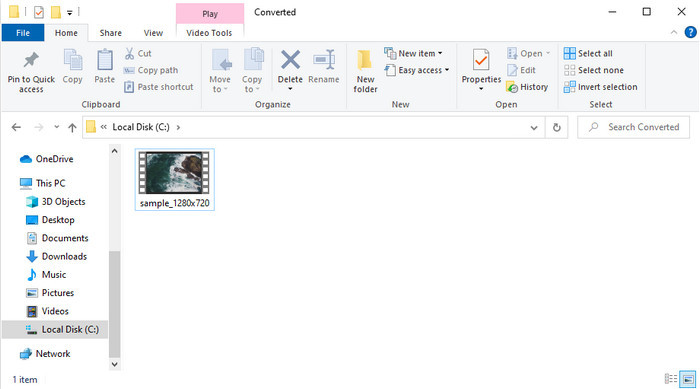
Step 5. Once converting is finished, a folder will show on the screen with the file.
ส่วนที่ 4 คำถามที่พบบ่อยเกี่ยวกับ TRP เป็น MOV Conversion
ฉันสามารถรวมไฟล์ .trp เป็นวิดีโอเดียวได้หรือไม่
Yes, you can make two or more .trp videos, conjoint, and download them as one by merging. It is super easy to do if you use the FVC Video Converter Ultimate. Want to learn how? Then click this link and give 5 minutes to learn how to merge TRP files or even other videos like MP4, MOV, AVI, and more.
การแปลง TRP เป็น MOV ใช้เวลานานเท่าไหร่?
ขึ้นอยู่กับความยาวของวิดีโอที่คุณกำลังแปลง หรือหากคุณใช้เครื่องมือเว็บ จะขึ้นอยู่กับความเร็วอินเทอร์เน็ตของคุณ กระบวนการจะแตกต่างกันไปขึ้นอยู่กับสิ่งที่คุณใช้ ยังคงประสบความสำเร็จหากคุณใช้ตัวแปลงที่แสดงด้านบน
ขนาดของไฟล์ TRP เปลี่ยนไปหลังจากแปลงแล้วหรือไม่?
The file size should change a bit, but it shouldn't double or even triple its size. In addition, if you think that your converted .trp videos are large, you can read this article and know how to compress trp videos.
สรุป
To end, if you want to convert your TRP files into MOV on the web, then we strongly suggest that you use the FVC Free Video Converter Online. It is the finest online converter that will help you convert the format into a new one. But if you want to convert your files into a new one in an easier way and do batch conversion, then use FVC Video Converter Ultimate. This tool provides the best ultimate output, advanced features, and a lot of choices format—experience all-out converting with the help of the two tools above. There is no wrong choice whatever converter you choose.
-
 คู่มือที่ง่ายที่สุดเกี่ยวกับวิธีการแปลง TRP เป็น AVI บน Windows & Mac
 บางทีคุณอาจไม่คุ้นเคยกับรูปแบบวิดีโอ TRP และสงสัยว่าคุณจะแปลง TRP เป็น AVI ได้อย่างไร อ่านบทความนี้เพิ่มเติมเพื่อทราบรายละเอียดที่เกี่ยวข้องกับปัญหา
-
 วิธีการที่ยอดเยี่ยมที่จะใช้ในการแปลง VOB เป็น MOV
 การดาวน์โหลดวิดีโอออนไลน์นั้นสะดวก แต่ถ้าวิดีโออยู่ในรูปแบบ VOB และเครื่องเล่นของคุณไม่รองรับล่ะ โพสต์นี้จะสอนวิธีแปลง VOB เป็น MOV
-
 เคล็ดลับที่ง่ายและรวดเร็วในการแปลง WMV เป็น MOV [พิสูจน์แล้ว]
 คุณต้องการทราบว่าตัวแปลงใดดีที่สุดและใช้งานง่ายที่แปลง WMV เป็น MOV? อ่านบทความนี้ต่อเนื่องจากจะกล่าวถึงตัวเลือกที่เป็นไปได้ทั้งหมดที่คุณต้องพิจารณาใช้
