


 Video Converter Ultimate
 บันทึกหน้าจอ
 ซ่อมวิดีโอ
วิธีการแปลง VOB เป็น MOV โดยใช้เครื่องมือที่เชี่ยวชาญที่สุด [ฟรี & ง่าย]
ในกรณีของดีวีดี ไฟล์ VOB คือไฟล์ข้อมูลภาพยนตร์ที่มักถูกเก็บไว้ในโฟลเดอร์ VIDEO_TS ที่รากของแผ่นดีวีดี ภายในจะมีเนื้อหาส่วนใหญ่ที่บันทึกอยู่บนแผ่น รวมถึงไฟล์วิดีโอและไฟล์เสียง คำบรรยาย เมนูดีวีดี และเนื้อหาการนำทางอื่น ๆ อย่างไรก็ตาม QuickTime File Format (QTFF) เป็นรูปแบบไฟล์คอนเทนเนอร์มัลติมีเดียที่ใช้บันทึกไฟล์ MOV ได้ ข้อมูลสื่อ ไม่ว่าจะเป็นวิดีโอ เสียง และข้อความ สามารถจัดเก็บไว้ในแทร็กหนึ่งแทร็กหรือหลายแทร็ก (เช่น ซับไตเติล) ไฟล์ MOV มักถูกใช้สำหรับจัดเก็บไฟล์วิดีโอ หากคุณเริ่มเปลี่ยนใจเกี่ยวกับรูปแบบวิดีโอของเขา/ของคุณ และต้องการทราบรายละเอียดทั้งหมดเกี่ยวกับมัน หรือวิธีแปลงเป็นรูปแบบวิดีโออื่น ๆ ด้วยโปรแกรมแปลงไฟล์แบบต่าง ๆ บทความนี้เหมาะสำหรับคุณ เพราะจะนำเสนอวิธีที่ดีที่สุดและง่ายที่สุดในการแปลง VOB เป็น MOV.

ส่วนที่ 1 VOB และ MOV คืออะไร
ข้อมูลส่วนใหญ่บนดีวีดีจะอยู่ในรูปแบบไฟล์นี้ ซึ่งรวมถึงวิดีโอดิจิทัล เสียง เนื้อหาการนำทาง เมนูดีวีดี และคำบรรยาย ไฟล์ VOB จะถูกเก็บไว้ในโฟลเดอร์ VIDEO TS และเป็นแกนหลักของวิดีโอ DVD นี่คือข้อมูลสำหรับภาพยนตร์ สตรีมวิดีโอ MP2, DTS, AC3 และ MPEG-2 ทั้งหมดได้มาจากตำแหน่งนี้ ไฟล์ที่บันทึกในรูปแบบ VOB อาจถูกเข้ารหัส VOB เป็นไฟล์วิดีโอประเภทหนึ่งที่มีเนื้อหาเกี่ยวกับ WMV มาก นามสกุลไฟล์ VOB ใช้สำหรับไฟล์ VOB ตัวอย่างเช่น รูปแบบ VOB ขึ้นอยู่กับรูปแบบสตรีมของโปรแกรม MPEG แต่มีข้อจำกัดและเกณฑ์เพิ่มเติมในภาคเอกชน
อย่างไรก็ตาม ในเฟรมเวิร์ก QuickTime ของ Mac นามสกุลไฟล์ MOV หมายถึงรูปแบบวิดีโอ QuickTime ซึ่งพัฒนาโดย Apple แพลตฟอร์ม Windows ก็รองรับความสามารถของคอนเทนเนอร์มัลติมีเดียนี้ในการจัดเก็บแทร็กได้หลายแทร็ก โดยแต่ละแทร็กจะมีข้อมูลประเภทเฉพาะ (เสียง วิดีโอ คำบรรยาย) โปรแกรมตัดต่อวิดีโอจะได้รับประโยชน์อย่างมากจากการแยกข้อมูลสื่อออกจากตำแหน่งออฟเซ็ตของสื่อ การอ้างอิงข้อมูลแบบนามธรรม และรายการแก้ไขของแทร็ก สำหรับการแชร์ภาพยนตร์และวิดีโอบนอินเทอร์เน็ต คอนเทนเนอร์วิดีโอ MOV เป็นตัวเลือกยอดนิยม.
| นามสกุลไฟล์ | VOB | MOV |
| ประเภทไฟล์ | ไฟล์ออบเจ็กต์วิดีโอดีวีดี | ภาพยนตร์ Apple QuickTime |
| พัฒนาโดย | ไม่มี | แอปเปิ้ล |
| ข้อดี | คุณภาพสูง; ดีวีดีสามารถทำจากมันได้ | คุณภาพวิดีโอที่ยอดเยี่ยม เหมาะสำหรับการออกอากาศทางเว็บ การแยกองค์ประกอบหลักอย่างชัดเจน |
| จุดด้อย | 4.7 GB ดูหนังได้ 2 ชม. ซึ่งพื้นที่เยอะ | รูปแบบนี้มีขนาดไฟล์ที่ใหญ่กว่ารูปแบบการสตรีมยอดนิยมอื่นๆ |
ส่วนที่ 2 วิธีการแปลง VOB เป็น MOV [Mac & Windows]
เริ่มต้นด้วยการแปลง VOB เป็น MOV แบบออฟไลน์ เครื่องมือที่ดีที่สุดตัวนี้ถือว่าเชื่อถือได้มากที่สุดในการกู้คืนและรองรับไฟล์ได้หลากหลายรูปแบบ Video Converter Ultimate สามารถแปลง VOB เป็น MOV ได้อย่างรวดเร็วที่สุด นอกจากนี้ คุณยังสามารถเปลี่ยนคุณภาพของวิดีโอก่อนไปอัปโหลดไฟล์ได้อีกด้วย โปรแกรมแปลงไฟล์นี้ยังมีเครื่องมืออื่น ๆ ที่ช่วยยกระดับไฟล์วิดีโอของคุณให้ดียิ่งขึ้นไปอีก เพราะมันรองรับรูปแบบวิดีโอจำนวนมาก คุณจึงไม่ต้องกังวลเมื่อแปลงไฟล์วิดีโอรูปแบบแปลก ๆ ให้กลายเป็นรูปแบบที่คุณต้องการ ตอนนี้คุณได้รู้จักโปรแกรมแปลงไฟล์ที่ยอดเยี่ยมนี้แล้ว ก็ถึงเวลาเรียนรู้ขั้นตอนด้านล่างต่อไปนี้:
ขั้นตอนที่ 1. ก่อนอื่น คลิกปุ่ม ดาวน์โหลดฟรี ด้านล่างเพื่อเริ่มดาวน์โหลด คุณสามารถเลือกดาวน์โหลดซอฟต์แวร์สำหรับ Windows หรือ Mac ได้ตามที่ต้องการ เมื่อดาวน์โหลดเสร็จแล้ว ก่อนจะรันโปรแกรม คุณต้องติดตั้งลงในเดสก์ท็อปของคอมพิวเตอร์ให้เรียบร้อย แล้วจึงคลิก เริ่มเลย เพื่อเริ่มต้นใช้งาน.
ดาวน์โหลดฟรีสำหรับ Windows 7 หรือใหม่กว่าดาวน์โหลดอย่างปลอดภัย
ดาวน์โหลดฟรีสำหรับ MacOS 10.7 หรือใหม่กว่าดาวน์โหลดอย่างปลอดภัย
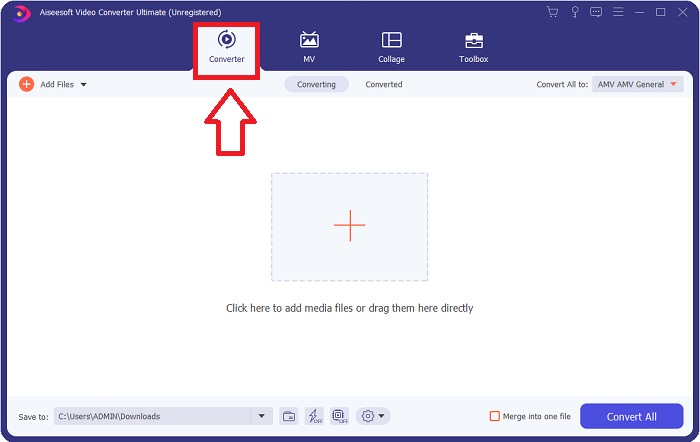
ขั้นตอนที่ 2. เปิดโปรแกรมที่ดาวน์โหลดมา เมื่อคุณเปิดโปรแกรมครั้งแรก จะมีหน้าต่างพร้อมอินเทอร์เฟซ Converter ปรากฏขึ้น ที่นี่คือหน้าที่คุณจะนำไฟล์วิดีโอเข้ามาและเริ่มการแปลง.
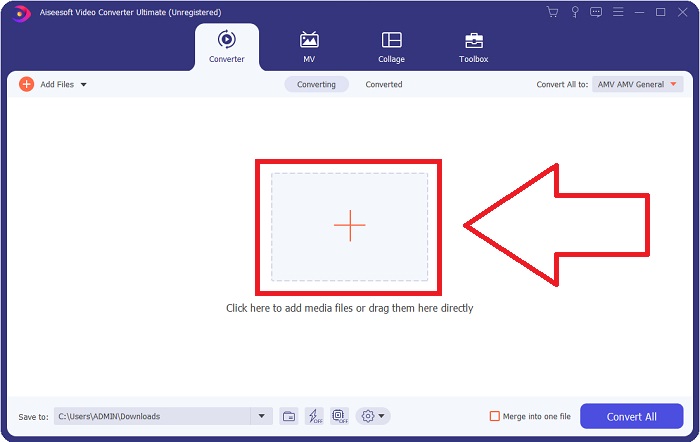
ขั้นตอนที่ 3. นำเข้าไฟล์ของคุณลงในตัวโปรแกรมแปลงไฟล์เพื่อเริ่มขั้นตอนการแปลง ลากและวางไฟล์วิดีโอที่คุณต้องการแปลงไปยังไอคอนเครื่องหมาย +.
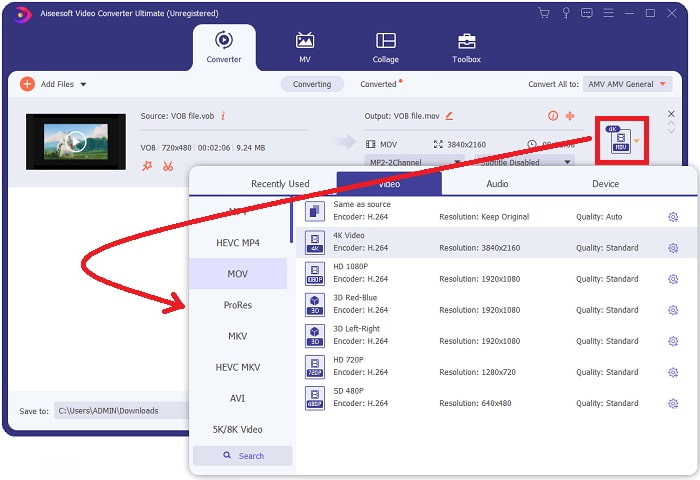
ขั้นตอนที่ 4. เลือกรูปแบบวิดีโอจากรายการที่มุมขวาบนของหน้าจอ ค้นหาและเลือกประเภทไฟล์ MOV จากเมนูแบบดรอปดาวน์ หลังจากเลือกเป็นรูปแบบ MOV แล้ว จะมีตัวเลือกคุณภาพวิดีโอหลายระดับให้เลือก แต่ถ้าคุณไม่พบคุณภาพวิดีโอตามที่ต้องการ คุณสามารถปรับตั้งค่าคุณภาพให้เหมาะกับความต้องการได้ โดยคลิกไอคอนรูปเฟืองเพื่อเปลี่ยนความละเอียด เฟรมเรต และแม้แต่คุณภาพเสียง เมื่อปรับเรียบร้อยแล้วให้คลิกปุ่ม สร้างใหม่ เพื่อบันทึกการตั้งค่า.
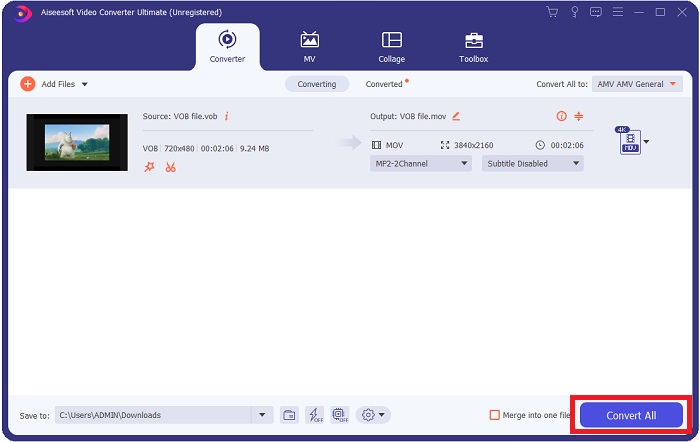
ขั้นตอนที่ 5. เมื่อคุณแก้ไขวิดีโอเสร็จและพร้อมสำหรับการแปลงแล้ว ให้คลิก แปลงทั้งหมด เพื่อเริ่มขั้นตอนการส่งออกไฟล์ไปยังคอมพิวเตอร์ของคุณ.
ส่วนที่ 3 วิธีการแปลง VOB เป็น MOV [ออนไลน์]
หากคุณไม่มีเวลาดาวน์โหลด Video Converter Ultimate คุณยังสามารถใช้เวอร์ชันออนไลน์ของซอฟต์แวร์นี้ได้ Free Video Converter Online เป็นเครื่องมือเว็บออนไลน์ที่ดีที่สุดที่คุณสามารถเข้าใช้บนอินเทอร์เน็ตเพื่อแปลงไฟล์ได้หลากหลายรูปแบบอย่างรวดเร็ว แตกต่างจากโปรแกรมแปลงไฟล์ออนไลน์ทั่วไป เครื่องมือนี้ไม่จำกัดว่ารองรับรูปแบบไฟล์อะไรบ้าง จึงแนะนำให้ผู้ใช้มือใหม่ลองใช้งาน หากต้องการรู้จักเครื่องมือเว็บออนไลน์นี้มากขึ้น ดูขั้นตอนด้านล่างต่อไปนี้:.
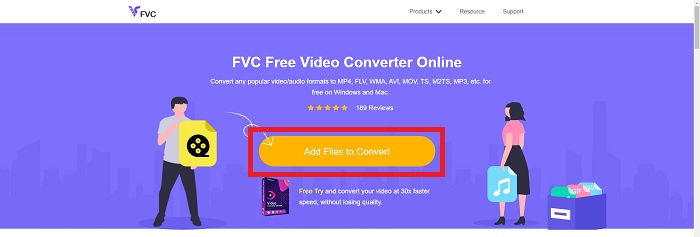
ขั้นตอนที่ 1. ไปยังเว็บไซต์หลักของโปรแกรมแปลงไฟล์ออนไลน์นี้โดยคลิกที่ลิงก์นี้.
ขั้นตอนที่ 2. หากนี่เป็นครั้งแรกที่คุณใช้งาน ให้คลิกปุ่ม เพิ่มไฟล์เพื่อแปลง เพื่อดาวน์โหลดตัวเรียกใช้งานลงในคอมพิวเตอร์ของคุณ เมื่อดาวน์โหลดเสร็จ โปรแกรมจะเปิดขึ้นโดยอัตโนมัติ จากนั้นให้เลือกไฟล์จากโฟลเดอร์ของคุณแล้วคลิก เปิด หลังจากดาวน์โหลดเสร็จอีกครั้ง.
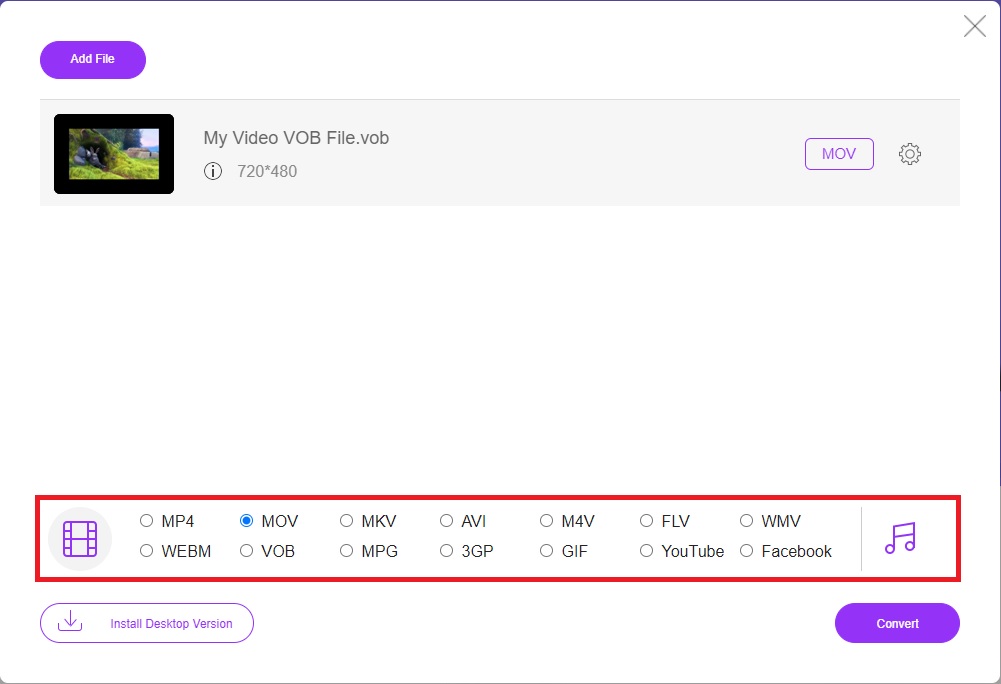
ขั้นตอนที่ 3. ก่อนเริ่มกระบวนการแปลง ให้เลือกไฟล์รูปแบบ MOV จากหมวดหมู่รายการ วิดีโอ ด้านล่างโดยคลิกที่รูปแบบนั้น.
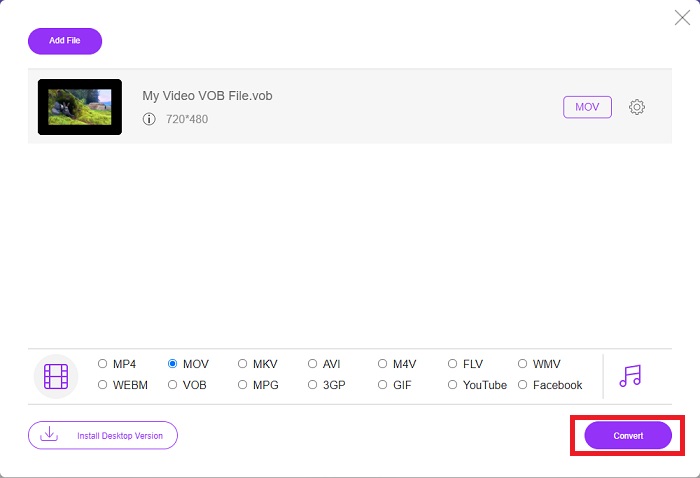
ขั้นตอนที่ 4. หลังจากเลือกรูปแบบแล้ว ให้คลิก แปลง เพื่อเริ่มกระบวนการแปลงไปเป็นรูปแบบอื่น.
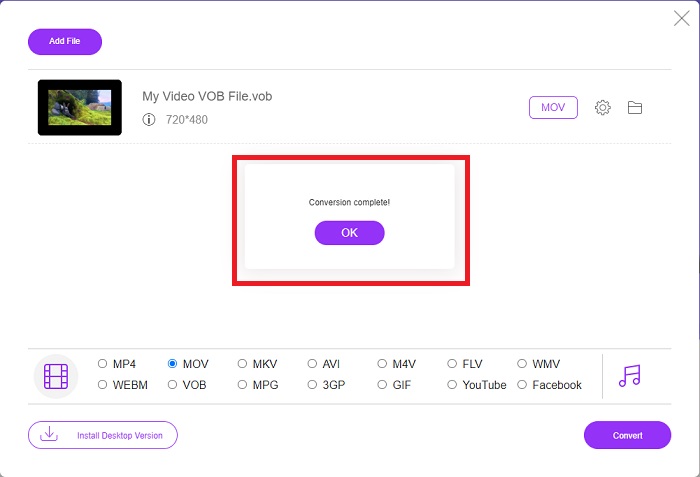
ขั้นตอนที่ 5. ผ่านไปไม่กี่นาที จะมีโฟลเดอร์ไฟล์ที่มีไฟล์ที่ถูกแปลงแล้วปรากฏขึ้น เพียงคลิกที่ไฟล์นั้นก็เริ่มดูวิดีโอได้ทันที.
ส่วนที่ 4 คำถามที่พบบ่อยเกี่ยวกับการแปลง VOB เป็น MOV
ทำไมไฟล์ VOB ถึงใหญ่จัง
ไม่มีเหตุผลอื่นใดที่ทำให้ไฟล์มีขนาดใหญ่ นอกจากตัววิดีโอเอง (รวมเสียง) เนื่องจากตัวแปลงรหัสวิดีโอ (video codec) ใช้การเข้ารหัสแบบบิตเรตแปรผัน ความยาวของไฟล์จึงแตกต่างกันออกไป ดังนั้นจึงสามารถเข้ารหัสจำนวนภาพเท่ากันให้กลายเป็นขนาดไฟล์ที่หลากหลายได้ คลิกที่นี่เพื่อเรียนรู้วิธีบีบอัดไฟล์ VOB ขนาดใหญ่.
VOB เหมือนกับ DVD หรือไม่?
สำหรับวัตถุวิดีโอ สื่อ DVD-Video ใช้ VOB (ย่อมาจากวัตถุวิดีโอ) คำบรรยาย เมนูดีวีดี และข้อมูลการนำทางทั้งหมดสามารถรวมอยู่ในไฟล์ VOB ซึ่งเป็นไฟล์ที่มีหลายรูปแบบ การเข้ารหัสเป็นไปได้สำหรับไฟล์ VOB
ไฟล์ MOV ประกอบด้วยอะไรบ้าง?
เป็นไปได้ที่จะใช้ไฟล์ MOV เพื่อจัดเก็บและซิงโครไนซ์สื่อหลายรูปแบบ รวมทั้งวิดีโอ เสียง ไทม์โค้ด และข้อความ มีตัวแปลงสัญญาณที่หลากหลายที่สามารถใช้เข้ารหัสเนื้อหาที่กำหนดได้ เมื่อพูดถึงการบีบอัด ไฟล์ MOV มักใช้ตัวแปลงสัญญาณ MPEG-4
สรุป
โดยสรุปแล้ว สามารถกล่าวถึงความแตกต่างระหว่างซอฟต์แวร์กับโปรแกรมแปลงไฟล์ออนไลน์ที่นำเสนอด้านบนได้อย่างชัดเจน และแต่ละแบบก็มีข้อดีข้อเสียในการใช้งาน แต่ถ้าคุณต้องการใช้โปรแกรมแปลงไฟล์ที่ทั้งเป็นมืออาชีพและเป็นมิตรต่อผู้ใช้ ซอฟต์แวร์ Video Converter Ultimate คือสิ่งที่แนะนำที่สุด ตามที่บทความกล่าวถึงโปรแกรมแปลงวิดีโอนี้ คู่แข่งรายอื่น ๆ ยังไม่สามารถเทียบมาตรฐานที่ซอฟต์แวร์นี้ทำได้ พวกเขายังไปไม่ถึงระดับความยอดเยี่ยมที่โปรแกรมนี้มอบให้.
-
 8 เครื่องเล่น MOV ที่ดีที่สุดในการเล่นไฟล์ QuickTime MOV ด้วยคุณภาพดั้งเดิม
 เพียงเรียนรู้เพิ่มเติมเกี่ยวกับเครื่องเล่น MOV ที่ดีที่สุด 8 ตัวที่มีให้ทั้ง Windows และ Mac คุณสามารถเลือกไฟล์ที่ต้องการและเหมาะสมเพื่อเล่นไฟล์ MOV ด้วยคุณภาพดั้งเดิม
-
 MKV เป็น MOV - วิธีการแปลง MKV เป็น MOV
 ฉันจะแปลง MKV เป็น MOV บน Mac ได้อย่างไร iMovie สามารถอ่าน MKV ได้หรือไม่ รูปแบบ MOV หมายถึงอะไร? โพสต์นี้บอกวิธีง่ายๆ 2 วิธีในการช่วยคุณแปลง MKV เป็น MOV ด้วยตัวแปลงวิดีโอออนไลน์และแบบมืออาชีพฟรี
-
 FLV เป็น MOV - วิธีการแปลง FLV เป็น MOV บน Mac / PC / ออนไลน์ฟรี
 วิธีแปลง FLV เป็น MOV? ฉันจะแปลง FLV เป็น MOV บน Mac ได้อย่างไร มีวิธีฟรีในการแปลง YouTube FLV เป็น MOV ออนไลน์หรือไม่ โพสต์นี้แชร์ตัวแปลง FLV เป็น MOV 3 รายการเพื่อเปลี่ยนไฟล์ FLV เป็น MOV
