


 Video Converter Ultimate
 บันทึกหน้าจอ
 ซ่อมวิดีโอ
 ดาวน์โหลดอย่างปลอดภัย
แปลง AAC เป็น MP3 และในทางกลับกันด้วยเครื่องมือที่ดีที่สุดสำหรับทุกแพลตฟอร์ม
ไฟล์เสียงได้กลายเป็นองค์ประกอบสำคัญของสังคมสมัยใหม่ เราต้องใช้ไฟล์เสียงประเภทต่างๆ เช่น เพลง พ็อดคาสท์ หนังสือเสียง และวอยซ์เมโม เพื่อจุดประสงค์ด้านความบันเทิง การศึกษา และการสื่อสาร ด้วยรูปแบบเสียงที่มีอยู่มากมาย การค้นหาไฟล์ที่เข้ากันได้กับอุปกรณ์ทั้งหมดของเราจึงเป็นเรื่องท้าทาย AAC และ MP3 เป็นรูปแบบการบีบอัดเสียงที่ใช้กันทั่วไปสองรูปแบบ
โพสต์นี้จะแสดงขั้นตอนการแปลงAAC เป็น MP3 และ MP3 เป็น AAC เพื่อให้คุณสามารถปรับแต่งไฟล์เสียงให้เหมาะสมกับอุปกรณ์และแพลตฟอร์มต่าง ๆ ได้ โดยจะครอบคลุมการวิเคราะห์เชิงลึกเกี่ยวกับข้อดีของแต่ละรูปแบบไฟล์ เครื่องมือที่มีประสิทธิภาพที่สุดสำหรับการแปลงไฟล์ และแนวทางที่ครบถ้วนเพื่อช่วยให้คุณปรับแต่งไฟล์เสียงของคุณได้อย่างเหมาะสม หากคุณต้องการบีบอัดไฟล์เพื่อประหยัดพื้นที่จัดเก็บหรือเพิ่มความเข้ากันได้ โปรดอ่านต่อไป.

ส่วนที่ 1 การเปรียบเทียบ AAC กับ MP3
หากต้องการทราบข้อมูลในการตัดสินใจว่าจะใช้รูปแบบใด นี่คือตารางเปรียบเทียบที่จะช่วยคุณ
| AAC | MP3 | |
| คุณภาพ | โดยทั่วไปคุณภาพดีกว่า MP3 ที่บิตเรตต่ำกว่า | คุณภาพต่ำกว่า AAC ที่บิตเรตต่ำกว่า |
| ขนาดไฟล์ | ขนาดไฟล์เล็กกว่า MP3 ที่บิตเรตเท่ากัน | ขนาดไฟล์ใหญ่กว่า AAC ที่บิตเรตเดียวกัน |
| ช่วงบิตเรต | โดยทั่วไปมีตั้งแต่ 8-230kbps | โดยทั่วไปมีตั้งแต่ 8-320 kbps |
| ความเข้ากันได้ | ได้รับการสนับสนุนอย่างกว้างขวางบนอุปกรณ์และซอฟต์แวร์ที่ทันสมัยที่สุด | รองรับอย่างกว้างขวางในอุปกรณ์และซอฟต์แวร์ส่วนใหญ่ แต่อุปกรณ์รุ่นเก่าบางรุ่นอาจไม่รองรับ |
| อัตราตัวอย่าง | โดยทั่วไปอยู่ในช่วงตั้งแต่ 8-96 kHz | โดยทั่วไปมีตั้งแต่ 8-48kHz |
ส่วนที่ 2 คำแนะนำในการแปลง AAC เป็น MP3 หรือ MP3 เป็น AAC บน Windows และ Mac
1. FVC Video Converter Ultimate
FVC Video Converter Ultimate เป็นซอฟต์แวร์แปลงวิดีโอที่ทรงพลังและใช้งานง่าย ช่วยให้คุณแปลงไฟล์วิดีโอและไฟล์เสียงเป็นหลากหลายรูปแบบได้ นอกจากนี้ คุณยังสามารถแปลง AAC เป็น MP3 และ MP3 เป็น AAC รวมถึงรูปแบบไฟล์เสียงและวิดีโออื่น ๆ อีกมากมายได้อย่างสะดวก.
นอกจากนี้ ยังมีฟังก์ชันเสริมที่หลากหลาย เช่น การประมวลผลเป็นชุด อัตราการแปลงที่รวดเร็ว และอินเทอร์เฟซที่ใช้งานง่ายซึ่งอำนวยความสะดวกในการใช้งาน นอกจากนี้ ซอฟต์แวร์ยังรองรับรูปแบบอินพุตและเอาต์พุตที่หลากหลาย รวมถึงรูปแบบเสียงยอดนิยม เช่น AAC, MP3, WAV, FLAC และอื่นๆ อีกมากมาย คุณยังสามารถปรับแต่งการตั้งค่าการแปลงของคุณ เช่น บิตเรต อัตราตัวอย่าง และแชนเนล เพื่อให้ได้คุณภาพเอาต์พุตที่ต้องการ ดูว่าตัวแปลง AAC เป็น MP3 ทำงานอย่างไร
ขั้นตอนที่ 1. ดาวน์โหลดและติดตั้งซอฟต์แวร์
โปรดดาวน์โหลด Video Converter Ultimate จากเว็บไซต์ทางการโดยเลือกตัวติดตั้งจากตัวเลือกที่มีให้ จากนั้นดำเนินการตามคำแนะนำทั้งหมดเพื่อให้การติดตั้งสำเร็จ โปรดดำเนินการต่อเพื่อดำเนินการโปรแกรมและดำเนินการสำรวจคุณสมบัติของโปรแกรม
ดาวน์โหลดฟรีสำหรับ Windows 7 ขึ้นไปดาวน์โหลดอย่างปลอดภัย
ดาวน์โหลดฟรีสำหรับ MacOS 10.7 ขึ้นไปดาวน์โหลดอย่างปลอดภัย
ขั้นตอนที่ 2. อัปโหลดไฟล์เสียง
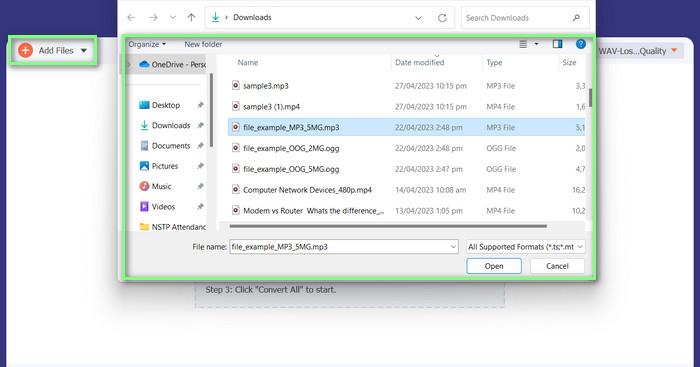
หากต้องการอัปโหลดวิดีโอ ให้แตะ Add Files หรือไอคอนไอคอนรูปเครื่องหมายบวก จากนั้นค้นหาไฟล์เสียงในโฟลเดอร์ของคุณ เพื่อทำการนำเข้าวิดีโอเข้าสู่ซอฟต์แวร์ ให้ดับเบิลคลิกที่ไฟล์ อีกวิธีหนึ่งคือการลากวิดีโอจากโฟลเดอร์แล้วปล่อยลงในโปรแกรมโดยตรง.
ขั้นตอนที่ 3. เปลี่ยนรูปแบบไฟล์เสียงและเริ่มแปลง
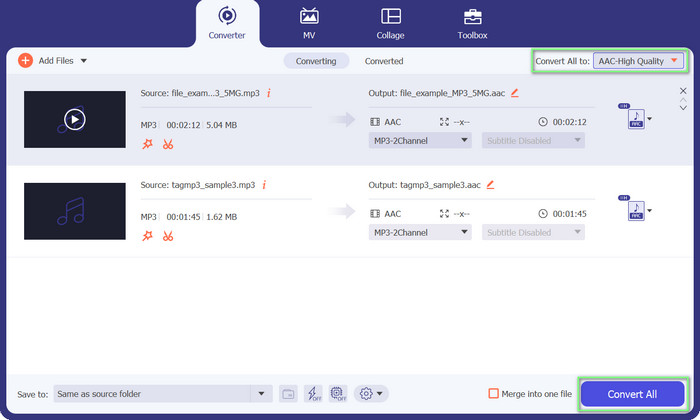
จะเห็นได้ชัดว่าไฟล์เสียงนี้อยู่ในรูปแบบ MP3 ตอนนี้เราจะทำการแปลงให้เป็น AAC โปรดไปที่ตัวเลือก Convert All to ที่มุมขวาบนของอินเทอร์เฟซเครื่องมือ จากนั้นไปที่แท็บ Audio แล้วค้นหารูปแบบ AAC หลังจากนั้นเริ่มกระบวนการแปลงโดยคลิกที่ตัวเลือก Convert All.
ข้อดี
- มีการแปลงไฟล์เป็นชุด
- สามารถแก้ไขบิตเรต ความถี่ และจำนวนช่องสัญญาณของแทร็กเสียงได้
- มันมาพร้อมกับตัวแก้ไขข้อมูลเมตาของไฟล์เสียง
จุดด้อย
- การสนับสนุนที่จำกัดสำหรับรูปแบบไฟล์ที่คลุมเครือมากขึ้น
2. แปลง MP3 ออนไลน์ฟรี
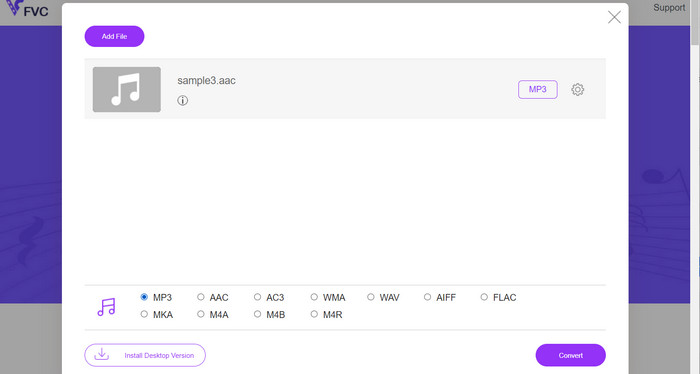
ด้วย Free MP3 Converter Online คุณสามารถแปลงไฟล์เสียงของคุณเป็นหลายรูปแบบ รวมถึงรูปแบบยอดนิยมอย่าง AAC และ MP3 ได้ ทราบหรือไม่ว่าคุณสามารถปรับแต่งการตั้งค่าการแปลงได้เองด้วย นั่นหมายความว่าคุณสามารถปรับบิตเรต อัตราสุ่ม และช่องสัญญาณ เพื่อให้ได้คุณภาพไฟล์ผลลัพธ์ตามที่ต้องการได้เลย ถือว่าเจ๋งทีเดียว นอกจากนี้ คุณยังสามารถแปลง AAC เป็น MP3 และ MP3 เป็น AAC ได้โดยไม่ต้องเสียเงินซื้อซอฟต์แวร์ใด ๆ เพราะนี่เป็นเครื่องมือใช้ฟรี คุณได้ดูคู่มือการใช้งานตัวแปลง AAC เป็น MP3 ออนไลน์นี้แล้วหรือยัง? ใช้งานง่ายมาก ๆ
ขั้นตอนที่ 1. ไปที่หน้า Free MP3 Converter Online โดย FVC ที่ https://www.freevideoconverter.online/audio-converter.
ขั้นตอนที่ 2. เลือกไฟล์ AAC ที่คุณต้องการแปลงโดยคลิกปุ่ม Add Files to Convert คุณยังสามารถลากและวางไฟล์ไปยังตำแหน่งที่กำหนดบนหน้าเว็บได้ด้วย.
ขั้นตอนที่ 3. เมื่ออัปโหลดไฟล์เสร็จแล้ว ให้เลือก MP3 จากเมนูดรอปดาวน์ภายใต้ Audio format เป็นรูปแบบไฟล์ที่คุณต้องการให้ไฟล์ถูกแปลงไปเป็น.
ขั้นตอนที่ 4. หรือคุณสามารถคลิกไอคอน Settings เพื่อเปลี่ยนการตั้งค่าต่าง ๆ เช่น บิตเรต อัตราสุ่ม และตัวเลือกช่องสัญญาณสำหรับไฟล์ผลลัพธ์ จากนั้นคลิกปุ่ม Convert เพื่อเริ่มกระบวนการแปลง.
ข้อดี
- รองรับรูปแบบเสียงอินพุตและเอาต์พุตต่างๆ
- ใช้งานได้ฟรี
จุดด้อย
- ไม่มีคุณสมบัติการแก้ไขเสียงขั้นสูง เช่น การปรับเสียงให้เป็นมาตรฐาน
3.FFmpeg
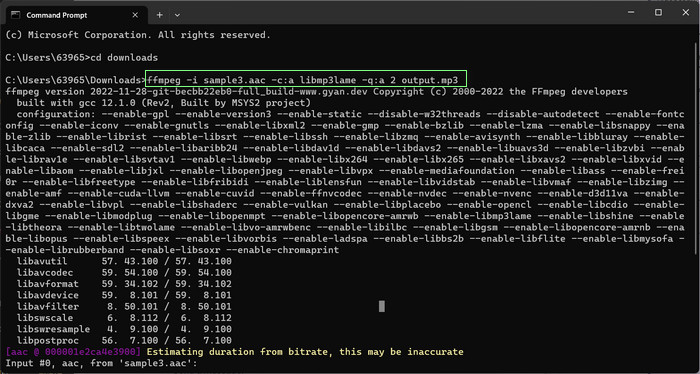
หากคุณเป็นโปรแกรมแปลงไฟล์ AAC เป็น MP3 ฟรี คุณไม่ควรพลาด FFmpeg เครื่องมือนี้ยอดเยี่ยมมากสำหรับการประมวลผลเสียงและวิดีโอ คุณสามารถใช้มันเพื่อแปลง AAC เป็น MP3 และ MP3 เป็น AAC ได้อย่างง่ายดาย สวัสดี! หากคุณคุ้นเคยกับการใช้บรรทัดคำสั่ง คุณจะชอบความยืดหยุ่นและการปรับแต่งที่คุณจะได้รับจากการแปลงเสียงโดยใช้เครื่องมือนี้ ที่กล่าวว่าลองดูบทช่วยสอนการแปลง AAC เป็น MP3 FFmpeg ด้านล่าง:
ขั้นตอนที่ 1. เปิดเทอร์มินัลบนคอมพิวเตอร์ของคุณ ใช้คำสั่ง cd เพื่อไปยังโฟลเดอร์ที่เก็บไฟล์เสียงต้นฉบับไว้.
ขั้นตอนที่ 2. ใช้คำสั่งต่อไปนี้เพื่อแปลง AAC เป็น MP3: ffmpeg -i input.aac -c:a libmp3lame -q:a 2 output.mp3
คำสั่งนี้จะรับไฟล์ input.aac และแปลงเป็นไฟล์ output.mp3 โดยใช้ตัวแปลงสัญญาณ libmp3lame โดยมีการตั้งค่าคุณภาพเป็น 2 คุณสามารถปรับการตั้งค่าคุณภาพได้ตามต้องการเพื่อให้ได้คุณภาพเอาต์พุตที่ต้องการ
ใช้คำสั่งต่อไปนี้เพื่อแปลง MP3 เป็น AAC: ffmpeg -i input.mp3 -c: a aac -b: a 128k output.aac
คำสั่งนี้จะรับไฟล์ input.mp3 และแปลงเป็นไฟล์ output.aac โดยใช้ตัวแปลงสัญญาณ AAC ด้วยบิตเรต 128k คุณสามารถปรับบิตเรตได้ตามต้องการเพื่อให้ได้คุณภาพเอาต์พุตที่ต้องการ
ข้อดี
- เข้าถึงได้ทุกคน
- ความยืดหยุ่นและการปรับแต่งระดับสูง
จุดด้อย
- มันต้องการความรู้ทางเทคนิคบางอย่างเพื่อใช้อย่างมีประสิทธิภาพ
4. ไอทูนส์
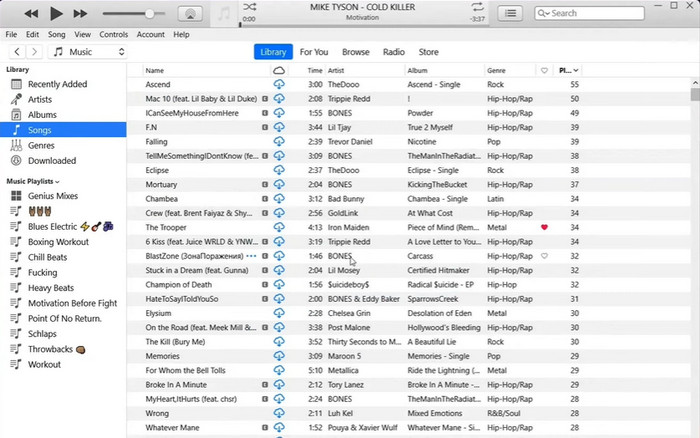
การแปลงไฟล์เสียงจากรูปแบบหนึ่งเป็นอีกรูปแบบหนึ่ง เช่น MP3 เป็น AAC และ AAC เป็น MP3 เป็นความสามารถในตัวของ iTunes ฟังก์ชันหลักคือการจัดการและเล่นเพลง แต่อาจใช้เพื่อดูวิดีโอและฟังพอดแคสต์และหนังสือเสียงได้ด้วย
ขั้นตอนที่ 1. เปิด iTunes บนคอมพิวเตอร์ของคุณ จากนั้นเลือกตัวเลือก Preferences จากเมนู Edit.
ขั้นตอนที่ 2. เพื่อเข้าสู่ Import Settings ในหน้าต่าง Preferences ให้ไปที่แท็บ General แล้วคลิกปุ่ม Import Settings.
ขั้นตอนที่ 3. ในอินเทอร์เฟซ Import Settings คุณสามารถเลือก AAC Encoder หรือ MP3 Encoder จากเมนูดรอปดาวน์ Import Using ตามรูปแบบไฟล์ที่ต้องการใช้สำหรับการแปลง.
ขั้นตอนที่ 4. เลือก OK เพื่อปิดหน้าต่าง Import Settings จากนั้นเลือกไฟล์ MP3 หรือ AAC ที่ต้องการแปลงจากคลังใน iTunes ของคุณ.
ขั้นตอนที่ 5. หากต้องการสร้างไฟล์เวอร์ชัน AAC/MP3 ให้ไปที่เมนู File เลือกตัวเลือก Convert แล้วเลือก Create AAC/MP3 version ตามค่าการนำเข้าที่คุณตั้งไว้ นั่นคือวิธีง่าย ๆ ในการแปลง AAC เป็น MP3 ใน iTunes.
ข้อดี
- ทำงานได้ดีขึ้นในฐานะตัวแปลง AAC เป็น MP3 บน Mac
- ส่วนต่อประสานที่ใช้งานง่าย
จุดด้อย
- เป็นซอฟต์แวร์ที่ใช้ทรัพยากรมาก
ส่วนที่ 3 วิธีแปลง AAC เป็น MP3 หรือ MP3 เป็น AAC บน iOS และ Android
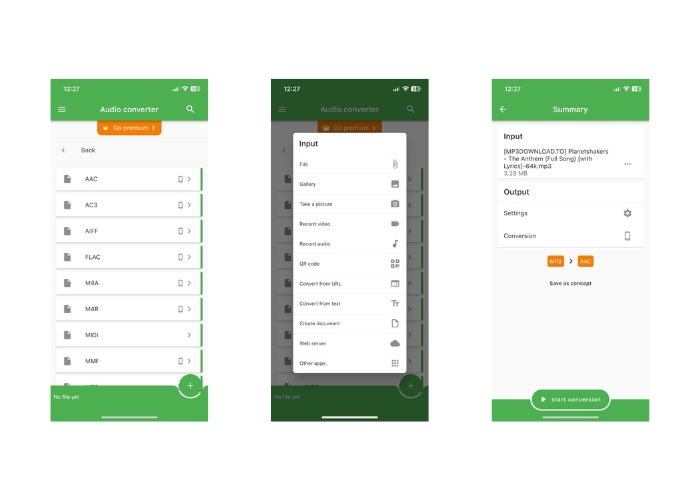
ตัวแปลงไฟล์สามารถเข้าถึงได้ทั้งบนระบบปฏิบัติการ iOS และ Android และอำนวยความสะดวกในการแปลงไฟล์เสียงรูปแบบต่าง ๆ เช่น AAC และ MP3 ดังนั้น หากคุณกำลังมองหาตัวแปลง AAC เป็น MP3 Android หรือ iOS ไม่ต้องมองหาที่ไหนอีกแล้ว ซอฟต์แวร์นำเสนอประสบการณ์ที่เป็นมิตรต่อผู้ใช้และนำเสนออินเทอร์เฟซที่คล่องตัวเพื่ออำนวยความสะดวกในการแปลงไฟล์ที่รวดเร็วและมีประสิทธิภาพ
ขั้นตอนที่ 1. ติดตั้งแอป File Converter บนอุปกรณ์ iOS หรือ Android ของคุณ.
ขั้นตอนที่ 2. เปิดแอปและเลือกตัวเลือก Audio converter จากรายการประเภทการแปลง จากนั้นเลือก AAC เป็นรูปแบบเอาต์พุตจากรายการตัวเลือกที่มีอยู่.
ขั้นตอนที่ 3. หากต้องการปรับบิตเรตหรือการตั้งค่าการแปลงอื่น ๆ คุณสามารถทำได้โดยแตะที่ปุ่ม Settings.
ขั้นตอนที่ 4. หลังจากเลือกรูปแบบเอาต์พุตและตั้งค่าต่าง ๆ เรียบร้อยแล้ว ให้แตะปุ่ม start conversion เพื่อเริ่มต้นกระบวนการแปลง.
อ่านเพิ่มเติม:
แปลง FLAC เป็น MP3 เพื่อคงคุณภาพเสียง
ตัวตัด MP3 5 ตัวสำหรับตัดไฟล์เสียงได้ง่ายทุกไฟล์ [อัปเดตปี 2023]
ส่วนที่ 4 คำถามที่พบบ่อยเกี่ยวกับการแปลง MP3 และ AAC
การแปลงไฟล์เสียงที่มีลิขสิทธิ์ถูกกฎหมายหรือไม่
โดยทั่วไปแล้วการแปลงไฟล์เสียงที่มีลิขสิทธิ์โดยไม่ได้รับอนุญาตจากเจ้าของลิขสิทธิ์นั้นไม่ถูกต้องตามกฎหมาย
มีข้อจำกัดในการใช้เครื่องมือแปลงฟรีหรือไม่?
เครื่องมือแปลงฟรีบางตัวอาจมีข้อจำกัดเกี่ยวกับขนาดหรือจำนวนไฟล์ที่คุณสามารถแปลงได้ และอาจมีตัวเลือกการปรับแต่งที่จำกัดด้วย
ฉันสามารถแปลงไฟล์เสียงเป็นรูปแบบอื่นนอกเหนือจาก AAC และ MP3 ได้หรือไม่
ได้ มีรูปแบบไฟล์เสียงอื่นๆ อีกหลายรูปแบบที่คุณสามารถแปลงเป็นไฟล์ได้ เช่น WAV, FLAC, OGG และอื่นๆ
สรุป
ความสามารถในการแปลงไฟล์ระหว่างรูปแบบ AAC และ MP3 อาจเป็นสิ่งสำคัญในสถานการณ์ที่ต้องใช้งานร่วมกับเครื่องเล่นสื่อต่างชนิดและอุปกรณ์หลากหลาย มีเครื่องมือหลายชนิดที่สามารถใช้แปลง AAC เป็น MP3 หรือ MP3 เป็น AAC ได้ โดยแต่ละเครื่องมือล้วนมีข้อดีและข้อเสียที่แตกต่างกันออกไป.
-
 5 เครื่องมือแก้ไขข้อมูลเมตา AAC โดยเฉพาะที่คุณควรรู้ [2023]
 เรียนรู้ตัวแก้ไขข้อมูลเมตา AAC ทั่วไปที่คุณสามารถใช้ได้ในบทความนี้ เครื่องมือทั้งหมดได้รับการคัดเลือกและตรวจสอบอย่างถี่ถ้วนเพื่อให้ข้อเท็จจริงแก่คุณ
-
 วิธีแปลง MP3 เป็น M4A เพื่อเพิ่มคุณภาพเสียง
 ปรับปรุงคุณภาพไฟล์เพลงของคุณด้วยการแปลง MP3 เป็น M4A ด้วยเคล็ดลับและคำแนะนำจากผู้เชี่ยวชาญของเรา คำแนะนำของเรามีคำแนะนำทีละขั้นตอนและซอฟต์แวร์ที่แนะนำ
-
 ตัวแปลง MP3 เป็น AIFF ที่ยอดเยี่ยมสำหรับ Windows และ Mac
 บทช่วยสอนนี้จะแนะนำคุณในแต่ละขั้นตอนของการแปลง MP3 เป็น AIFF โดยใช้เครื่องมือที่เชื่อถือได้ เยี่ยมชมพวกเขาเพื่อหาข้อมูลเพิ่มเติม
