


 Video Converter Ultimate
 บันทึกหน้าจอ
 ซ่อมวิดีโอ
 ดาวน์โหลดอย่างปลอดภัย
การแปลง MP3 เป็น MOV คุณภาพสูงบนเดสก์ท็อป ออนไลน์ และมือถือ
กำลังมองหาวิธีแปลงไฟล์เสียง MP3 ของคุณให้เป็นวิดีโอรูปแบบ MOV อยู่หรือไม่? มีหลายเหตุผลที่คุณอาจต้องการทำเช่นนั้น เช่น การสร้างวิดีโอที่มีเพลงประกอบ หรืออัปโหลดไฟล์เสียงขึ้นโซเชียลมีเดียที่รองรับเฉพาะไฟล์วิดีโอ โชคดีที่มีซอฟต์แวร์ ตัวแปลง MP3 เป็น MOV ให้เลือกใช้มากมาย ทั้งแบบออนไลน์ ออฟไลน์ และบนมือถือ ซึ่งช่วยให้ขั้นตอนนี้ง่ายและราบรื่น ในบทความแนะนำนี้ เราจะมาวิเคราะห์ตัวเลือกตัวแปลง MP3 เป็น MOV ที่มีประสิทธิภาพ พร้อมทั้งพิจารณาฟีเจอร์และข้อดีของแต่ละตัว เพื่อช่วยให้คุณเลือกตัวที่เหมาะกับความต้องการของคุณได้มากที่สุด.

ส่วนที่ 1 การเปรียบเทียบรูปแบบ MP3 และ MOV
MP3 และ MOV เป็นรูปแบบไฟล์ยอดนิยมสำหรับจัดเก็บไฟล์เสียงและวิดีโอ อย่างไรก็ตาม พวกเขามีจุดแข็งและจุดอ่อนที่แตกต่างกัน MP3 เป็นตัวเลือกที่ดีสำหรับการเล่นเพลง พ็อดคาสท์ และหนังสือเสียง เนื่องจากมีคุณภาพเสียงที่ดีและไฟล์มีขนาดเล็ก MOV เป็นตัวเลือกที่ดีสำหรับการเล่นวิดีโอและการตัดต่อวิดีโอ เนื่องจากให้คุณภาพวิดีโอที่ยอดเยี่ยม ในที่สุด รูปแบบไฟล์ที่ดีที่สุดสำหรับคุณจะขึ้นอยู่กับความต้องการเฉพาะของคุณในการแปลง MP3 เป็น MOV ได้อย่างมีประสิทธิภาพ
| ลักษณะเฉพาะ | MP3 | MOV |
| นามสกุลไฟล์ | .mp3 | .mov |
| ตัวแปลงสัญญาณเสียง | MPEG-1 Audio Layer 3 | MPEG-4 ส่วนที่ 2 |
| ตัวแปลงสัญญาณวิดีโอ | ไม่มี | H.264 |
| คุณภาพเสียง | ดี | ยอดเยี่ยม |
| คุณภาพวีดีโอ | ยุติธรรม | ยอดเยี่ยม |
| ขนาดไฟล์ | เล็ก | ใหญ่ |
| ความเข้ากันได้ | เข้ากันได้อย่างกว้างขวาง | เข้ากันได้อย่างกว้างขวาง |
| กรณีการใช้งาน | การเล่นเพลง พ็อดคาสท์ หนังสือเสียง | การเล่นวิดีโอ การตัดต่อวิดีโอ |
ส่วนที่ 2 วิธีการแปลง MP3 เป็น MOV บน Windows และ Mac
1. Video Converter Ultimate
Video Converter Ultimate เป็นซอฟต์แวร์แปลงวิดีโอที่มีชื่อเสียง ซึ่งสามารถแปลงวิดีโอได้หลากหลายรูปแบบ เช่น MP4, MOV, MKV, AVI และ FLV นอกจากนี้ยังรองรับการแปลงแบบเป็นชุด ช่วยให้คุณแปลงวิดีโอหลายไฟล์พร้อมกันได้ ฟีเจอร์อื่น ๆ ของซอฟต์แวร์นี้ ได้แก่ การตัดต่อวิดีโอ เพิ่มคำบรรยาย และลบลายน้ำ.
คุณสมบัติเด่น:
◆ ความเร็วในการแปลงที่รวดเร็ว: FVC Video Converter Ultimate ใช้เทคโนโลยีการแปลงวิดีโอล่าสุดเพื่อแปลงวิดีโออย่างรวดเร็วและมีประสิทธิภาพ นั่นหมายความว่าคุณสามารถแปลงวิดีโอของคุณได้ภายในเวลาไม่กี่วินาที
◆ ใช้งานง่าย: FVC Video Converter Ultimate ใช้งานง่าย แม้สำหรับผู้เริ่มต้น อินเทอร์เฟซผู้ใช้เรียบง่าย และซอฟต์แวร์มีคำแนะนำที่เป็นประโยชน์
◆ คุณสมบัติการแก้ไขที่ทรงพลัง: FVC Video Converter Ultimate ให้ความสามารถในการตัดแต่ง ครอบตัด และหมุนวิดีโอ สิ่งนี้ทำให้คุณสามารถปรับแต่งวิดีโอของคุณก่อนที่จะแปลง
ขั้นตอนที่ 1 ติดตั้งและเปิดโปรแกรม
เริ่มต้นโดยคลิกปุ่ม ดาวน์โหลดฟรี เพื่อดาวน์โหลดตัวติดตั้งโปรแกรม จากนั้นทำตามคำแนะนำบนหน้าจอเพื่อติดตั้งและเปิดใช้งานบนคอมพิวเตอร์ของคุณ.
ดาวน์โหลดฟรีสำหรับ Windows 7 ขึ้นไปดาวน์โหลดอย่างปลอดภัย
ดาวน์โหลดฟรีสำหรับ MacOS 10.7 ขึ้นไปดาวน์โหลดอย่างปลอดภัย
ขั้นตอนที่ 2 เพิ่มไฟล์
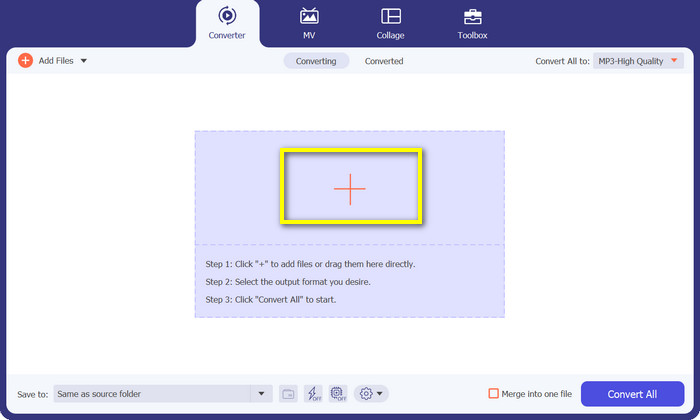
หากต้องการเพิ่มไฟล์ ให้คลิกปุ่มสัญลักษณ์ เครื่องหมายบวก บนแผงหลักของโปรแกรม หรือคลิก Add Files ที่มุมซ้ายบน อีกวิธีหนึ่งคือ ลากไฟล์ไปยังส่วนกลางของหน้าต่างโปรแกรม ไฟล์ที่โหลดแล้วจะแสดงอยู่ในแผงรายการไฟล์.
ขั้นตอนที่ 3 เลือกรูปแบบเอาต์พุต
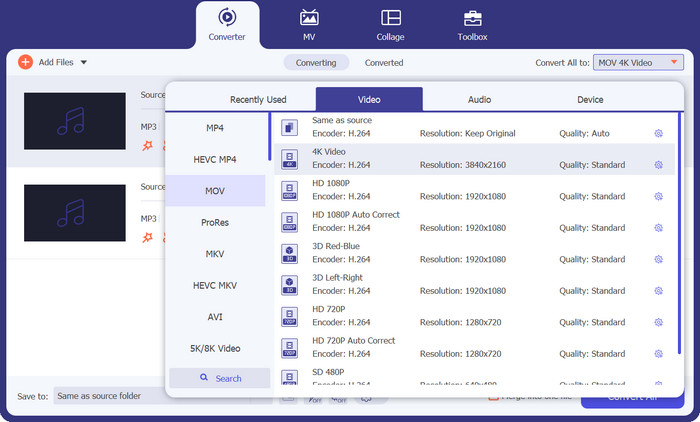
หากต้องการแปลง MP3 เป็น MOV ให้คลิกแถบ Profile เพื่อแสดงรายการโปรไฟล์ จะมีอยู่ 3 หมวดให้เลือก ให้เลือกแท็บ Video แล้วเลือก MOV เป็นรูปแบบเอาต์พุต.
ขั้นตอนที่ 4 เริ่มการแปลง
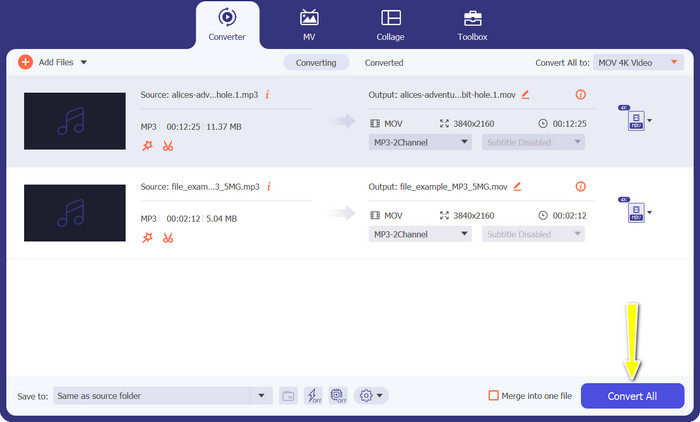
เมื่อทุกอย่างตั้งค่าเรียบร้อยแล้ว ให้คลิกปุ่ม Convert All เพื่อเริ่มกระบวนการแปลงไฟล์จาก MP3 เป็น MOV.
2. ฟรี MOV Converter ออนไลน์
Free MOV Converter Online เป็นวิธีที่สะดวกในการแปลง MP3 เป็น MOV ออนไลน์ได้ฟรี เครื่องมือนี้สามารถแปลงไฟล์เกือบทุกประเภทให้เป็นรูปแบบเอาต์พุตที่คุณต้องการ โดยไม่ลดทอนคุณภาพ นอกจากนี้ยังออกแบบมาให้มีอินเทอร์เฟซที่ใช้งานง่าย ทำให้สะดวกและไม่ซับซ้อนในการใช้งาน ท้ายที่สุด แตกต่างจากซอฟต์แวร์แบบดั้งเดิม ตรงที่คุณไม่จำเป็นต้องพึ่งพาพลังประมวลผลและทรัพยากรของเซิร์ฟเวอร์ในการช่วยทำการแปลง.
คุณสมบัติเด่น:
◆ การแปลงเป็นชุด: FVC Free MOV Converter Online สามารถแปลงวิดีโอหลายชุดพร้อมกันได้ วิธีนี้ช่วยประหยัดเวลาได้มากหากคุณต้องการแปลงวิดีโอจำนวนมาก
◆ ไม่มีลายน้ำ: FVC Free MOV Converter Online จะไม่เพิ่มลายน้ำให้กับไฟล์ MP3 ของคุณ ซึ่งหมายความว่าไฟล์ MP3 ของคุณจะปราศจากแบรนด์ใดๆ ทั้งสิ้น
◆ การตั้งค่าเอาต์พุตแบบกำหนดเอง: FVC Free MOV Converter Online ช่วยให้คุณสามารถปรับแต่งการตั้งค่าเอาต์พุตสำหรับไฟล์ MP3 ของคุณได้ ซึ่งรวมถึงอัตราบิต อัตราตัวอย่าง และช่องสัญญาณเสียง
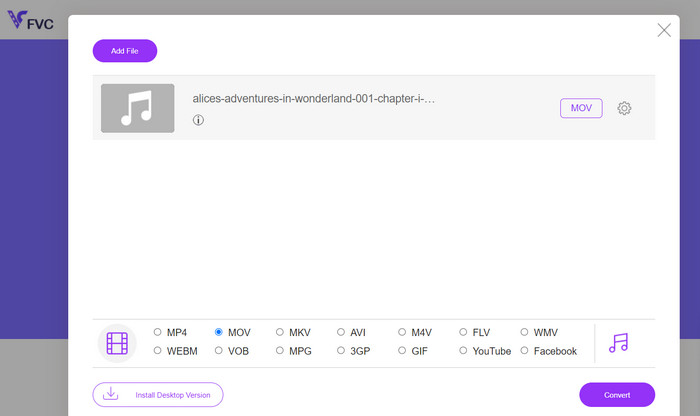
ขั้นตอนที่ 1. ไปยังเว็บไซต์ FVC Free MOV Converter Online จากนั้นคลิกปุ่ม Add Files to Convert และเลือกไฟล์วิดีโอที่คุณต้องการจะแปลง.
ขั้นตอนที่ 2. จากนั้นให้เลือกรูปแบบเอาต์พุต จากตัวเลือกที่มีอยู่ ให้เลือก MOV เป็นรูปแบบเอาต์พุต.
ขั้นตอนที่ 3. คลิกปุ่ม Convert เพื่อเริ่มกระบวนการแปลง เมื่อการแปลงเสร็จสิ้น คุณสามารถดาวน์โหลดไฟล์ MP3 ได้.
ส่วนที่ 3 วิธีแปลง MP3 เป็น MOV บน iOS และ Android
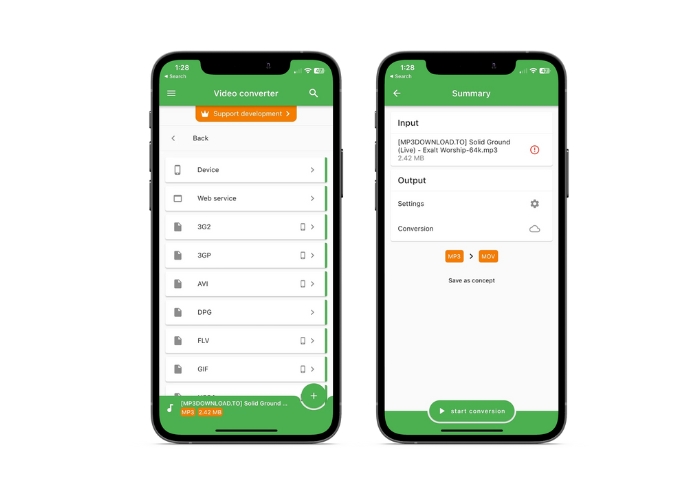
ตัวแปลงไฟล์ช่วยให้สามารถแปลงไฟล์เสียงได้หลายรูปแบบ รวมถึง AAC และ MP3 และใช้งานได้ทั้งบนอุปกรณ์ iOS และ Android คุณไม่จำเป็นต้องสำรวจเพิ่มเติมหากคุณต้องการตัวแปลง MP3 เป็น MOV สำหรับ Android หรือ iOS เพื่อให้สามารถแปลงไฟล์ได้อย่างรวดเร็วและมีประสิทธิภาพ ซอฟต์แวร์จะมอบประสบการณ์ที่เป็นมิตรกับผู้ใช้และนำเสนออินเทอร์เฟซที่คล่องตัว
คุณสมบัติเด่น:
◆ พรีเซ็ตและโปรไฟล์: การตั้งค่าหรือโปรไฟล์ที่กำหนดไว้ล่วงหน้าสำหรับแพลตฟอร์มฮาร์ดแวร์หรือซอฟต์แวร์เฉพาะที่รับประกันความเข้ากันได้และเอาต์พุตที่ดีที่สุดในระดับเดียวกัน
◆ การเลือกพื้นที่เก็บข้อมูล: ผู้ใช้สามารถเลือกได้ว่าต้องการบันทึกไฟล์เอาต์พุตในระบบคลาวด์หรือบนอุปกรณ์สมาร์ทโฟน
ขั้นตอนที่ 1. บนอุปกรณ์สมาร์ตโฟนของคุณ ให้ติดตั้งแอป File Converter.
ขั้นตอนที่ 2. เปิดแอป แล้วเลือกรูปแบบเอาต์พุตเป็น MOV จากรายการตัวเลือกที่มี.
ขั้นตอนที่ 3. คุณสามารถเปลี่ยนบิตเรตหรือการตั้งค่าการแปลงอื่น ๆ ได้ โดยแตะที่ตัวเลือก Settings.
ขั้นตอนที่ 4. แตะปุ่ม start conversion เพื่อเริ่มกระบวนการแปลงหลังจากเลือกรูปแบบเอาต์พุตและตั้งค่าเรียบร้อยแล้ว.
อ่านเพิ่มเติม:
แปลง MOV เป็น GIF เพื่อปลดล็อกพลังของคอนเทนต์แบบภาพเคลื่อนไหว
ตัวตัด MP3 5 ตัวสำหรับตัดไฟล์เสียงได้ง่ายทุกไฟล์ [อัปเดตปี 2023]
ส่วนที่ 4 คำถามที่พบบ่อยเกี่ยวกับการแปลง MP3 เป็น MOV
การตั้งค่าเอาต์พุตที่ดีที่สุดสำหรับการแปลง MP3 เป็น MOV คืออะไร
การตั้งค่าเอาต์พุต MP3 เป็น MOV ขึ้นอยู่กับความต้องการของคุณ บิตและอัตราการสุ่มตัวอย่างสูงจะให้คุณภาพที่ดีที่สุด อัตราบิตและอัตราการสุ่มตัวอย่างที่ต่ำกว่าช่วยประหยัดพื้นที่
การแปลงไฟล์ MP3 เป็น MOV ใช้เวลานานเท่าไหร่?
เวลาในการแปลง MP3 เป็น MOV ขึ้นอยู่กับขนาดไฟล์และการตั้งค่าเอาต์พุต การแปลงไฟล์ขนาดเล็กที่มีพารามิเตอร์เอาต์พุตต่ำใช้เวลาไม่กี่วินาที อย่างไรก็ตาม การแปลงไฟล์ขนาดใหญ่ที่มีพารามิเตอร์เอาต์พุตสูงอาจใช้เวลาหลายนาทีหรือหลายชั่วโมง
ฉันสามารถแปลง MP3 เป็น MOV โดยไม่สูญเสียคุณภาพได้หรือไม่
การแปลง MP3 เป็น MOV ทำให้คุณภาพลดลง MP3 ซึ่งเป็นรูปแบบที่สูญหายจะสูญเสียข้อมูลระหว่างการบีบอัด การตั้งค่าเอาต์พุตสามารถลดการสูญเสียคุณภาพได้
สรุป
โดยรวมแล้ว การแปลง MP3 เป็น MOV นั้นเป็นกระบวนการที่ค่อนข้างง่าย มีตัวเลือกให้ใช้มากมาย คุณจึงสามารถเลือกวิธีที่เหมาะสมกับความต้องการของคุณได้มากที่สุด.
-
 MOV VS MP4 - คุณเลือกอันไหน?
 MOV VS MP4 อันไหนดีกว่ากัน? โพสต์นี้จะบอกความแตกต่างระหว่าง MP4 และ MOV เพื่อให้คุณสามารถเลือกใช้ไฟล์วิดีโอได้ดีกว่า
-
 FLAC กับ MP3: รูปแบบไฟล์เสียงใดที่ครองอำนาจสูงสุด
 โพสต์นี้จะเปรียบเทียบความแตกต่างที่สำคัญระหว่าง FLAC กับ MP3 ซึ่งรวมถึงคุณภาพเสียง ขนาดไฟล์ ความเข้ากันได้ และอื่นๆ
-
 วิธีแปลง MP3 เป็น M4A เพื่อเพิ่มคุณภาพเสียง
 ปรับปรุงคุณภาพไฟล์เพลงของคุณด้วยการแปลง MP3 เป็น M4A ด้วยเคล็ดลับและคำแนะนำจากผู้เชี่ยวชาญของเรา คำแนะนำของเรามีคำแนะนำทีละขั้นตอนและซอฟต์แวร์ที่แนะนำ
