


 Video Converter Ultimate
 บันทึกหน้าจอ
 ซ่อมวิดีโอ
 ดาวน์โหลดอย่างปลอดภัย
วิธีที่ไม่มีใครเทียบและสมบูรณ์แบบในการแปลง AMV เป็น MP4
คุณต้องการเพลิดเพลินกับการชมวิดีโอ AMV ของคุณบนโปรแกรมทั้งหมดหรือไม่? ถ้าใช่ คุณจำเป็นต้องแปลงไฟล์ AMV ให้เป็นรูปแบบ MP4 แต่อย่ากังวล! เราจะมอบวิธีแก้ปัญหาที่ดีที่สุดในการแปลงไฟิดีโอให้คุณ บทความนี้ได้ทดสอบโปรแกรมแปลงไฟล์ที่คุณจะได้รู้จักไว้เรียบร้อยแล้ว ดังนั้นคุณไม่ต้องห่วงว่าแอปพลิเคชันจะปลอดภัยหรือไม่ นอกจากนี้ เราจะแนะนำฟีเจอร์ต่าง ๆ ที่คุณจะได้ใช้งานเมื่อใช้ซอฟต์แวร์เหล่านี้ หากเราดึงดูดความสนใจของคุณได้ และคุณเป็นหนึ่งในผู้ใช้ที่ต้องการแปลงไฟล์ AMV เป็น MP4 ให้ลองอ่านบทความนี้และทำความเข้าใจเกี่ยวกับการแปลงวิดีโอ.

ตอนที่ 1: รู้เบื้องต้นเกี่ยวกับ AMV และ MP4
AMV
นามสกุลไฟล์: .amv
พัฒนาโดย: MTV
หมวดไฟล์: รูปแบบไฟล์วิดีโอ
คำอธิบาย: วิดีโอที่บันทึกในรูปแบบไฟล์ Actions Media Video ซึ่งรองรับโดยเครื่องเล่นสื่อแบบพกพาบางรุ่นของจีน เรียกว่าไฟล์ AMV ไฟล์นี้ประกอบด้วยภาพยนตร์ที่บีบอัดและมีความละเอียดต่ำ (96x96 ถึง 320x240 พิกเซล) ทั้งซอฟต์แวร์บนคอมพิวเตอร์เดสก์ท็อปที่มาพร้อมกับเครื่องเล่นสื่อ AMV และโปรแกรม VideoLAN VLC Media Player สามารถเล่นไฟล์ AMV ได้.
โปรแกรมที่เกี่ยวข้อง: K-Lite Codec Pack, Video LAN และ VLC Media Player
AMV
นามสกุลไฟล์: .mp4
พัฒนาโดย: Moving Picture Experts Group (MPEG)
หมวดไฟล์: รูปแบบไฟล์วิดีโอ
คำอธิบาย: มาตรฐานวิดีโอ AAC และ MPEG-4 กำหนดส่วนขยาย MP4 ร่วมกัน สื่อประเภทใดๆ รวมถึงเสียง วิดีโอ คำบรรยาย และกราฟิก 2D และ 3D อาจมีอยู่ในคอนเทนเนอร์ เครื่องเล่นเกือบทุกชนิดสามารถเล่นไฟล์ MP4 บน Windows ได้ แต่สำหรับ Mac คุณต้องติดตั้งปลั๊กอินหรือแปลงไฟล์ MP4 เป็นรูปแบบอื่น กลุ่มที่เรียกว่าผู้เชี่ยวชาญด้านภาพเคลื่อนไหว
โปรแกรมที่เกี่ยวข้อง: Apple, QuickTime Player, VLC Media Player, Microsoft, Windows Media Player และ Video LAN.
ตอนที่ 2: ขั้นตอนที่ยอดเยี่ยมในการแปลง AMV เป็น MP4 ออฟไลน์
หากคุณต้องการแปลงไฟล์ AMV เป็น MP4 ด้วยเครื่องมือที่ต้องดาวน์โหลด เรามีวิธีแก้ปัญหาที่ดีที่สุดให้คุณ คุณสามารถใช้ Video Converter Ultimate ซึ่งรองรับรูปแบบวิดีโอกว่า 100 ชนิด รวมถึง AVI, MKV, WMV, MOV, FLV, M4V, SWF, MTS, M2TS และอื่น ๆ เครื่องมือนี้มีอินเทอร์เฟซที่ใช้งานง่าย พร้อมวิธีการที่ไม่ซับซ้อน เหมาะสำหรับผู้ใช้ทุกระดับ ด้วยเครื่องมือนี้ คุณสามารถแปลงไฟล์ได้หลายไฟล์พร้อมกัน เพราะรองรับการแปลงแบบแบตช์ ที่สำคัญ หนึ่งในฟีเจอร์เด่นของโปรแกรมนี้คือความเร็วในการแปลงระดับอัลตร้า ซึ่งเร็วกว่าโปรแกรมแปลงไฟล์อื่นถึง 30 เท่า นอกจากนี้คุณยังสามารถตัดต่อวิดีโอ AMV ของคุณด้วยเครื่องมือนี้ได้ หากต้องการค้นพบฟีเจอร์อื่น ๆ ของแอปพลิเคชัน โปรดอ่านข้อมูลเพิ่มเติมด้านล่าง.
คุณสมบัติ
◆ แปลงรูปแบบวิดีโอต่างๆ เช่น MP4, AMV, WMV, AVI, MKV, FLV, SWF, MOV และอื่นๆ อีกกว่า 100 รายการ
◆ มีกระบวนการแปลงเป็นชุดเพื่อแปลงไฟล์หลายไฟล์พร้อมกัน
◆ มีเครื่องมือตัดต่อวิดีโอ เช่น ตัวเพิ่มคุณภาพวิดีโอ ทริมเมอร์ ครอป โรเตเตอร์ การแก้ไขสี และอื่นๆ
ทำตามคำแนะนำง่ายๆ ด้านล่างเพื่อแปลง AMV เป็น MP4 โดยใช้ FVC Video Converter Ultimate
ขั้นตอนที่ 1: ก่อนอื่นคุณต้องดาวน์โหลด Video Converter Ultimate บน Windows หรือ Mac ของคุณก่อน คลิกปุ่ม ดาวน์โหลด ด้านล่าง จากนั้นติดตั้งและเปิดซอฟต์แวร์.
ดาวน์โหลดฟรีสำหรับ Windows 7 หรือใหม่กว่าดาวน์โหลดอย่างปลอดภัย
ดาวน์โหลดฟรีสำหรับ MacOS 10.7 หรือใหม่กว่าดาวน์โหลดอย่างปลอดภัย
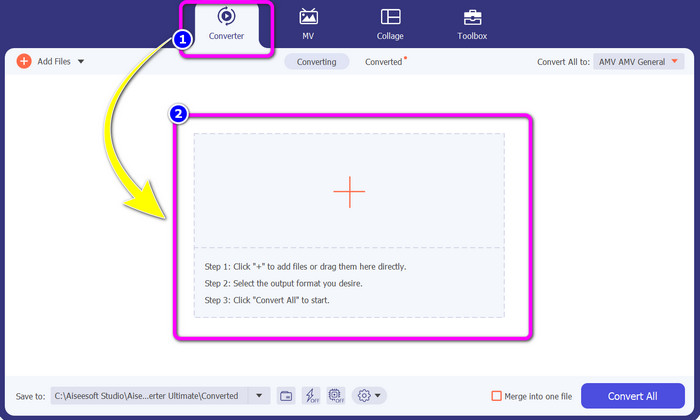
ขั้นตอนที่ 2: เลือกแท็บ Converter แล้วคลิกปุ่มสัญลักษณ์ เครื่องหมายบวก จะมีหน้าต่างโฟลเดอร์ไฟล์แสดงขึ้นบนหน้าจอของคุณ ให้เลือกวิดีโอ AMV ที่คุณต้องการแปลง.
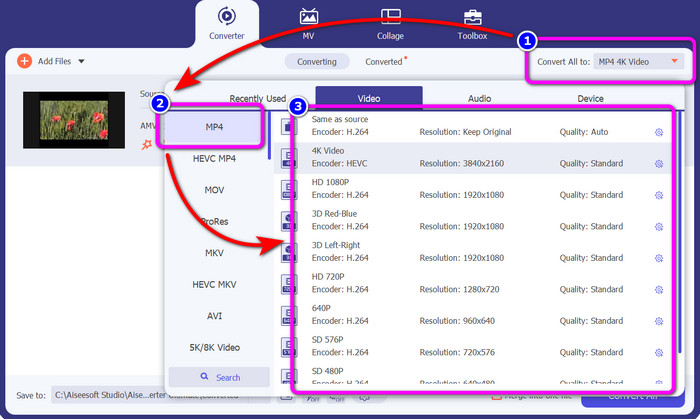
ขั้นตอนที่ 3: กดปุ่ม Convert All to เมื่อมีตัวเลือกฟอร์แมตปรากฏขึ้น ให้เลือกฟอร์แมตเอาต์พุตที่คุณต้องการคือไฟล์ MP4 จากนั้นคุณสามารถเลือกระดับความละเอียดของวิดีโอได้สูงสุดถึง 4K เลือกความละเอียดที่คุณต้องการ หรือจะเลือกให้เหมือนกับความละเอียดของวิดีโอต้นฉบับก็ได้
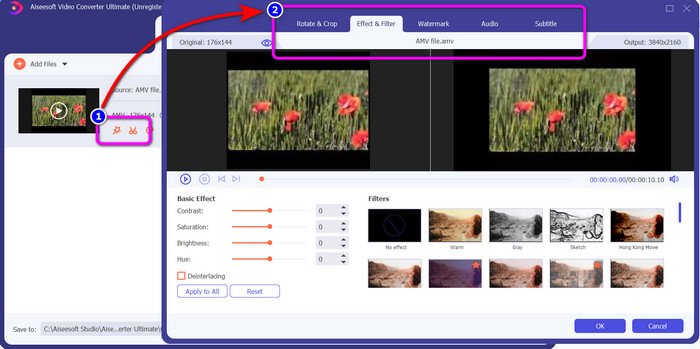
ขั้นตอนที่ 4: หากคุณต้องการตัดต่อวิดีโอ ให้คลิกไอคอน Edit จากนั้นคุณก็สามารถตัดต่อวิดีโอของคุณได้ทันที เช่น เปลี่ยน แก้ไข เพิ่มหรือลบลายน้ำ ใส่เอฟเฟกต์หรือฟิลเตอร์ และหมุนหรือครอปวิดีโอของคุณ เสร็จแล้วให้คลิก OK วิธีนี้จะช่วยให้คุณปรับปรุงคุณภาพวิดีโอได้.
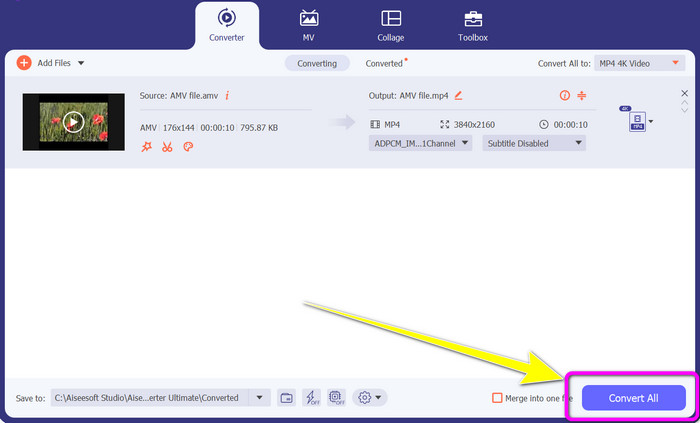
ขั้นตอนที่ 5: หลังจากตัดต่อวิดีโอเรียบร้อยแล้ว ให้คลิกปุ่ม Convert All เพื่อเริ่มกระบวนการแปลงไฟล์ จากนั้นบันทึกไฟล์ผลลัพธ์สุดท้ายลงในคอมพิวเตอร์ของคุณ แล้วเปิดวิดีโอที่แปลงเสร็จบนคอมพิวเตอร์เพื่อดูผลงานสุดท้าย คลิกที่นี่เพื่อดูวิธีการแปลง DV เป็น MP4.
ตอนที่ 3: วิธีที่ง่ายที่สุดในการแปลง AMV เป็น MP4 ออนไลน์ฟรี
อีกวิธีหนึ่งในการแปลงไฟล์ AMV เป็น MP4 ออนไลน์คือการใช้ FVC Free Video Converter Online เครื่องมือนี้มีขั้นตอนและอินเทอร์เฟซที่เรียบง่าย ทำให้เหมาะสำหรับทั้งผู้ใช้ทั่วไปและผู้ใช้มืออาชีพ คุณสามารถแปลงวิดีโอได้ภายในไม่กี่คลิก นอกจากนี้ คอนเวอร์เตอร์ตัวนี้ยังรองรับรูปแบบวิดีโอมากมาย เช่น AVI, MP4, M4V, FLV, MOV, WMV, MKV และอื่น ๆ อีกทั้งยังรองรับการแปลงแบบแบตช์เพื่อแปลงไฟล์ได้หลายไฟล์พร้อมกัน นอกจากนี้คุณยังสามารถเปลี่ยนความละเอียดของวิดีโอในระหว่างการแปลงไฟล์ได้ด้วย หากต้องการปรับบิตเรตและเฟรมเรตของวิดีโอก็ทำได้เช่นกัน คุณสามารถใช้แอปออนไลน์นี้ได้ฟรี และสามารถดาวน์โหลดวิดีโอของคุณได้โดยไม่มีสิ่งรบกวนที่ไม่ต้องการ เช่น ลายน้ำ โลโก้ สติ๊กเกอร์ ตัวอักษร และอื่น ๆ อีกทั้งยังสามารถเข้าถึงได้จากเบราว์เซอร์ทุกตัว เช่น Google Chrome, Safari, Internet Explorer, Microsoft Edge เป็นต้น.
คุณสมบัติเด่น
◆ แปลงรูปแบบวิดีโอต่างๆ รวมถึง MP4, AMV, FLV, AVI, MOV, VOB, MKV และอื่นๆ
◆ นำเสนอกระบวนการแปลงเป็นชุดสำหรับขั้นตอนที่รวดเร็วขึ้น
◆ แก้ไขบิตเรต อัตราเฟรม และความละเอียดของวิดีโอ
◆ แปลงรูปแบบไฟล์เสียง เช่น MP3, FLAC, WAV, AAC, AC3 เป็นต้น
◆ ปรับอัตราบิตและอัตราตัวอย่างของเสียง
ใช้ขั้นตอนง่ายๆ ด้านล่างเพื่อแปลง AMV เป็น MP4 โดยใช้ FVC Free Video Converter Ultimate
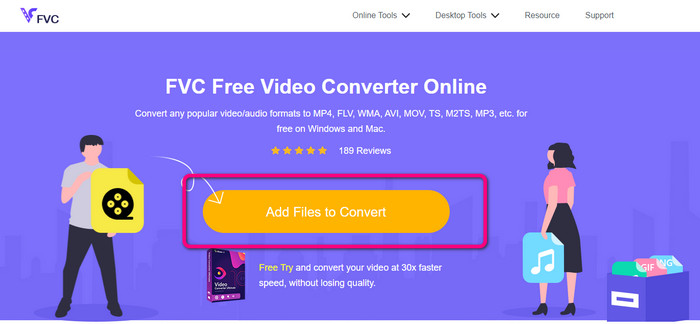
ขั้นตอนที่ 1: เปิดเบราว์เซอร์ของคุณและไปที่เว็บไซต์ FVC Free Video Converter Online กดปุ่ม Add Files to Convert เพื่ออัปโหลดวิดีโอ AMV ที่คุณต้องการแปลง.
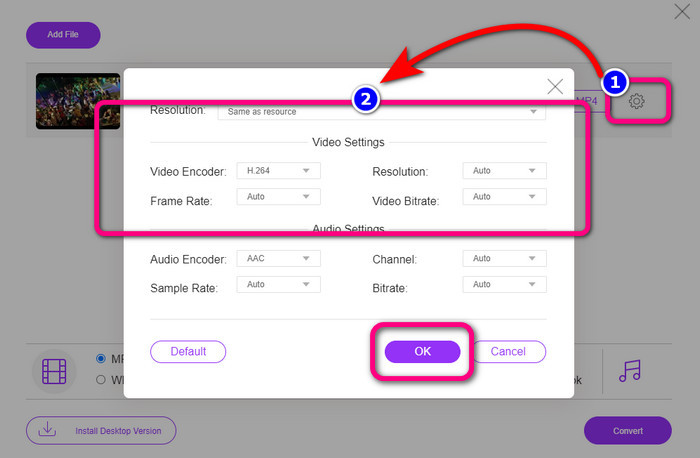
ขั้นตอนที่ 2: หลังจากเพิ่มวิดีโอ AMV แล้ว คลิกไอคอน Setting เพื่อปรับเฟรมเรต บิตเรต และความละเอียดของวิดีโอ จากนั้นกด OK.
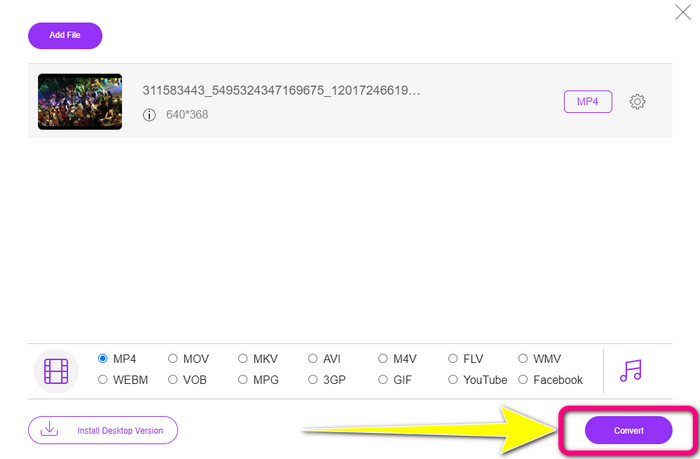
ขั้นตอนที่ 3: ไปที่ส่วนล่างของอินเทอร์เฟซและเลือกฟอร์แมตไฟล์ MP4 จากนั้นกดปุ่ม Convert คุณยังสามารถใช้เครื่องมือนี้ในการแปลง AMV เป็น MKV ได้ด้วย.
ส่วนที่ 4: คำถามที่พบบ่อยเกี่ยวกับการแปลง AMV เป็น MP4
1. AMV เหมือนกับ WMV หรือไม่
พวกเขาไม่เหมือนกัน AMV เป็นรูปแบบไฟล์วิดีโอที่เข้ากันได้กับเครื่องเล่น MP4 และ S1 MP3 เมื่อเทียบกับรูปแบบวิดีโออื่นๆ เช่น WMV จะมีขนาดน้อยกว่า ไม่ต้องใช้พลังการประมวลผลมากในการเล่น
2. AVI หรือ AMV อะไรดีกว่ากัน?
คุณสามารถใช้ไฟล์ AVI หากคุณต้องการเล่นวิดีโอได้ทุกที่ อย่างไรก็ตาม รูปแบบไฟล์ AMV เป็นตัวเลือกที่ดีหากคุณต้องการขนาดไฟล์ที่เล็กกว่า
3. ฉันจะแปลงไฟล์วิดีโอเป็น MP4 ได้อย่างไร
คุณสามารถใช้ Video Converter Ultimate รองรับรูปแบบวิดีโอเกือบทั้งหมด และคุณสามารถแปลงไฟล์วิดีโอได้เร็วขึ้น
สรุป
การแปลงไฟล์ AMV เป็น MP4 จะเป็นเรื่องง่ายหากคุณใช้คอนเวอร์เตอร์สองตัวที่กล่าวถึงข้างต้น นอกจากนี้ ทั้งผู้ใช้ระดับสูงและผู้ใช้ทั่วไปก็สามารถใช้เครื่องมือเหล่านี้ได้ เพราะต่างก็มีอินเทอร์เฟซที่ใช้งานง่ายและขั้นตอนที่ไม่ซับซ้อน ดังนั้นเริ่มใช้ Video Converter Ultimate และ FVC Free Video Converter Online ได้เลยตอนนี้!
-
 วิธีที่ประสบความสำเร็จในการแปลง DIVX เป็น MP4 ทันที
 ฉันจะแปลง DIVX เป็น MP4 ได้อย่างไร หากคุณกำลังมองหาวิธีแก้ปัญหาที่ดีที่สุด แสดงว่าคุณมาถูกทางแล้ว เราจะแสดงวิธีแปลง DIVX เป็น MP4 อย่างง่ายดาย
-
 วิธีแปลง F4V เป็น MP4 ด้วยวิธีการที่มีประสิทธิภาพสูงสุด
 วิดีโอ F4V ของคุณมีคุณภาพไม่ดีใช่หรือไม่ จากนั้นแปลงเป็นไฟล์ MP4 โพสต์นี้จะนำเสนอวิธีที่ดีที่สุดในการแปลง F4V เป็น MP4 ทั้งแบบออนไลน์และออฟไลน์
-
 ห้าแนวทางยอดนิยมในการแปลงรูปแบบ Xvid เป็น MP4
 ดูวิธีการที่น่าทึ่งเหล่านี้เกี่ยวกับวิธีแปลงรูปแบบไฟล์ Xvid เป็น MP4 ในบทความนี้ นอกจากนี้ คุณจะได้เรียนรู้แอพที่ดีที่สุดที่คุณสามารถใช้ในการแปลง
