


 Video Converter Ultimate
 บันทึกหน้าจอ
 ซ่อมวิดีโอ
 ดาวน์โหลดอย่างปลอดภัย
วิธีการแปลง Cisco WebEx ARF เป็น MP4 บน PC และ Mac ฟรี
ผมได้รับไฟล์ ARF ที่เพื่อนร่วมงานส่งมาให้ซึ่งเป็นไฟล์บันทึกการประชุมบน Mac และต้องการแปลงให้เป็น MP4 เพราะอยากเปิดดูในโทรศัพท์ Android อย่างไรก็ตาม ผมไม่เห็นวิธีการแปลงไฟล์ ARF เป็น MP4 เลย หากใครช่วยแนะนำได้จะเป็นพระคุณอย่างยิ่ง.
ไฟล์ AFR (รูปแบบการบันทึกขั้นสูง) คือไฟล์บันทึกที่สร้างโดย Cisco WebEx ไฟล์ ARF สามารถแชร์ผ่านลิงค์และเปิดได้โดยตรง หรือคุณสามารถดาวน์โหลดไฟล์ ARF ลงในคอมพิวเตอร์ของคุณและเล่นด้วย Webex Network Recording Player
ใช่คุณอาจพบบางอย่างที่ไฟล์ ARF ไม่ได้รับความนิยมเท่ากับ MP4 และไม่สามารถเปิดได้โดยไม่มีอะไรนอกจาก WebEx Player
หากต้องการเปิดไฟล์ ARF ได้อย่างสะดวก คุณต้องแปลงไฟล์ ARF เป็น MP4 ซึ่งในหน้านี้เราจะแสดงวิธีแปลงแบบฟรี 2 วิธีให้คุณทำตาม.

ส่วนที่ 1 วิธีการแปลง ARF เป็น MP4 ฟรีบนคอมพิวเตอร์ Windows
Cisco WebEx ได้แนะนำวิธีอย่างเป็นทางการในการช่วยคุณเปลี่ยน ARF เป็น MP4 ไม่จำเป็นต้องใช้อะไรนอกจากดาวน์โหลด Webex Network Recording Player
Webex Network Recording Player เป็นซอฟต์แวร์สำหรับแปลงไฟล์ ARF เป็นวิดีโอ MP4, WMV และ SWF บนคอมพิวเตอร์ Windows
ขั้นตอนโดยละเอียดมีดังนี้:
ตรวจสอบให้แน่ใจว่าคุณได้ดาวน์โหลดไฟล์บันทึก ARF จากบัญชีโฮสต์
ขั้นตอนที่ 1. เปิดโปรแกรม Network Recording Player แล้วไปที่เมนู File เลือก Open เพื่อค้นหาและเปิดไฟล์บันทึก ARF.
ขั้นตอนที่ 2. ขณะกำลังเล่นไฟล์บันทึก ARF ให้เลือกเมนู File จากนั้นเลือก Convert Format แล้วเลือก MP4 (MPEG-4).
ขั้นตอนที่ 3. ในหน้าต่าง Save as ให้ระบุโฟลเดอร์ปลายทางที่ต้องการบันทึกไฟล์ MP4 ที่แปลงแล้ว และตั้งค่าปรับคุณภาพวิดีโอ ตัวแปลงสัญญาณ (codec) เป็นต้น.
จากนั้นจะเริ่มแปลงไฟล์ ARF ทันทีหรือตามเวลาที่คุณต้องการ
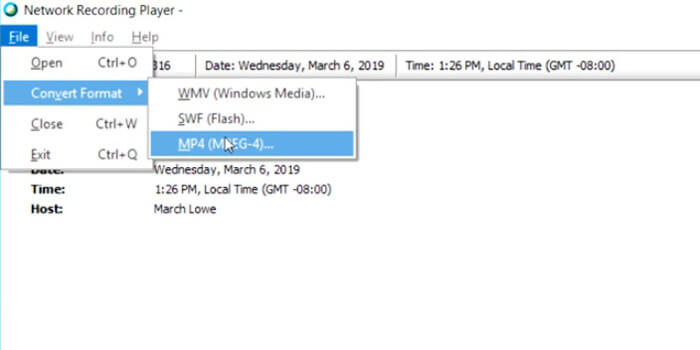
เพียงเท่านี้ คุณก็สามารถเปิดไฟล์ MP4 ด้วยโปรแกรมเล่นไฟล์ MP4 ได้อย่างง่ายดาย.
ง่ายต่อการแปลง ARF เป็น MP4 บนคอมพิวเตอร์ Windows อย่างไรก็ตามมีข้อบกพร่องบางประการที่คุณควรสังเกต:
- 1. เฉพาะโฮสต์เท่านั้นที่สามารถดาวน์โหลดไฟล์ ARF ได้ หรือผู้รับที่มีตัวเลือกผู้ดูแลระบบสามารถดาวน์โหลดไฟล์บันทึก ARF
- 2. ภารกิจการแปลงสามารถทำได้บนคอมพิวเตอร์ Windows และ Mac ไม่พร้อมใช้งาน
- 3. ผู้ใช้บางรายรายงานว่าไฟล์ MP4 ที่แปลงแล้วมีคุณภาพต่ำเมื่อเทียบกับไฟล์ ARF ดั้งเดิม
ส่วนที่ 2. วิธีการบันทึก ARF เป็น MP4 ฟรีบน Mac / PC Online
ง่ายต่อการเล่นไฟล์ ARF บน Mac แต่ไม่สามารถแปลงไฟล์ ARF ได้ ในการแปลงวิดีโอ ARF บน Mac คุณจะต้องใช้ซอฟต์แวร์ของ บริษัท อื่น ตัวแปลงวิดีโอกระแสหลักเช่น HandBrake, VLC, FFmpeg ฯลฯ ไม่รองรับการแปลง ARF ในการส่งออก ARF เป็น MP4 คุณสามารถใช้วิธีการบันทึก
Free Screen Recorder เป็นซอฟต์แวร์บันทึกหน้าจอออนไลน์บน Windows และ Mac ที่สามารถบันทึกทุกอย่างที่กำลังเล่นอยู่บนคอมพิวเตอร์ของคุณ รวมถึงวิดีโอและเสียงต่าง ๆ.
ในการบันทึกไฟล์บันทึก ARF ของคุณเป็น MP4 บน Mac หรือ WMV บน Windows คุณเพียงแค่ใช้ซอฟต์แวร์จับภาพหน้าจอฟรีเพื่อบันทึกไฟล์วิดีโอในขณะที่เล่นบน Mac
ขั้นตอนที่ 1. เข้าไปที่เว็บไซต์ free ARF recorder ออนไลน์ คลิกที่ Start Recording จากนั้นระบบจะให้คุณดาวน์โหลดตัวเรียกใช้งานโปรแกรมบันทึกหน้าจอ (launcher).
ขั้นตอนที่ 2. ในหน้าต่างตัวเรียกใช้งานหลังติดตั้งเสร็จแล้ว ให้ลากขยายกรอบบันทึกเพื่อปรับพื้นที่การบันทึกให้ครอบคลุมหน้าต่างเล่นไฟล์ ARF ทั้งหมด เปิดใช้งาน Speaker เพื่อบันทึกเสียงจากไฟล์ ARF.
อีก 2 ตัวเลือกคือ Microphone และ Camera คุณจะเลือกเปิดหรือไม่ก็ได้ตามต้องการ.
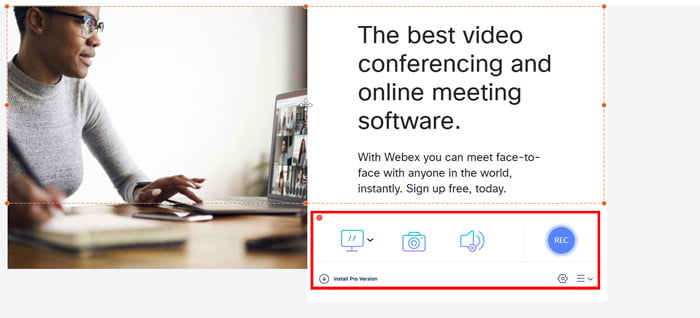
ขั้นตอนที่ 3. คลิกปุ่ม REC ขณะกำลังเล่นไฟล์ ARF ด้วยโปรแกรม Network Recording Player บน Mac เพื่อเริ่มการบันทึก.
คลิกปุ่มหยุดเพื่อบันทึกและดาวน์โหลดไฟล์ MP4 ที่บันทึกไว้
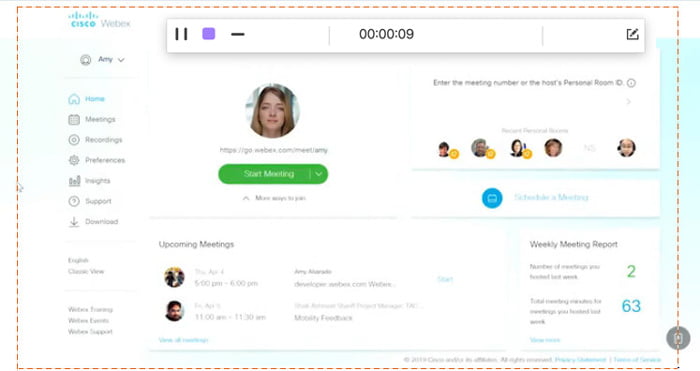
ด้วยวิธีนี้แม้ว่าคุณจะเปิดไฟล์ ARF ผ่านลิงก์แชร์คุณก็สามารถบันทึกเป็นไฟล์ MP4 ได้อย่างง่ายดาย
ส่วนที่ 3 คำถามที่พบบ่อยเกี่ยวกับการแปลง ARF เป็น MP4
การแปลง ARF เป็น MP4 ใช้เวลานานเท่าไหร่?
เวลาที่คุณแปลง ARF เป็น MP4 ขึ้นอยู่กับขนาดและความยาวของไฟล์บันทึก จากการทดสอบของเราเวลาที่คุณใช้ในการแปลง ARF เป็น MP4 บน Windows นั้นนานกว่าในการบันทึกบน Mac
ARF และ WRF แตกต่างกันอย่างไร
1. ไฟล์ WRF เป็นรูปแบบเก่ากว่า ซึ่งจัดเก็บคุณภาพเสียงและวิดีโอต่ำกว่าไฟล์ ARF
2. ไฟล์ ARF จะถูกสร้างขึ้นได้เฉพาะภายในการประชุมหรือเซสชันของ WebEx เท่านั้น ในขณะที่ WRF ถูกสร้างขึ้นนอกการประชุมโดยผู้ใช้ที่มีโปรแกรม WebEx Recorder
3. ไฟล์ ARF สามารถเปิดได้ด้วยโปรแกรม Network Recording Player ในขณะที่ไฟล์ WRF สามารถเล่นได้ผ่านโปรแกรม WebEx Player
4. ไฟล์ ARF สามารถแปลงเป็น WMV, SWF หรือ MP4 ได้ ส่วนไฟล์ WRF สามารถแปลงเป็น WMV ได้ด้วยโปรแกรมเล่นดังกล่าว.
ไฟล์ ARF คืออะไร
หากคุณได้รับอีเมลที่มีลิงก์ไปยังการบันทึก WebEx เพียงคลิกที่ลิงก์เพื่อเปิด หากคุณดาวน์โหลดไฟล์แล้วให้ใช้ Webex Player เพื่อเปิดไฟล์ ARF หรือคุณสามารถแปลง ARF เป็น MP4 เพื่อเล่นได้อย่างสะดวก
สรุป
เมื่อคุณได้รับไฟล์ ARF คุณสามารถเปิดได้โดยตรง อย่างไรก็ตามหากคุณดาวน์โหลดไฟล์ ARF การเล่นไฟล์บนเครื่องเล่นที่ไม่ใช่ WebEx จะซับซ้อนมากขึ้น หน้านี้แชร์ 2 วิธีในการแปลง ARF เป็น MP4 บนพีซีและ Mac เพื่อให้คุณสามารถใช้ไฟล์ ARF ได้ในระดับสากล
คุณพบปัญหาใด ๆ เมื่อแปลง ARF เป็น MP4 หรือไม่?
มีวิธีอื่นในการเปลี่ยน ARF เป็น MP4 หรือไม่?
แจ้งให้เราทราบโดยแสดงความคิดเห็นของคุณด้านล่าง
-
 วิธีการแปลง MP4 เป็น MPEG ฟรี
 โพสต์นี้เป็นคำแนะนำทีละขั้นตอนในการแปลง MP4 เป็น MPEG คุณสามารถใช้ตัวแปลงวิดีโอฟรี 4 อันดับแรกเพื่อเปลี่ยน MP4 เป็น MPEG-1 หรือ MPEG-2 ได้ตามที่คุณต้องการ
-
 วิธีการรวมไฟล์ MP4 หลาย ๆ ไฟล์ภายใน 3 ขั้นตอน
 ต้องการรวมไฟล์ MP4 ดิบสำหรับโครงการของคุณหรือไม่? โพสต์นี้รวบรวม 6 วิธียอดนิยมที่จะช่วยให้คุณรวมวิดีโอ MP4 บน Windows, Mac และออนไลน์ได้อย่างง่ายดาย
- วิธีแปลง WebM เป็น MP4 ฟรีใน 10 วิธียอดนิยม
จะดูไฟล์ WebM โดยไม่ใช้เว็บเบราว์เซอร์ได้อย่างไร? คุณต้องแปลง WebM เป็น MP4 นี่คือตัวแปลง WebM เป็น MP4 ฟรี 10 อันดับแรกเพื่อเปลี่ยน WebM เป็น MP4 ออนไลน์และบนคอมพิวเตอร์ Mac และ Windows
