


 Video Converter Ultimate
 บันทึกหน้าจอ
 ซ่อมวิดีโอ
 ดาวน์โหลดอย่างปลอดภัย
แปลง PPT ของคุณเป็น MP4 ด้วย 3 วิธีที่มีประสิทธิภาพ
PPT เป็นเครื่องมือที่ยอดเยี่ยมสำหรับการนำเสนอ ไม่ว่าจะเป็นที่โรงเรียน ที่ทำงาน ฯลฯ บางครั้งหลังจากการนำเสนอ บางคนอาจขอสำเนาเอกสาร PPT ไว้เป็นข้อมูลอ้างอิง
อย่างไรก็ตาม สิ่งสำคัญคือต้องทราบว่าบางคนไม่สามารถเข้าถึงไฟล์ได้เนื่องจากไม่มีแอปพลิเคชันหรือเครื่องมือซอฟต์แวร์ติดตั้งอยู่ในอุปกรณ์ของตน ด้วยเหตุนี้ ผู้นำเสนอส่วนใหญ่จึงมีไฟล์นำเสนอที่แปลงเป็น MP4 เพื่อแบ่งปันเนื้อหาให้ทุกคนได้อย่างง่ายดาย
ดังนั้น หากคุณกำลังมองหาวิธีแปลงไฟล์PPT เป็น MP4 เพื่อให้แชร์ได้อย่างรวดเร็วและเข้าถึงเนื้อหาในไฟล์ได้ง่าย คุณก็มาอยู่ในหน้าที่ถูกต้องแล้ว อ่านบทความนี้ต่อไปและเรียนรู้ให้ลึกซึ้งกับ 3 วิธีในการเปลี่ยนไฟล์ PPT ของคุณให้กลายเป็นวิดีโอ.

ส่วนที่ 1: วิธีการแปลง PowerPoint เป็น MP4 ใน PPT
ผู้ใช้สามารถแปลงไฟล์ PPT เป็น MP4 ได้อย่างง่ายดายด้วยการนำเสนอ PowerPoint ซึ่งเป็นฟีเจอร์ในตัวที่ยอดเยี่ยมเพื่อความสะดวกและความยืดหยุ่น
ขั้นตอนที่ 1 เปิดงานนำเสนอของคุณด้วยโปรแกรม PowerPoint บนอุปกรณ์ของคุณ.
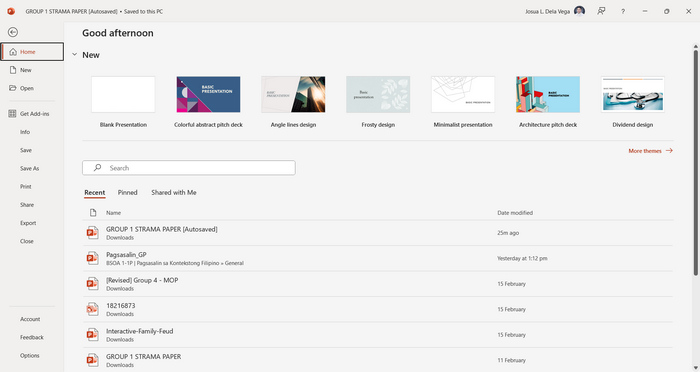
ขั้นตอนที่ 2 ไปที่แท็บ ไฟล์ (File) จากนั้นมองหาปุ่ม ส่งออก (Export) แล้วคลิก.
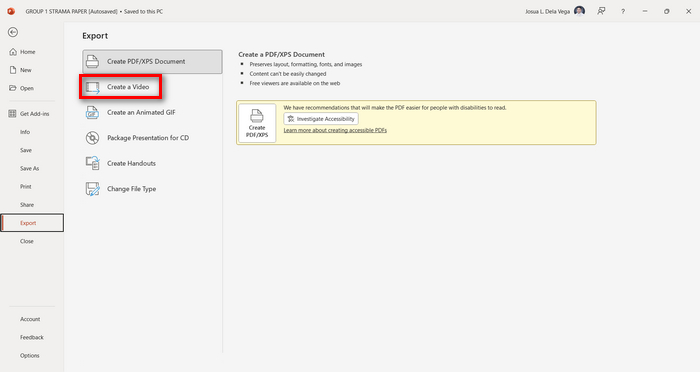
ขั้นตอนที่ 3 เมื่ออยู่ในแท็บ ส่งออก (Export) แล้ว ให้คลิกตัวเลือก สร้างวิดีโอ (Create a Video).
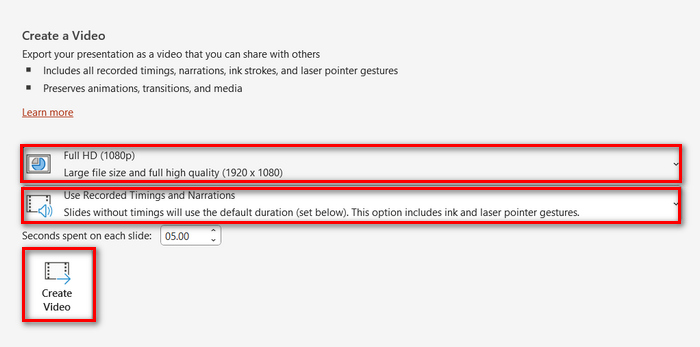
ขั้นตอนที่ 4 จากนั้นกำหนดความละเอียดวิดีโอตามที่คุณต้องการ คุณสามารถเลือกได้ตั้งแต่ 480p ไปจนถึง 4K นอกจากนี้ ในตัวเลือก ใช้เวลาและการบรรยายที่บันทึกไว้ (Use Recorded Timings and Narrations) คุณสามารถตั้งเวลาแต่ละสไลด์ได้เอง เสร็จแล้วให้คลิกปุ่ม สร้างวิดีโอ (Create Video).
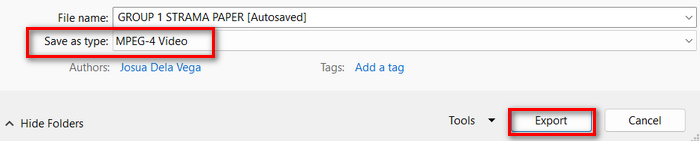
ขั้นตอนที่ 5 หลังจากคลิกปุ่ม สร้างวิดีโอ (Create a Video) จะมีหน้าต่างใหม่ปรากฏขึ้นเพื่อให้คุณตรวจสอบรูปแบบไฟล์เอาต์พุตและตำแหน่งที่จะบันทึกไฟล์ เมื่อตั้งค่าทุกอย่างเรียบร้อยแล้ว ให้คลิกปุ่ม ส่งออก (Export) และรอจนกระบวนการเสร็จสิ้น.
การใช้ฟีเจอร์ในตัวของ PowerPoint เพื่อแปลงไฟล์เป็น MP4 นั้นสะดวกจริง อย่างไรก็ตาม ฟีเจอร์นี้ยังขาดความสามารถในการปรับแต่ง หากคุณต้องการเพิ่มเพลงประกอบ แต่ถ้าเป้าหมายของคุณมีเพียงเพื่อใช้ในการแชร์ไฟล์เท่านั้น เรื่องนี้ก็ไม่ใช่ปัญหาสำหรับคุณ.
ส่วนที่ 2: แปลง PPT เป็น MP4 ด้วยเสียงออนไลน์ฟรี
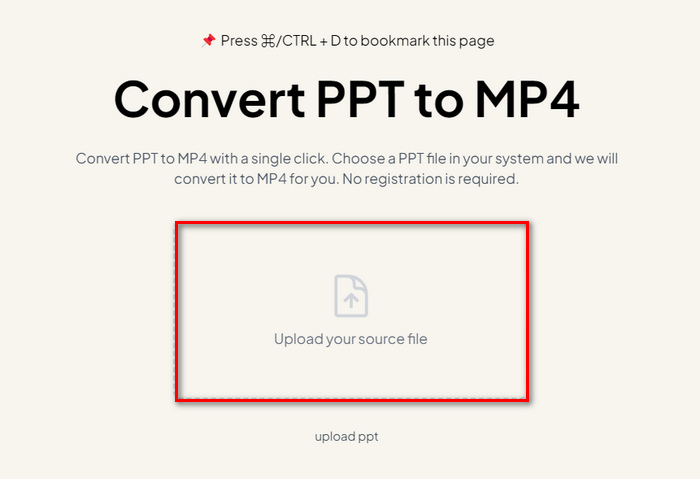
หากคุณมีไฟล์ PPT และต้องการแปลงไฟล์ออนไลน์เนื่องจากคุณไม่มีแอปหรือเครื่องมือซอฟต์แวร์นำเสนอ PowerPoint ในอุปกรณ์ของคุณ คุณสามารถใช้ MagicSlides ได้ เครื่องมือแปลงไฟล์ออนไลน์นี้ช่วยให้คุณแปลงไฟล์ PowerPoint เป็น MP4 ได้อย่างง่ายดาย เพียงแค่นำเข้าไฟล์ไปยังระบบของคุณ
ขั้นตอนที่ 1 อัปโหลดไฟล์ PPT ที่คุณต้องการแปลงเป็น MP4 โดยคลิกปุ่ม Upload your source file.
ขั้นตอนที่ 2 เมื่อไฟล์ถูกนำเข้าแล้ว ให้คลิกปุ่ม Create MP4 เพื่อเริ่มกระบวนการแปลงไฟล์.
ขั้นตอนที่ 3 เมื่อแปลงเสร็จแล้ว คุณสามารถพรีวิวไฟล์ PPT ที่ถูกแปลงก่อน และหากคุณพอใจกับผลลัพธ์แล้ว เพียงคลิกปุ่ม Download เพื่อบันทึกลงอุปกรณ์ของคุณทันที.
แม้ว่าเครื่องมือนี้จะมีขั้นตอนง่ายๆ ในการแปลง PPT เป็น MP4 แต่การนำเข้าไฟล์ PPT นั้นใช้เวลานานมาก ซึ่งอาจทำให้เกิดความกังวลได้ โดยเฉพาะเมื่อคุณเร่งรีบ นอกจากนี้ เครื่องมือนี้ยังไม่มีตัวเลือกในการปรับแต่งใดๆ ทั้งสิ้น เพียงแค่แปลงไฟล์ PPT เป็นวิดีโอเท่านั้น
ส่วนที่ 3: วิธีการแปลง PPT เป็น MP4 พร้อมเอฟเฟกต์และเสียง
หากคุณต้องการแปลง PPT เป็น MP4 แต่คราวนี้ให้มีเอฟเฟกต์และเสียงด้วย วิธีนี้เหมาะกับคุณอย่างยิ่ง ด้วยFVC Screen Recorder คุณสามารถเปลี่ยนงานนำเสนอ PowerPoint ให้กลายเป็นไฟล์ MP4 ที่สร้างสรรค์และโต้ตอบได้ ด้วยฟีเจอร์การตัดต่อของโปรแกรม อีกทั้งไม่ต้องกังวลเรื่องคุณภาพของวิดีโอ เพราะรองรับความละเอียดได้สูงสุดถึงระดับ 4K หากต้องการใช้งาน ให้ทำตามขั้นตอนด้านล่างนี้
ขั้นตอนที่ 1 ก่อนอื่น ดาวน์โหลดโปรแกรมและติดตั้งลงในคอมพิวเตอร์ของคุณ.
ดาวน์โหลดฟรีสำหรับ Windows 7 ขึ้นไปดาวน์โหลดอย่างปลอดภัย
ดาวน์โหลดฟรีสำหรับ MacOS 10.7 ขึ้นไปดาวน์โหลดอย่างปลอดภัย
ขั้นตอนที่ 2 เปิดงานนำเสนอ PowerPoint ของคุณ และตรวจสอบให้แน่ใจว่าถูกเปิดแบบเต็มจอ.
ขั้นตอนที่ 3 จากนั้น บนเครื่องมือบันทึกหน้าจอ ให้เลือกฟีเจอร์ Video Recorder และกำหนดพื้นที่บันทึกเป็นแบบ เต็มจอ (Full).
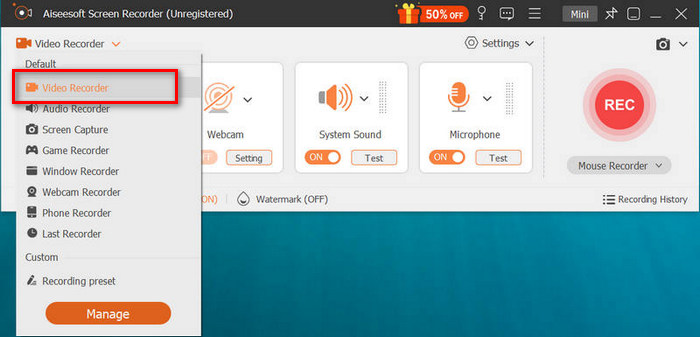
ขั้นตอนที่ 4 หลังจากนั้น ให้เริ่มเล่นสไลด์โชว์ PowerPoint พร้อมกันนี้ให้คลิกปุ่ม REC เพื่อเริ่มบันทึก PowerPoint.
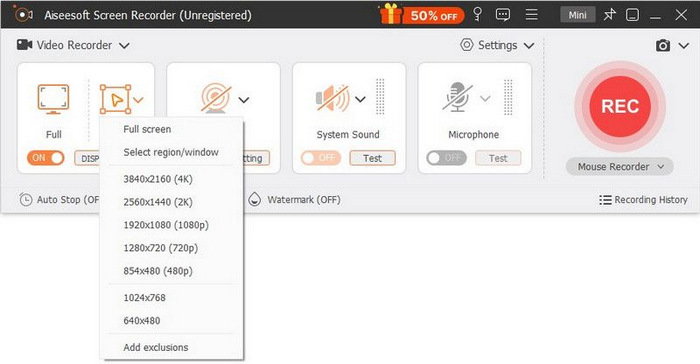
ขั้นตอนที่ 5 เมื่อเสร็จแล้ว ให้คลิกปุ่ม หยุด (Stop) ระบบจะพาคุณไปยังหน้าพรีวิว ที่ซึ่งคุณจะพบฟีเจอร์การตัดต่อที่มุมล่างของหน้าจอ เพื่อใช้ปรับแต่งเสียงและเอฟเฟกต์ในการแปลง PPT ของคุณให้เป็น MP4.

ขั้นตอนที่ 6 สุดท้าย คุณสามารถเข้าถึงไฟล์ของคุณได้โดยคลิกปุ่ม Open Folder.
ข้อดีของการใช้ FVC Screen Recorder ในการแปลง PowerPoint เป็น MP4 คือ คุณสามารถควบคุมจังหวะและจังหวะของสไลด์ได้ นอกจากนี้ ต่างจากเครื่องมืออื่นๆ ที่มีฟังก์ชันการแปลงพื้นฐาน เครื่องมือนี้มีฟีเจอร์การแก้ไขที่สามารถใช้เพื่อปรับปรุงไฟล์ MP4 ที่แปลงแล้วให้ดียิ่งขึ้น
ส่วนที่ 4: คำถามที่พบบ่อยเกี่ยวกับการแปลง PPT เป็น MP4
ใช้เวลาในการแปลง PPT เป็น MP4 นานแค่ไหน?
ระยะเวลาในการแปลงขึ้นอยู่กับขนาดไฟล์ที่ถูกแปลง แต่โดยทั่วไปแล้ว การนำเสนอแบบง่าย ๆ มักใช้เวลาไม่มากนักระหว่างการแปลง
ฉันสามารถเก็บแอนิเมชันและการเปลี่ยนภาพไว้ได้หรือไม่เมื่อแปลง PPT เป็น MP4 ใน PPT
ใช่ ฟีเจอร์ในตัวช่วยให้ผู้ใช้สามารถเก็บแอนิเมชั่นและการเปลี่ยนฉากระหว่างขั้นตอนการแปลงได้ เพื่อให้แน่ใจว่าองค์ประกอบภาพในงานนำเสนอ เช่น การเปลี่ยนฉากและแอนิเมชั่น จะยังคงอยู่ขณะที่แปลงเป็นรูปแบบ MP4 อย่างไรก็ตาม สิ่งสำคัญคือต้องทราบว่าความเข้ากันได้ของแอนิเมชั่นและการเปลี่ยนฉากอาจแตกต่างกันไป ขึ้นอยู่กับเวอร์ชันของ PowerPoint ที่ใช้และความซับซ้อนของเอฟเฟกต์ที่ใช้
คุณภาพของการนำเสนอ PowerPoint ของฉันจะยังคงอยู่หรือไม่เมื่อแปลงเป็น MP4
ใช่ การนำเสนอ PowerPoint รองรับวิดีโอความละเอียดสูงสุด 4K ดังนั้น การเลือกความละเอียดที่สูงกว่าจะช่วยรักษาคุณภาพของการนำเสนอได้ นอกจากนี้ เมื่อคุณเลือกแปลง PPT เป็น MP4 โดยใช้เครื่องมือแปลงขั้นสูงที่มีตัวเลือกสำหรับการปรับอัตราบิตและการตั้งค่าการบีบอัดเพื่อปรับคุณภาพวิดีโอให้เหมาะสมยิ่งขึ้น คุณสามารถรับประกันผลลัพธ์ที่มีคุณภาพได้
สรุป
การแปลงไฟล์ PPT เป็น MP4 ช่วยเพิ่มความสะดวกและความยืดหยุ่นในการแชร์ไฟล์ผ่านแพลตฟอร์มและอุปกรณ์ต่าง ๆ อย่างแท้จริง ตอนนี้คุณได้ทราบวิธีการแปลงแล้ว ก็ถึงเวลานำความรู้นี้ไปใช้ เริ่มแปลงไฟล์ของคุณวันนี้และเพิ่มการเข้าถึงและความน่าสนใจให้กับงานนำเสนอของคุณ!
-
 วิธีปรับขนาดรูปภาพใน PowerPoint [วิธีที่เร็วที่สุดในการเปลี่ยนขนาด]
 การเรียนรู้วิธีปรับขนาดรูปภาพใน PowerPoint เป็นสิ่งสำคัญโดยเฉพาะอย่างยิ่งหากคุณต้องการใช้ในงานนำเสนอของคุณ อ่านบทความนี้เพื่อทราบวิธีการทำ
-
 รีวิว Apowersoft Watermark Remover – คุณลักษณะ ข้อดี & ข้อเสีย และราคา
 Apowersoft Watermark Remover เป็นหนึ่งในการลบลายน้ำที่ดีที่สุดที่รองรับออนไลน์และออฟไลน์ คลิกที่นี่เพื่อทราบข้อมูลเพิ่มเติม!
-
 วิธีแก้ไขวิดีโอไม่เล่นใน PowerPoint | คู่มือฉบับย่อ
 วิดีโอ PowerPoint ของคุณไม่เล่นใช่ไหม เอาชนะความยุ่งยากที่วิดีโอฝังตัวไม่เล่นตอนนี้ด้วยโซลูชันที่ดีที่สุด 5 ประการของเราเพื่อแก้ไขปัญหาเหล่านี้ได้อย่างง่ายดาย
