


 Video Converter Ultimate
 บันทึกหน้าจอ
 ซ่อมวิดีโอ
 ดาวน์โหลดอย่างปลอดภัย
วิธีง่ายๆ ในการแปลง DV เป็น MP4 ออนไลน์และออฟไลน์
รูปแบบไฟล์ DV เคยเป็นไฟล์ที่ได้รับความนิยมมากที่สุดบนเกือบทุกกล้องวิดีโอก่อนหน้านี้ เพราะสามารถจัดเก็บวิดีโอคุณภาพเยี่ยมสำหรับการรับชมและตัดต่อได้ อย่างไรก็ตาม ไฟล์ประเภทนี้ไม่ได้ถูกใช้งานอย่างแพร่หลายในยุคปัจจุบันอีกต่อไป บางโปรแกรมไม่รองรับไฟล์ประเภทนี้ ซึ่งไม่สะดวกสำหรับผู้ใช้ที่มีไฟล์วิดีโอแบบ DV แต่หากคุณต้องการเล่นวิดีโอของคุณได้ในทุกโปรแกรม คุณจำเป็นต้องแปลงไฟล์ DV ของคุณไปเป็นรูปแบบยอดนิยมที่สุดในตอนนี้ นั่นคือรูปแบบ MP4 คุณถือว่าโชคดี เพราะบทความนี้จะแสดงวิธีที่มีประสิทธิภาพที่สุดในการแปลง DV เป็น MP4 ด้วยโปรแกรมแปลงไฟล์ที่ยอดเยี่ยม มาดูรายละเอียดในบทความนี้ไปพร้อม ๆ กันขณะคุณเรียนรู้ข้อมูลที่จำเป็นทั้งหมด.

ตอนที่ 1: ความแตกต่างระหว่าง DV และ MP4
ก่อนดำเนินการแปลงไฟล์ เรามาดูความแตกต่างระหว่างไฟล์ DV และรูปแบบ MP4 กันก่อน
| ไฟล์ | ดี.วี | MP4 |
| นามสกุลไฟล์ | .dv | .mp4 |
| ชื่อเต็ม | วิดีโอดิจิทัล | MPEG-4 |
| คำอธิบาย | ผู้ผลิตอุปกรณ์วิดีโอหลักสร้าง DV ในปี 1995 เป็นรูปแบบดิจิทัลสำหรับการบันทึกวิดีโอแม่เหล็กและวิธีการบีบอัดวิดีโอ รูปแบบ DV ใช้สัญญาณวิดีโอคอมโพเนนต์ดิจิทัล 8 บิตขนาด 720 × 576 พิกเซล ลำดับ DIF ที่มีข้อมูลวิดีโอ เสียง และรหัสย่อยจะใช้ในการถ่ายโอนข้อมูล ในพื้นที่ให้บริการจะบันทึกเวลาและวันที่ | วิดีโอ MPEG-4 และมาตรฐานเสียง AAC ร่วมกันกำหนดส่วนขยาย MP4 คอนเทนเนอร์อาจเก็บสื่อต่างๆ รวมถึงกราฟิก 2D และ 3D เสียง วิดีโอ และคำบรรยาย บน Windows แทบทุกเครื่องเล่นสามารถเล่นไฟล์ MP4 ได้ แต่สำหรับ Mac คุณต้องใช้ปลั๊กอินหรือแปลงไฟล์ MP4 เป็นรูปแบบอื่น |
| นักพัฒนา | โซนี่และพานาโซนิค | กลุ่มผู้เชี่ยวชาญด้านภาพเคลื่อนไหว |
| ประเภทไมม์ | วิดีโอ/x-dv | วิดีโอ/mp4 |
| โปรแกรมที่เกี่ยวข้อง | โปรแกรม QuickTime Player Windows Movie Maker VLC Media Player | VLC Media Player MPlayer โปรแกรม QuickTime Player Windows Media Player ภาพยนตร์และทีวีของ Microsoft |
ตอนที่ 2: วิธีที่ดีที่สุดในการแปลง DV เป็น MP4 ออนไลน์
การแปลง DV เป็น MP4 แบบออนไลน์อาจเป็นเรื่องยุ่งยาก โดยเฉพาะอย่างยิ่งเมื่อคุณไม่รู้ว่าจะใช้แอปพลิเคชันใดและไว้วางใจอะไรได้บ้าง แต่ด้วย FVC Free Video Converter Online คุณสามารถแปลงไฟล์ DV ของคุณเป็นรูปแบบ MP4 ได้อย่างรวดเร็วและทันที เครื่องมือออนไลน์นี้รองรับไฟล์วิดีโอหลากหลาย เช่น AVI, FLV, M4V, VOB, WMA, MOV, TS และอื่น ๆ อีกมากมาย นอกจากนี้ยังมีวิธีการแปลงที่เรียบง่าย ซึ่งคุณสามารถแปลงไฟล์ได้ในไม่กี่คลิก อีกทั้งหากคุณวางแผนจะแปลงไฟล์ DV หลายไฟล์ให้รวมเป็นไฟล์ MP4 เพียงไฟล์เดียว คุณก็สามารถใช้ตัวแปลงนี้ได้ เพราะมีฟังก์ชันการแปลงแบบกลุ่ม (batch) ให้ใช้งาน นอกจากนี้ยังสามารถใช้เครื่องมือนี้ได้กับทุกเบราว์เซอร์ เช่น Google Chrome, Mozilla Firefox, Safari, Microsoft Edge และอื่น ๆ ทำให้สะดวกต่อผู้ใช้ทุกคน ด้วยคุณสมบัติทั้งหมดนี้ คุณจึงกล่าวได้ว่าโปรแกรมแปลงไฟล์ออนไลน์นี้เป็นหนึ่งในแอปพลิเคชันที่ยอดเยี่ยมที่สุดที่คุณสามารถใช้งานได้ ทำตามคำแนะนำง่าย ๆ ด้านล่างเพื่อเรียนรู้วิธีแปลงไฟล์ DV เป็น MP4 โดยใช้ FVC Free Video Converter Online.
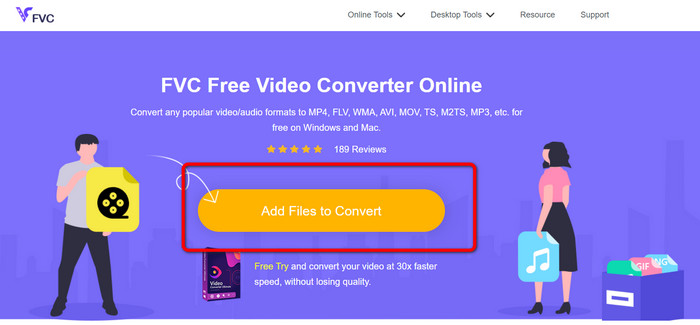
ขั้นตอนที่ 1: ก่อนอื่น เปิดเบราว์เซอร์ของคุณและไปที่เว็บไซต์ FVC Free Video Converter Online จากนั้นที่บริเวณกึ่งกลางหน้าหลัก ให้คลิกปุ่ม Add Files to Convert เพื่ออัปโหลดไฟล์วิดีโอ DV ของคุณ.
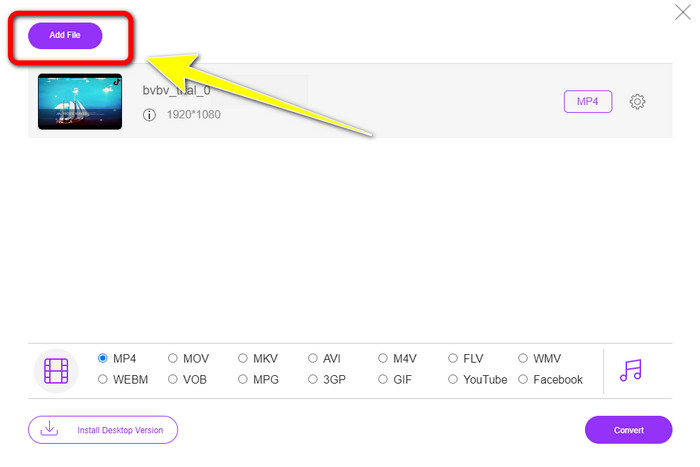
ขั้นตอนที่ 2: หากคุณต้องการแปลงไฟล์ DV หลายไฟล์ให้รวมเป็นไฟล์ MP4 ไฟล์เดียว ให้คลิกปุ่ม Add File ที่มุมซ้ายบนของอินเทอร์เฟซเพื่อเพิ่มไฟล์อื่น ๆ.
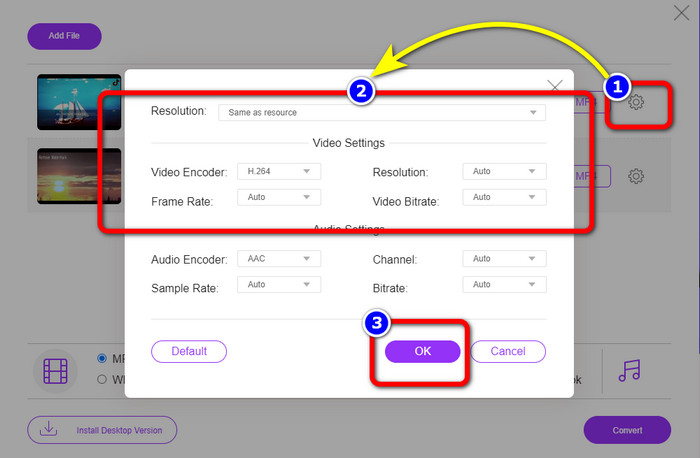
ขั้นตอนที่ 3: คลิกไอคอน Setting เพื่อปรับบิตเรต อัตราเฟรม และความละเอียดของวิดีโอ จากนั้นเมื่อคุณปรับเปลี่ยนตามที่ต้องการเรียบร้อยแล้ว ให้คลิก OK.
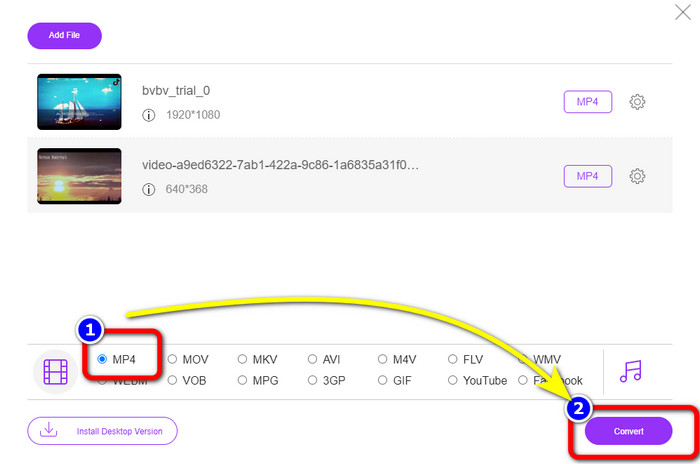
ขั้นตอนที่ 4: หลังจากตั้งค่าทุกอย่างเสร็จแล้ว ให้ไปที่ส่วนล่างของอินเทอร์เฟซเพื่อดูตัวเลือกฟอร์แมต เลือกรูปแบบ MP4 แล้วกด Convert เพื่อเริ่มกระบวนการแปลงไฟล์.
ตอนที่ 3: วิธีแปลง DV เป็น MP4 โดยไม่สูญเสียข้อมูล
สำหรับโปรแกรมแปลงไฟล์แบบออฟไลน์ คุณสามารถใช้ Video Converter Ultimate เพื่อแปลง DV เป็น MP4 บน Mac และ Windows ได้โดยไม่สูญเสียคุณภาพ คุณสามารถแปลงไฟล์วิดีโอต่าง ๆ ได้โดยไม่ลดทอนความคมชัด อีกทั้งด้วยโปรแกรมนี้ คุณยังสามารถแปลงไฟล์หลายไฟล์พร้อมกันได้ เพราะรองรับการแปลงแบบกลุ่ม (batch) โปรแกรมออฟไลน์นี้ยังรองรับรูปแบบวิดีโอจำนวนมาก เช่น MOV, AVI, FLV, M4V, SWF, MTS, MKV, WMV, VOB และอื่น ๆ กว่า 100 รูปแบบ นอกจากนี้ Video Converter Ultimate ยังมีความเร็วการแปลงระดับสูงสุดถึง 30 เท่าเร็วกว่าค่าเฉลี่ย ทำให้สะดวกต่อผู้ใช้ทุกคนมากยิ่งขึ้น ยิ่งไปกว่านั้น ผู้ใช้ทุกคนต่างก็ชอบวิธีการแปลงไฟล์ที่ใช้งานง่าย โปรแกรมนี้จึงมาพร้อมอินเทอร์เฟซที่เรียบง่ายและขั้นตอนการแปลงวิดีโอที่ไม่ซับซ้อน คุณยังสามารถตัดต่อวิดีโอของคุณไปพร้อมกับการแปลงได้ เพราะมีเครื่องมือตัดต่อให้ใช้งาน หากคุณต้องการแปลง mini DV เป็นรูปแบบไฟล์ MP4 ให้ดูคู่มือแบบละเอียดด้านล่างนี้โดยใช้ Video Converter Ultimate.
ขั้นตอนที่ 1: ดาวน์โหลดและติดตั้ง Video Converter Ultimate บน Mac หรือ Windows ของคุณโดยคลิกปุ่ม Download จากนั้นเปิดโปรแกรมหลังการติดตั้ง.
ดาวน์โหลดฟรีสำหรับ Windows 7 หรือใหม่กว่าดาวน์โหลดอย่างปลอดภัย
ดาวน์โหลดฟรีสำหรับ MacOS 10.7 หรือใหม่กว่าดาวน์โหลดอย่างปลอดภัย
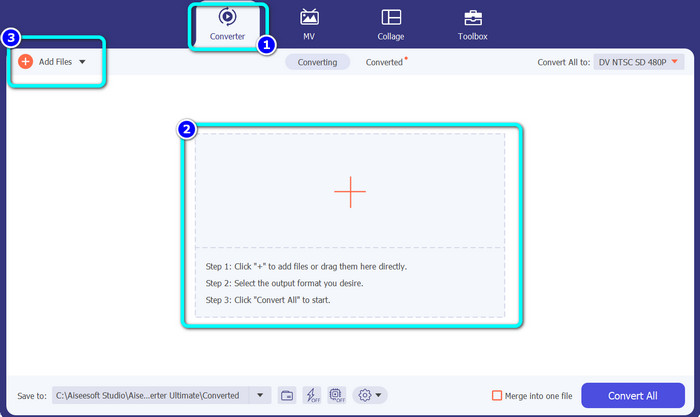
ขั้นตอนที่ 2: กดแถบ Converter แล้วเลือกสัญลักษณ์ Plus เพื่อแนบไฟล์ DV คุณยังสามารถคลิกปุ่ม Add Files หรือวางไฟล์ลงไปในช่องโดยตรงได้เช่นกัน.
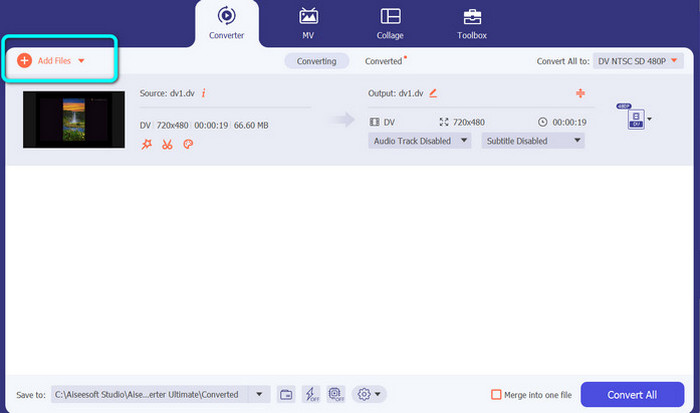
ขั้นตอนที่ 3: หากคุณต้องการทำการแปลงแบบกลุ่ม ให้คลิกปุ่ม Add Files เพื่อเพิ่มไฟล์วิดีโอ DV ให้มากขึ้น.
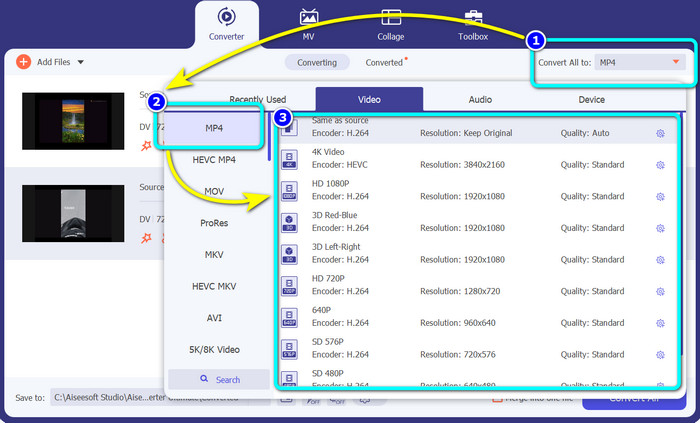
ขั้นตอนที่ 4: หลังจากเพิ่มไฟล์ DV อื่น ๆ แล้ว ให้เปลี่ยนรูปแบบเอาต์พุตของไฟล์เหล่านั้นโดยคลิกปุ่ม Convert All to จากนั้นจะมีตัวเลือกฟอร์แมตแสดงขึ้นมา ให้เลือกฟอร์แมต MP4 แล้วเลือกระดับความละเอียดที่คุณต้องการ.
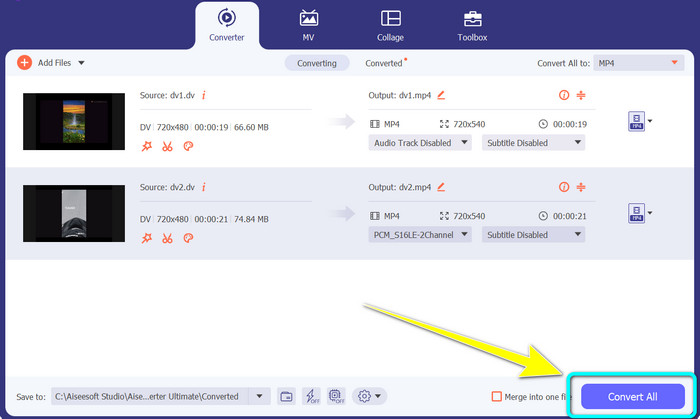
ขั้นตอนที่ 5: สำหรับขั้นตอนสุดท้าย ให้เริ่มกระบวนการแปลงโดยคลิกปุ่ม Convert All จากนั้นบันทึกไฟล์วิดีโอของคุณไปยังตำแหน่งจัดเก็บที่ต้องการ.
ตอนที่ 4: วิธีง่ายๆ ในการแปลง DV เป็น MP4 โดยใช้ฟรีแวร์
ในส่วนนี้ คุณจะได้เรียนรู้วิธีการแปลง DV เป็น MP4 โดยใช้เบรกมือ เครื่องมือออฟไลน์นี้ยังสามารถแปลงไฟล์วิดีโอ เช่น MP4, MKV, WEBM เป็นต้น นอกจากนี้ยังมีกระบวนการแปลงเป็นชุด อย่างไรก็ตาม การใช้เครื่องมือนี้ไม่ใช่เรื่องง่าย มีตัวเลือกมากมายบนอินเทอร์เฟซซึ่งเข้าใจยาก โดยเฉพาะสำหรับผู้เริ่มต้น ทำตามขั้นตอนด้านล่างเพื่อแปลง DV เป็น MP4
ขั้นตอนที่ 1: ดาวน์โหลดโปรแกรม Handbrake ลงในคอมพิวเตอร์ของคุณ จากนั้นเปิดโปรแกรม.
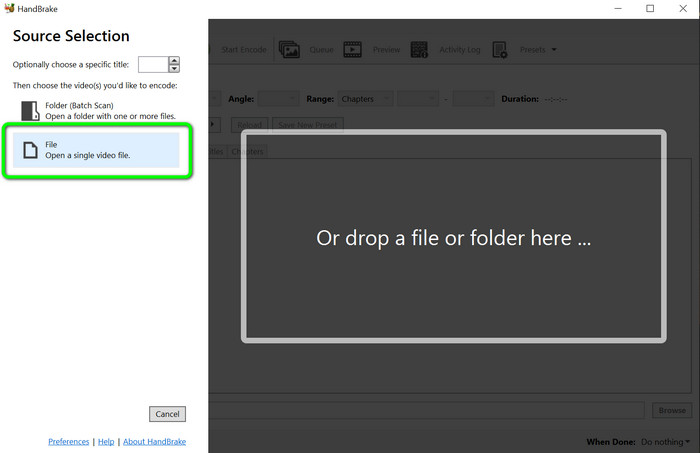
ขั้นตอนที่ 2: หลังจากเปิดโปรแกรมแล้ว ให้เลือกปุ่ม File เพื่อเพิ่มไฟล์ DV.
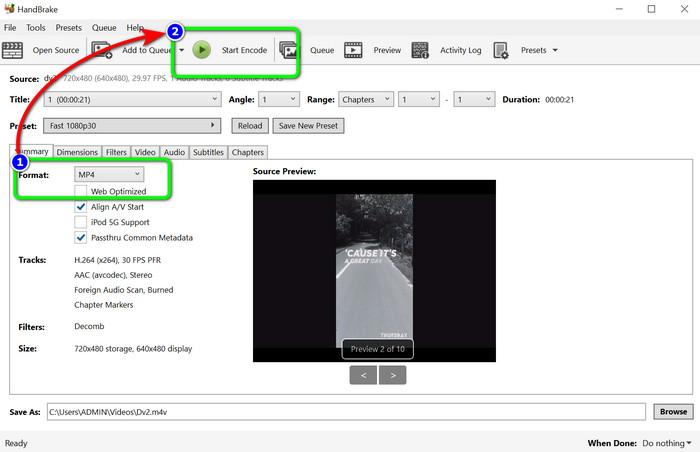
ขั้นตอนที่ 3: จากตัวเลือกฟอร์แมต ให้เลือกรูปแบบไฟล์ MP4 จากนั้นคลิกปุ่ม Start Encode เพื่อเริ่มกระบวนการแปลงไฟล์.
อ่านเพิ่มเติม:
2 วิธีอันดับต้น ๆ ในการแปลงไฟล์ DV เป็น MOV ฟรี ทั้งบนเดสก์ท็อปและออนไลน์
ตัวแปลง DV เป็น FLV ที่มีประโยชน์สำหรับแปลง DV เป็น FLV [2023]
ส่วนที่ 5: คำถามที่พบบ่อยเกี่ยวกับการแปลง DV เป็น MP4
1. VLC สามารถเล่นไฟล์ DV ได้หรือไม่?
ใช่! VLC Media Player รองรับรูปแบบไฟล์ DV คุณจึงสามารถเล่นวิดีโอของคุณในโปรแกรมนี้ได้
2. ซอฟต์แวร์ออนไลน์ใดดีที่สุดสำหรับการแปลงวิดีโอ
คุณสามารถใช้ FVC Free Video Converter Online เครื่องมือออนไลน์นี้สามารถแปลงวิดีโอของคุณได้อย่างง่ายดาย คุณยังสามารถแปลงแบบกลุ่ม และปรับบิตเรต อัตราเฟรม และความละเอียดของวิดีโอได้.
3. ความละเอียดมาตรฐานของไฟล์ DV คืออะไร?
ความละเอียดมาตรฐานของไฟล์ DV คือ 720 พิกเซลในแนวนอนและ 480 เส้นที่สอดประสานกัน มาตรฐานความละเอียดสูงของ DV คือ 720 และ 1080 บรรทัด
สรุป
จากที่แสดงไว้ข้างต้น นี่คือวิธีที่ยอดเยี่ยมที่สุดในการแปลง DV เป็น MP4 ทั้งแบบออนไลน์และออฟไลน์ คุณสามารถใช้ FVC Free Video Converter Online เพื่อแปลงไฟล์แบบออนไลน์ และใช้ Video Converter Ultimate เพื่อแปลงไฟล์แบบออฟไลน์ได้เร็วขึ้น.
-
 วิธีที่ดีที่สุดและฟรีในการแปลง DV เป็น WMV [ออนไลน์และออฟไลน์]
 ค้นหาวิธีที่ดีที่สุดในการแปลง DV เป็น WMV โดยไม่ยุ่งยาก ต้องการทราบข้อมูลเพิ่มเติม? จากนั้นอ่านบทความนี้เพื่อเรียนรู้เพิ่มเติมเกี่ยวกับ DV และ WMV
-
 วิธีแปลง F4V เป็น MP4 ด้วยวิธีการที่มีประสิทธิภาพสูงสุด
 วิดีโอ F4V ของคุณมีคุณภาพไม่ดีใช่หรือไม่ จากนั้นแปลงเป็นไฟล์ MP4 โพสต์นี้จะนำเสนอวิธีที่ดีที่สุดในการแปลง F4V เป็น MP4 ทั้งแบบออนไลน์และออฟไลน์
-
 ห้าแนวทางยอดนิยมในการแปลงรูปแบบ Xvid เป็น MP4
 ดูวิธีการที่น่าทึ่งเหล่านี้เกี่ยวกับวิธีแปลงรูปแบบไฟล์ Xvid เป็น MP4 ในบทความนี้ นอกจากนี้ คุณจะได้เรียนรู้แอพที่ดีที่สุดที่คุณสามารถใช้ในการแปลง
