


 Video Converter Ultimate
 บันทึกหน้าจอ
 ซ่อมวิดีโอ
 ดาวน์โหลดอย่างปลอดภัย
วิธีแปลง F4V เป็น MP4 อย่างง่ายดายโดยใช้เครื่องมือออฟไลน์และออนไลน์
รูปแบบไฟล์ FLV เป็นหนึ่งในรูปแบบมาตรฐานที่ใช้โดย Adobe Flash แต่ถ้าคุณต้องการเล่นวิดีโอให้มีคุณภาพสูงขึ้น คุณจำเป็นต้องแปลงไฟล์ F4V ของคุณไปเป็นรูปแบบอื่น เช่น MP4 ซึ่งสามารถเล่นไฟล์ MP4 ได้เกือบทุกอุปกรณ์ เช่น iPhone, iPad, Android และคอมพิวเตอร์ ดังนั้น หากคุณต้องการชมวิดีโอคุณภาพสูง เราจะแนะนำวิธีที่มีประสิทธิภาพที่สุดในการแปลง F4V เป็น MP4 โดยใช้ทั้งเครื่องมือออฟไลน์และออนไลน์.

ตอนที่ 1: วิธีพื้นฐานในการแปลง F4V เป็น MP4 บน Mac และ Windows
หากคุณเป็นผู้ใช้ Mac และชื่นชอบการแปลงไฟล์วิดีโอ คุณสามารถใช้ Video Converter Ultimate ได้ เครื่องมือแปลงแบบออฟไลน์ตัวนี้โดดเด่นมากในการแปลงไฟล์ F4V เป็น MP4 บน Mac และ Windows จึงสะดวกสำหรับผู้ใช้ทุกคน นอกจากนี้ยังสามารถแปลงไฟล์วิดีโอได้เกือบทุกประเภท เพราะรองรับ AVI, MP4, MOV, FLV, VOB, MTS, SWF, MKV, WMV และอื่น ๆ อีกมากมาย การแปลงไฟล์ F4V ในโปรแกรมนี้ก็ทำได้ง่าย เพราะมีอินเทอร์เฟซที่เข้าใจง่าย พร้อมวิธีการแปลงพื้นฐาน ทำให้มั่นใจได้ว่าเหมาะสำหรับผู้เริ่มต้นใช้งาน อีกทั้งในด้านความเร็วในการแปลง คุณจะไม่ผิดหวังเลย Video Converter Ultimate มีขั้นตอนการแปลงความเร็วสูงถึง 30 เท่าเมื่อเทียบกับโปรแกรมแปลงอื่น ๆ คุณยังสามารถแปลงไฟล์วิดีโอหลายไฟล์พร้อมกันได้ เพราะรองรับการแปลงแบบกลุ่ม นอกจากนี้คุณยังทำอะไรได้มากกว่าการแปลงวิดีโอในโปรแกรมนี้ คุณยังสามารถสร้างมิวสิกวิดีโอจากเครื่องมือนี้ได้หากต้องการ โปรแกรมนี้มีฟังก์ชันสร้างมิวสิกวิดีโอและมีธีมให้เลือกหลากหลาย เช่น เรียบง่าย มีความสุข คืนหิมะตก เรียบร้อย และอื่น ๆ อีกมากมาย นอกจากนี้ โปรแกรมแปลงวิดีโอตัวนี้ยังมีฟีเจอร์สร้างคอลลาจ ที่ช่วยให้คุณทำคอลลาจวิดีโอด้วยเทมเพลตและฟิลเตอร์หลายแบบ คุณจะได้สัมผัสฟีเจอร์ดี ๆ อีกมากมายเมื่อใช้ FVC Video Converter Ultimate.
คุณสมบัติเด่น
◆ แปลงรูปแบบไฟล์วิดีโอมากกว่า 100 รูปแบบ เช่น MP4, F4V, MOV, AVI, MKV, WMV, VOB เป็นต้น
◆ สร้างภาพตัดปะด้วยเทมเพลตและฟิลเตอร์ฟรี
◆ สร้างมิวสิกวิดีโอที่ยอดเยี่ยมด้วยธีมที่หลากหลาย
◆ บีบอัดวิดีโอให้ได้ขนาดไฟล์ที่ต้องการ
◆ ปรับความเร็วของวิดีโอจาก 0.125x ถึง 8x เร็วกว่าความเร็วเฉลี่ยของวิดีโอ
◆ เพิ่มและลบลายน้ำออกจากวิดีโอ
◆ แปลงรูปแบบไฟล์รูปภาพ เช่น BMP, PNG, JPG, TIF เป็นต้น
ทำตามวิธีการง่ายๆ ด้านล่างเพื่อแปลง F4V เป็น MP4 อย่างรวดเร็วโดยใช้ FVC Video Converter Ultimate
ขั้นตอนที่ 1: ดาวน์โหลด Video Converter Ultimate ลงบนเดสก์ท็อปของคุณโดยคลิกปุ่ม ดาวน์โหลด ด้านล่าง จากนั้นดำเนินการติดตั้งและเปิดโปรแกรม.
ดาวน์โหลดฟรีสำหรับ Windows 7 หรือใหม่กว่าดาวน์โหลดอย่างปลอดภัย
ดาวน์โหลดฟรีสำหรับ MacOS 10.7 หรือใหม่กว่าดาวน์โหลดอย่างปลอดภัย
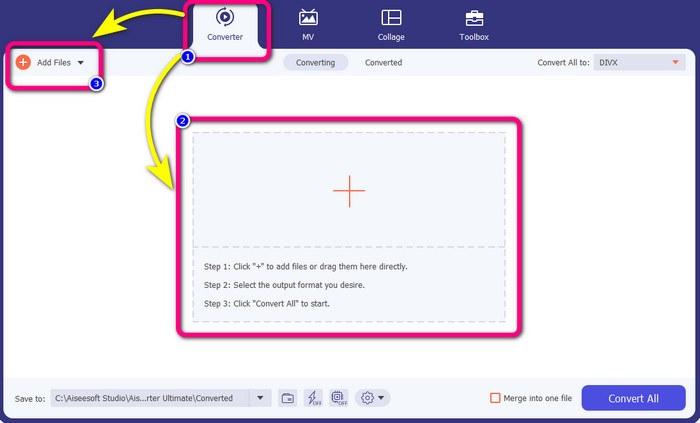
ขั้นตอนที่ 2: เพื่อแปลงวิดีโอ F4V ของคุณ ให้ไปที่เมนู Converter แล้วเลือกไอคอน เครื่องหมายบวก หรือปุ่ม Add File เพื่อใส่วิดีโอรูปแบบไฟล์ F4V ของคุณ.
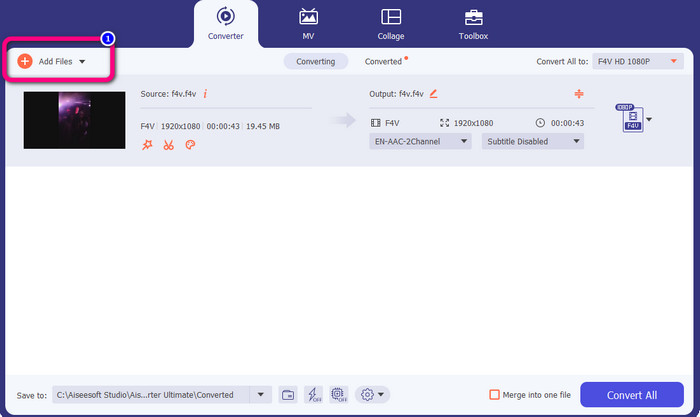
ขั้นตอนที่ 3: หากคุณต้องการแปลงไฟล์ F4V หลายไฟล์พร้อมกัน ให้กดปุ่ม Add Files แล้วเพิ่มไฟล์ F4V อื่นเข้าไป.
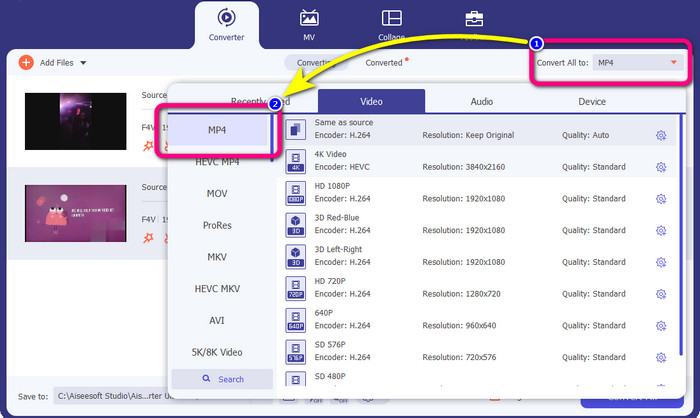
ขั้นตอนที่ 4: ไปที่ปุ่ม Convert All to เพื่อเปลี่ยนรูปแบบไฟล์ปลายทาง จากนั้นคุณจะเห็นตัวเลือกรูปแบบไฟล์ ให้เลือกเป็น MP4 นอกจากนี้คุณยังสามารถเลือกระดับคุณภาพวิดีโอที่ต้องการได้.
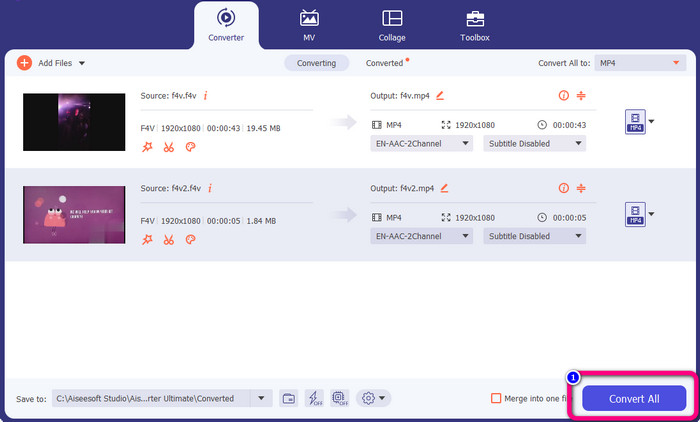
ขั้นตอนที่ 5: เมื่อเปลี่ยนรูปแบบไฟล์ปลายทางเรียบร้อยแล้ว คุณสามารถเริ่มแปลงไฟล์ได้โดยคลิกปุ่ม Convert All กระบวนการแปลงจะเริ่มต้นขึ้น และวิดีโอ F4V ของคุณจะถูกแปลงเป็นไฟล์ MP4 ภายในไม่กี่วินาที.
ตอนที่ 2: ขั้นตอนง่ายๆ ในการแปลง F4V เป็น MP4 โดยใช้ VLC
ในส่วนนี้ คุณจะได้เรียนรู้วิธีการแปลงไฟล์ F4V เป็น MP4 โดยใช้ VLC Media Player ใช่! คุณอ่านไม่ผิด! นอกเหนือจากการเล่นวิดีโอแล้ว VLC ยังเป็นอีกเครื่องมือหนึ่งที่คุณสามารถใช้เพื่อแปลงไฟล์ นอกจากนี้ยังรองรับรูปแบบไฟล์ต่างๆ เช่น MP4, WEBM, OGG, TS, ASF และอื่นๆ อย่างไรก็ตาม คุณจำเป็นต้องรู้เพียงพอเกี่ยวกับเครื่องมือนี้ เนื่องจากมีส่วนต่อประสานที่สับสน ดูบทแนะนำหรือถามผู้ใช้ขั้นสูงเพื่อรับแนวคิดเกี่ยวกับการแปลงไฟล์โดยใช้ VLC นอกจากนี้ การดาวน์โหลดตัวแปลงนี้ใช้เวลานาน ทำตามขั้นตอนด้านล่างเพื่อแปลง F4V เป็น MP4 โดยใช้ VLC Media Player
ขั้นตอนที่ 1: ดาวน์โหลด VLC Media Player ลงบนคอมพิวเตอร์ของคุณ เปิดโปรแกรมหลังจากติดตั้งเสร็จ.
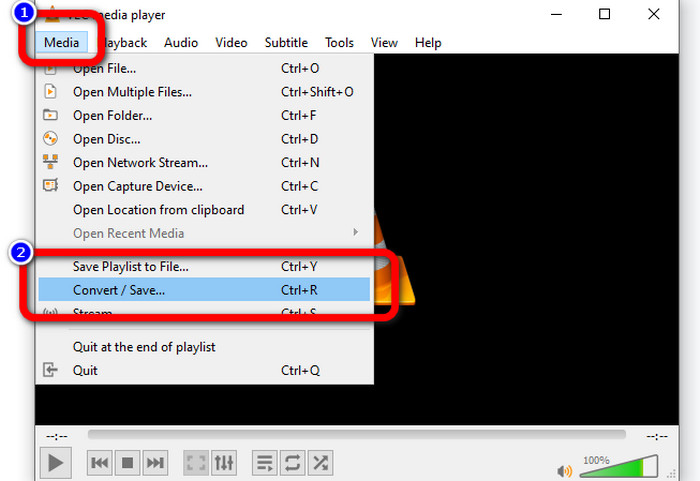
ขั้นตอนที่ 2: ไปที่เมนู Media > Convert/Save จากนั้นคลิกปุ่ม Add เพื่อเพิ่มวิดีโอ F4V ของคุณ.
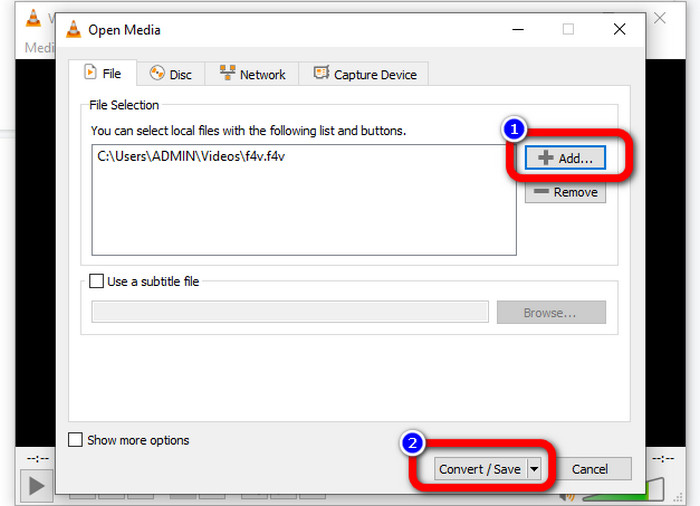
ขั้นตอนที่ 3: หลังจากเพิ่มวิดีโอ F4V แล้ว ให้คลิกปุ่ม Convert/Save ที่ด้านล่างของอินเทอร์เฟซอีกครั้ง.
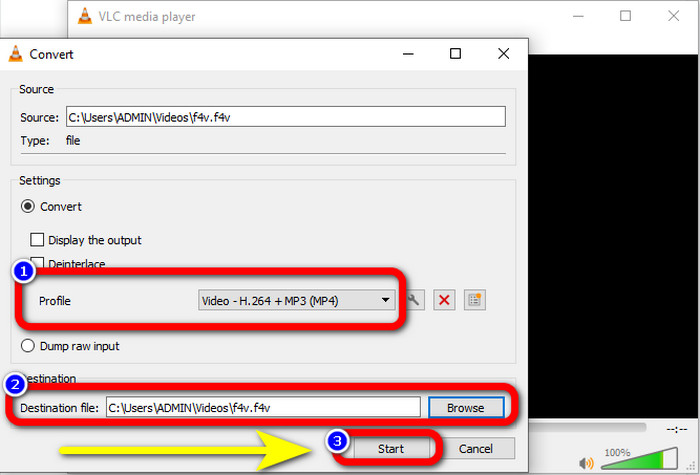
ขั้นตอนที่ 4: ไปที่เมนูโปรไฟล์แล้วเลือกรูปแบบไฟล์ MP4 จากนั้นไปที่ Browse เพื่อกำหนดตำแหน่งไฟล์ที่คุณต้องการบันทึกวิดีโอของคุณ กดปุ่ม Start เพื่อดำเนินการแปลงไฟล์.
ตอนที่ 3: วิธีง่ายๆ ในการแปลงไฟล์ F4V เป็น MP4 โดยใช้เบรกมือ
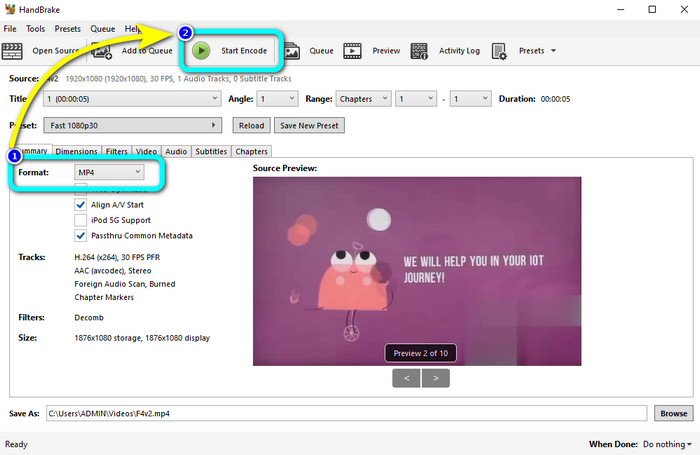
หากคุณยังมองหาตัวแปลง F4V เป็น MP4 สำหรับ Windows อยู่ คุณสามารถใช้ Handbrake ได้ นี่เป็นเครื่องมือออฟไลน์ที่รองรับรูปแบบวิดีโอหลายประเภท เช่น MP4, MKV, WEBM และอื่น ๆ อย่างไรก็ตาม เครื่องมือนี้ใช้งานค่อนข้างยากเพราะมีตัวเลือกจำนวนมากที่อาจทำให้สับสน ใช้ขั้นตอนด้านล่างเพื่อแปลงไฟล์ F4V ของคุณเป็นรูปแบบ MP4.
ขั้นตอนที่ 1: ดาวน์โหลด Handbrake ลงบนคอมพิวเตอร์ Windows ของคุณ จากนั้นเปิดโปรแกรมเมื่อคุณติดตั้งเสร็จ.
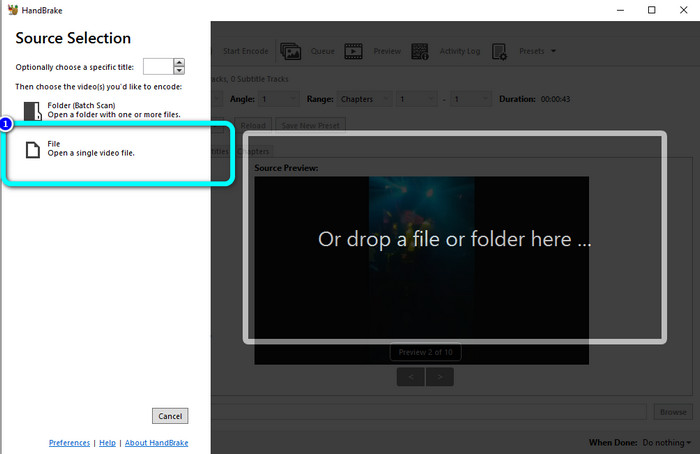
ขั้นตอนที่ 2: คลิกปุ่ม File เพื่อเพิ่มไฟล์ F4V ของคุณ.
ขั้นตอนที่ 3: ไปที่ตัวเลือกรูปแบบไฟล์แล้วเลือก MP4 จากนั้นกดปุ่ม Start Encode รอจนกระบวนการแปลงเสร็จสิ้นแล้วบันทึกวิดีโอที่แปลงแล้วของคุณ.
ตอนที่ 4: ขั้นตอนโดยละเอียดในการแปลง F4V เป็น MP4 ออนไลน์ฟรี
คุณต้องการใช้แอปออนไลน์เพื่อแปลง F4V เป็น MP4 ฟรีหรือไม่ ใช้ FVC Free Video Converter Online ได้เลย คุณสามารถแปลงไฟล์ F4V ได้โดยไม่ต้องเสียค่าใช้จ่ายแม้แต่บาทเดียว นอกจากนี้ ตัวแปลงนี้ยังมีอินเทอร์เฟซที่ใช้งานง่าย เหมาะสำหรับผู้ใช้ที่ไม่ใช่มืออาชีพ รองรับรูปแบบวิดีโอหลากหลาย เช่น FLV, WMA, MOV, AVI, WMV และอื่น ๆ จุดเด่นคือคุณสามารถแปลงไฟล์วิดีโอได้โดยไม่สูญเสียคุณภาพ ทำตามขั้นตอนอย่างละเอียดด้านล่างเพื่อแปลง F4V เป็น MP4 ได้อย่างง่ายดาย.
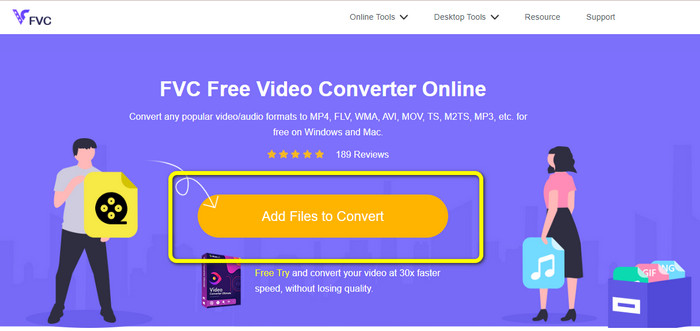
ขั้นตอนที่ 1: เข้าไปที่เว็บไซต์ FVC Free Video Converter Online กดปุ่ม Add Files to Convert เพื่ออัปโหลดไฟล์วิดีโอ F4V ของคุณ.
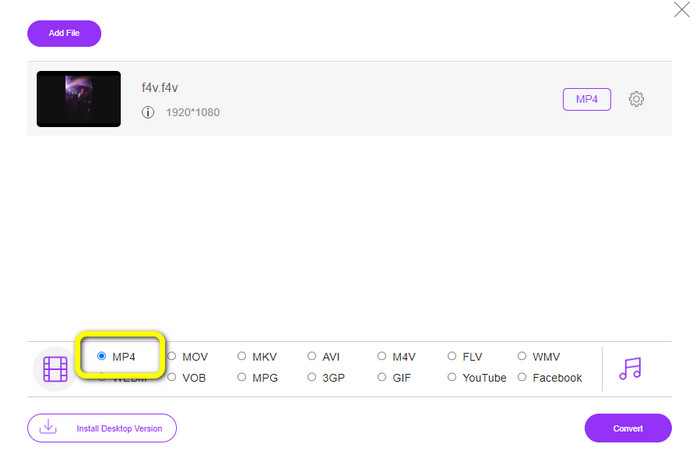
ขั้นตอนที่ 2: หลังจากอัปโหลดวิดีโอแล้ว ให้ไปที่ด้านล่างของอินเทอร์เฟซแล้วคลิกรูปแบบไฟล์ MP4
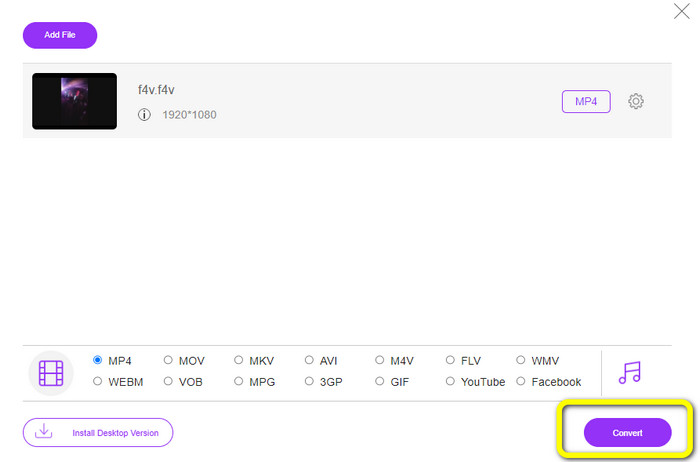
ขั้นตอนที่ 3: สุดท้ายให้กดปุ่ม Convert รอจนกระบวนการแปลงเสร็จแล้วบันทึกไฟล์ของคุณในตำแหน่งที่คุณต้องการ
ตอนที่ 5: F4V กับ MP4
ดูข้อมูลเพิ่มเติมด้านล่างเกี่ยวกับรูปแบบไฟล์ทั้งสองนี้
| F4V | MP4 | |
| นามสกุลไฟล์ | .f4v | .mp4 |
| พัฒนาโดย | แอปเปิ้ล | การย้ายกลุ่มผู้เชี่ยวชาญด้านรูปภาพ |
| คำอธิบาย | นี่คือรูปแบบไฟล์แฟลชดั้งเดิม นอกจากนี้ยังอิงตามรูปแบบไฟล์มีเดียฐาน ISO ที่รองรับแฟลชเพลเยอร์ 9 นอกจากนี้ ไฟล์ F4V ไม่สามารถเล่นบนอุปกรณ์ iOS ได้ แต่บนเบราว์เซอร์ที่รองรับแฟลช คุณสามารถเล่นได้ | นี่คือไฟล์มัลติมีเดีย คอนเทนเนอร์สามารถเก็บข้อมูลคำบรรยาย เสียง และวิดีโอ เช่นเดียวกับรูปแบบคอนเทนเนอร์อื่น ๆ MP4 อนุญาตให้สตรีมบนอินเทอร์เน็ต |
| โปรแกรมที่เกี่ยวข้อง | เครื่องเล่นสื่อ XVLC วิดีโอแลน Windows Media Player เอฟเอฟดีโชว์ ไมโครซอฟท์ วินโดวส์ โปรแกรมดูรูปภาพ | โปรแกรมเล่น Apple QuickTime วิดีโอแลน VLC Media Player แอปเปิ้ลไอทูนส์ ไมโครซอฟต์ วินโดวส์ มีเดีย เพลเยอร์ |
อ่านเพิ่มเติม:
ตัวเลือกตัวแปลงยอดนิยม 2 ตัวสำหรับแปลง F4V เป็น WMV [2023]
2 วิธีที่รวดเร็วที่สุดในการแปลง F4V เป็น FLV [ออนไลน์ & ออฟไลน์]
ตอนที่ 6: คำถามที่พบบ่อยเกี่ยวกับการแปลง F4V เป็น MP4
1. ฉันสามารถแปลงไฟล์ MP4 เป็น F4V ได้หรือไม่?
ใช่คุณสามารถ! คุณสามารถใช้ Video Converter Ultimate แอปพลิเคชั่นนี้สามารถแปลงไฟล์ MP4 ของคุณเป็นรูปแบบ F4V ได้ทันที
2. F4V ถึง FLV ต่างกันอย่างไร
ความแตกต่างที่สำคัญระหว่างรูปแบบทั้งสองนี้คือ F4V รองรับวิดีโอคุณภาพสูงที่เข้ารหัสด้วย H.264 แต่โดยทั่วไปรูปแบบ FLV จะใช้ H.263
3. วิธีใช้ FFmpeg เพื่อแปลง F4V เป็น MP4
ดาวน์โหลด FFmpeg บนคอมพิวเตอร์ของคุณ เปิดพรอมต์คำสั่ง พิมพ์ Desktop เพื่อสลับบรรทัดคำสั่ง คำสั่งการแปลงเริ่มต้นด้วย FFmpeg-i จากนั้นพิมพ์ชื่อวิดีโอและรูปแบบไฟล์ นอกจากนี้ ประเภทของไฟล์เอาต์พุต กด Enter และรอกระบวนการแปลง หลังจากนั้น คุณจะเห็นไฟล์ของคุณบนเดสก์ท็อป
สรุป
บทความแนะนำนี้แสดงคำแนะนำอย่างละเอียดในการแปลง F4V เป็น MP4 ทั้งแบบออนไลน์และออฟไลน์ ผู้ใช้มักต้องการวิธีแปลงวิดีโอที่ง่ายและรวดเร็ว คุณจึงสามารถใช้ Video Converter Ultimate เพื่อแปลงไฟล์วิดีโอของคุณได้ทันที เพราะมีความเร็วในการแปลงสูงกว่าตัวแปลงอื่นถึง 30 เท่า นอกจากนี้ คุณยังสามารถใช้ FVC Free Video Converter Online เพื่อแปลงวิดีโอได้อย่างง่ายดาย ซึ่งใช้เพียงไม่กี่คลิกเท่านั้น.
-
 4 ตัวแปลงออนไลน์และออฟไลน์ใหม่ล่าสุดเพื่อแปลงรูปแบบ F4V เป็น AVI
 Don'คุณไม่มีความคิดใด ๆ ที่คุณควรใช้ตัวแปลงใดเพื่อแปลง F4V เป็น AVI หรือรูปแบบวิดีโออื่น ๆ จากนั้นอ่านบทความนี้ในขณะที่เราเรียนรู้วิธีแปลงด้วยเครื่องมือที่มีให้
-
 วิธีแปลง F4V เป็น MOV โดยไม่สูญเสียคุณภาพ [แก้ไขแล้ว]
 หากคุณกำลังประสบปัญหาในการยอมรับรูปแบบวิดีโอบางรูปแบบ เช่น F4V อ่านบทความนี้เพื่อเรียนรู้เพิ่มเติมเกี่ยวกับรูปแบบวิดีโอ F4V และ MOV และเรียนรู้วิธีแปลง F4V เป็น MOV โดยใช้วิธีการต่างๆ
-
 วิธีที่ประสบความสำเร็จในการแปลง DIVX เป็น MP4 ทันที
 ฉันจะแปลง DIVX เป็น MP4 ได้อย่างไร หากคุณกำลังมองหาวิธีแก้ปัญหาที่ดีที่สุด แสดงว่าคุณมาถูกทางแล้ว เราจะแสดงวิธีแปลง DIVX เป็น MP4 อย่างง่ายดาย
